

Fix 1: Restart Radio Management Service
Radio Management Service is an essential component that needs to run in the background for airplane mode to work. Ideally, the service should start automatically every time your PC boots. However, if that isn’t happening or if the service has encountered a problem, you can try restarting it.
Step 1: Press the Windows key + R to launch the Run utility. Type services.msc in the Open field and press Enter.
Step 2: In the Services window, locate Radio Management Service. Right-click on it and select Restart. If the service is not running, select Start.

Fix 2: Reinstall the Airplane Mode Switch Driver
Issues with the “Airplane Mode Switch” driver on your PC can also result in such anomalies. If that’s the case, reinstalling the problematic driver should help.
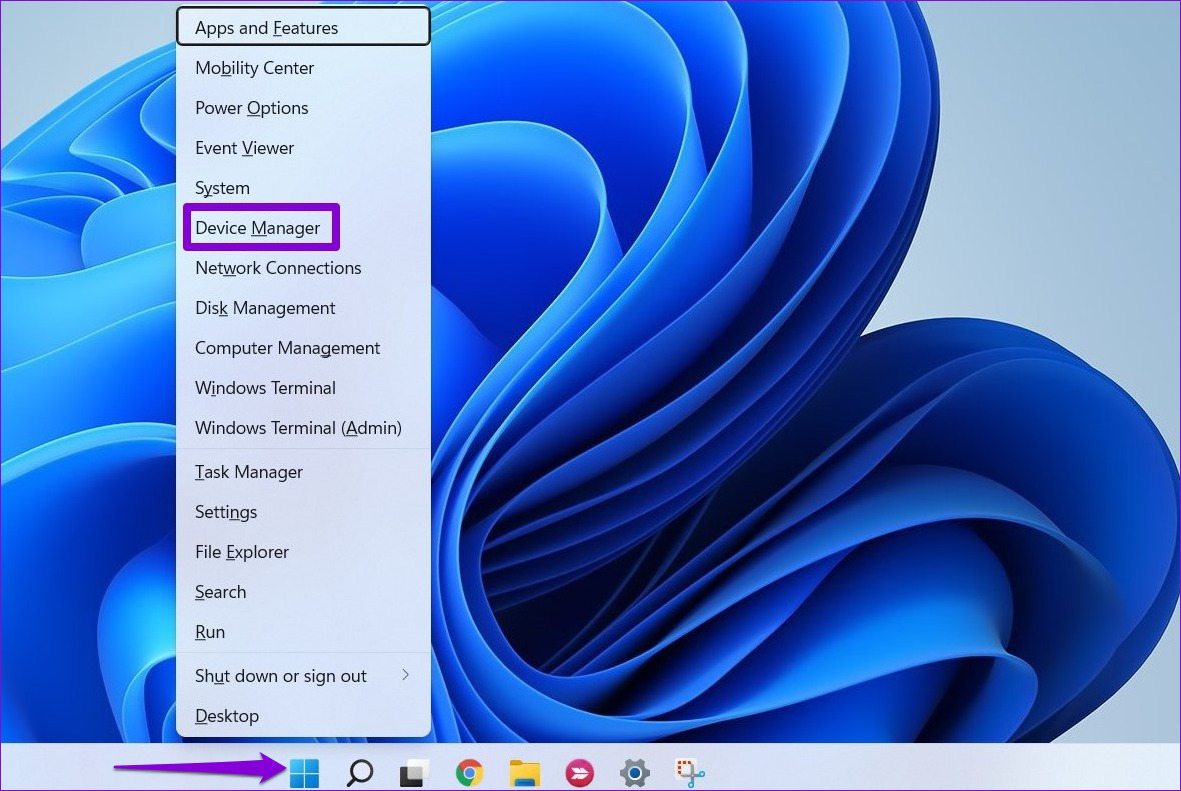
Step 1: Right-click the Start icon and select Device Manager from the list.
Step 2: Double-click on “Human Interface Devices,” right-click on the Airplane Mode Switch entry and select Uninstall device. Then, hit Uninstall to confirm.

Restart your PC after this and Windows will automatically reinstall the missing driver on boot. Following that, you should be able to enable or disable airplane mode.
Fix 3: Disable and Enable Network Adapter
Sometimes issues with the network adapter on your PC can cause the airplane mode to appear grayed out. In such cases, you can try disabling the network adapter and enabling it again to resolve the issue.
Step 1: Open Device Manager and double-click on Network adapters to expand it.
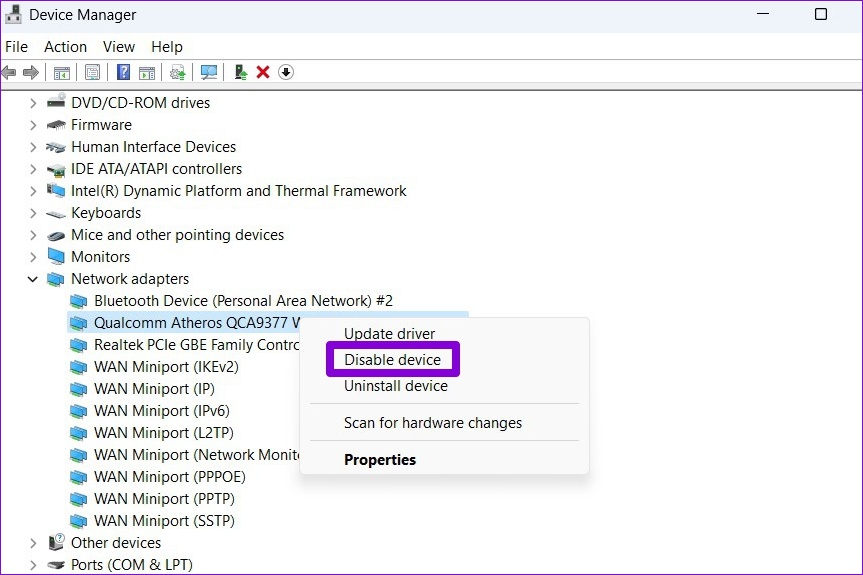
Step 2: Right-click on your wireless network adapter and select Disable device.
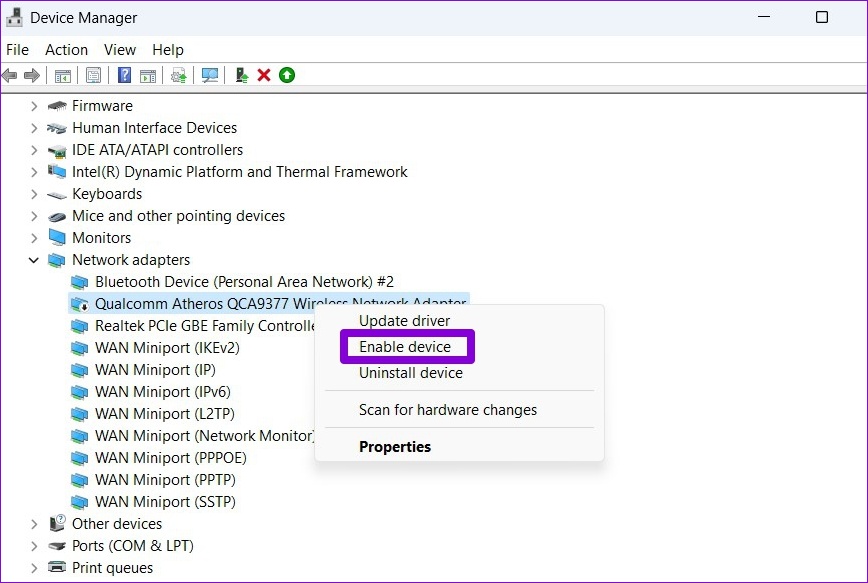
Step 3: Right-click on the network adapter again and select Enable device.
Fix 4: Update Network Adapter Driver
If re-enabling the network adapter driver doesn’t help, then it could be the case of drivers being outdated. In that case, you can try updating the network adapter driver on Windows.
Step 1: Click on the search icon on the taskbar, type device manager in the box and press Enter.

Step 2: Expand Network adapters, right-click on your wireless network adapter, and select Update driver.
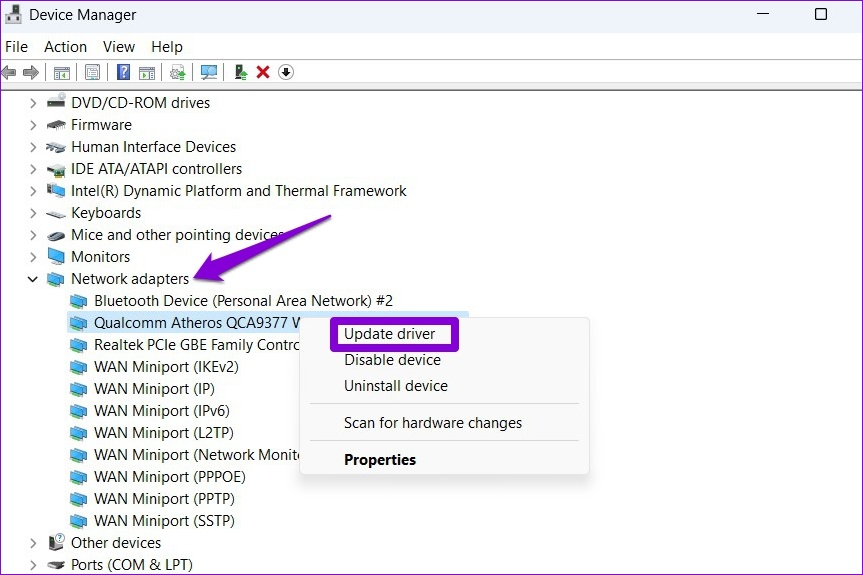
From there, follow the on-screen instructions to finish updating the driver. Following that, the airplane mode should not appear grayed out.
Fix 5: Tweak Registry Values
If the problem persists, you can modify the “RadioEnable” key via the Registry Editor to enable or disable wireless connectivity on your PC. Here are the steps for the same.
Step 1: Press the Windows key + R to launch the Run command, type in regedit, and press Enter.
Step 2: In the Registry Editor window, paste the following path in the address bar at the top and press Enter. This will take you to the Control key:
HKEY_LOCAL_MACHINE\SYSTEM\CurrentControlSet\Control
Step 3: Right-click on the Control key and select Find.
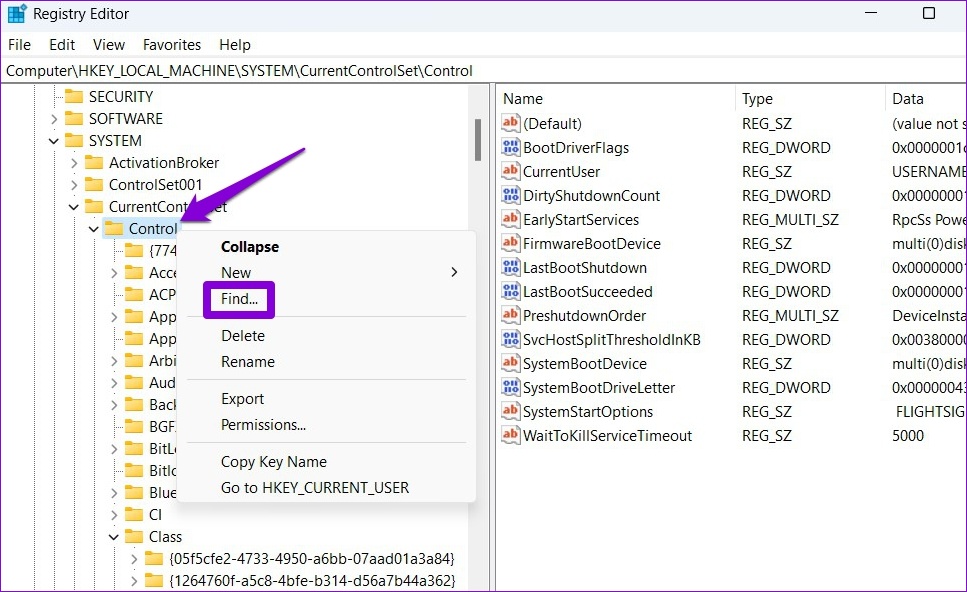
Step 4: Type RadioEnable in the box and click on Find Next.

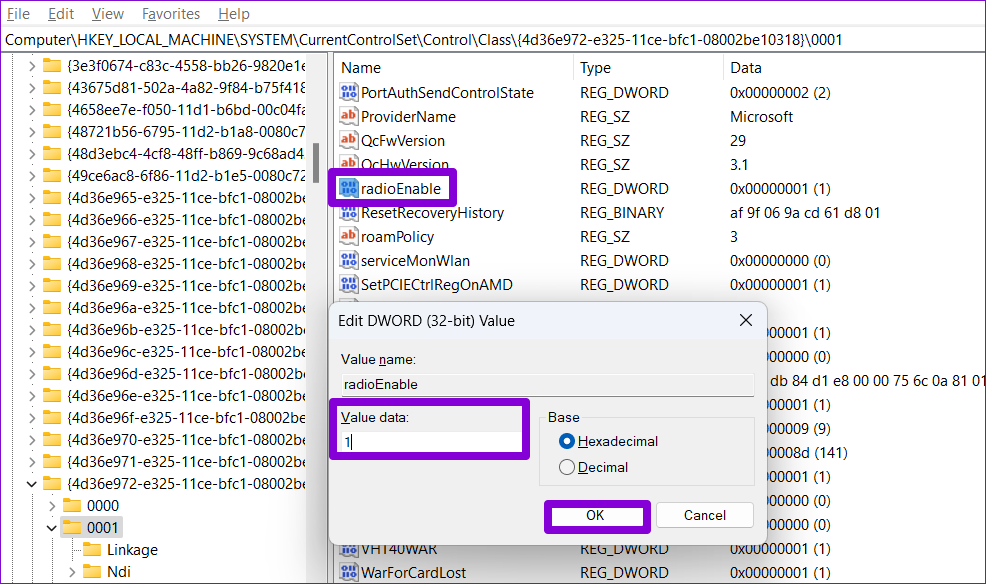
Step 5: After you locate the RadioEnable entry, double-click on it and change its value data to 1 before hitting OK. This will disable the airplane mode. Similarly, setting its value to 0 will enable airplane mode.
Fix 6: Reset Network Settings
If the airplane mode still appears grayed out at this point, resetting network settings on Windows may be your only option. Here’s how you can go about it.
Step 1: Press the Windows key + I to launch the Settings app. In the Network & internet tab, click on Advanced network settings.

Step 2: Under More settings, click on Network reset.
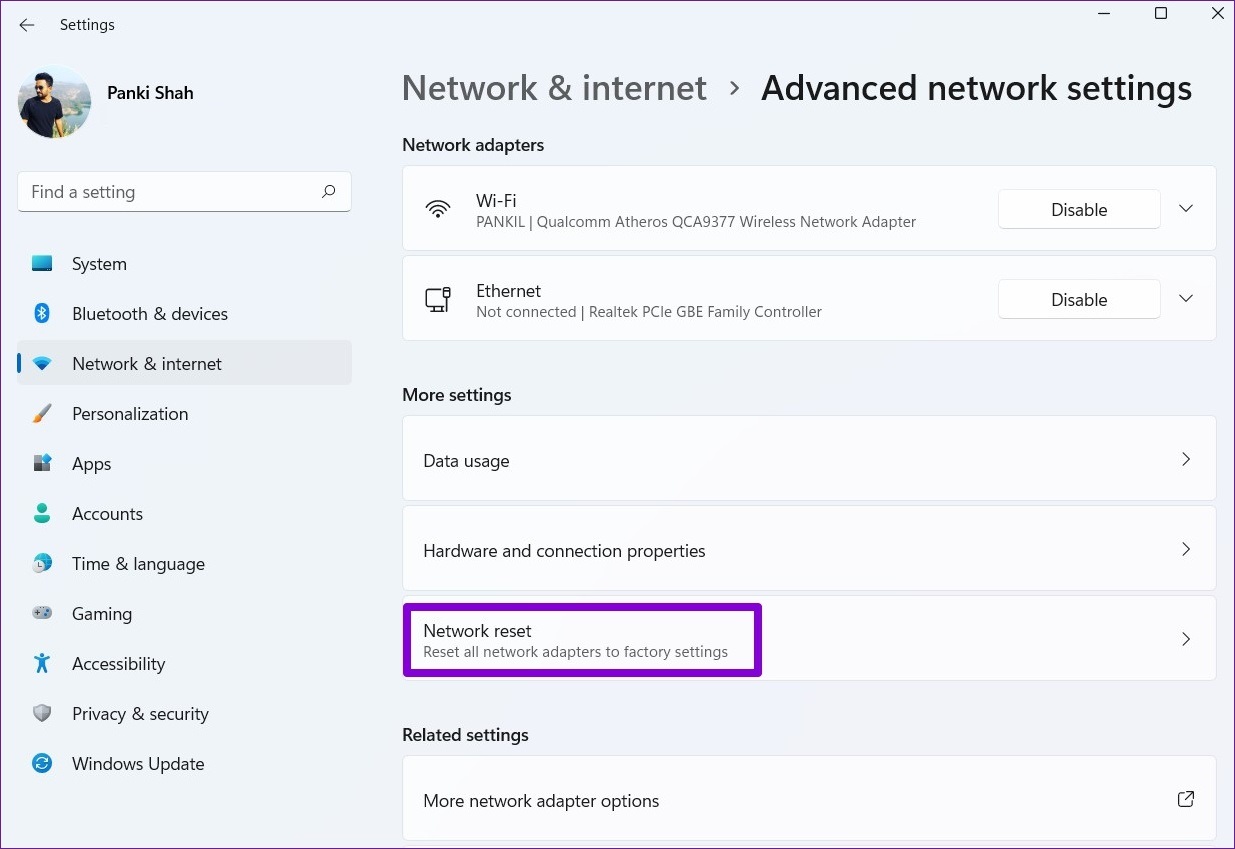
Step 3: Click the Reset now button next to Network reset.

Was this helpful?
Last updated on 22 July, 2024
2 Comments
Leave a Reply
Read Next
 8 Ways to Fix Recycle Bin Is Grayed out Issue in Windows 10
The Recycle Bin acts as a failsafe for when you delete a file or folder and need to restore it.
8 Ways to Fix Recycle Bin Is Grayed out Issue in Windows 10
The Recycle Bin acts as a failsafe for when you delete a file or folder and need to restore it.
 Top 5 Ways to Fix Screen Resolution Setting Grayed Out Problem on Windows 10
Whether you’ve plugged in a new monitor or trying to improve the video performance, tweaking your screen resolution to the right settings is the key to a better viewing experience.
Top 5 Ways to Fix Screen Resolution Setting Grayed Out Problem on Windows 10
Whether you’ve plugged in a new monitor or trying to improve the video performance, tweaking your screen resolution to the right settings is the key to a better viewing experience.
 4 Ways to Fix Location Services Grayed Out on Windows 11
Fix 1: Configure Geolocation Service Geolocation Service is a small program that needs to run in the background for the location services to work.
4 Ways to Fix Location Services Grayed Out on Windows 11
Fix 1: Configure Geolocation Service Geolocation Service is a small program that needs to run in the background for the location services to work.
 5 Ways to Fix Windows Stuck in Airplane Mode
Try Basic Fixes Restart Windows: Restarting any device can fix most temporary issues where a process gets stuck.
5 Ways to Fix Windows Stuck in Airplane Mode
Try Basic Fixes Restart Windows: Restarting any device can fix most temporary issues where a process gets stuck.
 8 Ways to Fix Windows 11 Stuck in Airplane Mode
Basic Fixes: Restart Windows 11: Restarting your device regularly can help keep it running smoothly.
8 Ways to Fix Windows 11 Stuck in Airplane Mode
Basic Fixes: Restart Windows 11: Restarting your device regularly can help keep it running smoothly.
 4 Best Fixes for Windows 10 Mobile Hotspot Grayed Out
Basic Fixes Check network connection: Ensure there are no problems with network connectivity or the router/modem.
4 Best Fixes for Windows 10 Mobile Hotspot Grayed Out
Basic Fixes Check network connection: Ensure there are no problems with network connectivity or the router/modem.
 How to Fix Safari’s Clear History, Website Data Grayed Out Issue
All You Need to Do: Disable Content Restrictions To put any concerns to rest, there’s nothing wrong with your iPhone or iPad.
How to Fix Safari’s Clear History, Website Data Grayed Out Issue
All You Need to Do: Disable Content Restrictions To put any concerns to rest, there’s nothing wrong with your iPhone or iPad.
 How to Turn off Airplane Mode in Dell Laptop
Laptops are a bit different than PC and often come loaded with features.
How to Turn off Airplane Mode in Dell Laptop
Laptops are a bit different than PC and often come loaded with features.
The article above may contain affiliate links which help support Guiding Tech. The content remains unbiased and authentic and will never affect our editorial integrity.


For anyone having this problem, I know how frustrating it can be trying dozens of different remedies and none of them solved the problem. Well, I have found one sure Fix for Windows 10 Airplane Mode Grayed-out and Stuck in the “On” position. I had the problem as well, did some digging around in Device Manager and came up with the solution. Do the following:
Open Device Manager by pressing the Windows & X keys together, and from the list that pops up, choose Device Manager. In the list of devices in Device Manager, Look for, and Expand “Human Interface Devices” or “HID”. Expanded, you should see “Airplane Mode Switch”. Right-Click on it and choose ”Uninstall Device”, and before you click the OK button, Check the box in front of “Delete the driver file from this device”. After you have checked the box, then Click “OK”. Now close-out of Device Manager and restart your computer by clicking the Windows “Start” button, choosing “Power”, then Restart. After your computer completely boots up, all you need to do next is Click the “Start” button, “Settings”, and choose “Network & Internet”. You will now be able to “Switch-Off” Airplane Mode, and “Switch-On” Wi-Fi again. Finally ☺
– MC
Wow…Thank you very much.I did that now and it’s settled