


Method 1: Default Clipboard
Step 1: Open Finder on Mac, go to Edit in the menu bar, and choose Show Clipboard.
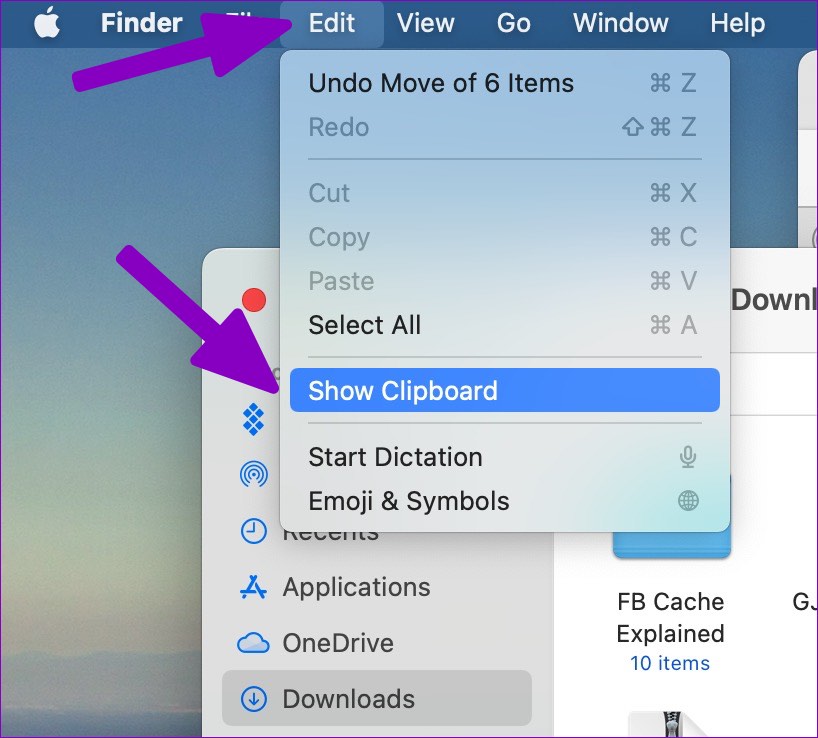
Step 3: Check your recently copied text.
We tried setting up a keyboard shortcut for the Mac clipboard using the System Preferences menu, but it didn’t work. The macOS clipboard isn’t intuitive and leaves much to be desired.
Let’s check a couple of third-party clipboard managers on Mac.
Method 2: Using Third-Party Apps
1. CopyClip
CopyClip is readily available to download from the Mac App Store, and the app supports Apple’s M-series CPU. Let’s check CopyClip in action.
Step 1: Open App Store on your Mac. Then, type copyclip in the search box and download the app.
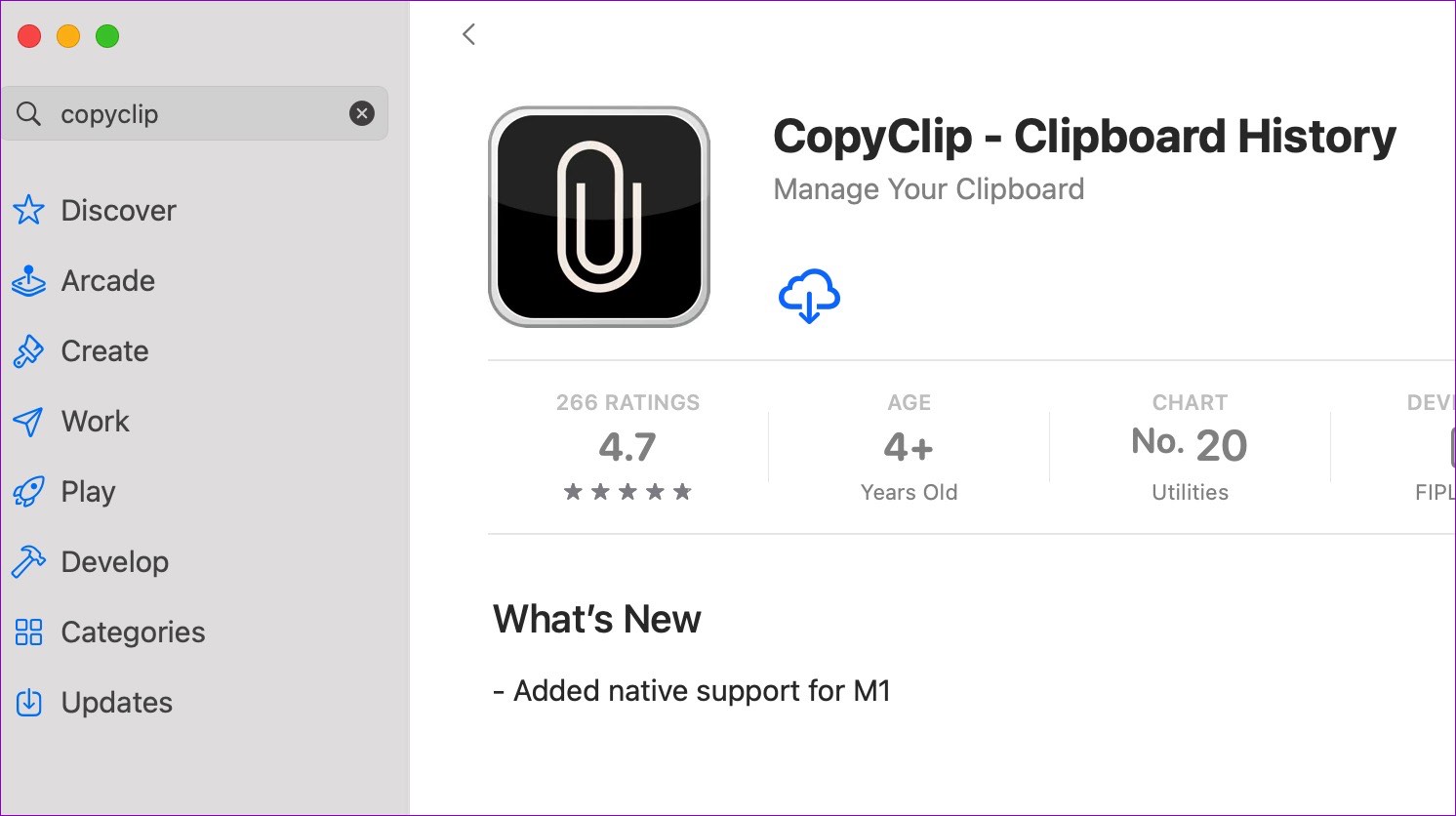
Step 2: Open the CopyClip app, check the box for Start app at login, and select Get Started. To customize the app, continue with the below steps.
Step 3: Launch CopyClip, right-click the CopyClip icon in the menu bar, and open Preferences.

Step 4: From the General menu, you can set the number of clippings to Remember and Display and check the box for Start CopyClip at system startup.

Step 5: Move to the Exceptions menu and ask CopyClip to exclude select apps from the list.

Whenever you copy a text or weblink, CopyClip will run in the background to save the same. Simply click the CopyClip icon in the menu bar and check your entire clipboard history on Mac. You can open CopyClip from the menu bar and select clear to remove clipboard history at any point. CopyClip is entirely free to download and use.
2. Paste
Paste is the best clipboard app on Mac. It’s a universal clipboard manager to sync copied content between iPhone, iPad, and Mac. Unlike the default Mac clipboard and CopyClip, you can create custom lists and smartly organize copied content. Here’s how to set up and use Paste on Mac.
Step 1: Download Paste from the official website or Mac App Store.
Step 2: Like CopyClip, Paste will enable a shortcut in the menu bar.
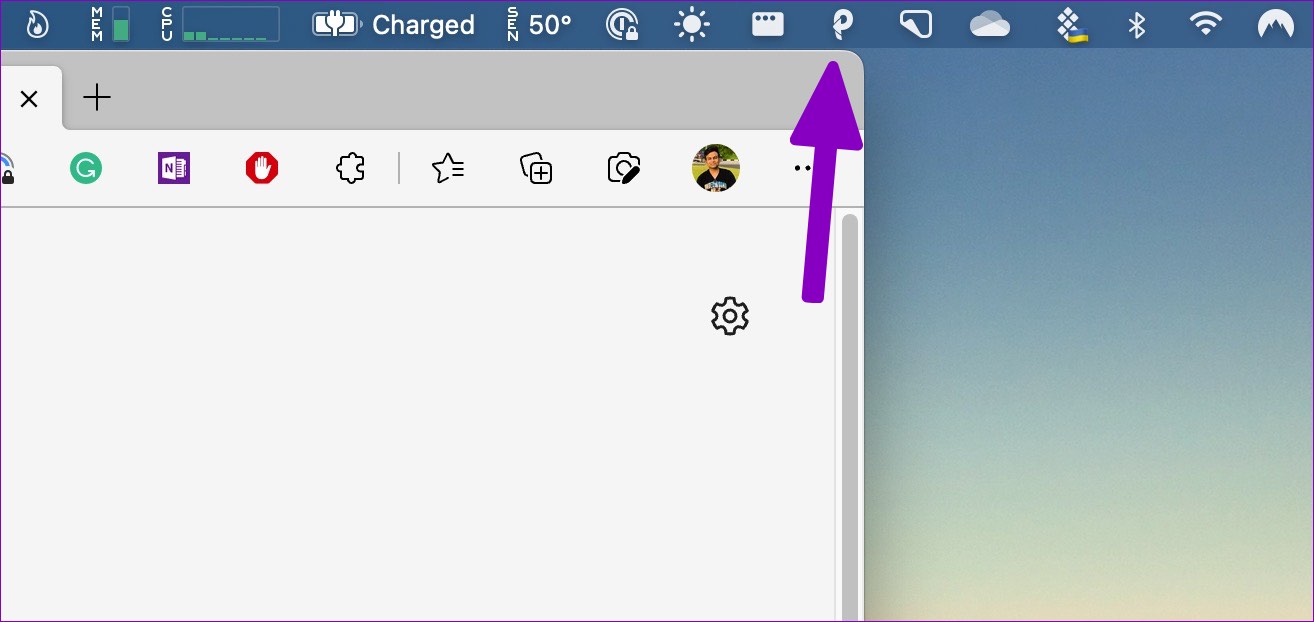
Step 3: You can use the command + shift + V keys to access the clipboard.
Whenever you copy text, Paste will save it in the app. Paste also shows the source app (from which you copied the text).
To customize the app, continue with the below steps.
Step 4: Launch Paste, right-click the Paste icon in the menu bar, and open Preferences.
Step 5: Enable Paste on system startup. You should also enable sound effects to ensure Paste copying text in the background.
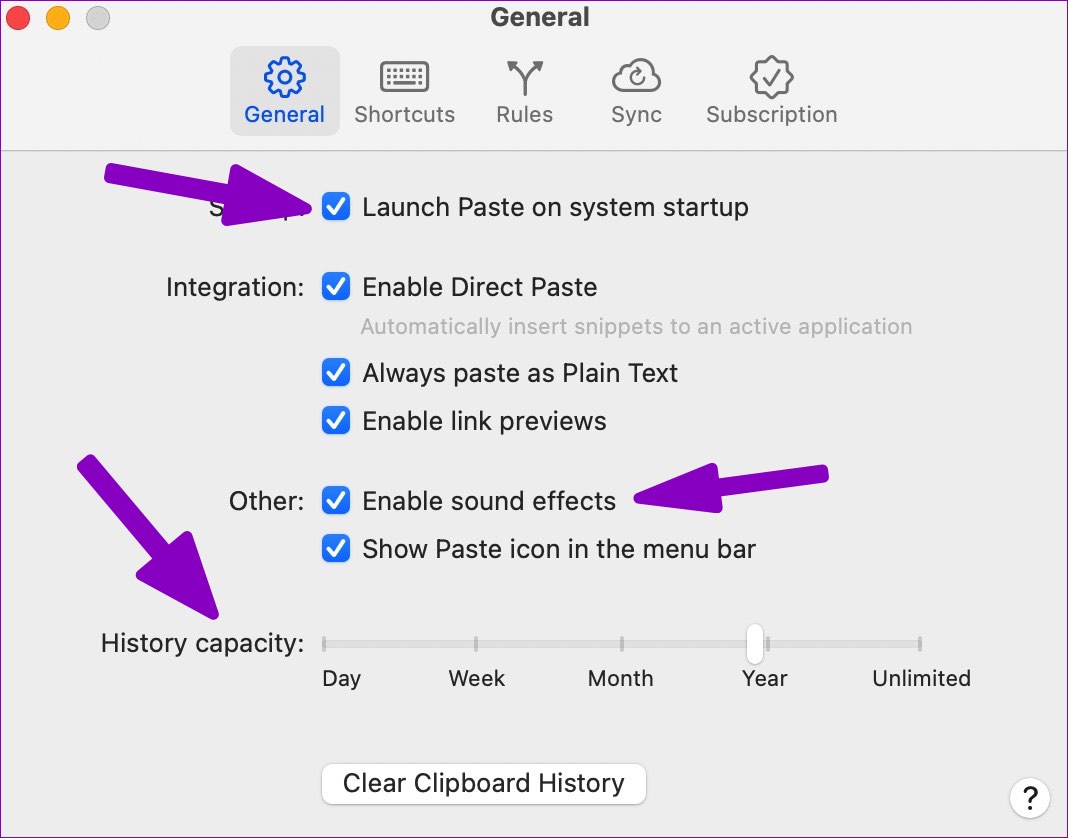
Step 6: Move to the Shortcuts menu and customize the key combination to your preference.

You can add apps not to save history from the Rules menu. To create a custom clipboard list, launch Paste and select the + icon. Give the list a dedicated name and move clipboard items in it.
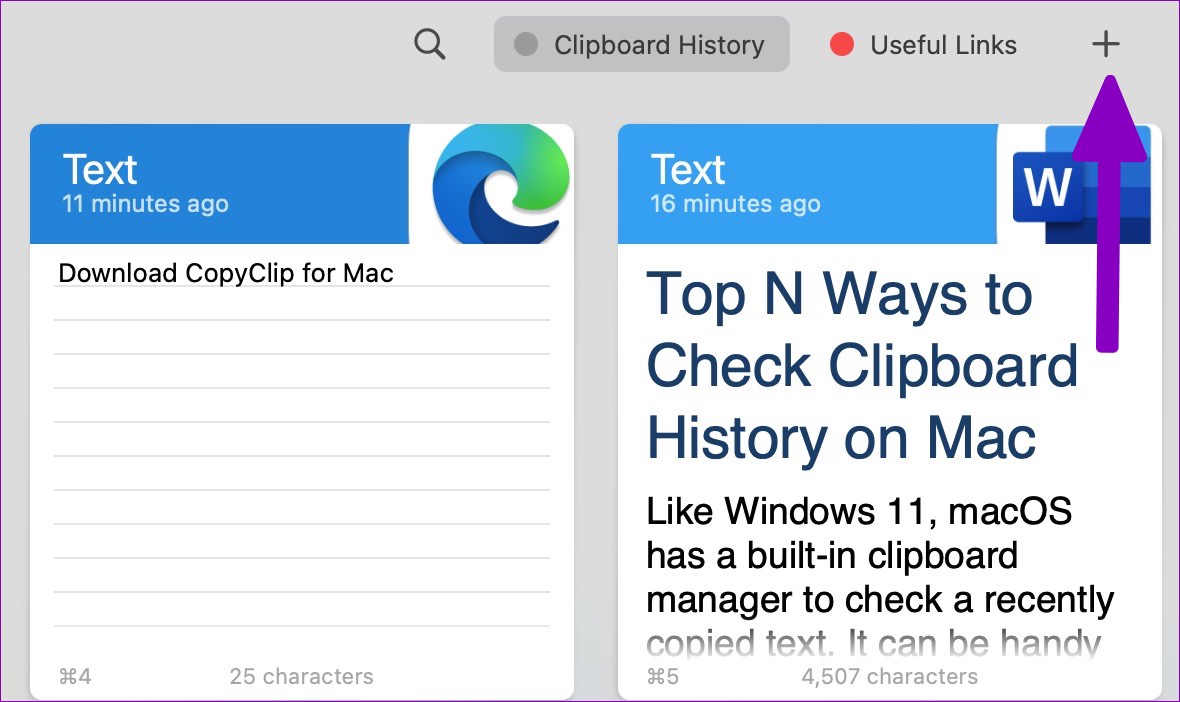
Paste is free to download. The app comes with a 14-day free trial, and after that, you must pay $10 per year (or $1 per month) to enjoy iCloud sync, custom clipboard lists, and more.
If you want a free clipboard app on Mac, go with CopyClip. It’s completely free, without any strings attached. Power users must sign up for a 14-day free trial for Paste and check the offering.
Was this helpful?
Last updated on 23 August, 2024
1 Comment
Leave a Reply
Read Next
 How to Check and Recover Clipboard History on Android
Method 1: Check and Recover Clipboard History Using Gboard One of the easiest ways to view and recover your clipboard history on an Android device is by using Gboard, the
How to Check and Recover Clipboard History on Android
Method 1: Check and Recover Clipboard History Using Gboard One of the easiest ways to view and recover your clipboard history on an Android device is by using Gboard, the
 3 Ways to Clear the Clipboard History in Windows 11
Method 1: Using the Clipboard Tab The easiest and quickest way to empty clipboard history in Windows is through the Clipboard tab.
3 Ways to Clear the Clipboard History in Windows 11
Method 1: Using the Clipboard Tab The easiest and quickest way to empty clipboard history in Windows is through the Clipboard tab.
 How to Check Your Mac’s Uptime, Reboot and Shutdown History
Are you curious to find out how often your Mac has been rebooted or shut down?
How to Check Your Mac’s Uptime, Reboot and Shutdown History
Are you curious to find out how often your Mac has been rebooted or shut down?
 How to Check Location History on iPhone, iPad, and Mac
How to Check Location History on iPhone and iPad iPhone and iPad are usually the only Apple device that gets carried everywhere we go.
How to Check Location History on iPhone, iPad, and Mac
How to Check Location History on iPhone and iPad iPhone and iPad are usually the only Apple device that gets carried everywhere we go.
 3 Ways to Access the Clipboard on Your iPhone
Method 1: Use the Notes App to See Clipboard Using the Notes app is a great way to not only access but also store the copied contents from a clipboard.
3 Ways to Access the Clipboard on Your iPhone
Method 1: Use the Notes App to See Clipboard Using the Notes app is a great way to not only access but also store the copied contents from a clipboard.
 3 Ways to Check Your Entire Uber Ride History
Method 1: Use the Activity Tab On Mobile On the Uber app on your iPhone/Android device, open the Activity tab to check your trip history.
3 Ways to Check Your Entire Uber Ride History
Method 1: Use the Activity Tab On Mobile On the Uber app on your iPhone/Android device, open the Activity tab to check your trip history.
 How to Check Call History of a Number on Android
How to Check Call History and Duration in Google Phone App Most Android phone manufacturers use Google’s Phone app by default.
How to Check Call History of a Number on Android
How to Check Call History and Duration in Google Phone App Most Android phone manufacturers use Google’s Phone app by default.
 How to Use Clipboard on Samsung Galaxy Phones
Use Clipboard in Samsung Keyboard You can use One UI's native clipboard if Samsung Keyboard is your default keyboard app.
How to Use Clipboard on Samsung Galaxy Phones
Use Clipboard in Samsung Keyboard You can use One UI's native clipboard if Samsung Keyboard is your default keyboard app.
The article above may contain affiliate links which help support Guiding Tech. The content remains unbiased and authentic and will never affect our editorial integrity.
Good article. Thank you. I was curious why you didn’t review the app Copy’Em, which is the clipboard manager Apple seems to recommend?