Mozilla Firefox includes a range of privacy and security features that let you control how websites and Firefox handle your browsing data. However, knowing exactly what Firefox privacy features you should have enabled isn’t necessarily intuitive.
This guide takes you through five Firefox privacy features and security settings that can help you stay secure and minimize your online fingerprint.
Essential Firefox Privacy Features No. 1: HTTPS-Only Mode
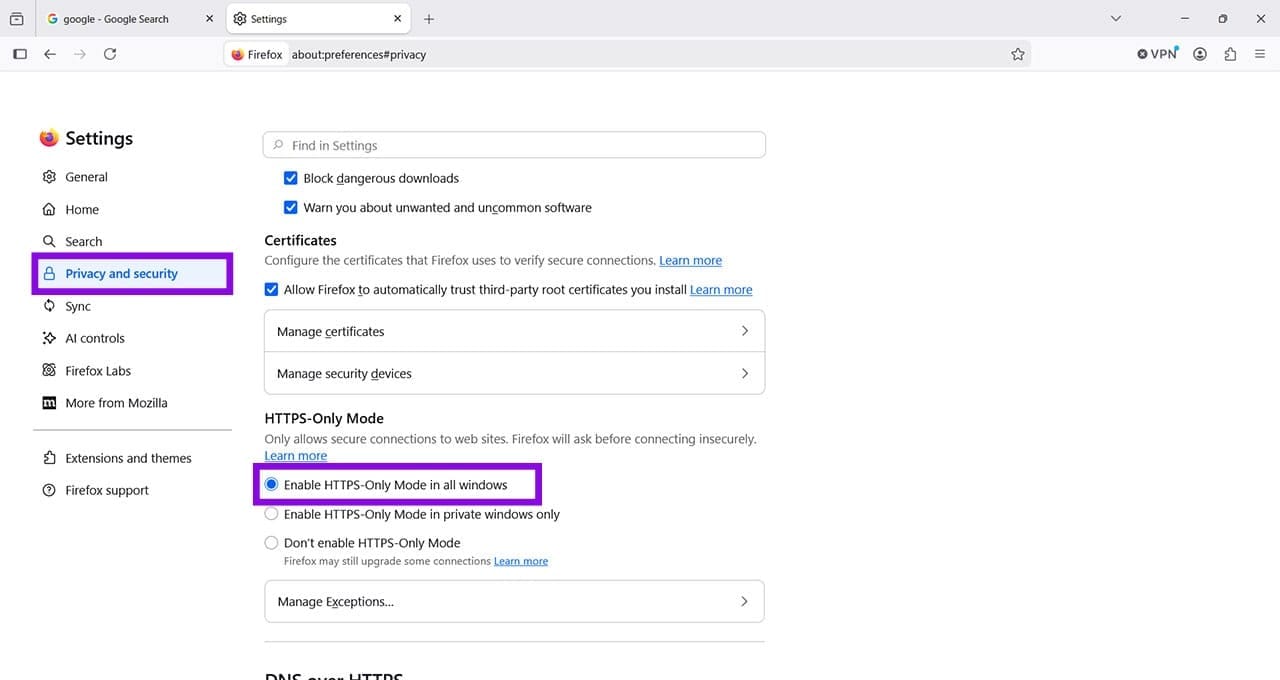
Step 1. HTTPS stands for Hypertext Transfer Protocol Secure, and it uses encryption to protect data transferred between your browser and a website. Switching to HTTPS-only mode means that you won’t accidentally end up at less secure HTTP sites. Start by opening Firefox, clicking the menu button (three horizontal lines in the top-right corner), and selecting Settings.

Step 2. Go to Privacy and security, and scroll down to find HTTPS-Only Mode. Select Enable HTTPS-Only Mode in all windows if you want Firefox to use HTTPS connections whenever possible.
No. 2: Enhanced Tracking Protection
Step 1. Some websites contain hidden trackers that can collect information about your online activity. Firefox’s Enhanced Tracking Protection blocks many known trackers and other tracking technologies. Go to Settings > Privacy and security, and you will see Enhanced Tracking Protection right at the top of the main window.
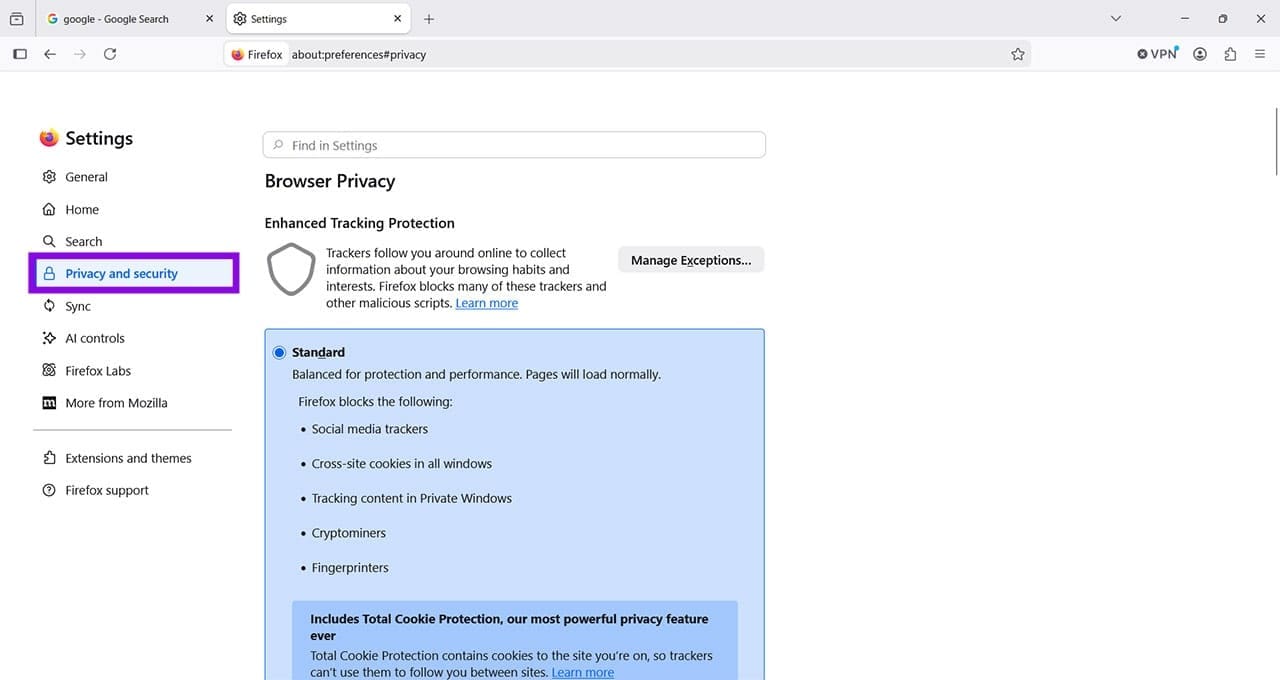
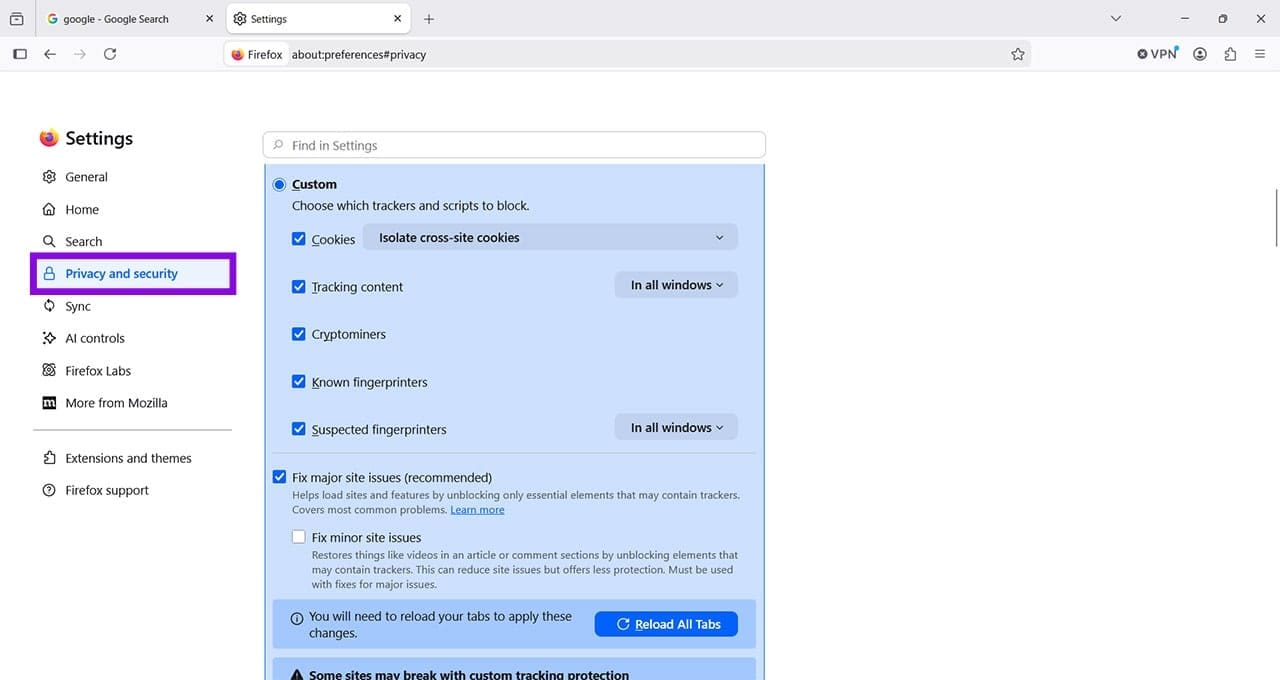
Step 2. Scroll down to select Strict, which will provide the highest level of protection from known trackers. Note: Some sites will simply not work with this level of protection activated, so you may need to turn this on and off if it is interfering with your browsing experience.

You can also choose Custom, which allows you to pick and choose what types of trackers are blocked.
No. 3: Use Firefox Without Saving History
Step 1. If you don’t want Firefox to retain your browsing history, go to Settings > Privacy and security > History.
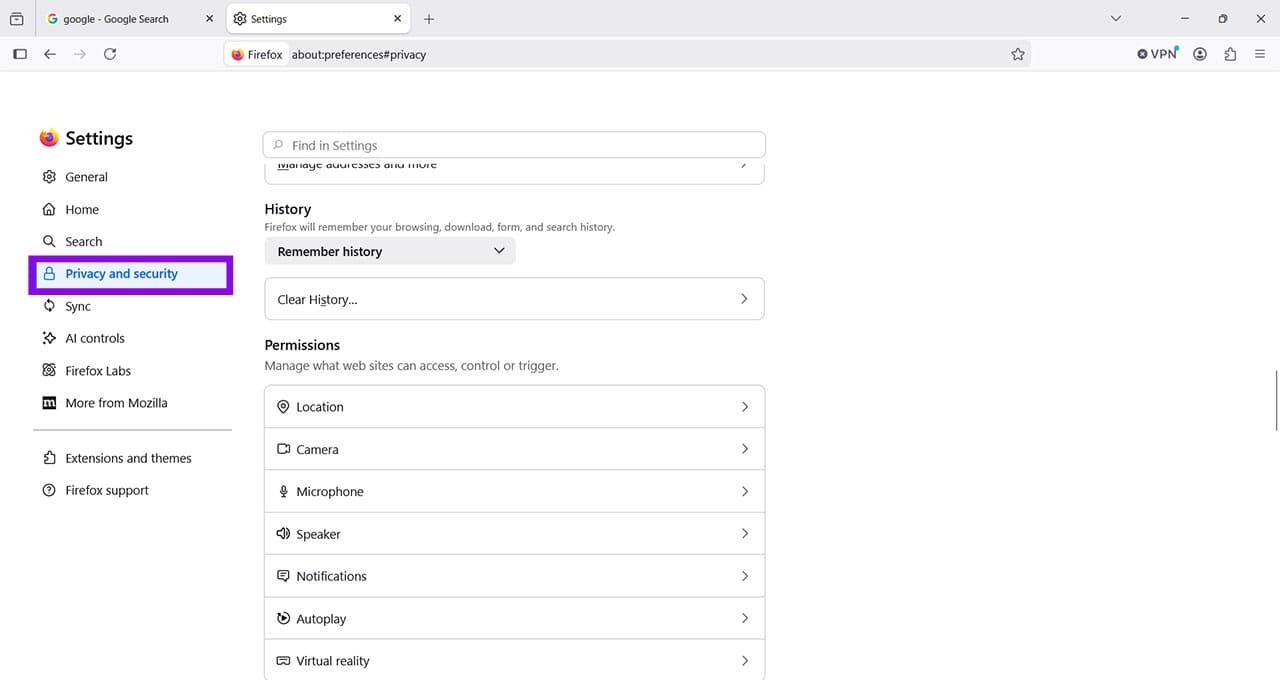
Step 2. Open the drop-down menu next to Firefox will and select Never remember history. Firefox will then operate as if you were always using Private Browsing, without saving your browsing history. It’s especially useful on shared computers.
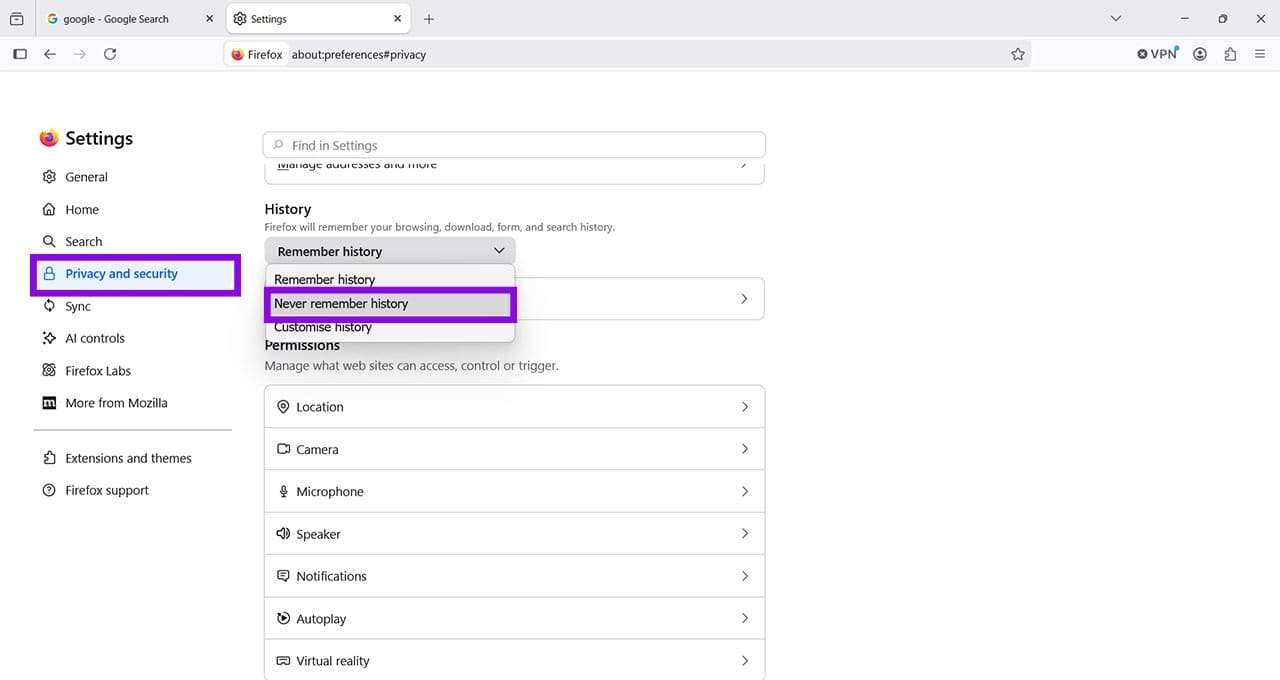
Note that Private Browsing doesn’t make you anonymous. Your internet service provider, employer, and websites can still collect information about your activity.
No. 4: Block Camera and Microphone Access
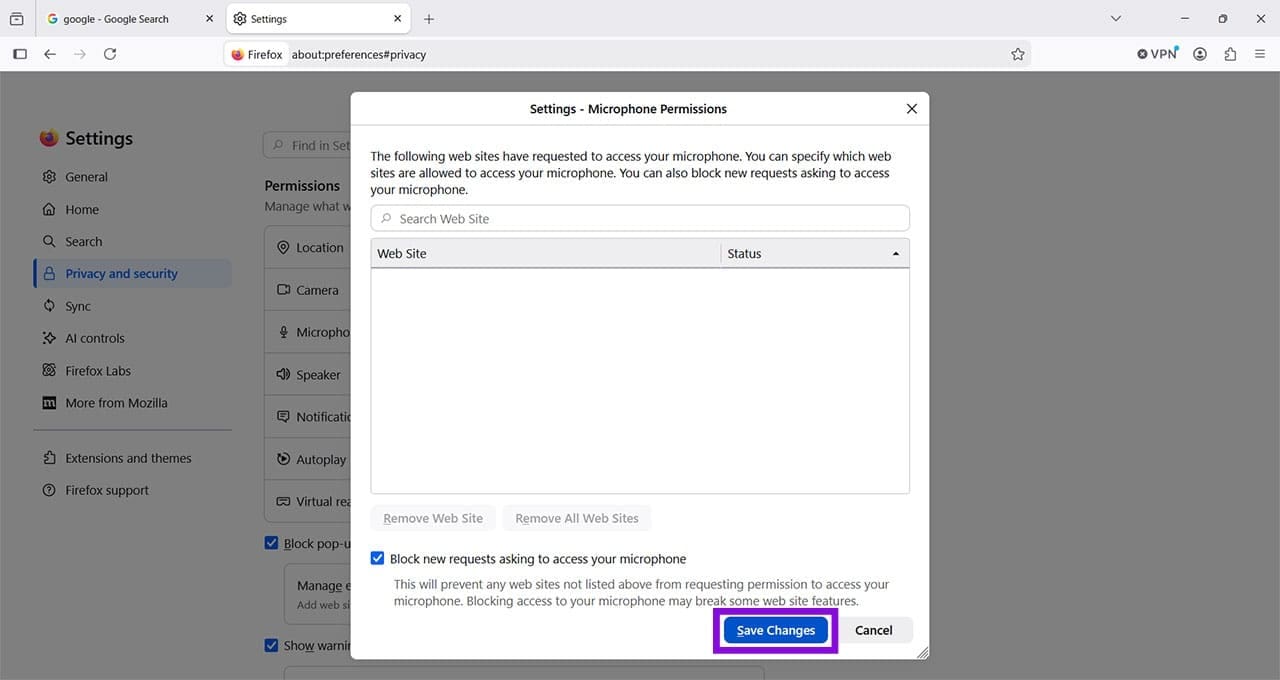
Step 1. Websites can request access to your camera and microphone when you use features such as video calls or voice recording. You can prevent new sites from requesting access by going to Settings > Privacy and security > Permissions.

Step 2. Click Settings next to Camera, select Block new requests asking to access your camera, and click Save Changes.

Step 3. Follow the same process for the microphone permissions.
No. 5: Disable Unused Add-Ons
Step 1. Extensions can request access to browsing data and other browser features, so it’s a good idea to remove extensions you don’t use and review the permissions of those you keep.
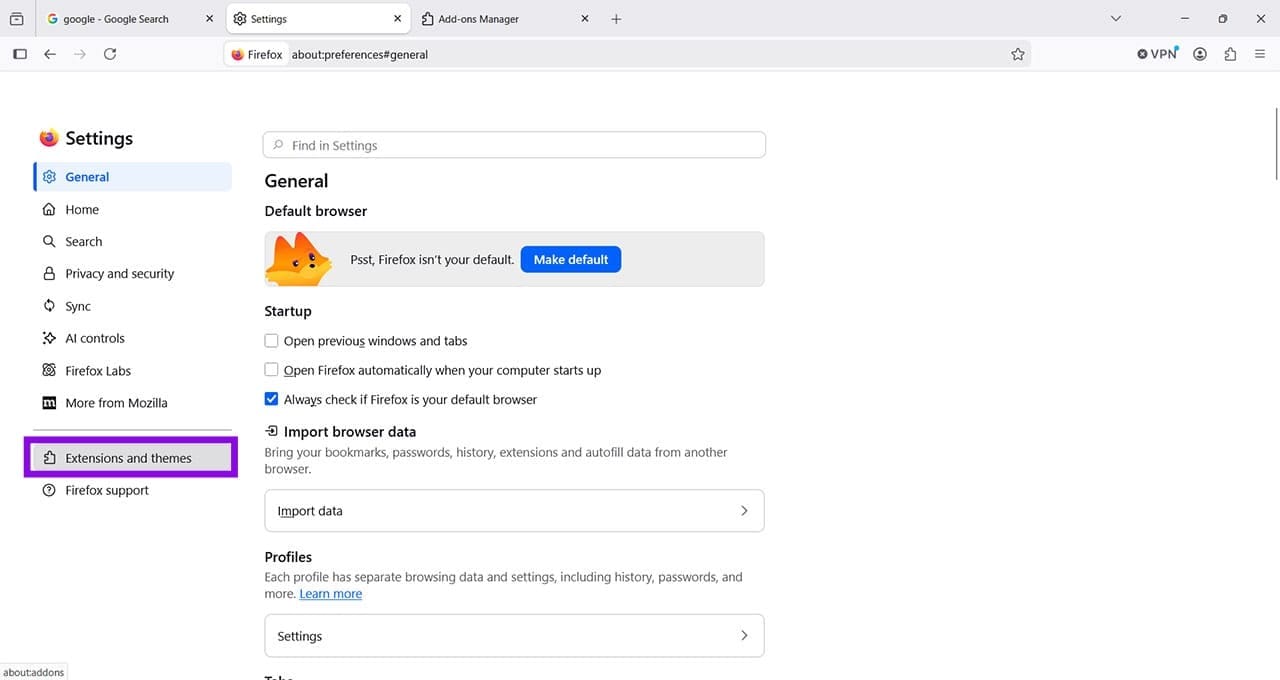
Step 2. This opens the Add-ons Manager, where you can select Extensions to see your installed extensions.
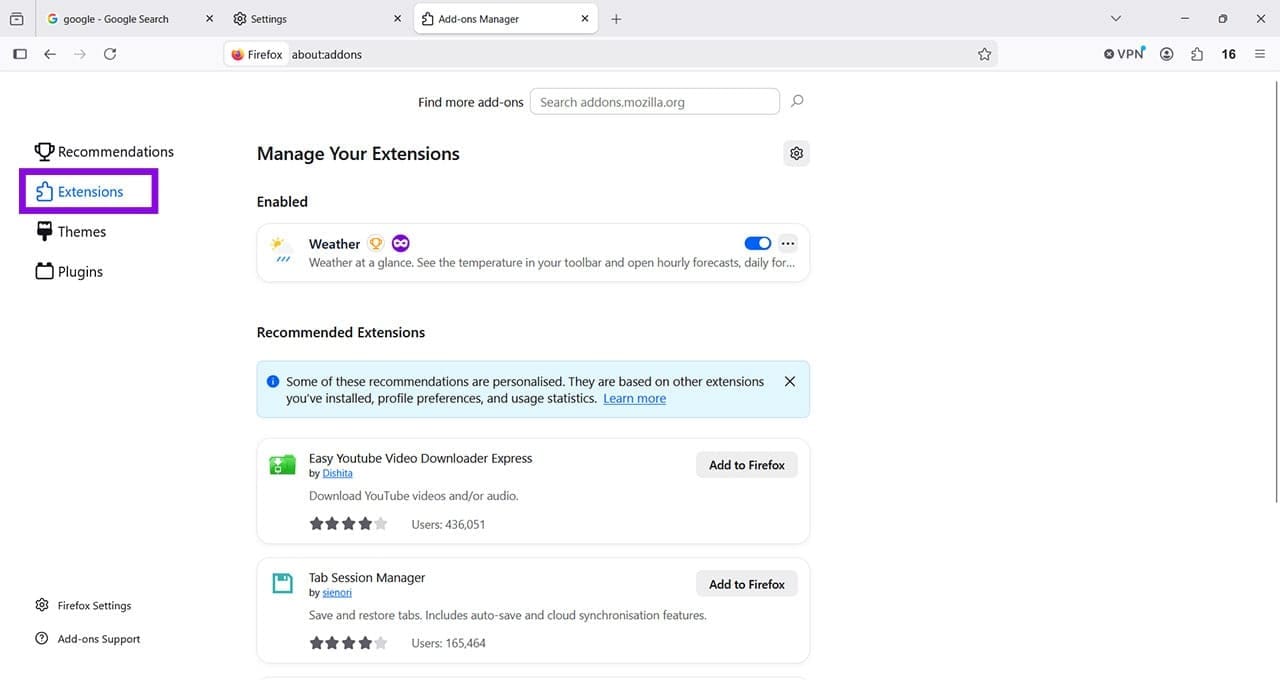
Step 3. Click the blue button to disable any unwanted add-ons. It should turn gray and say that the add-on is disabled.
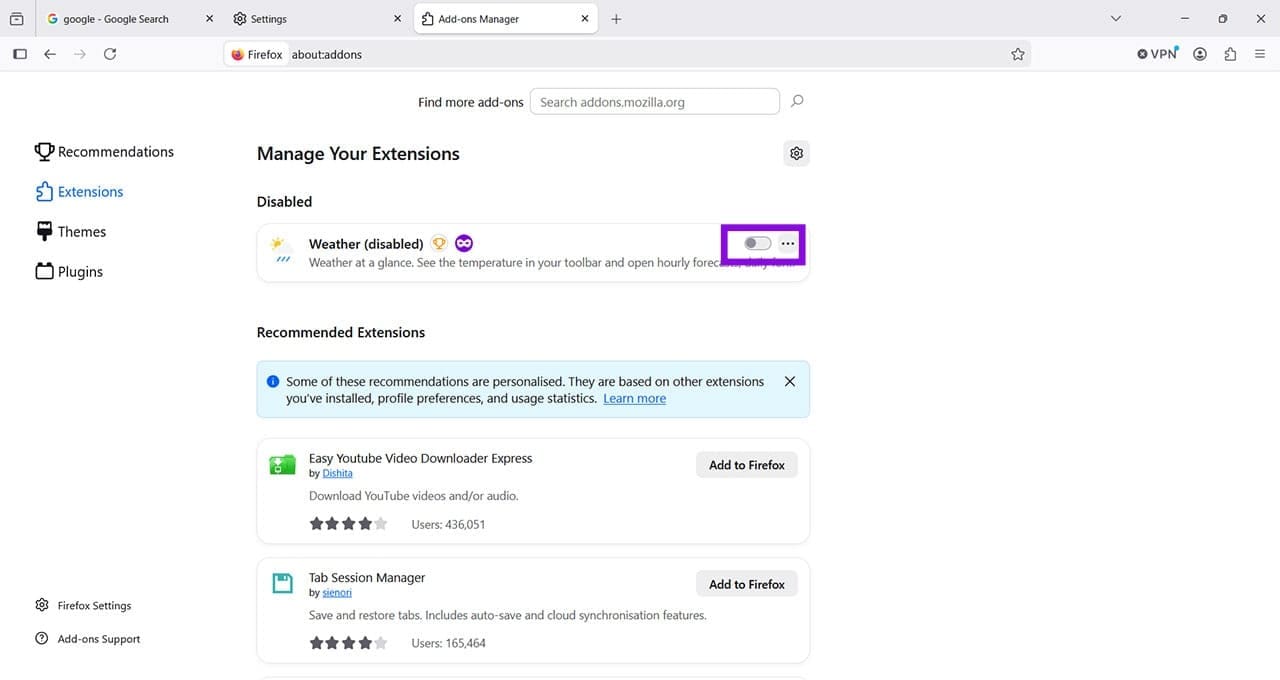
Step 4. You can also click the three buttons next to the extension and click Remove.

Was this helpful?
Last updated on 03 October, 2026
Read Next
 Firefox Focus vs DuckDuckGo: Which Is the Best Browser for Privacy
Firefox Focus vs DuckDuckGo Browsers: Key Differences FeaturesFirefox FocusDuckDuckGo BrowserTracking ProtectionIt offers enhanced tracking protection and allows you to block/unblock trackers and scripts for advertising, analytics, social media, and content.It
Firefox Focus vs DuckDuckGo: Which Is the Best Browser for Privacy
Firefox Focus vs DuckDuckGo Browsers: Key Differences FeaturesFirefox FocusDuckDuckGo BrowserTracking ProtectionIt offers enhanced tracking protection and allows you to block/unblock trackers and scripts for advertising, analytics, social media, and content.It
 Firefox vs Firefox Focus: Should You Switch
Firefox Focus is a strange name for a browser, and the fact that it’s developed by none other Mozilla is even weirder.
Firefox vs Firefox Focus: Should You Switch
Firefox Focus is a strange name for a browser, and the fact that it’s developed by none other Mozilla is even weirder.
 3 Ways to Enable Smooth Scrolling on Mozilla Firefox
What is Smooth Scrolling on Firefox When you scroll through a page and every time you swipe down or roll the wheel, the page moves down by a certain amount.
3 Ways to Enable Smooth Scrolling on Mozilla Firefox
What is Smooth Scrolling on Firefox When you scroll through a page and every time you swipe down or roll the wheel, the page moves down by a certain amount.
 Top 7 Privacy Screens for Computer Monitors
If you work in a crowded space or a high-traffic office space, a privacy screen is one of the best ways to keep your data private.
Top 7 Privacy Screens for Computer Monitors
If you work in a crowded space or a high-traffic office space, a privacy screen is one of the best ways to keep your data private.
 5 Instagram Privacy Settings That You Should Know
Basic Ways Make your profile private: Go to Settings > Account Privacy and enable Private Profile.
5 Instagram Privacy Settings That You Should Know
Basic Ways Make your profile private: Go to Settings > Account Privacy and enable Private Profile.
 Instagram Restrict vs. Block: Which Privacy Option Should You Use
What Does Restrict Mean on Instagram Touted as an anti-bullying feature, restrict on Instagram helps avoid unwanted interactions without letting the other person know about it.
Instagram Restrict vs. Block: Which Privacy Option Should You Use
What Does Restrict Mean on Instagram Touted as an anti-bullying feature, restrict on Instagram helps avoid unwanted interactions without letting the other person know about it.
 Restrict vs Block on Facebook: Which Privacy Setting Should You Use
Picture this — your parents join Facebook, and they add you.
Restrict vs Block on Facebook: Which Privacy Setting Should You Use
Picture this — your parents join Facebook, and they add you.
 6 Ways to Fix reCAPTCHA Not Working in Chrome, Firefox, and Other Browsers
Before you begin, ensure there are no problems with the network connection on your device.
6 Ways to Fix reCAPTCHA Not Working in Chrome, Firefox, and Other Browsers
Before you begin, ensure there are no problems with the network connection on your device.
The article above may contain affiliate links which help support Guiding Tech. The content remains unbiased and authentic and will never affect our editorial integrity.