Method 1: Uncheck Always Open This File Option
Chrome lets you automatically launch certain file types as soon as they’ve finished downloading locally. If you want to stop Chrome from launching a certain file type in its default program automatically, change the settings from the downloads panel. Here’s how.
Step 1: Open Chrome. Once the file is downloaded or has started, click the Download icon in the menu bar.
Step 2: Here, right-click on the downloading or downloaded file. Then, click on the Always open files of this type option.

You can also use the above steps to stop any other file type from opening automatically on Chrome. If the file is still downloading, it will not be automatically opened once the download is finished.
Tip: If you’re running an older version of Chrome, open Settings > Downloads. Click on Clear next to Open certain file types automatically after downloading. This will clear Chrome download preferences.
Method 2: Remove the Relevant Extension
Certain Chrome extensions will automatically launch selected file types, like PDFs, once they finish downloading. To stop that from happening, disable the relevant extension on Chrome. Follow the below steps to do it.
Step 1: Open Chrome and click on the three-dot icon in the top-right corner. Then, go to Extensions and click on Manage Extensions.

Step 2: Here, turn off the toggle for the relevant extension.
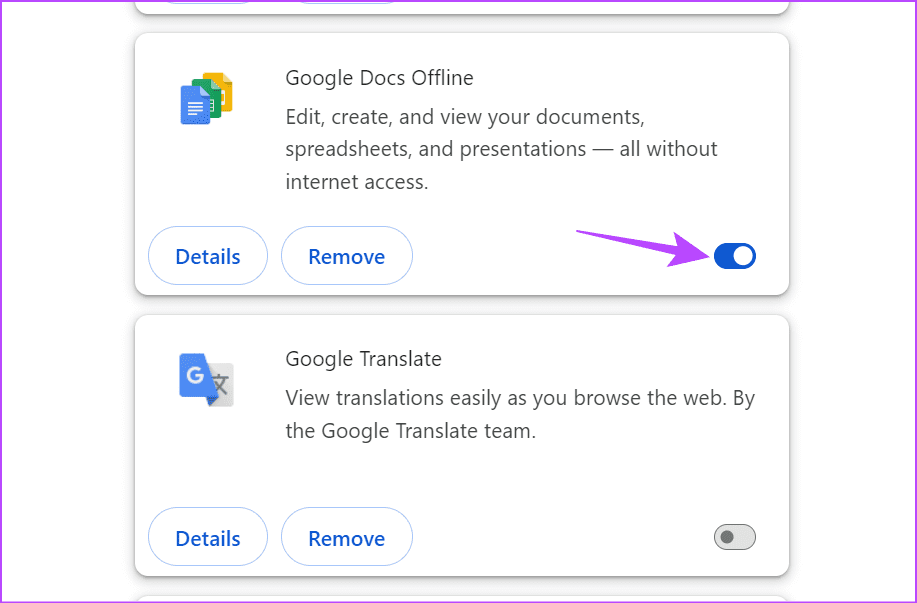
Repeat this process and ensure extensions, such as Adobe PDF Reader extension, are turned off. You can also remove the relevant extension from Chrome permanently.
Bonus: Stop Chrome PDF Downloads From Opening Automatically
The Adobe Acrobat Reader Windows app has a setting that allows it to launch PDF files once they have been downloaded in Chrome automatically. To stop this, turn it off from the app’s preferences menu. Here’s how to do it.
Step 1: Open Adobe Acrobat Reader and click on Menu. Here, click on Preferences.

Step 2: From the side menu, click on General. Then, uncheck the option for Open PDFs automatically in Reader when they are downloaded in Chrome browser.

Scroll down and click on OK to close the window and save the settings. You can also check our guide to learn more about opening PDF documents in Adobe Reader instead of a browser.
Was this helpful?
Last updated on 02 May, 2024
Read Next
 6 Fixes for Websites Opening Automatically in Google Chrome
Fix 1: Check Browser Extensions A poorly built third-party extension can often cause problems.
6 Fixes for Websites Opening Automatically in Google Chrome
Fix 1: Check Browser Extensions A poorly built third-party extension can often cause problems.
 How to Stop Chrome From Opening Old Tabs at Startup
Basic Fixes: Disable third-party tools: Some third-party tools can interfere with Chrome tabs.
How to Stop Chrome From Opening Old Tabs at Startup
Basic Fixes: Disable third-party tools: Some third-party tools can interfere with Chrome tabs.
 4 Ways to Stop Chrome From Opening Apps in Android
Fix 1: Turn off Instant Apps When you click on a link in Chrome, it may open as an Instant app.
4 Ways to Stop Chrome From Opening Apps in Android
Fix 1: Turn off Instant Apps When you click on a link in Chrome, it may open as an Instant app.
 3 Ways to Stop Instagram From Automatically Following Accounts
Fix 1: Unlink Third-Party Apps and Websites Third-party apps and services linked to your Instagram account may auto-follow specific accounts in the background.
3 Ways to Stop Instagram From Automatically Following Accounts
Fix 1: Unlink Third-Party Apps and Websites Third-party apps and services linked to your Instagram account may auto-follow specific accounts in the background.
 4 Ways to Fix Chrome Downloads Keep Pausing on Android
Basic Fixes: Close and restart Chrome: You can open all background apps and close Chrome.
4 Ways to Fix Chrome Downloads Keep Pausing on Android
Basic Fixes: Close and restart Chrome: You can open all background apps and close Chrome.
 6 Ways to Fix Samsung Internet Browser Keeps Opening Automatically
Fix 1: Block Pop-Ups Blocking pop-ups on Samsung Internet is one of the most effective ways to stop the browser from opening on its own.
6 Ways to Fix Samsung Internet Browser Keeps Opening Automatically
Fix 1: Block Pop-Ups Blocking pop-ups on Samsung Internet is one of the most effective ways to stop the browser from opening on its own.
 How to Stop Facebook From Scrolling Automatically
Basic Fixes Update your web browser: Ensure that you use the latest version of your preferred web browser.
How to Stop Facebook From Scrolling Automatically
Basic Fixes Update your web browser: Ensure that you use the latest version of your preferred web browser.
 How to Find Google Chrome Downloads on Mobile and Desktop
Find Google Chrome Downloads on Mac Step 1: Open Google Chrome and wait for the download process to complete.
How to Find Google Chrome Downloads on Mobile and Desktop
Find Google Chrome Downloads on Mac Step 1: Open Google Chrome and wait for the download process to complete.
The article above may contain affiliate links which help support Guiding Tech. The content remains unbiased and authentic and will never affect our editorial integrity.