


Basic Fixes
- Restart your iPhone: A simple restart can sometimes fix issues like this one.
- Check third-party apps: If you use a third-party app for your photos, check whether you have deleted the file from that app as well.
- Update iOS version: Install the latest iOS version depending on your iPhone’s model name.
Fix 1: Delete Photos From Messages
The Messages app also stores the photos received from contacts. You should delete them from the Messages app.
Step 1: Open the Messages app and go to your chat.
Step 2: Tap the contact icon at the top and select the Photos grid.
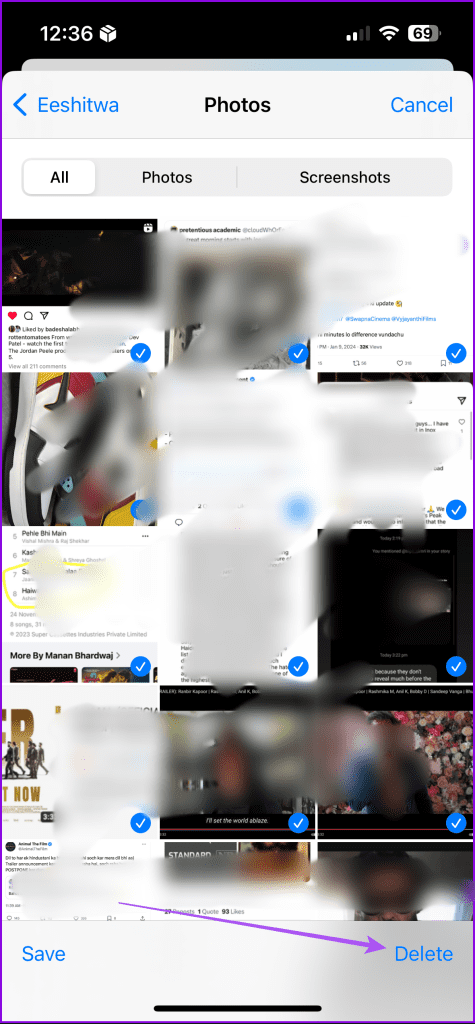
Step 3: Tap on Select at the top-right corner, choose the photos, and tap on Delete at the bottom-right corner.

Tip: Read our post if you receive the same messages on two iPhones.
Fix 2: Check and Delete Google Photos
Google Photos lets you remove photos from all your iCloud devices at once. Use this option to ensure that your photos don’t appear on other Apple devices even after deleting them on one device.
Step 1: Open the Google Photos app on your iPhone and select the photo that has not been deleted.
Step 2: Tap the Delete icon at the bottom-right corner and allow the app to delete the photo from all your Apple devices.
You can also choose to uninstall the Google Photos app if you don’t need it.
Fix 3: Empty Recently Deleted Folder
The Recently Deleted folder holds deleted photos for 30 days. After that, the photos are deleted automatically. But you can choose to empty that folder by manually deleting all photos.
Step 1: Open the Apple Photos app on your iPhone or iPad and tap on Albums at the bottom
Step 2: Scroll down and tap on Recently Deleted.
Step 3: Tap on Select at the top. Then, select all the photos, tap the three dots at the bottom-right corner, and tap on Delete.

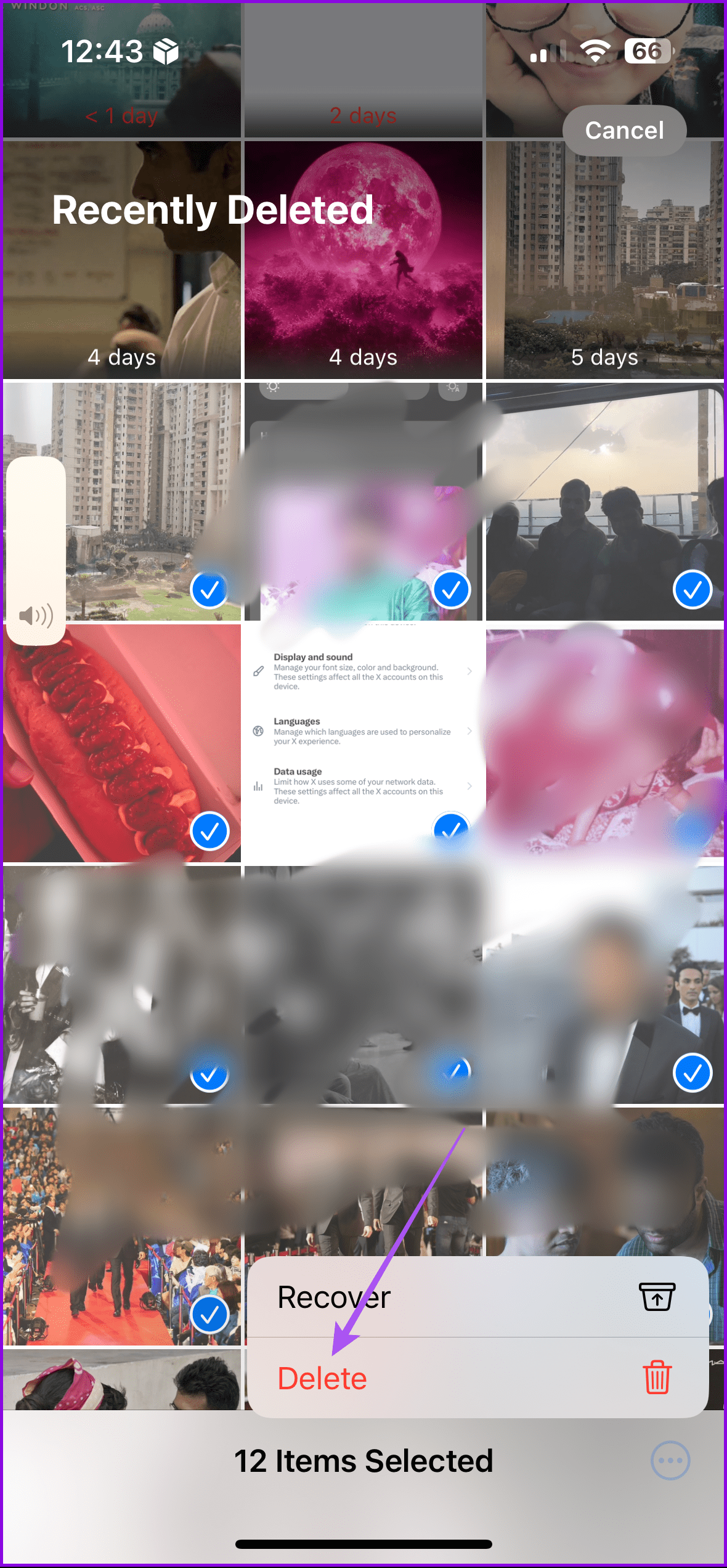
You can also check our detailed guide if you are unable to clean the Recently deleted folder.
Was this helpful?
Last updated on 11 June, 2024
1 Comment
Leave a Reply
Read Next
 7 Ways to Fix Discord Audio Not Coming Through Headset
Fix 1: Check the Default Audio Output Device on Your System To start, check the default audio output device on your Windows or Mac computer and ensure that audio is
7 Ways to Fix Discord Audio Not Coming Through Headset
Fix 1: Check the Default Audio Output Device on Your System To start, check the default audio output device on your Windows or Mac computer and ensure that audio is
 How to Fix iPhone Recently Deleted Photos Won’t Delete
Fix 1: Use Alternate Method to Delete the Album Go to Settings > General > Storage > select Photos from the list > tap on Empty Recently Deleted album.
How to Fix iPhone Recently Deleted Photos Won’t Delete
Fix 1: Use Alternate Method to Delete the Album Go to Settings > General > Storage > select Photos from the list > tap on Empty Recently Deleted album.
 5 Fixes for “Not All Contacts Were Deleted” Error on iPhone
Fix 1: Delete Contact Using the Same App Used to Create It One of the most common reasons you may encounter the "Not all contacts were deleted" error on your
5 Fixes for “Not All Contacts Were Deleted” Error on iPhone
Fix 1: Delete Contact Using the Same App Used to Create It One of the most common reasons you may encounter the "Not all contacts were deleted" error on your
 How to Stop Photos From Messages Saving to iPhone’s Camera Roll
Do your friends spam you with their vacation photos on iMessage?
How to Stop Photos From Messages Saving to iPhone’s Camera Roll
Do your friends spam you with their vacation photos on iMessage?
 3 Fixes for iMessage Photos Not Showing in Photos App
Basic Fixes Force quit and relaunch Messages app: You can force quit and relaunch the Messages app to give it a fresh start on your iPhone.
3 Fixes for iMessage Photos Not Showing in Photos App
Basic Fixes Force quit and relaunch Messages app: You can force quit and relaunch the Messages app to give it a fresh start on your iPhone.
 5 Ways to Retrieve Deleted Text Messages on iPhone
Method 1: Check the Recently Deleted Folder iOS lets you retrieve deleted text messages within 30 days.
5 Ways to Retrieve Deleted Text Messages on iPhone
Method 1: Check the Recently Deleted Folder iOS lets you retrieve deleted text messages within 30 days.
 5 Ways to Restore Deleted Contacts on iPhone
Method 1: Enable iCloud or Google Contacts Sometimes, contacts on your iPhone can simply disappear with an accidental tap.
5 Ways to Restore Deleted Contacts on iPhone
Method 1: Enable iCloud or Google Contacts Sometimes, contacts on your iPhone can simply disappear with an accidental tap.
 7 Methods to Find and Recover Deleted Videos on iPhone
A video can be an excellent way to relive a memory.
7 Methods to Find and Recover Deleted Videos on iPhone
A video can be an excellent way to relive a memory.
The article above may contain affiliate links which help support Guiding Tech. The content remains unbiased and authentic and will never affect our editorial integrity.


It was but for some reason every time I delete photos in messaging they keep coming back
Can you help?