Why Does My iPhone’s Bluetooth Keep Turning On?
Here are a few reasons your iPhone’s Bluetooth keeps turning on by itself:
- You haven’t disabled it properly from the Control Center.
- There’s a software glitch, automatically turning on Bluetooth.
- Other settings, like AirDrop, keep enabling Bluetooth.
- Certain connected Bluetooth devices keep enabling your iPhone’s Bluetooth.
- Some custom network settings keep auto-enabling Bluetooth unprompted.
Basic Fixes:
- Ask Siri to turn off Bluetooth: Use the Hey Siri voice command or long-press the side button to activate Siri. Say Turn off Bluetooth and wait for Siri to disable the function in Settings.
- Disable automation that turns on Bluetooth: The default Shortcuts app is Apple’s take on IFTTT. You can add several conditions to create automation to your preference. If you have set an action to turn on Bluetooth in automation, disable it.
- Check for iOS updates: A glitch in iOS software may lead to issues like Bluetooth turning on automatically. You should update iOS to the latest version to fix it.
Fix 1: Turn off Bluetooth From Settings
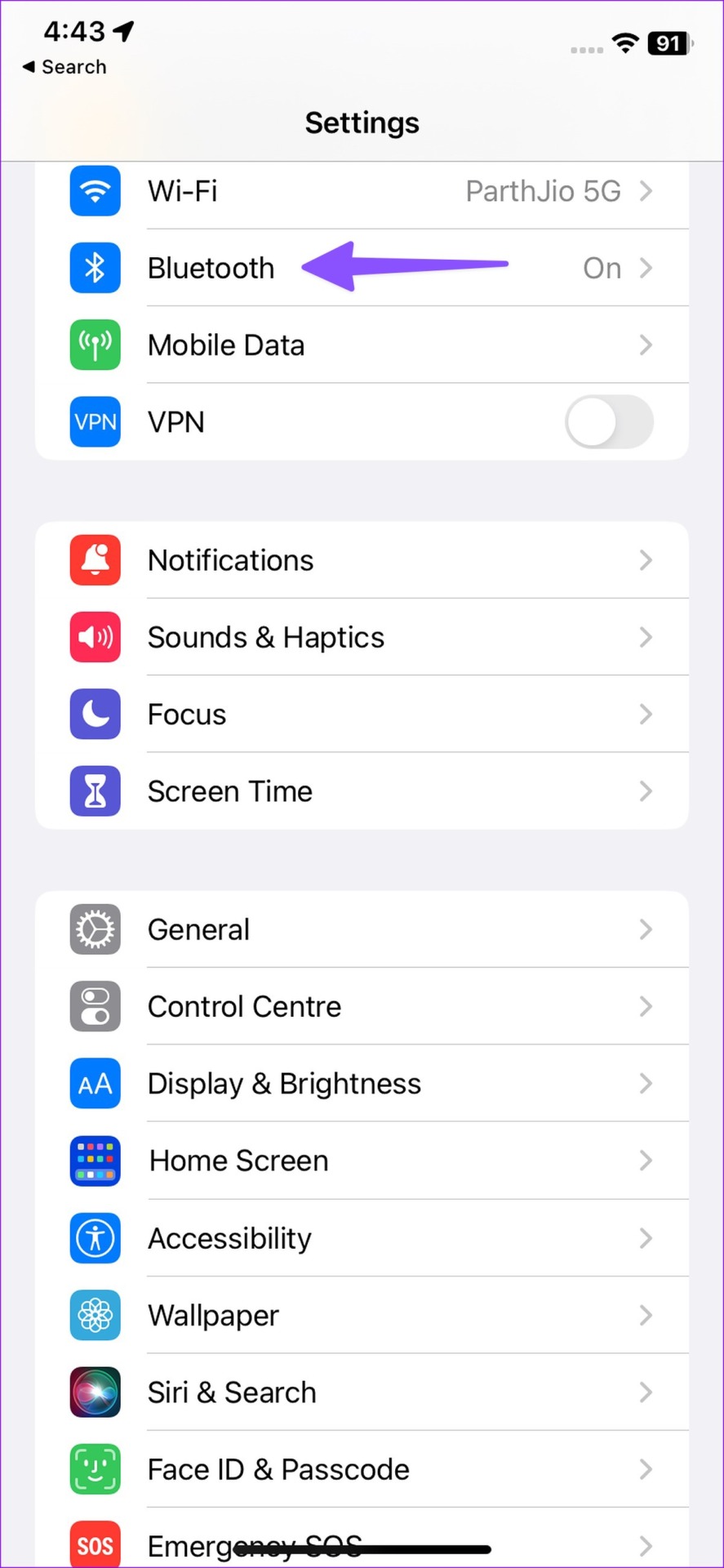
When you disable Bluetooth from the Control Center, the system might automatically enable it the following day. So, turn off Bluetooth from the Settings app to keep it disabled. Here’s how.
Step 1: Open the Settings app and select Bluetooth. Turn off the Bluetooth toggle.

Fix 2: Turn off AirDrop
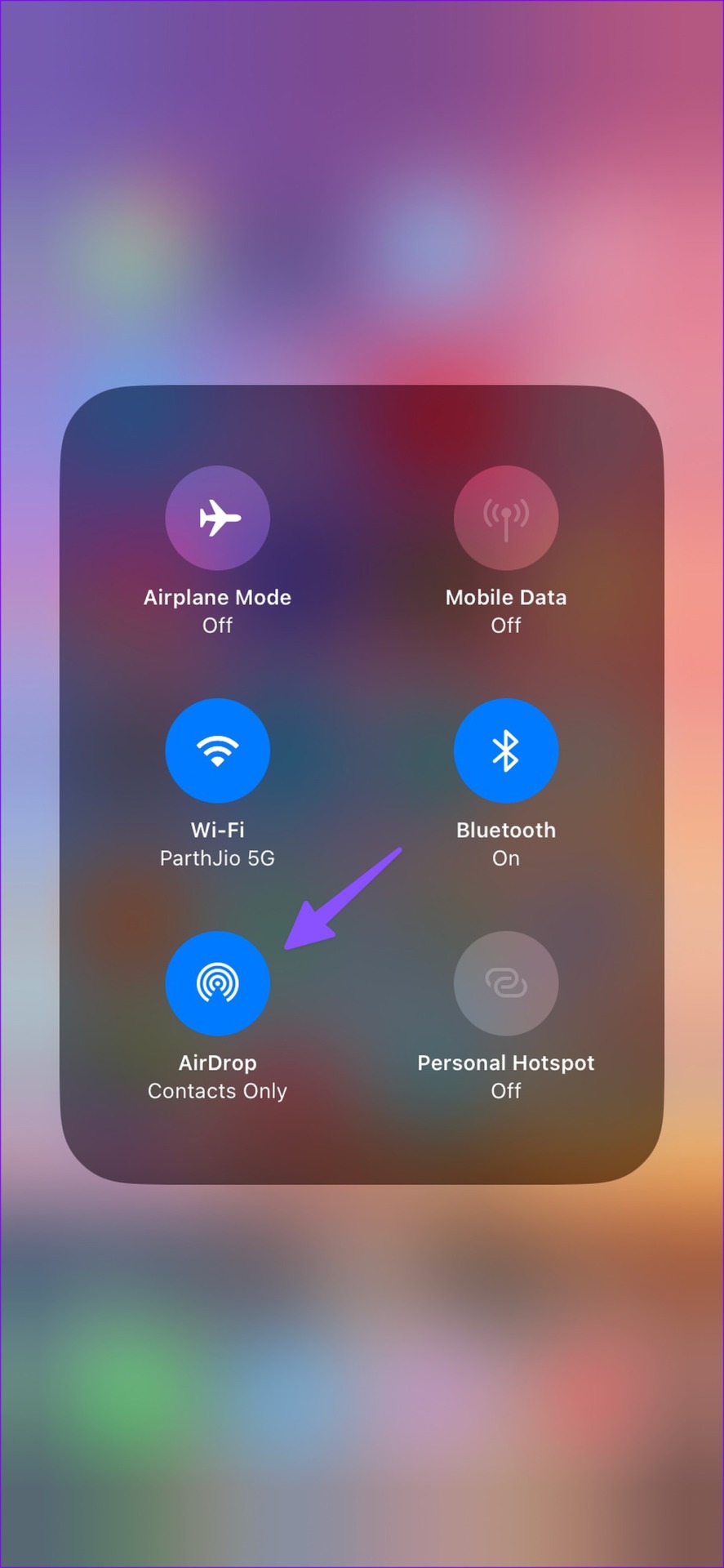
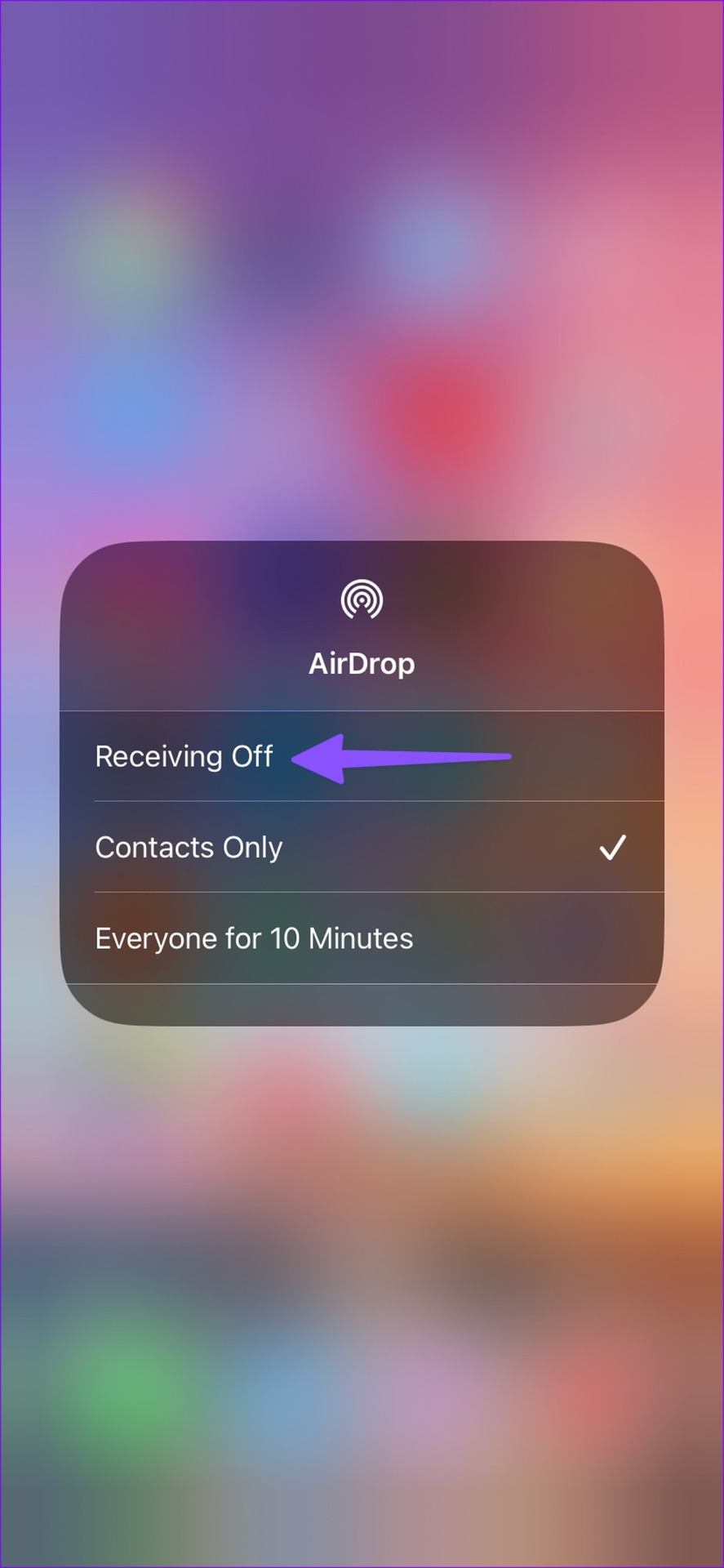
When you enable AirDrop, the function automatically turns on Bluetooth on your iPhone. AirDrop relies on Bluetooth to receive or send files. So, disable it on your iPhone. Then, turn off Bluetooth and see if this fixes the issue. Here’s how.
Step 1: Swipe down from the top-right corner to open the Control Center.
Step 2: Long-press the connections menu. Tap on AirDrop and select Receiving Off.

Fix 3: Remove Connected Devices
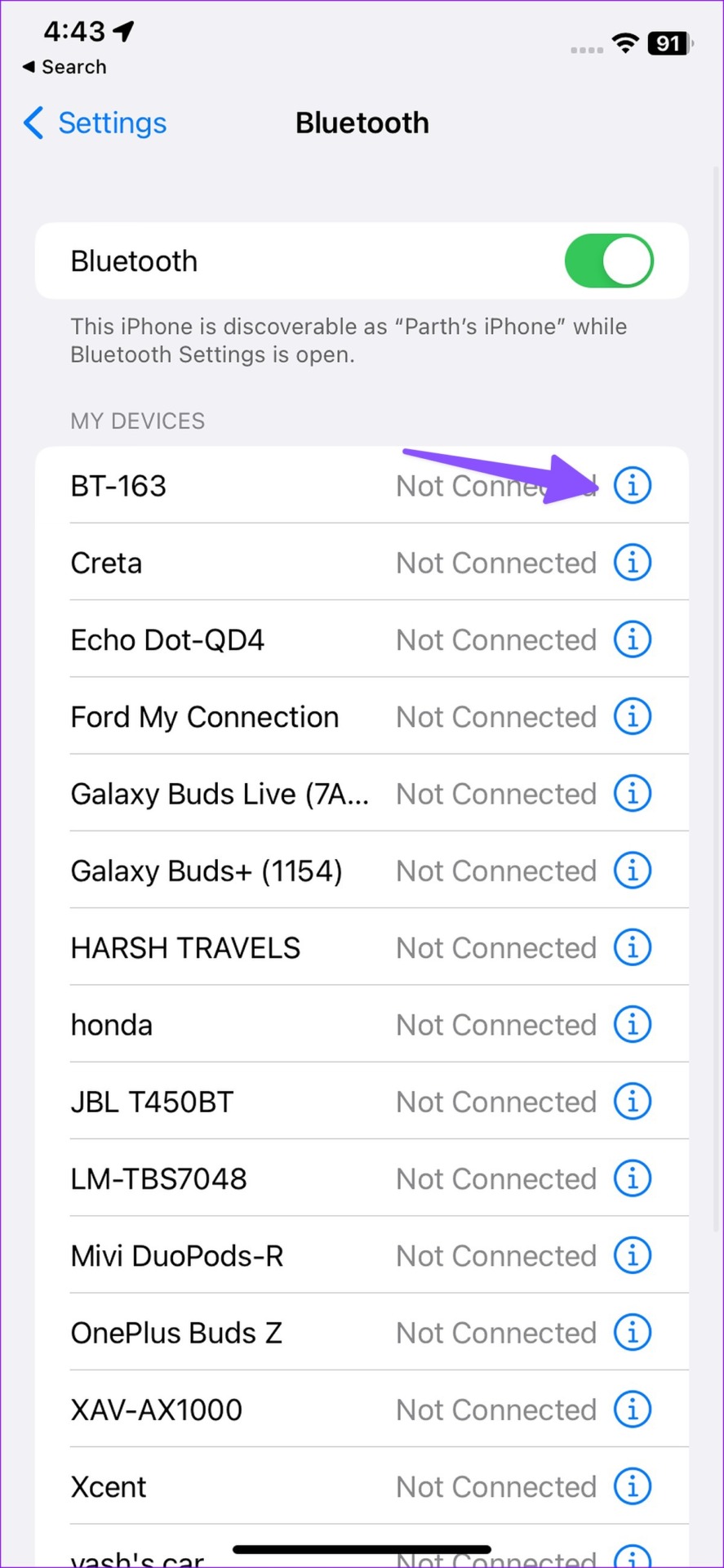
If your iPhone Bluetooth connects to a specific device automatically, remove the device using the Settings menu. Then, turn Bluetooth off and check. Follow the below steps to do it.
Step 1: Open Settings and tap on Bluetooth. Tap the i button beside the device.
Step 2: Select Forget This Device and confirm if prompted.

Also Read: How to fix iPhone can’t find Bluetooth device
Fix 4: Reset Network Settings
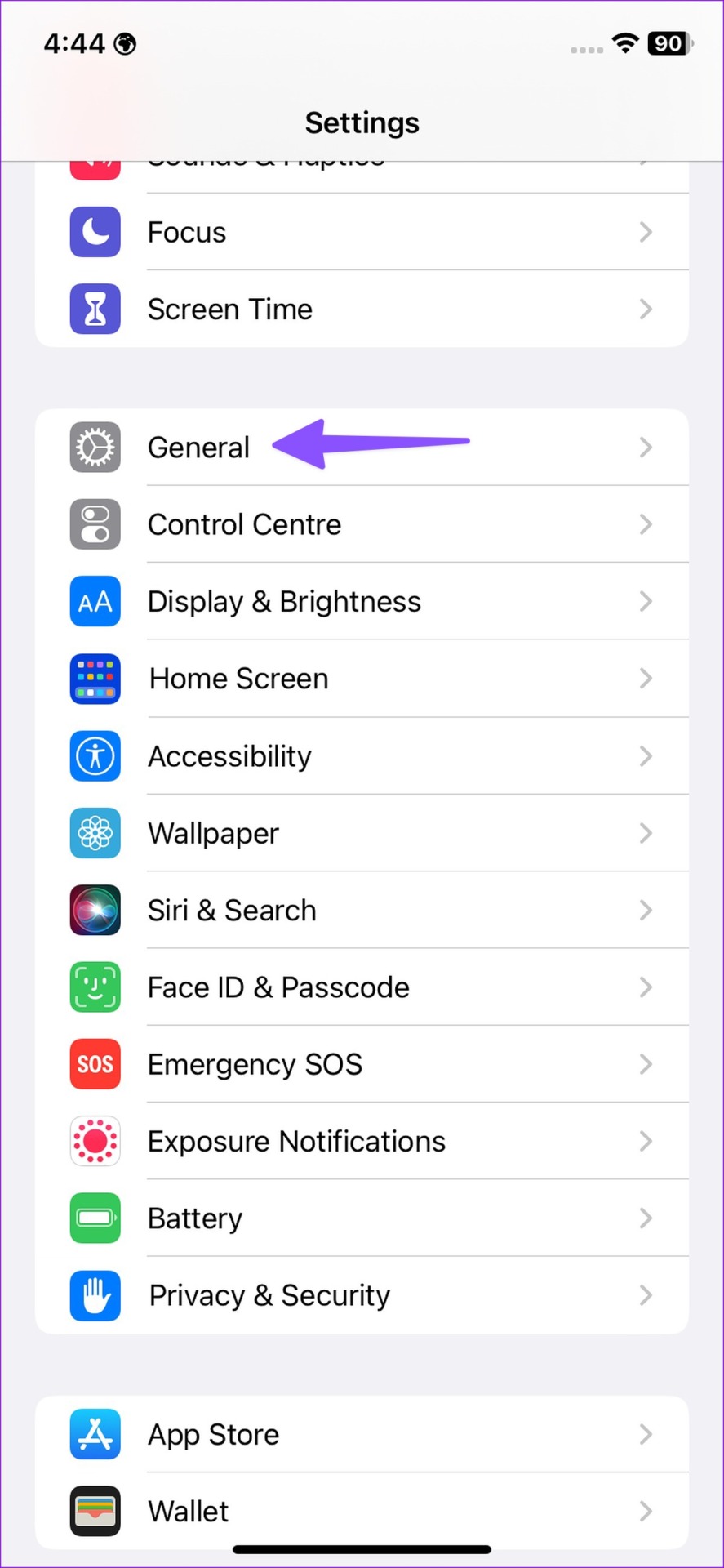
If your iPhone’s Bluetooth still keeps turning on by itself, reset the network settings. This trick resets Wi-Fi connections, saved Bluetooth profiles, and VPN networks on your iPhone. Here’s how to do it.
Step 1: Open Settings and tap on General. Tap on Transfer or Reset iPhone.
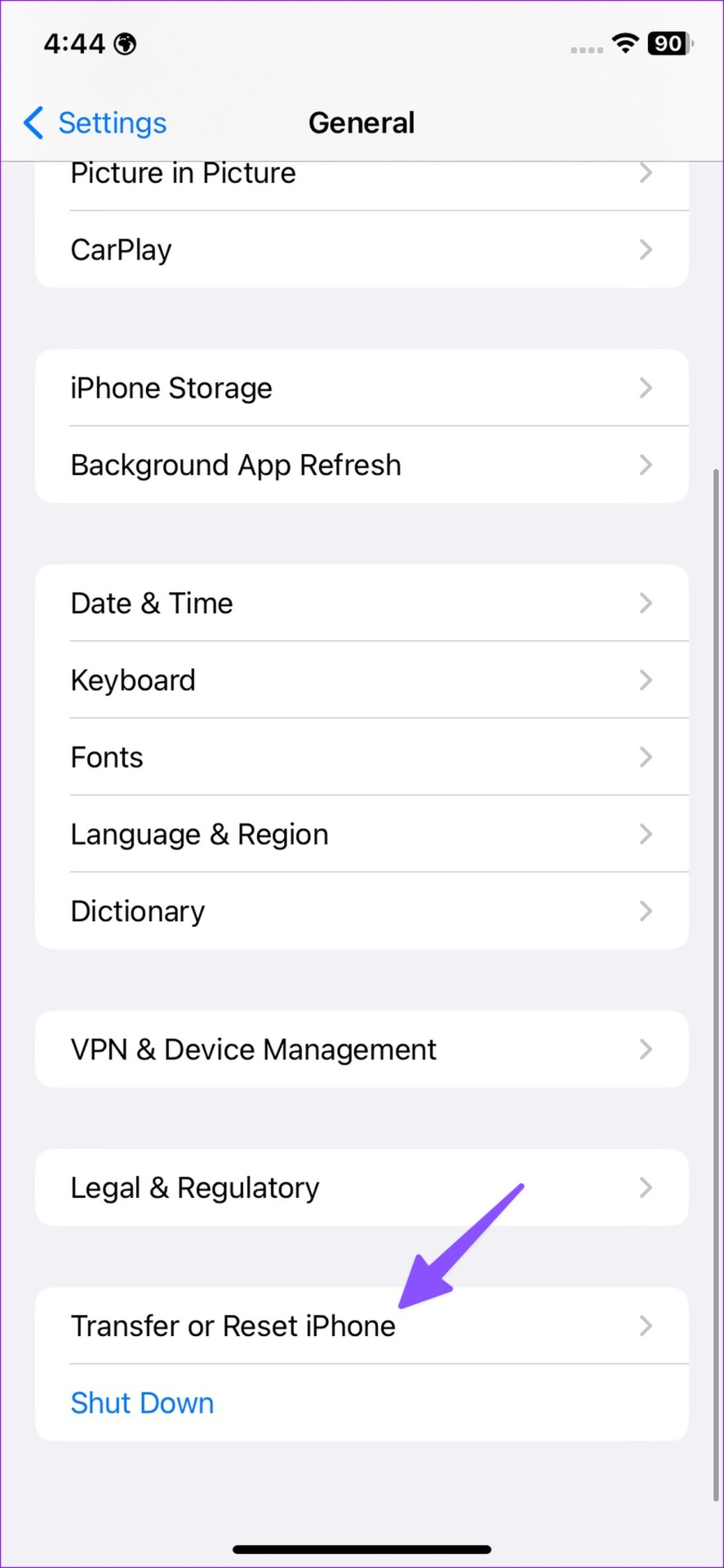
Step 2: Tap Reset and hit Reset Network Settings.


Follow the on-screen instructions to finish the process. Then, disable Bluetooth and try using your iPhone for a while to check if the issue has been fixed.
Was this helpful?
Last updated on 28 June, 2024
Read Next
 How to Stop iPhone From Turning Off, Sleeping, or Locking Automatically
Basic Fixes Restart Device: You can try restarting your device to see if it fixes the problem.
How to Stop iPhone Personal Hotspot From Turning On Automatically
https://youtu.be/RIBOWbQOnMU Fix 1.
How to Stop iPhone From Turning Off, Sleeping, or Locking Automatically
Basic Fixes Restart Device: You can try restarting your device to see if it fixes the problem.
How to Stop iPhone Personal Hotspot From Turning On Automatically
https://youtu.be/RIBOWbQOnMU Fix 1.
 3 Ways to Stop iPhone Wi-Fi From Turning on Automatically
Fix 1: Turn Off Wi-Fi in Settings When you toggle off Wi-Fi from the Control Center, it only turns it off temporarily.
3 Ways to Stop iPhone Wi-Fi From Turning on Automatically
Fix 1: Turn Off Wi-Fi in Settings When you toggle off Wi-Fi from the Control Center, it only turns it off temporarily.
 4 Ways to Fix Do Not Disturb Turning on Automatically on iPhone
Fix 1.
4 Ways to Fix Do Not Disturb Turning on Automatically on iPhone
Fix 1.
 5 Ways to Fix Android Phone Automatically Turning Down Volume
https://youtu.be/c3evW3GIp5w Basic Fixes Restart device: Restart your Android device to get rid of temporary bugs and glitches.
5 Ways to Fix Android Phone Automatically Turning Down Volume
https://youtu.be/c3evW3GIp5w Basic Fixes Restart device: Restart your Android device to get rid of temporary bugs and glitches.
 6 Ways to Fix Bluetooth Keeps Turning Off on Windows 11
Fix 1: Toggle the Airplane Mode Toggling the airplane mode in Windows is a neat way to refresh your PC’s wireless connections, including Bluetooth.
6 Ways to Fix Bluetooth Keeps Turning Off on Windows 11
Fix 1: Toggle the Airplane Mode Toggling the airplane mode in Windows is a neat way to refresh your PC’s wireless connections, including Bluetooth.
 2 Fixes for Bluetooth Device Not Connecting Automatically on iPhone
Basic Fixes Reconnect device: Open the Settings app, go to Bluetooth, select your device, and tap on Forget.
2 Fixes for Bluetooth Device Not Connecting Automatically on iPhone
Basic Fixes Reconnect device: Open the Settings app, go to Bluetooth, select your device, and tap on Forget.
 How to Stop iPhone From Automatically Downloading Apps
Why Is iPhone Downloading Apps Automatically?
How to Stop iPhone From Automatically Downloading Apps
Why Is iPhone Downloading Apps Automatically?
The article above may contain affiliate links which help support Guiding Tech. The content remains unbiased and authentic and will never affect our editorial integrity.