How to Share Screen on Google Meet
You can begin sharing your screen before you enter the meeting – use the Share screen option.
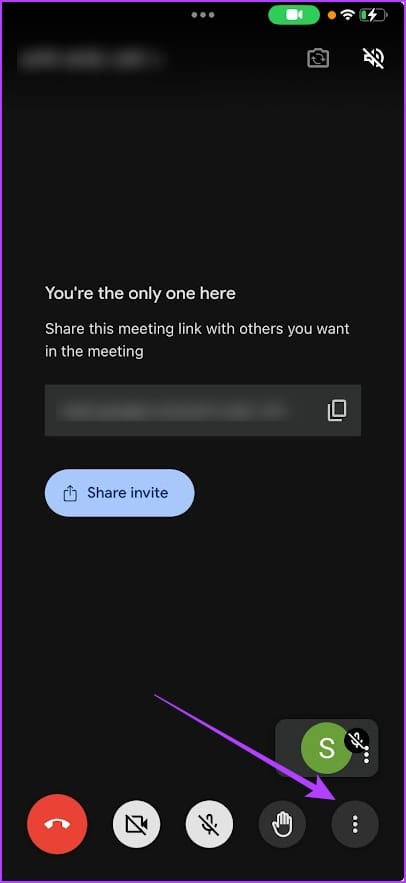
Once you’ve joined the meeting, tap on the three-dots icon, and select Share screen.
In any case, you will be asked to start a Broadcast on your iPhone/iPad – which essentially shares the contents of your screen with Google Meet.


Also Read: How to put a background in Google Meet using your iPhone
How to Stop Sharing Screen on Google Meet
To stop sharing your screen, open the Google Meet app and tap on Stop Sharing.
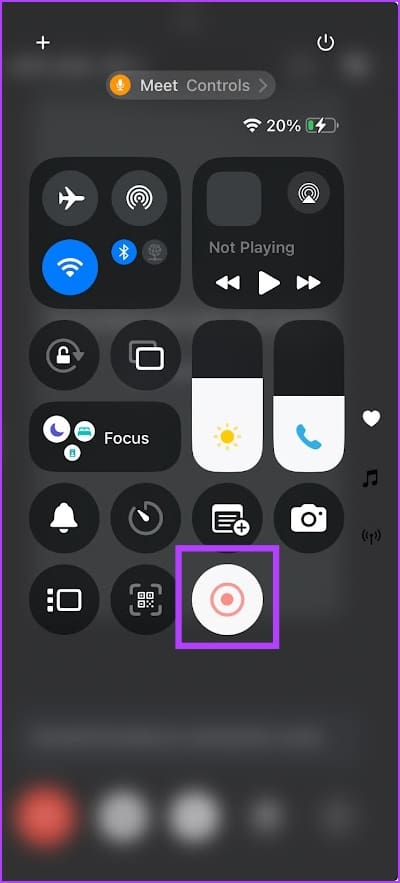
You can also open the Control Center, and tap on the recording button to stop it. You can also tap and hold the recording button, and then stop the broadcast for Google Meet.


Also Read: How to fix Google Meet not working on iPhone
Was this helpful?
Last updated on 28 August, 2024
Read Next
 How to Share Screen on Google Meet
How to Share Screen (Present) on Google Meet On Google Meet, you may share a window for a particular open app, your entire screen, or a single tab on your
How to Share Screen on Google Meet
How to Share Screen (Present) on Google Meet On Google Meet, you may share a window for a particular open app, your entire screen, or a single tab on your
 How to Share Video With Sound on Zoom, Microsoft Teams, and Google Meet
How to Share Video With Audio in Microsoft Teams The feature to share your screen containing the video and its sound in Microsoft Teams is limited to the Windows app
How to Share Video With Sound on Zoom, Microsoft Teams, and Google Meet
How to Share Video With Audio in Microsoft Teams The feature to share your screen containing the video and its sound in Microsoft Teams is limited to the Windows app
 3 Fixes for Google Meet Not Working on iPhone
Basic Fixes Switch to 5GHz network: If you have any dual-band Wi-Fi router, you can connect to a 5GHz network for faster internet speeds.
3 Fixes for Google Meet Not Working on iPhone
Basic Fixes Switch to 5GHz network: If you have any dual-band Wi-Fi router, you can connect to a 5GHz network for faster internet speeds.
 How to Put a Background in Google Meet Using Your Phone
How to Change Background in Google Meet App Keeping a virtual background can be very useful in creating a theme for your video calls, lectures, podcasts, webinars, and interviews.
How to Put a Background in Google Meet Using Your Phone
How to Change Background in Google Meet App Keeping a virtual background can be very useful in creating a theme for your video calls, lectures, podcasts, webinars, and interviews.
 Top 7 Fixes for Share Sheet Not Working on iPhone and iPad
The Share Sheet on iPhone and iPad houses shortcuts to contacts, apps, and various actions.
Top 7 Fixes for Share Sheet Not Working on iPhone and iPad
The Share Sheet on iPhone and iPad houses shortcuts to contacts, apps, and various actions.
 Top 7 Ways to Fix Google Meet Audio Not Working
Major IT companies, such as Twitter and Spotify, are encouraging employees to work from home.
Top 7 Ways to Fix Google Meet Audio Not Working
Major IT companies, such as Twitter and Spotify, are encouraging employees to work from home.
 How to Hide and Unhide Yourself on Google Meet (PC and Mobile)
Note: When you hide your camera feed, you can still see others, depending on their camera privacy setting.
How to Hide and Unhide Yourself on Google Meet (PC and Mobile)
Note: When you hide your camera feed, you can still see others, depending on their camera privacy setting.
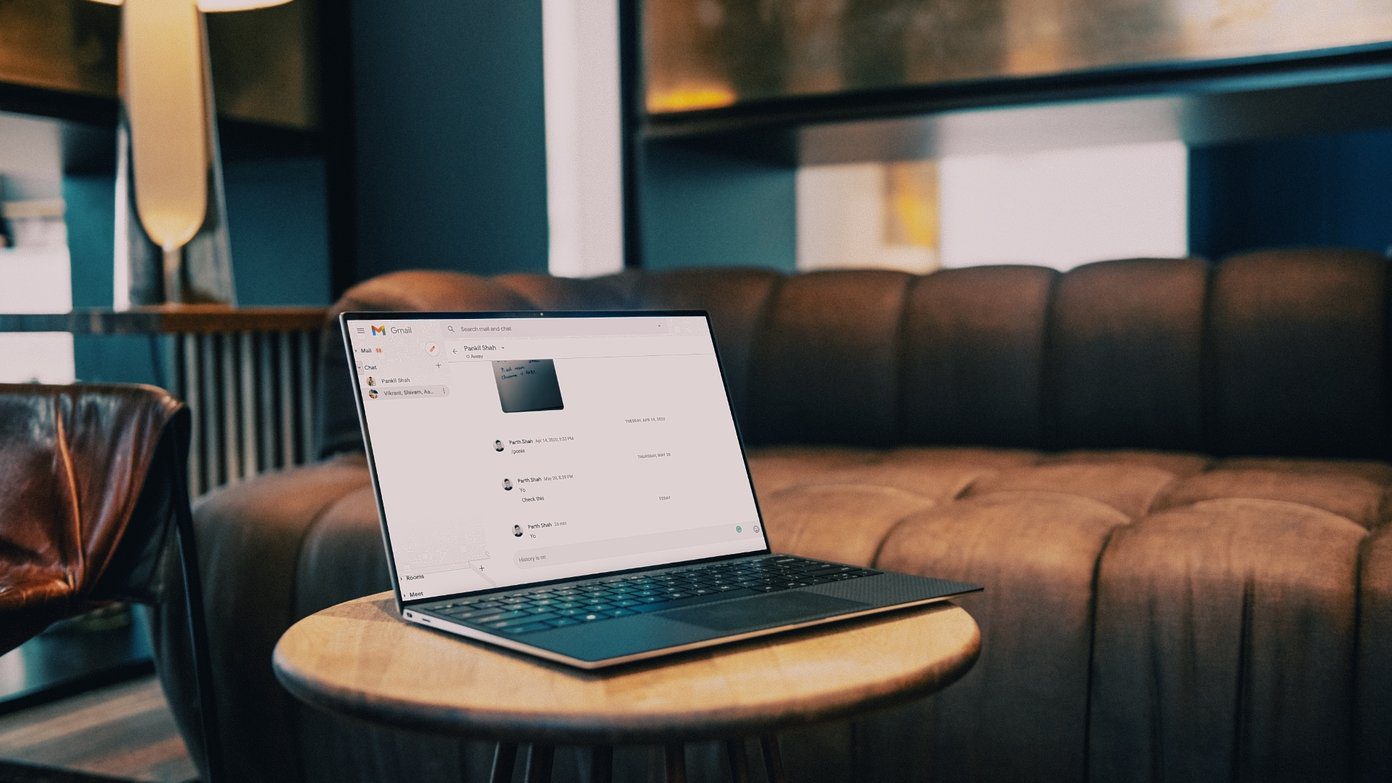 How to Disable Google Chat and Meet in Gmail
Disable Google Chat and Meet in Gmail If you don't use Google Chat or Google Meet services in Gmail, turning it off becomes reasonable to remove extra tabs cluttering your
How to Disable Google Chat and Meet in Gmail
Disable Google Chat and Meet in Gmail If you don't use Google Chat or Google Meet services in Gmail, turning it off becomes reasonable to remove extra tabs cluttering your
The article above may contain affiliate links which help support Guiding Tech. The content remains unbiased and authentic and will never affect our editorial integrity.