How to Share OneNote Notebook on Mobile (Android or iOS)
OneNote’s Android app doesn’t let you share the notebook. You need to be on iOS to do so. Follow the below steps.
Step 1: Launch the OneNote app on your iPhone. Then, navigate to the notebook you want to share.
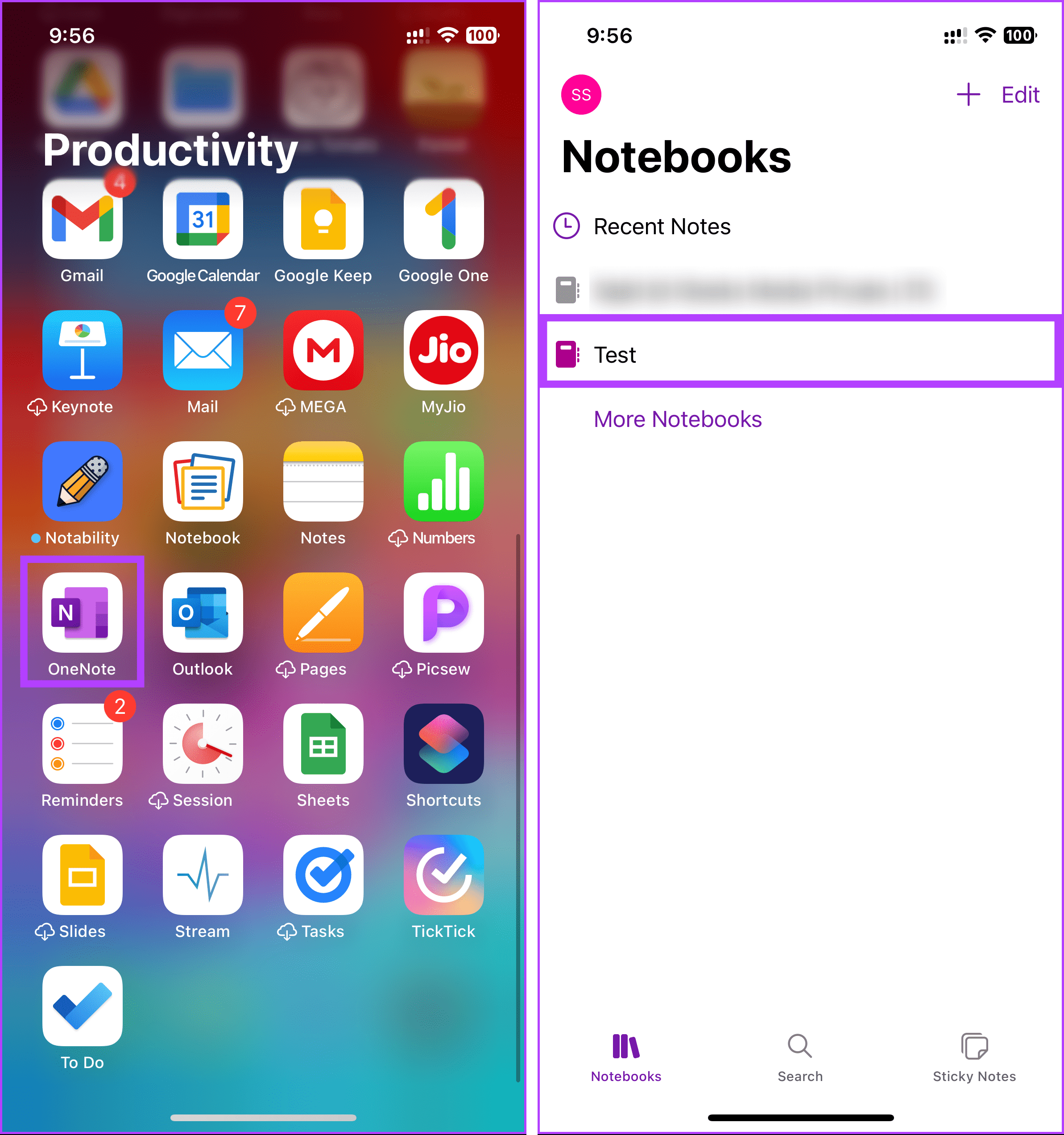
Step 2: Once in the notebook, tap on the three-dot icon and choose Share Notebook.
You will be on the ‘Share [notebook name]’ bottom sheet.
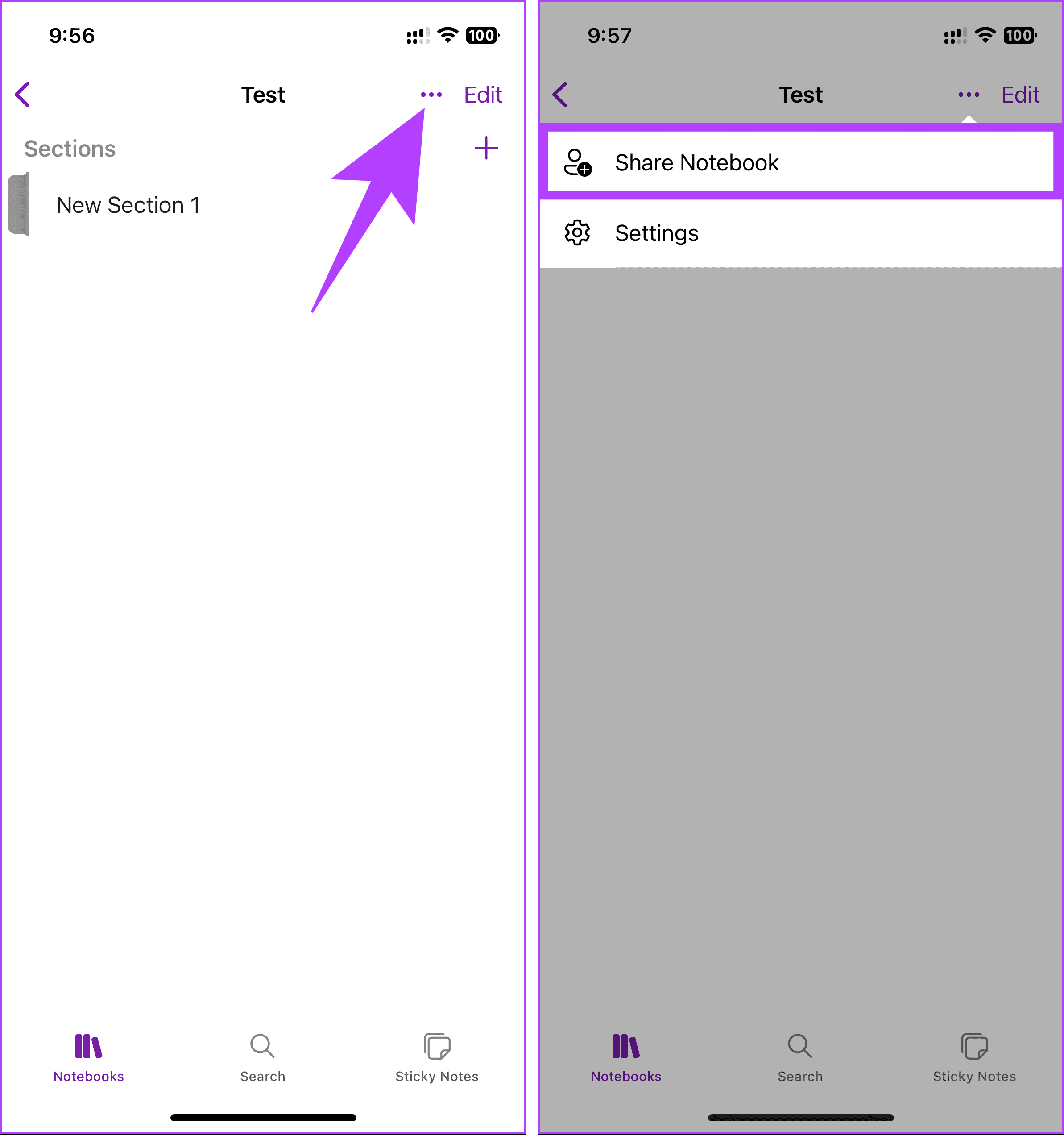
Step 3: Enter the name or email ID of the people you want to share and choose whether you want these users to edit or view.
Step 4: Add a personal note under the Message section if you want, and finally, click Send.
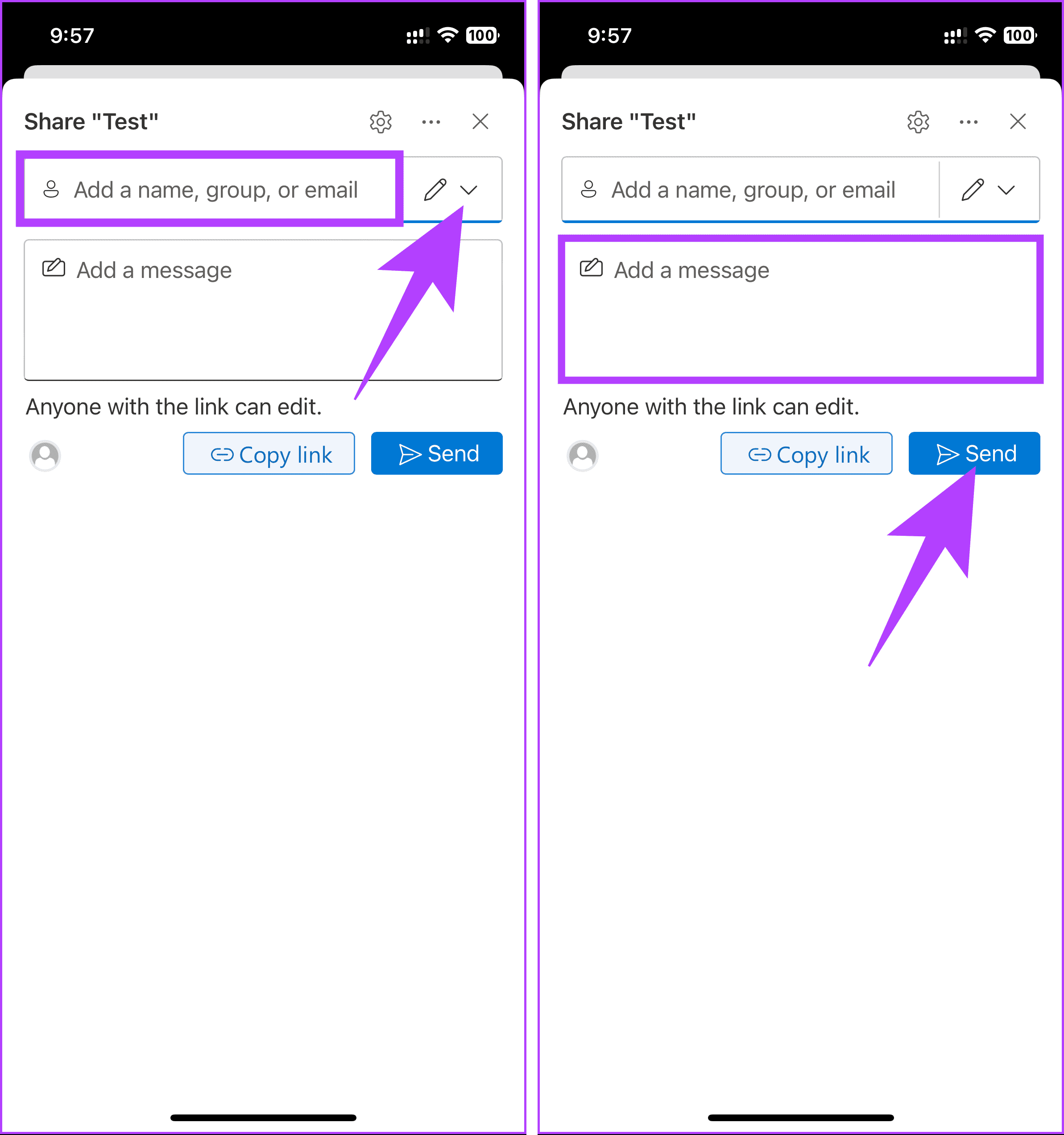
That’s about it. You have successfully shared a notebook on Microsoft OneNote. If you want to share the link of the notebook with a larger audience, consider clicking on the Copy link button and sharing it.
That said, if you are on Android, you have no choice but to share it using the desktop or the web. This is a serious flaw when comparing OneNote with other notable note-taking apps like Notion, Evernote, and Apple Notes.
How to Share OneNote Notebook on Web
Step 1: Open OneNote and navigate to the notebook you want to share.
Note: The selected notebook may launch in a new tab.
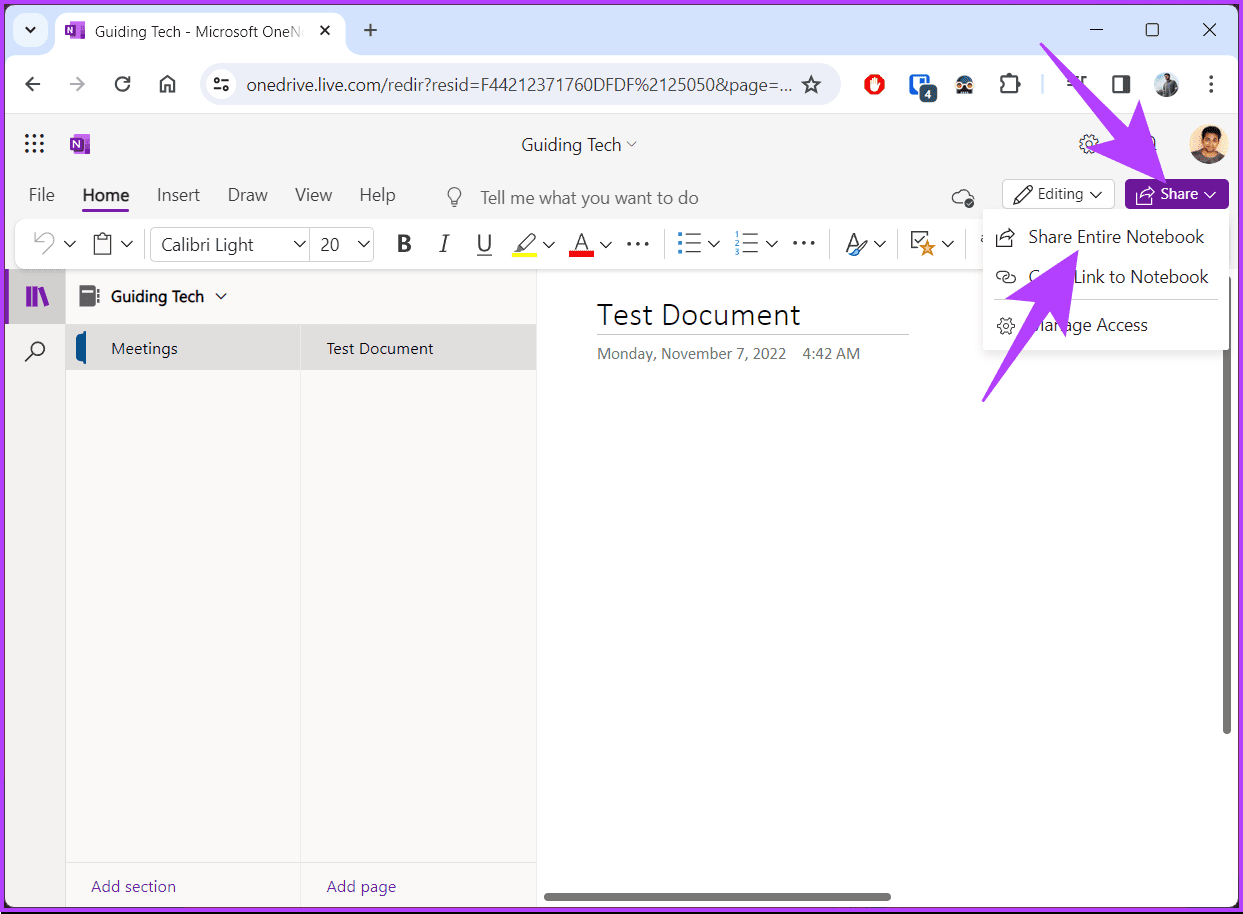
Step 2: In the top right corner, click on the Share button right below your profile picture. From the drop-down menu, choose Share Entire Notebook.
Step 3: From the pop-up modal, enter the name or email ID of the people you want to share. Right next to it in the drop-down menu, choose whether you want these users to edit or view.
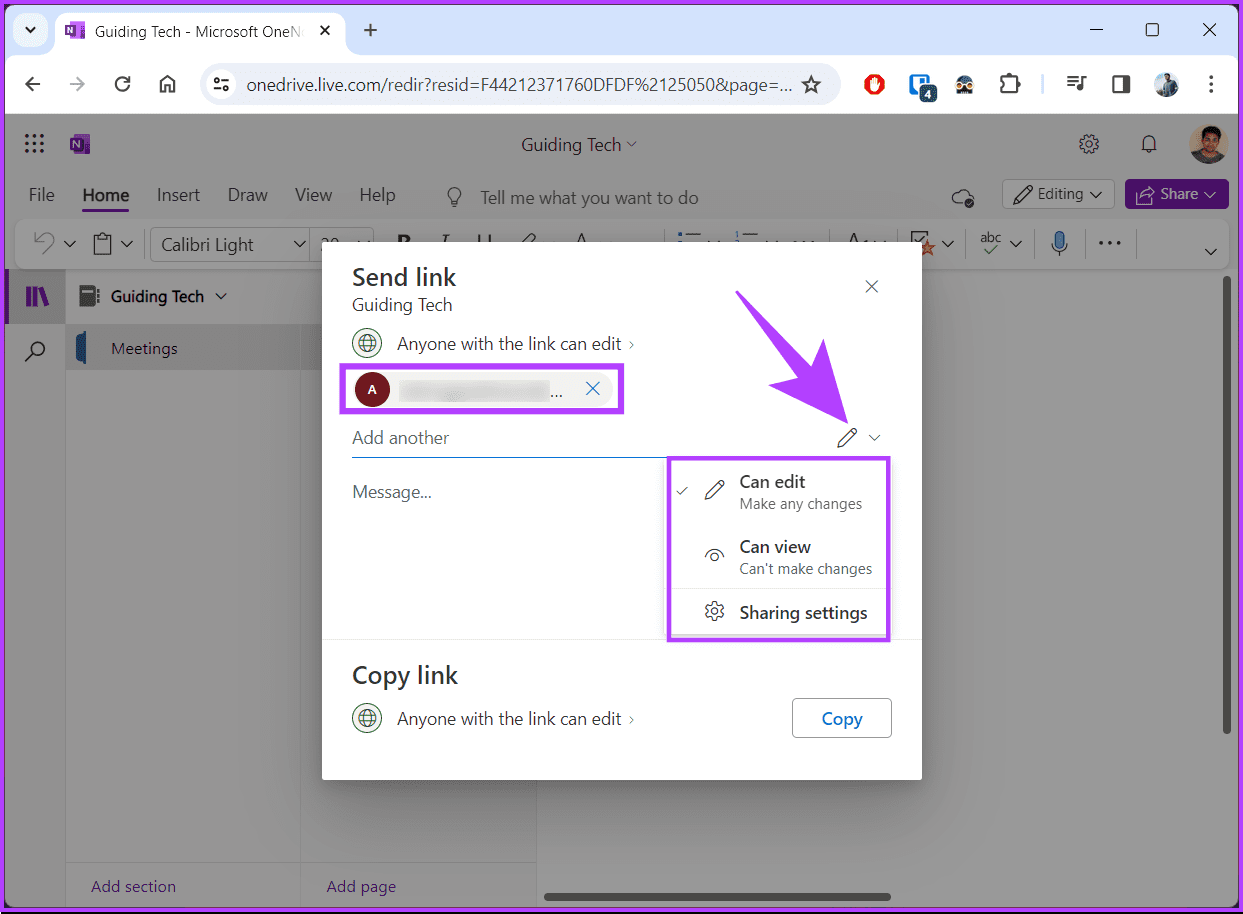
Step 4: Add a personal note if you want, and finally, click Send.
That’s it. You have shared a notebook in OneNote. Only those invited via email can view or edit the OneNote notebook.
How to Share OneNote Notebook on Windows
Step 1: Launch the OneNote app. Then, navigate to the notebook you want to share.
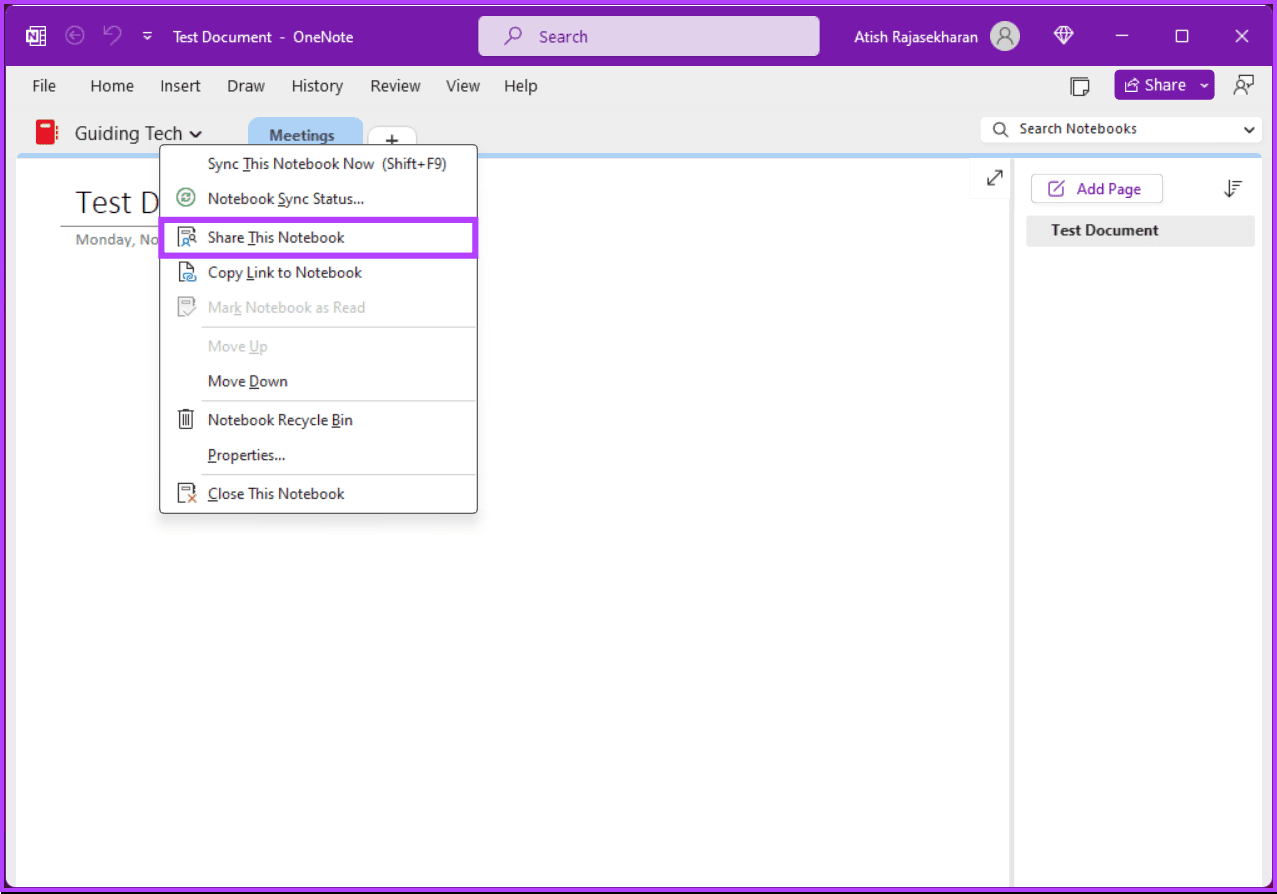
Step 2: Right-click on the notebook and select Share This Notebook.
Step 3: In the pop-up modal, enter the name or email ID of the people you want to share the notebook with. Choose whether you want these users to edit or view.
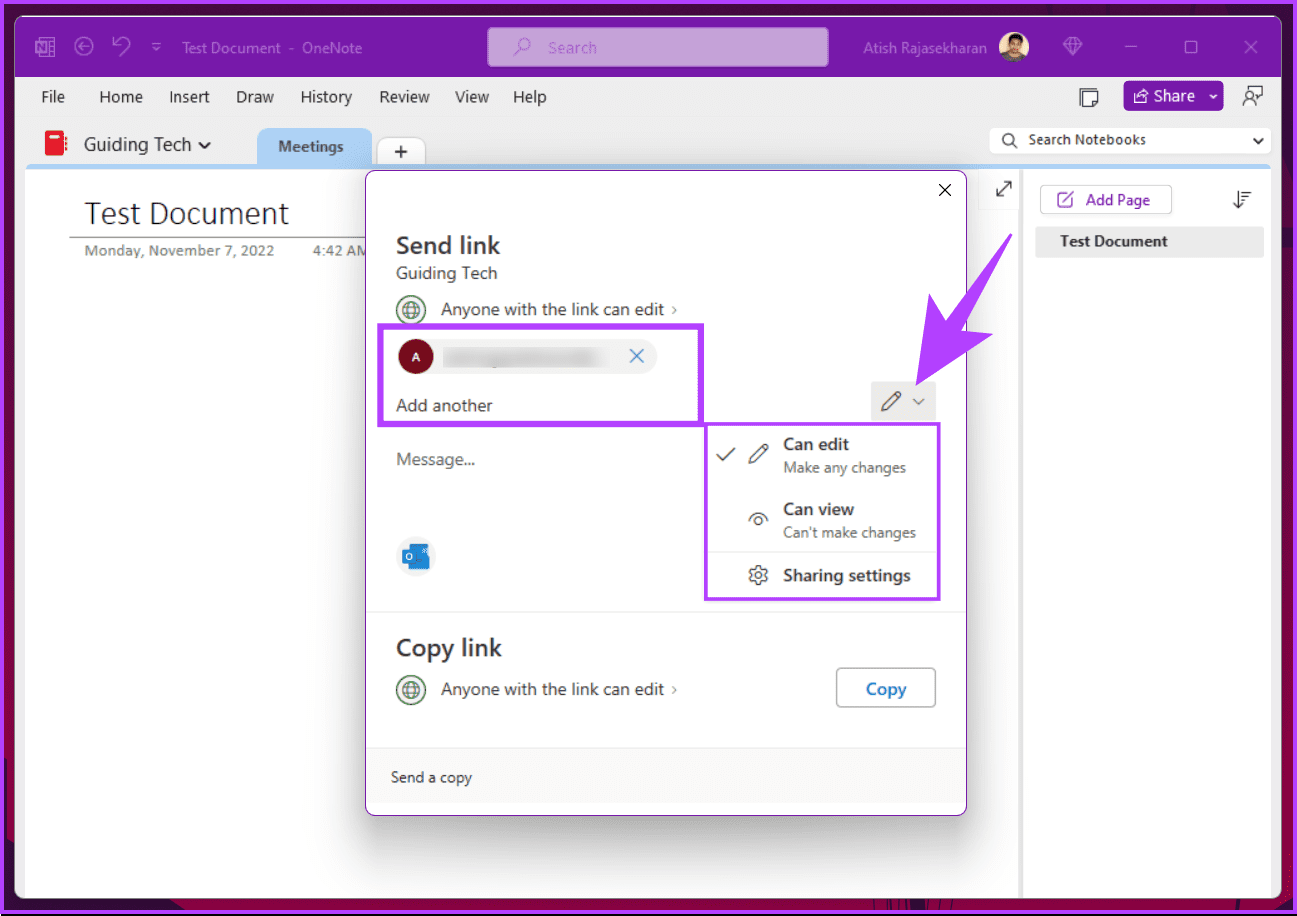
Step 4: Add a personal note under the Message section, if you want, and finally, click Send.
How to Share OneNote Notebook on Mac
Note: We are assuming that you have already launched the OneNote app on your Mac and navigated to the notebook that you want to share.
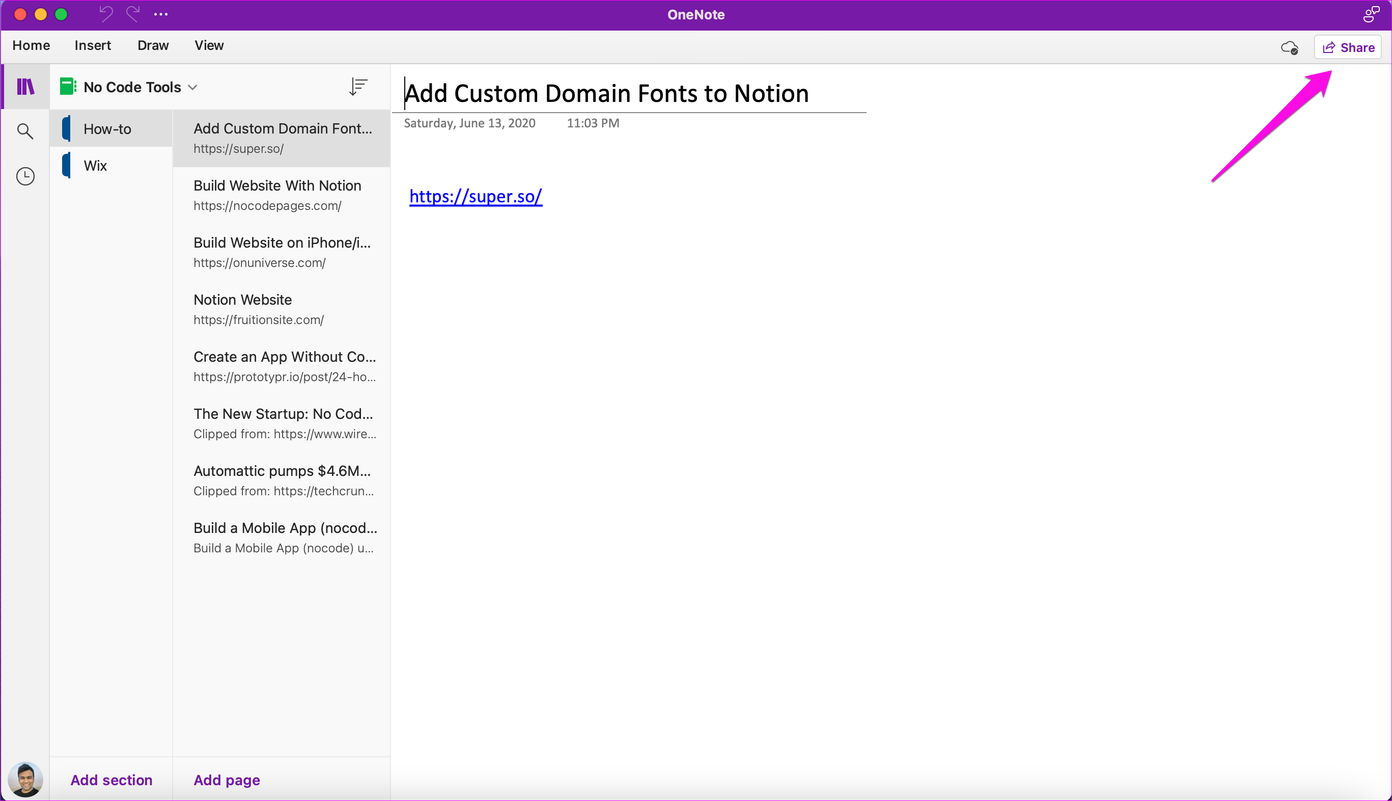
Step 1: Click on the Share button at the top-right corner.
Step 2: You will view Sharing Options. Click on Invite People to Notebook to send email invites.
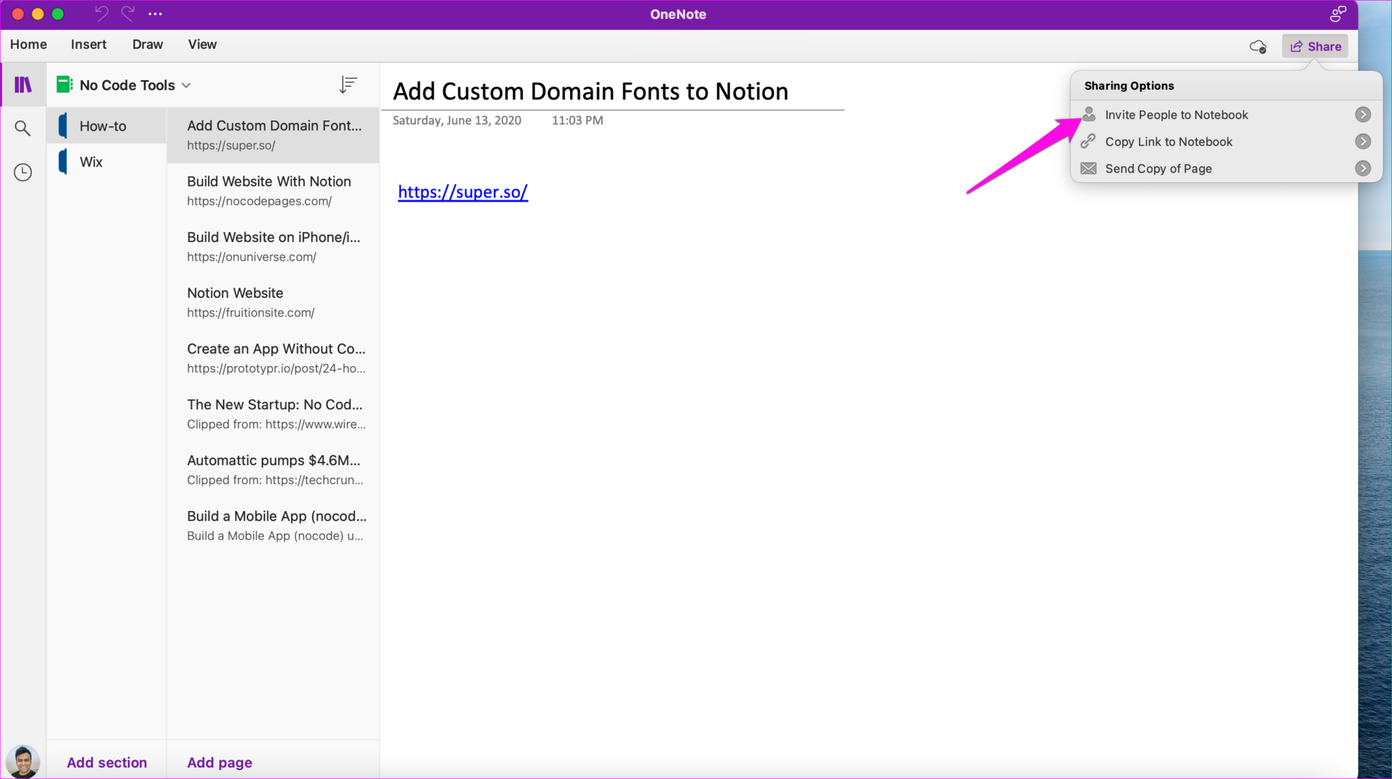
Step 3: Enter the email IDs of the people you want to invite to view or edit the notebook. Check the Can Edit button to allow editing, or uncheck it if you only want them to view the notebook.
Note: If you want to share a link to the notebook, you can do that too, but as noted earlier, anyone with access to the link can edit or view the notebook.
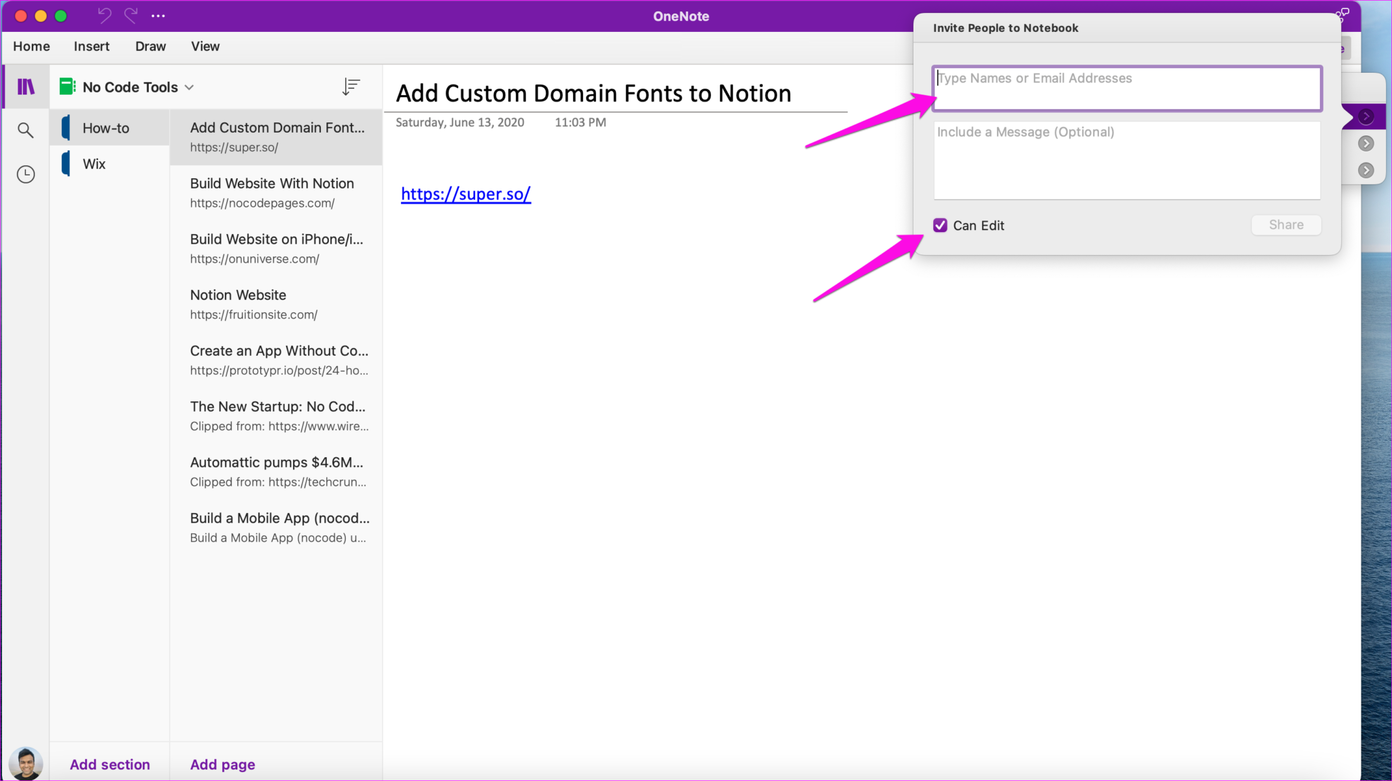
Step 4 Click on the Share button again.
Step 5: Click on Copy Link to Notebook.
Step 6: Click on View-Only or View and Edit to create a sharable link to the notebook accordingly.
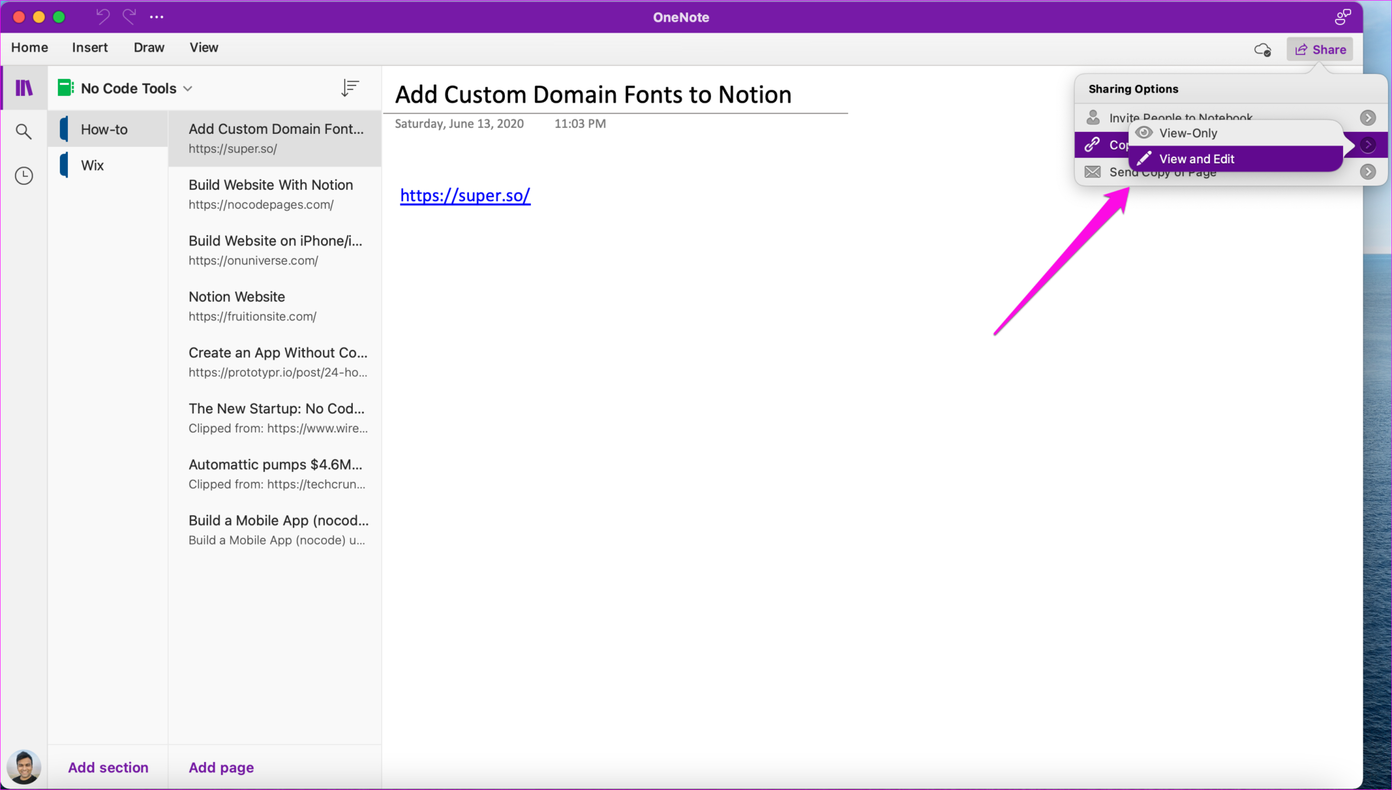
That’s about it. You have generated a link to the notebook, which you can share using any medium, such as email, messages, and so on.
FAQs
Yes, real-time collaboration is a key feature of OneNote. When you share a notebook with others, you can collaborate simultaneously, seeing changes made by others in real-time.
OneNote does not provide a built-in feature for password protection of shared notebooks. However, you can control access through sharing settings and choose who can view or edit the content.
Yes, shared OneNote notebooks contribute to your overall storage usage in Microsoft OneDrive, as they are stored in the cloud.
Was this helpful?
Last updated on 20 August, 2024
Read Next
 How to Delete a Notebook in Microsoft OneNote
Microsoft OneNote, as the name suggests, is a note-taking application from Microsoft that comes included with the MS Office suite.
How to Delete a Notebook in Microsoft OneNote
Microsoft OneNote, as the name suggests, is a note-taking application from Microsoft that comes included with the MS Office suite.
 7 Top Ways to Fix OneNote Notebook Disappearing Error on Windows
Microsoft OneNote has gone through a number of iterations.
7 Top Ways to Fix OneNote Notebook Disappearing Error on Windows
Microsoft OneNote has gone through a number of iterations.
 How to Share Pinterest Boards on Desktop and Mobile
Pinterest is the one-stop destination to find any image primarily design ideas, trends, and inspirational photos.
How to Share Pinterest Boards on Desktop and Mobile
Pinterest is the one-stop destination to find any image primarily design ideas, trends, and inspirational photos.
 How to Share Screen in Discord on Desktop and Mobile
How to Share Your Screen in a Discord Voice Channel As a channel member, Discord lets you share your device’s screen with up to 50 people at once.
How to Share Screen in Discord on Desktop and Mobile
How to Share Your Screen in a Discord Voice Channel As a channel member, Discord lets you share your device’s screen with up to 50 people at once.
 15 Best Ways to Organize Notes Effectively in Microsoft OneNote
Microsoft OneNote is a powerful note-taking tool if you know how to use it.
15 Best Ways to Organize Notes Effectively in Microsoft OneNote
Microsoft OneNote is a powerful note-taking tool if you know how to use it.
 7 OneNote PDF Tips and Tricks to Use It like a Pro
Tip 1: Importing PDF to OneNote Two simple ways exist to add a PDF file to a OneNote note.
7 OneNote PDF Tips and Tricks to Use It like a Pro
Tip 1: Importing PDF to OneNote Two simple ways exist to add a PDF file to a OneNote note.
 How to Enable OneNote Dark Mode on Any Device
How to Change OneNote to Dark Mode in the Windows App To turn on Dark Mode on the OneNote Windows app, go to the account settings and change the app's
How to Enable OneNote Dark Mode on Any Device
How to Change OneNote to Dark Mode in the Windows App To turn on Dark Mode on the OneNote Windows app, go to the account settings and change the app's
 How to Share Screen in Telegram on Mobile and PC
How to Share Screen in Telegram for Android or iPhone Step 1: Launch the Telegram app on your phone and open the chat of the person with whom you wish
How to Share Screen in Telegram on Mobile and PC
How to Share Screen in Telegram for Android or iPhone Step 1: Launch the Telegram app on your phone and open the chat of the person with whom you wish
The article above may contain affiliate links which help support Guiding Tech. The content remains unbiased and authentic and will never affect our editorial integrity.