Method 1: Use Prt Sc and Paste Directly into WhatsApp
You have the Ptr Sc button on a Windows computer to take a screenshot. You may paste the screenshot directly on the WhatsApp web after taking it.
Step 1: Press the Prt Sc key and take your screenshot.
Step 2: Open WhatsApp web.
Step 3: Search for the contact you want to send the screenshot to, paste (Ctrl + V on Windows and Command + V on Mac), and hit Send.

This method usually works once you take a screenshot, regardless of your tool.
Method 2: Use Copy and Paste
This method involves basic copy and paste from any photo viewer app on your PC. However, if you are unsure how to do that, here are the detailed steps.
Step 1: Open the screenshot you want to share on WhatsApp web in any photo viewer app.
Step 2: Once opened, press Ctrl + C on Windows or Command + C on Mac. If the image viewer does not support this shortcut, right-click on the image and select Copy image data or Copy to Clipboard.
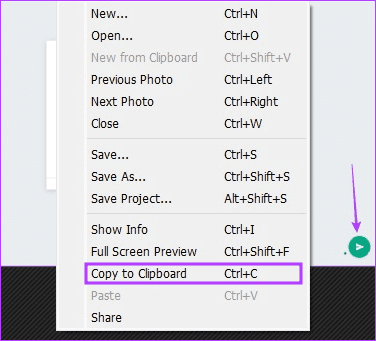
Step 3: Launch WhatsApp web, search for the contact you want to send the screenshot, paste (Ctrl + V on Windows and Command + V on Mac), and hit Send.
Method 3: Use the Drag and Drop Option
If you want to share multiple screenshots via WhatsApp web, you can drag and drop them together. To do so, follow the steps below.
Step 1: Launch WhatsApp web and open the chat to which you need to send screenshots.
Step 2: Open the location where the screenshot is saved and select all needed screenshots.
Step 3: Click and drag the selection to WhatsApp web > click Send.
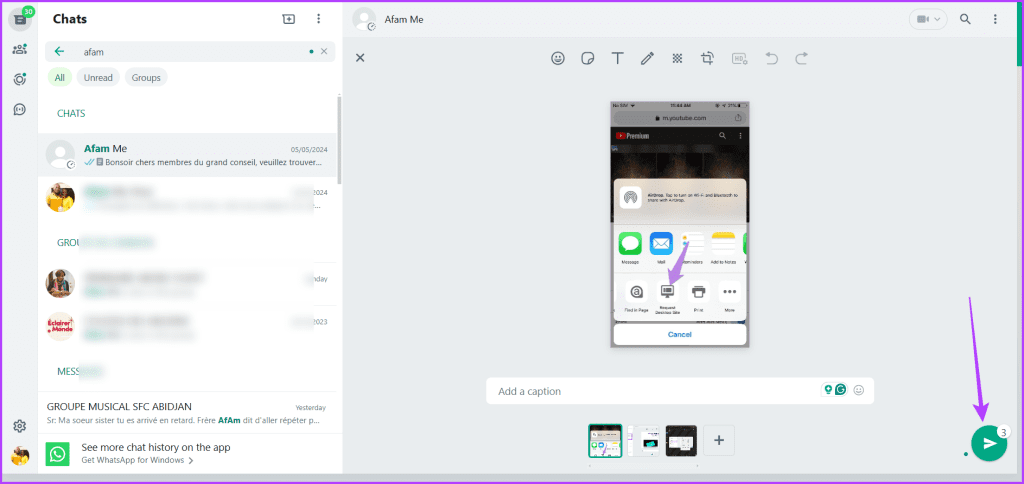
Method 4: Attach the Image
Another method to share screenshots is using the built-in option to attach images. Here are the steps:
Step 1: Launch WhatsApp web and open the chat thread.
Step 2: Click on the + icon and select Photos & videos.

Step 3: Select all screenshots you want > click Open > Send.
Was this helpful?
Last updated on 28 May, 2024
Read Next
 2 Ways to Fix if You Cannot Send Files on WhatsApp Web
Basic Fixes Check internet speeds: We suggest connecting to a 5GHz Wi-Fi network.
2 Ways to Fix if You Cannot Send Files on WhatsApp Web
Basic Fixes Check internet speeds: We suggest connecting to a 5GHz Wi-Fi network.
 4 Fixes for Cannot Send GIFs in WhatsApp Web
Basic Fixes Check your internet connection: Sometimes GIFs take longer than usual to send due to poor internet speeds.
4 Fixes for Cannot Send GIFs in WhatsApp Web
Basic Fixes Check your internet connection: Sometimes GIFs take longer than usual to send due to poor internet speeds.
 How to Add New Contacts via WhatsApp Web
Use InTouch App to Add New Contacts Using WhatsApp Web InTouchApp is a contacts manager app that lets you add contacts directly via WhatsApp Web.
How to Add New Contacts via WhatsApp Web
Use InTouch App to Add New Contacts Using WhatsApp Web InTouchApp is a contacts manager app that lets you add contacts directly via WhatsApp Web.
 WhatsApp Web vs WhatsApp Desktop App: Which Should You Use
Currently ranked as the world's most popular instant messaging app, WhatsApp needs no introduction.
WhatsApp Web vs WhatsApp Desktop App: Which Should You Use
Currently ranked as the world's most popular instant messaging app, WhatsApp needs no introduction.
 Top 3 Ways to Insert Screenshots in Microsoft Outlook
Screenshots can be very helpful when passing certain information over messages or social media.
Top 3 Ways to Insert Screenshots in Microsoft Outlook
Screenshots can be very helpful when passing certain information over messages or social media.
 How to Send Original Size Pictures on WhatsApp
Method 1: Using HD Option in WhatsApp You can send photos in HD resolution using WhatsApp on your iPhone or Android.
How to Send Original Size Pictures on WhatsApp
Method 1: Using HD Option in WhatsApp You can send photos in HD resolution using WhatsApp on your iPhone or Android.
 4 Ways to Send WhatsApp Messages to Multiple Contacts
Method 1: Forward a Message on WhatsApp Step 1: Open a conversation on WhatsApp.
4 Ways to Send WhatsApp Messages to Multiple Contacts
Method 1: Forward a Message on WhatsApp Step 1: Open a conversation on WhatsApp.
 How to Send HD Photos and Videos in WhatsApp
How to Send HD Photos and Videos on WhatsApp Mobile App To send your photo or video without compromising image quality, use the sharing options available in the WhatsApp mobile
How to Send HD Photos and Videos in WhatsApp
How to Send HD Photos and Videos on WhatsApp Mobile App To send your photo or video without compromising image quality, use the sharing options available in the WhatsApp mobile
The article above may contain affiliate links which help support Guiding Tech. The content remains unbiased and authentic and will never affect our editorial integrity.