Method 1: Microsoft Outlook Web
If you find the Outlook app on your PC too heavy, use the Outlook web, which is much faster for creating a Google Meet schedule.
Step 1: Open Outlook Web, click the Calendar tab, and go to Outlook Calendar.

Step 2: Click on the New Event button at the top. This will open a dedicated menu to add event details.

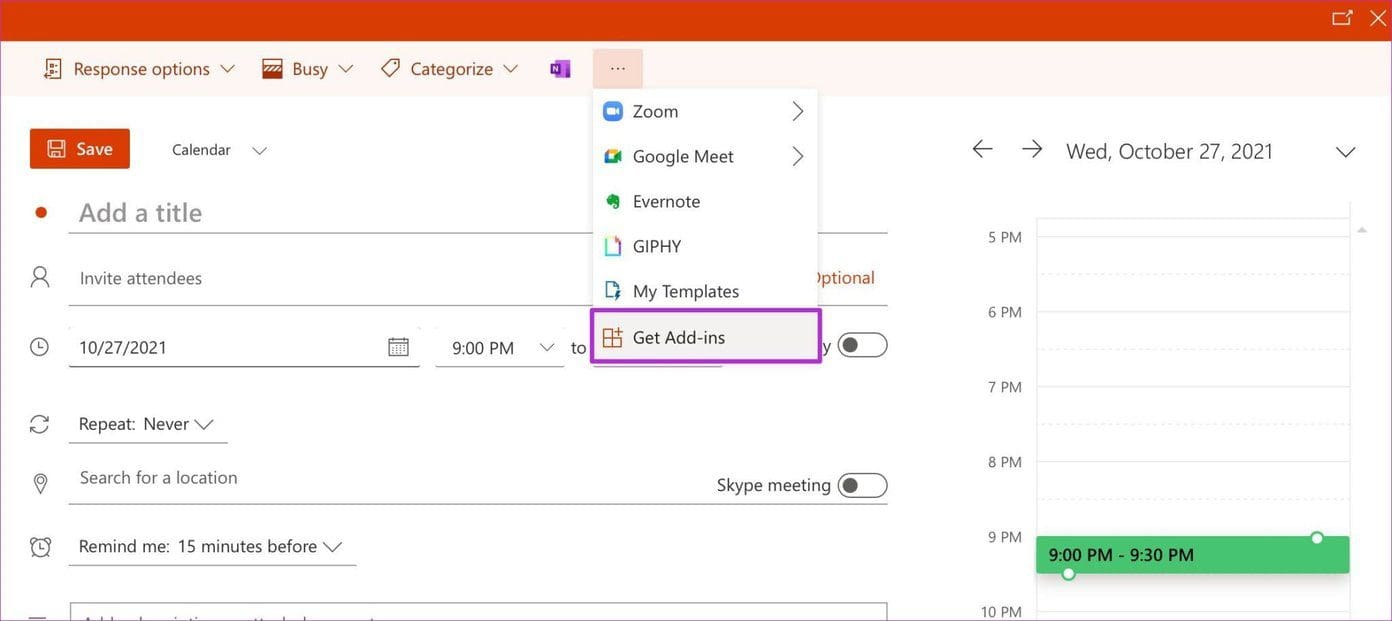
Step 3: Click the three-dot menu at the top and select Get Add-ins.
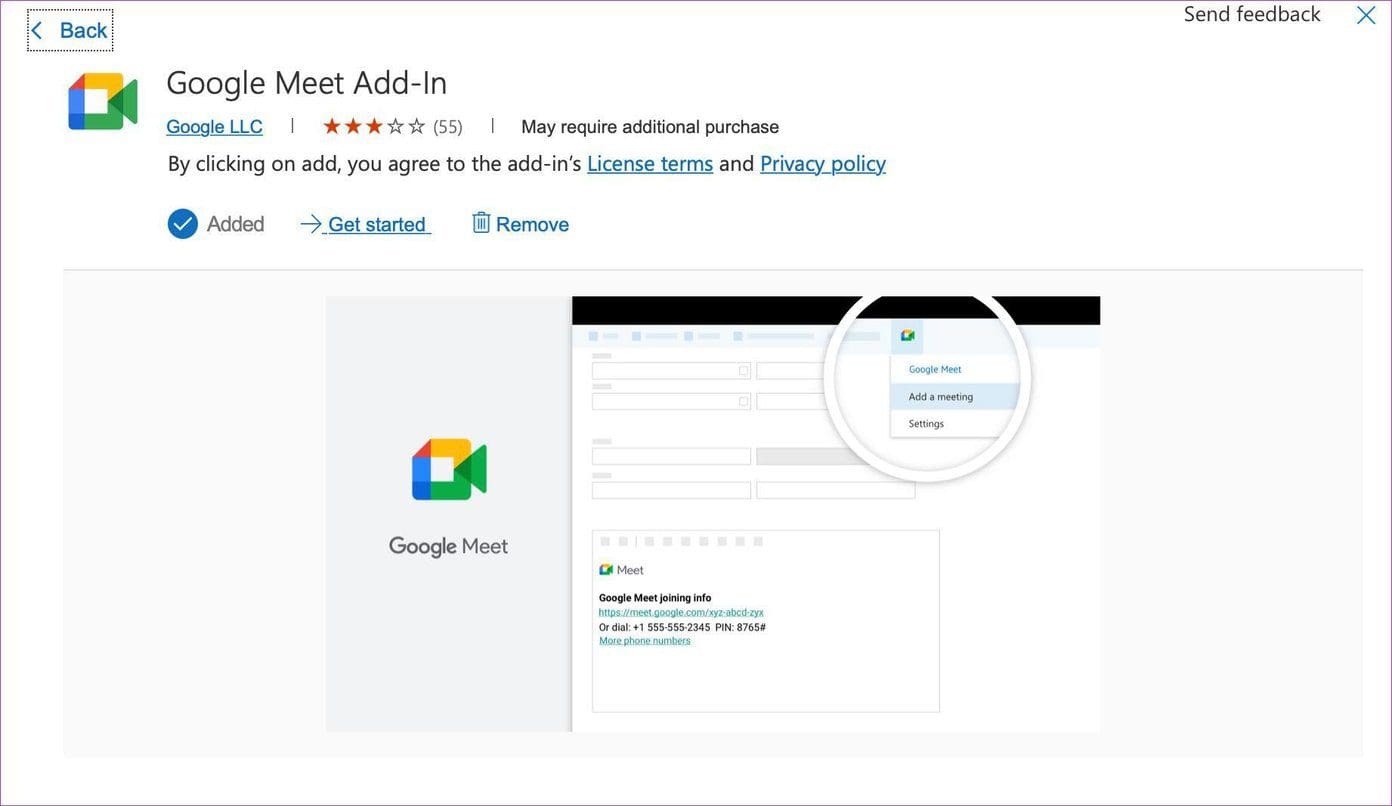
Step 4: It will open a dedicated add-in store. Search for Google Meet and install the add-in to your Microsoft Outlook calendar.
Step 5: Click on the same three-dot menu at the top, and Google Meet will appear. Please select it and sign in using your Google ID and password.
Step 6: Add your calendar event name, date, time, and other details. When you click on Google Meet > Add a meeting, it will compose a Google Meet meeting and add relevant information in the notes tab.

Step 7: Click Save at the top, and you will be good to go with Google Meet integration in Outlook. As mentioned earlier, the Google Meet add-in isn’t limited to Google Workspace subscribers only. Anyone with a valid Google account can utilize Google Meet with Outlook calendar on the desktop and web.
Method 2. Microsoft Outlook Windows App
The same add-in is available for Windows Outlook apps. If you use Outlook extensively for all your email, this is how you can integrate Google Meet.
Step 1: Open Microsoft Outlook on Windows. Go to the Home menu and click on Browser Add-ins.
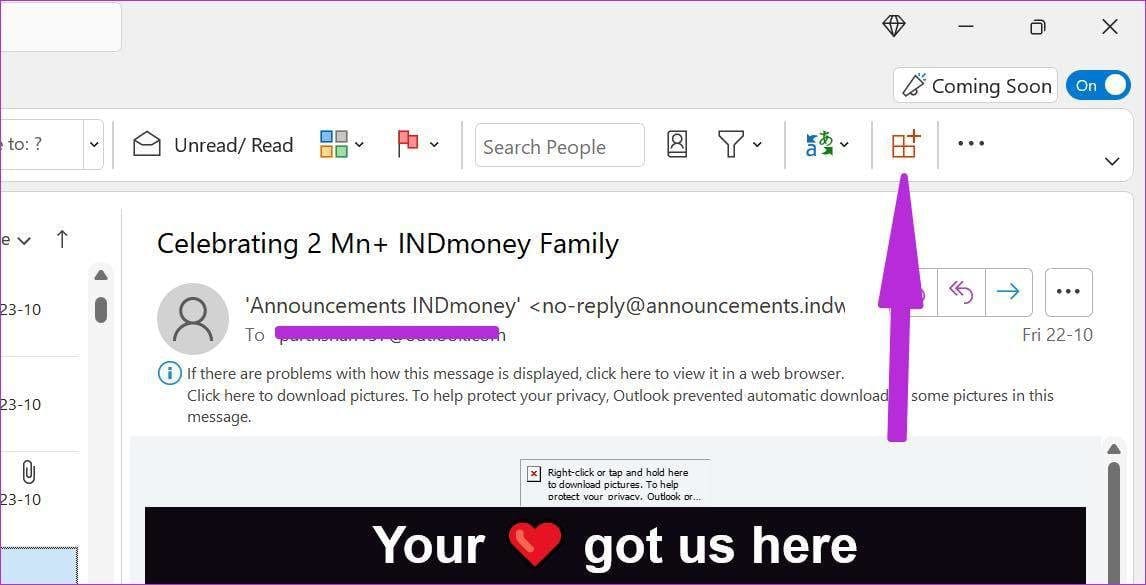
Step 2: Search for Google Meet and add it to Microsoft Outlook from the store.
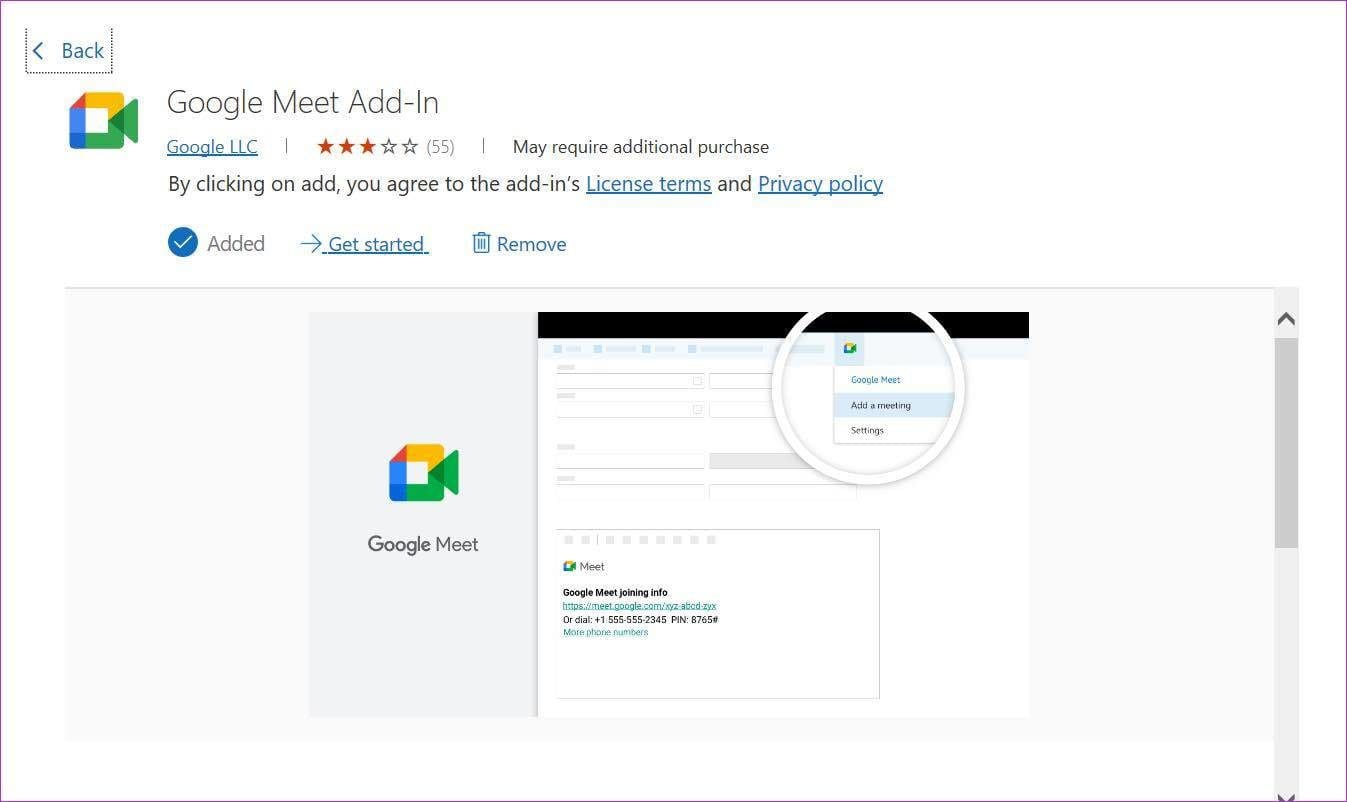
Step 3: Close the window and go to the Calendar tab. Click on the New Meeting button at the top.
Step 4: From the Add Meeting menu, click on the three-dot menu and open Google Meet. Click on it and select Add a meeting.

Step 5: You will be asked to sign in with a username and password when using Google Meet. After successful authentication, you will see Google Meet joining information with the meeting link in the notes.
Was this helpful?
Last updated on 03 September, 2024
Read Next
 How to Schedule Emails in Outlook on Any Platform
Have you ever wished for an easier way to manage your emails and ensure they get sent at the most opportune time?
How to Schedule Emails in Outlook on Any Platform
Have you ever wished for an easier way to manage your emails and ensure they get sent at the most opportune time?
 How to Share Video With Sound on Zoom, Microsoft Teams, and Google Meet
How to Share Video With Audio in Microsoft Teams The feature to share your screen containing the video and its sound in Microsoft Teams is limited to the Windows app
How to Share Video With Sound on Zoom, Microsoft Teams, and Google Meet
How to Share Video With Audio in Microsoft Teams The feature to share your screen containing the video and its sound in Microsoft Teams is limited to the Windows app
 Top 10 Ways to Fix Google Meet Microphone Not Working on Windows and Mac
For the most part, Google Meet offers a seamless browser-based video conferencing experience on both Windows and macOS.
Top 10 Ways to Fix Google Meet Microphone Not Working on Windows and Mac
For the most part, Google Meet offers a seamless browser-based video conferencing experience on both Windows and macOS.
 Top 7 Ways to Fix Google Meet Audio Not Working
Major IT companies, such as Twitter and Spotify, are encouraging employees to work from home.
Top 7 Ways to Fix Google Meet Audio Not Working
Major IT companies, such as Twitter and Spotify, are encouraging employees to work from home.
 How to Hide and Unhide Yourself on Google Meet (PC and Mobile)
Note: When you hide your camera feed, you can still see others, depending on their camera privacy setting.
How to Hide and Unhide Yourself on Google Meet (PC and Mobile)
Note: When you hide your camera feed, you can still see others, depending on their camera privacy setting.
 How to Share Screen on Google Meet
How to Share Screen (Present) on Google Meet On Google Meet, you may share a window for a particular open app, your entire screen, or a single tab on your
How to Share Screen on Google Meet
How to Share Screen (Present) on Google Meet On Google Meet, you may share a window for a particular open app, your entire screen, or a single tab on your
 How to Disable Google Chat and Meet in Gmail
Disable Google Chat and Meet in Gmail If you don't use Google Chat or Google Meet services in Gmail, turning it off becomes reasonable to remove extra tabs cluttering your
How to Disable Google Chat and Meet in Gmail
Disable Google Chat and Meet in Gmail If you don't use Google Chat or Google Meet services in Gmail, turning it off becomes reasonable to remove extra tabs cluttering your
 3 Fixes for Google Meet Not Working on iPhone
Basic Fixes Switch to 5GHz network: If you have any dual-band Wi-Fi router, you can connect to a 5GHz network for faster internet speeds.
3 Fixes for Google Meet Not Working on iPhone
Basic Fixes Switch to 5GHz network: If you have any dual-band Wi-Fi router, you can connect to a 5GHz network for faster internet speeds.
The article above may contain affiliate links which help support Guiding Tech. The content remains unbiased and authentic and will never affect our editorial integrity.