Method 1: Set Auto Shutdown Using Task Scheduler
Task Scheduler is a built-in Windows OS app that can be used to schedule different chores. Here’s how to use it to schedule an auto shutdown on your PC.
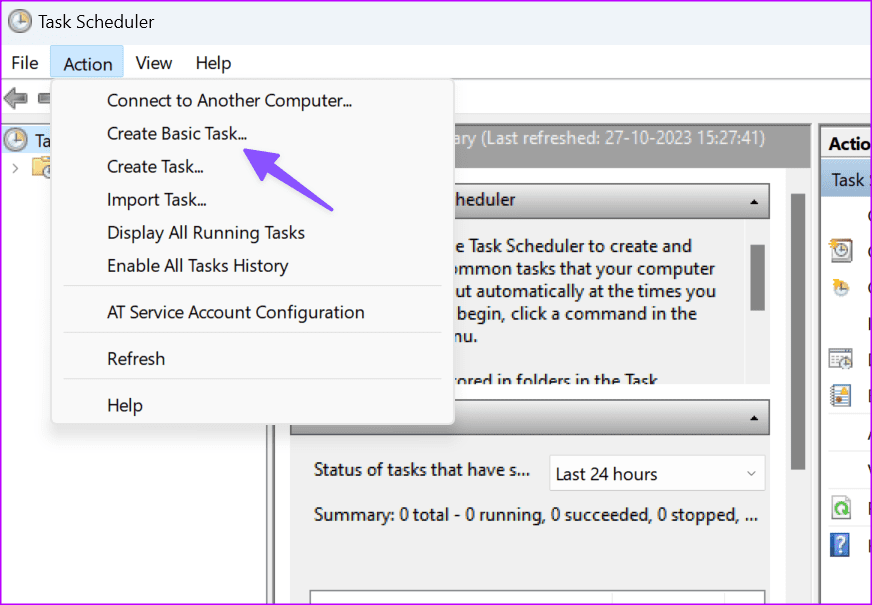
Step 1: Type Task Scheduler in your Windows computer’s search bar and hit Enter.
Step 2: Under the Actions section, click Create Basic Task.
Step 3: Give the task a name and a description (optional), and click Next. For this tutorial, we’ll name the task Auto-Shutdown at 12 AM.
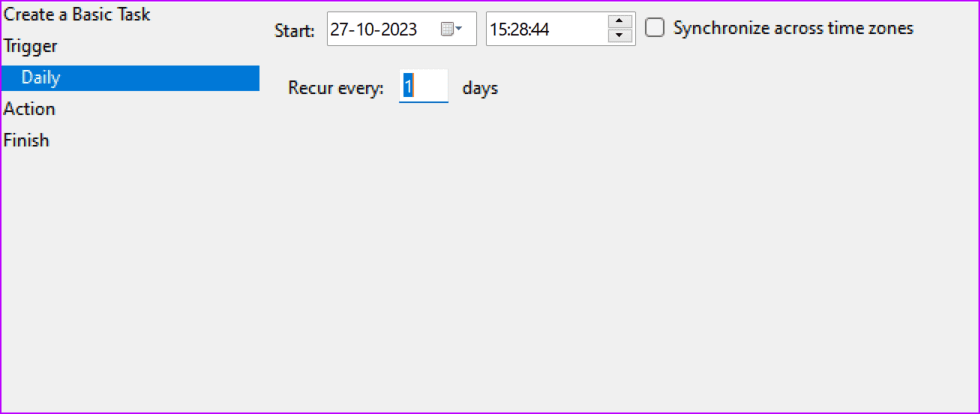
Step 4: Choose how often you want the task done (daily, weekly, monthly, or a one-time task) and click Next.
Step 5: Next, select a start date and the time you want your PC to shut down automatically.
Step 6: On the new window, select Start a program and tap the Next button.
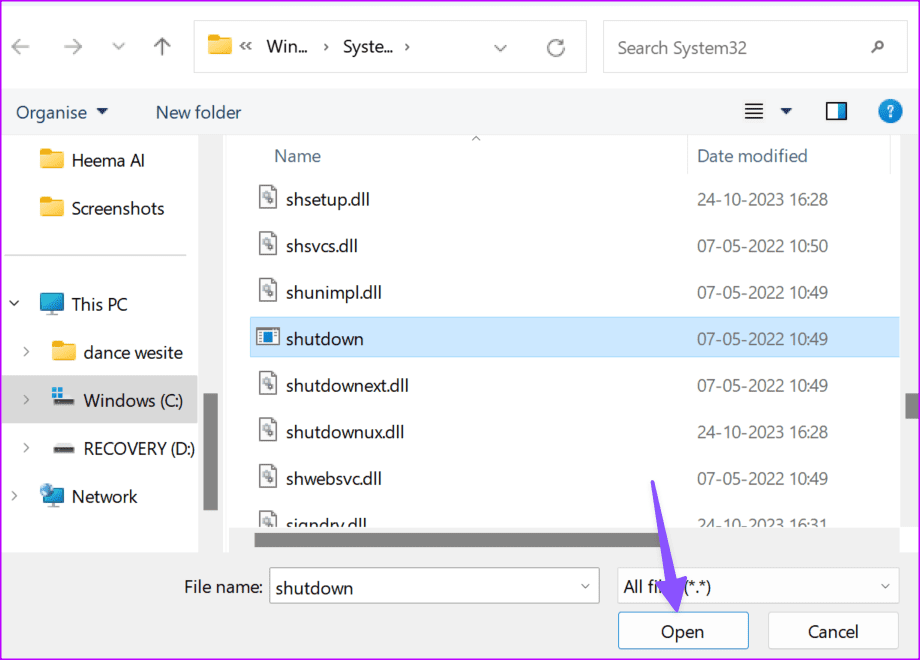
Step 7: Click the Browse button from the subsequent menu.
Step 8: Navigate to the bottom of the page, select the shutdown application, and click Open.
Step 9: Type -s into the Add arguments (optional) box and click Next.
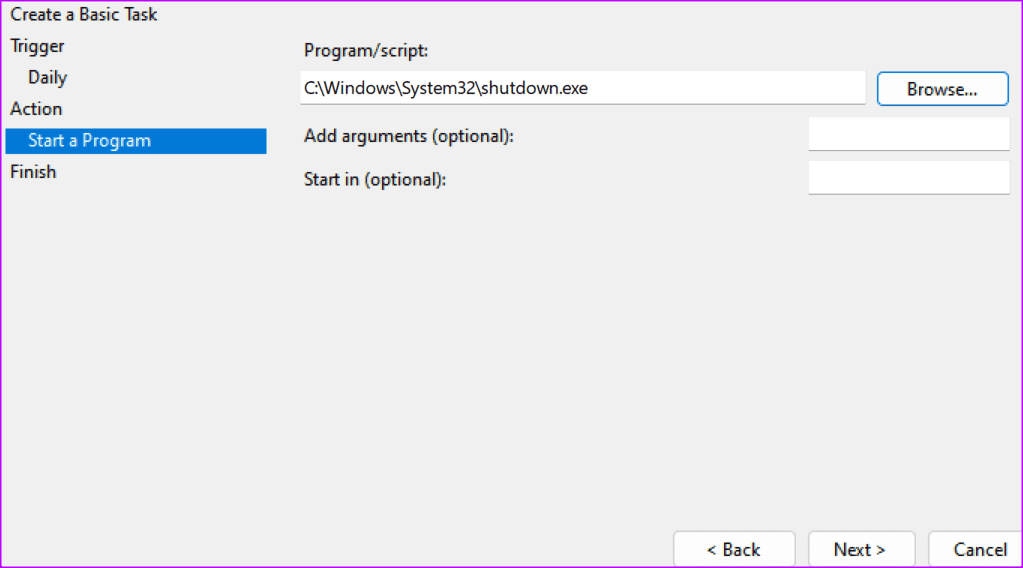
Step 10: Preview the auto shutdown task on the new window and click Finish.
Method 2: Use Command Prompt
You can use the Command Prompt menu to auto-shutdown a Windows PC. Here’s how.
Step 1: Press the Windows key to open the Start menu, type Command Prompt, and hit Enter.
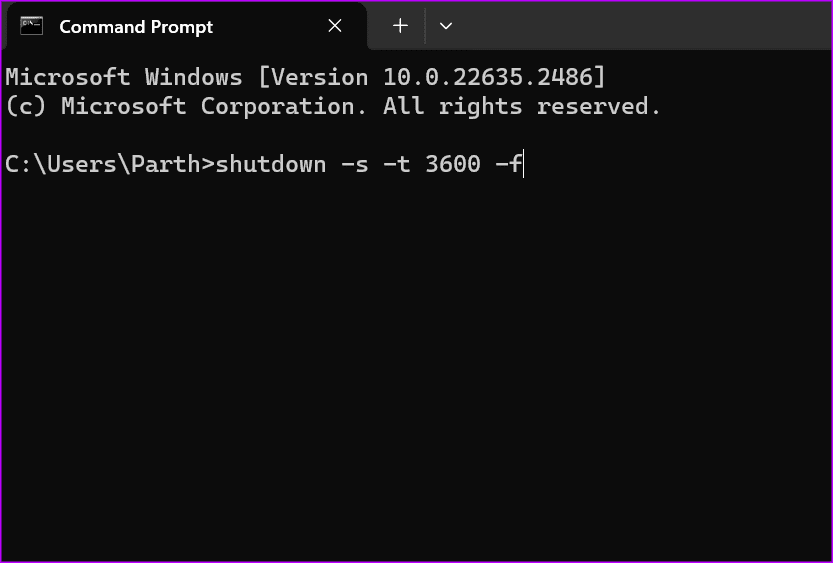
Step 2: Enter the command below in the Command Prompt window. Replace XXXX with the number of seconds after which the computer shuts down.
shutdown -s -t XXXX -f
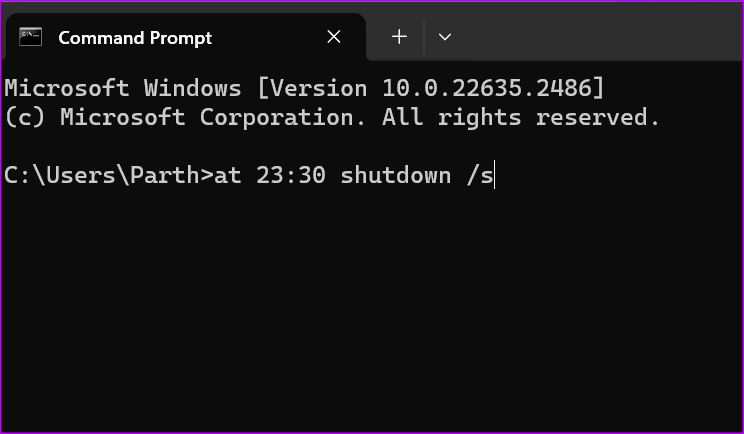
Step 3: You can also shut down the PC at a specific time. For instance, you can enter’ at 22.:30 shutdown /s’ to do so.
at time shutdown /s
Refer to our guide if the Command Prompt doesn’t open on your Windows PC.
Method 3: Create a Desktop Shortcut for Shutdown Timer
You can create a desktop shortcut if you don’t want to remember a specific auto-shutdown command. Here’s how.
Step 1: Right-click on the desktop and expand New from the context menu.
Step 2: Select Shortcut.
Step 3: Enter the following command and click Next. Replace XXXX with the number of seconds after which you want to shut down the PC:
shutdown -s -t XXXX
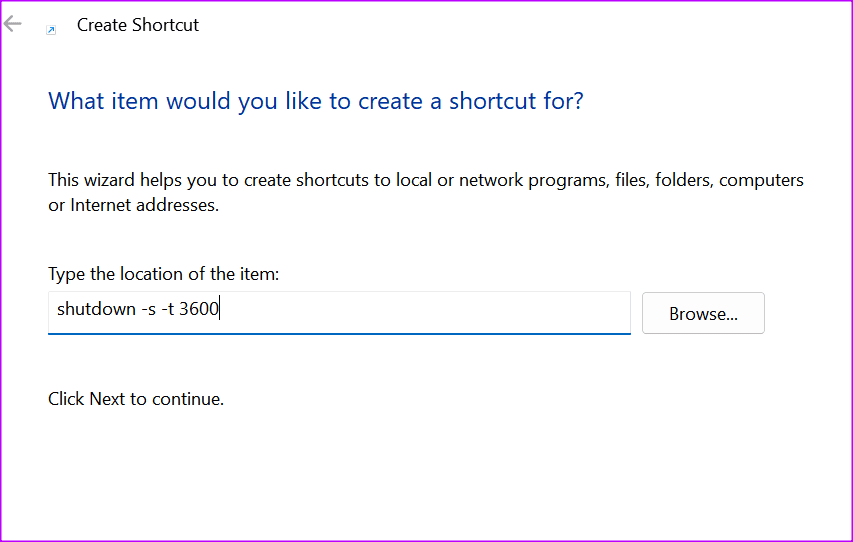
Type a name for the shortcut. Once done, tap the Finish button.
Windows will then create a desktop shortcut. You can double-click it to start the auto shutdown timer.
Was this helpful?
Last updated on 23 July, 2024
Read Next
 3 Ways to Schedule Shutdown Timer on Mac
https://youtu.be/xEU_jtOvBZE Method 1: Using Built-in Power Scheduler The power scheduling feature was built into the Mac.
3 Ways to Schedule Shutdown Timer on Mac
https://youtu.be/xEU_jtOvBZE Method 1: Using Built-in Power Scheduler The power scheduling feature was built into the Mac.
 Top 4 Fixes for Windows 10 PC Automatically Restarting After Shutdown
Power-related failures on Windows PC come in different forms.
Top 4 Fixes for Windows 10 PC Automatically Restarting After Shutdown
Power-related failures on Windows PC come in different forms.
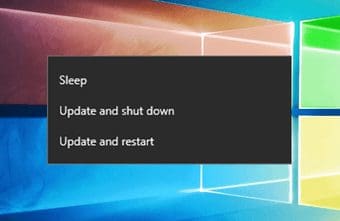 How to Fix Windows 10 Asking to Update and Shutdown Every Time Issue
If bandwidth isn't a factor, then Windows 10 offers a super-convenient way to stay updated with minimal involvement on your part.
How to Fix Windows 10 Asking to Update and Shutdown Every Time Issue
If bandwidth isn't a factor, then Windows 10 offers a super-convenient way to stay updated with minimal involvement on your part.
 4 Best Ways to Fix Windows PC Not Turning Off After Shutdown
Fix 1: Disable Fast Startup Fast Startup is a useful feature that puts your computer into a hibernation state rather than a full shutdown.
4 Best Ways to Fix Windows PC Not Turning Off After Shutdown
Fix 1: Disable Fast Startup Fast Startup is a useful feature that puts your computer into a hibernation state rather than a full shutdown.
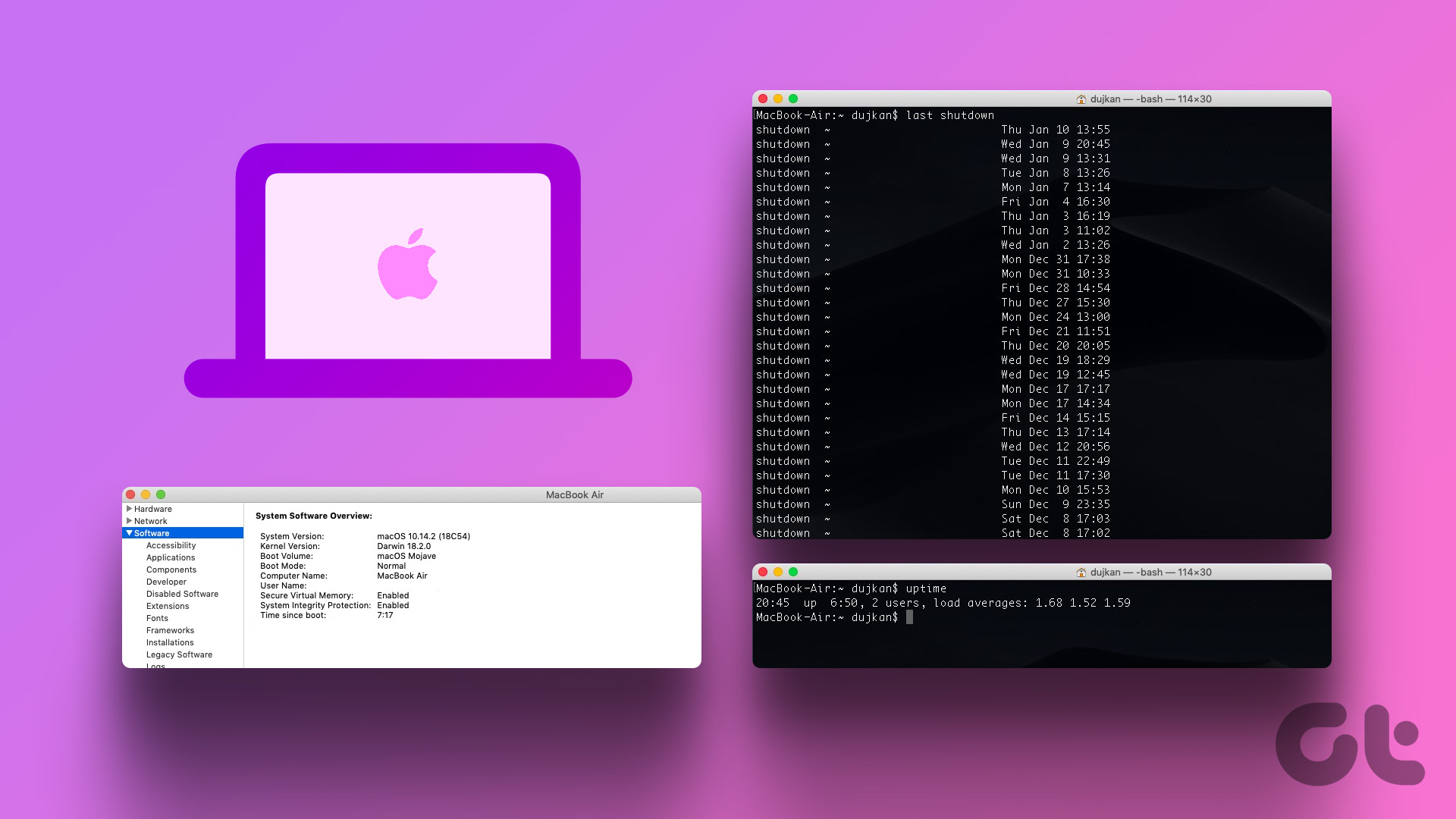 How to Check Your Mac’s Uptime, Reboot and Shutdown History
Are you curious to find out how often your Mac has been rebooted or shut down?
How to Check Your Mac’s Uptime, Reboot and Shutdown History
Are you curious to find out how often your Mac has been rebooted or shut down?
 How to Set Up YouTube Music Sleep Timer on iPhone, Android, Windows, or Mac
Put a Timer on YouTube Music App for iPhone or Android Notably, the sleep mode on YouTube Music is only available on the app.
How to Set Up YouTube Music Sleep Timer on iPhone, Android, Windows, or Mac
Put a Timer on YouTube Music App for iPhone or Android Notably, the sleep mode on YouTube Music is only available on the app.
 How to Add Timer to a Quiz in Google Forms
Google Forms is a versatile tool for creating surveys and quizzes.
How to Add Timer to a Quiz in Google Forms
Google Forms is a versatile tool for creating surveys and quizzes.
 How to Add or Remove App Timer on Android
Method 1: Use App Settings to Add or Remove App Timer To limit your screen time, you can configure a timer for individual apps through the app settings.
How to Add or Remove App Timer on Android
Method 1: Use App Settings to Add or Remove App Timer To limit your screen time, you can configure a timer for individual apps through the app settings.
The article above may contain affiliate links which help support Guiding Tech. The content remains unbiased and authentic and will never affect our editorial integrity.