


How to Remove Old Phone From Google Account on Mobile
Step 1: Launch the Phone Settings menu.
Step 2: Scroll to the bottom of the Settings menu and select Google.
Step 3: Next up, tap the Manage your Google Account button at the top of the page.
This launches the account management dashboard of the Google account(s) connected to your smartphone.

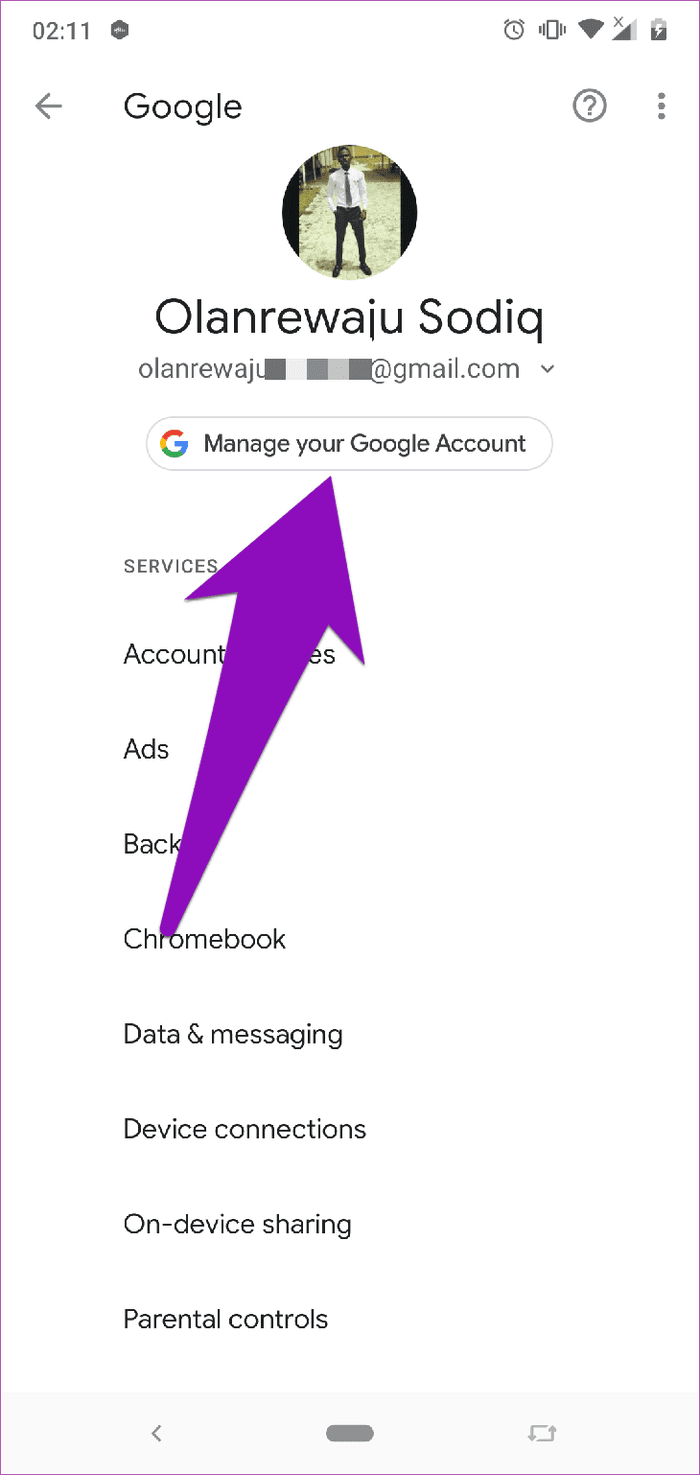
Step 4: Tap the Menu icon at the bottom-left corner of the page.
Step 5: Select Security from the menu options.


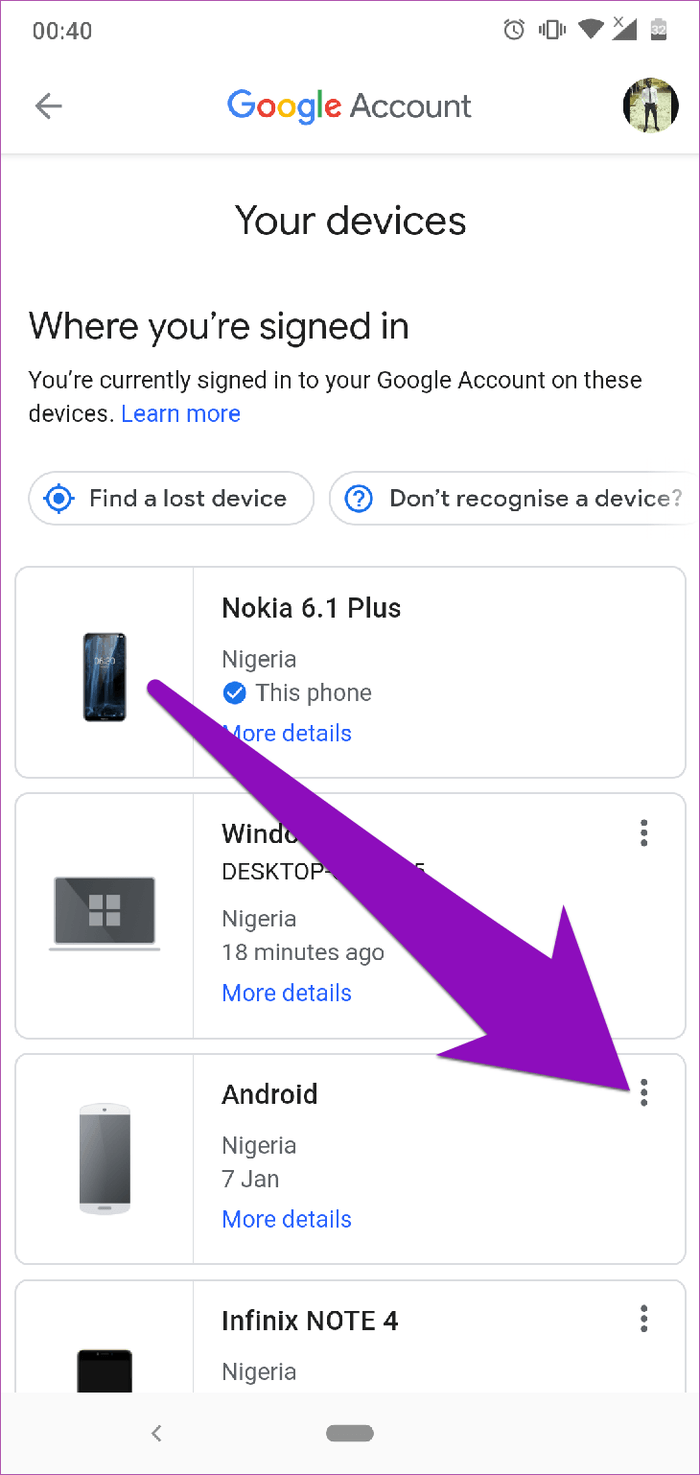
Step 6: Scroll and tap the Manage devices option
That will open up a new window showing devices where your Google account is currently signed in. To remove an old phone, proceed with the steps below.
Step 7: When you find a device you want to remove, tap the three-doted menu icon on the device pane.
Step 8: Tap Sign out to disconnect and remove the device from your Google account.
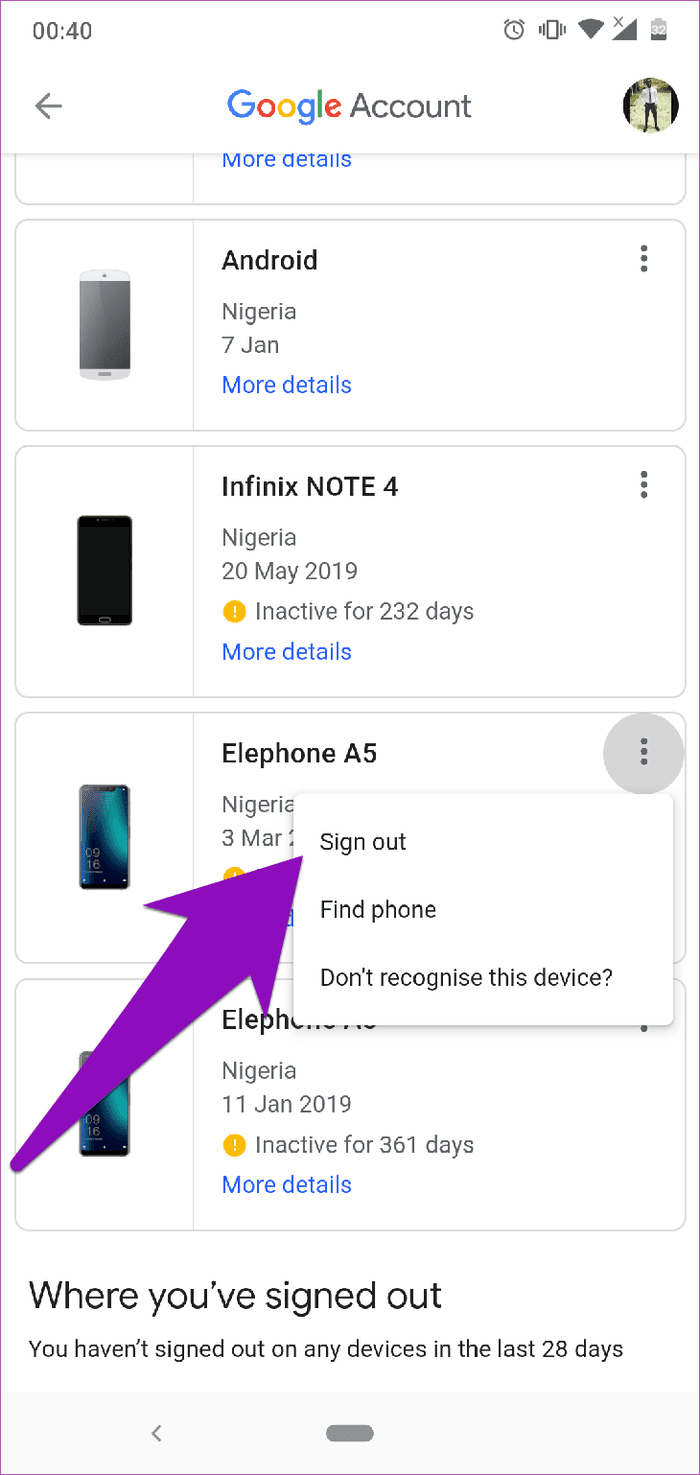
That’s it. The device would be immediately removed from your account, and a notification would be displayed at the bottom of the screen.
If you do not have access to a smartphone and want to remove your Google account using a PC, continue reading.
How to Remove Old Phone From Google Account on PC
Step 1: Visit your Google Account dashboard on your computer’s browser.
Step 2: On the right-hand menu, select Security.
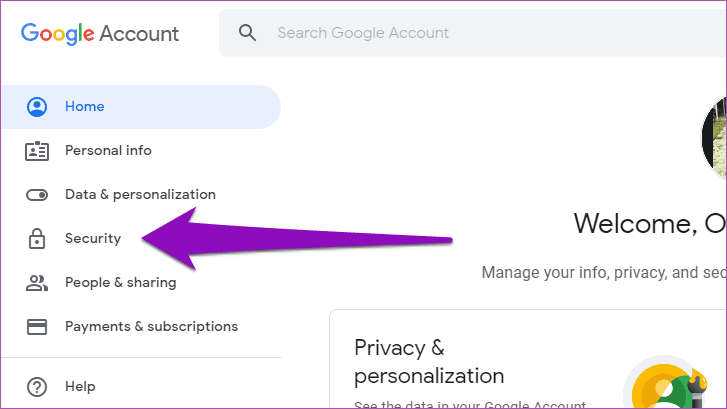
Step 3: Now, tap Manage devices.
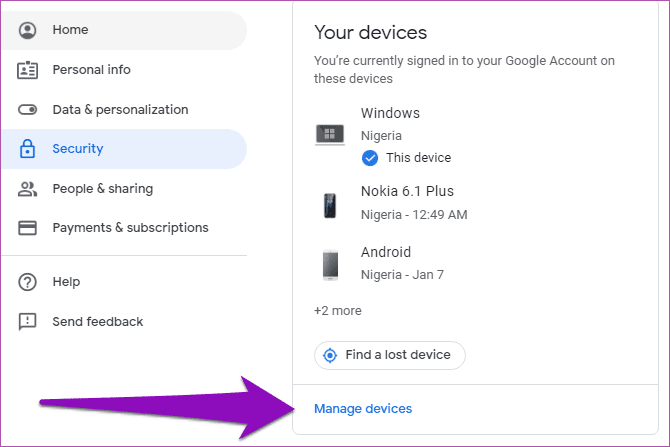
A list of devices connected to your Google account will be displayed on the new page.
Step 4: Tap the three-dotted menu icon of the device you want to remove from your account.

Step 5: Select Sign out from the options.
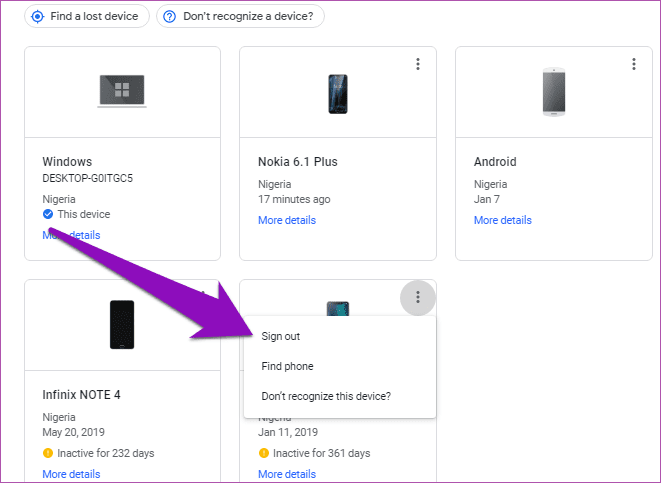
Step 6: Tap Sign out again to confirm that you want the device removed.
There you go. The device is then removed from your account, and a pop-up notification is displayed to that effect.
Was this helpful?
Last updated on 22 July, 2024
Read Next
 What Happens When You Remove a Google Account from Your Phone
1.
What Happens When You Remove a Google Account from Your Phone
1.
 How to Remove or Change Phone Number on Discord Account
Remove or Change the Phone Number in Your Discord Account If you no longer have access to the phone number used while setting up your Discord account, removing or changing
How to Remove or Change Phone Number on Discord Account
Remove or Change the Phone Number in Your Discord Account If you no longer have access to the phone number used while setting up your Discord account, removing or changing
 How to Add, Remove, and Delete Samsung Account From Your Android Phone
You don't need a Samsung account to use your Android phone the same way you need a Google account.
How to Add, Remove, and Delete Samsung Account From Your Android Phone
You don't need a Samsung account to use your Android phone the same way you need a Google account.
 How to Remove an Account from Google Photos
How to Remove a Google Account Unfortunately, you cannot remove an account from Google Photos.
How to Remove an Account from Google Photos
How to Remove a Google Account Unfortunately, you cannot remove an account from Google Photos.
 How to Remove a Google Account From Chrome
Note: It’s best to review the Chrome Sync settings and back up any unsynced data to your Google Account before proceeding.
How to Remove a Google Account From Chrome
Note: It’s best to review the Chrome Sync settings and back up any unsynced data to your Google Account before proceeding.
 How to Add or Remove a Trusted Device From Your Google Account
How to Add a Trusted Device to Your Google Account Follow the steps below to add a trusted device to your Google account using your PC, or your smartphone.
How to Add or Remove a Trusted Device From Your Google Account
How to Add a Trusted Device to Your Google Account Follow the steps below to add a trusted device to your Google account using your PC, or your smartphone.
 3 Ways to Remove Saved Snapchat Account From Any Device
Method 1: Remove Account Information From Snapchat App When you log out from Snapchat on your phone, the app doesn’t ask you to delete saved login information.
3 Ways to Remove Saved Snapchat Account From Any Device
Method 1: Remove Account Information From Snapchat App When you log out from Snapchat on your phone, the app doesn’t ask you to delete saved login information.
 How to Remove an Email Account From Outlook
Are you looking to declutter your Outlook inbox by removing an email account you no longer need?
How to Remove an Email Account From Outlook
Are you looking to declutter your Outlook inbox by removing an email account you no longer need?
The article above may contain affiliate links which help support Guiding Tech. The content remains unbiased and authentic and will never affect our editorial integrity.

