Turn off Team Meetings in Outlook Calendar
Outlook Calendar is seamlessly integrated into Outlook. By disabling Teams meeting invitations, you won’t see them in your Outlook calendar and will not receive meeting reminders. If you’re okay with that, follow the below steps.
Step 1: Go to Outlook Calendar from your preferred browser and log in to your account.
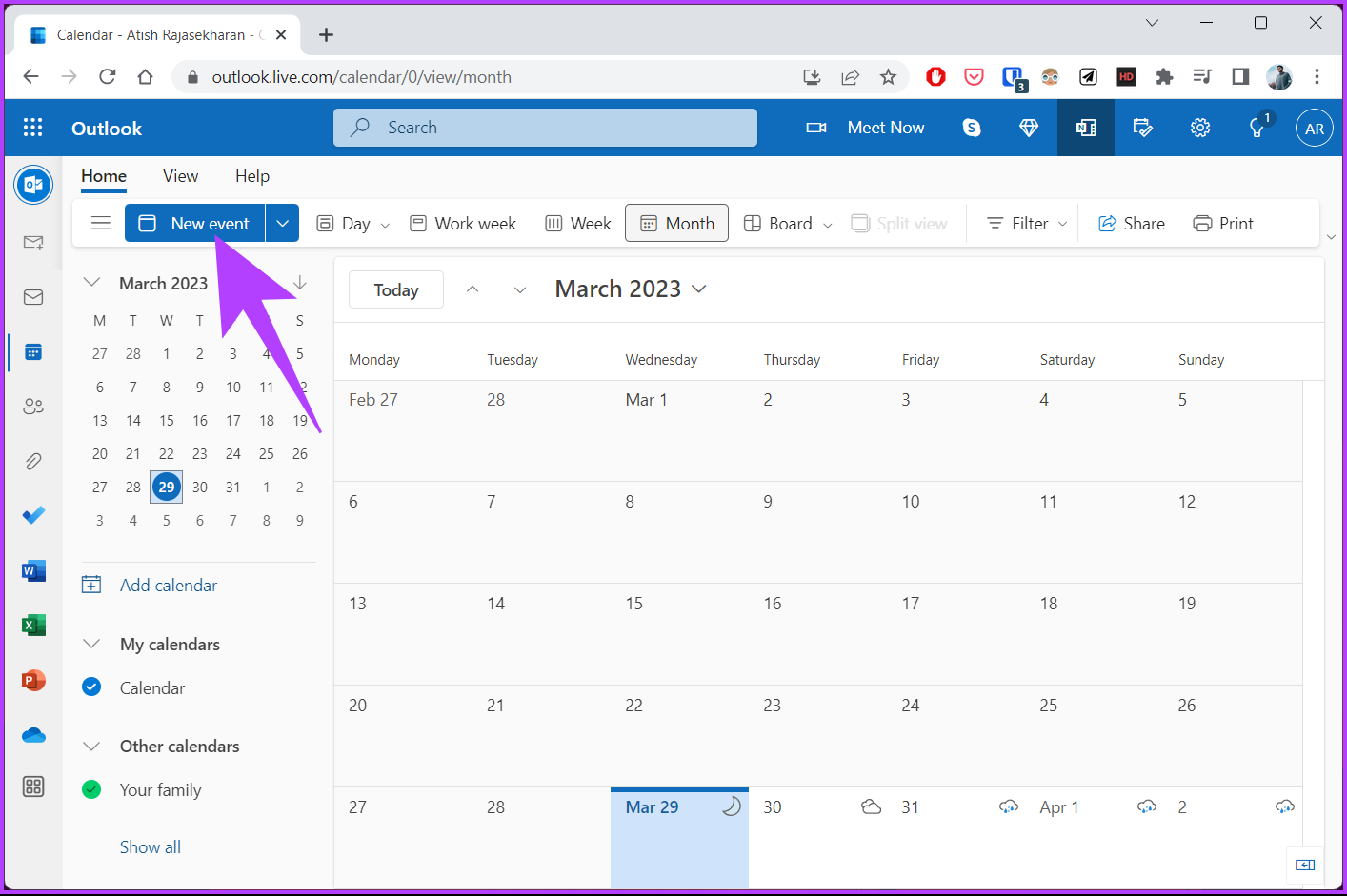
Step 2: Click the New Event button. This will bring up the option to create a new event.
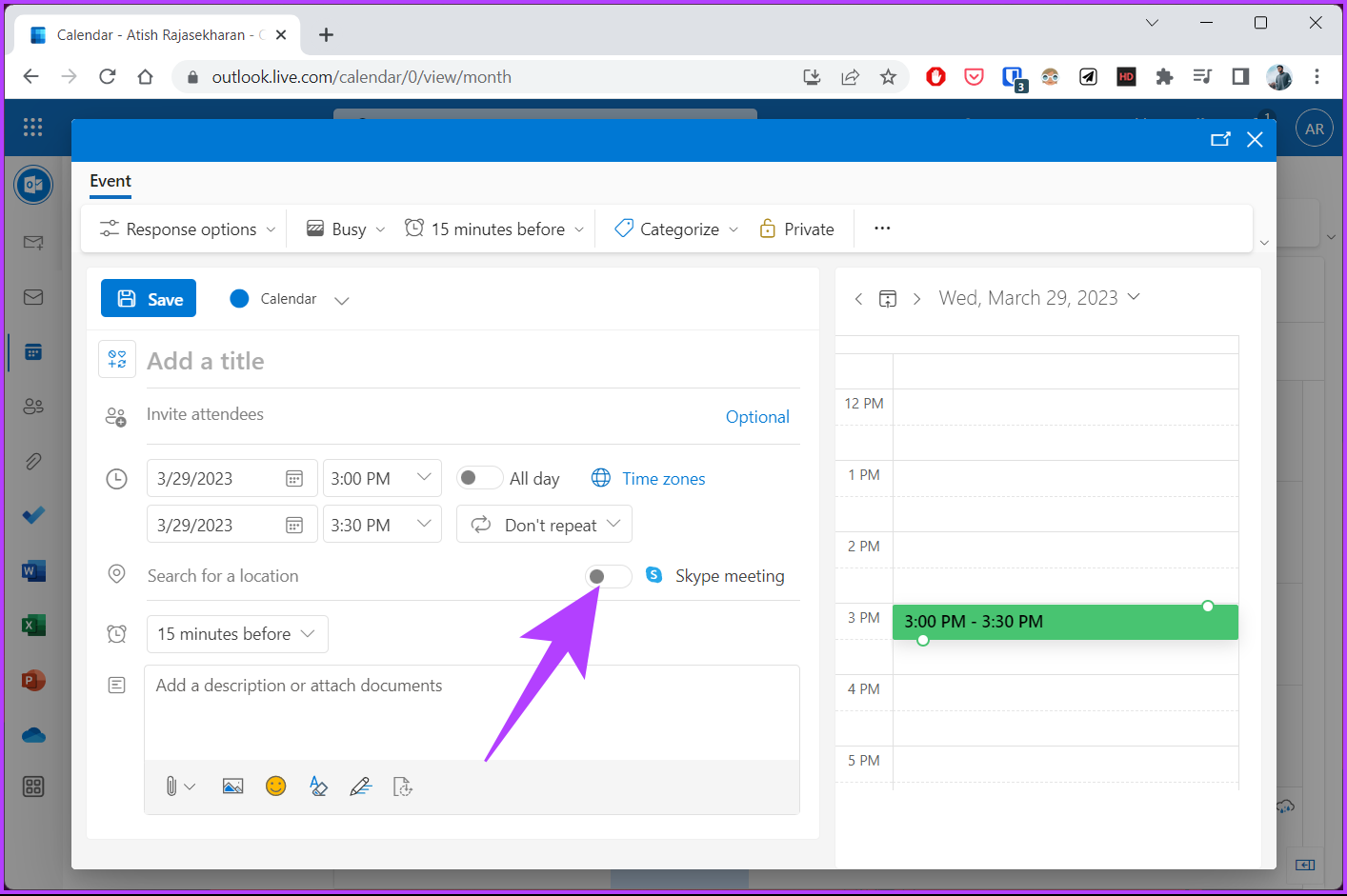
Step 3: In the pop-up, toggle off the Teams meeting option next to Search for a location.
Note: Depending on your or the admin’s preference for meeting options, you may see a Skype meeting option.
Also Read: How to schedule Google Meet in Microsoft Outlook
How to Disable Team Meetings From Outlook
You can disable Teams meetings from the Outlook website. This is useful if you prefer using something other than the Outlook Calendar or want to remove Teams meetings from invites on the go.
Step 1: Open Outlook in your preferred browser and log in to your account.
Step 2: Click on the gear icon at the top right.
Step 3: From the drop-down menu, click View all Outlook settings.

Step 4: In the Settings window, go to Calendar.
Step 5: Under Calendar, choose Events and invitations and uncheck Add online meetings to all meetings.
Step 6: Finally, click Save to apply the changes.

How to Remove Team Meeting From Outlook for Windows
Step 1: Press the Windows key on your keyboard, type Outlook, and click Open.
Step 2: Once launched, go to File from the top menu bar.

Step 3: From the Info tab, go to Options.

Step 4: Choose Calendar from the left pane in the Outlook Options window.
Step 5: Under the Calendar options section, uncheck Add online meeting to all meetings and click OK.

Also Read: Check out these best ways to fix Microsoft Teams’ high CPU usage on Windows
How to Remove Team Meeting From Outlook for Mac
Step 1: Press Command + Space, type Outlook, and press Return.
Step 2: Click on Outlook at the top and select Settings from the drop-down.
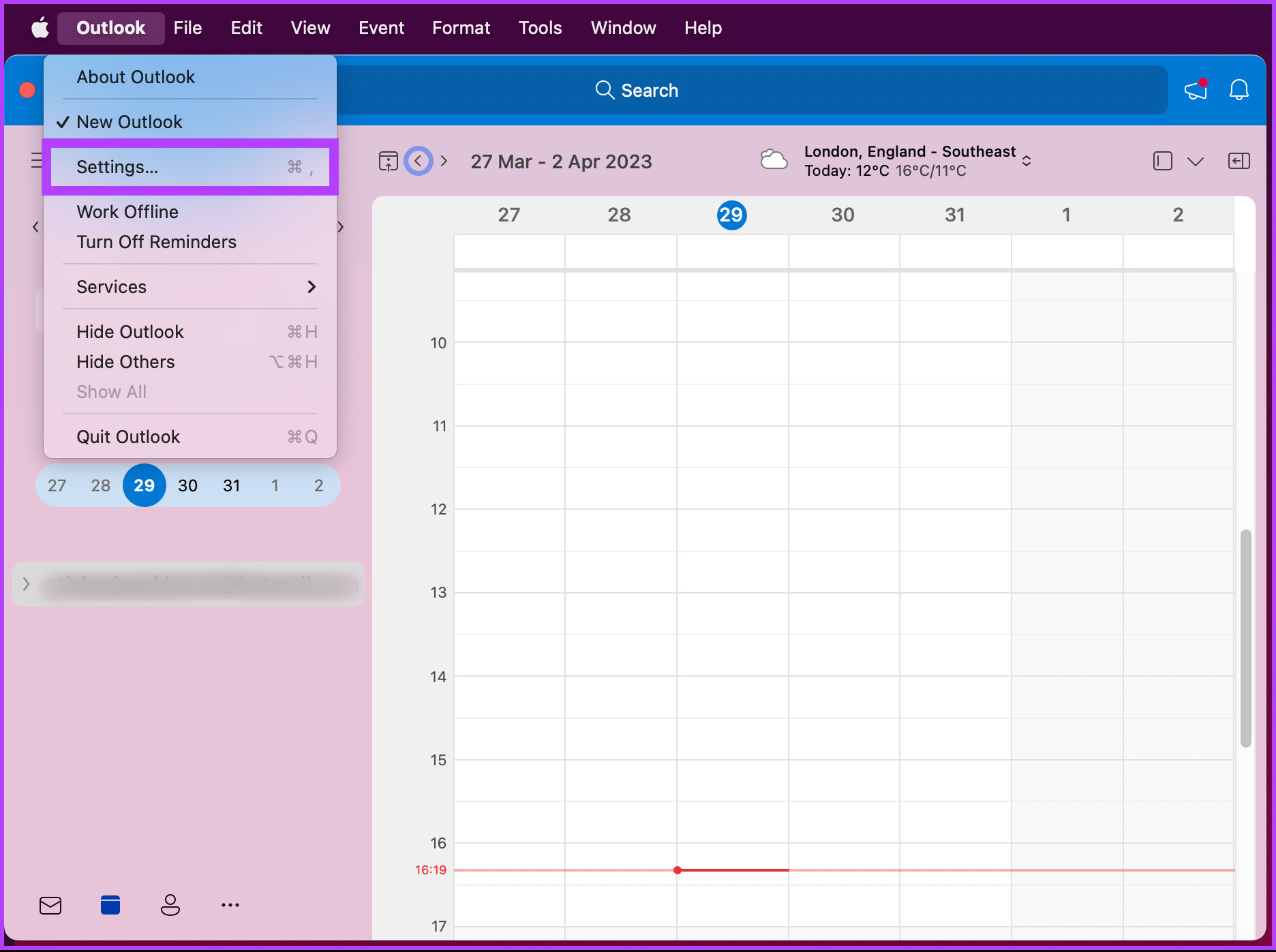
Step 3: In the Outlook Preferences window, under the Other section, select Calendar.
Step 4: Under Calendar Options, choose the Configure button.
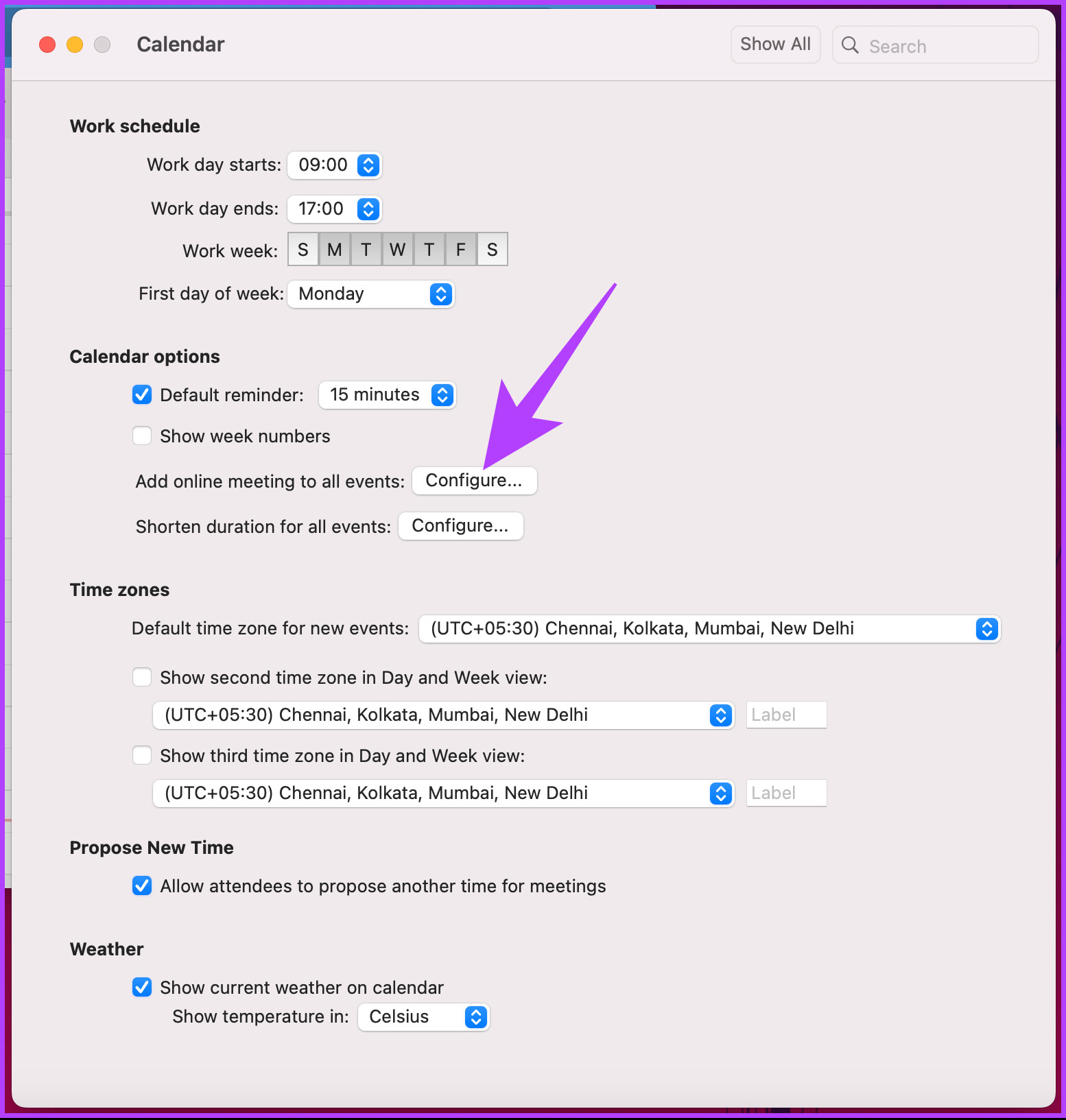
Step 5: In the Online Meeting window, uncheck Add online meeting to all meetings and click Save.
Note: You may see a Skype meeting option, depending on your or your admin’s preference towards meeting options.

FAQs
Yes, when you remove someone from a Teams meeting, they will receive a notification (in email) that they have been removed. However, the reason for removal will not be specified. They will also not be able to rejoin the meeting unless invited again by the meeting organizer.
Deleting a meeting in Outlook will remove it from your calendar, but not for everyone. If you are the meeting organizer and want to cancel the meeting for everyone, choose the Cancel Meeting option instead of Delete. This is when you delete the meeting and send a cancellation notice to all attendees, removing it from their calendars.
Also Read: How to add Zoom meetings to Outlook Calendar
Was this helpful?
Last updated on 31 May, 2024
Read Next
 How to Add Skype Meeting to Outlook Meeting Invite (and Cool Tricks)
There's no denying the fact that Microsoft Outlook and Outlook Web are solid email managers.
How to Add Skype Meeting to Outlook Meeting Invite (and Cool Tricks)
There's no denying the fact that Microsoft Outlook and Outlook Web are solid email managers.
 4 Ways to Fix Microsoft Teams Meeting Add-in Won’t Appear in Outlook for Windows
Fix 1: Enable the Teams Add-In A common reason the Microsoft Teams meeting option may disappear from Outlook is if you have accidentally disabled the related add-in.
4 Ways to Fix Microsoft Teams Meeting Add-in Won’t Appear in Outlook for Windows
Fix 1: Enable the Teams Add-In A common reason the Microsoft Teams meeting option may disappear from Outlook is if you have accidentally disabled the related add-in.
 How to Know Who Removed You From a Meeting in Microsoft Teams
‘Someone just removed you from the meeting’ — Does that message sound familiar?
How to Know Who Removed You From a Meeting in Microsoft Teams
‘Someone just removed you from the meeting’ — Does that message sound familiar?
 How to Download Meeting Attendance on Microsoft Teams
Method 1.
How to Download Meeting Attendance on Microsoft Teams
Method 1.
 3 Ways to Fix Can’t Record Meeting in Microsoft Teams
Preliminary Fixes Ensure you have a Microsoft 365 license: It is crucial to have the appropriate Microsoft 365 license.
3 Ways to Fix Can’t Record Meeting in Microsoft Teams
Preliminary Fixes Ensure you have a Microsoft 365 license: It is crucial to have the appropriate Microsoft 365 license.
 How to Fix “Invite Collaborator” Not Showing on Instagram
Basic Fixes Avoid scheduling your post: Instagram can prevent users from scheduling their content if they have added someone as a collaborator.
How to Fix “Invite Collaborator” Not Showing on Instagram
Basic Fixes Avoid scheduling your post: Instagram can prevent users from scheduling their content if they have added someone as a collaborator.
 How to Add and Invite Someone to WhatsApp Group
Note: The steps are the same for Android and iOS, with some minor level changes in the button or option placement.
How to Add and Invite Someone to WhatsApp Group
Note: The steps are the same for Android and iOS, with some minor level changes in the button or option placement.
 3 Ways to Fix Discord Invite Not Working
https://youtu.be/YDUXr_-dSqA Try Basic Fixes Try joining other servers: If you are getting the "Whoops, unable to accept invite" error when trying to join a particular server, you may have been
3 Ways to Fix Discord Invite Not Working
https://youtu.be/YDUXr_-dSqA Try Basic Fixes Try joining other servers: If you are getting the "Whoops, unable to accept invite" error when trying to join a particular server, you may have been
The article above may contain affiliate links which help support Guiding Tech. The content remains unbiased and authentic and will never affect our editorial integrity.