How to Remove a Remembered Instagram Account on Mobile
Once you log out of the app, Instagram saves your accounts and remembers them for easy login. But here’s how to remove those remembered accounts to protect unwanted access.
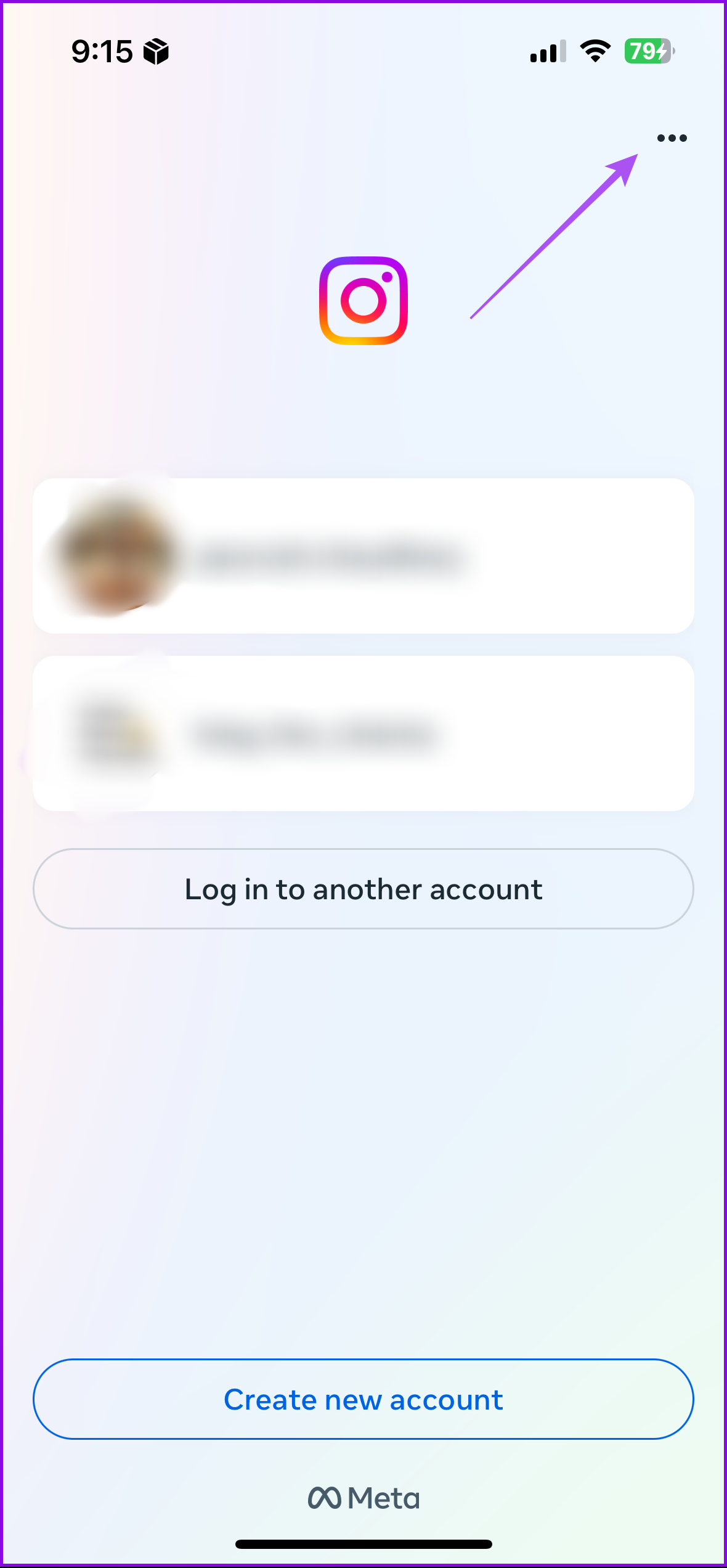
After logging out of your accounts, tap the three dots at the top right. Then, select Remove profiles from this device.

How to Remove Specific Accounts From Instagram on Mobile
Let’s say you have multiple accounts connected to your Instagram app but want to remove only one account. Here’s how to do the same.
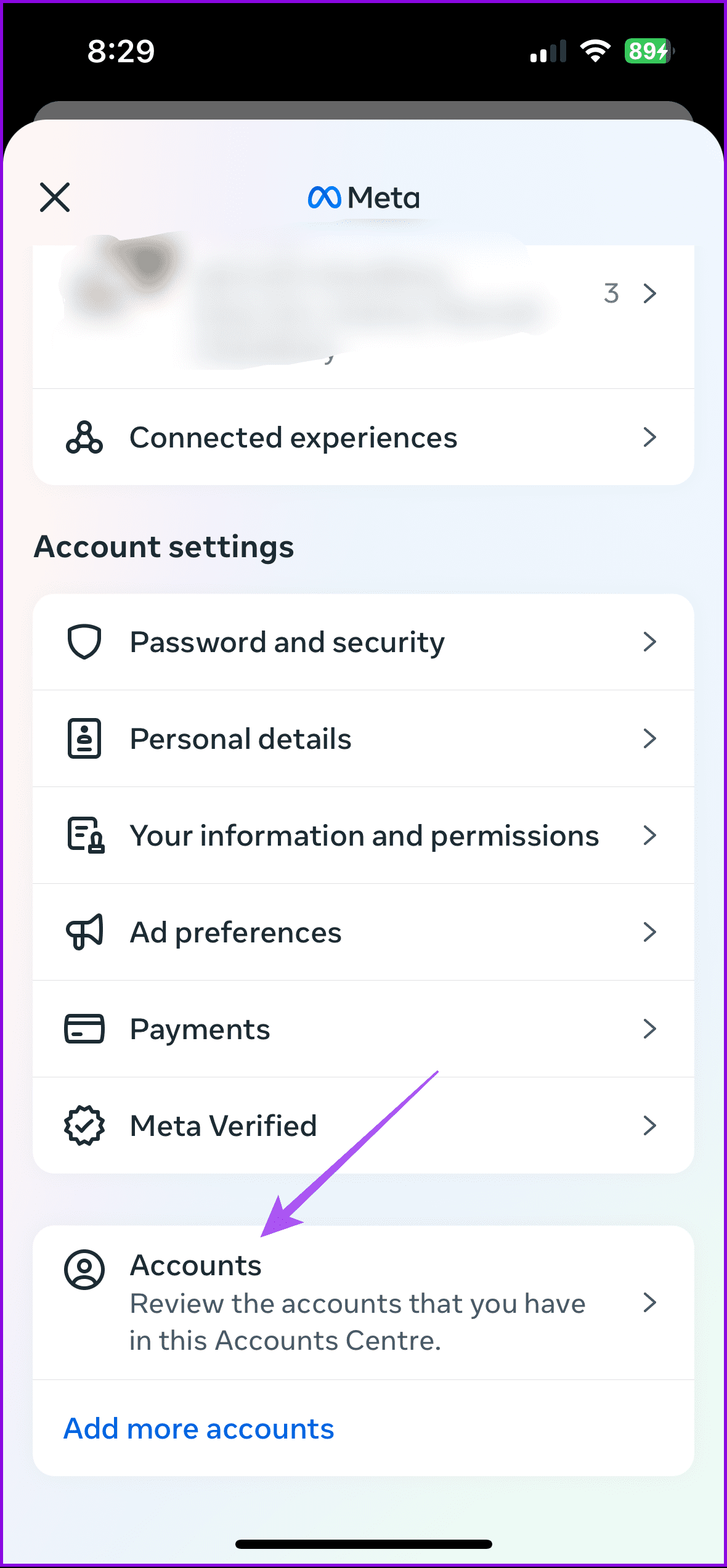
Step 1: Open Instagram > go to your profile > Settings and activity > Accounts Center > Accounts > tap on Remove next to the account name.

Step 2: After that, manually type the log in details to access your account on the Instagram app.
How to Log out of All Accounts
Similarly, if you have multiple accounts on Instagram, log out of the app, which will log you out of all accounts.


How to Log Out of Instagram on Desktop
Logging out from Instagram on the desktop is not straightforward, unlike on other websites. While the option is there, it’s buried down. Here’s how to go about it.
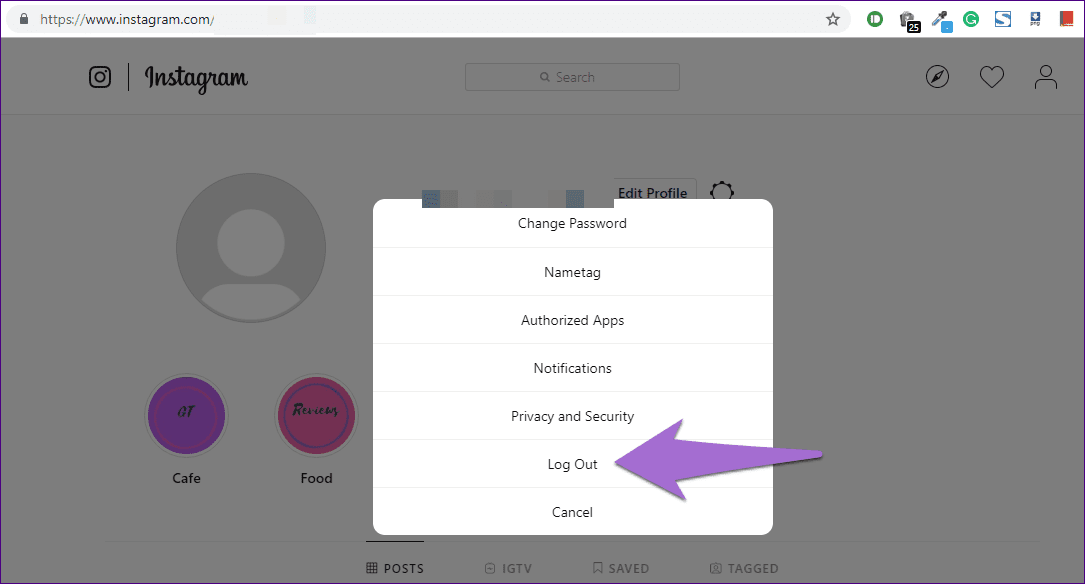
Step 1: Open Instagram on your browser, log in with your account details, and go to the profile screen.
Step 2: Click on the Settings icon next to the Edit profile button.
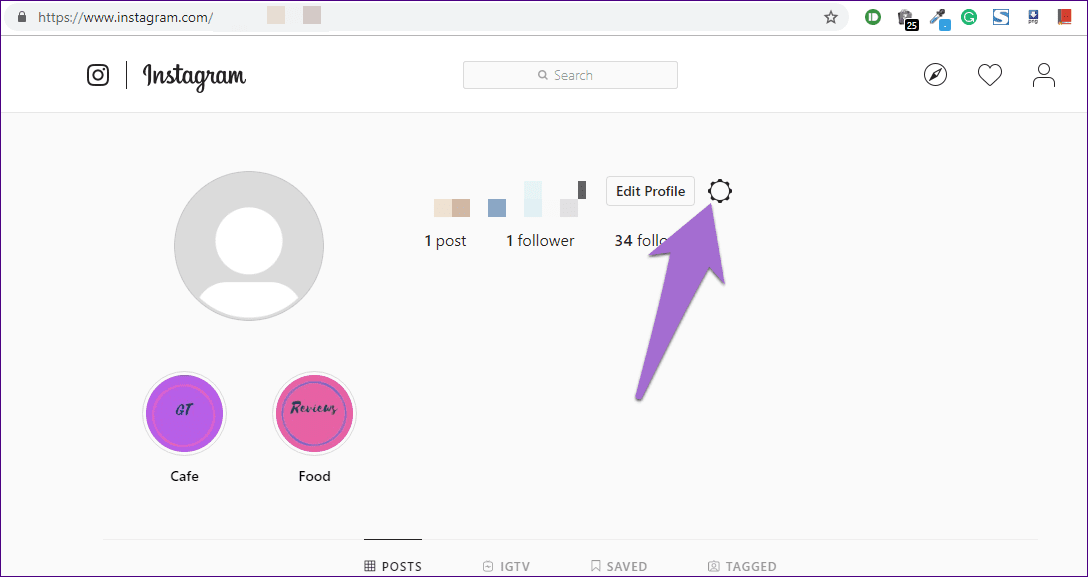
Step 3: Select Log Out from the menu.
Tip: Learn more about how to know if your Instagram account is private or public.
Was this helpful?
Last updated on 29 August, 2024
Read Next
 How to Remove Linked Accounts From Google Home
How to Remove Linked Accounts From Your Google Home Method 1: Remove Additional Linked Accounts Step 1: Open the Google Home app > tap on the profile picture icon at
How to Remove Linked Accounts From Google Home
How to Remove Linked Accounts From Your Google Home Method 1: Remove Additional Linked Accounts Step 1: Open the Google Home app > tap on the profile picture icon at
 How to Remove Email or Accounts From Facebook Login Screen
Remove Remembered Info in Facebook Login on Desktop You can remove the login info from the Facebook webpage or by removing the autofill password for your Facebook account using browser
How to Remove Email or Accounts From Facebook Login Screen
Remove Remembered Info in Facebook Login on Desktop You can remove the login info from the Facebook webpage or by removing the autofill password for your Facebook account using browser
 3 Ways to Stop Instagram From Automatically Following Accounts
Fix 1: Unlink Third-Party Apps and Websites Third-party apps and services linked to your Instagram account may auto-follow specific accounts in the background.
3 Ways to Stop Instagram From Automatically Following Accounts
Fix 1: Unlink Third-Party Apps and Websites Third-party apps and services linked to your Instagram account may auto-follow specific accounts in the background.
 2 Easy Ways to Merge Instagram Accounts
What Happens to Your Followers When You Merge Two Instagram Accounts When you change your username, it will be updated throughout the platform.
2 Easy Ways to Merge Instagram Accounts
What Happens to Your Followers When You Merge Two Instagram Accounts When you change your username, it will be updated throughout the platform.
 7 Fixes for “Disabled Accounts Can’t Be Contacted” on Instagram
Instagram is a vibrant platform where connections are forged, creativity flourishes, and stories unfold.
7 Fixes for “Disabled Accounts Can’t Be Contacted” on Instagram
Instagram is a vibrant platform where connections are forged, creativity flourishes, and stories unfold.
 How to Switch Google Accounts in Chrome for iOS, iPad and Android
Things to Know Before Switching Google Accounts in Chrome When you switch Google accounts in Chrome, your browsing history, bookmarks, passwords, and other settings associated with the current account will
How to Switch Google Accounts in Chrome for iOS, iPad and Android
Things to Know Before Switching Google Accounts in Chrome When you switch Google accounts in Chrome, your browsing history, bookmarks, passwords, and other settings associated with the current account will
 How to Use Two WhatsApp Accounts on iPhone
Setting up the First WhatsApp Account If you're not using WhatsApp on your iPhone already, the first thing is to set up an account with your primary phone number.
How to Use Two WhatsApp Accounts on iPhone
Setting up the First WhatsApp Account If you're not using WhatsApp on your iPhone already, the first thing is to set up an account with your primary phone number.
 How to Fix iCloud and iMessage Accounts Do Not Match Error on iPhone
How to Make iCloud and iMessage Account the Same Since the problem is caused by different accounts logging into iCloud and iMessage, fixing that discrepancy should solve the issue.
How to Fix iCloud and iMessage Accounts Do Not Match Error on iPhone
How to Make iCloud and iMessage Account the Same Since the problem is caused by different accounts logging into iCloud and iMessage, fixing that discrepancy should solve the issue.
The article above may contain affiliate links which help support Guiding Tech. The content remains unbiased and authentic and will never affect our editorial integrity.