Copilot is a great tool for helping out in a pinch, but sometimes it really does seem that Windows is forcing it upon users at every opportunity. One such location is the context menu that pops up with every right-click. If you want less of Copilot or a more streamlined menu, then you’re in luck, because in this article, we’ll be looking at how to remove “Ask Copilot” from context menu.
When Does “Ask Copilot” Appear?

The Copilot app has been integrated into both Windows 10 and 11, and appears in all sorts of different scenarios. For the context menu, the “Ask Copilot” option appears when clicking on a file. It’s not just any file, either, but must be:
- A document file (“.docx” or “.pdf”)
- A text file (“.txt”)
- An image file (“.jpg,” “.png,” etc.)
Once chosen, the option will upload the image or document directly to the app, and the user can enter a prompt for further action.
How to Remove “Ask Copilot” From Context Menu
So, you’re getting irritated by Copilot overload in Windows, or maybe you just don’t need the option in your context menu. There are a few ways to remove “Ask Copilot” on right-click:
Adjust the Registry
Microsoft isn’t too wild about having users opt out of its AI. As such, they make it tougher than usual to remove features from their machines. The most straightforward way to do this is via the System Registry. As the keeper of all major system settings, it can be a dangerous place to visit (or tamper with) unless you know what you’re doing. We’re here to guide you, though:
Step 1. Open the Run Dialog (Win + R) and type “regedit” into the box before hitting (Ctrl + Shift + Enter) to run as Admin.
Step 2. You’ll be taken to the Registry Editor window. In the Path Bar at the top of the window, navigate to the following location: “HKEY_LOCAL_MACHINE\SOFTWARE\Microsoft\Windows\CurrentVersion\Shell Extensions\.”
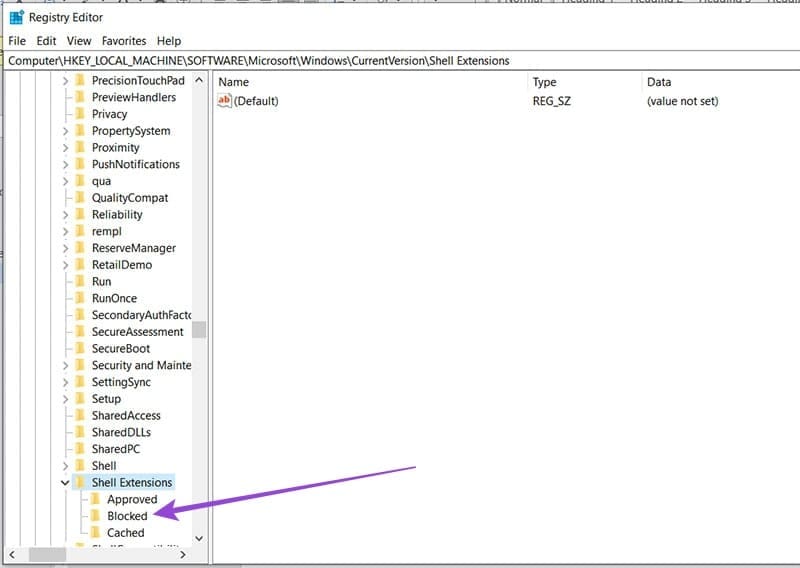
Step 3. Click the “Blocked” folder in the sidebar. If the folder doesn’t exist, right-click “Shell Extensions,” then “New,” and select “Key.”
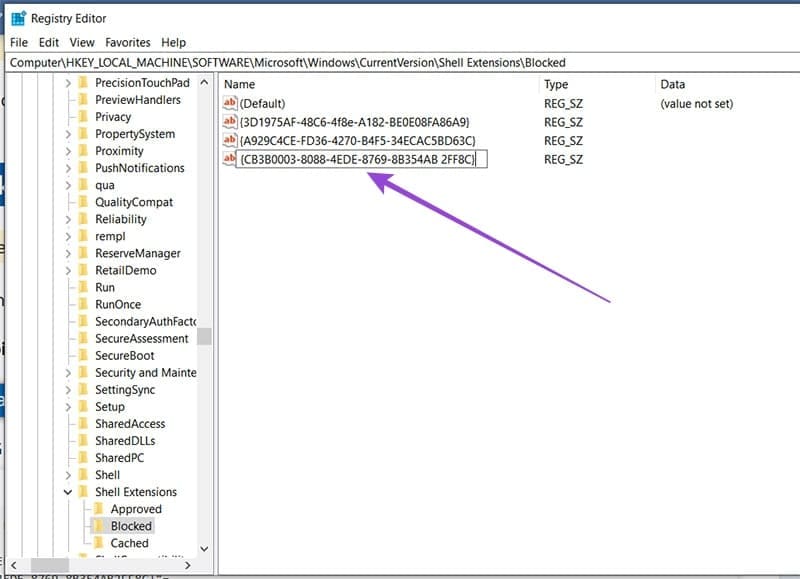
Step 4. Right-click in the main window (inside the “Blocked” folder) and click “New,” then “String Value.”

Step 5. When prompted for the string name, enter “{CB3B0003-8088-4EDE-8769-8B354AB2FF8C}” and press Enter.
Step 6. Now double-click on the string and in the window that pops up, enter “Ask Copilot” under “Value Data.” This is for easy identification of the string.
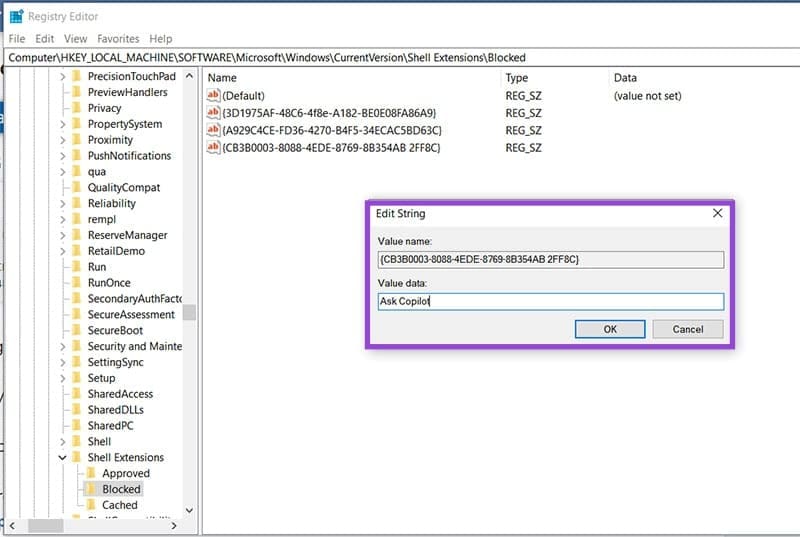
Step 7. Click OK to finalize.
Step 8. Restart your machine and check that the option has disappeared.
Remove the Copilot App
If you’d rather deal without Copilot’s functionality on your machine at all, then you can uninstall the Copilot app from your machine (Windows 10 and 11). That said, many users have reported Copilot being readded after uninstallation.
Step 1. Type “Add or remove programs” into the Windows Search Bar and choose the option that pops up.
Step 2. In the “Apps and features” menu, type “Copilot” into the search box to bring up the app. You can also scroll down until you reach it.
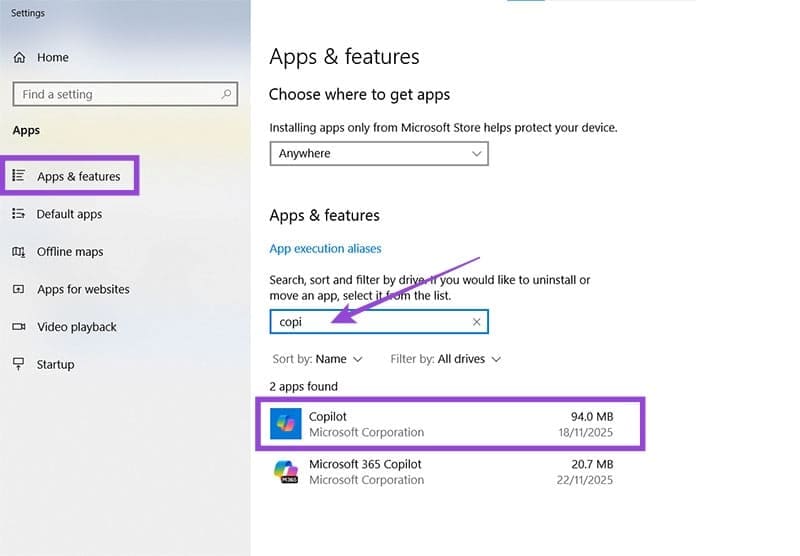
Step 3. Click “Copilot,” then click the “Uninstall” button.

Step 4. Copilot will uninstall. Reboot your machine for good measure.
Was this helpful?
Last updated on 06 December, 2025
Read Next
 How to Fix a Slow Windows 10 Desktop Right-Click (Context) Menu
The desktop right-click menu, otherwise known as the desktop context menu, provides instant access to numerous useful options ranging from aligning desktop icons to customizing display settings.
How to Fix a Slow Windows 10 Desktop Right-Click (Context) Menu
The desktop right-click menu, otherwise known as the desktop context menu, provides instant access to numerous useful options ranging from aligning desktop icons to customizing display settings.
 Enabling the Right-Click Context Menu in Windows 11 Terminal
The Windows 11 Terminal allows you to use both the features of the Command Prompt and the PowerShell run dialog in one package.
Enabling the Right-Click Context Menu in Windows 11 Terminal
The Windows 11 Terminal allows you to use both the features of the Command Prompt and the PowerShell run dialog in one package.
 2 Ways to Disable the Show More Options Context Menu in Windows 11
Method 1: Revert to Old Context Menu Using Command Prompt Command Prompt is a command-line interpreter that lets you perform various complicated tasks on your PC with a few text
2 Ways to Disable the Show More Options Context Menu in Windows 11
Method 1: Revert to Old Context Menu Using Command Prompt Command Prompt is a command-line interpreter that lets you perform various complicated tasks on your PC with a few text
 11 Steps to Restore the Windows 11 Classic Context Menu (And a Temporary Fix)
How does it always seems like Microsoft manages to break two things every time it fixes one?
11 Steps to Restore the Windows 11 Classic Context Menu (And a Temporary Fix)
How does it always seems like Microsoft manages to break two things every time it fixes one?
 How to Remove Copilot and Disable Other AI Features on Windows 11
AI is an increasingly prominent part of modern life, and it’s becoming a bigger feature on computers and other devices, too.
How to Remove Copilot and Disable Other AI Features on Windows 11
AI is an increasingly prominent part of modern life, and it’s becoming a bigger feature on computers and other devices, too.
 How to Remove Copilot From Word
Microsoft Copilot has now become an integrated part of Office programs, including Word.
How to Remove Copilot From Word
Microsoft Copilot has now become an integrated part of Office programs, including Word.
 What to Do When Safari Doesn’t Ask to Save Password on iOS
I’m a Google Chrome user.
What to Do When Safari Doesn’t Ask to Save Password on iOS
I’m a Google Chrome user.
 How to Remove Copilot From Microsoft Edge
Method 1.
How to Remove Copilot From Microsoft Edge
Method 1.
The article above may contain affiliate links which help support Guiding Tech. The content remains unbiased and authentic and will never affect our editorial integrity.