Remote Desktop is a handy way to access a PC over a network without being in the same room. However, sometimes audio from the remote session doesn’t play as expected, making for a frustrating experience.
In this article, we’ll be looking at 6 fixes for when your Remote Desktop doesn’t have sound.
Remote Desktop Doesn’t Have Sound – Fixes to Try
If you’re stuck with Windows Remote Desktop no sound, try these fixes below:
Check the Sound
A good place to start is somewhere obvious. If connecting to a remote desktop, ensure that its sound is not switched off. Click the Sound Icon in the System Tray at the bottom-right of the other desktop and check that it’s both unmuted and not on “0” volume.
Check Sound Before Connecting
Another area where things go wrong is failing to enable sound before connecting. This can be avoided by confirming settings in Remote Desktop’s options. Here’s what to do:
Step 1. When opening Remote Desktop Connection, click the “Show Options” button.
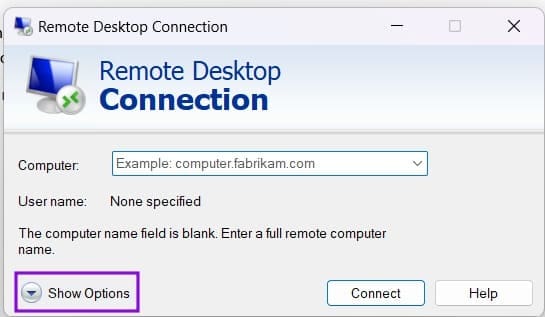
Step 2. Click the “Local Resources” tab.
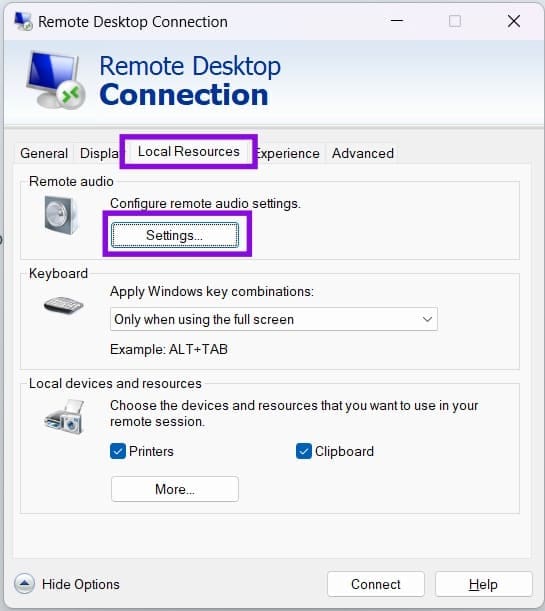
Step 3. Under “Remote audio” click “Settings.”
Step 4. Under Remote audio playback, select “Play on this computer” if you want to hear the remote session’s sound on your local device. If you want sound to play on the remote computer instead, select the corresponding option.

Update Drivers
If the previous steps haven’t resolved the issue, check for audio-driver problems on the local and remote computers. If a driver is outdated, corrupted, or incompatible, updating or reinstalling it may help restore audio playback.
Restart Audio Services
If the Windows Audio service isn’t running correctly on the computer responsible for audio playback, Remote Desktop sound may not work. You can check the service’s status and restart it if necessary:
Step 1. Open the Run Dialog (Win + R) and type “services.msc” before hitting OK.
Step 2. In Services, navigate to “Windows Audio.”

Step 3. Right-click “Windows Audio” and select “Restart” if the service is running. If it isn’t running, select “Start” instead.
Step 4. See if this resolves things.
Restart the Remote Desktop Service
While you’re in the Services window, it might also help to restart the service associated with Remote Desktop. Here’s what to do:
Step 1. In Services, locate “Remote Desktop Services” and “Remote Desktop Services UserMode Port Redirector.” Check whether both services are running.

Step 2. If a service isn’t running, try starting it. If you need to restart Remote Desktop Services, be aware that Windows may prompt you to restart dependent services as well. Save your work and ensure you can reconnect before proceeding.
Step 3. See if the sound issue is resolved.
Enable Audio Redirection
If you’re still having trouble, you can try enabling audio redirection via the Group Policy Editor. Ensure you have Admin permissions, then do the following:
Step 1. Open the Run Dialog (Win + R) and type “gpedit.msc” before hitting (Ctrl + Shift + Enter) to run as Admin.
Step 2. Once in the editor, head to “Computer Configuration > Administrative Templates > Windows Components > Remote Desktop Services > Remote Desktop Session Host > Device and Resource Redirection.”
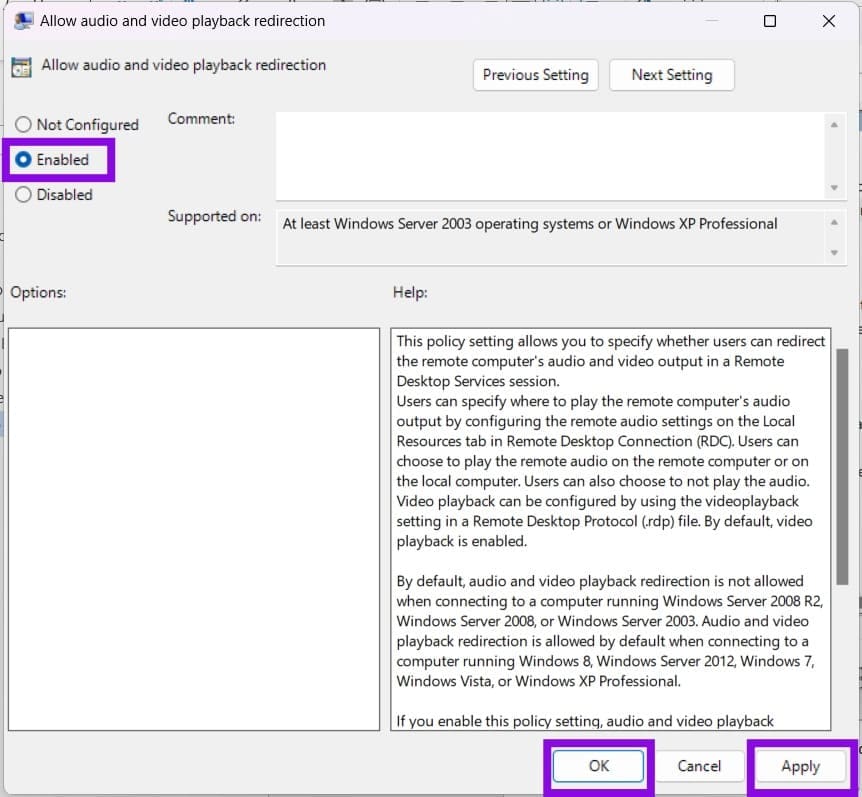
Step 3. Double-click “Allow audio and video playback redirection.”

Step 4. In the window that pops up, make sure that “Enabled” is checked, then click “Apply” and “OK.”
Step 5. Close the Remote Desktop session and reconnect to apply the updated settings. Then test the audio again.
Was this helpful?
Last updated on 20 October, 2026
Read Next
 7 Quick Ways to Open Remote Desktop Connection Tool in Windows 11
Method 1.
7 Quick Ways to Open Remote Desktop Connection Tool in Windows 11
Method 1.
 4 Fixes if Chrome Remote Desktop Is Not Working on Windows 11
Fix 1: Disable PIN-Less Authentication Chrome Remote Desktop lets you pair your trusted devices with your computer.
4 Fixes if Chrome Remote Desktop Is Not Working on Windows 11
Fix 1: Disable PIN-Less Authentication Chrome Remote Desktop lets you pair your trusted devices with your computer.
 4 Fixes for Remote Desktop Authentication Error on Windows 11
Preliminary Fixes Check remote if the desktop is enabled: The Remote Desktop authentication error often occurs because your Windows 11 PC cannot establish a remote connection without the Remote Desktop
4 Fixes for Remote Desktop Authentication Error on Windows 11
Preliminary Fixes Check remote if the desktop is enabled: The Remote Desktop authentication error often occurs because your Windows 11 PC cannot establish a remote connection without the Remote Desktop
 5 Fixes for Remote Desktop Copy-Paste Not Working on Windows
Fix 1: Configure Remote Desktop Connection Settings A common reason you may be unable to copy and paste data during a Remote Desktop session is if you have previously disabled
5 Fixes for Remote Desktop Copy-Paste Not Working on Windows
Fix 1: Configure Remote Desktop Connection Settings A common reason you may be unable to copy and paste data during a Remote Desktop session is if you have previously disabled
 How To Enable Remote Desktop or RDP in VMware – Guiding Tech
There are multiple methods of connecting to a virtual machine in VMware.
How To Enable Remote Desktop or RDP in VMware – Guiding Tech
There are multiple methods of connecting to a virtual machine in VMware.
 How to Set Up and Use Google Chrome Remote Desktop on Windows 11
How to Download and Set Up Chrome Remote Desktop To access your PC remotely, you'll need to download and set up the Chrome Remote Desktop extension on your PC first.
How to Set Up and Use Google Chrome Remote Desktop on Windows 11
How to Download and Set Up Chrome Remote Desktop To access your PC remotely, you'll need to download and set up the Chrome Remote Desktop extension on your PC first.
 How to Ctrl + Alt + Del in Remote Desktop on Windows
Method 1: Use Ctrl + Alt + End on the Keyboard It's simple - you can use the Ctrl + Alt + End on your Windows Remote Desktop session instead
How to Ctrl + Alt + Del in Remote Desktop on Windows
Method 1: Use Ctrl + Alt + End on the Keyboard It's simple - you can use the Ctrl + Alt + End on your Windows Remote Desktop session instead
 Screen Brightness Drops During Remote Desktop – 4 Solutions
It’s the little things that become irritating quickly, and the little things you need to solve become irritating even quicker.
Screen Brightness Drops During Remote Desktop – 4 Solutions
It’s the little things that become irritating quickly, and the little things you need to solve become irritating even quicker.
The article above may contain affiliate links which help support Guiding Tech. The content remains unbiased and authentic and will never affect our editorial integrity.