


How to Recover a Hotmail Account
Microsoft already migrated Hotmail accounts to Outlook.com. To gain access to your old mailbox and contacts, you need to recover your account. You can use Microsoft’s Account Recovery Form to get the job done. The catch is that you can use this method only if you have enabled two-step verification. Unfortunately, if you disabled the option, you can’t recover your Hotmail account.
To use this solution, you need an email address you can access. It doesn’t have to be your personal email account; any email account will do.
Step 1: Go to the linked page and enter the Hotmail address you want to recover.
Step 2: Then type in the email address that Microsoft can use to contact you.
Step 3: Confirm your contact email address, check the security code, and follow the on-screen steps to complete the process. Microsoft should get back to you within 24 hours.

What Happens to Your Outlook Account
Remember that Microsoft will automatically deactivate your account if you don’t log in to your email account at least once a year.
All the emails sent to the respective account should bounce. But you can always reactivate the account if you know the password and new emails should land in your inbox without any problems. We recommend investing in a password manager to store your login credentials.
However, after five years of inactivity, Microsoft will automatically delete your Hotmail account. If you get a message that your account doesn’t exist, this means you haven’t logged in in more than five years, and the account got deleted. In other words, you can’t recover it.
Access Your Old Hotmail Account From Outlook
Microsoft Outlook supports all email clients, including Hotmail. You can use Outlook for Windows to access your Hotmail account.
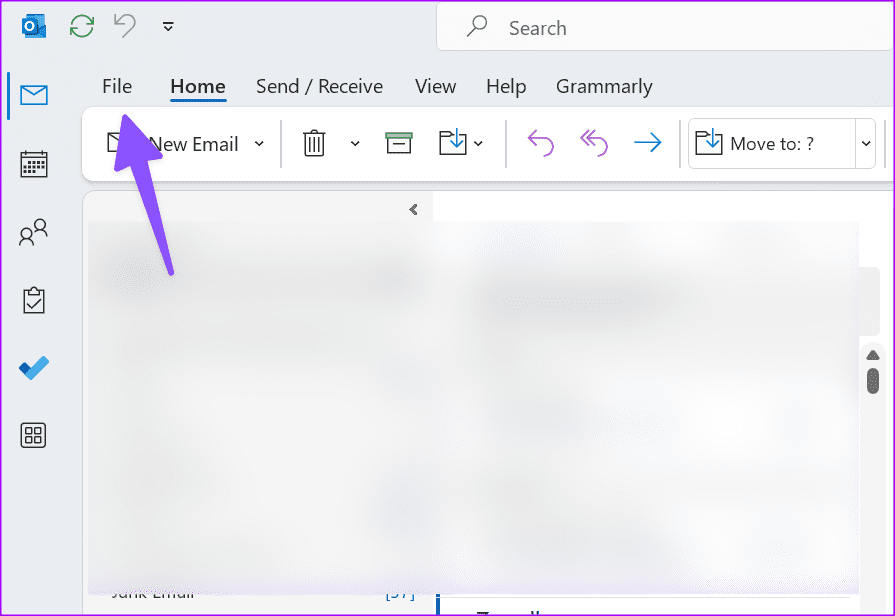
Step 1: Open Outlook on Windows. Click File in the top-right corner.
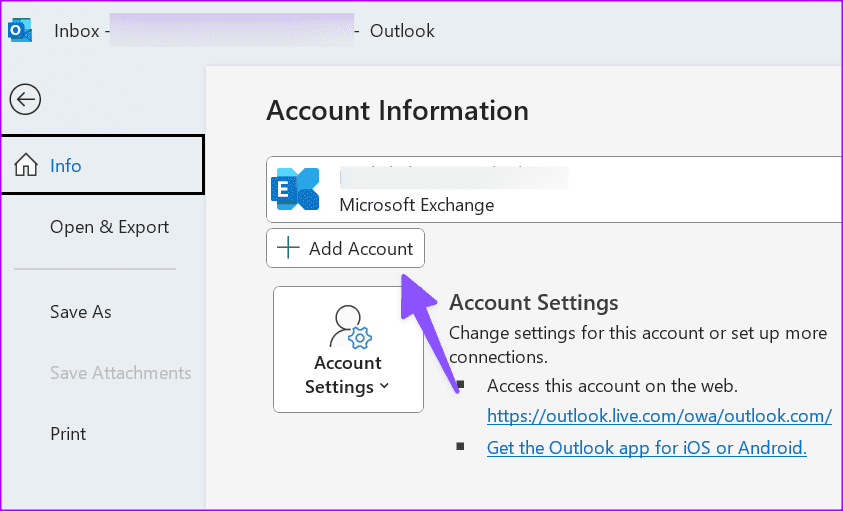
Step 2: Select Add Account under the info menu.
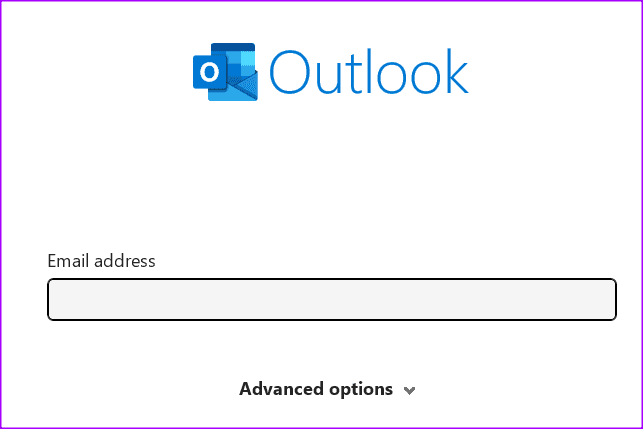
Step 3: Use your old Hotmail Sign-in email address and password, and you are good to go.
After a successful authentication, you see the Hotmail account appearing on the left sidebar.
Access Your Old Hotmail Account From Gmail
Here’s how to integrate your Hotmail account to Gmail and access your essential messages.
Step 1: Visit Gmail online and sign in with your Google account details.
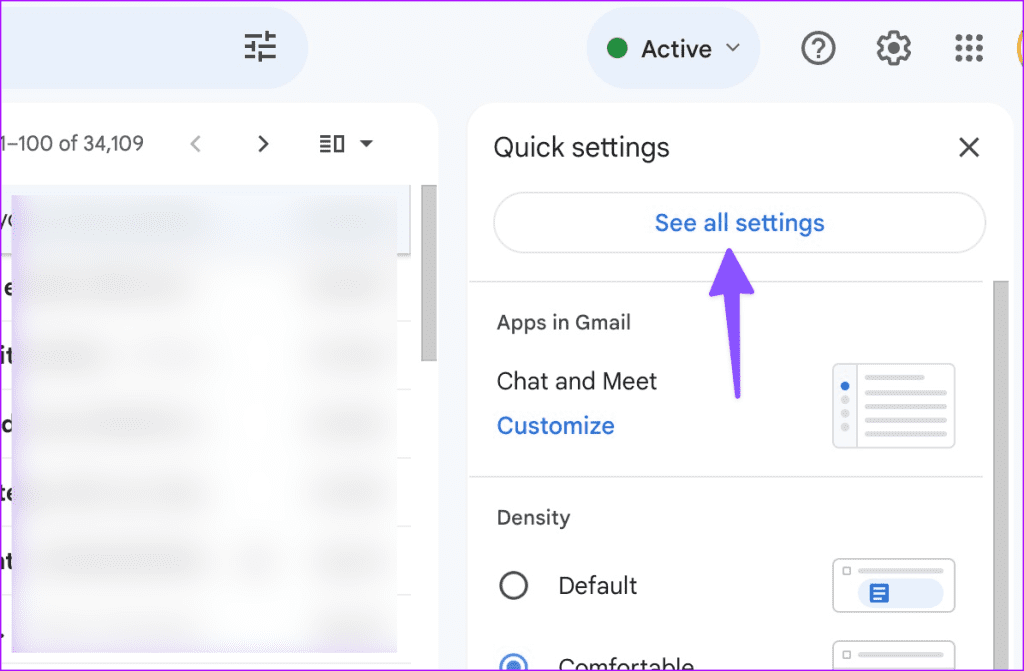
Step 2: Click the Settings icon and open See all settings.
Step 3: Move to the Accounts and Import tab.
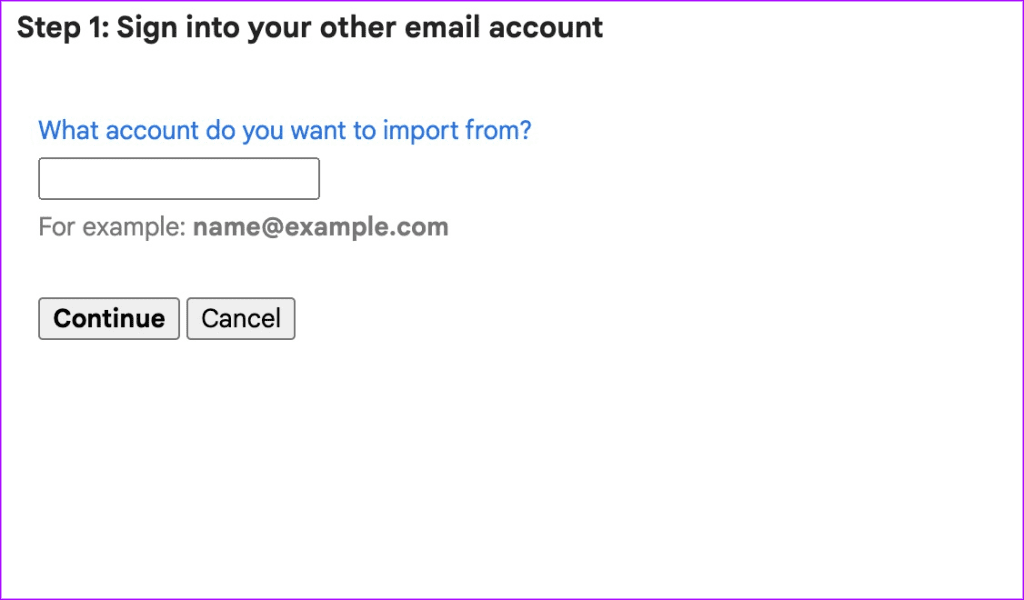
Step 4: Click Import from another address and enter your Hotmail email.
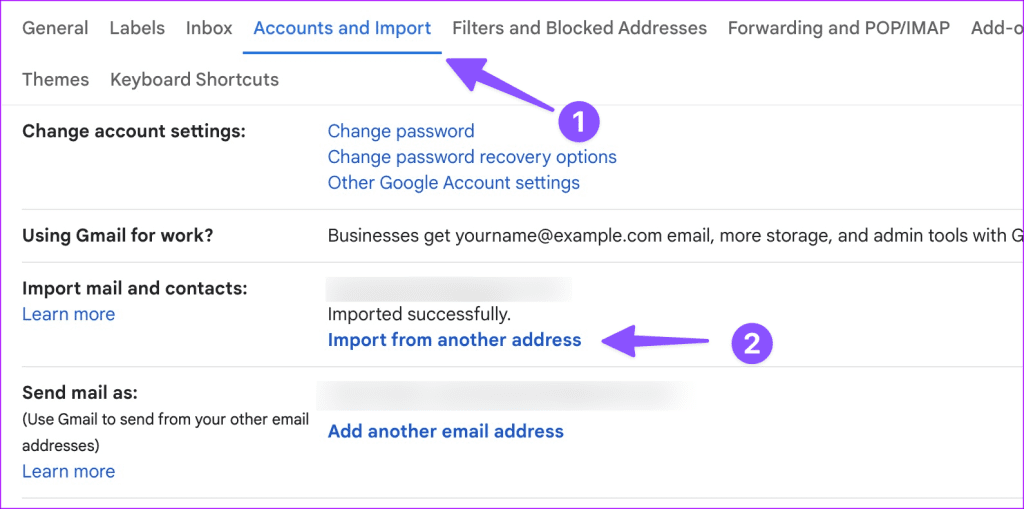
Follow the on-screen instructions to complete the Hotmail setup on Gmail web. It downloads your Hotmail emails and lets you check the same from the home menu.
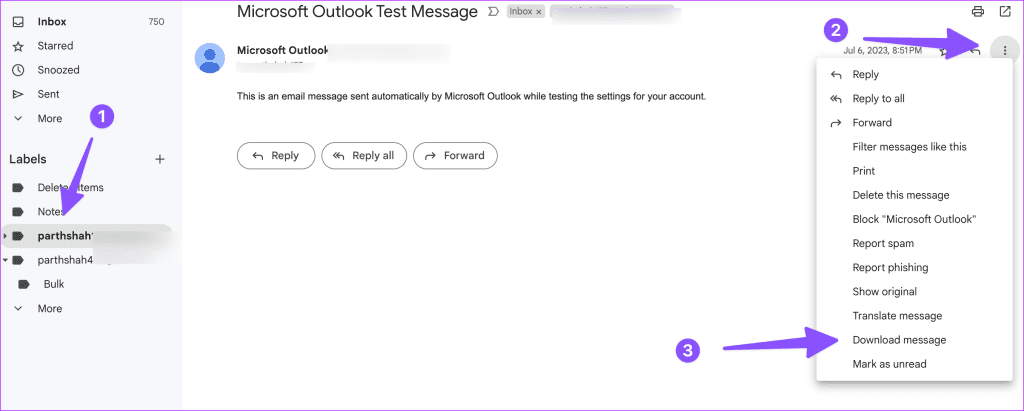
You can move to the Gmail home and check the Hotmail label from the sidebar. It may take some time for Gmail to download all your messages. You can download individual Hotmail messages using the steps below.
Step 1: Open a Hotmail email.
Step 2: Click the three-dot menu at the top.
Step 3: Select Download Message. Gmail downloads your message in the .eml format.
Access Your Old Hotmail Account on the Mobile App
Microsoft offers feature-rich Outlook clients on iOS and Android. You can use them and sign in with your Hotmail account to access your messages.
Was this helpful?
Last updated on 26 August, 2024
2 Comments
Leave a Reply
Read Next
 What Happens When Your Google Account Is Disabled and How to Recover It
Why Does Google Disable an Account There are multiple reasons Google disables the account of a user, and we shall cover everything below.
What Happens When Your Google Account Is Disabled and How to Recover It
Why Does Google Disable an Account There are multiple reasons Google disables the account of a user, and we shall cover everything below.
 How to Recover a Hacked Snapchat Account
Method 1: Use Forgot Password to Recover Account Snapchat's forgot password feature can help you regain access to your account even if there have been changes to the password.
How to Recover a Hacked Snapchat Account
Method 1: Use Forgot Password to Recover Account Snapchat's forgot password feature can help you regain access to your account even if there have been changes to the password.
 6 Ways to Recover Deleted Sticky Notes in Windows 10
Microsoft improved Sticky Notes with Windows 10 while retaining the simplicity of taking notes that came with the classic version.
6 Ways to Recover Deleted Sticky Notes in Windows 10
Microsoft improved Sticky Notes with Windows 10 while retaining the simplicity of taking notes that came with the classic version.
 How to Recover Deleted Favorites in Microsoft Edge
Method 1.
How to Recover Deleted Favorites in Microsoft Edge
Method 1.
 How to Check and Recover Clipboard History on Android
Method 1: Check and Recover Clipboard History Using Gboard One of the easiest ways to view and recover your clipboard history on an Android device is by using Gboard, the
How to Check and Recover Clipboard History on Android
Method 1: Check and Recover Clipboard History Using Gboard One of the easiest ways to view and recover your clipboard history on an Android device is by using Gboard, the
 How to Recover Deleted Passwords in Google Chrome
Recover Deleted Passwords in Google Chrome Step 1: Launch Google Chrome on the computer you have previously logged into your Google account.
How to Recover Deleted Passwords in Google Chrome
Recover Deleted Passwords in Google Chrome Step 1: Launch Google Chrome on the computer you have previously logged into your Google account.
 Why Do WhatsApp Messages Disappear and Can You Recover Them?
Why Do WhatsApp Messages Disappear?
Why Do WhatsApp Messages Disappear and Can You Recover Them?
Why Do WhatsApp Messages Disappear?
 7 Methods to Find and Recover Deleted Videos on iPhone
A video can be an excellent way to relive a memory.
7 Methods to Find and Recover Deleted Videos on iPhone
A video can be an excellent way to relive a memory.
The article above may contain affiliate links which help support Guiding Tech. The content remains unbiased and authentic and will never affect our editorial integrity.

My email id recover
Sir
My email id recover attend