How to Automatically Post From Facebook to Instagram
Before you can post content from Facebook to Instagram, there’s one prerequisite – link your Instagram and Facebook account/page. Once that is done, you can share all Facebook posts on Instagram or decide which content is shared.
Step 1: Open the Facebook app. Tap the profile picture.
Step 2: Tap the gear icon > Accounts Center.
Step 3: Select Sharing across profiles. Tap your Facebook account.
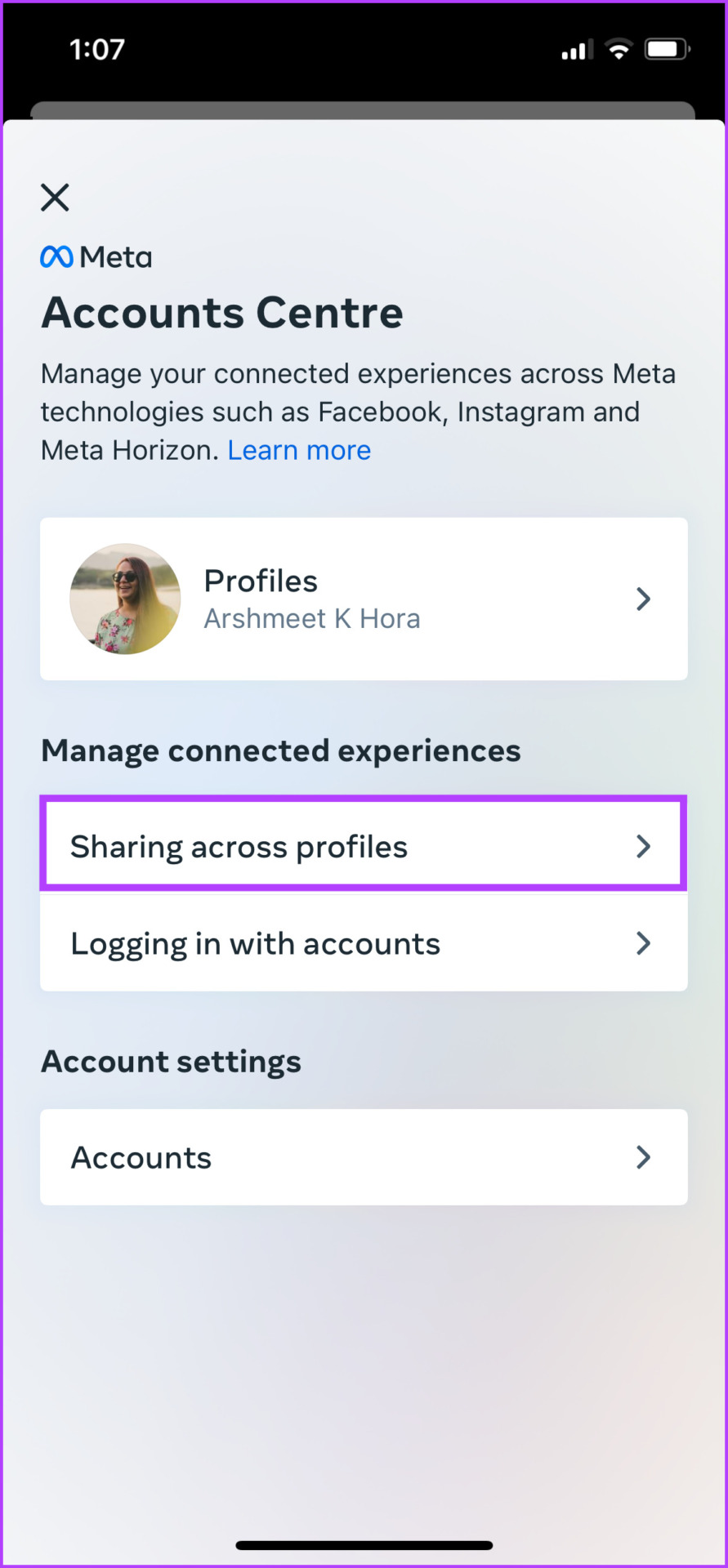
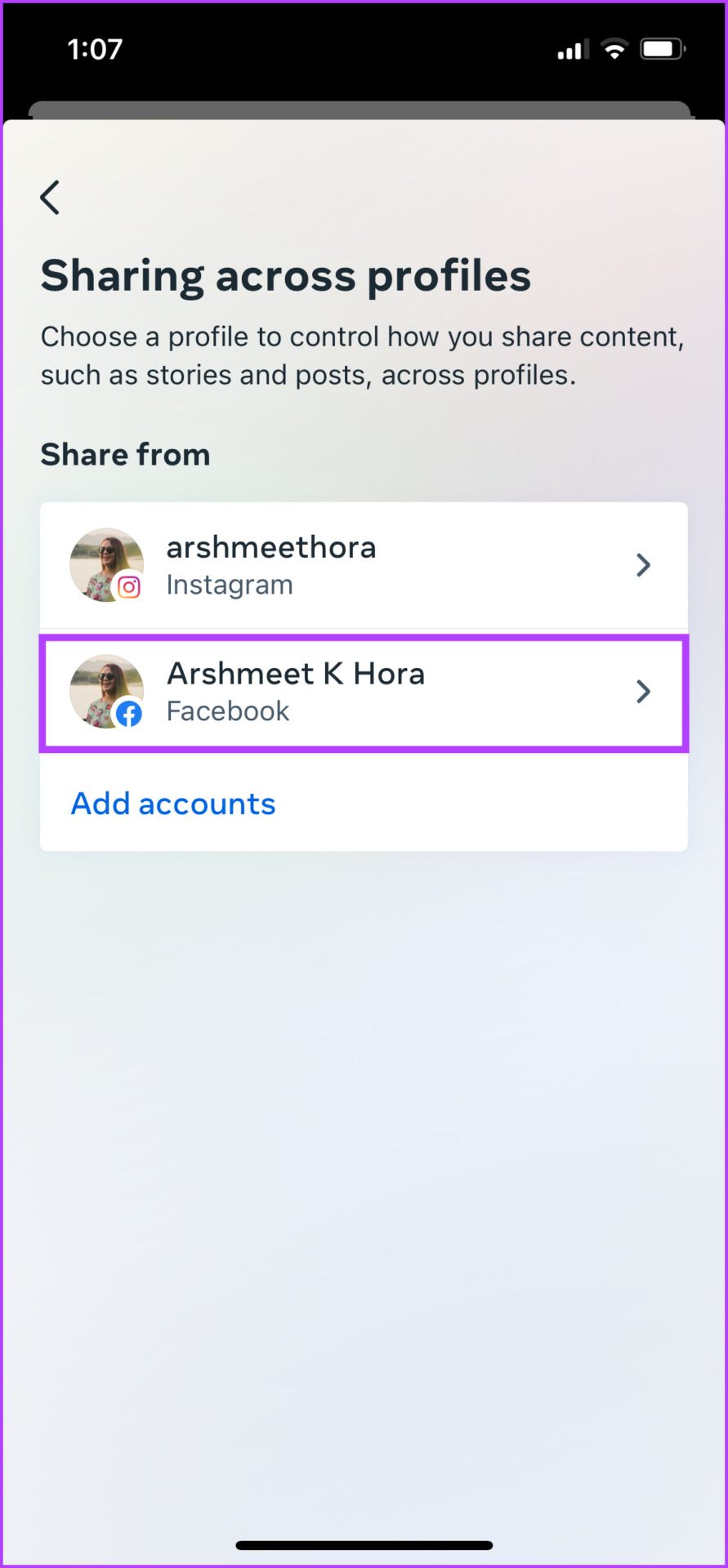
Step 4: Depending on your choice, toggle on/off:
- Your Facebook Story
- Your Facebook Posts
Step 5: For sharing Reels, tap Set Up next to Your Facebook Reels and then Allow.


Tip: You can also manage Instagram sharing settings from here. In the Sharing across profiles page, select Instagram.
Now, whenever you post something or share a story or reel, it will be shared on Instagram automatically. You can open the Instagram app to check it and edit the caption/hashtag and more if needed.
If the crossposting is not happening as promised, check out the article to fix Instagram sharing not working with Facebook for further assistance.
How to Share Facebook Posts to Instagram Manually
While you’re making changes to individual content, Facebook accepts it as a default setting for the upcoming content. That means if you turn on/off sharing for the current post, the setting is auto-applied to the next post.
So, you will have to manually change the setting per post, story, or reel, if you don’t wish to share all Facebook posts to Instagram and vice-versa. After linking your Instagram and Facebook accounts, follow along.
1. Share FB Posts to Instagram Manually
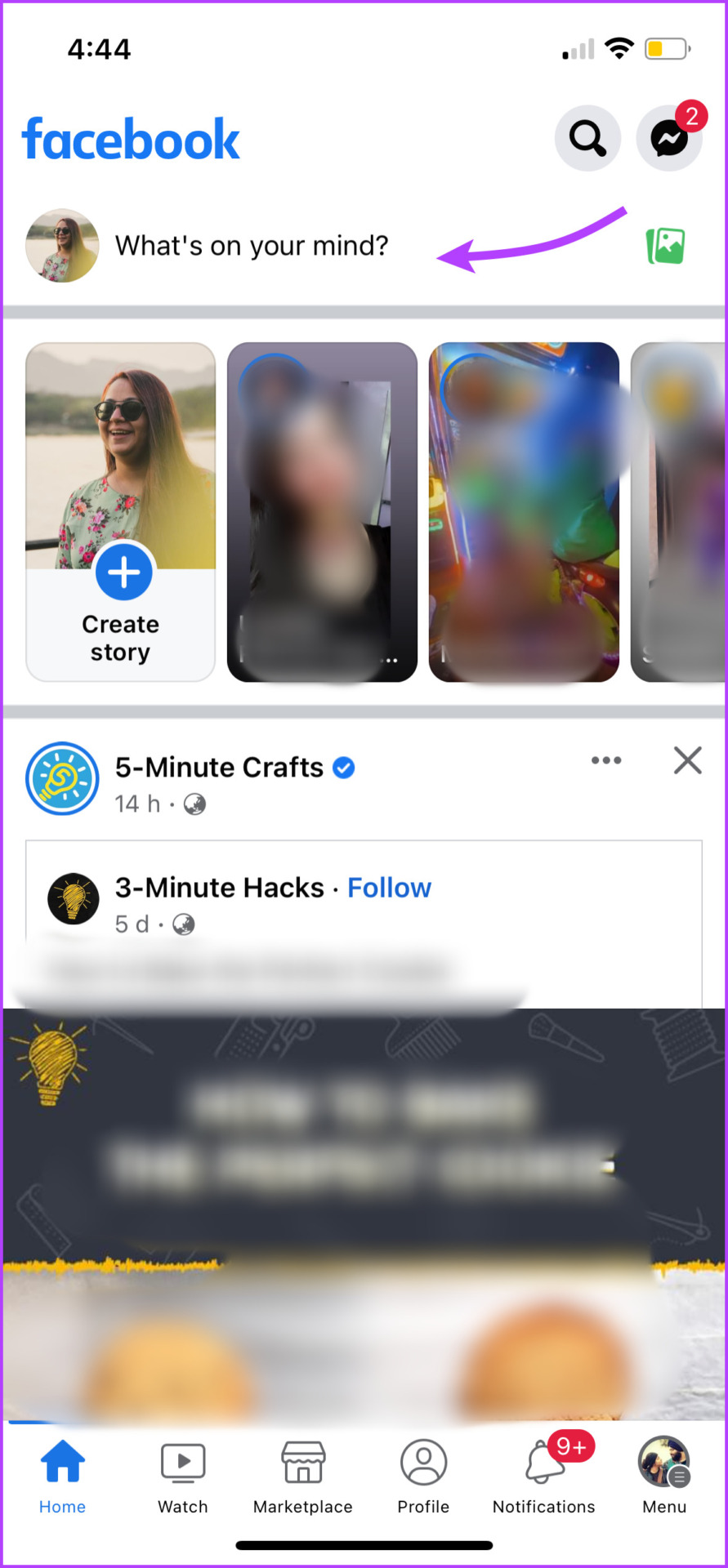
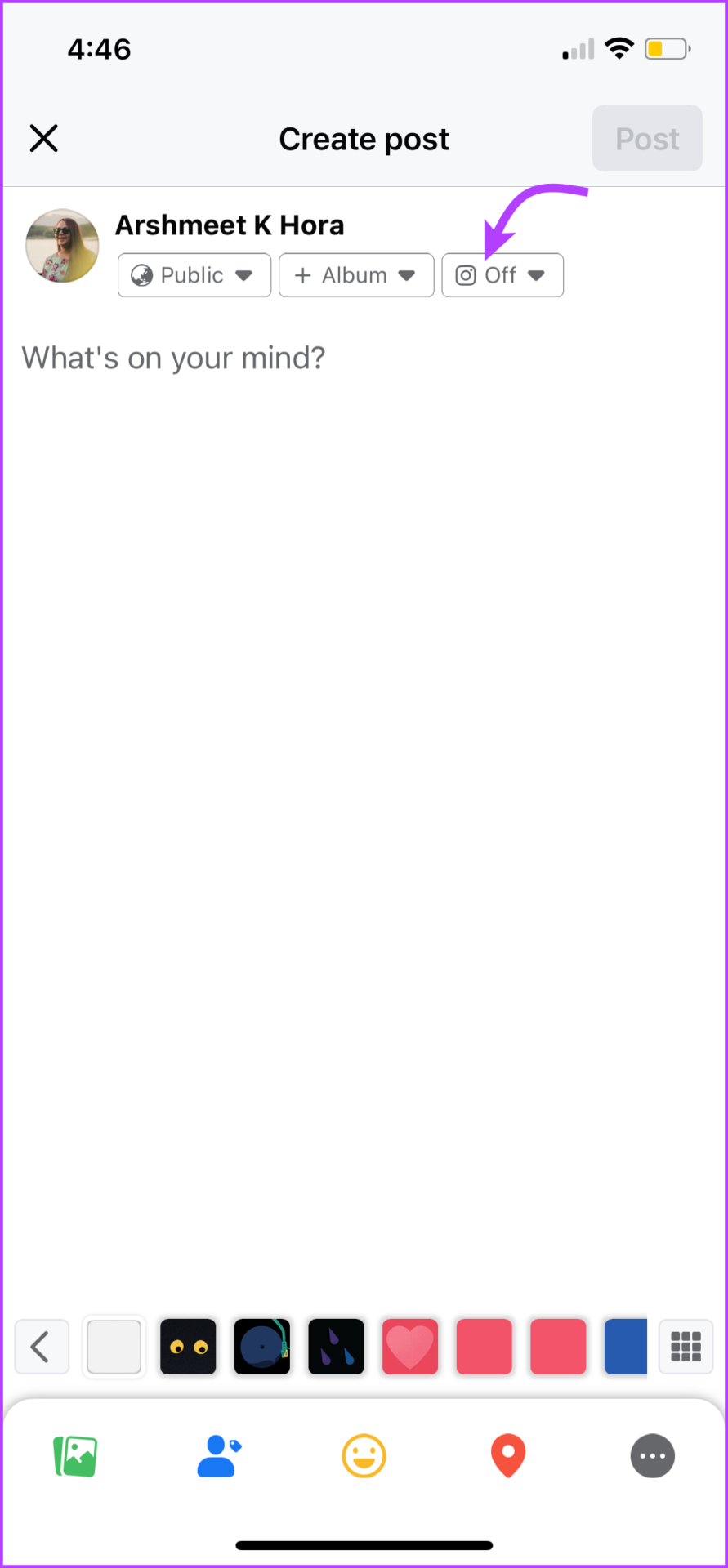
Step 1: Launch the Facebook app. Tap the What’s on your mind section.
Step 2: Here, select the drop-down menu next to the Instagram icon.
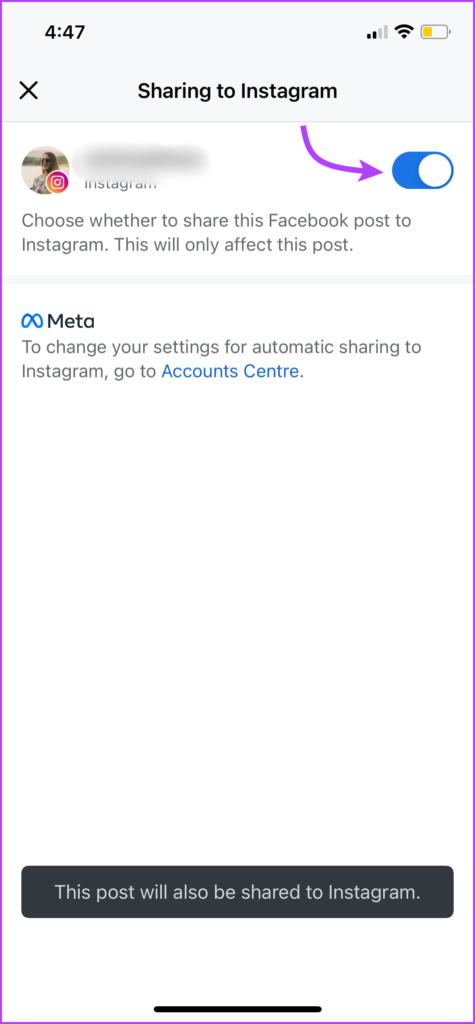
Step 3: Turn on the toggle for your Instagram account.
2. Share a Facebook Story to Instagram Manually
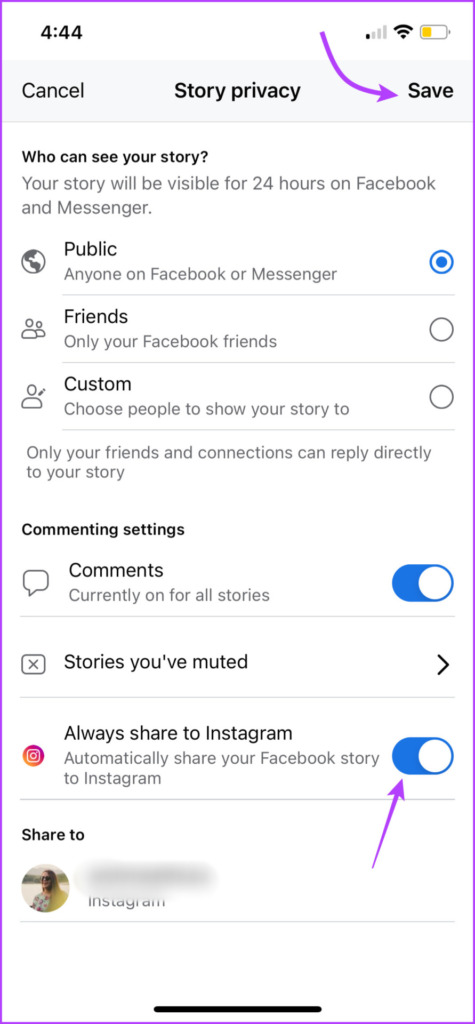
Step 1: Tap + Create story in the Facebook app. Tap the gear icon at the top right.
Step 2: Here, toggle on Always share to Instagram. If you have multiple accounts, select one or more of them.
Step 3: Tap Save.


3. For Reels
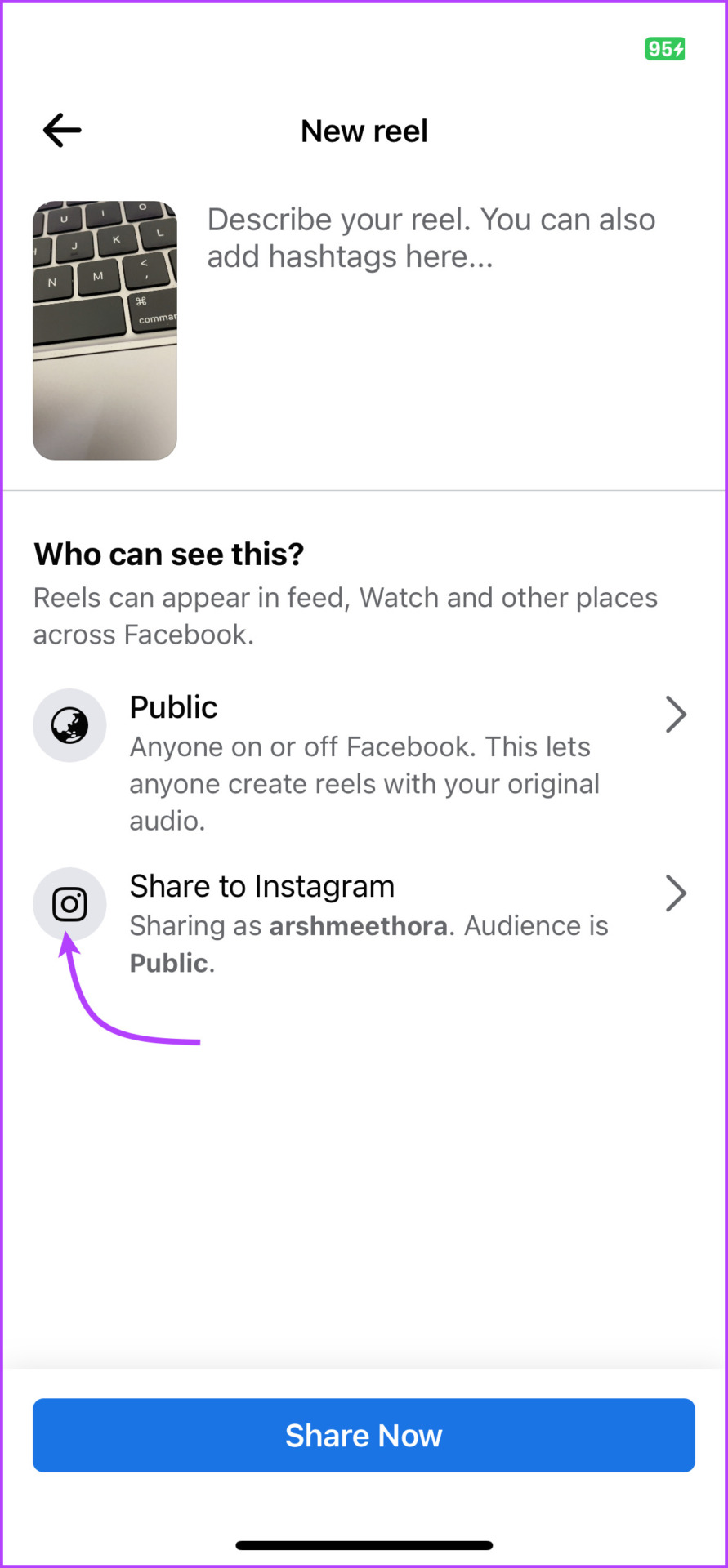
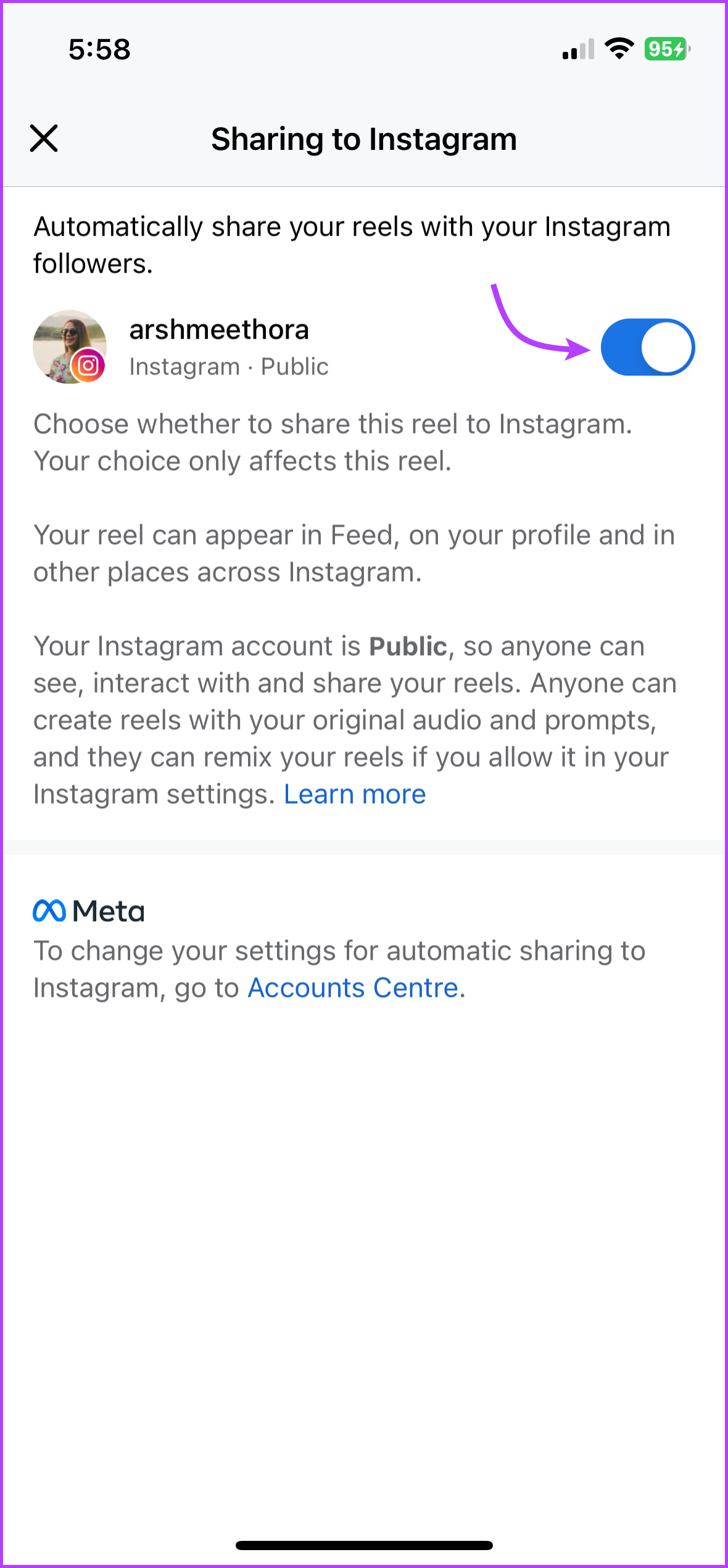
The sharing option for Facebook reels pops up before posting it. On the Share Now page, tap Share to Instagram. Now, turn the toggle on/off for your Instagram account.
Share Posts to Instagram From a Facebook Page
Crossposting between a Facebook page and an Instagram account is trickier and packed with restrictions. For instance, you’ll need a business Instagram account to directly share a Facebook page’s post to Instagram.
However, all of this could be resolved with Meta Business Suite. Thanks to it, you can simultaneously post content on Facebook and Instagram. Moreover, you can schedule and customize the post for both platforms. Here’s how:
Note: If your Facebook and Instagram accounts aren’t linked yet, link them before moving on to the next steps.
Use the Meta Business Suite to Crosspost on Facebook and Instagram
Step 1: Open the Meta Business Suite page. Log in with your Facebook or Instagram account.
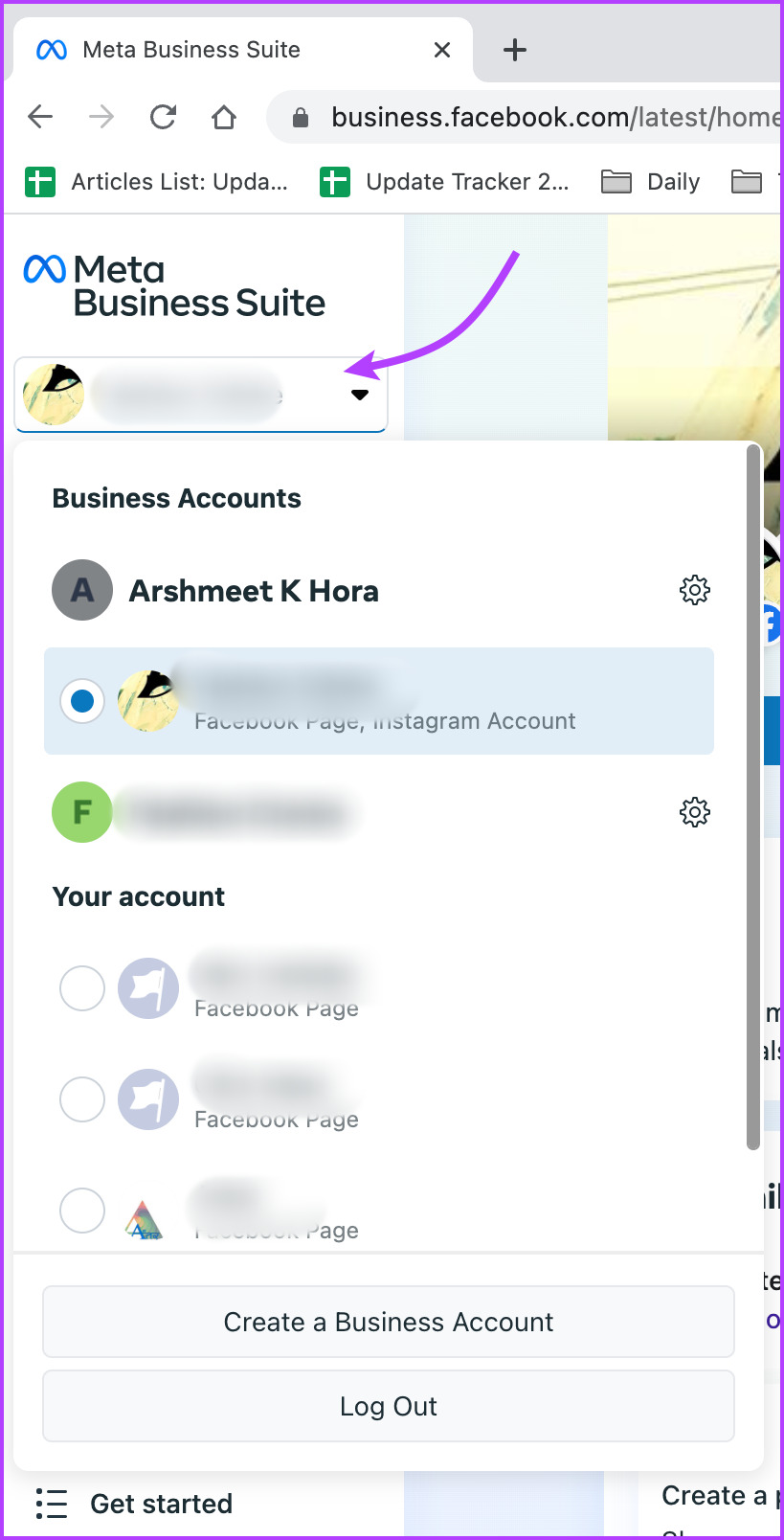
Step 2: From the sidebar, ensure the Facebook Page you want to crosspost is selected.
Step 3: Next, click Create Post. And create the post.

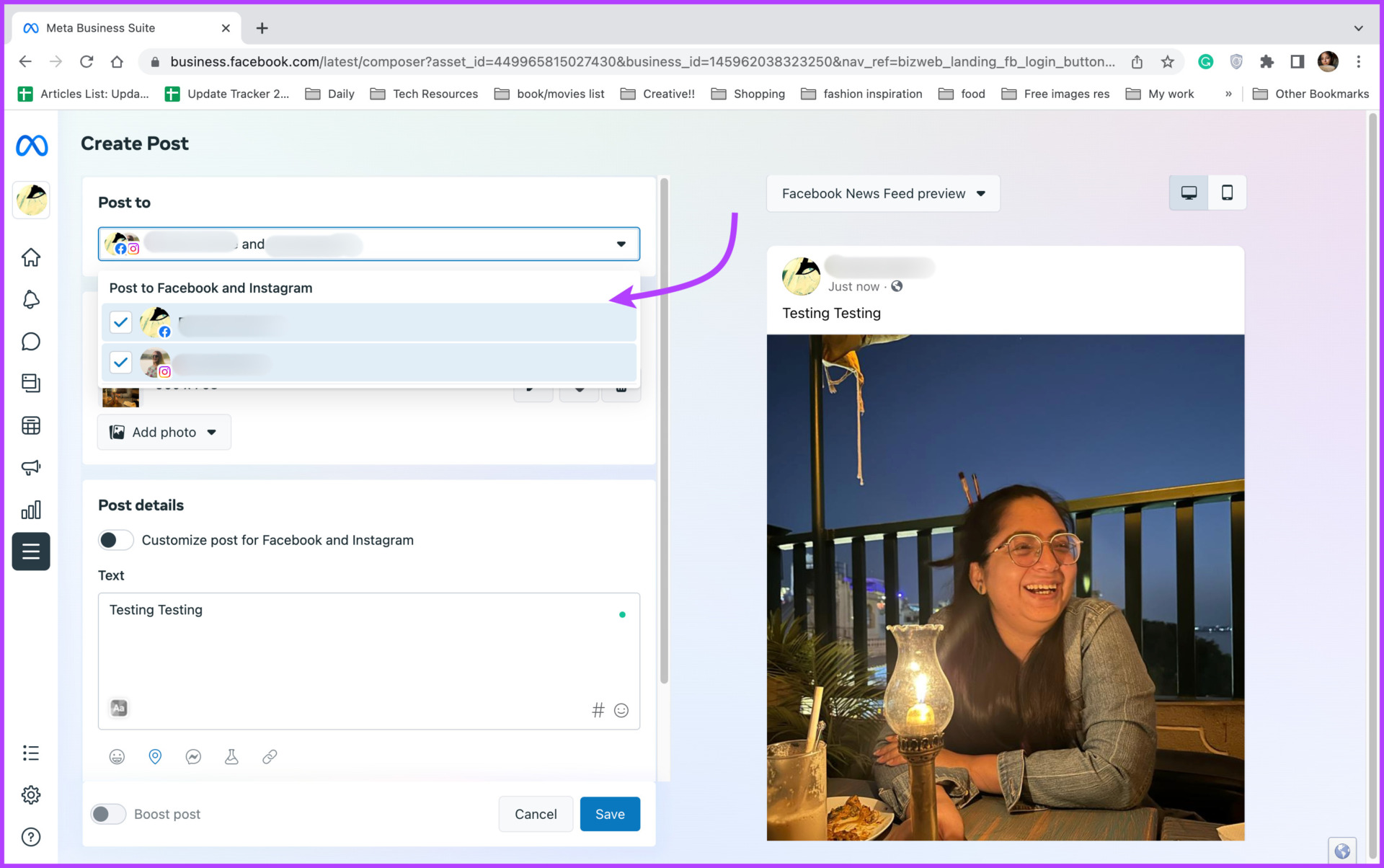
Step 4: Tap the drop-down menu under Post to. Select both Instagram and Facebook Page.
Step 5: Click Publish (you can also select Schedule or Save as draft, as per need).

Note: Meta Business Suite is also available as a mobile app for iPhone and Android devices. You can use it to schedule and publish a post on Facebook and Instagram at the same time.
FAQs
No, you can’t share an existing post from Facebook to Instagram or vice versa. You’ll have to delete the post and repost it while sharing with Instagram or upload it on Instagram separately.
Open the Facebook app → go to your profile picture → tap the gear icon → select Accounts Center. Next, open Accounts → tap Remove next to your Instagram account.
Was this helpful?
Last updated on 20 August, 2024
Read Next
 Why Can’t I Share My Facebook Post to Instagram
Preliminary Checks Before Troubleshooting Is the post private or restricted?
Why Can’t I Share My Facebook Post to Instagram
Preliminary Checks Before Troubleshooting Is the post private or restricted?
 How to Update Apps on iPhone and iPad Manually or Automatically
https://youtu.be/JfkDtpEpKDw Method 1: Auto-Update Apps on iPhone and iPad iPhone and iPad usually have automatic app updates turned on by default.
How to Update Apps on iPhone and iPad Manually or Automatically
https://youtu.be/JfkDtpEpKDw Method 1: Auto-Update Apps on iPhone and iPad iPhone and iPad usually have automatic app updates turned on by default.
 How to Share Instagram Post to Snapchat Story
Can You Link Instagram to Snapchat No, you cannot directly connect Instagram to Snapchat.
How to Share Instagram Post to Snapchat Story
Can You Link Instagram to Snapchat No, you cannot directly connect Instagram to Snapchat.
 How to Share Gmail Folder With Another User Along With Emails Automatically
How to Share a Gmail Label With Other Users To share your Gmail labels with another person, you will need a Chrome extension called Label Sharing for Gmail by cloudHQ.
How to Share Gmail Folder With Another User Along With Emails Automatically
How to Share a Gmail Label With Other Users To share your Gmail labels with another person, you will need a Chrome extension called Label Sharing for Gmail by cloudHQ.
 How to Add Custom Backgrounds to a Facebook Post
Must Know About Facebook Backgrounds You can't add anything else: When using a background image, you can't add another image, link, or video to your status update.
How to Add Custom Backgrounds to a Facebook Post
Must Know About Facebook Backgrounds You can't add anything else: When using a background image, you can't add another image, link, or video to your status update.
 Facebook News Feed vs Your Story: Where Should You Post Updates
News Feed vs.
Facebook News Feed vs Your Story: Where Should You Post Updates
News Feed vs.
 Top 4 Ways to Fix Facebook Not Showing Friends Post
Why Am I Not Seeing Friend's Posts in My Facebook Feed Let's first understand how the Facebook feed algorithm works.
Top 4 Ways to Fix Facebook Not Showing Friends Post
Why Am I Not Seeing Friend's Posts in My Facebook Feed Let's first understand how the Facebook feed algorithm works.
 What to Do if You Can’t Post Comments on Facebook Posts
Try Basic Fixes The post owner has moderated comments: If the post owner has turned off comments from friends and followers, you won’t be able to comment.
What to Do if You Can’t Post Comments on Facebook Posts
Try Basic Fixes The post owner has moderated comments: If the post owner has turned off comments from friends and followers, you won’t be able to comment.
The article above may contain affiliate links which help support Guiding Tech. The content remains unbiased and authentic and will never affect our editorial integrity.