Method 1: Scroll Wheel/Middle Mouse Button
If you do not like the idea of having a Chrome extension, you can trust the mouse to handle this job for you. Just press the Scroll wheel or Middle mouse button to open links in separate tabs in a jiffy.
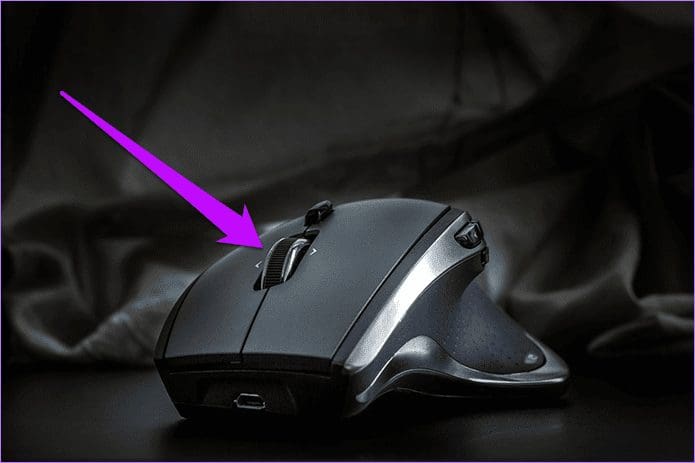
It takes a while to get used to but doesn’t need any additional configuration. It works not just with Chrome but also on other browsers. On the other hand, if you use a touchpad, consider performing an action that simulates a middle mouse click—usually, it’s a three-finger click or tap.
Also See: How to Export Chrome Bookmarks and Passwords
Method 2: Change Chrome’s Settings
Now, this method is limited to the Google Search page. So, if you are mainly concerned with links on the Google Search page, a simple tweak on the Customization page will do the trick.
Open Google on Chrome and navigate to Settings > Other Settings. Now, toggle the switch for Open results in New Window.

This will open the results from Google Search on new tabs. Again, this method is useful only if you use Google Search as your default search engine.
Method 3: Open Links in New Tab Extension
Open Links in New Tab does what it says — opens a link in a new tab. Unlike the method mentioned above, it works across all domains. There’s a slight catch, though. You may be required to enable this extension for every new domain you visit. But if you have enabled it for a particular domain, say Google, it stays on. Plus, the good thing is that the icon shows On when active.
Once you’ve installed the extension, ensure that you have pinned it to your browser. When you are in search mode, click on the Icon and toggle the switch as shown below. Once you do, all your links will open in new tabs.

Other than the above, it has a couple of other options, such as Auto Reload on Disable, Update All Tabs on Change, etc.
Method 4: LinkClump Pro
LinkClump Pro is an insanely useful Chrome extension that doesn’t open links directly in new tabs, but rather requires you to actively select multiple links, which it then loads all at once in new tabs.
After installing, hold the Z key, and then click and drag across an area of a webpage containing links — such as the results page on Google Search.

Once you release the mouse button, expect all selected links to open immediately in new tabs. Consider using the extension alongside the built-in tool and the extension we discussed earlier for a better experience.
LinkClump also lets you customize and bind new actions to other mouse buttons. To do so, go to the LinkClump Options screen (click the Extension icon next to the URL bar and then click Options), and then click either Edit to modify the current action or Add Action to create new ones from scratch.
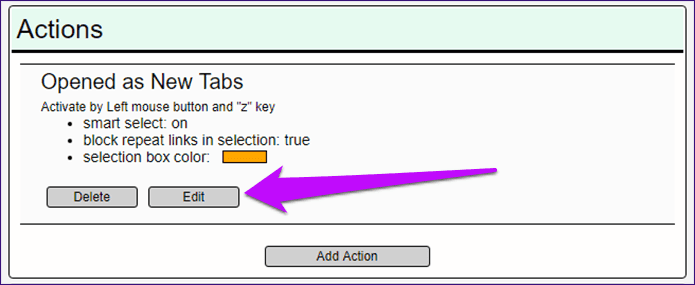
The Advanced Options section also lets you determine how the extension should function, such as filtering links using set criteria, stopping duplicates from loading, etc.
Was this helpful?
Last updated on 03 September, 2024
Read Next
 7 Chrome Extensions to Save Open Tabs
1.
7 Chrome Extensions to Save Open Tabs
1.
 2 Ways to Share Webpage Links From Google Chrome
Method 1: Share a Webpage Link From Chrome Between Devices Chrome allows you to share webpage links across all your devices, provided that you’re using the same Google account on
2 Ways to Share Webpage Links From Google Chrome
Method 1: Share a Webpage Link From Chrome Between Devices Chrome allows you to share webpage links across all your devices, provided that you’re using the same Google account on
 3 Ways to Fix Links Not Opening in Google Chrome
Fix 1: Disable Browser Extensions (for Desktop Only) Using third-party extensions in Chrome allows you to extend the browser's functionality.
3 Ways to Fix Links Not Opening in Google Chrome
Fix 1: Disable Browser Extensions (for Desktop Only) Using third-party extensions in Chrome allows you to extend the browser's functionality.
 4 Ways to Fix X (Twitter) Links Not Opening in Chrome and Safari
Basic Fixes: Open page in Incognito Mode: Incognito mode allows you to load your browser without any extensions, cookies, or cache data.
4 Ways to Fix X (Twitter) Links Not Opening in Chrome and Safari
Basic Fixes: Open page in Incognito Mode: Incognito mode allows you to load your browser without any extensions, cookies, or cache data.
 How to Save Tabs Before Closing Chrome and Restore Lost Ones
Use Built-In Chrome Feature to Reopen Tabs Automatically Google Chrome has a native feature to open the last used tabs automatically.
How to Save Tabs Before Closing Chrome and Restore Lost Ones
Use Built-In Chrome Feature to Reopen Tabs Automatically Google Chrome has a native feature to open the last used tabs automatically.
 How to Stop Chrome From Opening Old Tabs at Startup
Basic Fixes: Disable third-party tools: Some third-party tools can interfere with Chrome tabs.
How to Stop Chrome From Opening Old Tabs at Startup
Basic Fixes: Disable third-party tools: Some third-party tools can interfere with Chrome tabs.
 How to Enable Sleeping Tabs in Google Chrome
Method 1: Enable Sleeping Tabs Using Memory Saver Step 1: Open Google Chrome and click on three vertical dots.
How to Enable Sleeping Tabs in Google Chrome
Method 1: Enable Sleeping Tabs Using Memory Saver Step 1: Open Google Chrome and click on three vertical dots.
 How to Close All Tabs From the Same Website on Google Chrome
Note: Chrome doesn't support this feature by default.
How to Close All Tabs From the Same Website on Google Chrome
Note: Chrome doesn't support this feature by default.
The article above may contain affiliate links which help support Guiding Tech. The content remains unbiased and authentic and will never affect our editorial integrity.