1. Ping Tools: Network Monitor With Most Features & Parameters
Ping Tools shows you all the information about the network configuration on your device, and the Wi-Fi network it is connected to. The app also displays the number of devices connected to the local area network and their IP addresses.
Further, you can quickly monitor the strength and the speed of the network your phone is connected to. The app allows you to scan for open ports and services, and look up domain and IP registration details. You can also detect UPnP/DLNA devices like media servers, scan for wireless networks, and identify active devices on a subnet. There is also a pro version of the app to remove ads and unlock more features.


Price: Free; Pro Version: $2.99
Also Read: How to fix mobile data not working on Android.
2. Wifiman: One With the Best User Interface
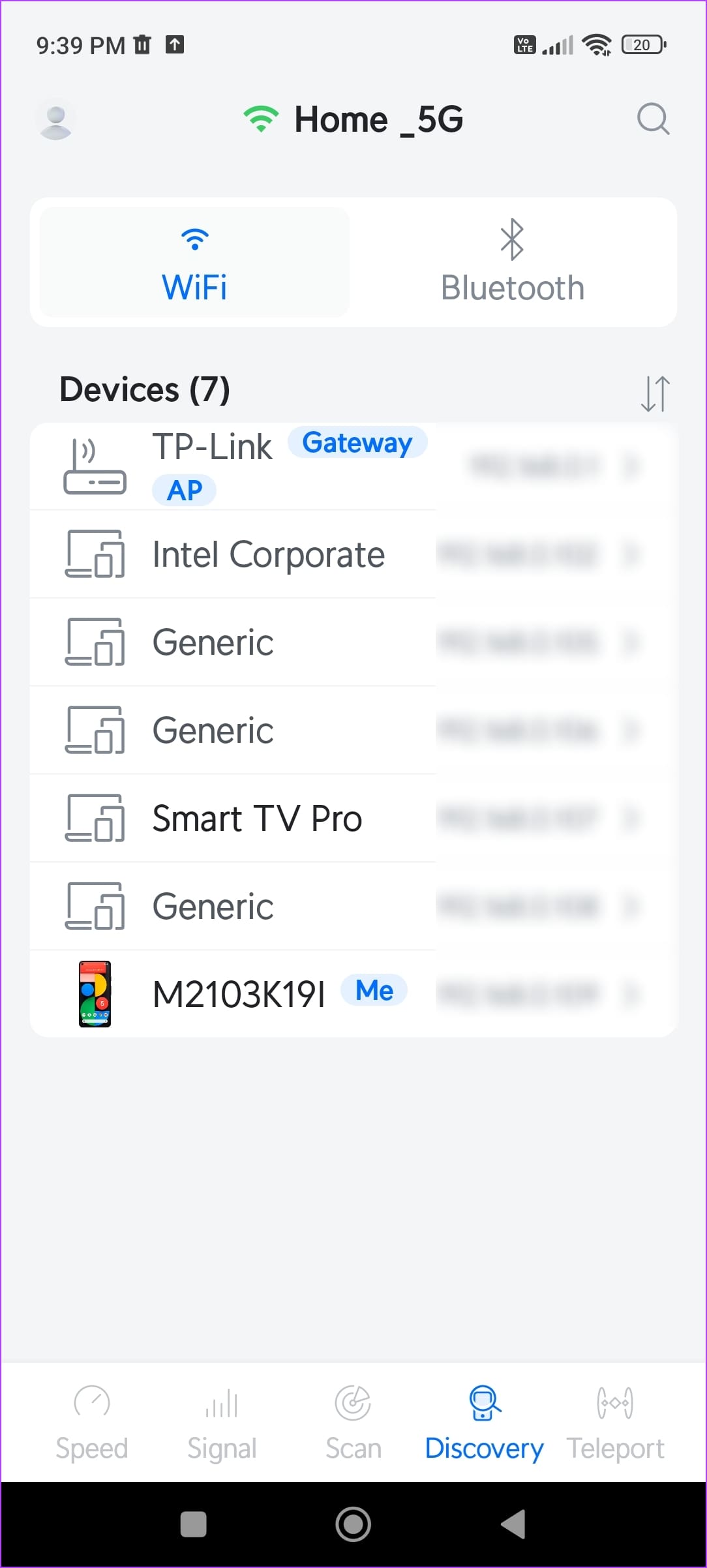
WiFiman is one of the more user-friendly network monitor apps for your Android device. The network speed parameters are color-coded to help you visualize the performance – if everything is green, there is nothing to worry about. To view detailed information, you can tap and expand each network parameter. There’s also an option to check the network latency on popular websites and servers.
Further, there’s a dedicated tab to visualize the signal performance – of both the Wi-Fi and your cellular network. You can also use the Scan and the Discovery tabs to view all the Wi-Fi networks around you, and the devices connected to your network. A notable feature is the Floor Plan mapper – which uses augmented reality to obtain information about your physical surroundings and create a visual representation of the network layout.


Price: Free
Also Read: How to limit mobile data usage on Android.
3. Network Monitor Mini: A Basic Network Monitor App
Network Monitor Mini is a legacy network monitoring app on Android. If you’re looking for an app that shows just the basic information – this is it. All the app does is add a banner to your notification center, and a monitor as an overlay on your display. This displays the speed, SSID, IP Address, and signal frequency of the network your device is connected to.
There are several customization options to modify how the banner looks in your notification center, and whether you want to manually start the monitor or do so automatically when your device boots. The notification banner has two action buttons – one to pause the monitoring, and one to refresh the same. There’s also a paid version of the app that has features like decimal places controls, adding a monitor to the status bar, and hiding monitor while specific apps are running.


Price: Free; Pro Version: $2.99
Also Read: How to check data usage on Android.
Was this helpful?
Last updated on 13 May, 2024
Read Next
 4 Ways to Open the Network Connections in Windows 11
Basic Ways: Using the Search bar: Click on the Search bar, type Network Connections, and open the app from the search results.
4 Ways to Open the Network Connections in Windows 11
Basic Ways: Using the Search bar: Click on the Search bar, type Network Connections, and open the app from the search results.
 How to Take Screenshots of One Monitor on Windows 11 With a Multi-Monitor Setup
Method 1: PikPick Some screenshot tools allow you to configure their settings so that they will only capture screenshots of one monitor.
How to Take Screenshots of One Monitor on Windows 11 With a Multi-Monitor Setup
Method 1: PikPick Some screenshot tools allow you to configure their settings so that they will only capture screenshots of one monitor.
 5 Ways to Jump to Cell A1 in MS Excel Real Quick
Method 1: Using Keyboard Shortcuts One of the easiest ways to return to the A1 cell is to use keyboard shortcuts.
5 Ways to Jump to Cell A1 in MS Excel Real Quick
Method 1: Using Keyboard Shortcuts One of the easiest ways to return to the A1 cell is to use keyboard shortcuts.
 6 Ways to Fix Multiple Connections to a Server or Shared Resource by the Same User
Network and file sharing issues can be frustrating, especially when encountering errors like 'Multiple Connections to a Server or Shared Resource by the Same User.' In this article, we'll delve
6 Ways to Fix Multiple Connections to a Server or Shared Resource by the Same User
Network and file sharing issues can be frustrating, especially when encountering errors like 'Multiple Connections to a Server or Shared Resource by the Same User.' In this article, we'll delve
 How to Fix Messenger “Waiting for Network” Issue (Android)
Basic Fixes: Enable and disable Airplane mode: Temporary connectivity issues can cause the Messenger app not to work properly.
How to Fix Messenger “Waiting for Network” Issue (Android)
Basic Fixes: Enable and disable Airplane mode: Temporary connectivity issues can cause the Messenger app not to work properly.
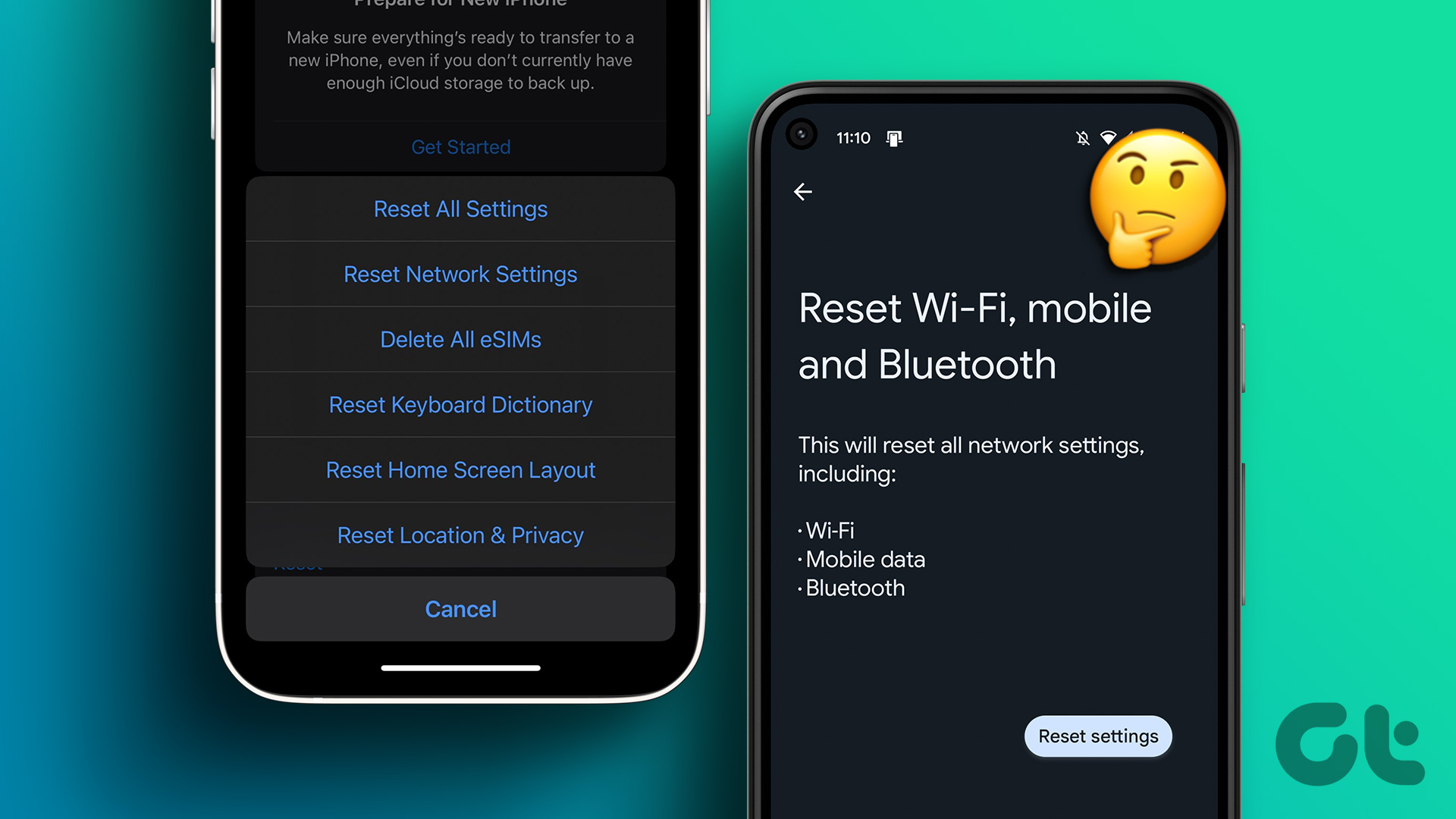 What Does “Reset Network Settings” Do on Android and iPhone?
https://www.youtube.com/watch?v=I4mZ-wYfj1E What Is "Reset Network Settings" on iPhone and Android?
What Does “Reset Network Settings” Do on Android and iPhone?
https://www.youtube.com/watch?v=I4mZ-wYfj1E What Is "Reset Network Settings" on iPhone and Android?
 4 Ways to Fix Android Phone Not Showing a Wi-Fi Network Name
Basic Fixes Restart device: Restart your Android device to fix any temporary bugs and glitches.
4 Ways to Fix Android Phone Not Showing a Wi-Fi Network Name
Basic Fixes Restart device: Restart your Android device to fix any temporary bugs and glitches.
 4 Ways to Fix Android Phone Keeps Losing Network Connection
Basic Fixes Check network connection: Ensure there's enough signal strength, or move to different surroundings.
4 Ways to Fix Android Phone Keeps Losing Network Connection
Basic Fixes Check network connection: Ensure there's enough signal strength, or move to different surroundings.
The article above may contain affiliate links which help support Guiding Tech. The content remains unbiased and authentic and will never affect our editorial integrity.