Basic Fixes
- Restart your phone: You should restart your Android phone. Sometimes, a simple solution like that solves big issues.
- Remove SIM card: Eject the SIM and clean it with a cloth. Then, insert it again.
- Disable Airplane Mode: You may have accidentally enabled the airplane mode, which prevents you from sending or receiving messages.
- Update the Messages app: A few bugs in the app’s current version might be causing this issue.
Fix 1: Enable or Disable RCS Chats
RCS, or Rich Communication Services, adds various messaging features and uses the Internet to send messages to your contacts. You can try re-enabling the feature to see if that fixes the issue.
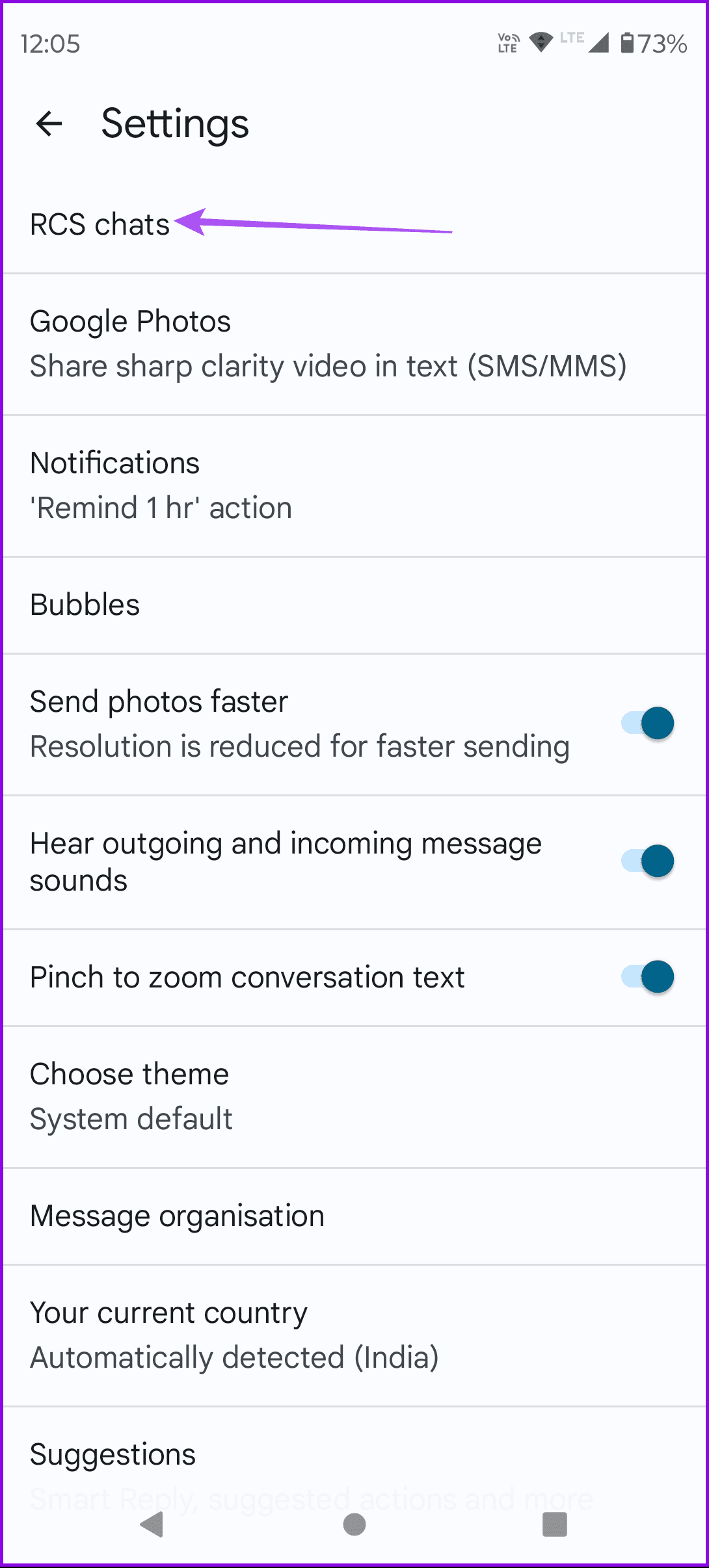
Step 1: Open the Message app, tap the profile icon at the top-right corner, and select Messages Settings.
Step 2: Select RCS Chats and disable the feature.

Fix 2: Change Default SMS App
Method 1: From App Settings
Open the SMS app that shows the message sending disabled error. It’s mostly the pre-installed app. Tap on the three-dot icon at the top and go to Settings.
Tap on SMS Disabled or Make Default, depending on the option available on your phone. Then, choose your SMS app.
Method 2: From Default App Settings
Step 1: Open Settings on your phone and go to Apps & notifications or Apps.
Step 2: Tap on Choose default apps and select SMS app.


Step 3: Change the messages app and send it your message.
Method 3: Clear Defaults
Step 1: Open Settings on your phone and tap on Apps or Apps & notifications.
Step 2: Tap on your messaging app name and select Set as default.
Step 3: Tap the Clear button next to Clear defaults.

If Truecaller has taken over as your default SMS app, here’s how to remove Truecaller from default.
Fix 3: Clear Cache and Data
Even the Messages app is prone to outdated app cache with time. So, try clearing the app cache. This will not remove your existing messages.
Step 1: Long-press the Messages app and select App Info.
Step 2: Tap on Storage and select Clear cache.


Fix 4: Reset App Preferences
If nothing has worked, reset the in-app preferences on your Android phone.
Step 1: Open Settings and go to Apps.
Step 2: Tap the three dots at the top-right corner and select Reset app preferences.


Fix 5: Reset Network Settings
Your Android phone could have network issues, preventing you from sending messages. Resetting the mobile network settings will remove your existing network preferences.
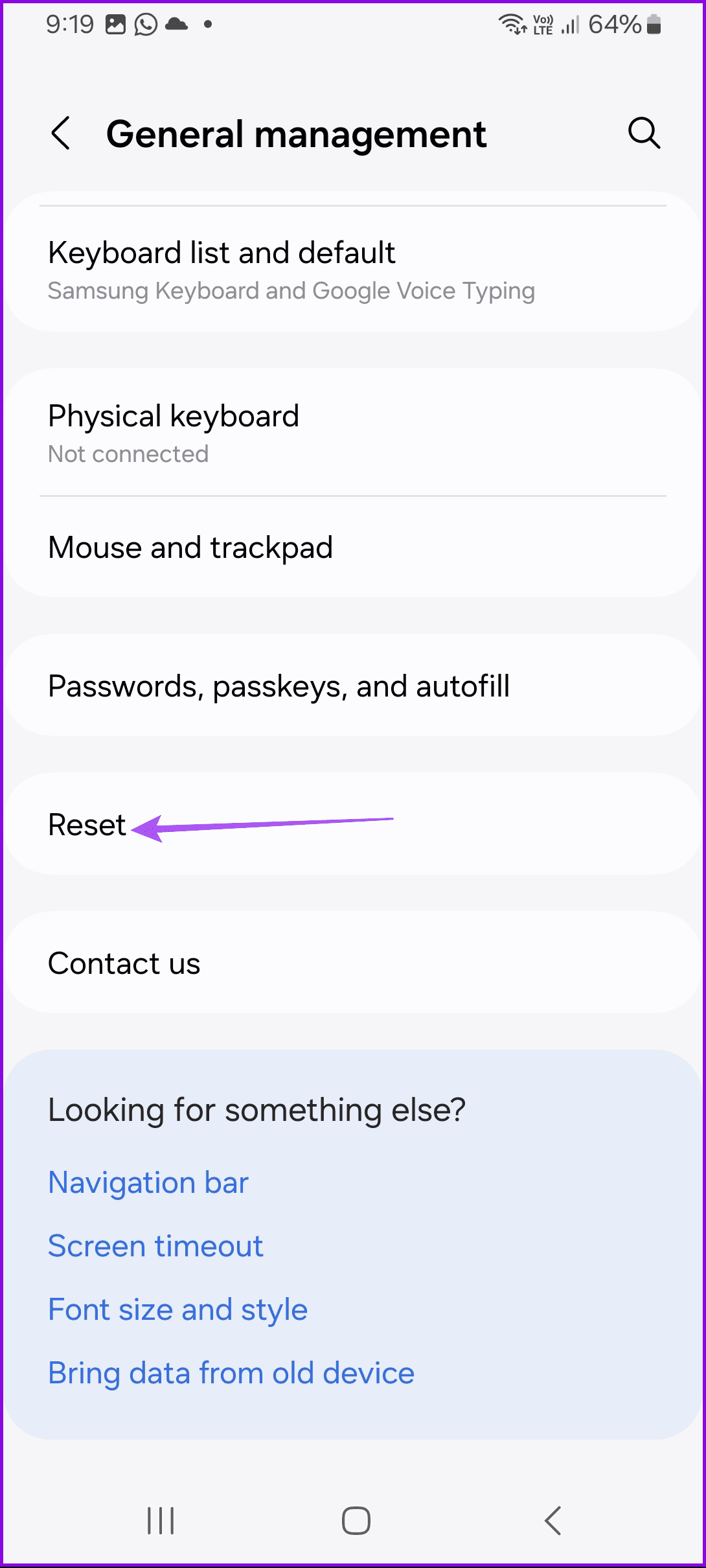
Step 1: Open Settings and go to General Management or System.
Step 2: Tap on Reset and select Reset mobile network settings.

Was this helpful?
Last updated on 01 July, 2024
Read Next
 7 Fixes for “Disabled Accounts Can’t Be Contacted” on Instagram
Instagram is a vibrant platform where connections are forged, creativity flourishes, and stories unfold.
7 Fixes for “Disabled Accounts Can’t Be Contacted” on Instagram
Instagram is a vibrant platform where connections are forged, creativity flourishes, and stories unfold.
 What Happens When Your Google Account Is Disabled and How to Recover It
Why Does Google Disable an Account There are multiple reasons Google disables the account of a user, and we shall cover everything below.
What Happens When Your Google Account Is Disabled and How to Recover It
Why Does Google Disable an Account There are multiple reasons Google disables the account of a user, and we shall cover everything below.
 6 Fixes for Facebook Messenger Not Sending Messages (iPhone and Android)
Preliminary Fixes Enable and Disable Airplane Mode: Network glitches can prevent Facebook Messenger from sending messages.
6 Fixes for Facebook Messenger Not Sending Messages (iPhone and Android)
Preliminary Fixes Enable and Disable Airplane Mode: Network glitches can prevent Facebook Messenger from sending messages.
 7 Fixes for Message Blocking is Active Error on Android and iPhone
Basic Fixes Remove and re-insert the SIM card: An improperly placed SIM card can cause errors while sending text messages.
7 Fixes for Message Blocking is Active Error on Android and iPhone
Basic Fixes Remove and re-insert the SIM card: An improperly placed SIM card can cause errors while sending text messages.
 3 Fixes for iMessage Not Sending to One Contact on iPhone
Basic Fixes Switch to Wi-Fi: You can try connecting to a Wi-Fi network for faster internet speeds.
3 Fixes for iMessage Not Sending to One Contact on iPhone
Basic Fixes Switch to Wi-Fi: You can try connecting to a Wi-Fi network for faster internet speeds.
 3 Fixes for iMessage Sending From Email Instead of Phone Number
Basic Fixes Force quit and relaunch Messages app: This will give the app a fresh start and reload your chats.
3 Fixes for iMessage Sending From Email Instead of Phone Number
Basic Fixes Force quit and relaunch Messages app: This will give the app a fresh start and reload your chats.
 3 Ways to Fix Telegram Not Sending Messages on Android and iPhone
Try Basic Fixes The contact may have blocked you: If the message not sending issue is limited to one or two people, the other person may have blocked you.
3 Ways to Fix Telegram Not Sending Messages on Android and iPhone
Try Basic Fixes The contact may have blocked you: If the message not sending issue is limited to one or two people, the other person may have blocked you.
 3 Ways to Fix Android Not Sending Video Messages
Basic Fixes: Check your mobile plan: Most mobile operators charge a certain amount to send MMS to the recipient(s).
3 Ways to Fix Android Not Sending Video Messages
Basic Fixes: Check your mobile plan: Most mobile operators charge a certain amount to send MMS to the recipient(s).
The article above may contain affiliate links which help support Guiding Tech. The content remains unbiased and authentic and will never affect our editorial integrity.