How to Log Out of Messenger From All Devices at Once
You can use the Messenger mobile app to open Meta’s Accounts Center. Then, follow the options to sign out of Messenger without using the Facebook app. Here’s how to do it.
Note: When logging out of Messenger on your desktop, you will be redirected to Facebook. In this case, desktop users can skip directly to the next section.
Step 1: Open Messenger on your phone > tap the hamburger icon at the top left corner > tap the cogwheel icon.
Step 2: Scroll down and tap on Accounts Center. Then, tap on Password and security.

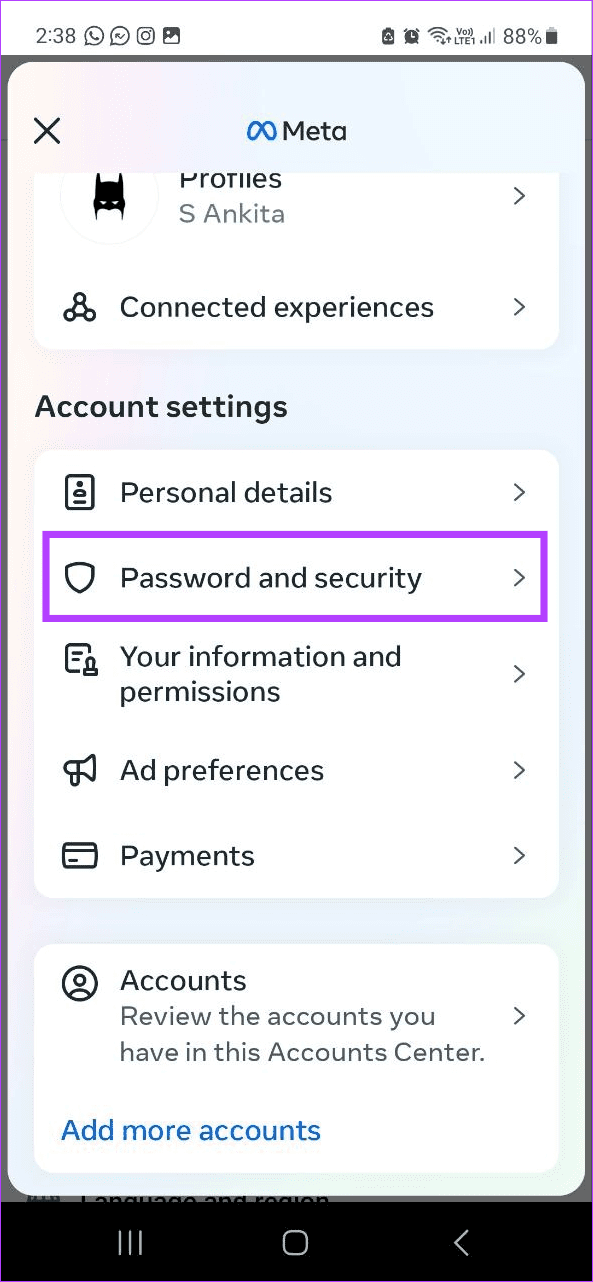
Step 3: Here, tap on Where you’re logged in > tap on your devices.
Step 4: Tap on Select devices to log out. Now, select the devices you wish to log out from and tap on Log out.

This will allow you to log out of Messenger from all devices at once except the current session. If you wish to sign out from your current device as well, move on to the following section.
Delete the Messenger App to Log Out From the Current Session
To ensure you’re logged in from your current device, uninstall the Messenger app from your smartphone. Here are the steps to do so.
On Android
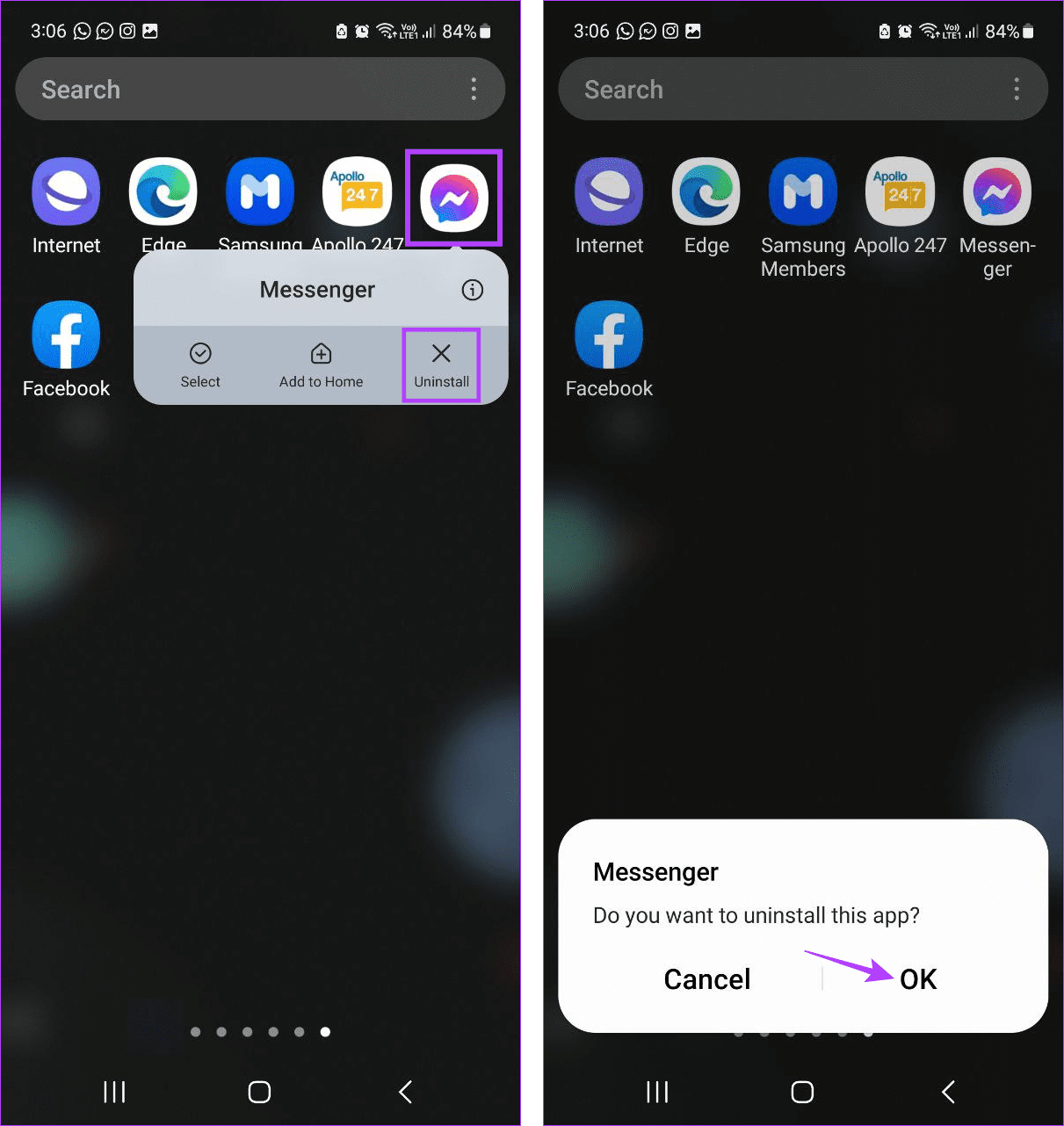
Long-press the Messenger app and tap on Uninstall. Tap on OK to confirm.
On iPhone
Step 1: Long-press the Messenger app > tap on Remove App.
Step 2: Then, tap on Delete App. If prompted, tap on Delete to confirm.

How to Log Out of Facebook From All Devices at Once
Using Meta’s Accounts Center feature, you can now check and control all your connected Meta accounts. So, if you ever feel like logging out of all devices on Facebook, open the Facebook desktop or mobile app and, through the Accounts Center, log out from all your signed-in devices. Here’s how to do it.
Using Desktop
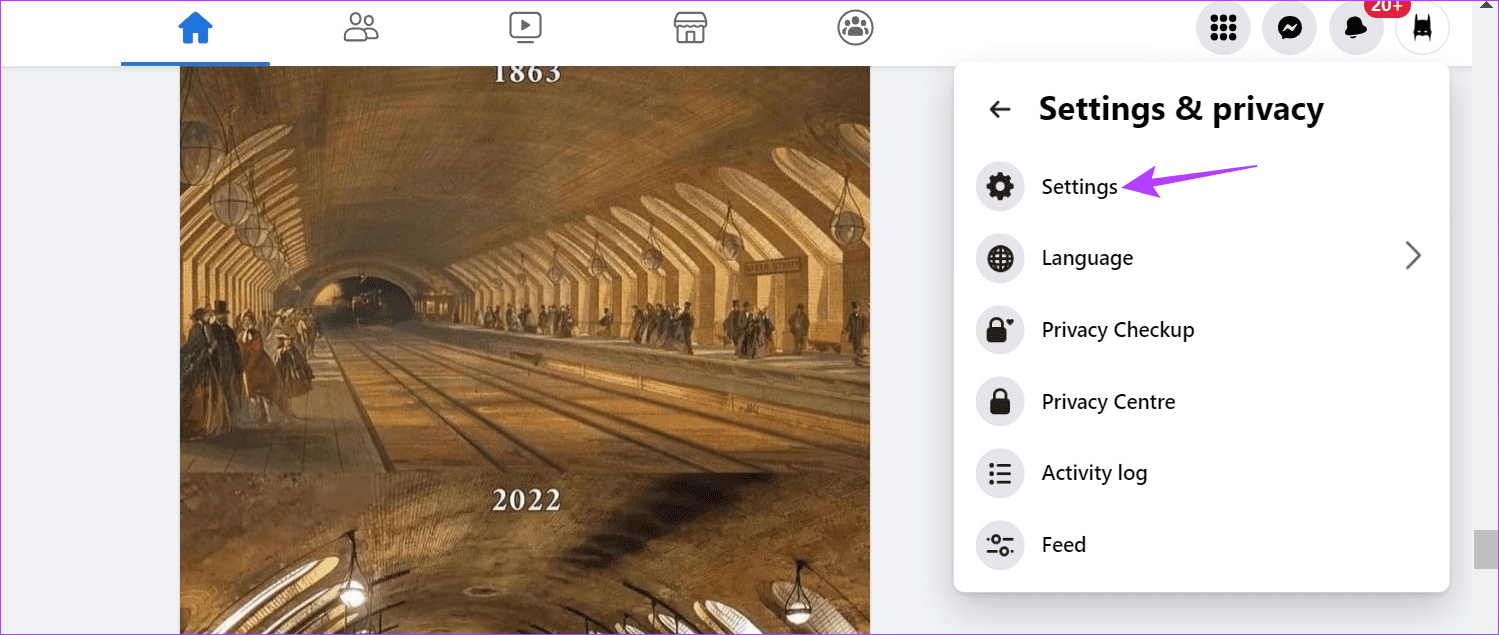
Step 1: Open Facebook on any web browser > click on your profile icon at the top right corner > click on Settings & privacy.

Step 2: Now, click on Settings.
Step 3: Go to the side panel and click on Accounts Center.
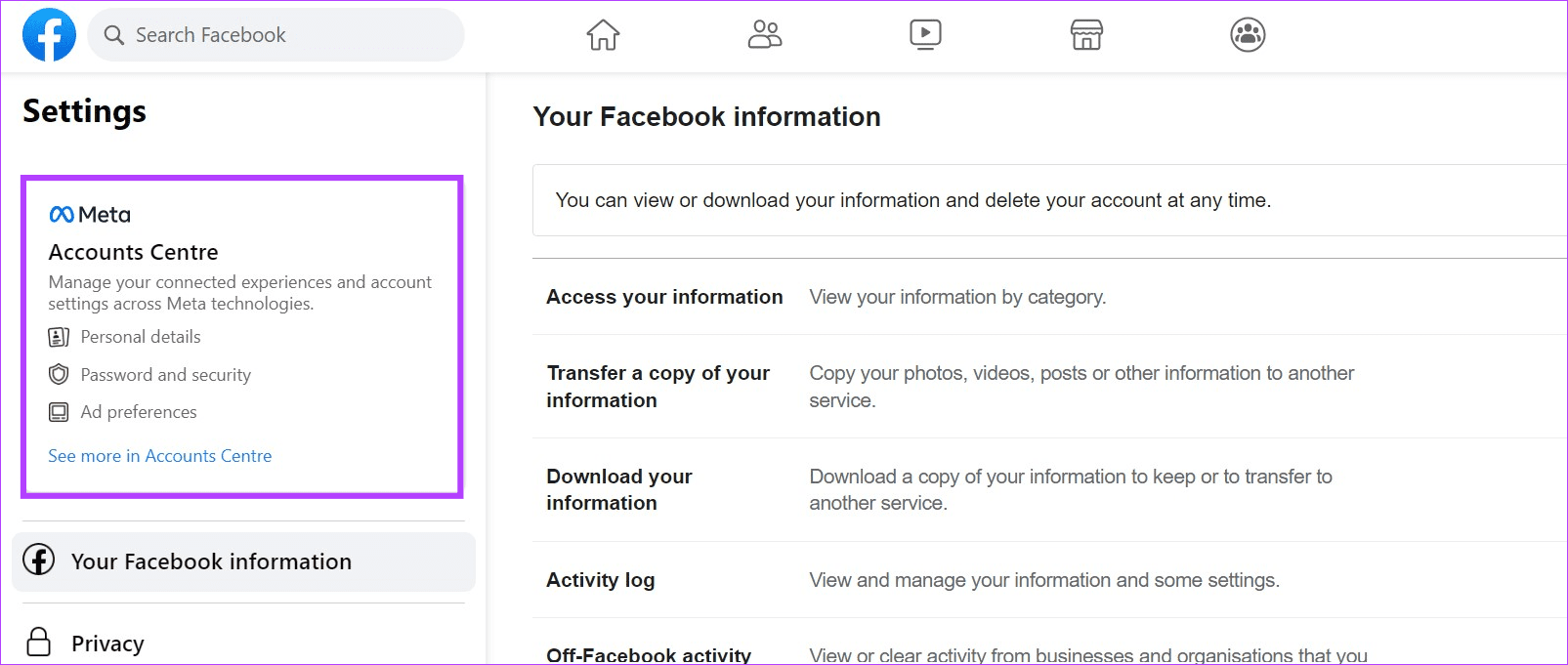
Step 4: Click Password and security from the menu options. Then, click on Where you’re logged in.

Step 5: Now, go to Accounts > click on devices. This will open a list of devices your account is currently signed into.

Step 6: Scroll down and click on Select devices to log out.
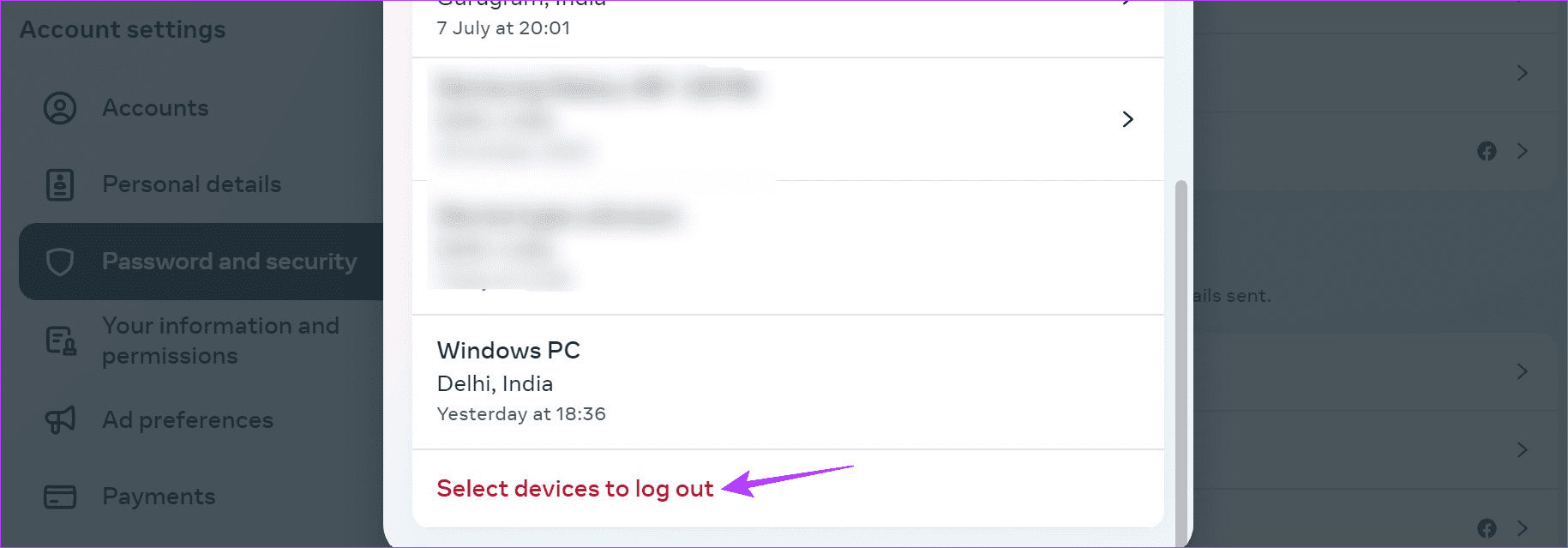
Step 7: Select the relevant devices and click on Log out.
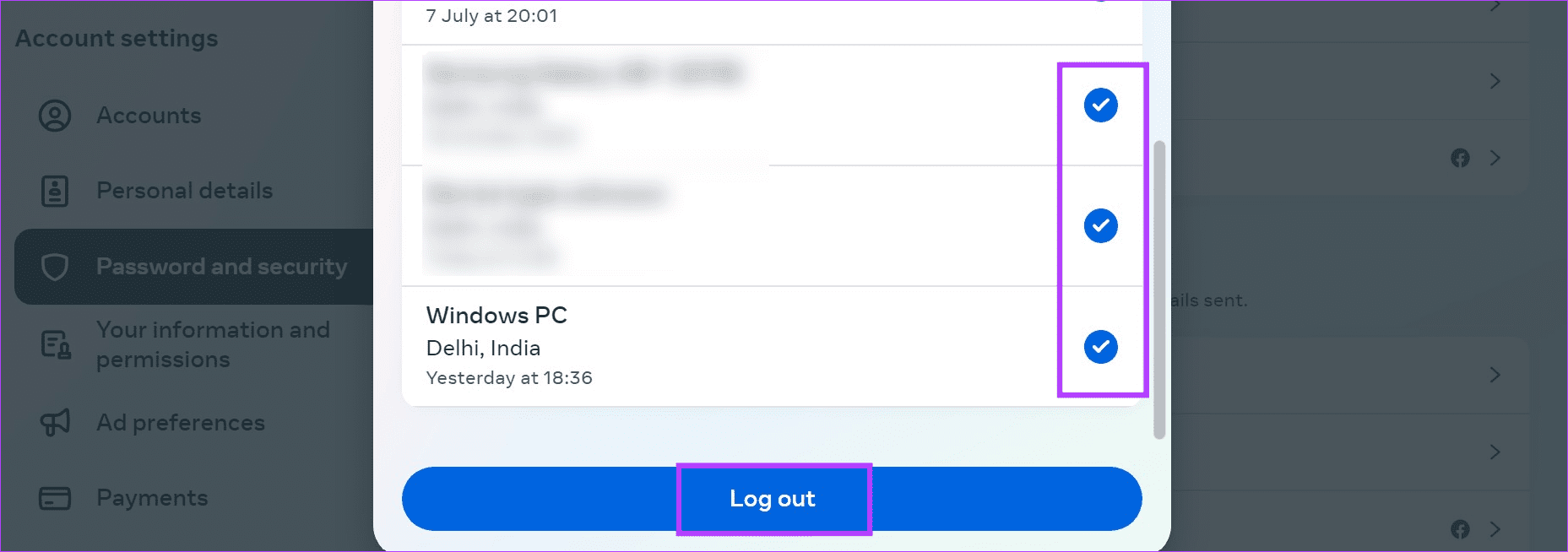
Step 8: Click on Log out again to confirm. This will instantly log you out of all the selected devices.

Step 9: Now, return to the Facebook homepage and click on your profile picture again. Click on Log out.
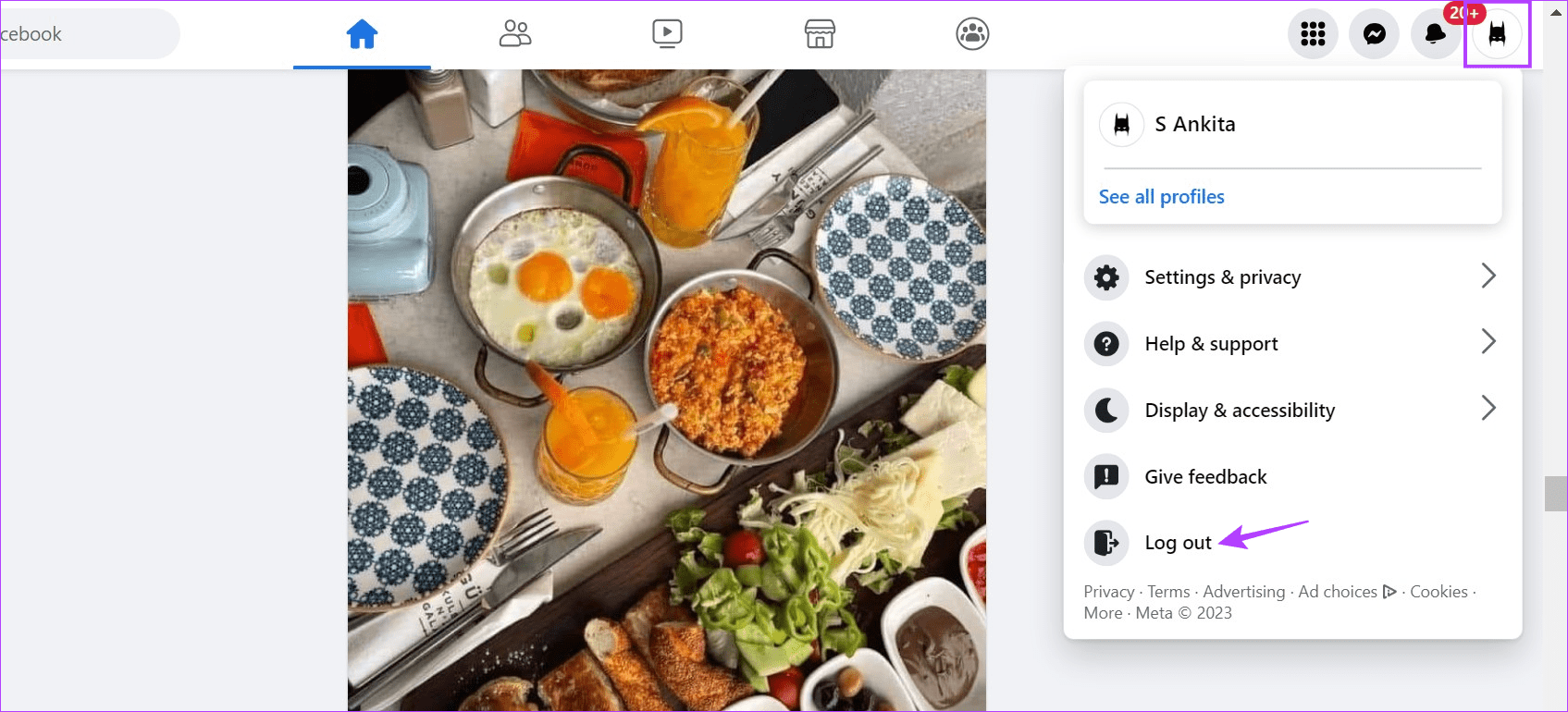
This will log you out of all devices on Facebook, including the device you’re currently using.
Using Facebook Mobile App
Step 1: Open the Facebook Android app and tap the hamburger icon at the top right corner. iOS users can tap on their profile picture at the bottom right corner.
Step 2: Scroll down and tap on Settings & privacy > Settings > Accounts Center.

Step 3: Now, tap on Password and security > Where you’re logged in > account name.

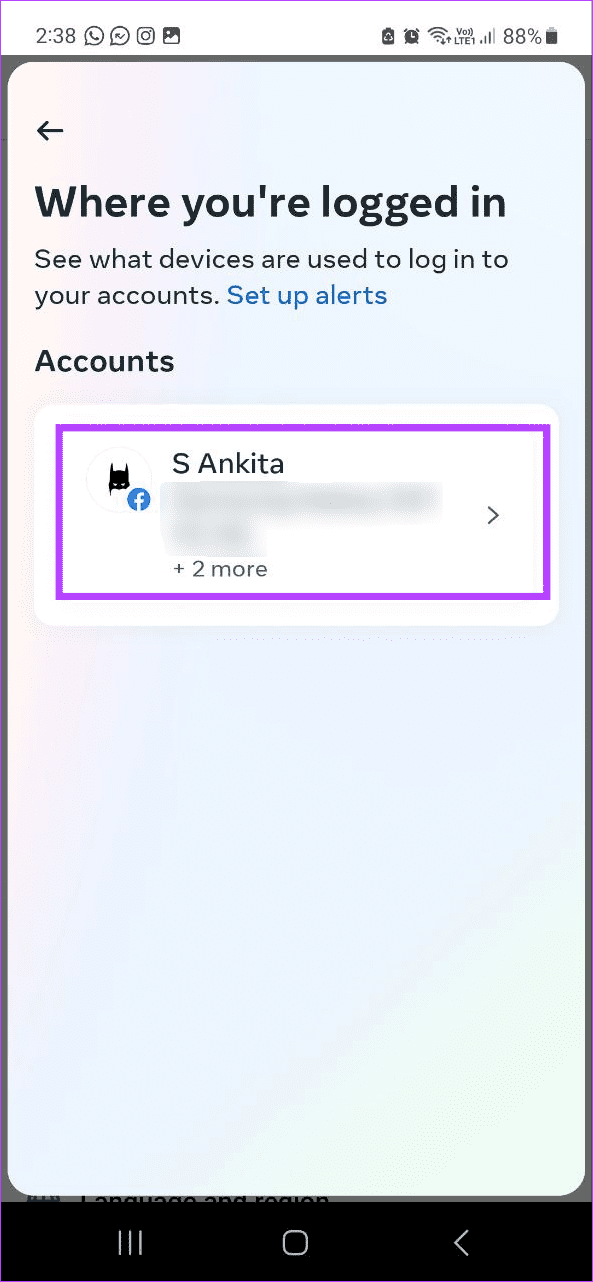
Step 4: Once the list of currently signed-in devices opens, tap on Select devices to log out. Then, select the relevant devices and tap on Log out.
Step 5: Now, go back to the main settings page and tap on Log out. Tap on LOG OUT again to confirm.
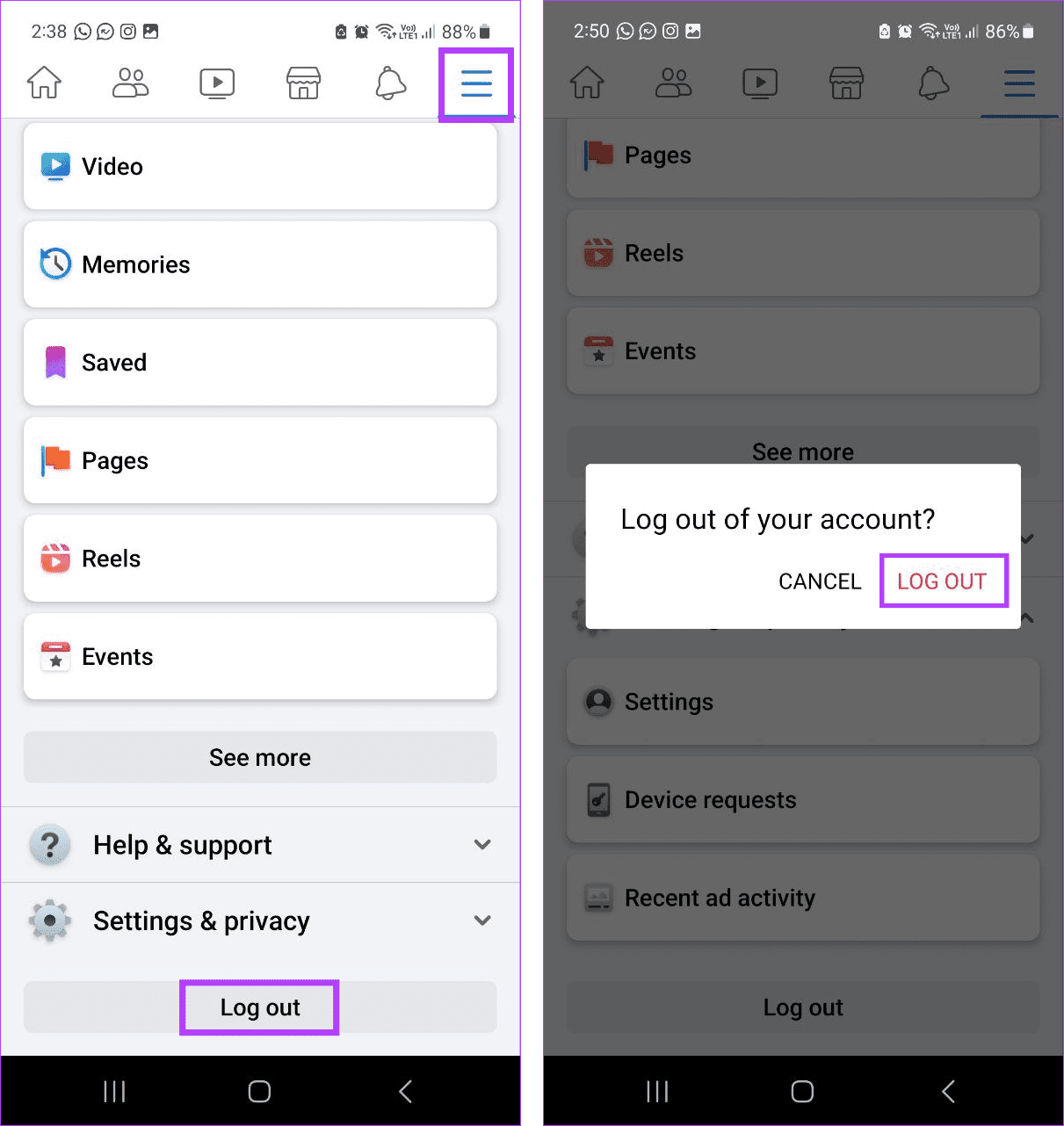
This will allow you to log out of Facebook from all devices at once, including the current one.
Also Read: How to log into Facebook with Instagram
FAQs
Individually logging out of Messenger might not affect your Facebook app. However, using the log out all devices option through the Messenger app will log you out of Facebook on the selected devices.
No, clearing the cache for the Facebook and Messenger apps will not log you out. However, clearing the browser cache or deleting the Facebook or Messenger apps will.
Yes, changing your Facebook password might log you out from all the other devices.
Was this helpful?
Last updated on 16 May, 2024
Read Next
 2 Ways to Fix Facebook Messenger Won’t Let Me Log In on Android and iPhone
Try Basic Fixes Update the Messenger app: The Messenger app may not let you sign in if you’re using an outdated version of the app.
2 Ways to Fix Facebook Messenger Won’t Let Me Log In on Android and iPhone
Try Basic Fixes Update the Messenger app: The Messenger app may not let you sign in if you’re using an outdated version of the app.
 How to Log Out Devices From Telegram Account
Log Out Device From Telegram on Mobile Telegram is available for a wide variety of device platforms.
How to Log Out Devices From Telegram Account
Log Out Device From Telegram on Mobile Telegram is available for a wide variety of device platforms.
 How to Log Out Linked Devices From WhatsApp Account
https://youtu.be/Ij8bVFcMnbE Log Out Linked Devices From WhatsApp on Mobile Before moving on with the steps, we suggest updating WhatsApp version on your iPhone or Android.
How to Log Out Linked Devices From WhatsApp Account
https://youtu.be/Ij8bVFcMnbE Log Out Linked Devices From WhatsApp on Mobile Before moving on with the steps, we suggest updating WhatsApp version on your iPhone or Android.
 How to Fix Cannot Log in to Facebook Account Problem
Basic Fixes Check if Facebook is down - Sometimes, Facebook experiences outages or technical issues that can stop you from logging in.
How to Fix Cannot Log in to Facebook Account Problem
Basic Fixes Check if Facebook is down - Sometimes, Facebook experiences outages or technical issues that can stop you from logging in.
 3 Ways to Fix “Can’t Log Out of Facebook” Issue on Any Device
Why Can’t I Log Out of Facebook on Mobile and Desktop Before we start fixing, here are some reasons that could cause this issue.
3 Ways to Fix “Can’t Log Out of Facebook” Issue on Any Device
Why Can’t I Log Out of Facebook on Mobile and Desktop Before we start fixing, here are some reasons that could cause this issue.
 What Happens When You Block Someone on Facebook Messenger
What Happens When You Block Someone On Messenger Action Blocked PersonYouSend MessagesNoNoMessage in groupsYesYesCall on MessengerNo NoDelete chat historyNo NoSee old messages YesYesReact to old messages No NoSee online status
What Happens When You Block Someone on Facebook Messenger
What Happens When You Block Someone On Messenger Action Blocked PersonYouSend MessagesNoNoMessage in groupsYesYesCall on MessengerNo NoDelete chat historyNo NoSee old messages YesYesReact to old messages No NoSee online status
 How to Share Screen in Facebook Messenger (With Audio)
Share Screen in Facebook Messenger on Mobile The steps to share your screen using Facebook Messenger remain the same on iPhone and Android.
How to Share Screen in Facebook Messenger (With Audio)
Share Screen in Facebook Messenger on Mobile The steps to share your screen using Facebook Messenger remain the same on iPhone and Android.
 5 Ways to Fix Facebook Messenger Notification Won’t Go Away
Try Basic Fixes Mark your messages as read: At times, Facebook Messenger may sometimes fail to mark your messages as read, even after you have opened them.
5 Ways to Fix Facebook Messenger Notification Won’t Go Away
Try Basic Fixes Mark your messages as read: At times, Facebook Messenger may sometimes fail to mark your messages as read, even after you have opened them.
The article above may contain affiliate links which help support Guiding Tech. The content remains unbiased and authentic and will never affect our editorial integrity.