LinkedIn has gone dark. It feels that way, at least, because you haven’t been getting the push notifications you set up. The platform isn’t telling you when you get messages or new connections. Maybe you just aren’t getting any? You pop on to LinkedIn and see that’s not the case – there are new messages there. So, are your LinkedIn notifications not working instead? There’s a good chance they’re not and this is how to fix them.
Fix 1 – The Simple Fix: Check Your Notification Settings
Your first option when dealing with LinkedIn notifications not working is to head straight to your notification settings. This is where you choose which notifications you get from the platform and there’s always a possibility that a glitch in the system has resulted in those settings getting changed without you realizing it.
So, change them back.
Step 1: Login to LinkedIn and click the little arrow next to your profile picture at the top-right of screen. Choose “Settings & Privacy” from the dropdown box that appears.

Step 2: Click the “Notifications” link in the navigation bar on the left-hand side. It should be at the bottom of the list of options you can see.

Step 3: Here, you’ll see a list of possible notification types you can activate (or not) on LinkedIn. The time-consuming part is coming up. Click the right-facing arrow at the end of the notification type you want to check. You should see a toggle for “on” or “off” on the screen that appears. From that screen, you can also do the same for specific sub-categories of notifications within the notification type.
Check that the notification types you want are toggled “on.”


Step 4: Repeat and repeat again for every notification type, ensuring each is set to what you want it to be.
Fix 2 – The Network, Posts, and Comments Fix
Our next fix is very similar to the previous one – it follows most of the same steps – but it focuses on what most want from their LinkedIn notifications. Namely, they want the platform to buzz them when anybody from their network interacts with them.
Step 1: Click your profile icon and select “Settings & Privacy” from the drop-down box.
Step 2: Hit “Notifications” in the navigation bar on the left side of your screen.

Step 3: Select “Connecting with others,” and check all of the toggles that are in that category. The main “Allow connections notifications” toggle should be on. Hit “Updates from your network.”

Step 4: Ensure that “Push notifications” are set to “on.” It’s also here where you fix problems with LinkedIn not notifying you via your mobile app. Make sure “In-app notifications” are also turned “on.”

Step 5: Hit the back button a couple of times, head to “Posting and commenting,” and select “Comments and reactions.”


Step 6: Do what you did in Step 4 – set push and in-app notifications to the “on” status. Like this you essentially reset your main LinkedIn notifications to ensure you’re getting your main pings when you want them.
Was this helpful?
Last updated on 12 February, 2025
Read Next
 LinkedIn Search Not Working – 5 Fixes
Fix 1: Use Boolean Search Terms to Solve LinkedIn Search Not Working If you’re wondering why LinkedIn search is not working or showing you irrelevant results, it might be because
LinkedIn Search Not Working – 5 Fixes
Fix 1: Use Boolean Search Terms to Solve LinkedIn Search Not Working If you’re wondering why LinkedIn search is not working or showing you irrelevant results, it might be because
 Can’t Save Excel Files on Mac? Try These 3 Fixes
Basic Fixes Check internet connectivity. If your Mac experiences internet issues, Microsoft Excel will remain stuck in the ‘Saving’ status.
Can’t Save Excel Files on Mac? Try These 3 Fixes
Basic Fixes Check internet connectivity. If your Mac experiences internet issues, Microsoft Excel will remain stuck in the ‘Saving’ status.
 9 Telegram Bots for Groups You Should Try
1.
9 Telegram Bots for Groups You Should Try
1.
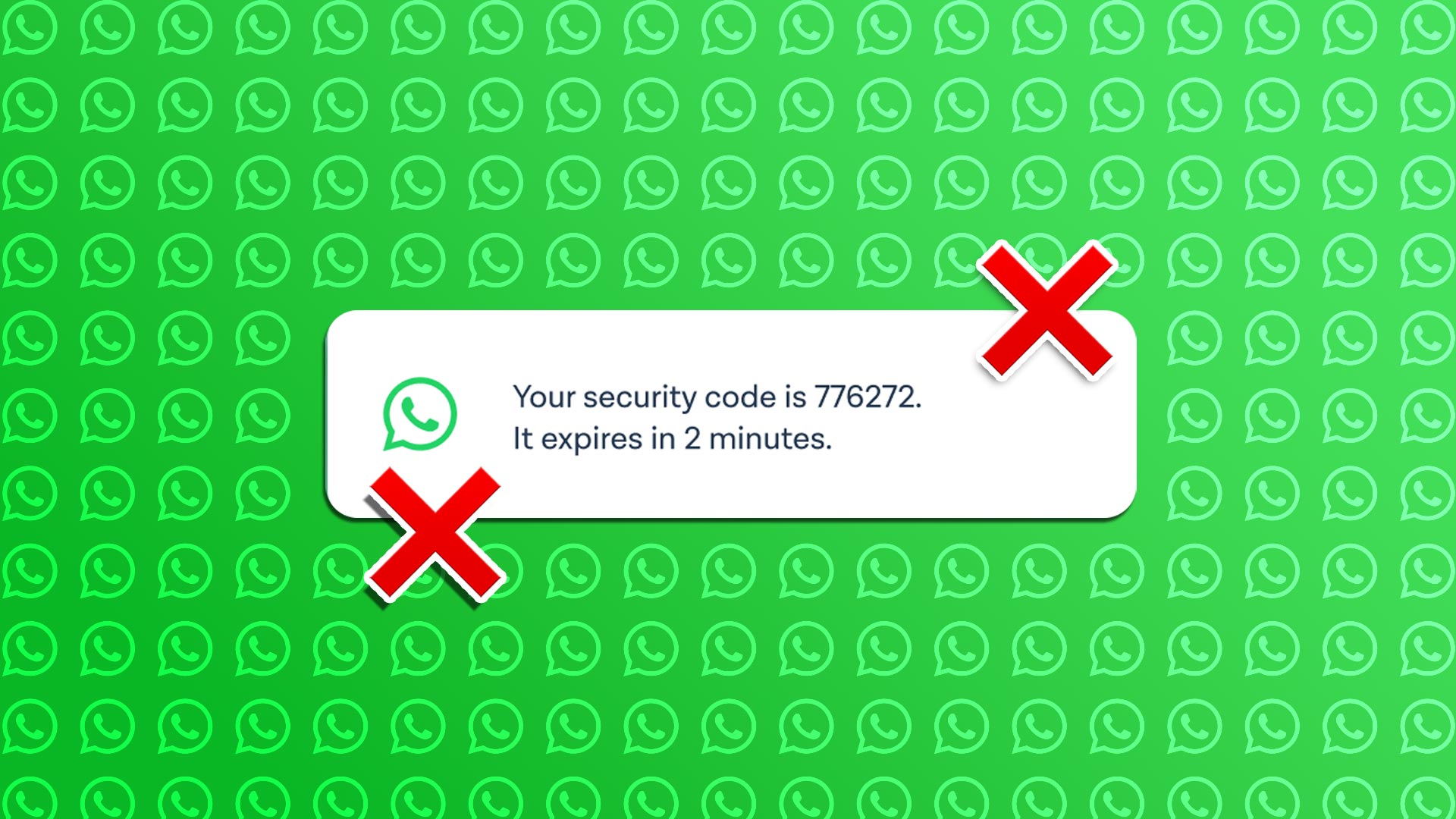 WhatsApp Verification Code Not Received? Try These Workarounds
Basic Fixes Double-check your region code and number - WhatsApp automatically detects your region and shows a dialing code and a menu to enter your mobile number.
WhatsApp Verification Code Not Received? Try These Workarounds
Basic Fixes Double-check your region code and number - WhatsApp automatically detects your region and shows a dialing code and a menu to enter your mobile number.
 6 Fastest Browsers for Windows 11 You Should Try
How Did We Test Each Browser on Windows 11 To find the best and fastest browsers for Windows 11, we installed multiple browsers and tested each on popular benchmarking tools.
6 Fastest Browsers for Windows 11 You Should Try
How Did We Test Each Browser on Windows 11 To find the best and fastest browsers for Windows 11, we installed multiple browsers and tested each on popular benchmarking tools.
 5 Things to Try If X (Twitter) Keeps Logging You Out
Try These Things First Disable VPN: If you're using a VPN connection, X may log you out due to unusual or suspicious account activity.
5 Things to Try If X (Twitter) Keeps Logging You Out
Try These Things First Disable VPN: If you're using a VPN connection, X may log you out due to unusual or suspicious account activity.
 Clever Telegram Hacks to Try
Telegram is fast becoming one of the most popular messaging apps among people of all ages, and part of what makes it so great is its many features.
Clever Telegram Hacks to Try
Telegram is fast becoming one of the most popular messaging apps among people of all ages, and part of what makes it so great is its many features.
 How to View LinkedIn Profiles Anonymously or Without Account
Method 1: Use Private Mode on LinkedIn LinkedIn lets you select whether you want to disclose your identity while viewing someone else's profile natively.
How to View LinkedIn Profiles Anonymously or Without Account
Method 1: Use Private Mode on LinkedIn LinkedIn lets you select whether you want to disclose your identity while viewing someone else's profile natively.
The article above may contain affiliate links which help support Guiding Tech. The content remains unbiased and authentic and will never affect our editorial integrity.