What is iPhone Findable After Power Off
This feature enables you to use the Find My iPhone feature even when your device is turned off. This is possible because your iPhone doesn’t truly turn off after its battery is dead; it operates in a low-power state and similar to AirTag, allows nearby iOS devices to pick up Bluetooth signals and report its location.
This allows Apple to retrieve the location information from your iPhone and provide it to you when you use the Find My service on another device. This gives you more time (up to 24 hours) to retrieve your dead iPhone even after it’s powered off or someone has reset its factory settings with Activation Lock enabled.
iPhone 11 series and newer iPhone models (except iPhone SE 2020) support the feature since they have the U1 chip.
How to Enable iPhone Findable After Power Off
Step 1: Open the Settings app. Tap on your account information – which is the very first option.
Step 2: Tap on Find My, and tap on Find My iPhone.
Step 3: Turn on the toggles for Find My iPhone and Find My Network.
Tip: You can also enable Send Last Location to allow the device to send the location automatically to Apple if the battery is low.

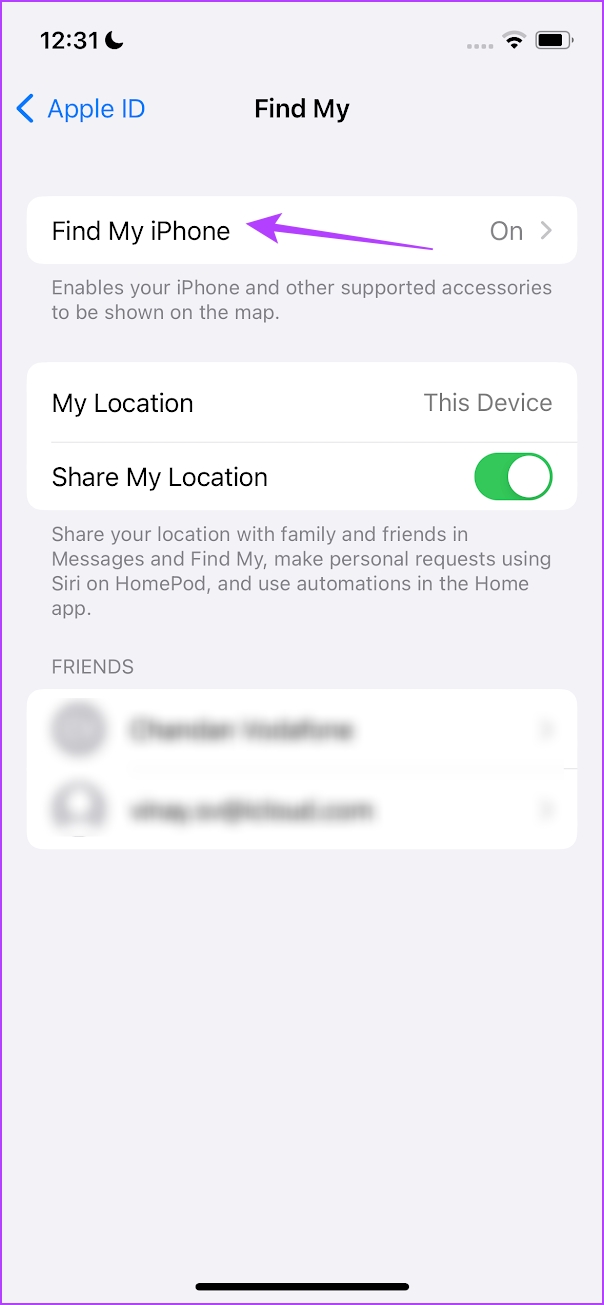

This enables the option to find your iPhone even after it is powered off. Further, your iPhone will also indicate the same when you try to power it off.
How to Locate a Lost or a Stolen iPhone on Find My iPhone
Now that you understand how to enable the toggle that makes your iPhone findable after power off, let us now understand how to locate it.
However, you need to make sure that you remember the Apple ID password for the device you are trying to find.
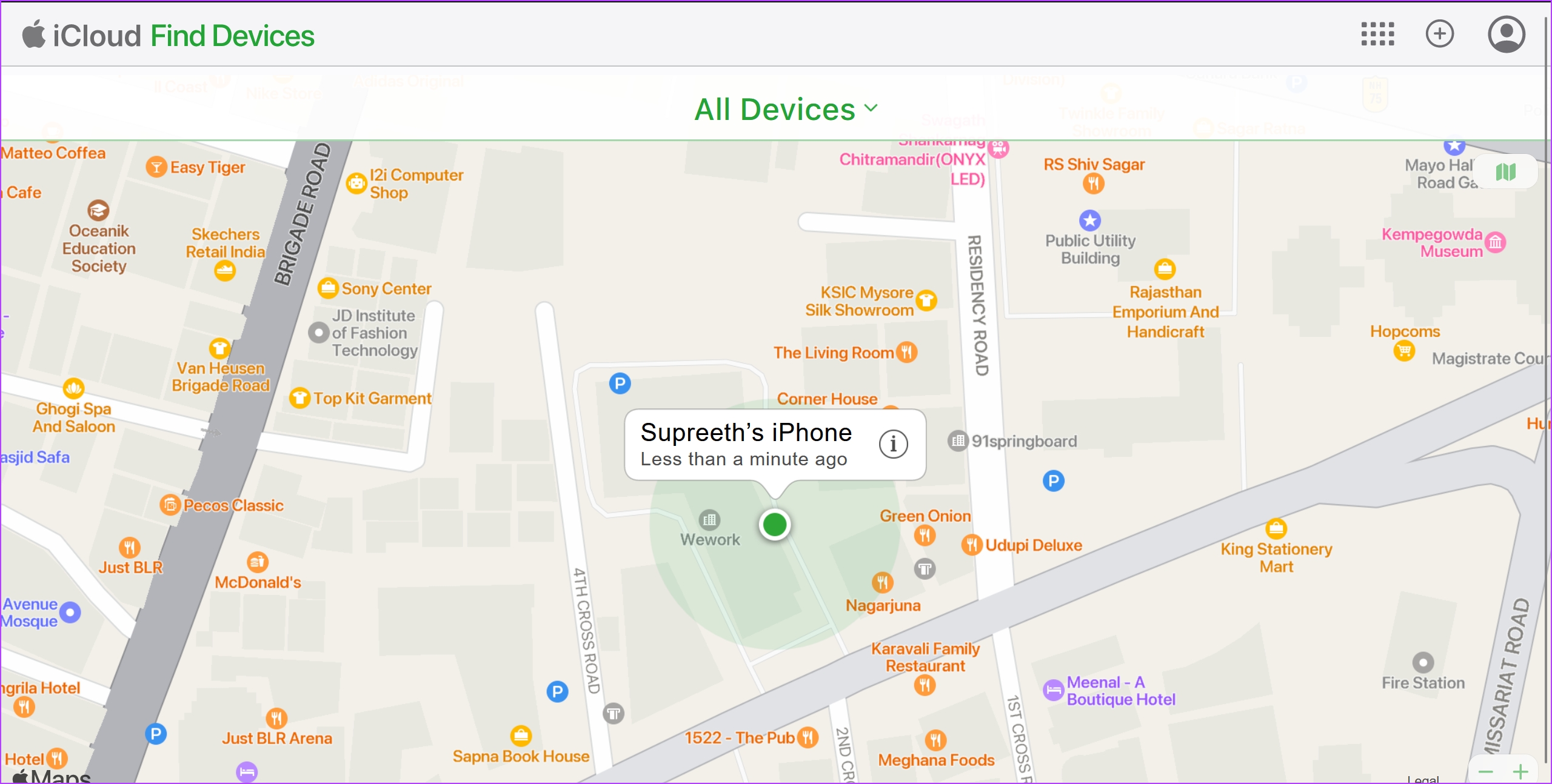
Step 1: Open the Find My app on another Apple device signed into the same Apple ID as the iPhone you are trying to find. Or, you can access Find My using iCloud on a web browser using the link below.
Step 2: You will find all the devices using your Apple ID in the form of green-colored icons. Locate the device you’re trying to track.
Further, you can also tap on All Devices to quickly access all the visible devices.
Also Read: How to remove a device from Find My on iPhone, iPad, Mac, or iCloud
Was this helpful?
Last updated on 25 July, 2024
Read Next
 6 Best Power Banks With USB Type-C Power Delivery
A power bank is a must-have for many of us who are often on the road.
6 Best Power Banks With USB Type-C Power Delivery
A power bank is a must-have for many of us who are often on the road.
 6 Best Power Banks for iPhone 14 Series
The iPhone 14 range still uses a lightning connector, and as such, you may not find a compatible charger when you're out and about.
6 Best Power Banks for iPhone 14 Series
The iPhone 14 range still uses a lightning connector, and as such, you may not find a compatible charger when you're out and about.
 6 Best Power Banks for the iPhone 15 Pro
The iPhone 15 Pro is a powerful smartphone with a long battery life, but even the best batteries can run out of juice.
6 Best Power Banks for the iPhone 15 Pro
The iPhone 15 Pro is a powerful smartphone with a long battery life, but even the best batteries can run out of juice.
 5 Best MagSafe Power Banks for Apple iPhone 15 Series
If you are often on the go and have one of the new iPhone 15 smartphones, you should consider getting the best MagSafe power banks for the iPhone 15 series.
5 Best MagSafe Power Banks for Apple iPhone 15 Series
If you are often on the go and have one of the new iPhone 15 smartphones, you should consider getting the best MagSafe power banks for the iPhone 15 series.
 How to Enable, Disable, or Block Your Caller ID on an iPhone
In the era where contact posters boldly show who’s calling, some people like to hide their phone numbers for privacy reasons.
How to Enable, Disable, or Block Your Caller ID on an iPhone
In the era where contact posters boldly show who’s calling, some people like to hide their phone numbers for privacy reasons.
 5 iPhone Browsers With Adblock to Enable Ad-Free Browsing
1.
5 iPhone Browsers With Adblock to Enable Ad-Free Browsing
1.
 How to Enable Dolby Atmos on iPhone, iPad, and Mac
Apple Devices That Support Dolby Atmos Before we begin, it is important to know whether your current iPhone, iPad, or Mac supports Spatial Audio with Dolby Atmos.
How to Enable Dolby Atmos on iPhone, iPad, and Mac
Apple Devices That Support Dolby Atmos Before we begin, it is important to know whether your current iPhone, iPad, or Mac supports Spatial Audio with Dolby Atmos.
 How to Enable Sensitive Content Warning on iPhone, iPad, and Mac
Apple provides the best security features for iPhone, iPad, and Mac.
How to Enable Sensitive Content Warning on iPhone, iPad, and Mac
Apple provides the best security features for iPhone, iPad, and Mac.
The article above may contain affiliate links which help support Guiding Tech. The content remains unbiased and authentic and will never affect our editorial integrity.