Password leaks and phishing attacks have made account protection more urgent than ever. Two-factor authentication apps offer an extra layer of defense for your personal data, particularly for sensitive accounts. This article describes how these tools enhance security and how you can use them effectively.
Depending only on passwords for securing personal accounts has become less safe because of data breaches and growing cyber threats. Two-factor authentication (2FA) apps reduce the risk of account compromise by introducing a second step that verifies your identity using a device you control. This makes it more difficult for unauthorized parties to access your accounts, even if your password is stolen.
In addition to app-based authentication, solutions like Titan AI can support your security routines by raising awareness of potential risks across digital environments. Learning how two-factor authentication apps function and how they fit into your security practices can help you better protect sensitive information compared to passwords alone.
Password Weaknesses and the Role of 2FA Apps
Passwords are often the first and sometimes only security measure for many online accounts. Common behaviors such as reusing passwords and falling victim to phishing attacks increase the risk that a stolen password will be used to access personal data.
Two-factor authentication apps make accounts more secure by requiring a second, independently generated code via an app on your mobile device. This step prevents access unless the person also possesses the authenticator app or device that creates the verification codes.
For crucial accounts, including email, cloud storage, and online banking, enabling an authentication app can limit the consequences of password theft. These types of accounts are frequent targets, as gaining access can lead to identity or financial exposure. If you manage complex digital workflows or run into operational snags on your PC while handling your accounts, resources like how to fix Windows Store error code 0x801901f7 can keep your workstation running smoothly.
Although SMS codes are an option, authenticator apps generally provide stronger security against common attacks. SMS-based 2FA can be susceptible to message interception or account hijacking, whereas codes from authenticator apps are produced directly on your device.
Understanding Common 2FA Methods and Key Terms
You may encounter various methods and terminology when enabling 2FA. The most widely used are SMS codes and authenticator apps, each with different security advantages.
Authenticator apps create time-based, one-time passwords (TOTP) that change typically every 30 seconds. These are preferred for their added security since codes do not pass across cellular networks, reducing exposure to interception.
In your account settings, you might see terms like two-factor authentication (2FA), multifactor authentication (MFA), authenticator app, or backup codes. While 2FA and MFA can sometimes be used interchangeably, MFA may include other security methods such as biometrics or hardware tokens.
Backup codes are single-use codes supplied when 2FA is set up and should be stored securely. They are important for account recovery if your device is lost, ensuring you do not get locked out permanently.
Choosing an Authenticator App and Setting It Up
Choosing the right authentication app for Android or iOS requires you to consider features that suit your daily needs. Look for options with simple setup, organized account management, and easy recovery options.
Some apps save codes locally on your phone, while others provide cloud backup, allowing you to restore codes if you lose your device. Features like multi-device support and offline access can be valuable if you use several devices or need codes even when not connected to the internet.
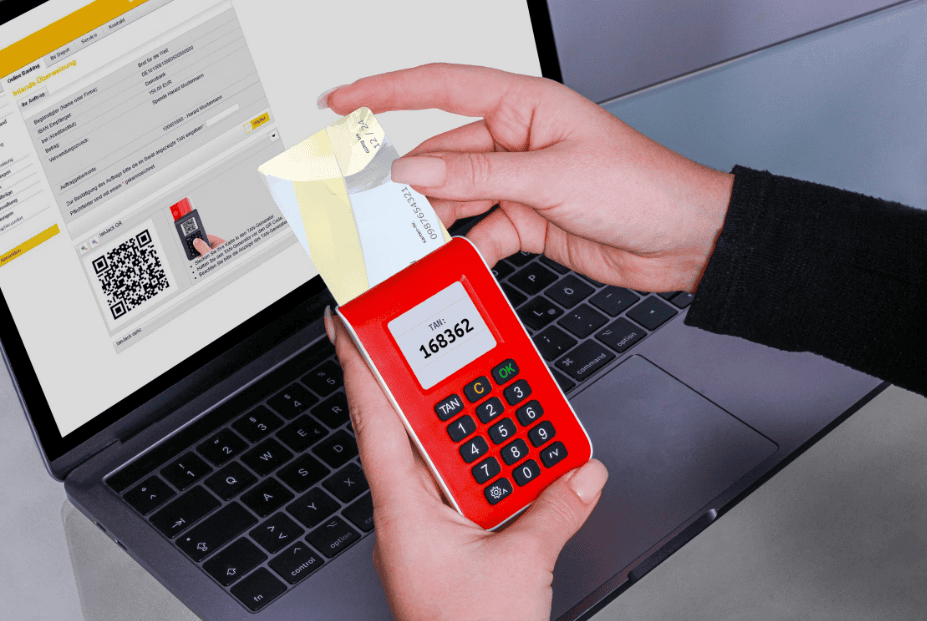
To begin, go to the security or authentication section of your account’s settings and choose the option to enable two-factor authentication. Setup usually means scanning a QR code with your authenticator app or entering a manual code provided during setup.
Once scanned, the app generates a time-based code you’ll enter to finish the link to your account. For convenience, name each entry clearly so you can easily identify which code is associated with which account. Furthermore, as digital systems and server infrastructures evolve, automated tools are increasingly integrated into administrative workflows, much like how artificial intelligence is being used in web hosting to optimize platform security.
Best Practices for Account Recovery and Troubleshooting
If you lose access to your authenticator app, such as after a phone loss or reset, recovering your accounts can be difficult. Always store backup codes in a safe place; these serve as a fallback for regaining access.
When changing phones, transfer your authentication data using the app’s export or migration feature or by setting up 2FA again on your new device before erasing the old one. If this isn’t done before switching, backup codes or the provider’s support service can help you recover your accounts.
Incorrect codes may indicate your device’s clock is out of sync; enabling automatic time synchronization usually resolves this. To avoid confusion with multiple logins on the same provider, label each app entry uniquely. If persistent system prompts or annoying pop-ups interfere with your workflow during troubleshooting, guides such as How to get help in Windows keeps popping up offer practical ways to clear desktop clutter.
Some services only offer SMS or email-based 2FA. In these cases, use a strong, unique password and enable other account recovery features, but opt for an authenticator app whenever available for stronger protection.
Final Thoughts
Securing your online presence is an ongoing process rather than a one-time chore. Regularly review that two-factor authentication is enabled for vital accounts, confirm that backup codes are saved and accessible, and make sure that device changes have not affected your setup. By building these security habits today, you can significantly reduce your vulnerability to credential stuffing and phishing attacks
Was this helpful?
Last updated on 28 September, 2026
Read Next
 Top 3 Windows 10 Apps to Generate 2-Factor Authentication Codes
Two-factor authentication (2FA) is a method of bumping up user account security by requiring two means of identity verification.Typically when you're logging into your account, you will have to provide
Top 3 Windows 10 Apps to Generate 2-Factor Authentication Codes
Two-factor authentication (2FA) is a method of bumping up user account security by requiring two means of identity verification.Typically when you're logging into your account, you will have to provide
 How to Enable Two-Factor Authentication on Steam
 Step 1: Open Steam on your PC and ensure your account is in use.
How to Enable Two-Factor Authentication on Steam
How to Enable Two-Factor Authentication on Steam Step 1: Open Steam on your PC and ensure your account is in use.
 How to Use iCloud Keychain Two-Factor Authentication
Set Up iCloud Keychain Two-Factor Authentication In the example below, we will set up two-factor authentication for an Instagram account in the iCloud Keychain app on iPhone.
How to Use iCloud Keychain Two-Factor Authentication
Set Up iCloud Keychain Two-Factor Authentication In the example below, we will set up two-factor authentication for an Instagram account in the iCloud Keychain app on iPhone.
 How to Enable and Disable Two-Factor Authentication (2FA) on Discord
Discord is a fantastic platform to hang out with friends and like-minded people.
How to Enable and Disable Two-Factor Authentication (2FA) on Discord
Discord is a fantastic platform to hang out with friends and like-minded people.
 12 Best Ways to Fix Wi-Fi Authentication Problems on Android
If you are an Android user, you might have occasionally encountered an authentication error when connecting to Wi-Fi.
12 Best Ways to Fix Wi-Fi Authentication Problems on Android
If you are an Android user, you might have occasionally encountered an authentication error when connecting to Wi-Fi.
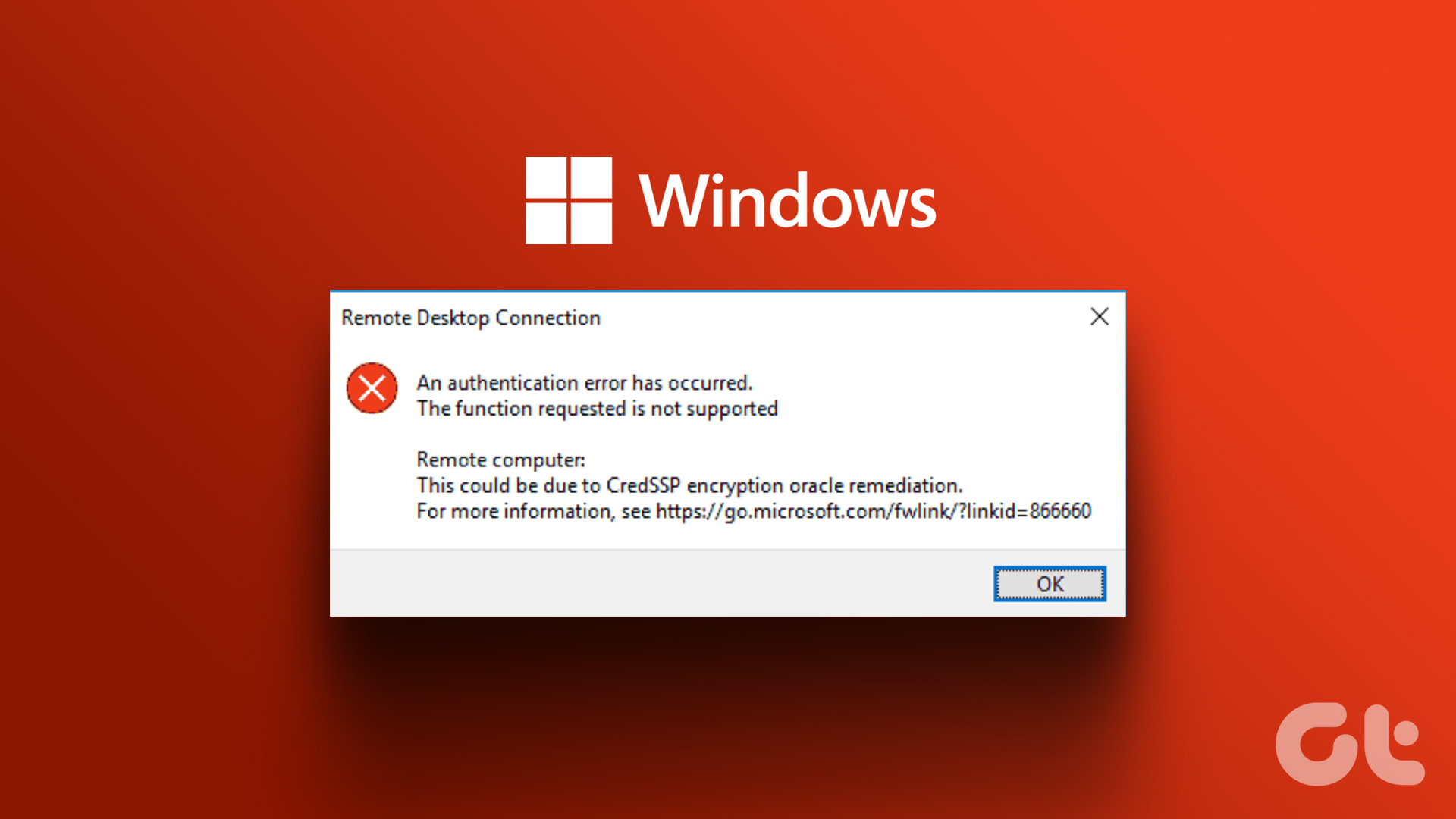 4 Fixes for Remote Desktop Authentication Error on Windows 11
Preliminary Fixes Check remote if the desktop is enabled: The Remote Desktop authentication error often occurs because your Windows 11 PC cannot establish a remote connection without the Remote Desktop
4 Fixes for Remote Desktop Authentication Error on Windows 11
Preliminary Fixes Check remote if the desktop is enabled: The Remote Desktop authentication error often occurs because your Windows 11 PC cannot establish a remote connection without the Remote Desktop
 7 Ways to Get Help in Windows 10 and Windows 11
Note: All the steps in this article work for both Windows 10 and Windows 11 1.
7 Ways to Get Help in Windows 10 and Windows 11
Note: All the steps in this article work for both Windows 10 and Windows 11 1.
 Here’s How I Joined the 5 AM Club With the Help of My iPhone
Early to bed, early to rise makes a person healthy, wealthy, and wise -- this is a phrase taught in first grade in school.
Here’s How I Joined the 5 AM Club With the Help of My iPhone
Early to bed, early to rise makes a person healthy, wealthy, and wise -- this is a phrase taught in first grade in school.
The article above may contain affiliate links which help support Guiding Tech. The content remains unbiased and authentic and will never affect our editorial integrity.