Validate Digital Signatures in PDF Files on Mac
For those using Adobe Acrobat Reader on Mac, you must enable a few options before checking for digital signature validation. Follow these steps to validate digital signatures in PDF files if you are a Mac user.
Step 1: Open Adobe Acrobat Reader > open your PDF file.
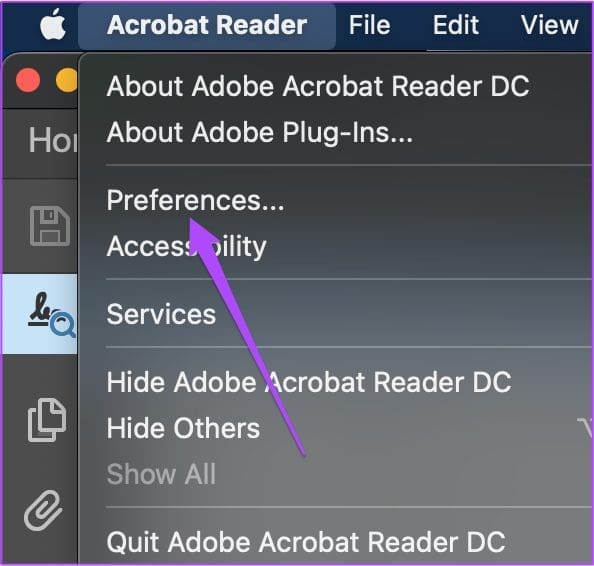
Step 2: Click on Acrobat Reader at the top-left corner > select Preferences.
Step 3: In the Preferences window, click on Signatures from the left menu.
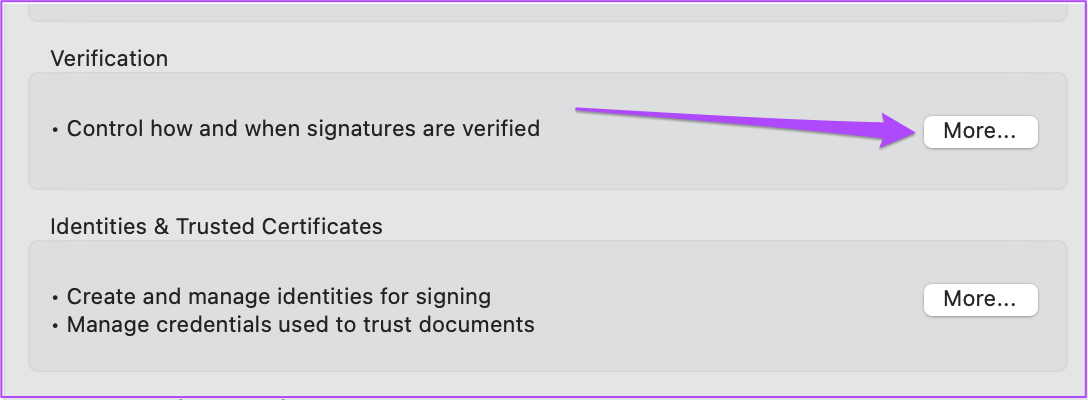
Step 4: Click on More under the Verification tab on the right.
Step 5: In the Signature Verification Preferences windows, uncheck Require Certificate Revocation…verification.

Step 6: Click on Ok.
Step 7: Close the window and click on the digital signature in your document.

The Signature Validation Status window will open on your screen.
Step 8: Click on Signature Properties and choose Validate Signature.

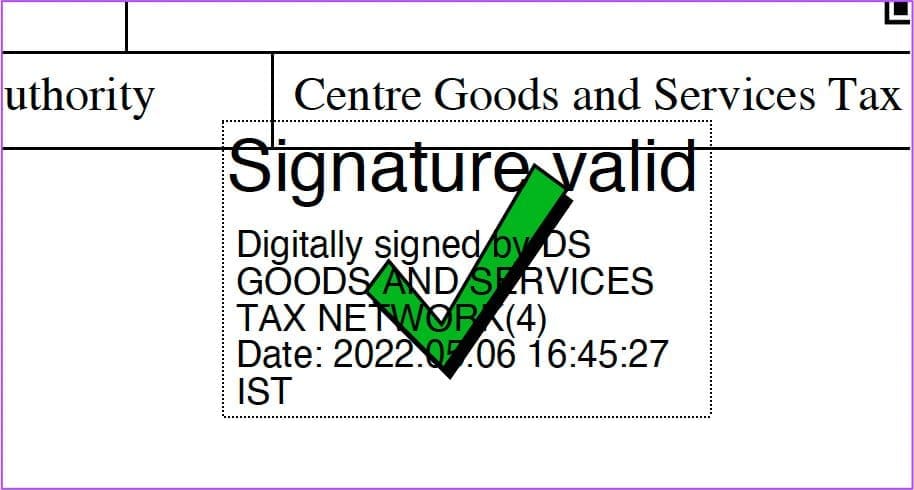
Step 9: Close the Signature Validation Status window. If you notice a green tick, your signature has been validated.
Validate Digital Signatures in PDF Files on Windows
Adobe Acrobat Reader on Windows also needs to enable the signature validation option. However, the steps to enable the option to validate digital signatures in PDF files are slightly different for Windows users.
Step 1: Open Adobe Acrobat Reader and go to your PDF file.
Step 2: Click on Edit at the top-left corner of the menu bar > choose Preferences.
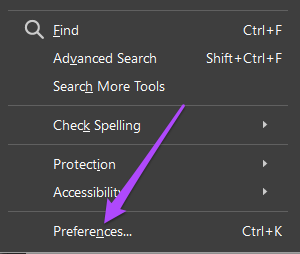
Step 3: Scroll down and click on Signatures from the left menu.

The rest of the steps to validate the digital signature remain the same as for Mac users – check from Step 4 onwards.
Check the Validity of Digital Signature in PDF File
If you receive a PDF file with a validated digital signature, check the validity of the signature by following these steps which are the same for Mac and Windows.
Step 1: Open the PDF file with the validated digital signature.
Step 2: Right-click on the digital signature > choose Show Signature Properties.

Step 3: In the Signature Properties window, check the Signing Time and Source of Trust for validating the signature.
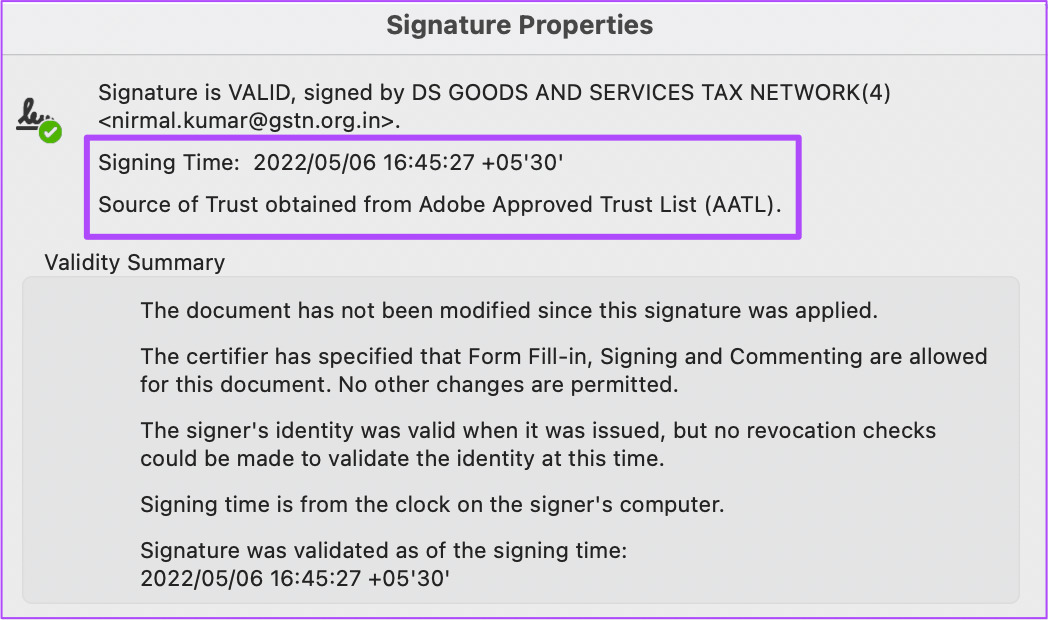
Step 4: To check whether the document was modified after it was signed, click on the Show Signer’s Certificate button under Signer Info.

The certificate will open on your screen for the PDF file.
Check Digital Signature History in PDF File
The Signature Panel in Adobe Acrobat Reader allows you to check information about each digital signature in your PDF file. You can also view the history of changes done in the digital signatures. Here’s how to do that in Adobe Acrobat Reader for Mac and Windows.
Step 1: Open your PDF file with the digital signature in Adobe Acrobat Reader on your Mac or Windows computer.
Step 2: Click on View at the top menu bar > choose Show/Hide.

Step 3: Select Navigation Panes > choose Signatures.

The Signatures panel will open on the left side of your screen.
Step 4: Double click on the signature name or click the arrow alongside the signature to view the changes history.

Was this helpful?
Last updated on 26 July, 2024
Read Next
 Top 4 Ways to Open PDF Document in Adobe Reader Instead of Browser
Are your PDF files opening in the Microsoft Edge on Windows 10 PC?
Top 4 Ways to Open PDF Document in Adobe Reader Instead of Browser
Are your PDF files opening in the Microsoft Edge on Windows 10 PC?
 How to Disable or Remove Recent Files in Adobe Reader and Acrobat DC
Remove Recent Files in Adobe Reader Desktop Step 1: On the Recent list, hover over the shortcut you want to delete.
How to Disable or Remove Recent Files in Adobe Reader and Acrobat DC
Remove Recent Files in Adobe Reader Desktop Step 1: On the Recent list, hover over the shortcut you want to delete.
 How to Enable Scrolling By Default in Adobe Acrobat DC and Reader DC
Switching to your preferred page mode in Adobe Acrobat DC and Acrobat Reader DC often disables continuous scrolling.
How to Enable Scrolling By Default in Adobe Acrobat DC and Reader DC
Switching to your preferred page mode in Adobe Acrobat DC and Acrobat Reader DC often disables continuous scrolling.
 How to Fit Full Page to Window By Default in Adobe Acrobat DC and Reader DC
Adobe Acrobat DC and Acrobat Reader DC prefer fitting pages by width.
How to Fit Full Page to Window By Default in Adobe Acrobat DC and Reader DC
Adobe Acrobat DC and Acrobat Reader DC prefer fitting pages by width.
 5 Fixes for Adobe Acrobat Reader Not Opening in Windows 11/10
Before starting the fixes, please note that Adobe Acrobat Reader DC and Adobe Acrobat Reader are the same now.
5 Fixes for Adobe Acrobat Reader Not Opening in Windows 11/10
Before starting the fixes, please note that Adobe Acrobat Reader DC and Adobe Acrobat Reader are the same now.
 How to Hide or Remove the Adobe Reader DC Tools Pane Permanently
Just launch a PDF in Adobe Reader DC, and you should find a Tools pane pop up to the right of the screen.
How to Hide or Remove the Adobe Reader DC Tools Pane Permanently
Just launch a PDF in Adobe Reader DC, and you should find a Tools pane pop up to the right of the screen.
 How to Open Files in Separate Windows on Adobe Acrobat Pro, Standard, and Reader DC
The tabbed-view in Adobe Acrobat Pro, Standard, and Reader DC is a mixed bag.
How to Open Files in Separate Windows on Adobe Acrobat Pro, Standard, and Reader DC
The tabbed-view in Adobe Acrobat Pro, Standard, and Reader DC is a mixed bag.
 How to Add or Remove PDF Background Using Adobe Acrobat
Change Background in a PDF File If you have an Adobe Acrobat Pro subscription, you can change the background color of your PDF using the Edit PDF tool.
How to Add or Remove PDF Background Using Adobe Acrobat
Change Background in a PDF File If you have an Adobe Acrobat Pro subscription, you can change the background color of your PDF using the Edit PDF tool.
The article above may contain affiliate links which help support Guiding Tech. The content remains unbiased and authentic and will never affect our editorial integrity.