Watching a movie on a flight or splitting your earbuds so a friend can hear the same song used to mean a headphone splitter or an awkward single-earbud handoff. The Windows 11 Shared Audio feature fixes that by letting your PC output one audio stream to two Bluetooth devices at once, without any cables or third-party apps involved. Here’s how it works and how to use it.
What Is Shared Audio, and What Do You Need to Use It?
The Windows 11 Shared Audio feature works by splitting the output at the system level and pushing it to devices in parallel. That means both devices will have the same sound broadcast.
Microsoft began previewing the feature in late October 2025. The feature has since been expanded and retroactively made available for 24H2, 25H2, and 26H1 updates, though it’s still being staged gradually rather than switched on for everyone at once.
Because it depends on Bluetooth LE Audio broadcast support in both the PC’s hardware and its drivers, shared audio is currently limited to specific Copilot+ PCs, including:
- Surface Laptop (13.8-inch and 15-inch) and Surface Laptop for Business, on Qualcomm Snapdragon X
- Surface Pro (13-inch) and Surface Pro for Business, on Qualcomm Snapdragon X
- Samsung Galaxy Book4 Edge, on Qualcomm Snapdragon X
- Samsung Galaxy Book5 360, Book5 Pro, and Book5 Pro 360, on Intel Core Ultra Series 200 (rolling out)
Microsoft indicated more Windows 11 PCs will gain support over time as manufacturers ship compatible Bluetooth and audio drivers. However, it’s uncertain whether that will include anything other than Copilot+ models.
On the accessory side, you’ll need two Bluetooth LE Audio-capable devices. Examples include the Samsung Galaxy Buds2 Pro, Buds3, and Buds3 Pro, as well as LE Audio hearing aids from ReSound and Beltone.
How to Use the Windows 11 Shared Audio Feature
Since the option should be enabled with the latest Windows Update, make sure to run it beforehand. After that, it should become available from the sound toolbar.
Step 1. Check that both accessories you want to use support Bluetooth LE Audio. Manufacturer product pages or the accessory’s own companion app will usually confirm this.
Step 2. Use each accessory’s companion app to make sure LE Audio support is turned on and the firmware is current before pairing.
Step 3. Press “Win + I” to open Settings, then go to “Bluetooth & devices.”
Step 4. Put your first accessory into pairing mode, select “Add device,” and choose it from the list of discovered hardware.
Step 5. Repeat the process for the second accessory, and confirm both show as connected in the device list before continuing.
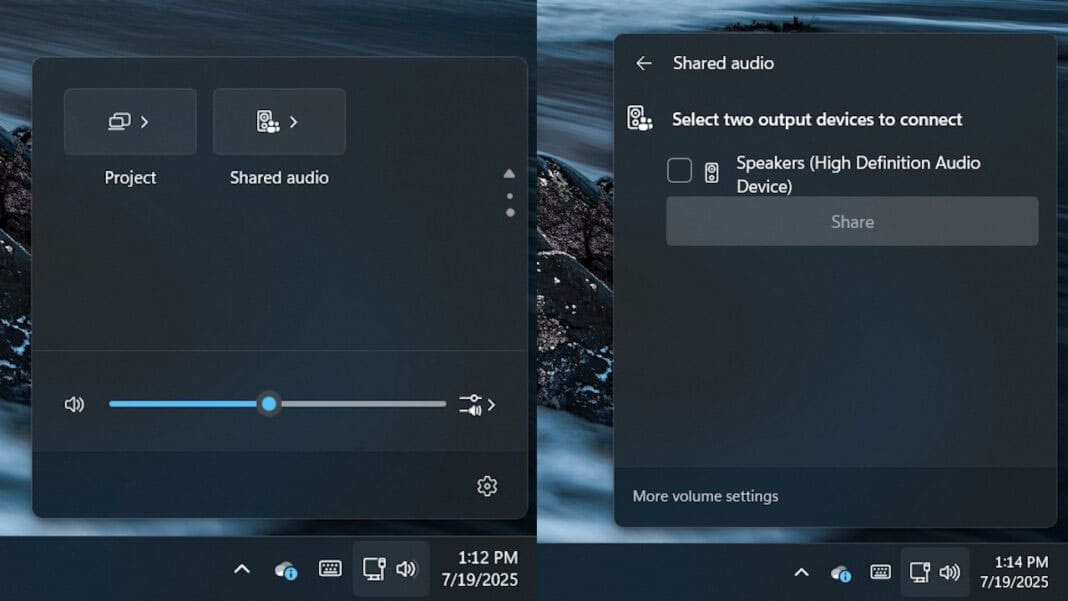
Step 6. Press “Win + A,” or click the speaker icon in the taskbar, to open Quick Settings.
Step 7. Select the “Shared audio” tile. Windows will list your connected, compatible Bluetooth devices.
Step 8. Check the boxes next to the two accessories you want to share audio with.

Step 9. Select “Share” to start the session.
A status icon will appear in the taskbar for as long as sharing is active, giving you a shortcut back to the controls.
How to Adjust Volume or Stop Shared Audio
The same panel allows you to control the settings for both devices.
Step 1. Reopen the “Shared audio” panel from the taskbar.
Step 2. Use the individual volume slider next to each device to set a separate level for each listener, or adjust volume directly from the physical buttons on either headset.
Step 3. Select “Stop sharing” to return to normal single-device audio output.
Was this helpful?
Last updated on 14 July, 2026
Read Next
 How to Use YouTube’s Multi Audio Track Feature
Gone are the days when you needed to switch to different YouTube dubbed videos to listen to a specific language.
How to Use YouTube’s Multi Audio Track Feature
Gone are the days when you needed to switch to different YouTube dubbed videos to listen to a specific language.
 6 Ways to Fix Windows 11 Can’t Access Shared Folder
Fix 1: Use the Command Prompt to Access the Shared Folder If you can't open the shared folder in File Explorer, use Command Prompt to access it.
6 Ways to Fix Windows 11 Can’t Access Shared Folder
Fix 1: Use the Command Prompt to Access the Shared Folder If you can't open the shared folder in File Explorer, use Command Prompt to access it.
 5 Fixes When Wireless Display Feature is Not Working on Windows 11
Basic Fixes: Ensure your devices support Miracast and Wi-Fi Direct protocol: One essential prerequisite for using the wireless display feature on Windows 11 is that all your devices, including your
5 Fixes When Wireless Display Feature is Not Working on Windows 11
Basic Fixes: Ensure your devices support Miracast and Wi-Fi Direct protocol: One essential prerequisite for using the wireless display feature on Windows 11 is that all your devices, including your
 How to Create and Use the Storage Spaces Feature on Windows 11
What Are Storage Spaces in Windows 11 and Why Should You Create One Storage Spaces lets you create an array or group of two or more physical hard drives to create
How to Create and Use the Storage Spaces Feature on Windows 11
What Are Storage Spaces in Windows 11 and Why Should You Create One Storage Spaces lets you create an array or group of two or more physical hard drives to create
 How to Use New Windows 11 Screen Tint Feature
Microsoft is continuing to improve its services for users, and this also extends to accessibility.
How to Use New Windows 11 Screen Tint Feature
Microsoft is continuing to improve its services for users, and this also extends to accessibility.
 6 Ways to Fix Multiple Connections to a Server or Shared Resource by the Same User
Network and file sharing issues can be frustrating, especially when encountering errors like 'Multiple Connections to a Server or Shared Resource by the Same User.' In this article, we'll delve
6 Ways to Fix Multiple Connections to a Server or Shared Resource by the Same User
Network and file sharing issues can be frustrating, especially when encountering errors like 'Multiple Connections to a Server or Shared Resource by the Same User.' In this article, we'll delve
 What Is Microsoft’s New Recall Feature?
AI is becoming a more prominent part of the Windows operating system, with Microsoft’s Copilot AI now present in all of its main apps.
What Is Microsoft’s New Recall Feature?
AI is becoming a more prominent part of the Windows operating system, with Microsoft’s Copilot AI now present in all of its main apps.
 How to Manage Shared Photo Albums on Your iPhone
How to Create a Shared Album on Your iPhone To create a Shared Album on your iPhone, it'll need to run the latest version of iOS for iPhone, iPadOS for
How to Manage Shared Photo Albums on Your iPhone
How to Create a Shared Album on Your iPhone To create a Shared Album on your iPhone, it'll need to run the latest version of iOS for iPhone, iPadOS for
The article above may contain affiliate links which help support Guiding Tech. The content remains unbiased and authentic and will never affect our editorial integrity.