How to Use the NFC Tag Reader on an iPhone
NFC (Near-Field Communication) allows your iPhone to interact with nearby devices to exchange data, such as instant wireless connections and payment services.
Compatible Devices
Apple brought the NFC Tag Reader in 2014 with the iPhone 6. Subsequent iPhone models come with an expansion of the NFC Tag Reader.
- iPhone 6, 6s, and 6s Plus: Basic NFC features like payments. They can’t utilize the NFC feature for scanning or encoding tags.
- iPhone 7 till iPhone X models: Can read NFC tags through apps. The Control Center has an NFC shortcut.
- iPhone XR and above, including iPhone SE (2nd Gen and later): Allows background tag reading, i.e., NFC tag interaction without an app. Additionally, they support features like keys for home, hotel rooms, and your car or digital scooter.
iPhone XR and above can automatically read and react when you hold an NFC tag near it. However, you’ll have to use the NFC Tag Reader from the Control Center for older devices.
Using an NFC Tag with iPhone
- When you hold an NFC tag near an iPhone, a notification will pop up. The nature of the notification will depend on the reader; it can open a website, enable contactless payment, etc.
- Notably, NFC tag reading will only work/activate when your phone is in use/unlocked to avoid accidental activation.
- If you’re using apps like Camera or Apple Pay Wallet, the reader mode is deactivated.
Create a Shortcut Automation via NFC Tag Reader
If you use an iPhone model XR and above with at least iOS 13, you can create custom NFC automation using Shortcuts. This means you can automate certain actions on your iPhone by linking to a tag and then triggering the action using the NFC tag reader.
Step 1: Open the Shortcuts app > go to the Automation tab.
Step 2: Tap New Automation or + (from the top-right corner).
Step 3: Here, scroll down or search for NFC. Tap it.
Step 4: Tap Scan. Hold your device over an NFC tag/sticker.


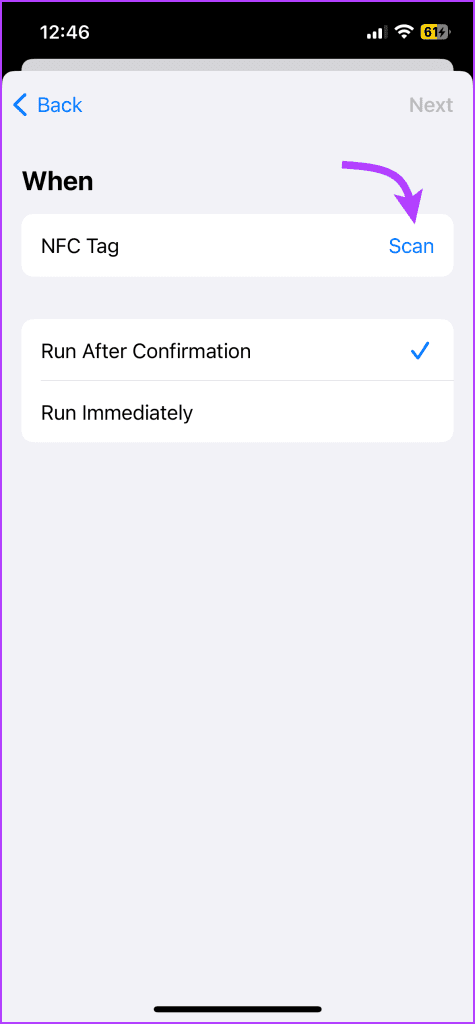
Step 5: Name the tag. Then, tap Next at the top right.
Step 6: Now, tap Add Action to assign an action to the scanned sticker. Choose any action from one of the suggestions or categories.
Step 7: Tap Done to confirm your selection.
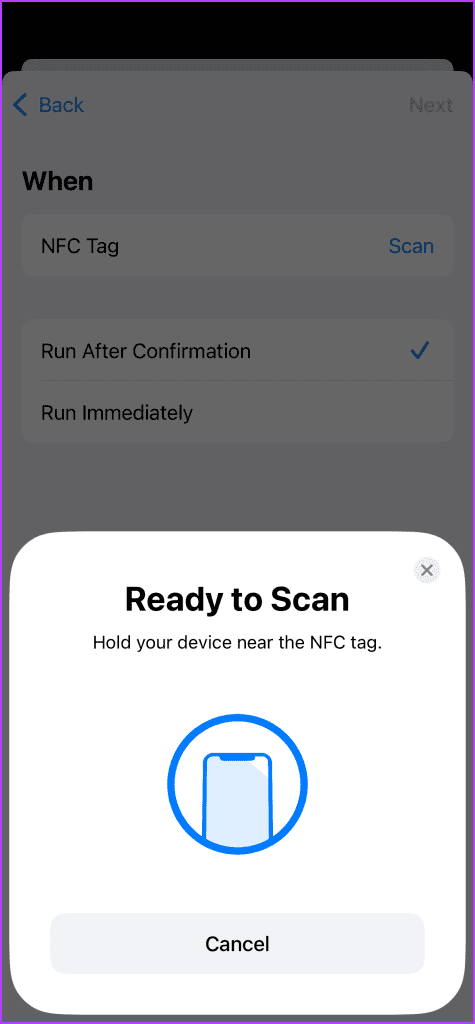
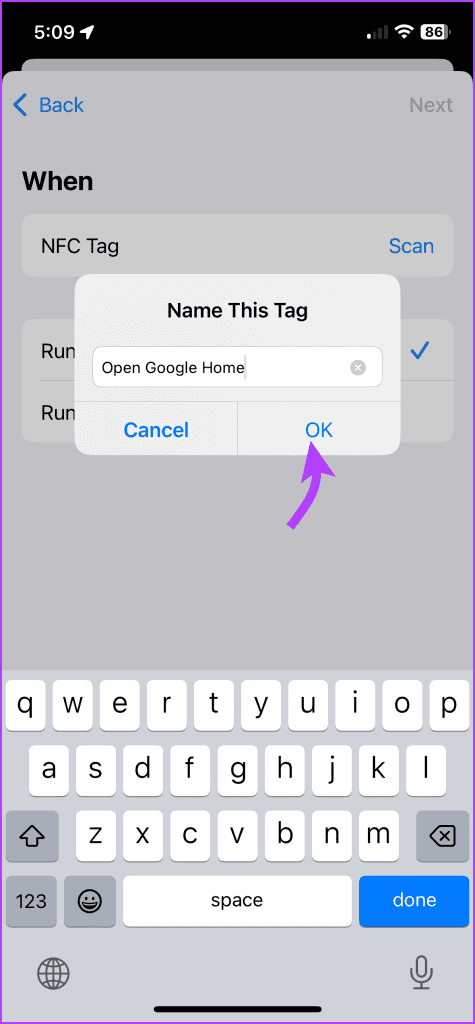
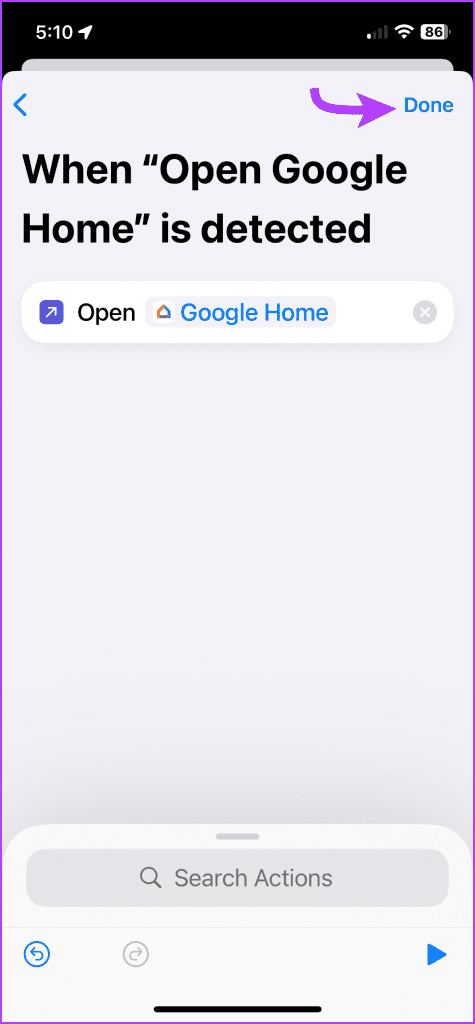
After setting up the automation, you can position the NFC sticker in an area where you frequently use your device. Then, simply hold your iPhone close to the tag to perform the actions.
In addition to the native NFC tag reader option, you may also try several third-party NFC tag readers from the Apple App Store. However, we can’t guarantee a seamless experience with such apps.
Some Cool and Creative Uses of NFC Tags
- Use NFC to share data: Opt for a smarter way to share information with others. You can convert a simple NFC tag into, (and this is just the start)
- A business card
- Wi-Fi password sharer
- Photos or media
- Pet tag
- Playlist player
- Home Automation: Just tap to start an appliance, set a timer, or more.
- Educational or fun treasure hunt: Buy a bunch of NFC tags. Set automation and spread them across your home, school, cafe, bar, etc. Next, set up the hints and let people find those tags.
- A sure-shot alarm: Place the tag in your bathroom or kitchen (coffee machine). Program it so the alarm doesn’t turn off until you scan the NFC.
As we have already stated, this is just the start. You can customize this feature as you please.
Was this helpful?
Last updated on 21 August, 2024
Read Next
 How to Tag Someone on Instagram Story After Posting
Have you ever spent hours crafting the perfect Instagram Story, only to regret it when you post and realize you forgot to tag someone?
How to Tag Someone on Instagram Story After Posting
Have you ever spent hours crafting the perfect Instagram Story, only to regret it when you post and realize you forgot to tag someone?
 How to Tag/Mention Someone on Instagram Story Without It Showing
Instagram's tagging system is great for public shoutouts, but what about when you want to send a secret message to your friend?
How to Tag/Mention Someone on Instagram Story Without It Showing
Instagram's tagging system is great for public shoutouts, but what about when you want to send a secret message to your friend?
 8 Best Ways to Fix NFC Not Working On Android
Over the years, NFC has evolved tremendously to facilitate Contactless payments worldwide.
8 Best Ways to Fix NFC Not Working On Android
Over the years, NFC has evolved tremendously to facilitate Contactless payments worldwide.
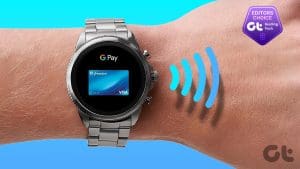 5 Best Smartwatches With NFC for Contactless Payments
With NFC-enabled smartwatches, you can easily pay for your purchases by simply tapping on a POS terminal.
5 Best Smartwatches With NFC for Contactless Payments
With NFC-enabled smartwatches, you can easily pay for your purchases by simply tapping on a POS terminal.
 How to Open Files in Separate Windows on Adobe Acrobat Pro, Standard, and Reader DC
The tabbed-view in Adobe Acrobat Pro, Standard, and Reader DC is a mixed bag.
How to Open Files in Separate Windows on Adobe Acrobat Pro, Standard, and Reader DC
The tabbed-view in Adobe Acrobat Pro, Standard, and Reader DC is a mixed bag.
 How to Enable Scrolling By Default in Adobe Acrobat DC and Reader DC
Switching to your preferred page mode in Adobe Acrobat DC and Acrobat Reader DC often disables continuous scrolling.
How to Enable Scrolling By Default in Adobe Acrobat DC and Reader DC
Switching to your preferred page mode in Adobe Acrobat DC and Acrobat Reader DC often disables continuous scrolling.
 How to Fit Full Page to Window By Default in Adobe Acrobat DC and Reader DC
Adobe Acrobat DC and Acrobat Reader DC prefer fitting pages by width.
How to Fit Full Page to Window By Default in Adobe Acrobat DC and Reader DC
Adobe Acrobat DC and Acrobat Reader DC prefer fitting pages by width.
 How to Enable or Disable Reader Mode in Chrome
Method 1: Using the Reading Mode Chrome Flag Similar to forcing dark mode on Chrome, you may enable the Reader Mode using Chrome flags.
How to Enable or Disable Reader Mode in Chrome
Method 1: Using the Reading Mode Chrome Flag Similar to forcing dark mode on Chrome, you may enable the Reader Mode using Chrome flags.
The article above may contain affiliate links which help support Guiding Tech. The content remains unbiased and authentic and will never affect our editorial integrity.