On Microsoft Word for PC or Mac
After you’ve connected a microphone to your computer, you can start using the dictation tool in Microsoft Word. You can use the following steps to dictate documents on both Windows and Mac.
Step 1: Open any document in Microsoft Word.
Step 2: In the Home tab, click the Dictate button.

Step 3: When you activate the Dictate button, you will see a red dot appear on it. Additionally, a small recording window will also appear. After that, you can start speaking to see text appear on the screen.
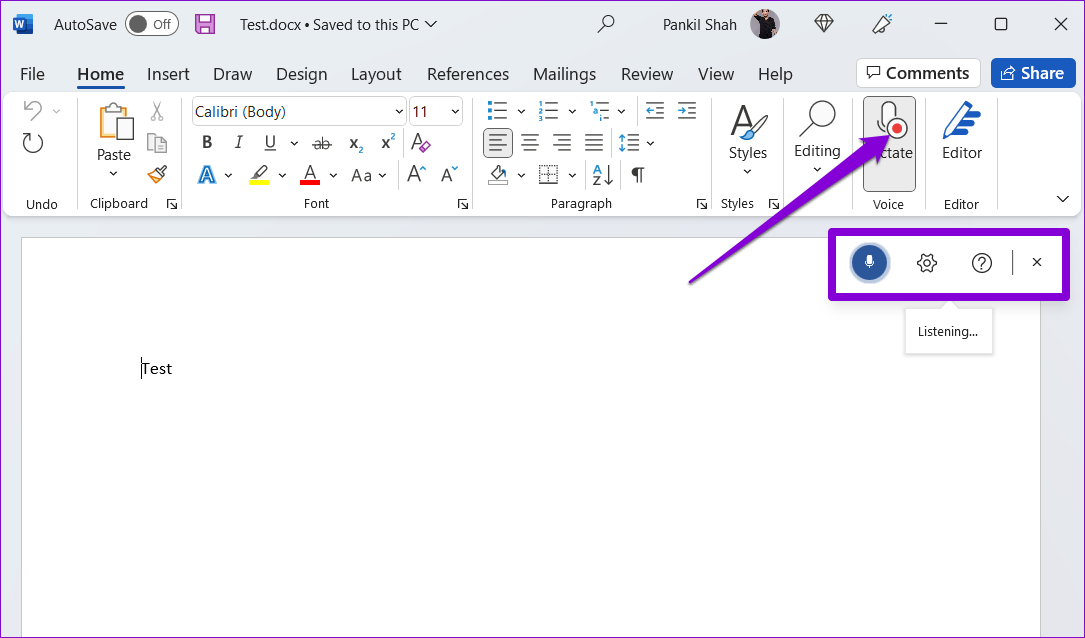
Step 4: Click the gear-shaped icon to change your spoken language or select a different audio input device. Additionally, you can enable auto-punctuation and filter for sensitive phrases from this menu.

You can pause the dictation tool by clicking the microphone icon or close it by clicking the X icon. Note that if you switch to another app or program on your computer, the dictation tool will pause automatically.

On Microsoft Word Online
Using the dictation tool in Microsoft Word Online is a similar experience to one on the desktop. You can use the web version of Microsoft Word for free with your Microsoft account.
The dictation tool in Word Online works with all the popular browsers, including Chrome, Edge, Firefox, and Brave. Here’s how you can use it.
Step 1: Open your preferred web browser and visit Microsoft Word for Web.
Step 2: Sign in with your Microsoft account and open a new or existing document.
Step 3: Click the Dictate icon and allow the browser to access your microphone if you haven’t already.

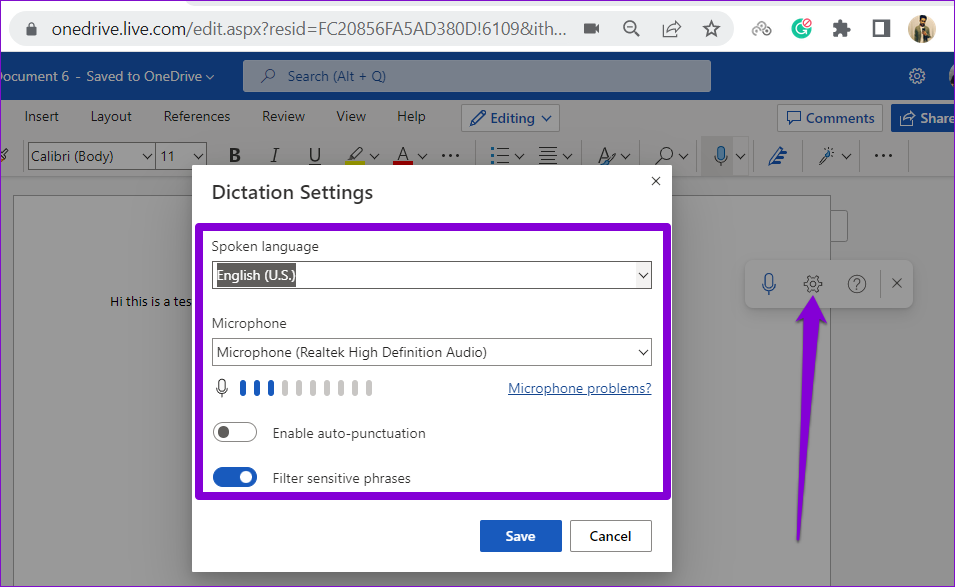
Step 4: Once the floating dictation window appears, Word should start transcribing everything you say in your document.

You can click the cog-shaped icon to change language, microphone device, and access additional options.
How to Use the Dictation Tool in Microsoft Word on Mobile
Microsoft Word’s dictation tool isn’t just for desktop users. You can also use this tool to dictate documents on your Android or iPhone. This saves you from typing a lot while creating long documents with your phone.
Step 1: Open the Microsoft Word app on your Android or iPhone.
Step 2: Open any existing document or create a new one. Tap the microphone icon on your right. You may have to grant Word permission to record audio if you’re using this feature for the first time.
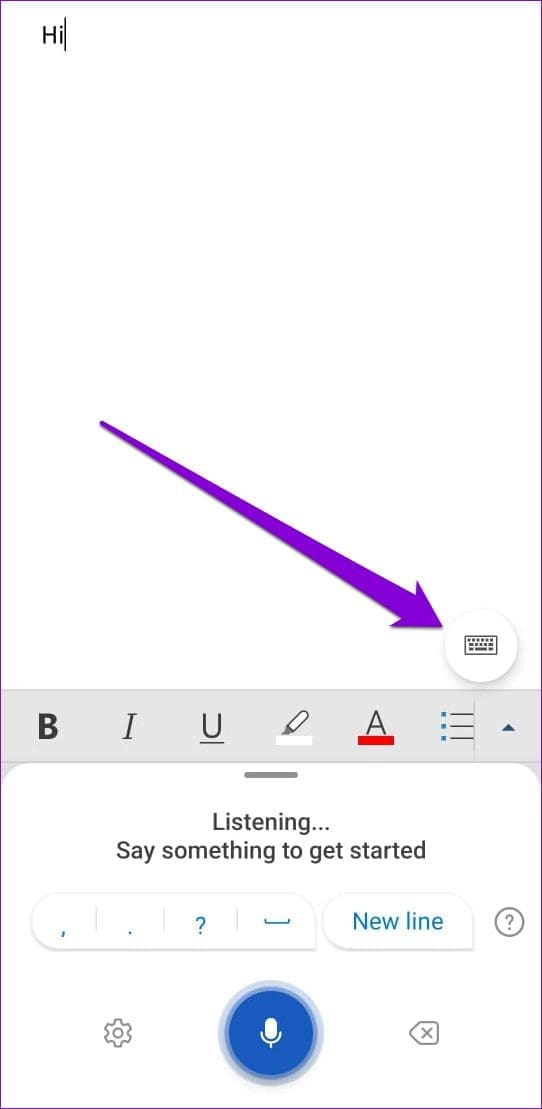
Step 3: The app should start recording your voice and transcribing everything you say. You can use the available shortcuts to add punctuation, new lines, and erase words.


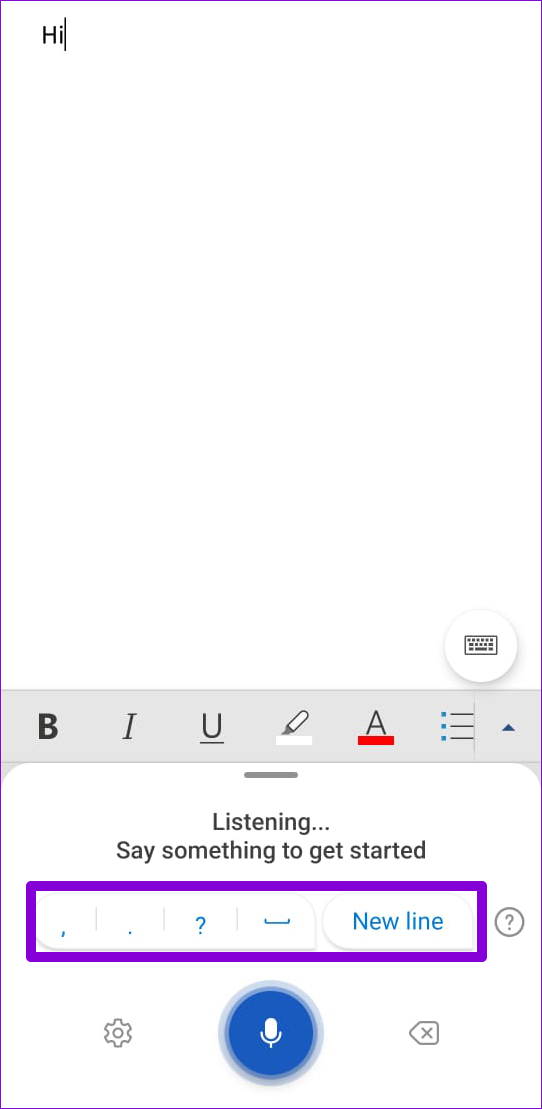
Step 4: Tap the gear-shaped icon to reveal the dictation settings. You can change the spoken language, enable or disable auto-punctuation, and access other options from this menu. After using the tool, tap the keyboard icon.


Various Dictation Commands You Can Use in Microsoft Word
The best part about Word’s dictation tool is that it lets you edit, format, and insert punctuation marks using voice commands.
You can say the name of the punctuation mark or a symbol you want to insert, and Word will add it to your document. For instance, if you say “comma,” Word will insert a comma. Likewise, you can also say “plus sign” or “equal sign,” and Word will add it to your document.
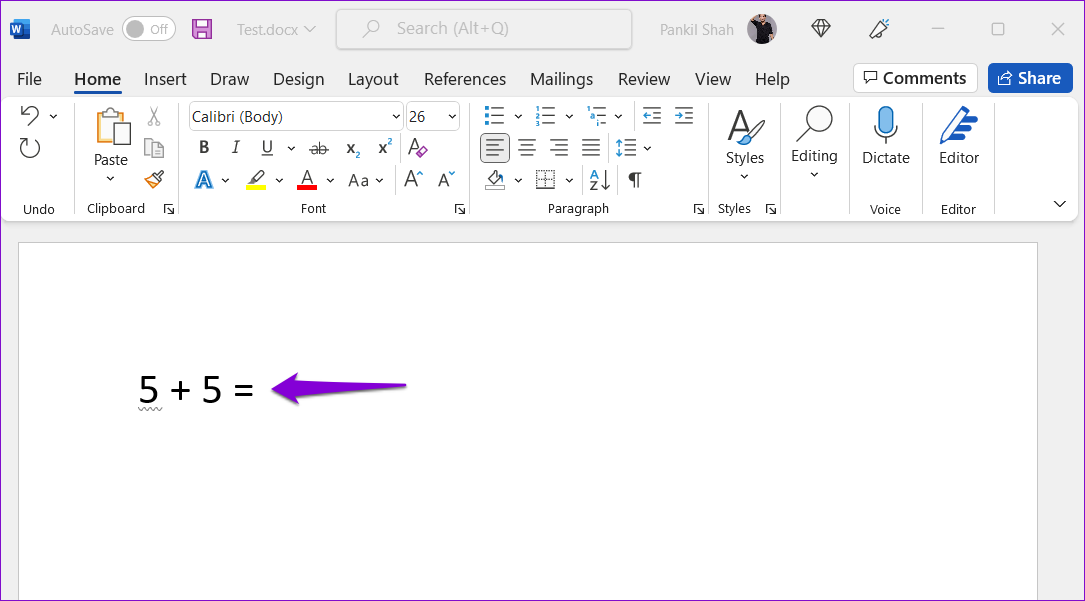
Aside from inserting symbols and punctuation, you can format your text using voice commands. For instance, if you say “I love using Microsoft Office” and then say “Bold Microsoft,” it will bold the word Microsoft in your sentence. Likewise, you can use formatting commands to italicize, highlight, or underline words in a sentence.

Here are some additional dictation commands you can use in Microsoft Word.
- New line: to leave a line break
- Insert comment: to add a comment box
- Delete: to delete the last word or punctuation mark
- Delete that: to remove the last spoken phrase
- Exit dictation: to close the dictation tool
Was this helpful?
Last updated on 27 June, 2024
Read Next
 4 Fixes for Microsoft Word Dictation Tool Not Working on Windows 11 and 10
Fix 1: Check Microphone Permission Windows lets you enable or disable microphone permissions for each app and program individually.
4 Fixes for Microsoft Word Dictation Tool Not Working on Windows 11 and 10
Fix 1: Check Microphone Permission Windows lets you enable or disable microphone permissions for each app and program individually.
 How to Fix iPhone Dictation Not Working
Basic Fixes Restart iPhone - The first thing that you must do if voice-to-text functionality isn’t working on your iPhone is to restart it.
How to Fix iPhone Dictation Not Working
Basic Fixes Restart iPhone - The first thing that you must do if voice-to-text functionality isn’t working on your iPhone is to restart it.
 4 Fixes for Dictation Not Working on Mac
Basic Fixes Disable Bluetooth devices: This can prevent you from using the built-in microphone on your Mac.
4 Fixes for Dictation Not Working on Mac
Basic Fixes Disable Bluetooth devices: This can prevent you from using the built-in microphone on your Mac.
 Google Docs vs. Microsoft Word Online: Which Word Processor Is Better
Google Docs vs.
Google Docs vs. Microsoft Word Online: Which Word Processor Is Better
Google Docs vs.
 Apple Pages vs Microsoft Word: Which Word Processing Software Is Better
Every major tech company out there is offering their version of the productivity suite.
Apple Pages vs Microsoft Word: Which Word Processing Software Is Better
Every major tech company out there is offering their version of the productivity suite.
 Microsoft Loop vs. Notion: Which Productivity Tool Is Better
Microsoft Loop vs.
Microsoft Loop vs. Notion: Which Productivity Tool Is Better
Microsoft Loop vs.
 How to Add, Customize and Delete a Text Box in Microsoft Word
Like in Microsoft PowerPoint, you can add a text box to a Microsoft Word document.
How to Add, Customize and Delete a Text Box in Microsoft Word
Like in Microsoft PowerPoint, you can add a text box to a Microsoft Word document.
 How to Draw, Add and Edit Shapes in Microsoft Word
How to Add a Shape in Microsoft Word To insert a shape in Word, you can choose between two options.
How to Draw, Add and Edit Shapes in Microsoft Word
How to Add a Shape in Microsoft Word To insert a shape in Word, you can choose between two options.
The article above may contain affiliate links which help support Guiding Tech. The content remains unbiased and authentic and will never affect our editorial integrity.