Add Star to an Email on Web
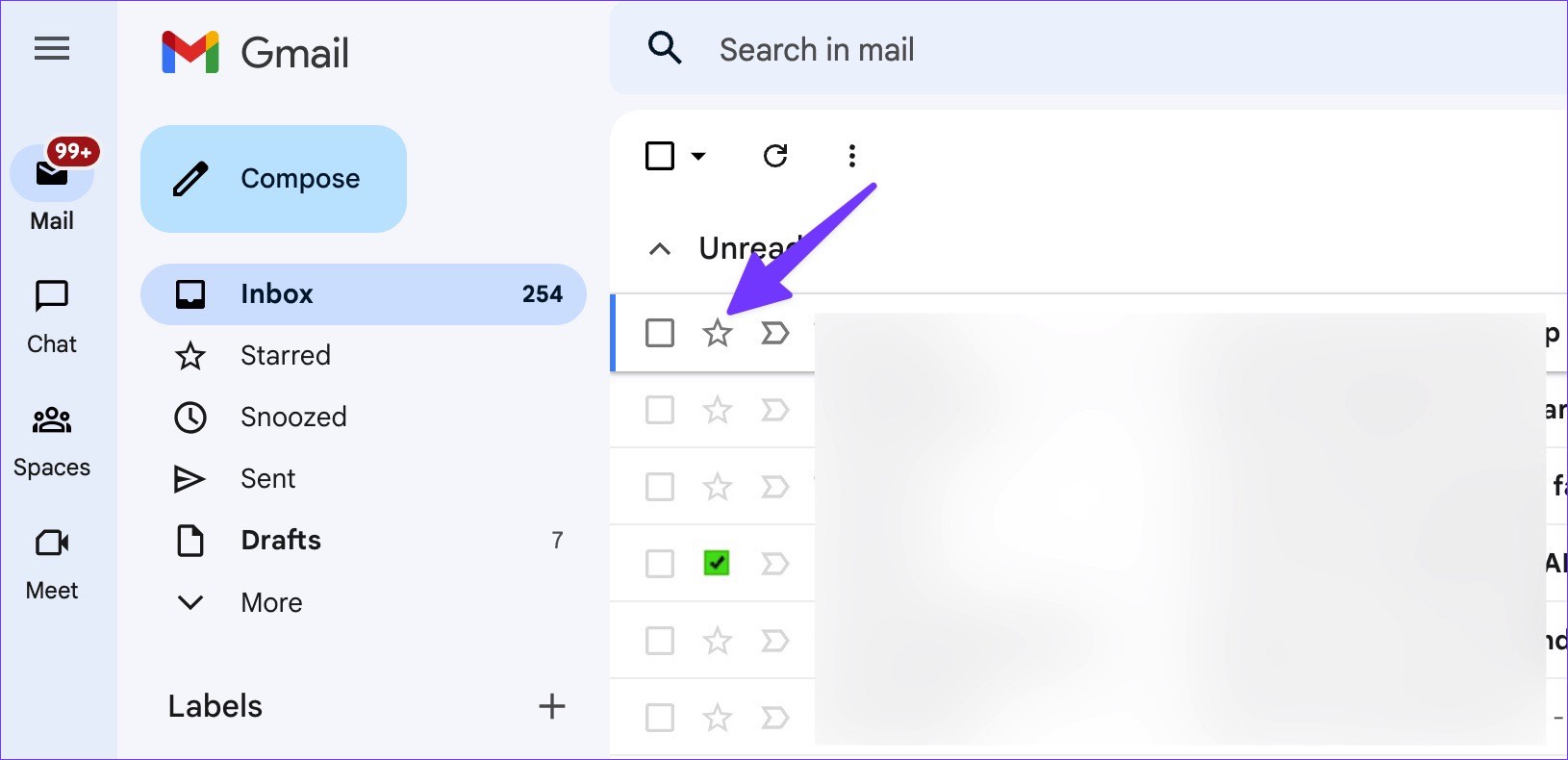
Step 1: Open Gmail and locate the essential email or the one you want to visit again.
Step 2: Select the star icon beside the email.
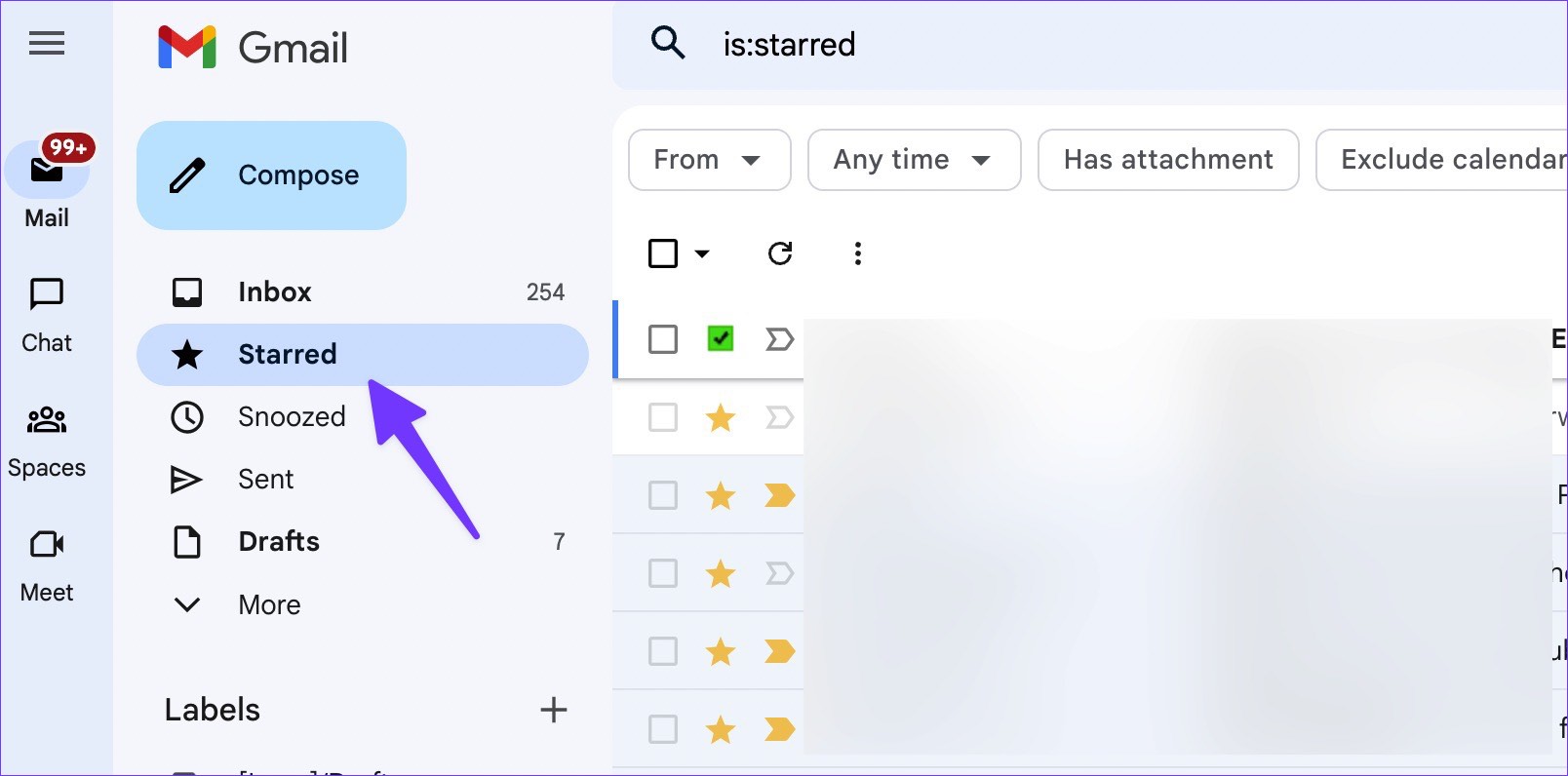
Step 3: From the Gmail sidebar, click on the Starred label to view your marked emails in one place.
Use Gmail Mobile Apps to Star Emails
Step 1: Open Gmail on iPhone or Android.
Step 2: Tap the star icon beside an email.


Step 3: To check your favorite emails, tap the hamburger menu at the top-left corner and tap Starred.
Use Different Star Styles
Step 1: Find the email address to which you want to add a star on the phone or web.
Step 2: Successfully click on the star icon and move between star types in use.

Step 3: When you visit Starred inbox from the sidebar, you can check different star types in action. It’s easy to separate them from the standard starred email.
Unfortunately, there is no way to use different star types on Gmail mobile apps.
Customize Star Styles on Gmail
Step 1: Open Gmail in your preferred web browser and select the Settings gear at the top-right corner.
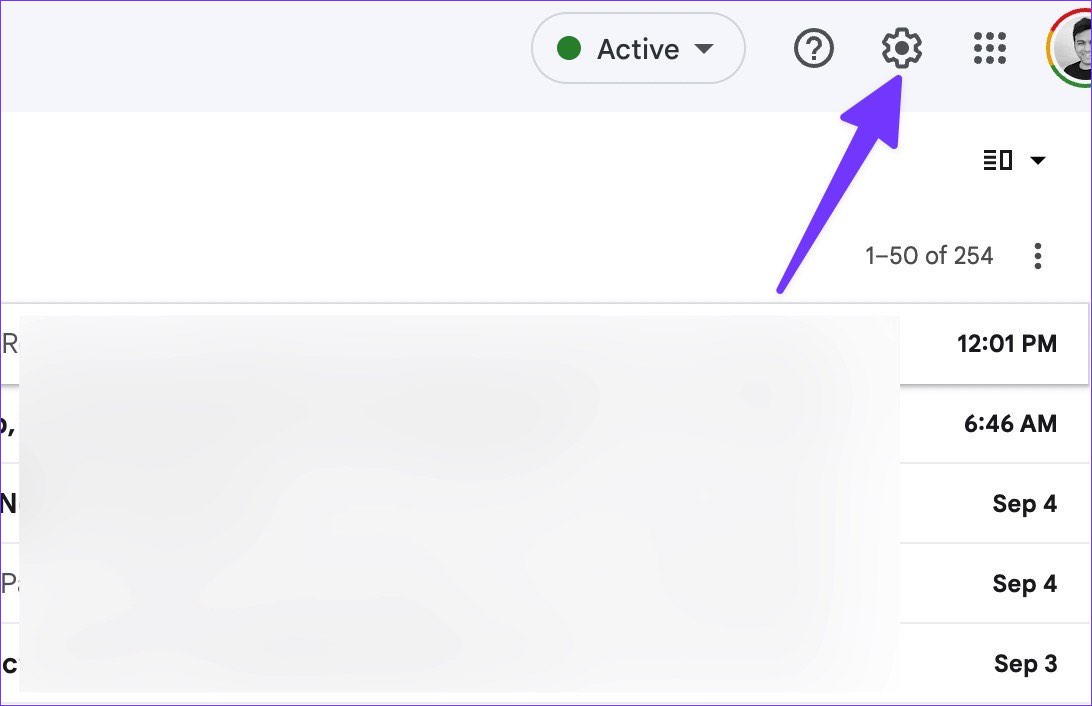
Step 2: Click on See all settings from the flyout to open the General section. Scroll to the Stars section.
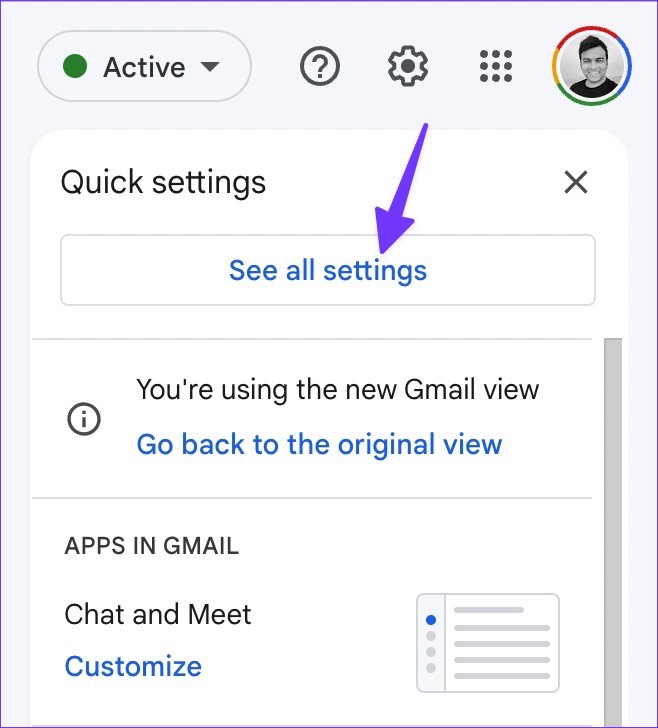
Step 3: You’ll find the stars under In use and Not in use in this section.
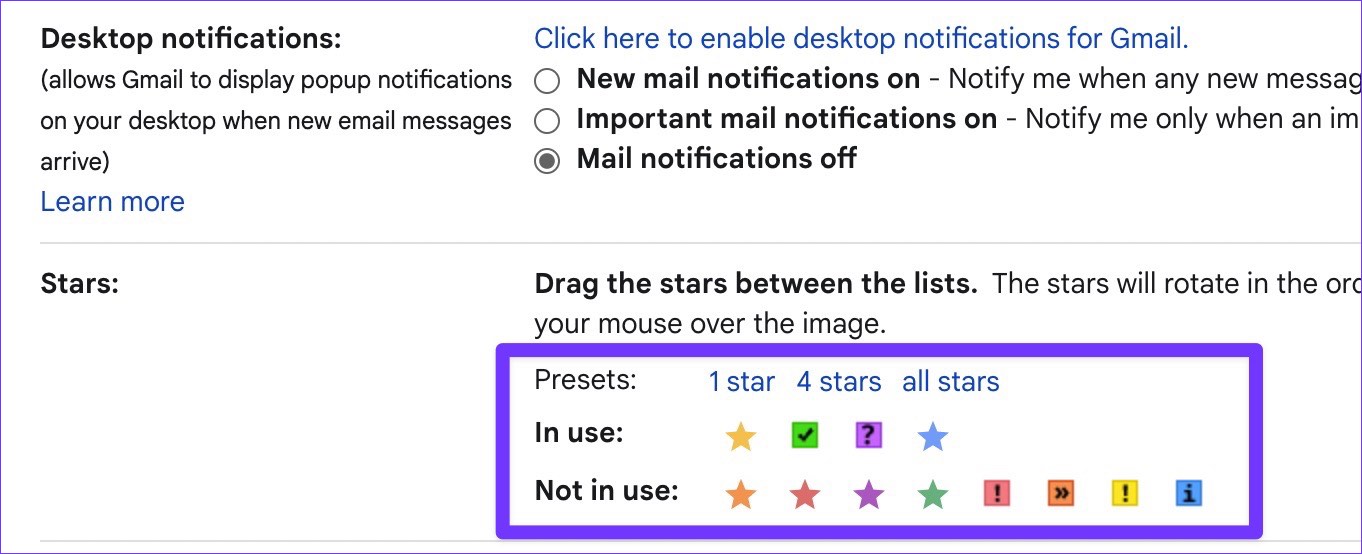
Step 4: Drag the stars between the lists. The stars will rotate in the order shown below when you click successively. Hover your mouse over the image to learn the name of a star for search.
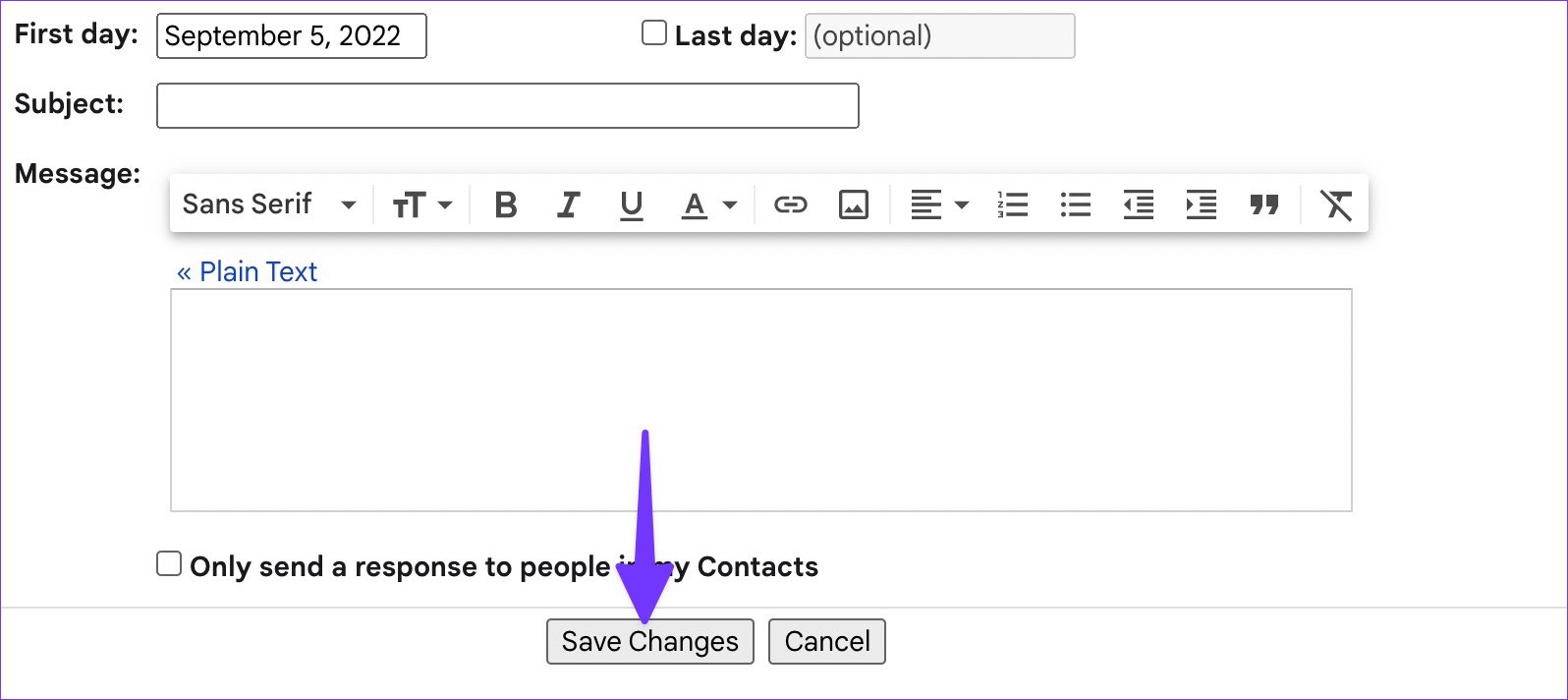
Step 5: You can also choose stars from default Presets. Scroll down and press the Save Changes button.
Automatically Add a Star to a Gmail Inbox
Step 1: Open Gmail and click on Show search, i.e., the menu control at the end of the search bar.

Step 2: Enter the email address, subject, words, etc., to filter existing or upcoming emails and click on Create filter.

Step 3: Check the box for Star it and click on Create filter.

After creating this filter, whenever you receive an email that meets all the conditions, Gmail will automatically add a star and send it to the Starred inbox. However, the service won’t allow you to assign other star styles like blue-star, purple-question, green-star, and more.
Was this helpful?
Last updated on 08 July, 2024
Read Next
 13 Gmail Labels Tips and Tricks to Organize and Manage Them
Tip 1: Create Labels in Gmail There are two ways to create a label from the Gmail website.
13 Gmail Labels Tips and Tricks to Organize and Manage Them
Tip 1: Create Labels in Gmail There are two ways to create a label from the Gmail website.
 15 Best Ways to Organize Notes Effectively in Microsoft OneNote
Microsoft OneNote is a powerful note-taking tool if you know how to use it.
15 Best Ways to Organize Notes Effectively in Microsoft OneNote
Microsoft OneNote is a powerful note-taking tool if you know how to use it.
 How to Organize Your Notes in Google Keep
Method 1: Use Labels to Group Notes Google Keep lacks hierarchy, as it doesn’t support folders and subfolders.
How to Organize Your Notes in Google Keep
Method 1: Use Labels to Group Notes Google Keep lacks hierarchy, as it doesn’t support folders and subfolders.
 How to Auto-Delete Emails in Gmail
Method 1: Using Filters Gmail offers filters to manage incoming emails automatically.
How to Auto-Delete Emails in Gmail
Method 1: Using Filters Gmail offers filters to manage incoming emails automatically.
 How to Mark All Emails As Read in Gmail
Method 1: Mark All Email as Read in Gmail Web Google doesn’t offer a direct option to mark all emails as read, so we must use special search prompts to
How to Mark All Emails As Read in Gmail
Method 1: Mark All Email as Read in Gmail Web Google doesn’t offer a direct option to mark all emails as read, so we must use special search prompts to
 How to Archive or Unarchive Emails in Gmail
What Does Archive in Gmail Mean?
How to Archive or Unarchive Emails in Gmail
What Does Archive in Gmail Mean?
 4 Ways to Fix Emails Stuck in Gmail Outbox
Try Basic Fixes Verify the recipient's email address: This may seem too obvious, but if you have misspelled the email address, Gmail won’t be able to send the message.
4 Ways to Fix Emails Stuck in Gmail Outbox
Try Basic Fixes Verify the recipient's email address: This may seem too obvious, but if you have misspelled the email address, Gmail won’t be able to send the message.
 How to Set Up Auto Forward in Gmail for All or Specific Emails
Auto forwarding email is quite helpful when you move to a different mailbox but still want to receive all incoming emails sent to the older mail address.
How to Set Up Auto Forward in Gmail for All or Specific Emails
Auto forwarding email is quite helpful when you move to a different mailbox but still want to receive all incoming emails sent to the older mail address.
The article above may contain affiliate links which help support Guiding Tech. The content remains unbiased and authentic and will never affect our editorial integrity.