Method 1: Control Fire TV Stick Using the Phone App
The easiest way to control your Fire TV Stick without a remote is by pairing it with the Fire TV Stick remote app. However, for volume controls, you will need to use your TV’s remote. Download the Fire TV remote app on your Android or iOS device and use the below steps to pair it with your Fire TV Stick.
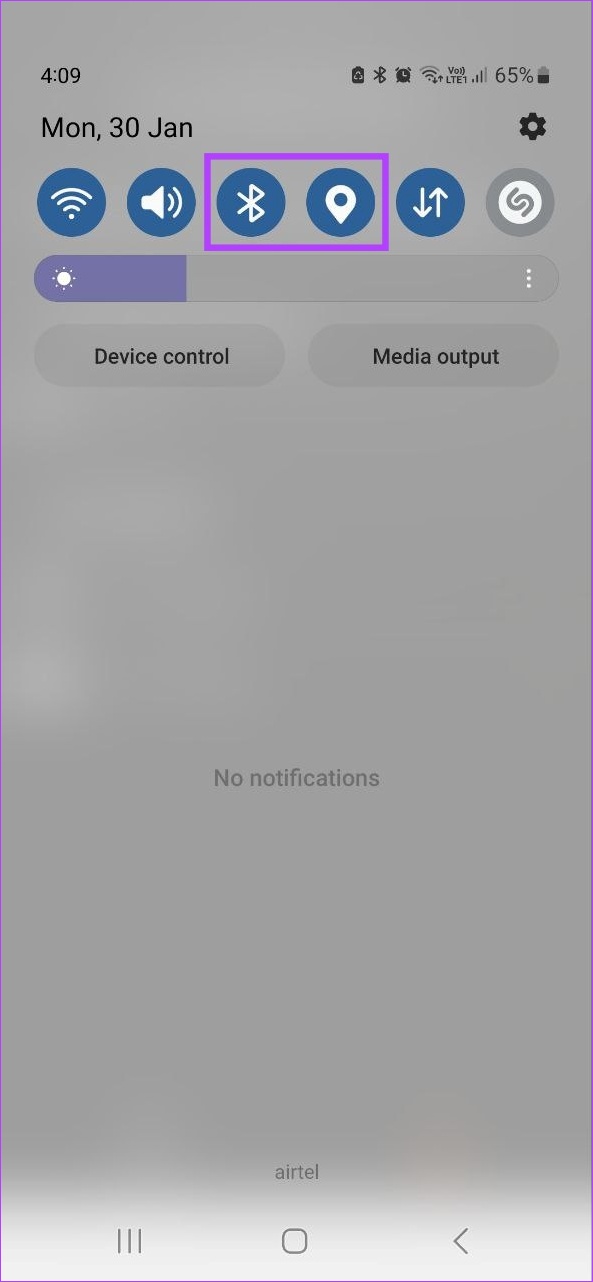
Step 1: Enable Location and Bluetooth services on your phone.
Step 2: Then, open the Fire TV remote app and tap on your Fire TV Stick.

Step 3: Enter this PIN in the Fire TV remote app to finish the pairing process.

Method 2: How to Use Fire TV Stick With Your TV Remote
The CEC feature on your TV remote allows you to connect your TV remote to many different devices, saving you from the hassle of using a different remote for everything. A simple change in your Fire TV Stick’s settings will let you use your CEC-compliant remote with your streaming device. Here’s how.
Step 1: Turn on your Fire TV Stick, go to Settings, and select Equipment Control.

Step 2: Here, select Manage Equipment.

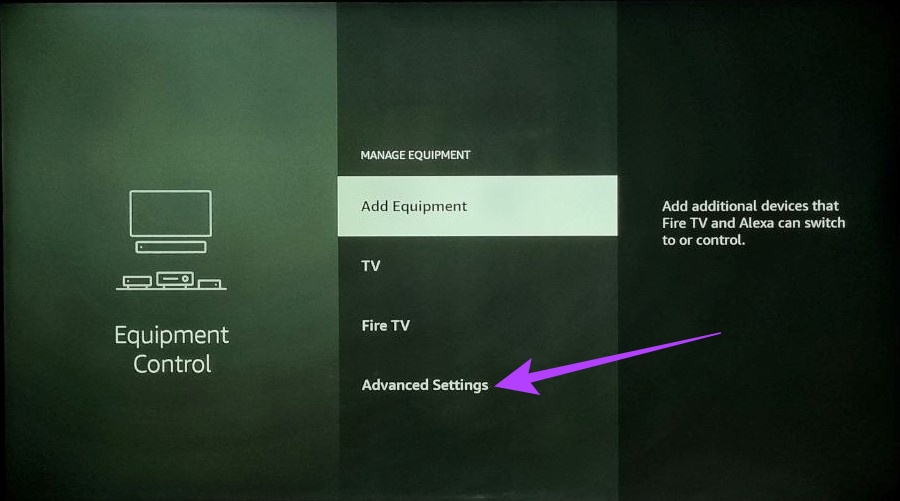
Step 3: Scroll down and select Advanced Settings.
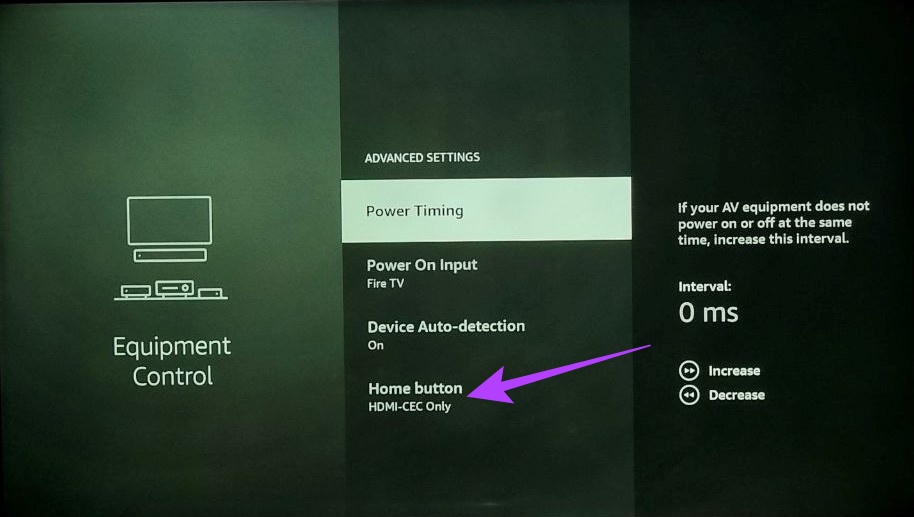
Step 4: Go to the Home button and change it from HDMI-CEC Only to IR and HDMI-CEC.
You will now be able to use your TV remote with Fire TV Stick. Make sure CEC is enabled on your TV remote.
Method 3: How to Use Alexa Device to Control Fire TV Stick
Gone are the days when you need to press buttons on a remote to change channels. You can now pair your Alexa device with your Fire TV Stick and control it using voice commands. To do this, download the Amazon Alexa app on your Android or iOS device and follow the below steps.
Note: Your Alexa device and Fire TV Stick need to be registered to the same Amazon account.
Step 1: Open the Amazon Alexa app and tap the + icon. Tap on Add Device.


Step 2: Scroll down and tap on TV. Then, tap on Fire TV.


Step 3: Tap on Link Your Alexa Device and select your device. Tap on Continue.


This will link your Fire TV Stick with your Alexa device. You can also have a look through our other article if you’re having any issues connecting your Fire TV Stick to Alexa.
Method 4: How to Control Fire TV Stick With Bluetooth Mouse
The Amazon Fire TV Stick also supports a number of Bluetooth devices. Using this feature, you can connect your Bluetooth mouse and use it to control your Fire TV Stick even if you’ve lost your remote. Here’s how to do it.
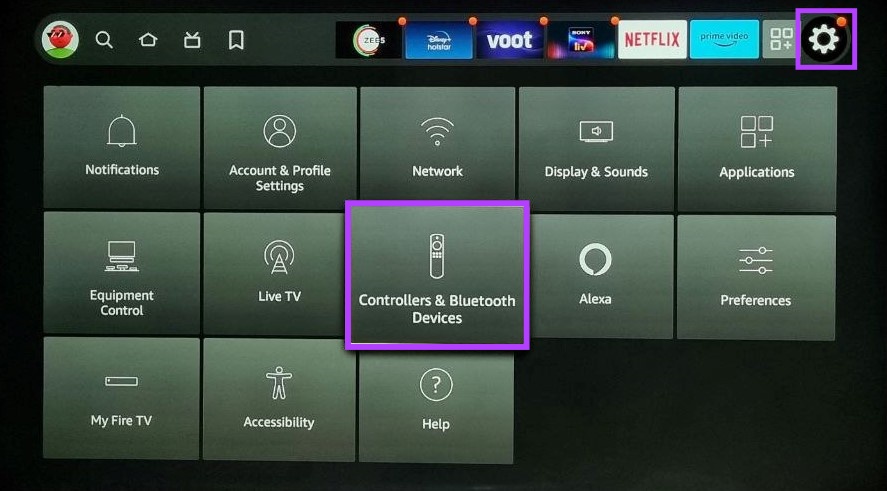
Step 1: Open Fire TV Stick. Go to Settings and select Controllers & Bluetooth Devices.
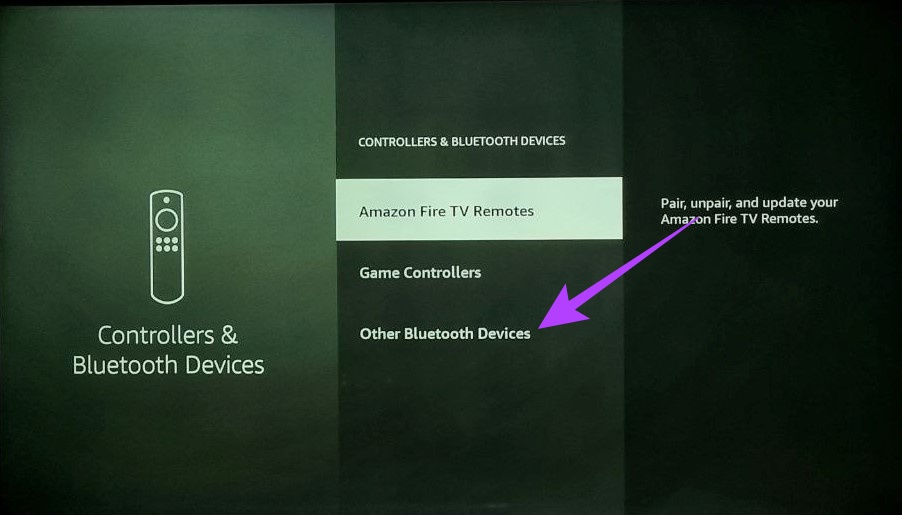
Step 2: Scroll down and select Other Bluetooth Devices.
Step 3: Here, select Add Bluetooth Devices.
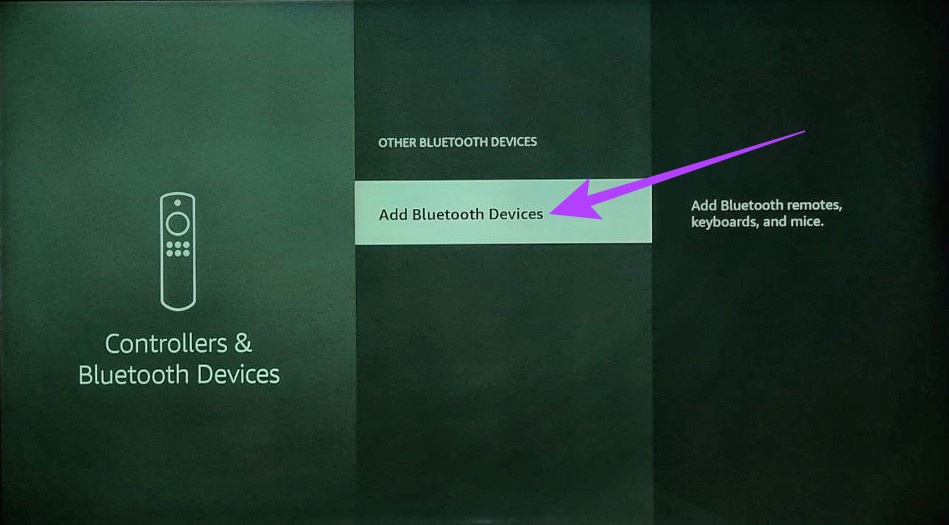
Once your Bluetooth mouse appears on the list, select it to add it to your Fire TV Stick. Then, use it to operate your Fire TV streaming device.
Method 5: Add a Different Remote to Your Fire TV Stick
While using the above methods will help navigate and operate the Fire TV Stick, it might not be a long-term solution. So, to either use a replacement or a new remote, let’s have a look at how we can if required, reset and pair it with the Fire TV Stick.
Reset Fire TV Stick Remote
Fire TV Stick allows you to pair up to 7 remotes at the same time. However, each remote can only be paired with 1 Fire TV streaming device at a time. So if you’re using an old remote and it’s already paired with another TV, you might need to reset it first. Here’s how to do it.
Step 1: Unplug your Fire TV Stick and wait for a minute.
Step 2: Then, on your old remote, simultaneously press and hold the Left button, Menu button, and Back button for 12 seconds.

Step 3: Release the buttons and wait for another 5 seconds. Remove the remote batteries.
Step 4: Plug your Fire TV Stick back in and wait for 1 minute. Then, put the batteries back into the remote.

Your Fire TV remote has now been reset. Now, follow the below steps to pair it with your Fire TV Stick.
Pair Fire TV Stick Remote
There are two major ways through which we can pair a remote, new or old, with the Fire TV Stick: by using the Home Button and using the Fire TV remote app. Let’s have a closer look at them both.
Method 1: Using the Home Button
Step 1: Press and hold the Home button for 10 seconds while pointing the remote towards the Fire TV Stick.
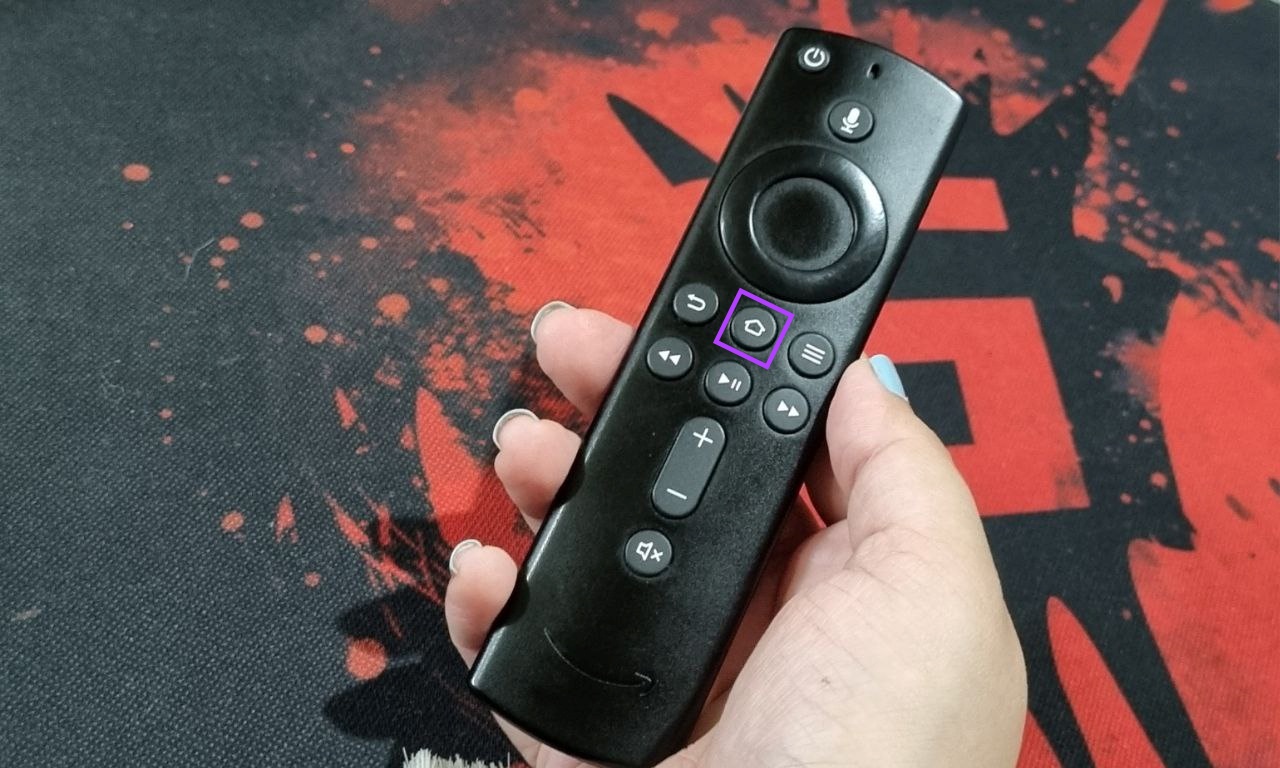
A light will appear on the remote, indicating that it’s paired. You can press and hold the Home button for another 10 seconds if this doesn’t work the first time.
Method 2: Using the Amazon Fire TV Stick Remote App
Another way to pair your remote is through the Fire TV Stick’s settings menu, which you can access using the Fire TV remote app. Here’s how to do it.
Step 1: Using the Fire TV remote app, go to Settings → Controllers & Bluetooth Devices.
Step 2: Select Amazon Fire TV Remotes.

Step 3: Scroll down and select Add New Remote.

Step 4: Select your remote from the list. Now, press and hold the Home button on your remote.
Step 5: Once it says ready to pair, tap on the Select button on your Fire TV Remote app.

Your Fire TV Stick remote is all set and ready to be used. You can check out our article if you’re having trouble pairing your Fire TV Stick remote, especially after a reset.
FAQs
No, the Fire TV remote must be connected to your Fire TV Stick to be used. To register it again, go to Settings → Controllers & Bluetooth Devices → Amazon Fire TV Remotes → Add New Remote → select your remote from the list and follow the on-screen instructions to pair it again.
Yes, you can use other Bluetooth devices such as a keyboard to control your Fire TV Stick.
Yes, you can play games using your Amazon Fire TV remote app.
Was this helpful?
Last updated on 17 July, 2024
Read Next
 3 Ways to Fix Fire TV Stick Remote Not Pairing After Factory Reset
Basic Fixes Replug your Fire TV Stick: Unplug it from the connected device and plug it in again to restart it.
3 Ways to Fix Fire TV Stick Remote Not Pairing After Factory Reset
Basic Fixes Replug your Fire TV Stick: Unplug it from the connected device and plug it in again to restart it.
 3 Ways to Fix Fire TV Stick Remote Volume Not Working
Basic Fixes: Check the remote batteries: Fire TV Stick relies on batteries to work properly.
3 Ways to Fix Fire TV Stick Remote Volume Not Working
Basic Fixes: Check the remote batteries: Fire TV Stick relies on batteries to work properly.
 4 Ways to Fix Fire TV Stick Remote Not Working
Basic Fixes Ensure the remote is within range: The usual range of a Fire TV Stick's remote is around 10 feet.
4 Ways to Fix Fire TV Stick Remote Not Working
Basic Fixes Ensure the remote is within range: The usual range of a Fire TV Stick's remote is around 10 feet.
 How to Change Wi-Fi on Fire TV Stick Without Remote
Method 1: Using the Fire TV Remote App If your remote isn’t handy or you have lost it, you can control your Fire TV with its Android and iOS apps.
How to Change Wi-Fi on Fire TV Stick Without Remote
Method 1: Using the Fire TV Remote App If your remote isn’t handy or you have lost it, you can control your Fire TV with its Android and iOS apps.
 2 Ways to Fix Black Screen on Amazon Fire TV Stick
Basic Fixes Check Amazon server status: You can visit DownDetector to see if Amazon servers are working fine for your region.
2 Ways to Fix Black Screen on Amazon Fire TV Stick
Basic Fixes Check Amazon server status: You can visit DownDetector to see if Amazon servers are working fine for your region.
 3 Ways to Fix Fire TV Stick Not Installing Apps
Basic Fixes: Check your internet connection: When your Fire TV Stick is not installing an app, you should first ensure your internet connection is stable and has good speeds to
3 Ways to Fix Fire TV Stick Not Installing Apps
Basic Fixes: Check your internet connection: When your Fire TV Stick is not installing an app, you should first ensure your internet connection is stable and has good speeds to
 3 Ways to Fix Apple TV App Not Working on Amazon Fire TV Stick
Basic Fixes Force quit and relaunch Apple TV app: This will give the app a fresh start on your Firestick.
3 Ways to Fix Apple TV App Not Working on Amazon Fire TV Stick
Basic Fixes Force quit and relaunch Apple TV app: This will give the app a fresh start on your Firestick.
 3 Ways to Fix YouTube TV Not Working on Amazon Fire TV Stick
Basic Fixes Check the YouTube server status: Visit Downdetector to check an active YouTube TV server outage.
3 Ways to Fix YouTube TV Not Working on Amazon Fire TV Stick
Basic Fixes Check the YouTube server status: Visit Downdetector to check an active YouTube TV server outage.
The article above may contain affiliate links which help support Guiding Tech. The content remains unbiased and authentic and will never affect our editorial integrity.