If you’ve been looking for a more natural way to run your Android phone with your PC than Phone Link, well, here it is. As of February 2026, Microsoft has completed its rollout of “Phone Connection” to plug straight into the Copilot Desktop App, allowing natural text input to perform a whole range of functions.
In this article, we’ll be exploring how to run smartphone with Copilot.
The Phone Plugin Restored
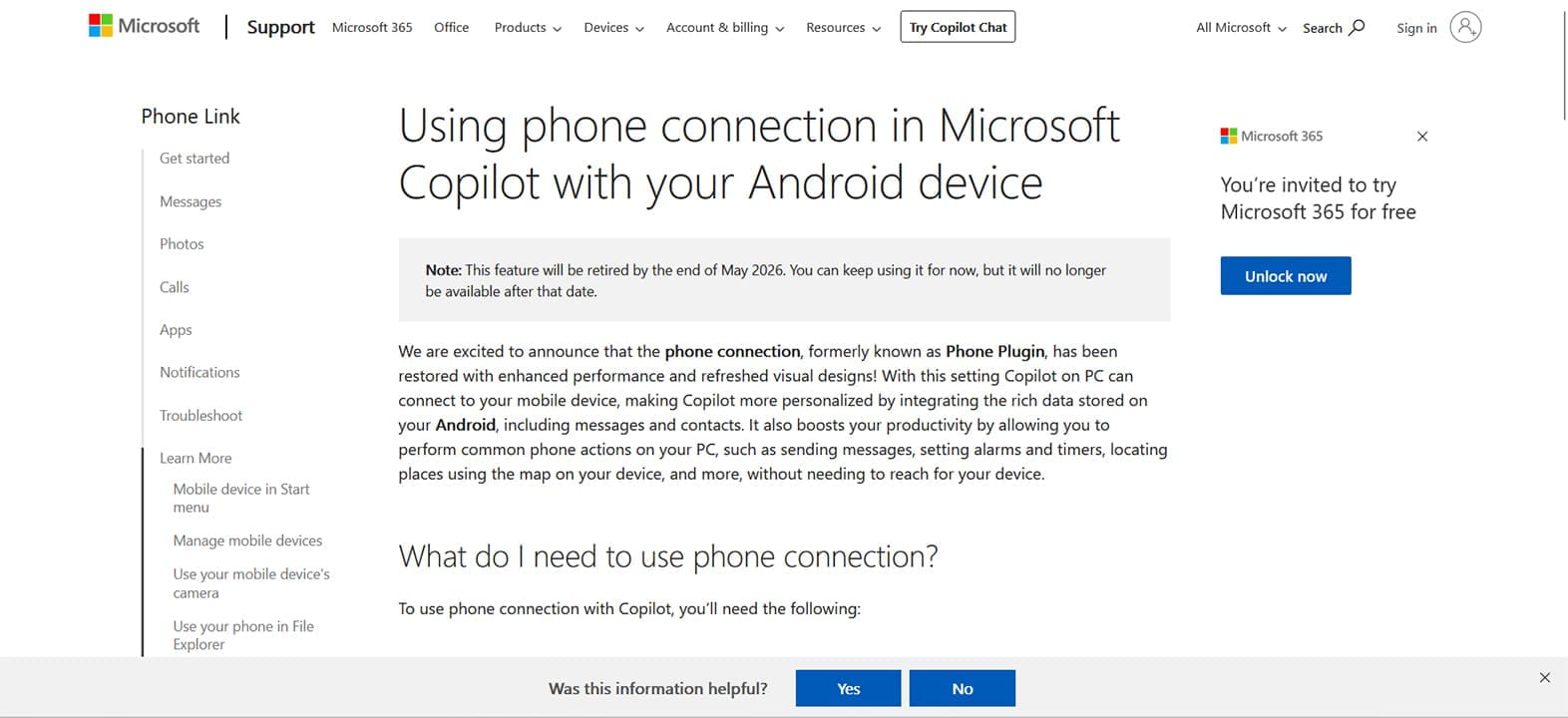
Phone Connection is the old Phone Plugin restored from the grave and covered with a fresh coat of paint. Enabling it allows your paired Android device to be interfaced with via the natural text input (not to mention voice input) of Copilot.
Does this mean the end of Phone Link? Not really. An Android mobile device still needs to be linked to a PC via Phone Link (PC) and the Link Windows app, downloadable from the Google Play Store.
It’s important to note that Microsoft will be retiring Phone Connection at the end of May 2026. You can still use it until then, and like its predecessor, it may become revamped into something new in the future.
What You Need to Connect
For Phone Connection to run properly, Microsoft has stipulated that users will need the following:
- A linked Android mobile device
- Link Windows app 1.24112.110.0 or higher installed on that device
- A working Microsoft account (the same profile, logged in on both devices)
- A signed-in Copilot desktop app (this won’t work on a web-based version)
If your phone is already connected to your PC through Phone Link, you should be good to go.
How to Link Your Smartphone and Copilot
Enabling Phone Connection once all of the above is sorted out is a cinch. Here’s what you need to do:
Step 1. Open up the Copilot Desktop App and ensure you’re signed in.
Step 2. Click on your user profile and account name. A dropdown menu will appear.
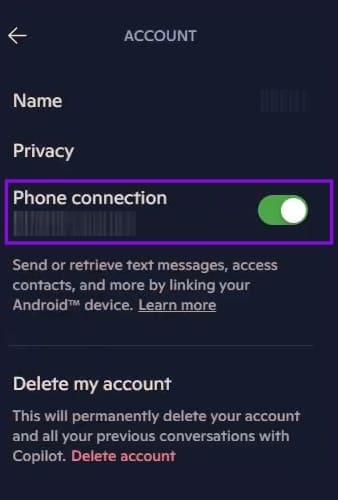
Step 3. You’ll see a toggle saying “Phone connection” provided your Android device is already linked to your PC. If not, the option won’t appear. Toggle this to “On.”
Step 4. Your Copilot should now be able to access your Android device.
You can stop the connection at any time by toggling this back off.
Run Smartphone With Copilot
With Phone connection now enabled, you’ll be able to perform a range of functions via Copilot, many shared with Phone Link. Some major ones include:
- Checking contacts – You can ask Copilot to provide you with contact details for anyone saved to your phone.
- Check messages – New message? Perhaps older? A quick prompt can have you checking all of them in a jiffy, even help you smart search by keywords and senders. You can even send messages to contacts. This doesn’t work yet for messaging apps.
- Ask for locations – Copilot can help you search for places on your phone with a quick prompt, even down to the category of location, i.e., shops, restaurants, hospitals, etc. This also extends to navigation, though this is only for certain Samsung smartphones.
- Set and cancel timers – From your PC, you can ask your phone to set timers with specific names or cancel ongoing ones.
As you can see, there are still limits to what Copilot can do. It doesn’t have app access, and so its functions are quite narrow still. Whether these changes in time will have to be seen.
Was this helpful?
Last updated on 20 May, 2026
Read Next
 7 Smartphone Cameras That Can Give DSLRs a Run for Their Money
There was a time when one had to carry around a dedicated camera on vacations to click pictures.
7 Smartphone Cameras That Can Give DSLRs a Run for Their Money
There was a time when one had to carry around a dedicated camera on vacations to click pictures.
 Top 6 Ways to Fix Android RCS Not Working on Your Smartphone
Android RCS Messaging offers an iMessage-like experience with rich text and attachments on Android smartphones.
Top 6 Ways to Fix Android RCS Not Working on Your Smartphone
Android RCS Messaging offers an iMessage-like experience with rich text and attachments on Android smartphones.
 Should You Leave Wi-Fi On on Your Smartphone
How Does Wi-Fi Impact Battery Life?
Should You Leave Wi-Fi On on Your Smartphone
How Does Wi-Fi Impact Battery Life?
 5 Best Microphones for a Smartphone to Record Videos
Content creation is at an all-time high, thanks to platforms like YouTube and TikTok giving people the opportunity to showcase their talents.
5 Best Microphones for a Smartphone to Record Videos
Content creation is at an all-time high, thanks to platforms like YouTube and TikTok giving people the opportunity to showcase their talents.
 Xiaomi 14 Ultra Review: The Ultimate Photography Smartphone
Remember back in 2012, when Samsung launched the Galaxy Camera smartphone?
Xiaomi 14 Ultra Review: The Ultimate Photography Smartphone
Remember back in 2012, when Samsung launched the Galaxy Camera smartphone?
 I Regret Buying a DSLR, and I Blame Smartphone Brands for It
I'm a huge photography enthusiast.
I Regret Buying a DSLR, and I Blame Smartphone Brands for It
I'm a huge photography enthusiast.
 Copilot Missing on Windows 11? Here’s How to Bring It Back
Get Copilot From the Microsoft Store If you can't find Microsoft Copilot on your Windows 11 system, install it from the Microsoft Store to get started.
Copilot Missing on Windows 11? Here’s How to Bring It Back
Get Copilot From the Microsoft Store If you can't find Microsoft Copilot on your Windows 11 system, install it from the Microsoft Store to get started.
 How to Use Copilot in Teams
Copilot is now included in all the major Microsoft apps, like Word and Excel, and Teams is no exception.
How to Use Copilot in Teams
Copilot is now included in all the major Microsoft apps, like Word and Excel, and Teams is no exception.
The article above may contain affiliate links which help support Guiding Tech. The content remains unbiased and authentic and will never affect our editorial integrity.