How to Make Your Tweets Public
To unprotect your protected tweets, you must make your Twitter account public. Here is how:
Unprotect Tweets on PC
Step 1: Open the X website on your PC and log in to your account.
Step 2: Click on the More option in the left sidebar.
Step 3: Expand Settings and Support > select Settings and privacy.
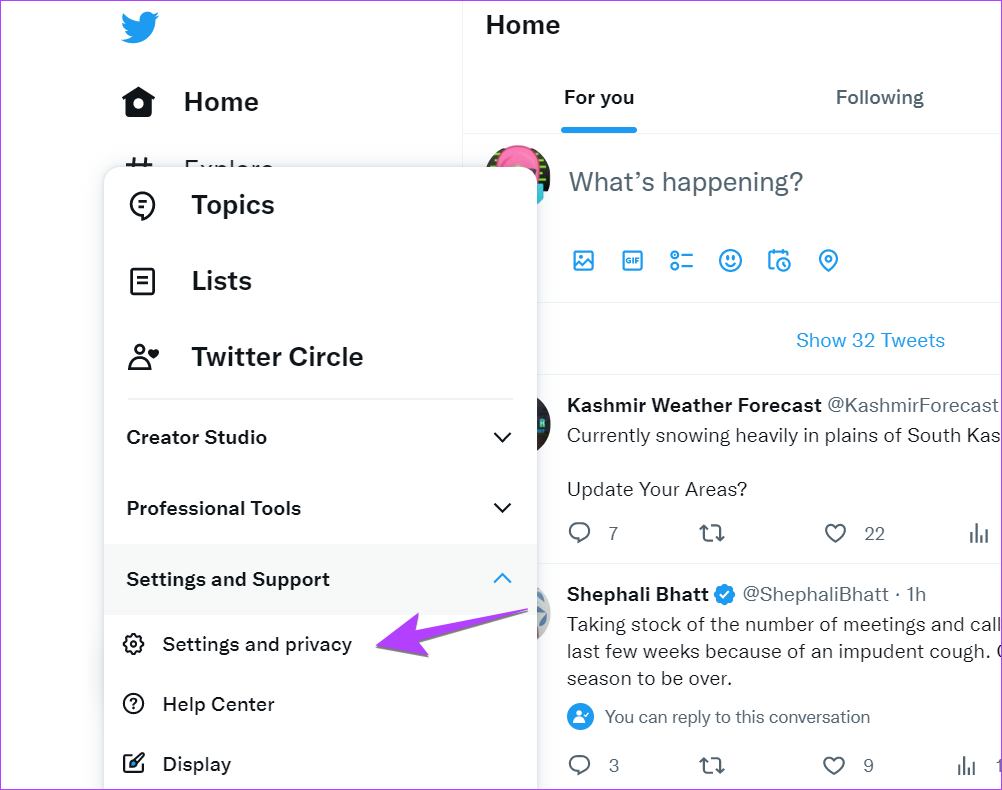
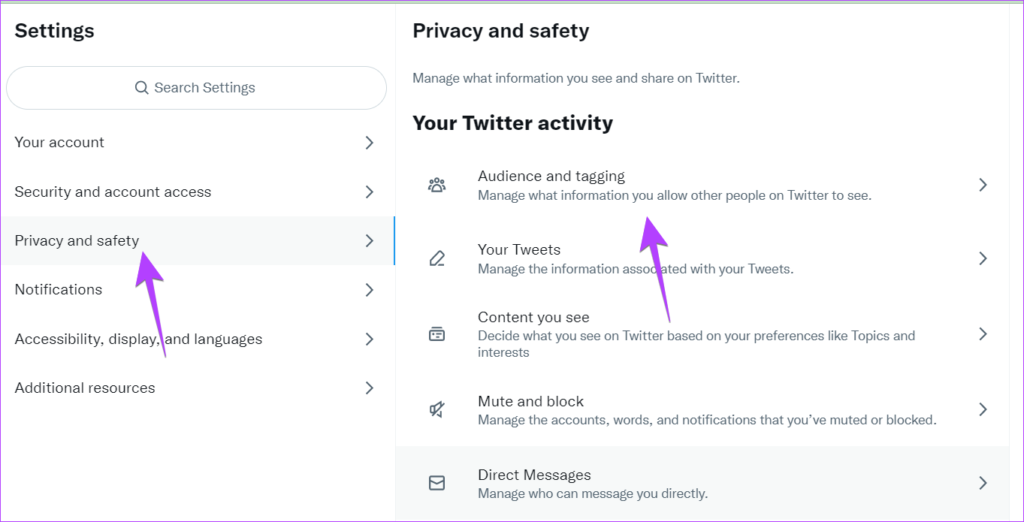
Step 4: Go to Privacy and safety, followed by Audience and tagging.
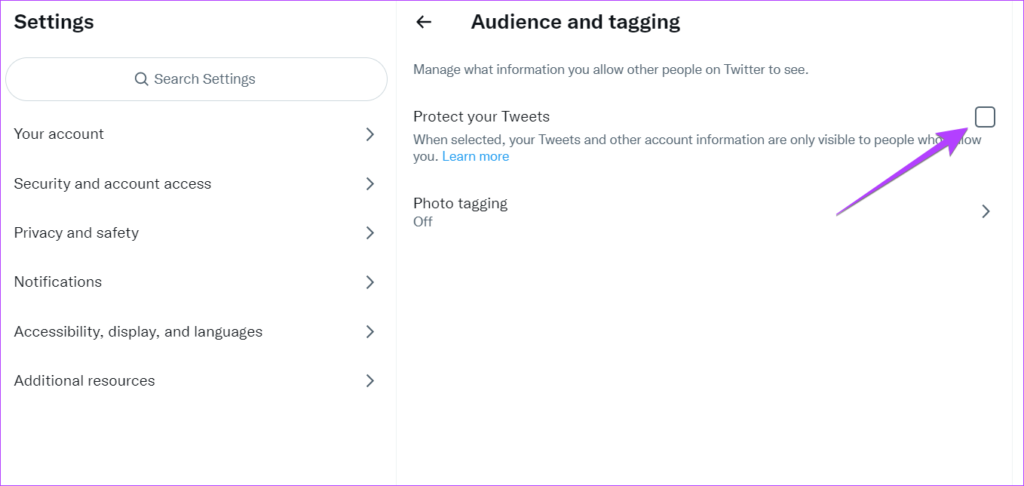
Step 5: Now, uncheck the box next to Protect your tweets.
Also Read: Fixes for X (Twitter) stuck on the loading screen
On Android and iPhone
Step 1: Open the Twitter app on Android or iPhone.
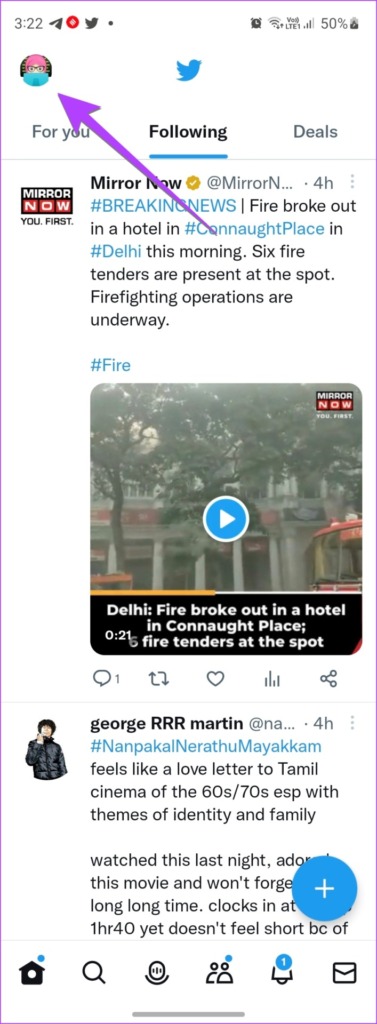
Step 2: Tap on the profile icon at the top to open the navigation menu.
Step 3: Tap on Settings & Support > Settings and privacy.

Step 4: Press the Privacy and safety option > Audience and tagging.


Step 5: Turn off the toggle next to Protect your Tweets to unprotect tweets.
What Happens When You Make Your Twitter Account Public
When you make your Twitter account public by turning off the Protect Your Tweets feature, the following things will happen:
- The Padlock icon will be removed from your profile.
- All your previously protected tweets will become public, and anyone can see them.
- Any new tweet will also be public.
- Anyone can now retweet and quote your tweets.
- Your tweets will start appearing in search results.
- When your Twitter account is private, review the pending follower requests. Making your Twitter public will not automatically accept those requests. You must manually accept those requests, or the person will need to follow you again. They would be accepted automatically since your account is public now.
Also Read: How to see sensitive content on Twitter.
Was this helpful?
Last updated on 31 May, 2024
Read Next
 How to Know if an Instagram Account Is Private or Public
Method 1: By Trying to Share the User’s Post This method will help you determine whether someone’s account is private or public on Instagram if you follow them.
How to Know if an Instagram Account Is Private or Public
Method 1: By Trying to Share the User’s Post This method will help you determine whether someone’s account is private or public on Instagram if you follow them.
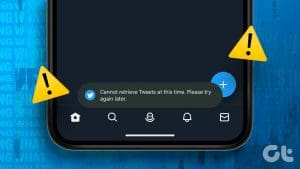 4 Ways to Fix Cannot Retrieve Tweets at This Time
Preliminary Fixes Check if Twitter Is Down: Sometimes, the issue might not be with your device or network but with Twitter’s servers.
How to Hide All Posts on Facebook From Public or Friends
How to Hide Past Posts on Facebook The good news is that you can manage the visibility of previously posted content.
4 Ways to Fix Cannot Retrieve Tweets at This Time
Preliminary Fixes Check if Twitter Is Down: Sometimes, the issue might not be with your device or network but with Twitter’s servers.
How to Hide All Posts on Facebook From Public or Friends
How to Hide Past Posts on Facebook The good news is that you can manage the visibility of previously posted content.
 How to Fix Cannot Log in to Facebook Account Problem
Basic Fixes Check if Facebook is down - Sometimes, Facebook experiences outages or technical issues that can stop you from logging in.
How to Fix Cannot Log in to Facebook Account Problem
Basic Fixes Check if Facebook is down - Sometimes, Facebook experiences outages or technical issues that can stop you from logging in.
 What Happens When Your Google Account Is Disabled and How to Recover It
Why Does Google Disable an Account There are multiple reasons Google disables the account of a user, and we shall cover everything below.
What Happens When Your Google Account Is Disabled and How to Recover It
Why Does Google Disable an Account There are multiple reasons Google disables the account of a user, and we shall cover everything below.
 How to Make Twitter Account Private and What Happens When You Do It
Make Your X Account Private Using Android and iPhone Step 1: Open the Twitter app on your mobile phone.
How to Make Twitter Account Private and What Happens When You Do It
Make Your X Account Private Using Android and iPhone Step 1: Open the Twitter app on your mobile phone.
 How to Delete ChatGPT Account (With or Without Login)
Things to Know Before Deleting Your ChatGPT Account You need to know some significant points before deleting your ChatGPT account because there is no going back after your account has
How to Delete ChatGPT Account (With or Without Login)
Things to Know Before Deleting Your ChatGPT Account You need to know some significant points before deleting your ChatGPT account because there is no going back after your account has
 5 Ways to Transfer Google Drive to Another Account
1.
5 Ways to Transfer Google Drive to Another Account
1.
The article above may contain affiliate links which help support Guiding Tech. The content remains unbiased and authentic and will never affect our editorial integrity.