
Accepting in-person card payments used to mean buying bulky terminals, signing long contracts, and carrying extra hardware everywhere. Today, your smartphone already has the built-in NFC chip needed to take contactless credit cards, Apple Pay, and Google Pay right out of the box.
Whether you run a pop-up booth, freelance on the go, or manage a small storefront, setting up Tap to Pay takes just a few minutes. Let us walk through how to turn your iPhone or Android device into a reliable mobile card reader without extra gadgets.
How Tap to Pay Works on Smartphones
Tap to Pay uses Near Field Communication (NFC), the exact same wireless chip your phone uses when you pay at a grocery store checkout. Instead of broadcasting your personal card details, the chip flips roles and reads encrypted payment signals from a customer’s physical contactless card or digital wallet.
Behind the scenes, your chosen point-of-sale app connects with payment processors or a payment facilitator platform for PayFacs to verify funds, encrypt cardholder data, and route payouts to your bank account. Sensitive card numbers are never stored locally on your phone, keeping every transaction secure.
What You Need Before Getting Started
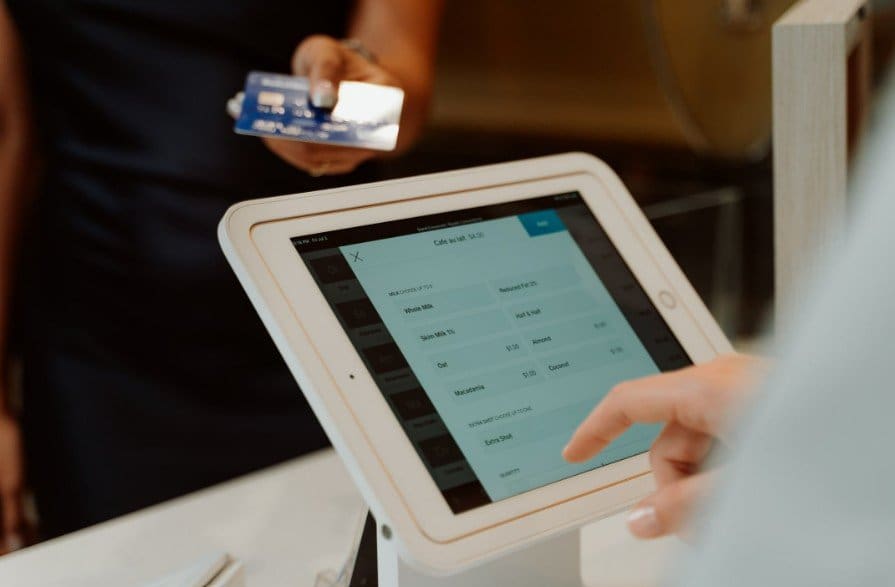
Before downloading any apps, make sure your smartphone meets a few basic requirements:
- Compatible Hardware: iPhone XS or newer, or any Android smartphone equipped with an active NFC chip.
- Updated Operating System: iOS 16.4 or newer on Apple devices, or Android 9.0 and above on Android phones.
- Biometric or Passcode Security: Face ID, Touch ID, or a device passcode must be turned on.
- Active Merchant Account: A verified business or individual account with a supported payment processor like Square, Stripe, PayPal, or Shopify.
How to Turn Your iPhone Into a Card Reader
Apple’s Tap to Pay on iPhone works seamlessly inside major payment apps without requiring any Bluetooth card dongles. Here is how to set it up using Square as an example (the steps are nearly identical in Stripe, Shopify POS, and PayPal Zettle):
- Open the App Store on your iPhone and download a supported payment app such as Square Point of Sale.
- Sign in to your merchant account or complete the quick onboarding steps to link your bank account.
- Tap More in the bottom-right corner and select Settings > Hardware > Tap to Pay on iPhone.
- Tap Enable Tap to Pay on iPhone and follow the on-screen prompts to link your Apple ID.
- Wait a few seconds while iOS configures the contactless reader on your device.
When you are ready to take a payment, enter the sale amount, tap Charge, and select Tap to Pay on iPhone. Have your customer hold their contactless card or Apple Watch horizontally over the top edge of your screen until the checkmark appears.
If you want to streamline your daily sales workflow even further, exploring the best iPhone automation ideas lets you trigger shortcuts that open your POS app or log daily totals automatically.
How to Turn Your Android Phone Into a Card Reader
Android smartphones have supported NFC payments for years, making setup quick across brands like Samsung Galaxy, Google Pixel, and OnePlus. First, double-check that your NFC radio is switched on:
- Open Settings on your Android phone and tap Connected devices (or Connections on Samsung Galaxy).
- Select Connection preferences > NFC and toggle Use NFC on.
- Download a compatible POS app from the Google Play Store, such as Square POS, PayPal Zettle, or Stripe Dashboard.
- Sign in to your merchant account, navigate to Settings > Hardware (or Card Readers), and enable Tap to Pay on Android.
To ring up a customer, type in the price, tap Charge, and choose Tap to Pay. Ask your customer to hold their tap-enabled card or phone flat against the back of your Android device for two seconds until you hear the confirmation chime.
Best Apps to Use for Mobile Tap to Pay
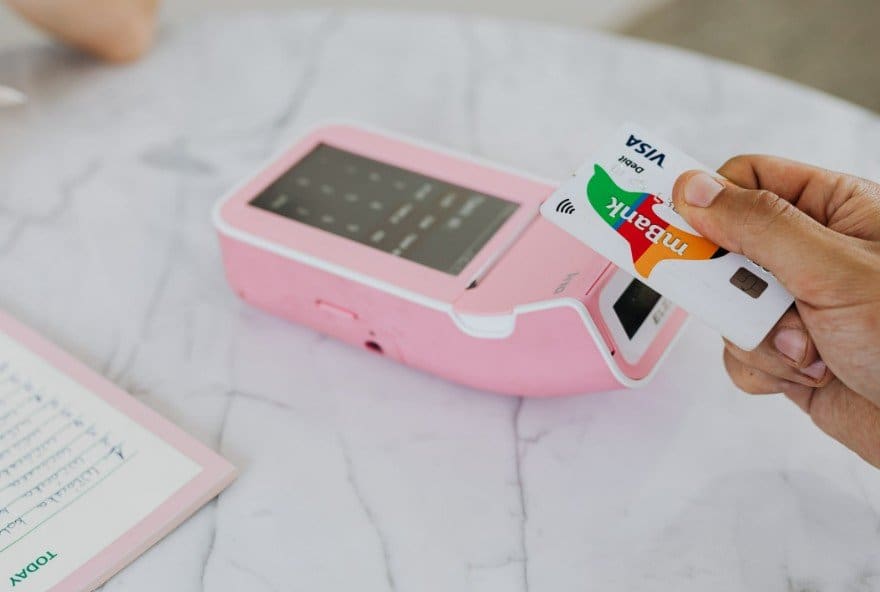
Different payment apps suit different selling styles, even though their processing fees are quite similar:
- Square Point of Sale: Great for retail booths, cafes, and service providers who want free inventory tracking and digital receipts.
- PayPal Zettle: Ideal if you already manage your business balance inside PayPal and want fast transfers.
- Stripe Dashboard / POS: Best for online businesses and freelancers who already use Stripe for web invoices.
- Shopify POS: The easiest choice if you sell online through Shopify and want in-person stock synced automatically.
Once your customer pays, you can text or email their receipt straight from the app. If you follow up with clients on messaging apps afterward, learning how to make WhatsApp stickers without an app is a fun way to send branded thank-you badges or custom promo graphics in chat.
Troubleshooting Tips If Tap to Pay Fails
If a customer’s card does not register right away, try these quick fixes:
- Remove Thick Phone Cases: Heavy metal or magnetic wallet cases can block the NFC signal between the card and your phone.
- Adjust Card Alignment: Ask the customer to hold the flat face of their card still for two full seconds rather than swiping it across the screen.
- Check for the Contactless Symbol: Make sure the customer’s physical card actually has the four-wave contactless icon printed on the front or back.
- Turn Off Developer Options on Android: Many payment apps block Tap to Pay on Android if USB debugging or Developer Options are enabled for security reasons.
If you frequently hand your phone toward customers at checkout, customizing your lock screen with clean backgrounds from our guide to download iOS 18 wallpapers keeps your display looking sharp and professional during every sale.
Final Thoughts
Turning your iPhone or Android smartphone into a Tap to Pay card reader removes one of the biggest headaches of selling in person. You no longer have to worry about charging separate Bluetooth readers, carrying extra cables, or missing a sale because you left your terminal at home. Just enable NFC, pick a trusted payment app, and start accepting contactless payments anywhere your business takes you.
Was this helpful?
Last updated on 25 November, 2026
Read Next
 How to See Apple Pay Card Number on iPhone
See Full Card Number on Apple Pay on iPhone Here's how you can easily view your card number and access its information on the Apple Wallet app on your iPhone.
 How to Use Samsung Pay on Galaxy Watch in Unsupported Regions
Pre-requisites to Use Samsung Pay on the Galaxy Watch If Samsung Pay isn't available in your region by default, the Samsung Pay app will not be present on your Galaxy
 Phantom Blade Zero on PC: Where to Buy, How to Redeem and What to Check Before You Pay
Critics got to Phantom Blade Zero before players did, and the scores are strong: 88 on Metacritic, 90 from IGN, and a 92 average on OpenCritic, per VICE.
 What Happens to WhatsApp When You Change Phone or SIM Card
What Happens to WhatsApp When You Remove SIM Card?
 6 Best iPhone 15 Cases With Card Holders
If you want to keep your new iPhone 15 safe and also want to organize your everyday carry better, a case with a cardholder is a must-buy.
 How to Use the NFC Tag Reader on an iPhone
https://youtu.be/s4rMyE66QeI How to Use the NFC Tag Reader on an iPhone NFC (Near-Field Communication) allows your iPhone to interact with nearby devices to exchange data, such as instant wireless connections
 6 Best Wi-Fi Routers With SIM Card Slot
A good Wi-Fi router is essential whether you're working from home, streaming your favorite shows, or gaming online.
 5 Bluetooth Speakers With SD Card Slot
Bluetooth speakers are handy if you enjoy listening to loud music or you want to have a mini party in your living room.
The article above may contain affiliate links which help support Guiding Tech. The content remains unbiased and authentic and will never affect our editorial integrity.