Add Outlook Account and Enable Notes
For the Notes app, you can add your Outlook account details and then enable syncing.
Step 1: Open the Settings app on iPhone > tap on Mail.
Step 2: Open Accounts from the following menu. Tap on Add Account > select Outlook.com.
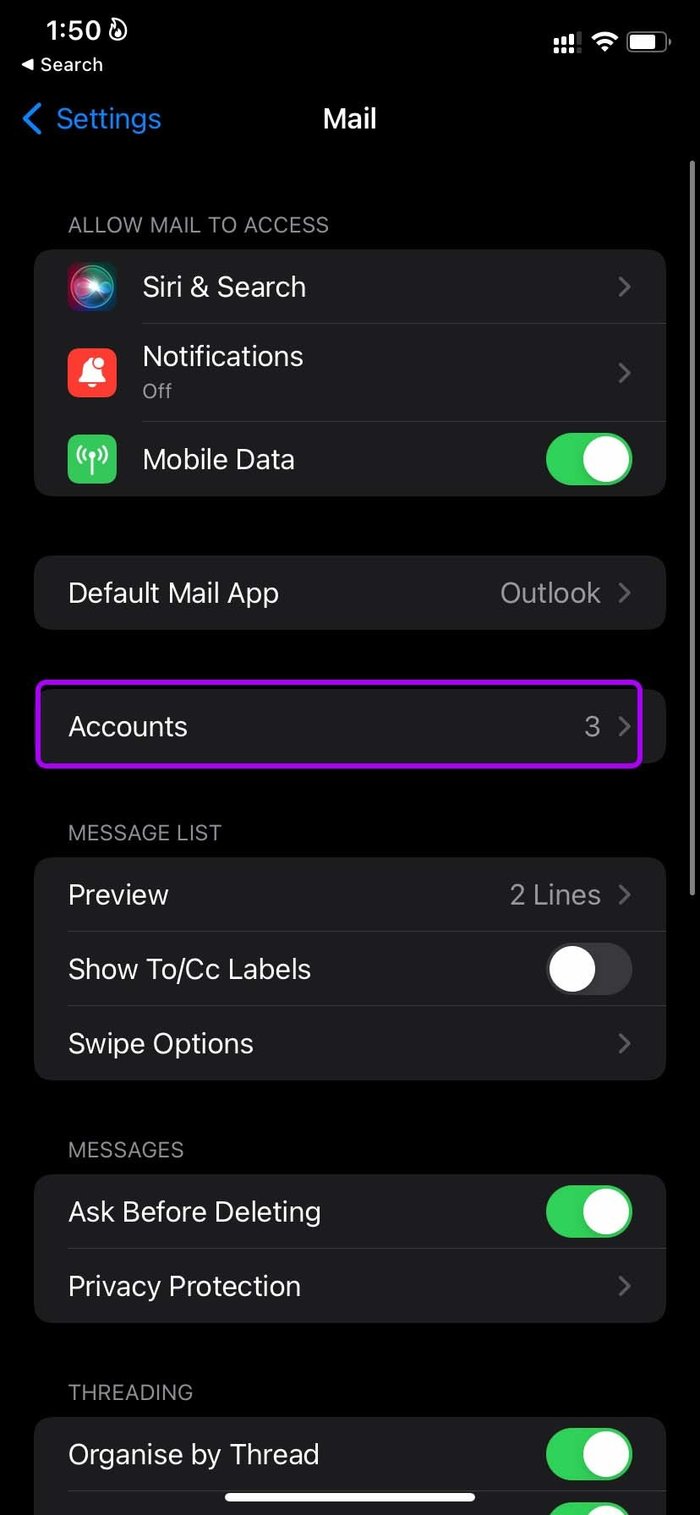
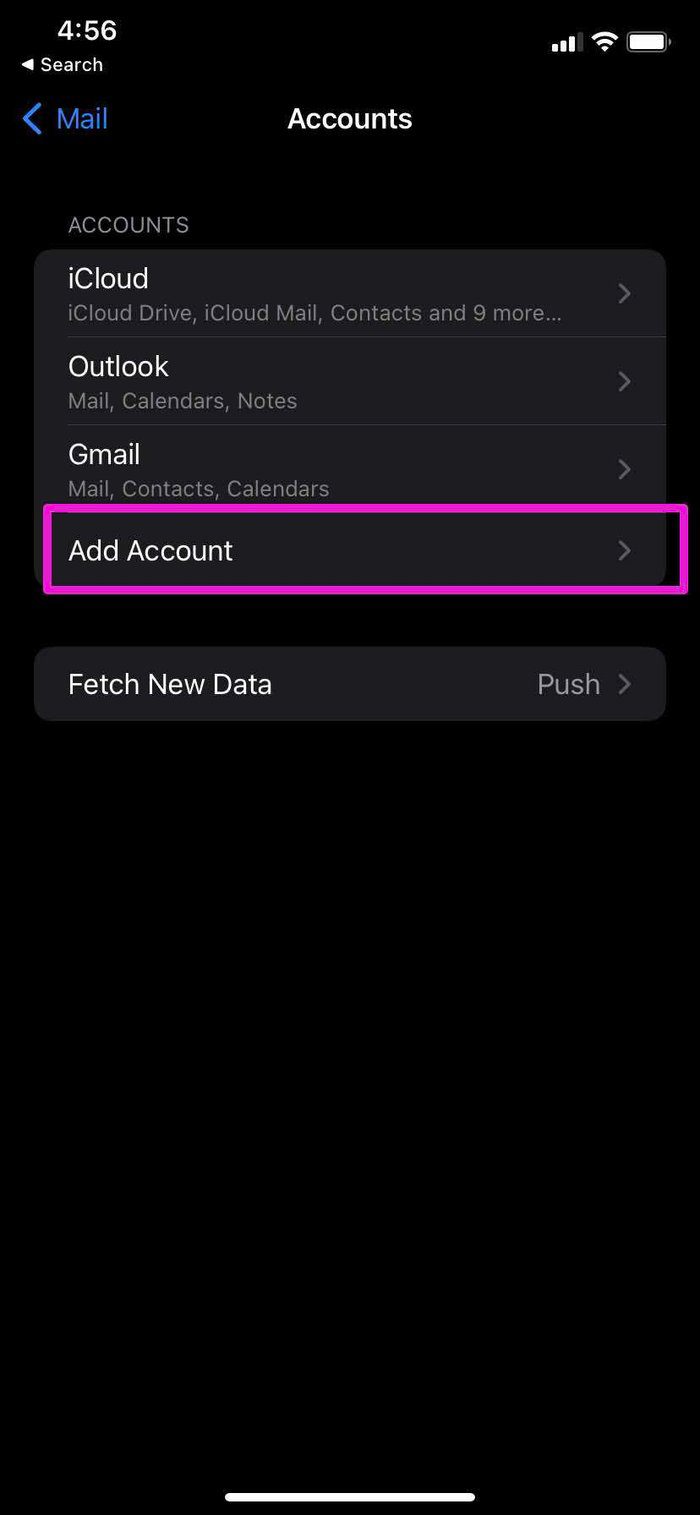
Step 3: Sign in using Microsoft account credentials.
Step 4: Tap on your Outlook account and enable Notes for Outlook.
Check Outlook Notes
You can view your Outlook Notes in the Notes app on iPhone. Here’s how to access and edit them.
Step 1: Open the Notes app on iPhone.
Step 2: You will find Outlook along with iCloud in the Notes app.
Step 3: Expand the Outlook menu, and you will see all the Sticky Notes you have added via the Windows app or the OneNote mobile apps
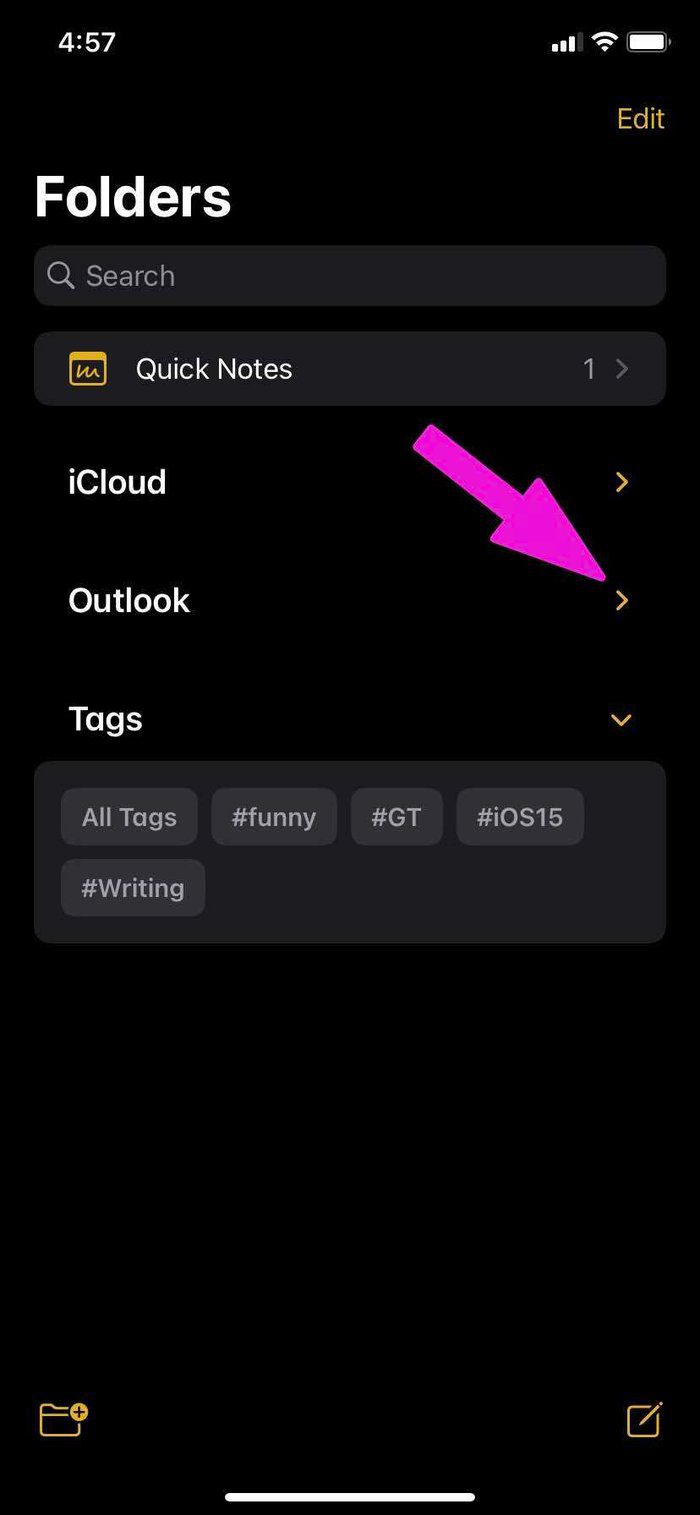
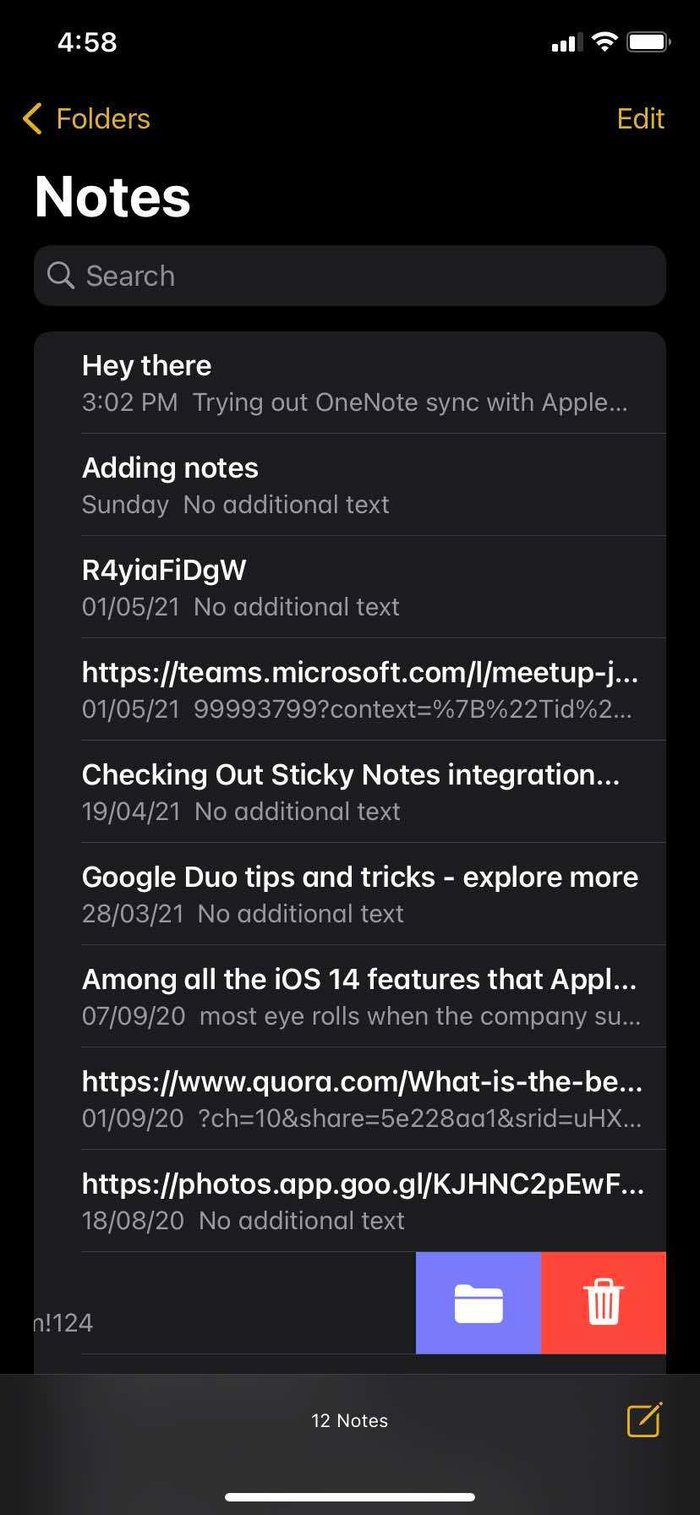
Step 4: Tap on the Outlook notes folder and compose a new note from the bottom right corner.
Add a new note with the text editor and hit the Done button at the top. Since these notes will sync with Sticky Notes in OneNote, you can’t use a rich text editor such as Bold, Italic, Table, title, and more. It’s a simple text editor for adding words.
Tip: Learn how to save Apple Notes as PDFs.
Limitations of Using Apple Notes With OneNote
- You can’t use the rich text editor that you enjoy with iCloud notes in Apple Notes.
- You can’t create folders.
- The ability to use tags to organize notes is also missing.
Was this helpful?
Last updated on 03 June, 2024
Read Next
 How to Sync Samsung Notes with Microsoft OneNote
Enable OneNote Sync for Samsung Notes When you sign in with your Samsung account on your Galaxy phone, One UI syncs your notes, contacts, messages, call history, reminders, and browsing
How to Sync Samsung Notes with Microsoft OneNote
Enable OneNote Sync for Samsung Notes When you sign in with your Samsung account on your Galaxy phone, One UI syncs your notes, contacts, messages, call history, reminders, and browsing
 Apple Notes vs Microsoft OneNote: Which App Wins
When it comes to note-taking applications, the majority sticks to what their device offers out of the box.
Apple Notes vs Microsoft OneNote: Which App Wins
When it comes to note-taking applications, the majority sticks to what their device offers out of the box.
 15 Best Ways to Organize Notes Effectively in Microsoft OneNote
Microsoft OneNote is a powerful note-taking tool if you know how to use it.
15 Best Ways to Organize Notes Effectively in Microsoft OneNote
Microsoft OneNote is a powerful note-taking tool if you know how to use it.
 How to Sync ColorNote Notes From Android to PC
ColorNote is one of the simplest yet coolest note-taking apps available for Android.
How to Sync ColorNote Notes From Android to PC
ColorNote is one of the simplest yet coolest note-taking apps available for Android.
 How to Sync Apple Photos Library With Google Photos
How to Enable Backup & Sync in Google Photos To add the pictures in your Photos app to the Google Photos app, you first need to enable the automatic sync
How to Sync Apple Photos Library With Google Photos
How to Enable Backup & Sync in Google Photos To add the pictures in your Photos app to the Google Photos app, you first need to enable the automatic sync
 How to View Apple Notes on Android
Method 1: View Apple Notes on Android Using Web Browser App In this method, you can open the web version of iCloud by going to iCloud.com through the Chrome browser.
How to View Apple Notes on Android
Method 1: View Apple Notes on Android Using Web Browser App In this method, you can open the web version of iCloud by going to iCloud.com through the Chrome browser.
 How to Stop Sharing iPhone Notes With Other Apple Devices
Method 1: Remove Other Users From Your Note The Notes app allows you to share your notes with other users.
How to Stop Sharing iPhone Notes With Other Apple Devices
Method 1: Remove Other Users From Your Note The Notes app allows you to share your notes with other users.
 How to Save Apple Notes as PDF on iPhone and Mac
https://youtu.be/8tn8DnmObLk How to Export iPhone Notes as PDF Method 1: Save Notes to Files Here's how to use the Markup tool to save Apple Notes as PDF on your iPhone.
How to Save Apple Notes as PDF on iPhone and Mac
https://youtu.be/8tn8DnmObLk How to Export iPhone Notes as PDF Method 1: Save Notes to Files Here's how to use the Markup tool to save Apple Notes as PDF on your iPhone.
The article above may contain affiliate links which help support Guiding Tech. The content remains unbiased and authentic and will never affect our editorial integrity.