
Outlook junk mail filters are quite handy for directing marketing spam and other unwanted content away from your main inbox. Unfortunately, they can be a little too diligent at times, capturing emails you actually want to receive.
If Outlook sends legitimate emails to junk, there are ways to add certain email addresses to your Safe Senders list and to alter your junk mail settings. Read on to learn more.
Why Outlook Sends Legitimate Emails to Junk
There are a number of settings that determine what happens to your emails, and if you don’t have them configured in a certain way, even mail from your contacts can be picked up as “junk” or “spam.” Some keywords or phrases may make emails seem like marketing circulars, and Outlook may believe that particular email addresses are suspicious.
Thankfully, it’s fairly simple to make Outlook accept specific email addresses and to adjust the severity of your junk mail filter.
Stop Outlook Moving Emails to Junk: Step-by-Step Guide for Web-Based Outlook
Step 1. Open a web browser and head to Outlook.com. Click “Sign in,” then, when prompted, sign in with your Microsoft account credentials.

Step 2. Go to Settings > Email > Junk email. Make sure Trust email from my contacts is ticked. Change “Strict to Standard” to allow messages from senders who aren’t on your Safe Senders list to show up in your inbox, depending on Outlook’s other filtering rules.

Step 3. If you have a specific email address that keeps being sent to junk, click on “Add safe sender.” A text box will appear.
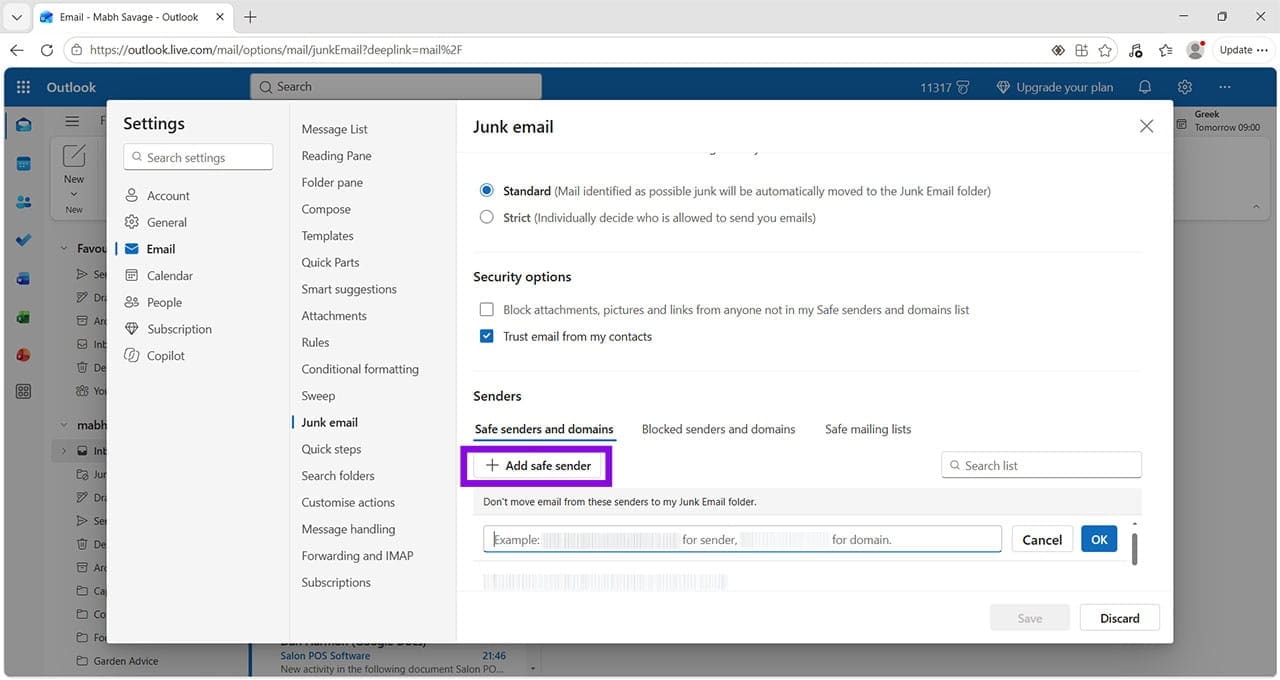
Step 4. Type in the email address that keeps getting “junked.” Press the blue “OK” button.
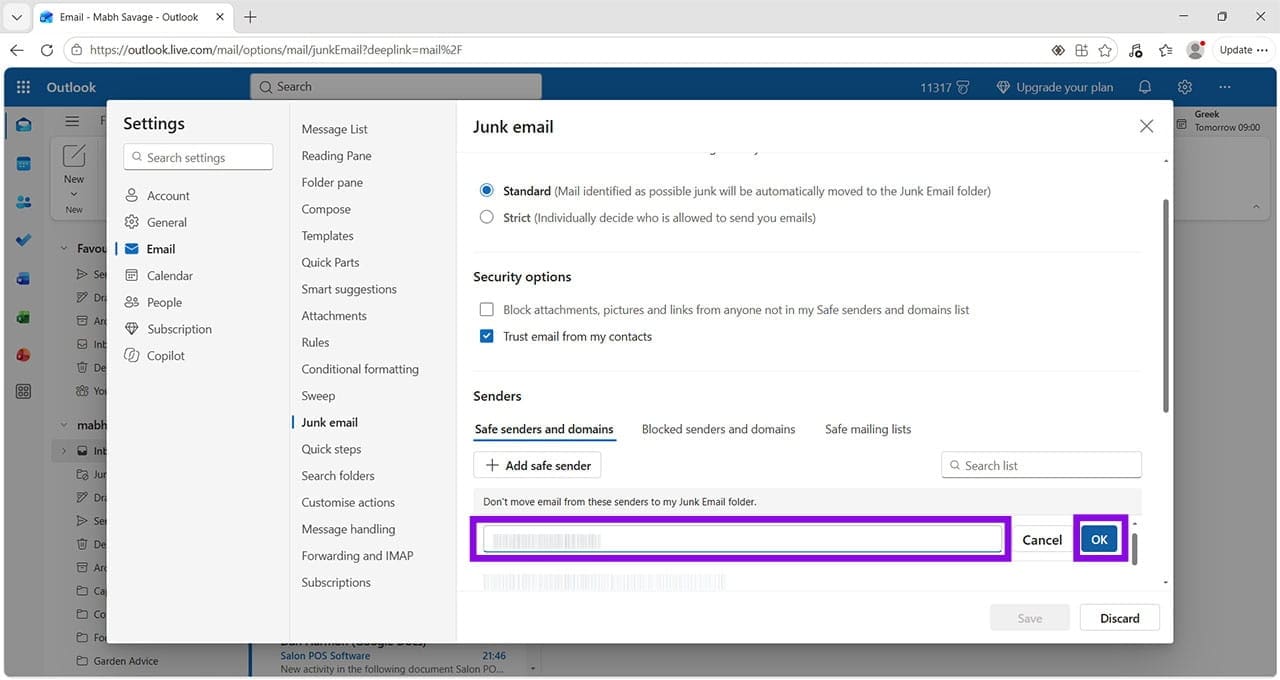
Step 5. This ensures the email is on your Safe Senders and domains list. You can also click on “Blocked senders and domains.” If this is blank, you know this isn’t causing your problem. However, if an email address is here that shouldn’t be, use the trash can button to remove it. Press “Save” to apply your changes.
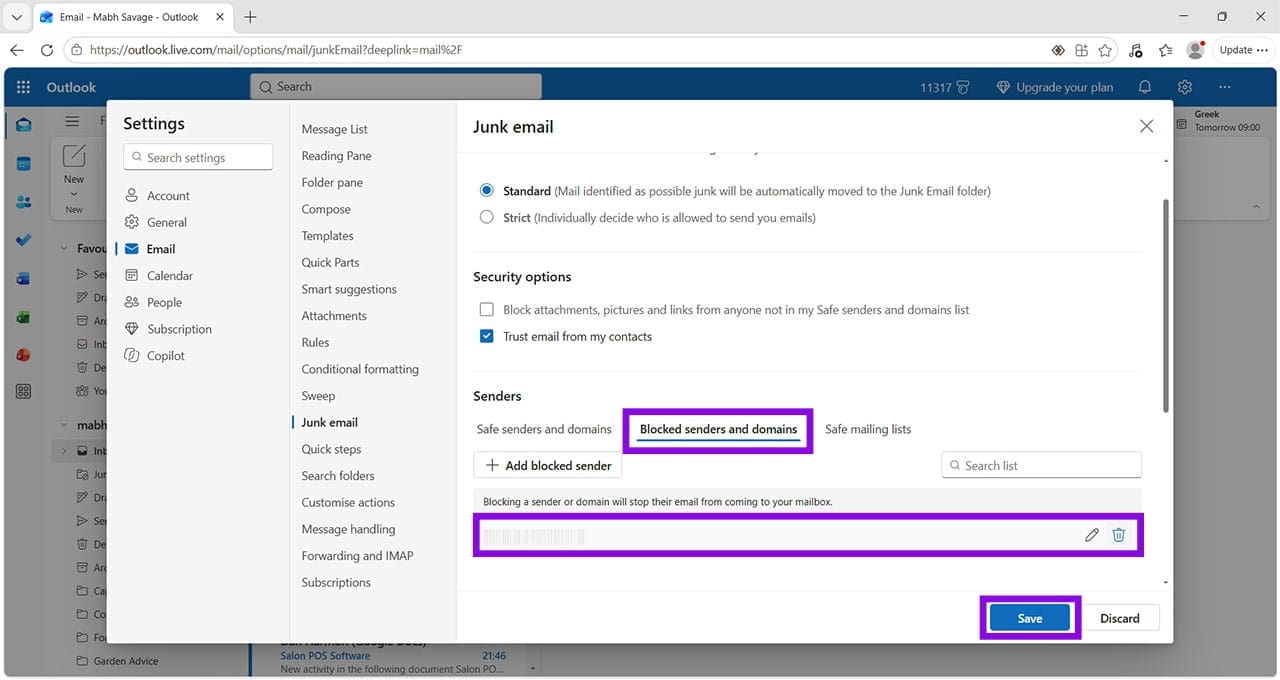
Stop Outlook Moving Emails to Junk: Step-by-Step Guide for Desktop-Based Outlook
Step 1. Open your Outlook app on your desktop or laptop computer. Make sure you’re on the Home tab at the top, then look for the symbol of a person with a red circle with a line through it. This is the “Block Sender” button, but clicking the drop-down arrow gives you access to “Junk Mail Options.”
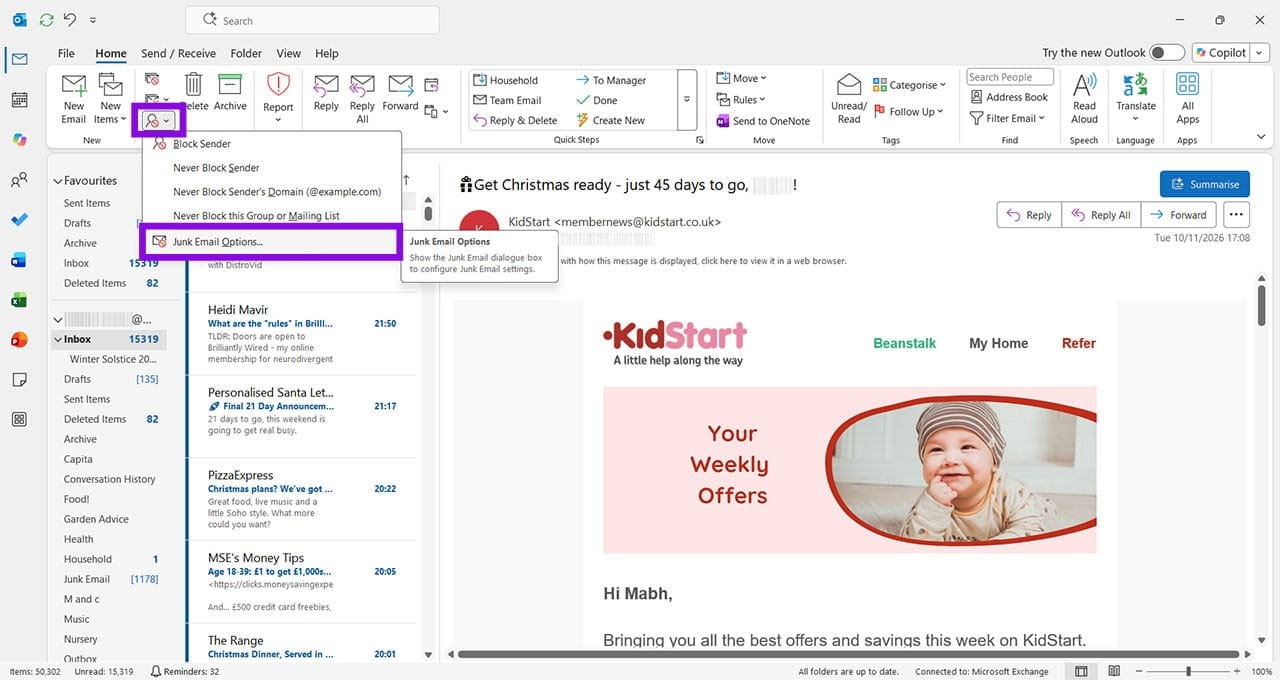
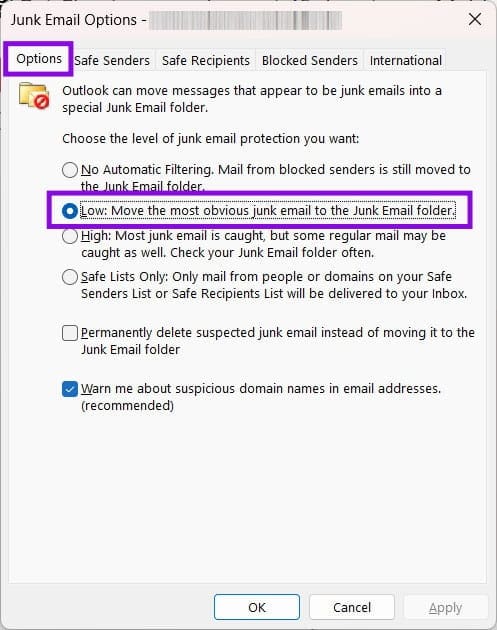
Step 2. Click “Junk Mail Options.” The first screen allows you to adjust the intensity of the junk mail filter. Switching it to “Low” should prevent legitimate mail from being captured.
Step 3. Next, click on “Safe Senders.” The first change to make is to tick the box that says “Also trust emails from my Contacts.” Adding someone to your contacts list should stop them from ever getting moved to Junk. You can also choose to automatically add people that you email to your Safe Senders list, but this is a personal choice. If you frequently email unknown people for work, you may want to leave this blank.
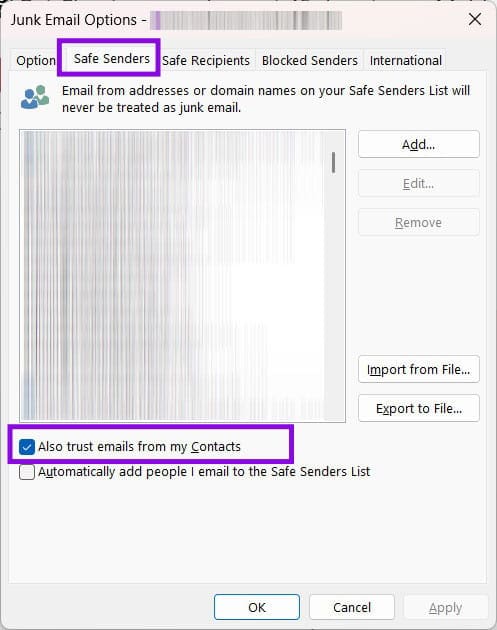
Step 4. To add an email address to your Safe Senders list, click “Add,” type in the email address, and click “OK.” You can also add an entire domain here. So, if you trust every email from a particular organization, you can add the “@” and everything after it to ensure these emails never get marked as junk.

Step 5. Finally, remember to check the “Blocked Senders” tab. If you see an email address that shouldn’t be blocked, left-click on it, then click ‘Remove.” Press “OK,” then “Apply” to save your changes.

Was this helpful?
Last updated on 13 November, 2026
Read Next
 How to Stop LinkedIn Emails
Method 1: Using the LinkedIn Mobile Apps You can use LinkedIn mobile apps to turn off email notifications.
 4 Fixes for Outlook Web Not Receiving Emails
Basic Fixes Check outlook server status: Visit DownDetector and check whether Outlook servers are responding in your region.
 How to Schedule Emails in Outlook on Any Platform
Have you ever wished for an easier way to manage your emails and ensure they get sent at the most opportune time?
 How to Mark Emails as Read in Outlook on Web, Desktop, or Mobile App
Outlook is a widely used email client for personal and professional purposes.
 How to Download Emails From Outlook on Web, Desktop, and Mobile
How to Download an Email From Outlook’s Web Version Note: You may choose to skip this method if you have multiple emails you want to download.
 How to Encrypt Emails in Microsoft Outlook
How to Encrypt Email in Microsoft Outlook on Windows 11 With a Microsoft 365 subscription, you can send encrypted emails to your contacts.
 How to Send Recurring Emails in Microsoft Outlook
Set up Recurring Emails Using Power Automate The purpose of setting up a recurring email is to ensure the email is sent out automatically during the required period.
 How to Automatically Forward Emails in Outlook
There are several reasons you may want to automatically forward emails in Outlook.
The article above may contain affiliate links which help support Guiding Tech. The content remains unbiased and authentic and will never affect our editorial integrity.