Fix 1: Unlink Third-Party Apps and Websites
Third-party apps and services linked to your Instagram account may auto-follow specific accounts in the background. You should review and unlink such apps from your account.
On Mobile
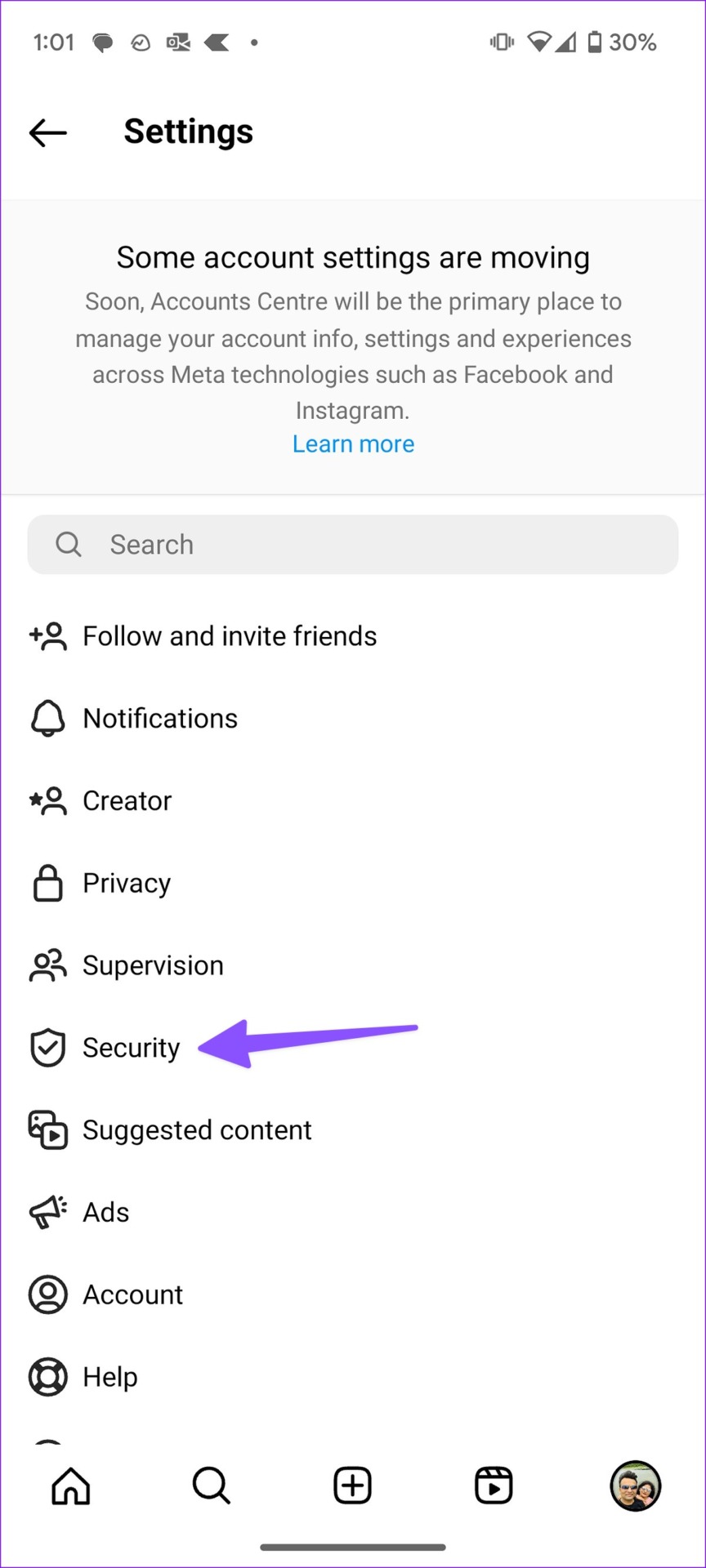
Step 1: Open your profile, and tap on the three-bar menu at the top right.
Step 2: Select Security, go to Apps and Websites, and remove authorizations for third-party apps and websites.


On Web
You can unlink third-party apps from the Instagram web version too. Here’s what you need to do.
Step 1: Visit Instagram on the web and sign in with your account details.
Step 2: Select More at the bottom-left corner and open Settings.

Step 3: Click Apps and Websites from the left sidebar.
Step 4: Check the apps and websites connected to your Instagram account. You can remove the permission from the same menu.

Fix 2: Check Your Instagram Login Activity
If you have used another device to check your Instagram account, remove your remembered account. This can lead someone using the device to access your Instagram account and follow profiles.
On Mobile
Step 1: Open your profile, and tap on the three-bar menu at the top right.
Step 2: Tap on Security, and select Login activity.
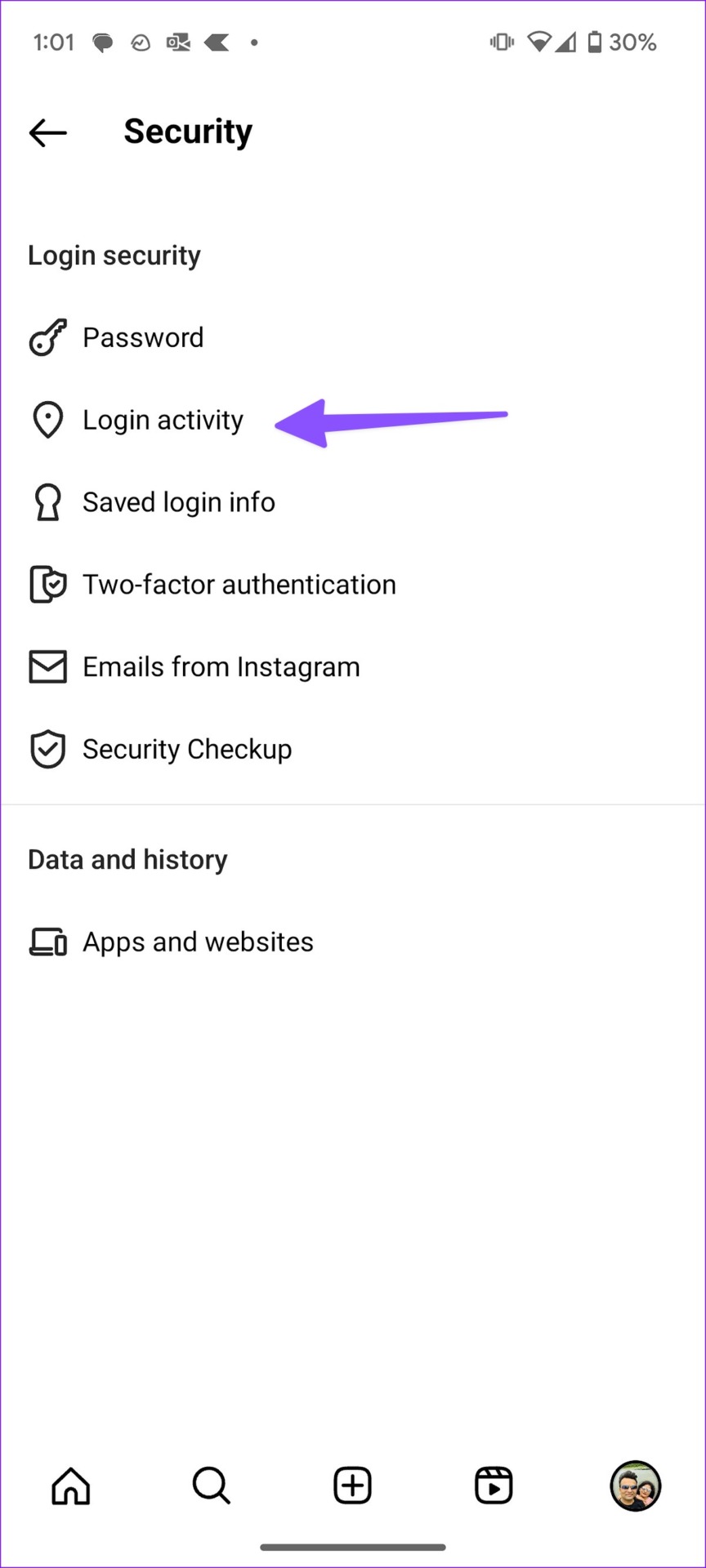
Step 2: Instagram asks you to confirm your recent login activity at the top. You can check all the connected devices with time and location info.
Step 3: If you find a suspicious login activity, tap the three horizontal dots menu beside a device and tap Log out.


On Web
You can log out from random devices using the Instagram web version too. Here’s what you need to do.
Step 1: Select More at the bottom-left corner and open Settings.
Step 2: Select Login activity from the left sidebar.
Step 3: Check the list of active devices. Expand a device you don’t recognize. Click Log Out.

Fix 3: Change Your Instagram Password
If you don’t recognize certain activity on your Instagram account, we recommend changing the password.
On Mobile
Step 1: Open your profile, and tap on the three-bar menu at the top right.
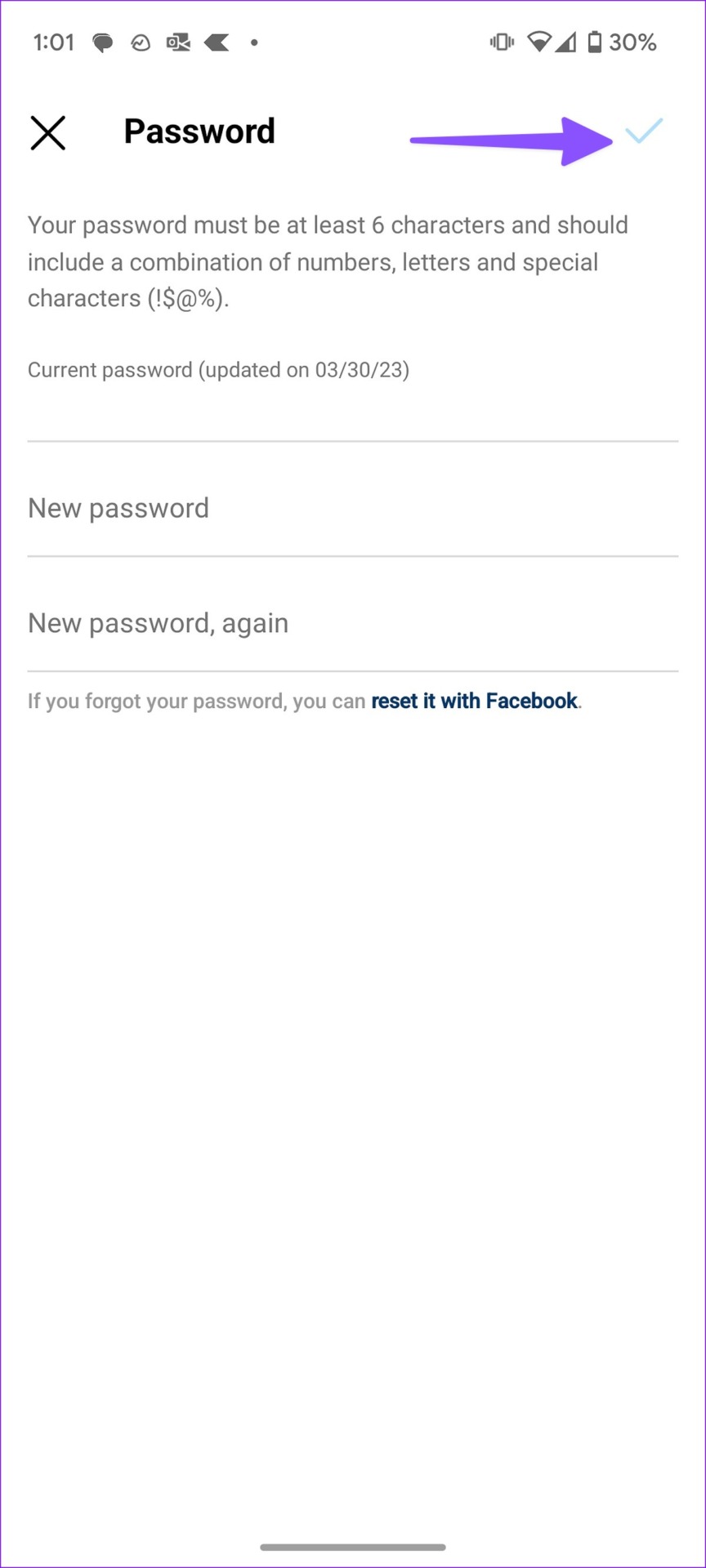
Step 2: Tap on Security, and select Password.
Step 5: You can check when your password was last updated. Enter the current password and add a new one. Hit the checkmark in the top right corner.

On Web
Check the steps below if you prefer the Instagram web version.
Step 1: Select More at the bottom-left corner and open Settings.
Step 2: Select Change password from the left sidebar.
Step 3: Enter the old password and a new one. Hit Change Password and you are good to go.
Note: Enabling a two-factor authentication adds an extra layer of security to your Instagram account. It is highly effective in preventing unauthorized access to your account.

Was this helpful?
Last updated on 07 August, 2024
Read Next
 How to Message a Private Account on Instagram (Without Following)
Message a Private Account on Instagram There are three ways to message a private account on Instagram, whether you follow them or not.
How to Message a Private Account on Instagram (Without Following)
Message a Private Account on Instagram There are three ways to message a private account on Instagram, whether you follow them or not.
 3 Methods to Know Who Stopped Following You on Instagram (With/Without App)
Do you ever wonder who quietly slips away from your Instagram circle?
3 Methods to Know Who Stopped Following You on Instagram (With/Without App)
Do you ever wonder who quietly slips away from your Instagram circle?
 2 Ways to Stop Downloads From Opening Automatically in Chrome
Method 1: Uncheck Always Open This File Option Chrome lets you automatically launch certain file types as soon as they've finished downloading locally.
2 Ways to Stop Downloads From Opening Automatically in Chrome
Method 1: Uncheck Always Open This File Option Chrome lets you automatically launch certain file types as soon as they've finished downloading locally.
 2 Easy Ways to Merge Instagram Accounts
What Happens to Your Followers When You Merge Two Instagram Accounts When you change your username, it will be updated throughout the platform.
2 Easy Ways to Merge Instagram Accounts
What Happens to Your Followers When You Merge Two Instagram Accounts When you change your username, it will be updated throughout the platform.
 How to Stop Facebook From Scrolling Automatically
Basic Fixes Update your web browser: Ensure that you use the latest version of your preferred web browser.
How to Stop Facebook From Scrolling Automatically
Basic Fixes Update your web browser: Ensure that you use the latest version of your preferred web browser.
 3 Ways to Stop iPhone Wi-Fi From Turning on Automatically
Fix 1: Turn Off Wi-Fi in Settings When you toggle off Wi-Fi from the Control Center, it only turns it off temporarily.
3 Ways to Stop iPhone Wi-Fi From Turning on Automatically
Fix 1: Turn Off Wi-Fi in Settings When you toggle off Wi-Fi from the Control Center, it only turns it off temporarily.
 Top 3 Ways to Stop Microsoft Teams From Starting Automatically on Windows 10
Microsoft Teams app is great for team management and communication.
Top 3 Ways to Stop Microsoft Teams From Starting Automatically on Windows 10
Microsoft Teams app is great for team management and communication.
 4 Ways to Stop Bluetooth From Turning on Automatically on iPhone
Why Does My iPhone’s Bluetooth Keep Turning On?
4 Ways to Stop Bluetooth From Turning on Automatically on iPhone
Why Does My iPhone’s Bluetooth Keep Turning On?
The article above may contain affiliate links which help support Guiding Tech. The content remains unbiased and authentic and will never affect our editorial integrity.