How to Download and Set Up Chrome Remote Desktop
To access your PC remotely, you’ll need to download and set up the Chrome Remote Desktop extension on your PC first.
Here’s how you can go about it.
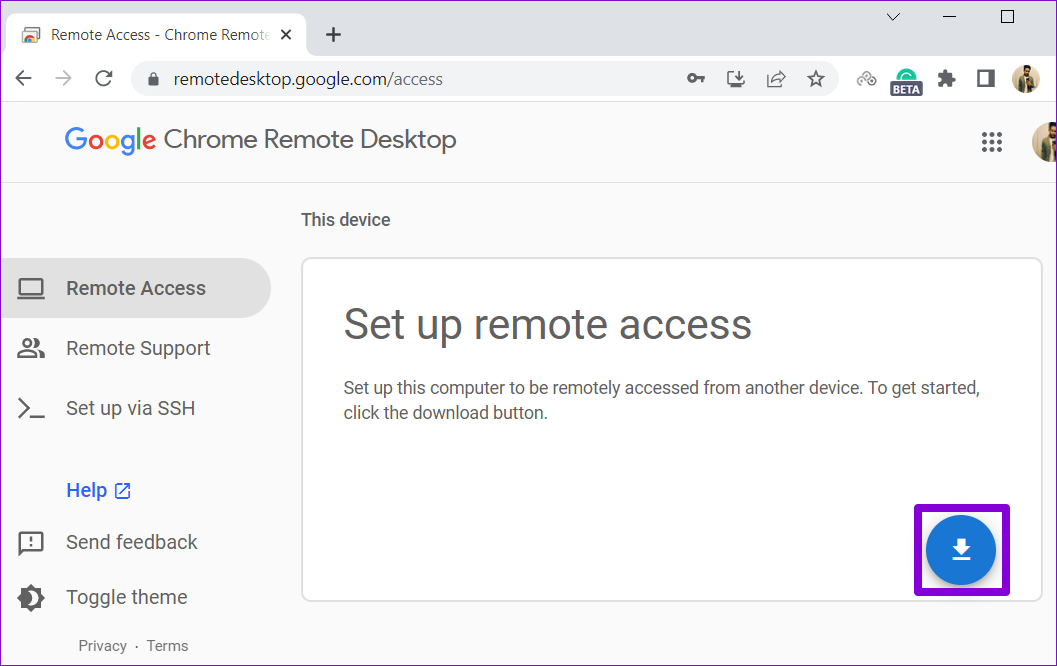
Step 1: Open Google Chrome on your PC and head to the Chrome Remote Desktop page.
Step 2: Click the download button under Set up remote access.
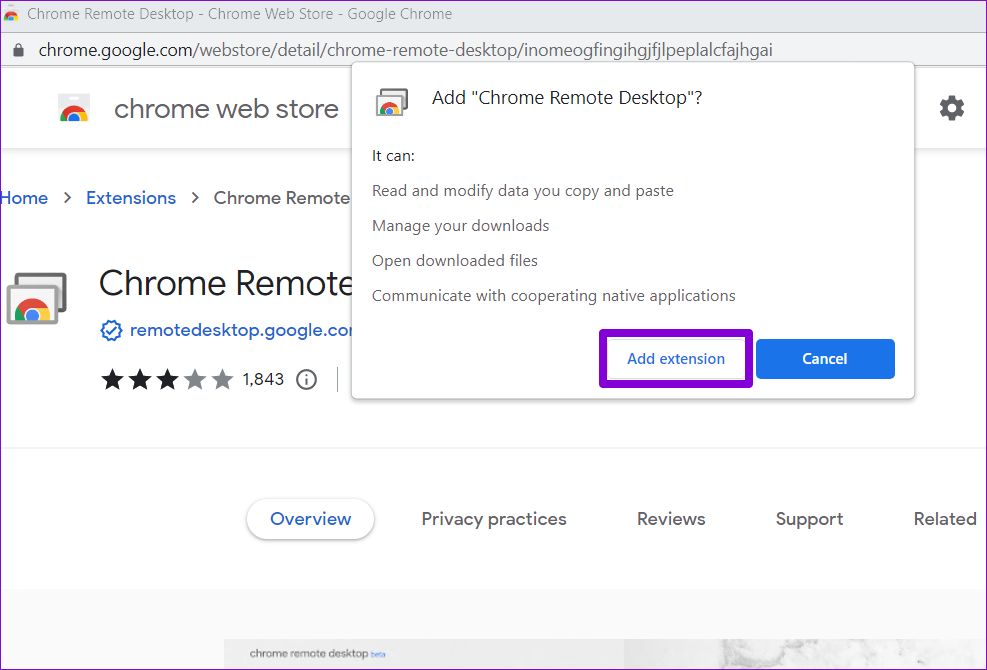
Step 3: Click the Add to Chrome button to add the Chrome Remote Desktop extension to your browser.

Step 4: Click the Add extension button to continue.
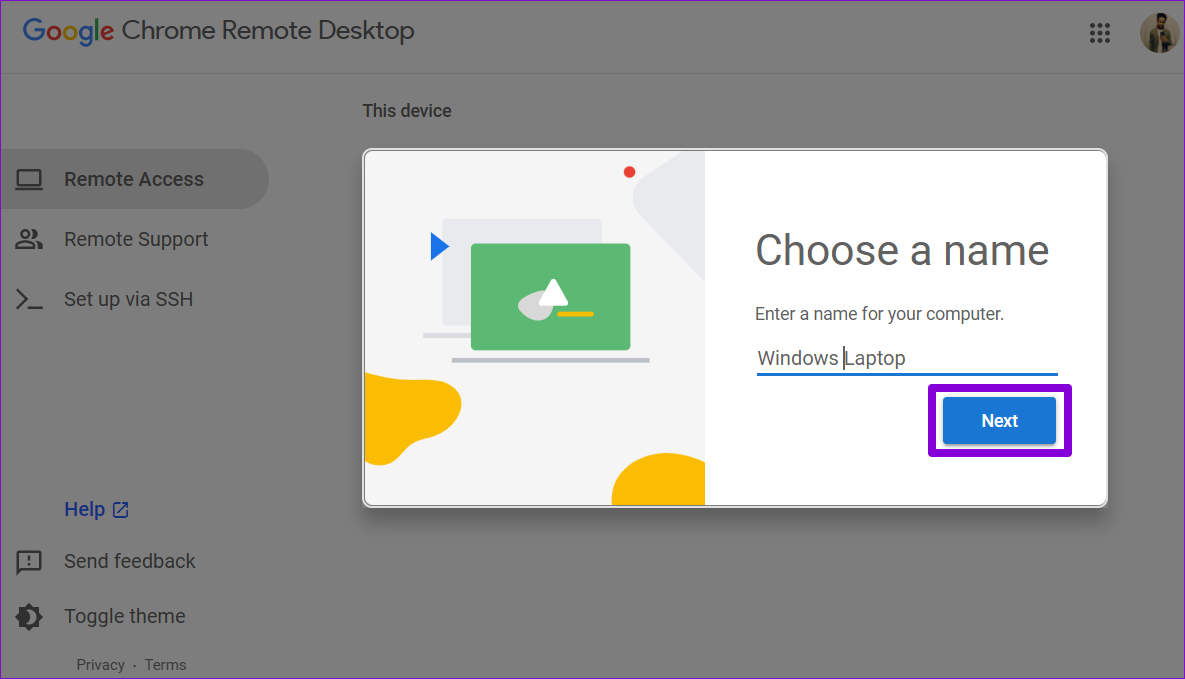
Step 5: Head back to the Chrome Remote Desktop page. Enter a suitable name for your computer and hit the Next button.
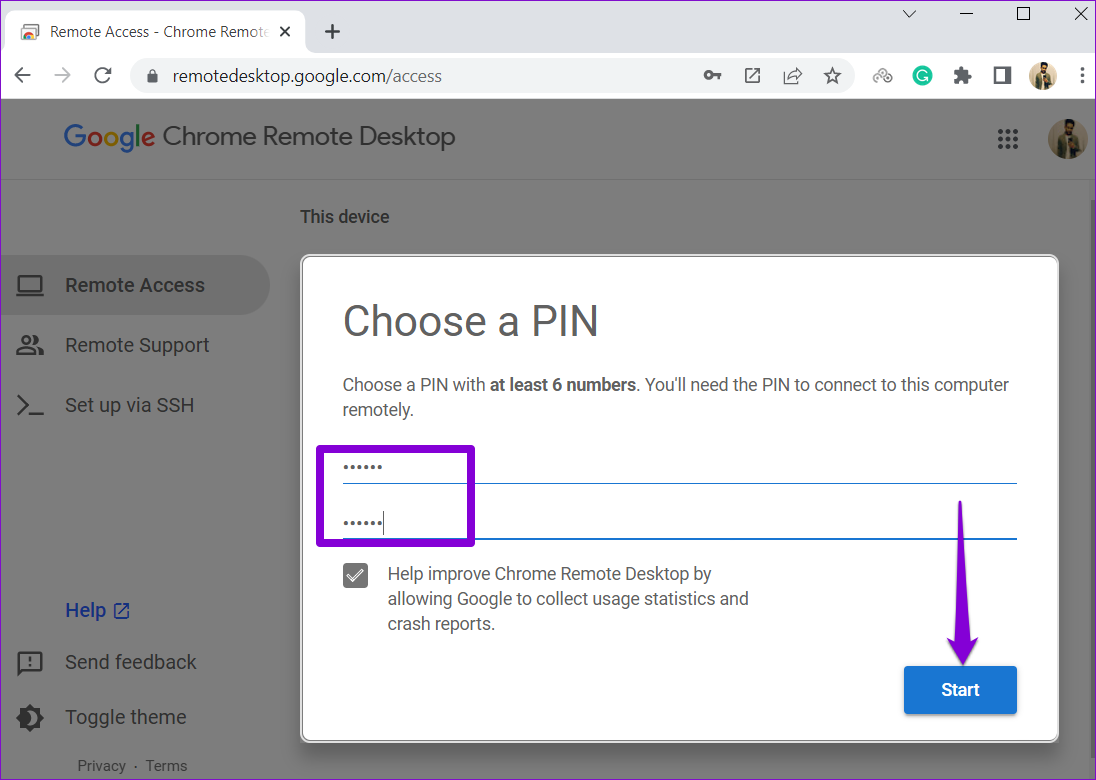
Step 6: Set up a 6-digit security PIN and enter it twice to confirm it. Then, hit Start.
How to Use Chrome Remote Desktop Connect to Your PC Remotely
Once you’ve set up Chrome Remote Desktop on your computer, you can access it easily from any computer. Here’s what you’ll need to do.
Step 1: Open Google Chrome and head to the Chrome Remote Desktop page. Then, sign in with your Google account if you haven’t already.
Step 2: Click Access my computer.

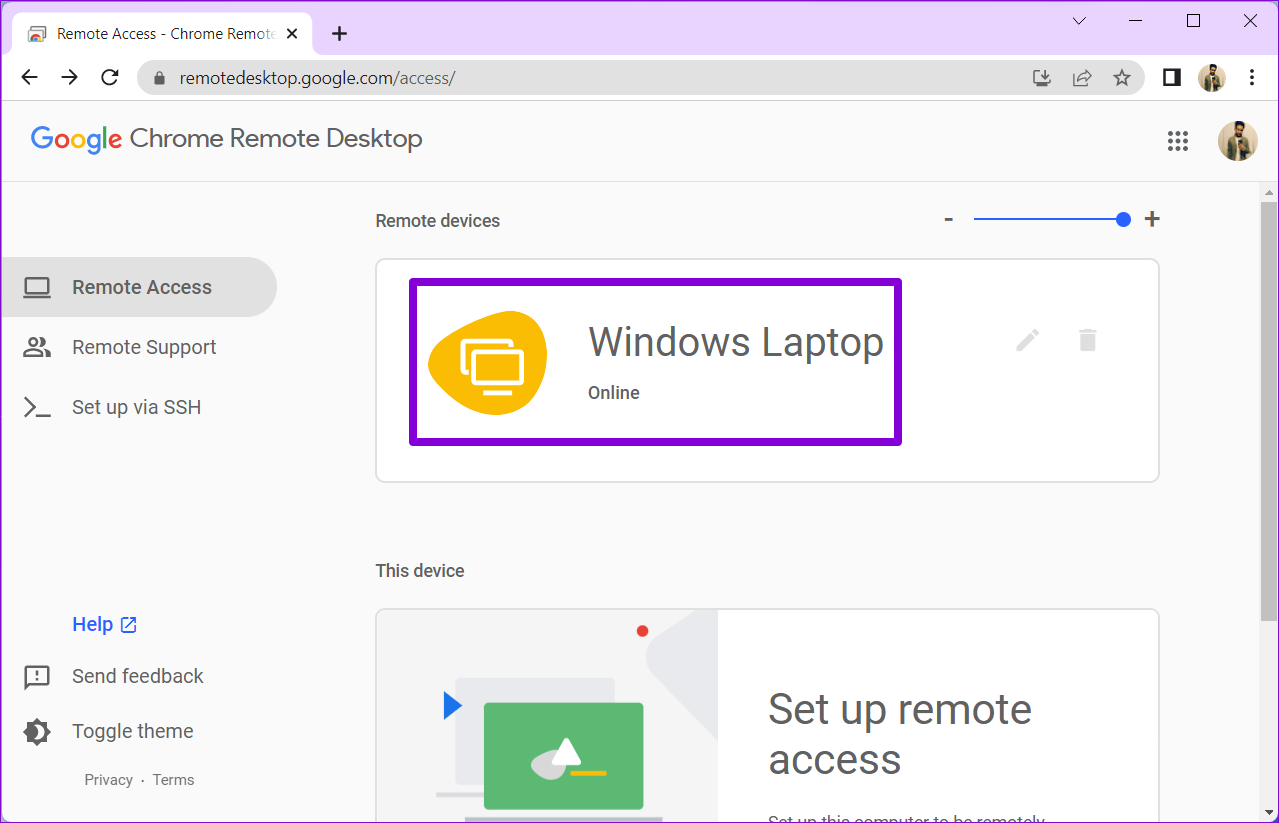
Step 3: Under Remote devices, select the computer you want to access.
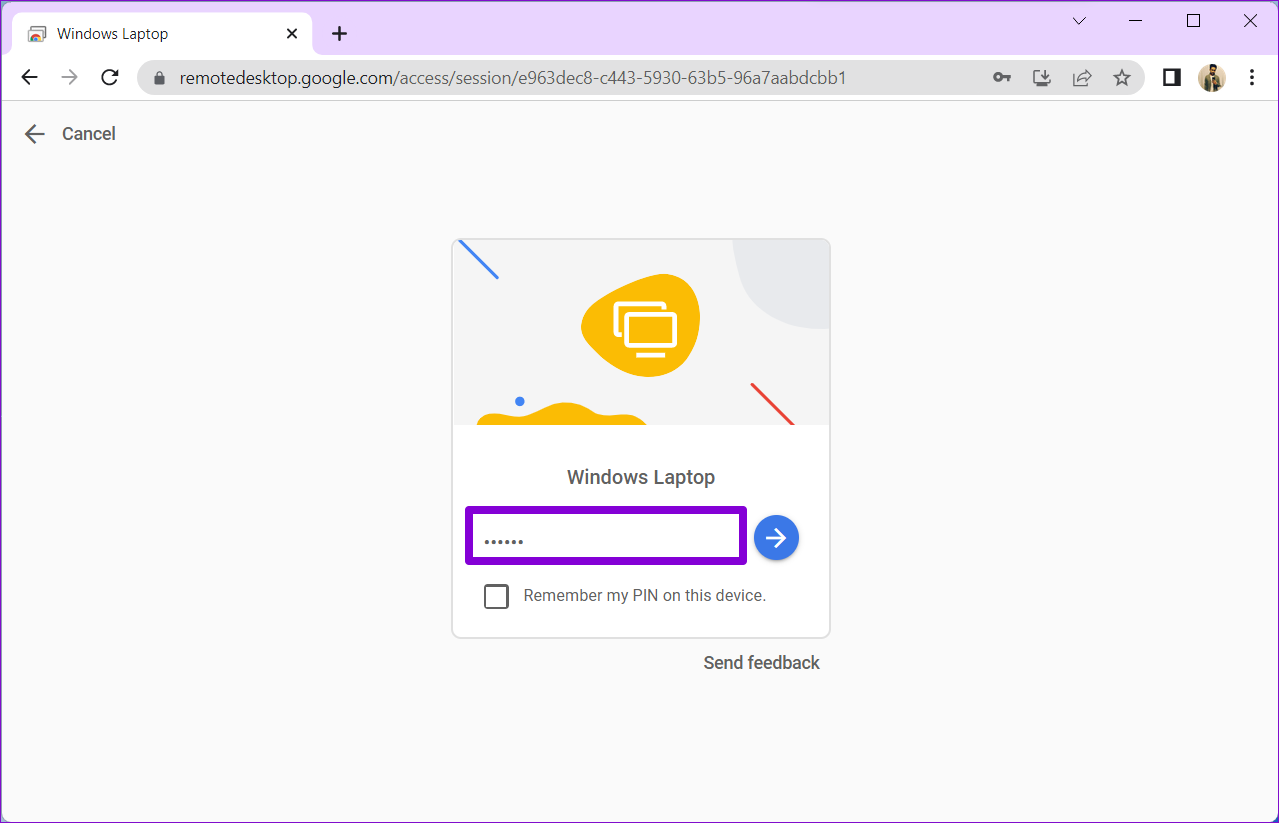
Step 4: Enter the 6-digit PIN to verify your identity.
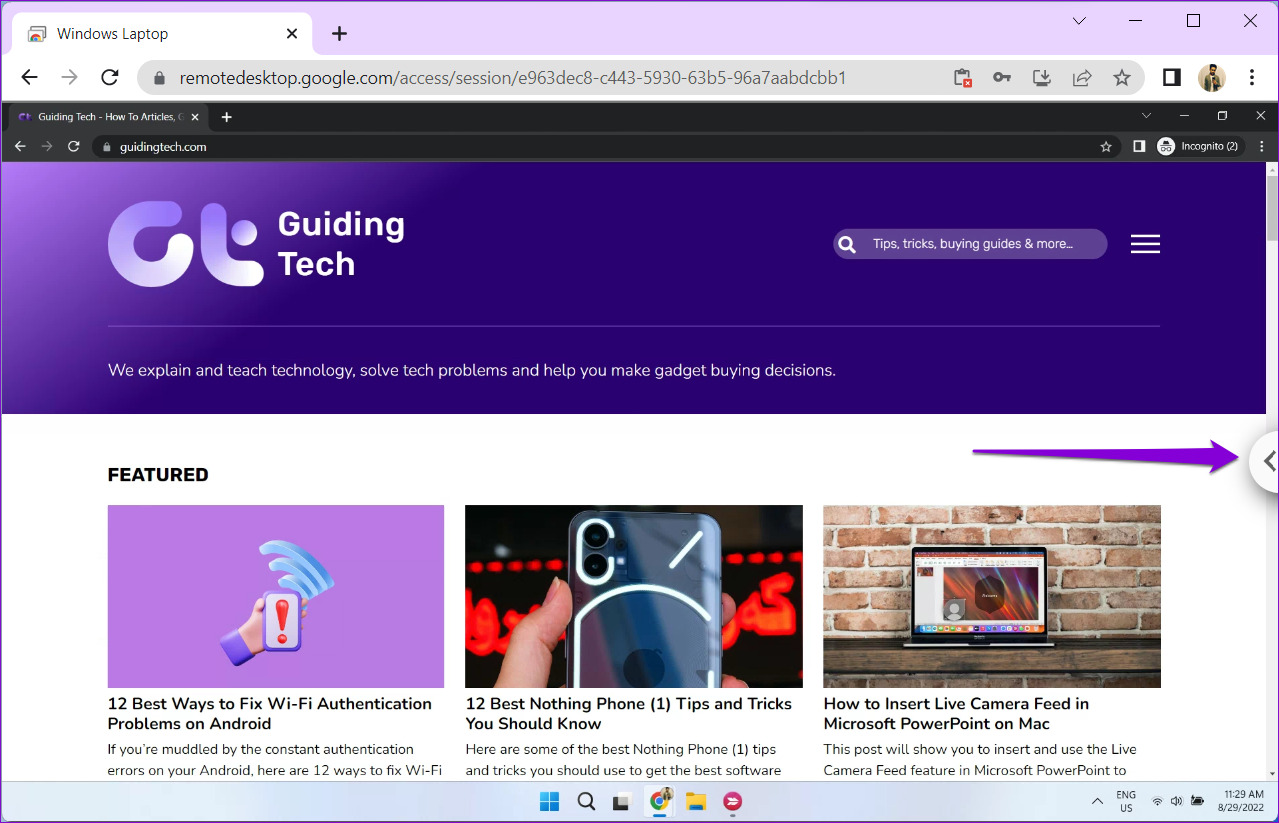
And you’re all set. Once connected, you’ll be able to access and interact with your PC remotely. Note that Chrome Remote Desktop can’t connect to a remote machine if it’s offline or in sleep mode.
How to Use Chrome Remote Desktop Session Options
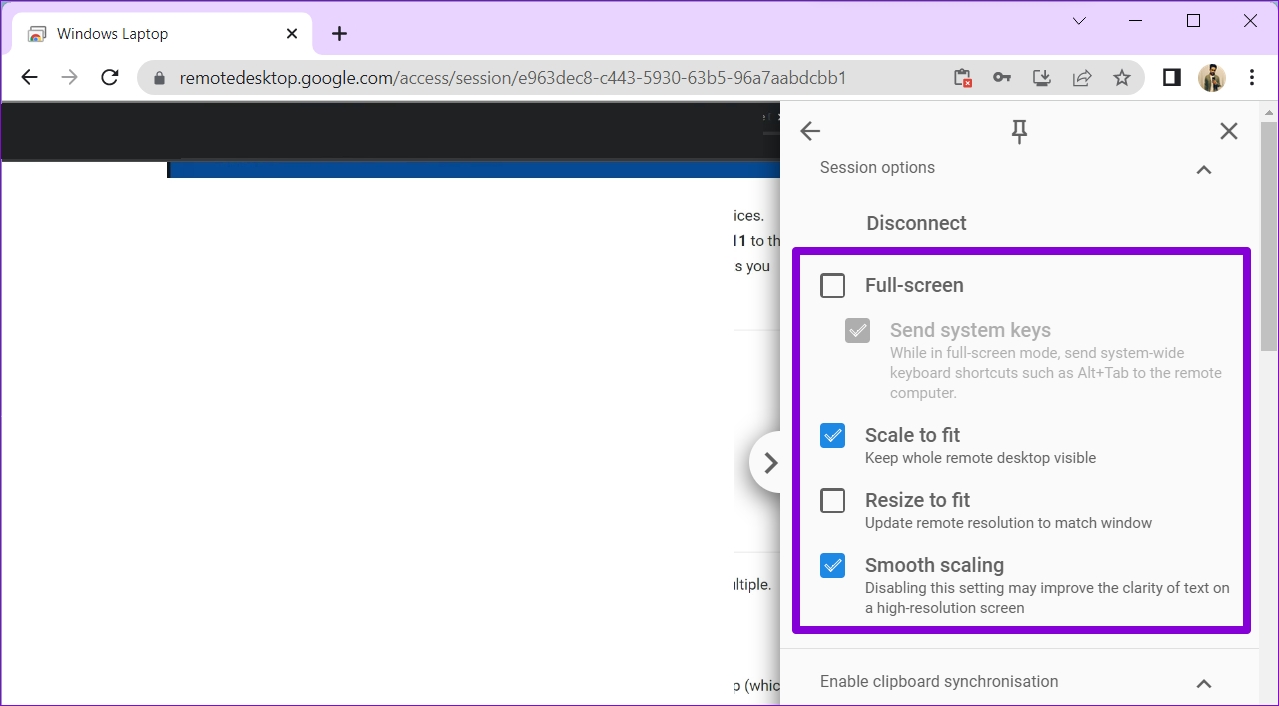
Chrome Remote Desktop provides a few options you can tweak. To access them, click the small arrow on the right side of the screen.
Full-Screen and Scaling Options
You can enable the Full-screen mode, which allows you to interact with your PC via keyboard shortcuts. You can also change the scaling options.
Enable Clipboard Sync
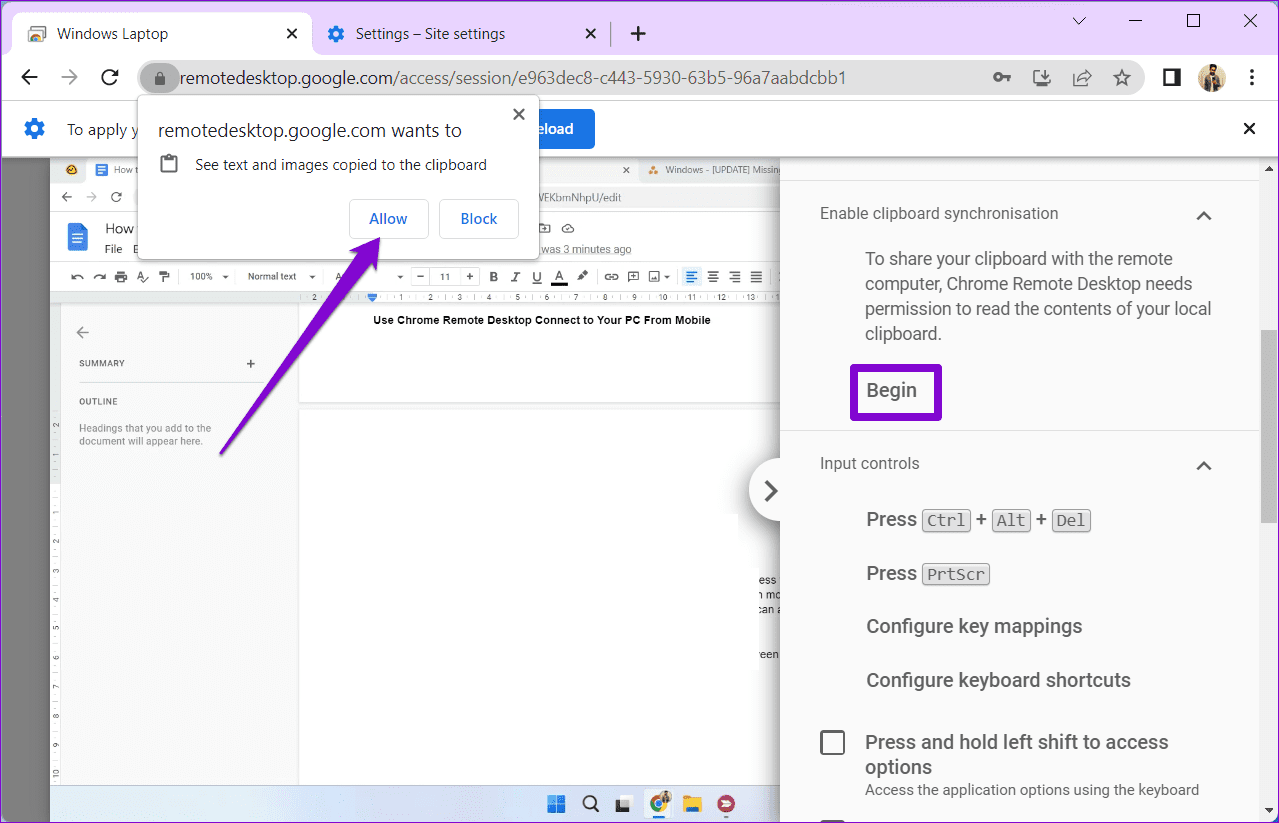
You can enable clipboard synchronization if you want to copy-paste text and images between devices—the remote computer and the one you’re using to access it. To do so, click Begin under Enable Clipboard Synchronization and allow the browser to access your clipboard.
Transfer Files Between Computers
Chrome Remote Desktop also lets you send files to the remote machine. Under the File transfer section, click the Upload file button and select a file you want to send to your computer.

When the upload completes, click the Download file option and save your file on the host computer.

Likewise, if you wish to grab a file from the host computer, click the Download file option and select the file you want. Then, the file will be downloaded to the local computer automatically.
End Your Remote Session
Once you’re done using the tool, click the Disconnect button to end the session.

How to Use Chrome Remote Desktop to Access Someone Else’s PC
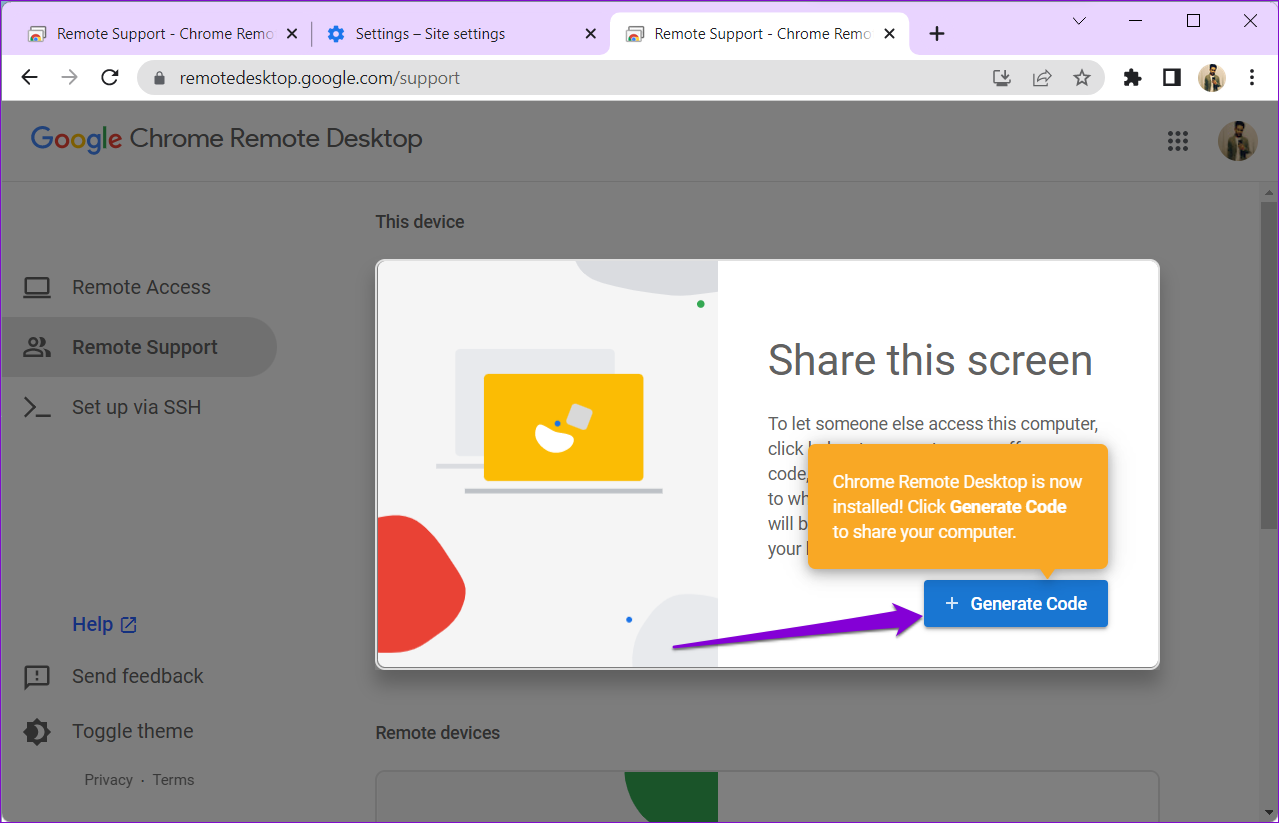
You can also use Chrome Remote Desktop to access someone else’s computer. This can come in handy if you want to assist a family member or colleague. You’ll have to ask the other person to download the Chrome Remote Desktop web app on their PC and click the Generate Code button. The app will create a one-time 12-digit access code.
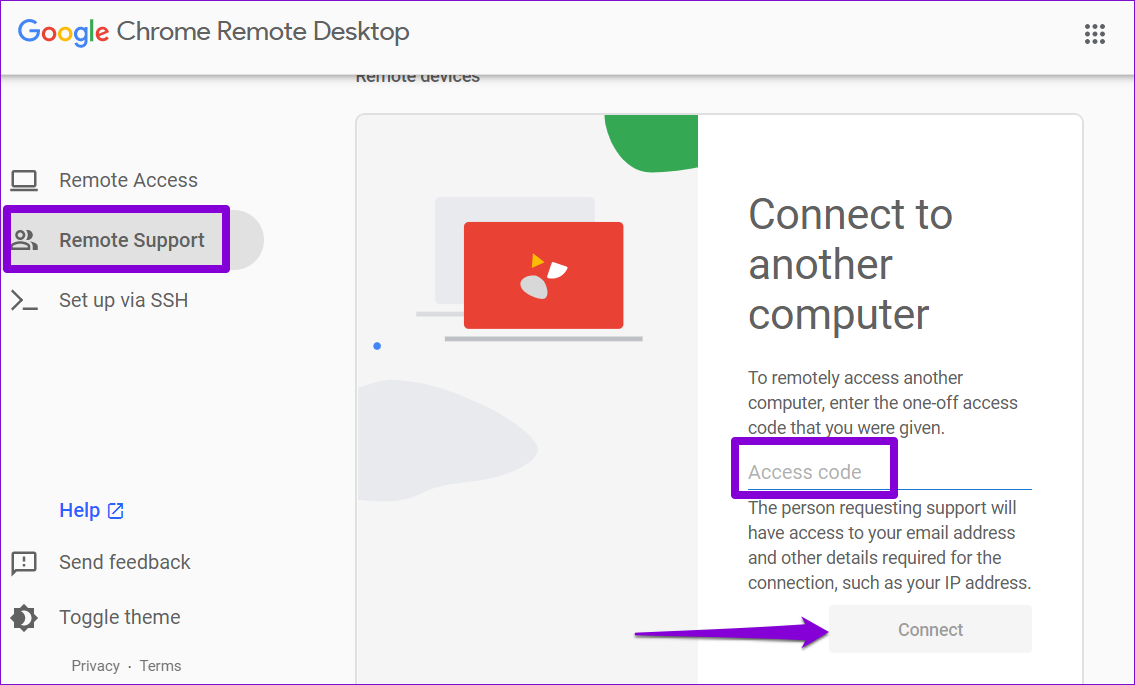
After you have the access code, head over to the Chrome Remote Desktop page on your PC. Go to the Remote Support tab, enter the 12-digit access code, and click Connect.
After it connects, you can access the other person’s computer remotely. You can utilize the session options mentioned earlier to modify your session to your liking.
Was this helpful?
Last updated on 01 August, 2024
Read Next
 4 Fixes if Chrome Remote Desktop Is Not Working on Windows 11
Fix 1: Disable PIN-Less Authentication Chrome Remote Desktop lets you pair your trusted devices with your computer.
4 Fixes if Chrome Remote Desktop Is Not Working on Windows 11
Fix 1: Disable PIN-Less Authentication Chrome Remote Desktop lets you pair your trusted devices with your computer.
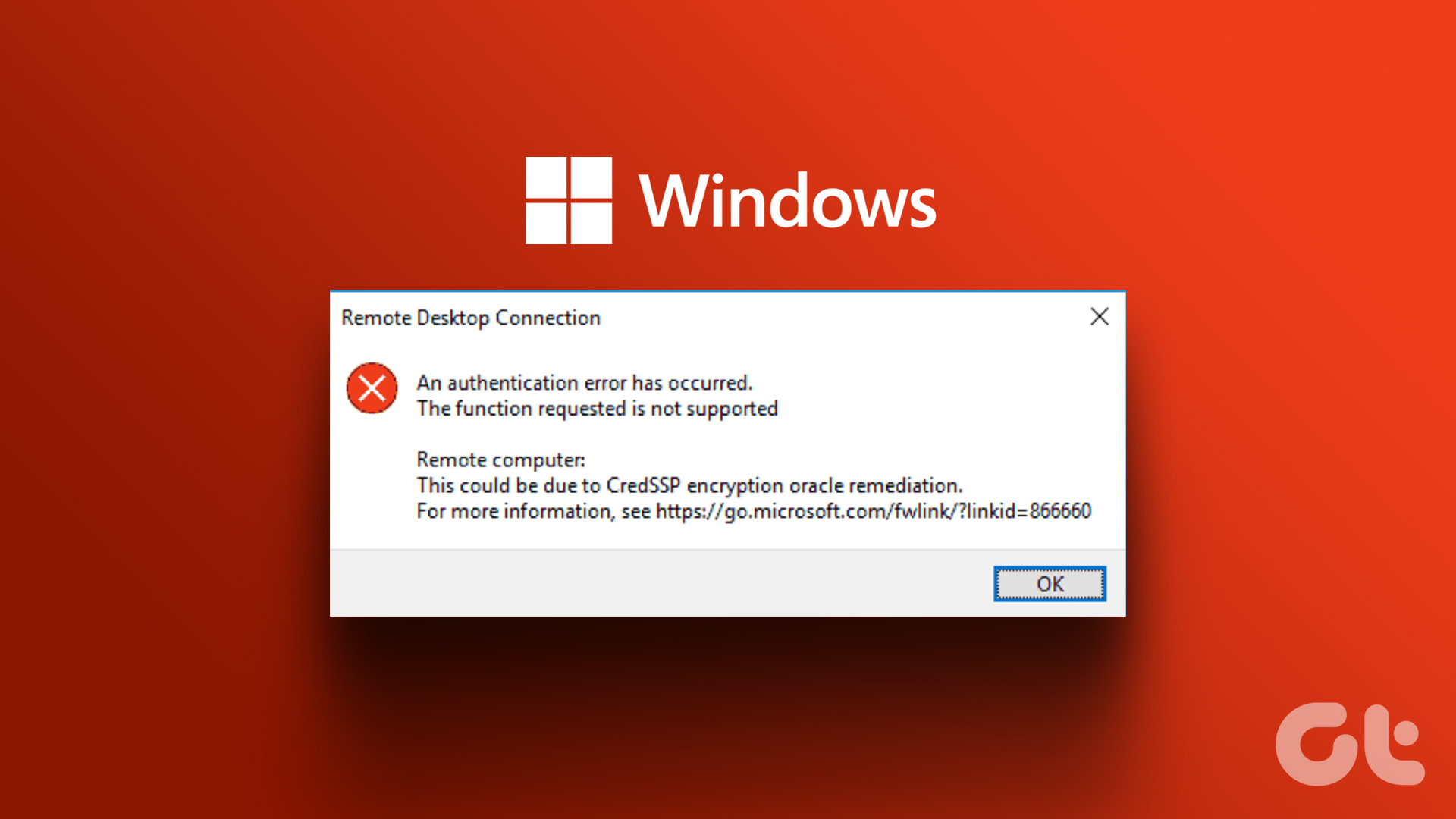 4 Fixes for Remote Desktop Authentication Error on Windows 11
Preliminary Fixes Check remote if the desktop is enabled: The Remote Desktop authentication error often occurs because your Windows 11 PC cannot establish a remote connection without the Remote Desktop
4 Fixes for Remote Desktop Authentication Error on Windows 11
Preliminary Fixes Check remote if the desktop is enabled: The Remote Desktop authentication error often occurs because your Windows 11 PC cannot establish a remote connection without the Remote Desktop
 7 Quick Ways to Open Remote Desktop Connection Tool in Windows 11
Method 1.
7 Quick Ways to Open Remote Desktop Connection Tool in Windows 11
Method 1.
 5 Fixes for Remote Desktop Copy-Paste Not Working on Windows
Fix 1: Configure Remote Desktop Connection Settings A common reason you may be unable to copy and paste data during a Remote Desktop session is if you have previously disabled
5 Fixes for Remote Desktop Copy-Paste Not Working on Windows
Fix 1: Configure Remote Desktop Connection Settings A common reason you may be unable to copy and paste data during a Remote Desktop session is if you have previously disabled
 How to Ctrl + Alt + Del in Remote Desktop on Windows
Method 1: Use Ctrl + Alt + End on the Keyboard It's simple - you can use the Ctrl + Alt + End on your Windows Remote Desktop session instead
How to Ctrl + Alt + Del in Remote Desktop on Windows
Method 1: Use Ctrl + Alt + End on the Keyboard It's simple - you can use the Ctrl + Alt + End on your Windows Remote Desktop session instead
 How To Enable Remote Desktop or RDP in VMware – Guiding Tech
There are multiple methods of connecting to a virtual machine in VMware.
How To Enable Remote Desktop or RDP in VMware – Guiding Tech
There are multiple methods of connecting to a virtual machine in VMware.
 How to Find Google Chrome Downloads on Mobile and Desktop
Find Google Chrome Downloads on Mac Step 1: Open Google Chrome and wait for the download process to complete.
How to Find Google Chrome Downloads on Mobile and Desktop
Find Google Chrome Downloads on Mac Step 1: Open Google Chrome and wait for the download process to complete.
 Top 5 Ways to Fix Google Chrome Closing Automatically on Desktop
https://youtu.be/zNKngnPi3AA Fix 1: Review Browser Extensions While the Chrome Web Store consists of thousands of extensions, not every extension is well-maintained.
Top 5 Ways to Fix Google Chrome Closing Automatically on Desktop
https://youtu.be/zNKngnPi3AA Fix 1: Review Browser Extensions While the Chrome Web Store consists of thousands of extensions, not every extension is well-maintained.
The article above may contain affiliate links which help support Guiding Tech. The content remains unbiased and authentic and will never affect our editorial integrity.