Method 1: Use Instant Messaging Apps
There are several ways to send multiple photos from iPhone and Android. The most common way is to send pictures on instant messaging apps like WhatsApp, Telegram, or Messenger. However, using the usual trick to send photos on WhatsApp or Telegram may reduce the image quality. Follow the steps below to share photos from iPhone to Android without losing quality.
Use WhatsApp
First, you’ll need to save pictures from the Photos app to the Files app on your iPhone. Then, you can send them as documents in WhatsApp.
Step 1: Open the Photos app on your iPhone > select several pictures > hit the share icon at the bottom-left corner.
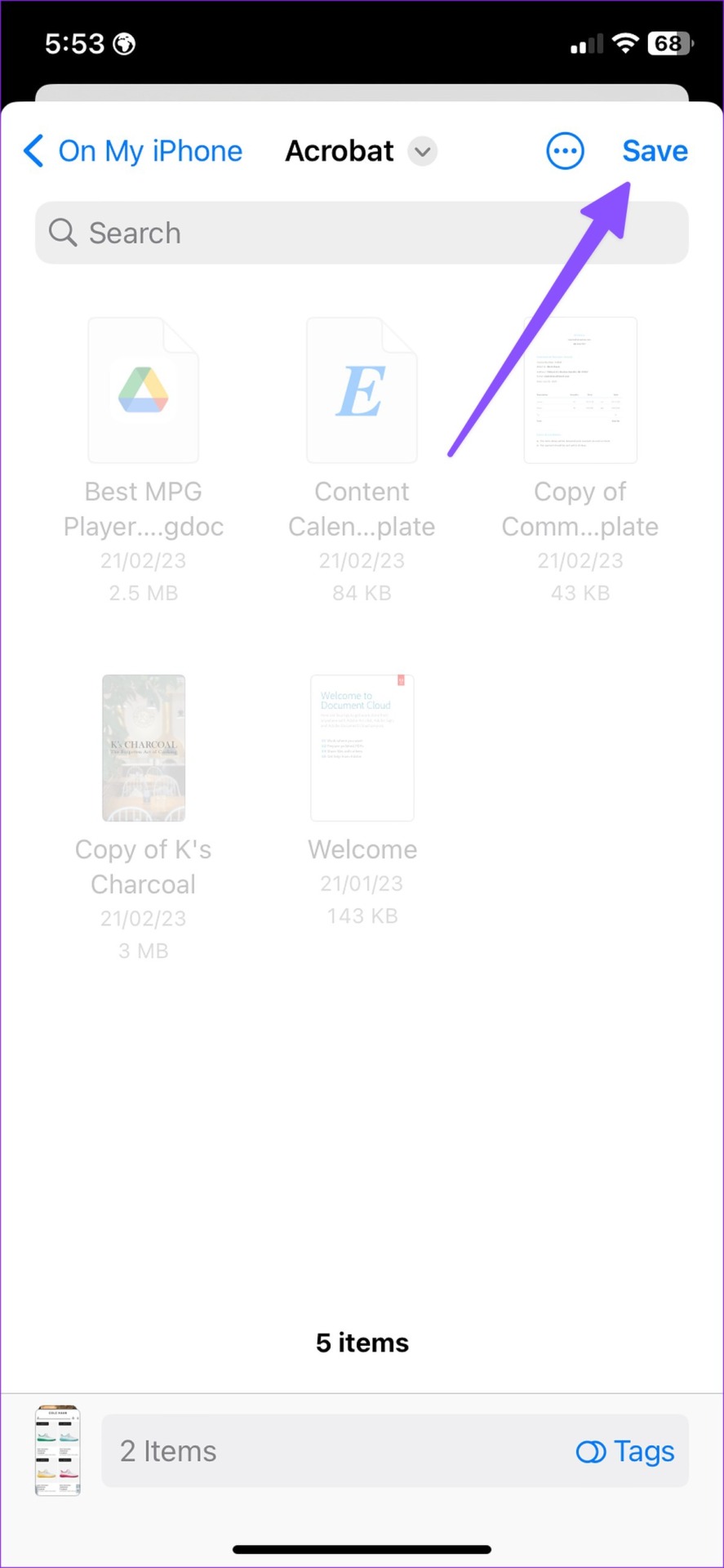
Step 2: Select Save to Files > pick a relevant destination folder > hit Save.

Step 3: Launch WhatsApp on your iPhone and open a conversation.
Step 4: Tap the + icon beside the message box > select Document.
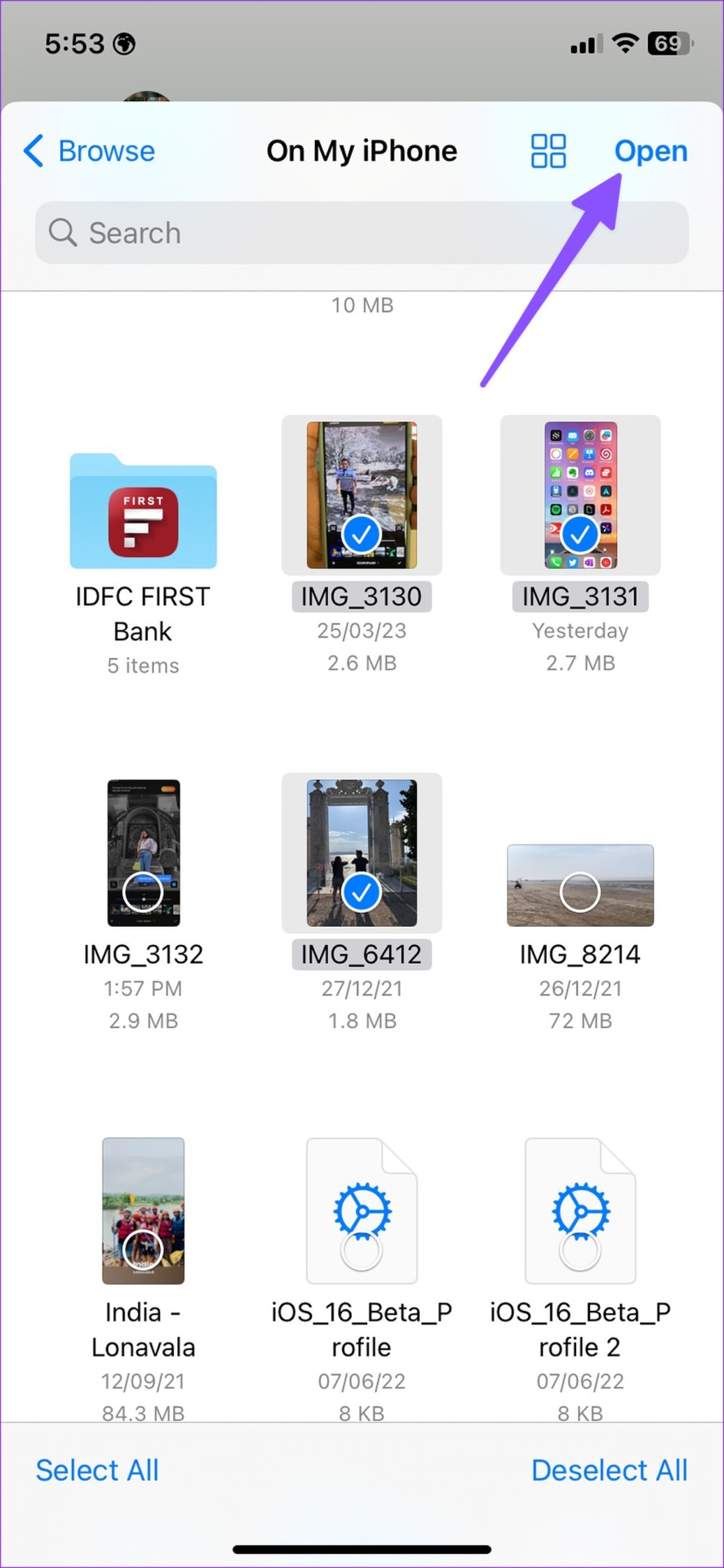
Step 5: Tap the radio button below the images you want to send. Select Open > Send.

On Telegram
Step 1: Launch the Telegram app on your iPhone > select a conversation.
Step 2: Tap the pin icon beside a message box > select File.


Step 3: Tap Select from Gallery.
Step 4: Select the photos to send to the platform. Then, hit Send at the bottom-right corner.
Telegram will share all the pictures in original quality. WhatsApp and Telegram let you send files up to 2GB, which is sufficient for all your photos.
You can also use Messager to send multiple photos from iPhone to Android. If you run into any issues, read our dedicated post to fix the Facebook Messenger not sending pictures.
2. Use Cloud Storage Apps to Send Multiple Photos
Although several cloud storage apps exist on iPhones, we prefer Google Drive due to its excellent cross-platform availability and seamless sharing. It comes with 15GB of free space, and you can unlock up to 2TB of space by subscribing to one of the Google One plans.
Step 1: Download the Google Drive app on your iPhone.
Step 2: Launch the Google Drive app > tap on the Plus icon at the bottom-right corner > select Folder.


Step 3: Name it > tap Create.
Step 4: Open the Folder > tap the Plus icon > select Upload.


Step 5: Open Photos and Videos.
Step 6: Select photos you want to share > hit Upload.
Step 7: After the upload process is complete, tap the three horizontal dots menu beside the folder name > select Copy link.
Step 8: You can send the link via WhatsApp or email. The recipient can open the link in Google Drive and view content.
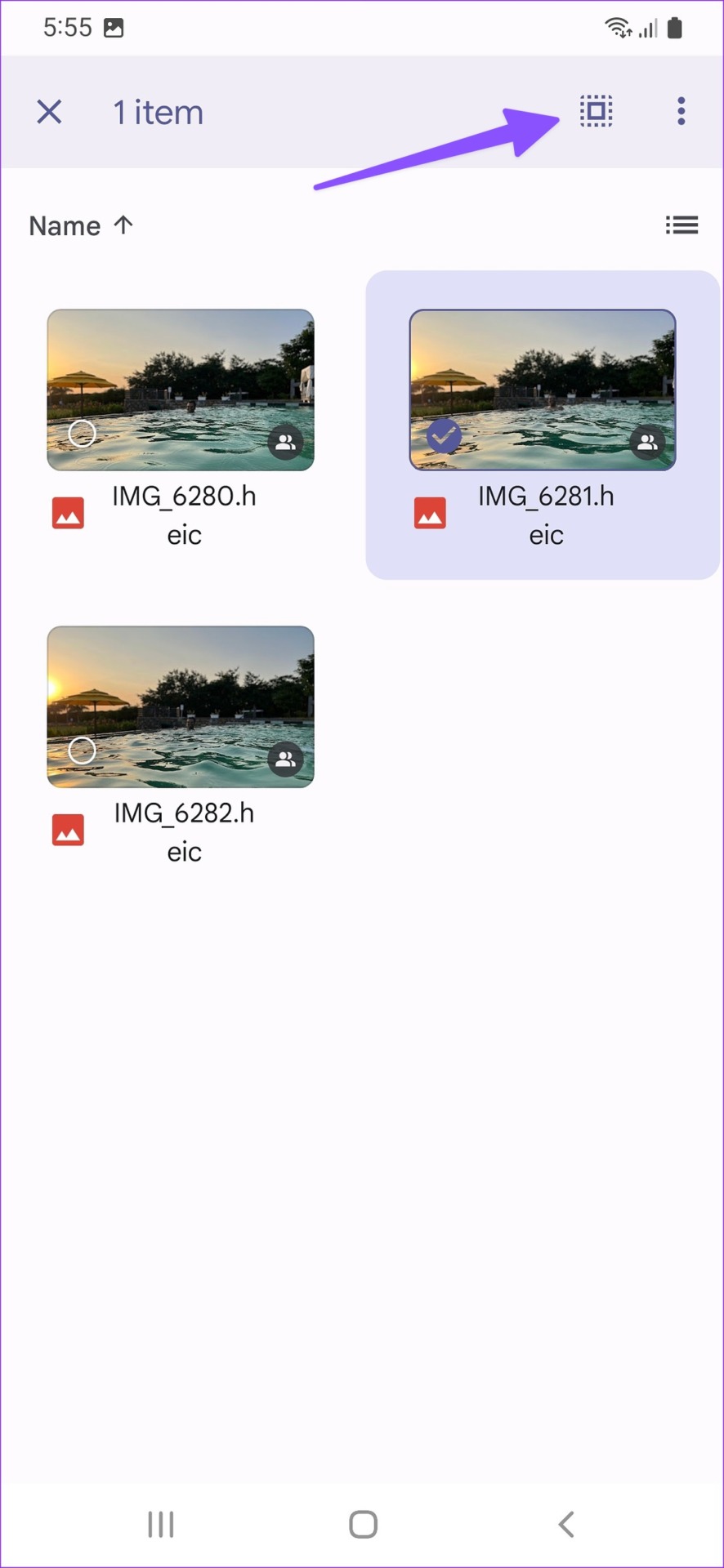
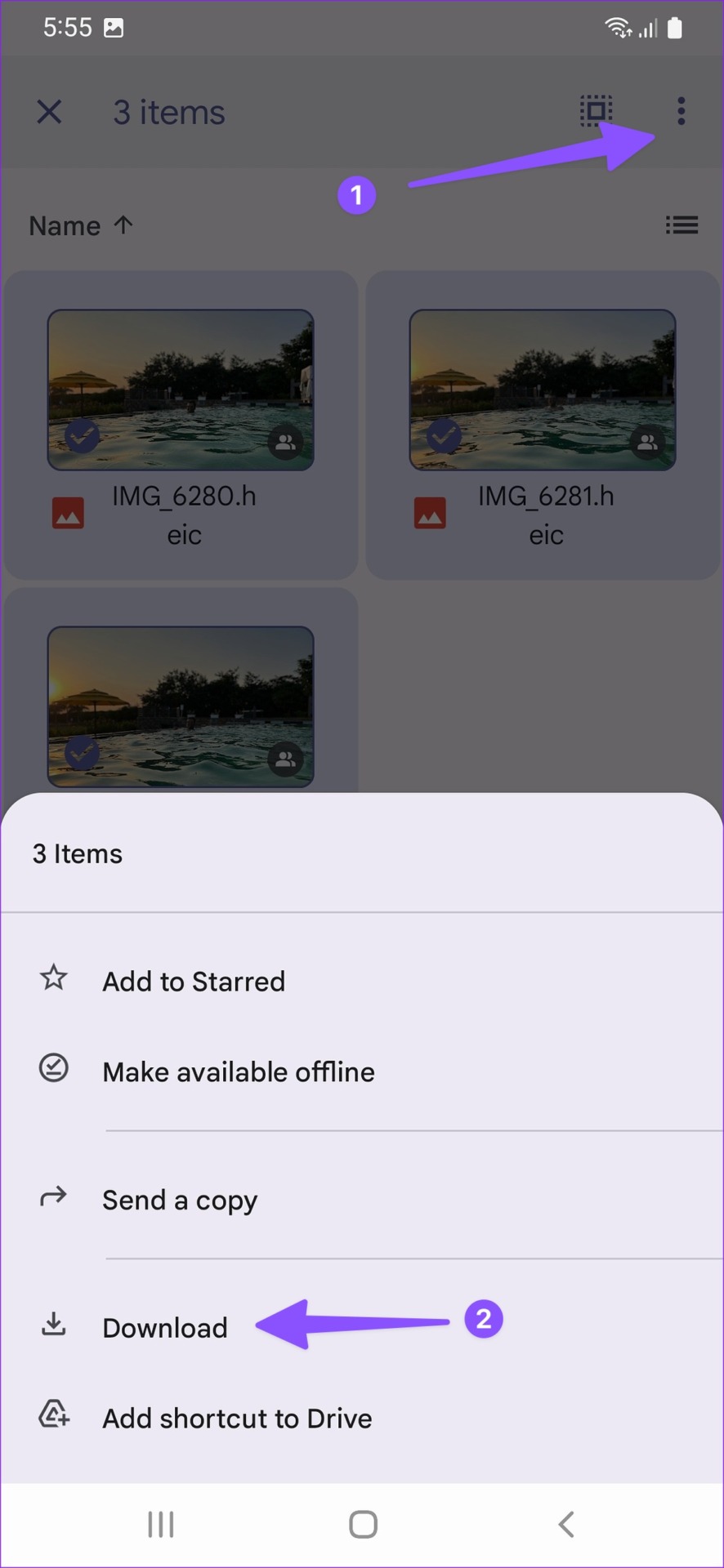
Step 9: The user can long-press to select all images. To do so, tap the three vertical dots menu at the top-right corner.
Step 10: Select Download > save the shared photos on your Android phone.
Google Drive comes by default on all Android smartphones and tablets.
Method 3: Use Shared Albums in Google Photos
Google Photos lets you create a shared album. As the name suggests, you can add someone to that album to give access to all photos and videos. In this case, you can add your email account to the shared album that can be accessed using the Google Photos app on your Android phone.
Step 1: Open the Google Photos app on your iPhone and select all photos or videos you want to share.
Step 2: Tap on Add > choose Shared Album.


Step 3: Name your Shared Album. Then, tap on Share at the top-right corner > select Invite People to add your email address used for Google Photos.


You can now open the same folder in Google Photos on your Android phone and download the files.
Method 4: Connect iPhone to PC and Transfer to Android
Lastly, you can connect your iPhone to a Windows PC using a USB cable. You can transfer all photos from the DCIM folder to your Windows PC. Then, connect your Android phone and transfer photos from that folder to your Android phone. Ensure to use the official cable for your iPhone and Android phone.
Tip: You can read our post to send pictures from Android to iPhone.
Was this helpful?
Last updated on 26 July, 2024
Read Next
 5 Ways to Send Multiple Photos From iPhone
1.
5 Ways to Send Multiple Photos From iPhone
1.
 How to Send Multiple Photos on WhatsApp for iPhone and Android
It’s sufficient to say that IM (instant messaging) platforms like WhatsApp and Messenger have become the preferred way to send or receive media files.
How to Send Multiple Photos on WhatsApp for iPhone and Android
It’s sufficient to say that IM (instant messaging) platforms like WhatsApp and Messenger have become the preferred way to send or receive media files.
 3 Ways to Send Multiple Photos From Samsung Galaxy Phones
Method 1: Use Quick Share Samsung’s Quick Share, inspired by AirDrop on Apple devices, provides a fast way to share media files between nearby Android and Windows devices.
3 Ways to Send Multiple Photos From Samsung Galaxy Phones
Method 1: Use Quick Share Samsung’s Quick Share, inspired by AirDrop on Apple devices, provides a fast way to share media files between nearby Android and Windows devices.
 3 Ways to Fix Unable to Send Multiple Documents on WhatsApp on Android
Basic Fixes: Check document size: WhatsApp allows you to send documents only up to 2GB.
3 Ways to Fix Unable to Send Multiple Documents on WhatsApp on Android
Basic Fixes: Check document size: WhatsApp allows you to send documents only up to 2GB.
 4 Ways to Send WhatsApp Messages to Multiple Contacts
Method 1: Forward a Message on WhatsApp Step 1: Open a conversation on WhatsApp.
4 Ways to Send WhatsApp Messages to Multiple Contacts
Method 1: Forward a Message on WhatsApp Step 1: Open a conversation on WhatsApp.
 4 Ways to Send Photos as Documents on WhatsApp Using iPhone
If you have recently started using WhatsApp on your iPhone, sending photos as documents can seem slightly more challenging than on Android, but worry not.
4 Ways to Send Photos as Documents on WhatsApp Using iPhone
If you have recently started using WhatsApp on your iPhone, sending photos as documents can seem slightly more challenging than on Android, but worry not.
 How to Send Live Photos as GIFs on WhatsApp
Method 1.
How to Send Live Photos as GIFs on WhatsApp
Method 1.
 How to Add Camera Roll Photos (Multiple) to Snapchat Story
How to Add Photos to Your Snapchat Story Before we get started on adding multiple pictures from your camera roll, let us quickly look at how to add a single
How to Add Camera Roll Photos (Multiple) to Snapchat Story
How to Add Photos to Your Snapchat Story Before we get started on adding multiple pictures from your camera roll, let us quickly look at how to add a single
The article above may contain affiliate links which help support Guiding Tech. The content remains unbiased and authentic and will never affect our editorial integrity.