Method 1: See Someone’s Birthday on Snapchat Using the Chat Window
One of the easiest ways to find birthdays on Snapchat is by using the Chat window. For all the friends who have their birthday details available, a birthday cake emoji will be displayed in front of their name every year on their set birth date. Their avatar, if set, will also reflect this day of celebration. Here’s how to see it.
Step 1: Open the Snapchat app > tap on the Chat icon in the menu options.
Step 2: Then, scroll through the chat window and check if the cake emoji is visible.
Tip: You can also check your friend’s avatar. If there’s confetti visible in it, chances are today is their birthday.

Also Read: How to record hands-free on Snapchat
Method 2: Use the Profile Page to Check Upcoming Birthdays on Snapchat
If your friend has set their birthday on Snapchat, you can find the date on your friend’s profile. Additionally, tapping on someone’s birth date also opens a separate birthday window that will display the list of upcoming birthdays on Snapchat. Here’s how to do it.
Step 1: Open Snapchat > tap on the Chat icon. Here, tap on the friend whose birthday you wish to check.
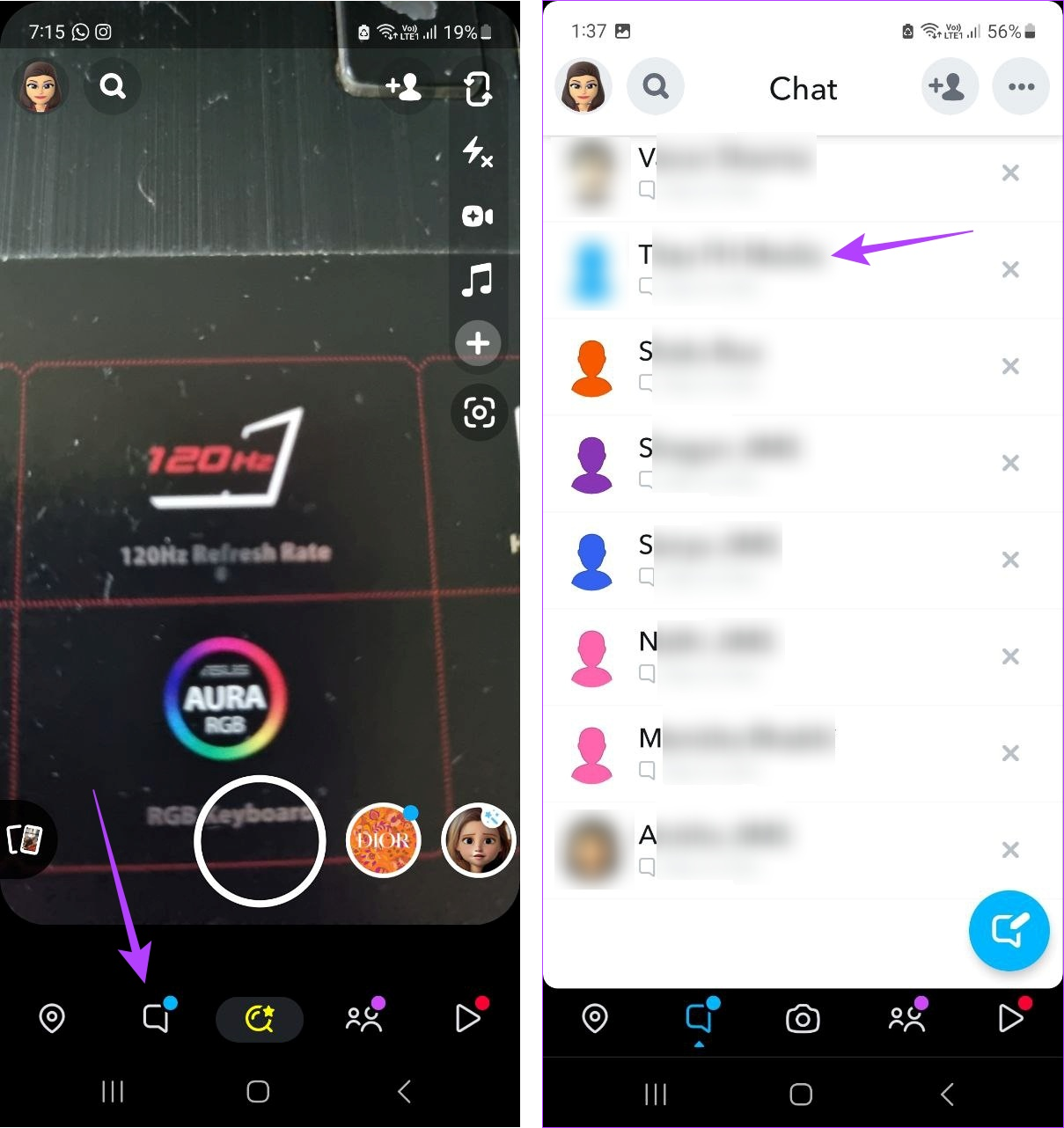
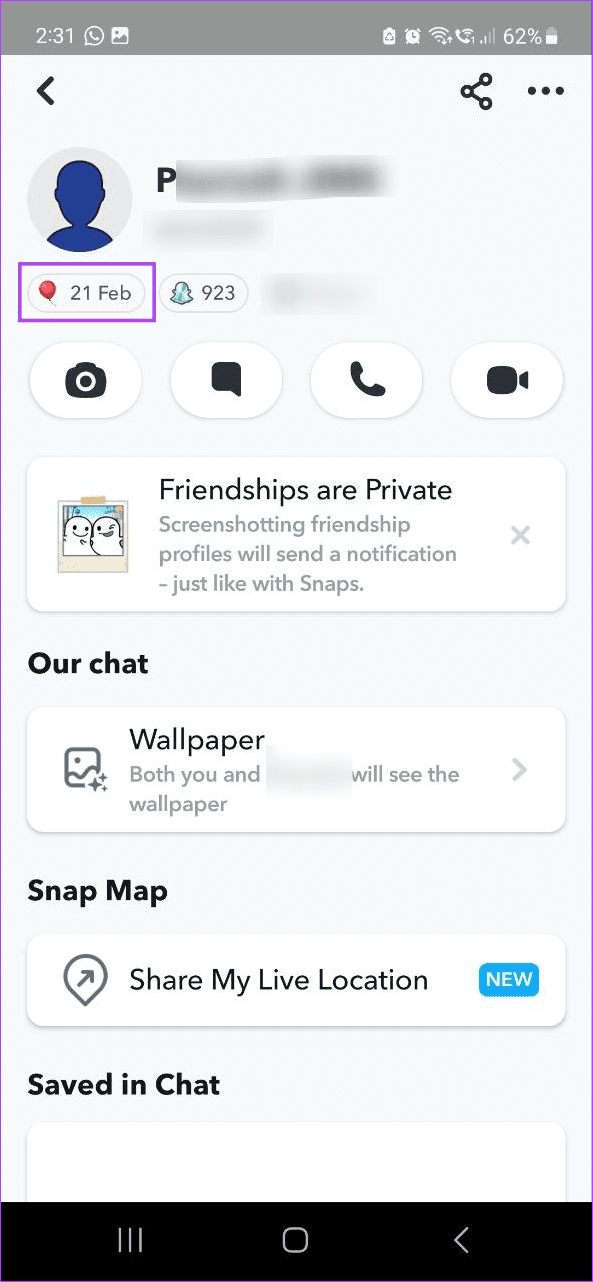
Step 2: Tap on their username and check their birthday. Or, to check for any upcoming birthdays, tap on your friend’s birth date.
Step 3: Then, go to the Upcoming Birthdays section to see the top 3 upcoming birthdays, or scroll through the page to see any previous or upcoming birthdays.
Tip: Use the Search bar to look for any specific friend and check their birthday on Snapchat.


Bonus: Add Birthday to Your Snapchat Profile
Besides seeing others’ birthdays, you can also add your birthday on Snapchat. This will let others see when to wish you on your special day. Note that Snapchat will not display your age or birth year. Follow the below steps to change or set your birthday on Snapchat.
Step 1: Open Snapchat and tap on your bitmoji icon at the top left corner. Then, tap on the cogwheel icon.

Step 2: Here, tap on Birthday and check the Birthday Party option to make your birthday visible to others.
Note: On the Snapchat iOS app, you might need to turn on the toggle for Birthday Party.
Step 3: Then, tap on your birthday. If you’re adding your birthday for the first time, tap on the empty space and use the day, month, and year sliders to scroll through the dates.
Step 4: Once your birth date appears, tap on Continue.


FAQs
You can only change your birthday a limited number of times. So, if you can’t find the option to change your current birth date, you may have already used all your chances to change it. Additionally, if you have initially set yourself over 18 years, you cannot change it to make your age under 18 years.
Birthdays on Snapchat are unavailable by default. This means that if you can’t see someone’s birthday, there’s a good chance they might not have added it to Snapchat or blocked you on Snapchat.
Unfortunately, the Birthday Minis feature on Snapchat is no longer available. So, you can’t use Snapchat Minis to find birthdays on Snapchat.
While there are no special stickers per se, you might be able to find some custom stickers on the day of your friend’s birthday. Once you’ve confirmed that it is indeed your friend’s birthday using any of the abovementioned ways, open their chat window and tap on the sticker visible next to the chat box. Here, scroll through the list of stickers.
Was this helpful?
Last updated on 16 May, 2024
Read Next
 2 Easy Ways to Add Birthdays to Google Calendar
Method 1: Import Birthdays From Google Contacts On Android Step 1: Open the Google Contacts app on your Android phone.
2 Easy Ways to Add Birthdays to Google Calendar
Method 1: Import Birthdays From Google Contacts On Android Step 1: Open the Google Contacts app on your Android phone.
 How to Fix Birthdays Not Showing up in iPhone Calendar
Basic Fixes Force quit and relaunch the app: This will give the app a fresh start and reload it entirely on your iPhone.
How to Fix Birthdays Not Showing up in iPhone Calendar
Basic Fixes Force quit and relaunch the app: This will give the app a fresh start and reload it entirely on your iPhone.
 How to Add and See Birthdays on iPhone Calendar
Birthdays are always a special milestone in everyone's lives.
How to Add and See Birthdays on iPhone Calendar
Birthdays are always a special milestone in everyone's lives.
 4 Ways to Fix Snapchat Not Backing Up Memories on Android and iPhone
Try Basic Fixes Check if Snapchat is down: Server-side issues could prevent some Snapchat features from working.
4 Ways to Fix Snapchat Not Backing Up Memories on Android and iPhone
Try Basic Fixes Check if Snapchat is down: Server-side issues could prevent some Snapchat features from working.
 3 Fixes for Snapchat Won’t Let Me Export Snaps to Phone
https://youtu.be/D3Y6bZgaodI Try Basic Fixes Check if Snapchat is down: Even popular services like Snapchat can experience server outages at times.
3 Fixes for Snapchat Won’t Let Me Export Snaps to Phone
https://youtu.be/D3Y6bZgaodI Try Basic Fixes Check if Snapchat is down: Even popular services like Snapchat can experience server outages at times.
 How to Delete Friends on Snapchat: 2 Quick Ways
Are you looking to tidy up your Snapchat friend list, or are there specific friends you no longer want to connect with?
How to Delete Friends on Snapchat: 2 Quick Ways
Are you looking to tidy up your Snapchat friend list, or are there specific friends you no longer want to connect with?
 Can You Remove Yourself From a Private Story on Snapchat
In order to ensure your snaps remain private, users can create private stories on Snapchat.
Can You Remove Yourself From a Private Story on Snapchat
In order to ensure your snaps remain private, users can create private stories on Snapchat.
 How to Add Camera Roll Photos (Multiple) to Snapchat Story
How to Add Photos to Your Snapchat Story Before we get started on adding multiple pictures from your camera roll, let us quickly look at how to add a single
How to Add Camera Roll Photos (Multiple) to Snapchat Story
How to Add Photos to Your Snapchat Story Before we get started on adding multiple pictures from your camera roll, let us quickly look at how to add a single
The article above may contain affiliate links which help support Guiding Tech. The content remains unbiased and authentic and will never affect our editorial integrity.