Method 1: Using Built-in Power Scheduler
The power scheduling feature was built into the Mac. However, with macOS Ventura, Apple removed the Energy Saver option, letting you schedule wake, sleep, startup, and shutdown.
So, if you are running Mac on Monterey or earlier, follow the below steps, and if you are running macOS Ventura, move to the next method.
Step 1: Click on the Apple logo, and select System Preferences.
Step 2: Go to Energy Saver.

Step 3: Select the Schedule option.
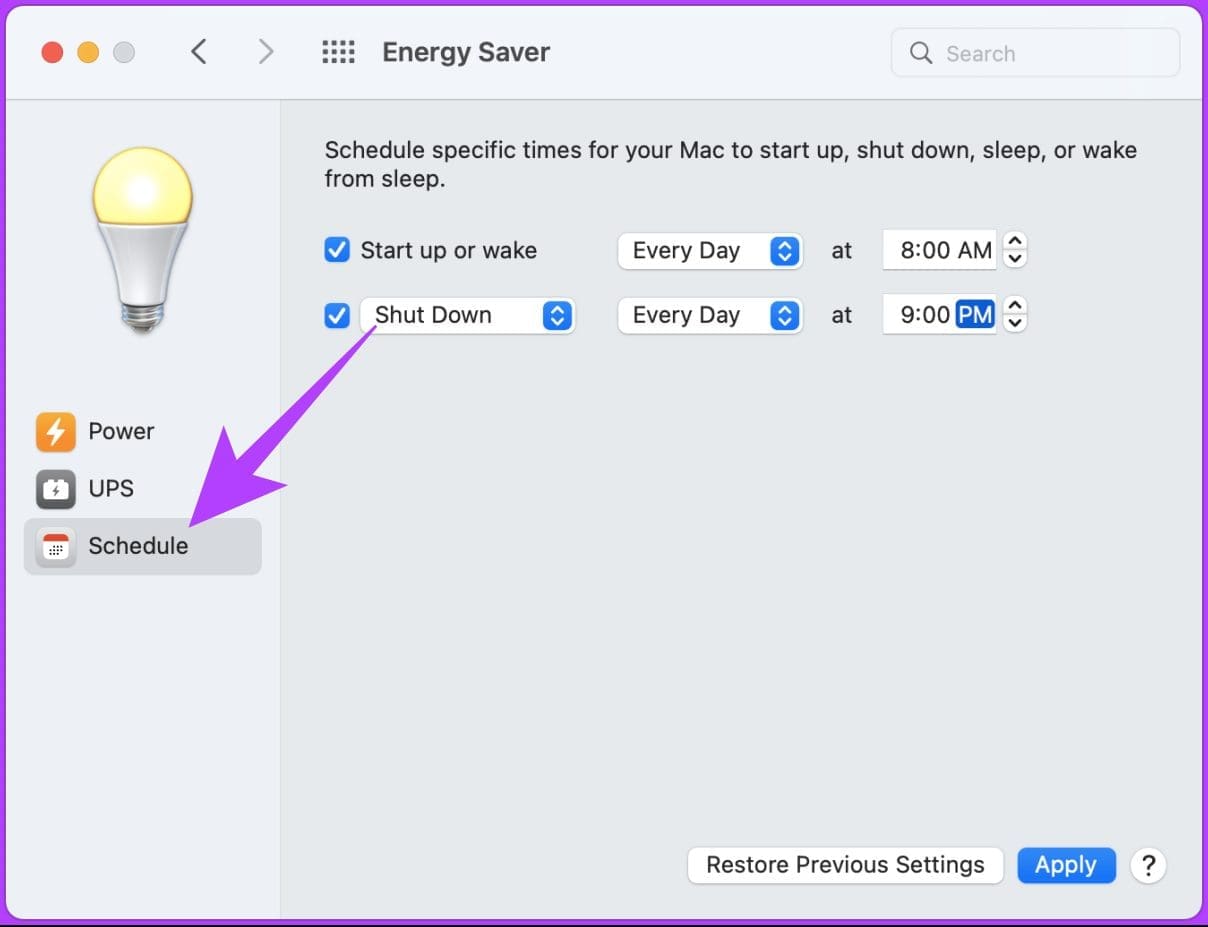
Step 4: Specify the day, time, and action to be executed.
Step 5: Finally, click Apply.

That’s it. You have successfully scheduled your Mac to shut down at a specified time. If you feel that the steps are too long to follow, there are some handy applications such as Timer Clock (paid) and Almighty- Powerful tweaks (freemium) that get the job done relatively easily.
That said, if you are on macOS Ventura or want to execute the same without touching the Energy Saver option, move to the next method.
Method 2: Using Terminal
Step 1: Press the Command + Space key, type Terminal, and press the Return key.
Step 2: Type the below command and press Return.
sudo shutdown -h +30
Note: -h lets you set a timer, while +30 is the number of minutes after which your Mac will shut down. You can add any number of hours, but make sure you convert it to minutes.
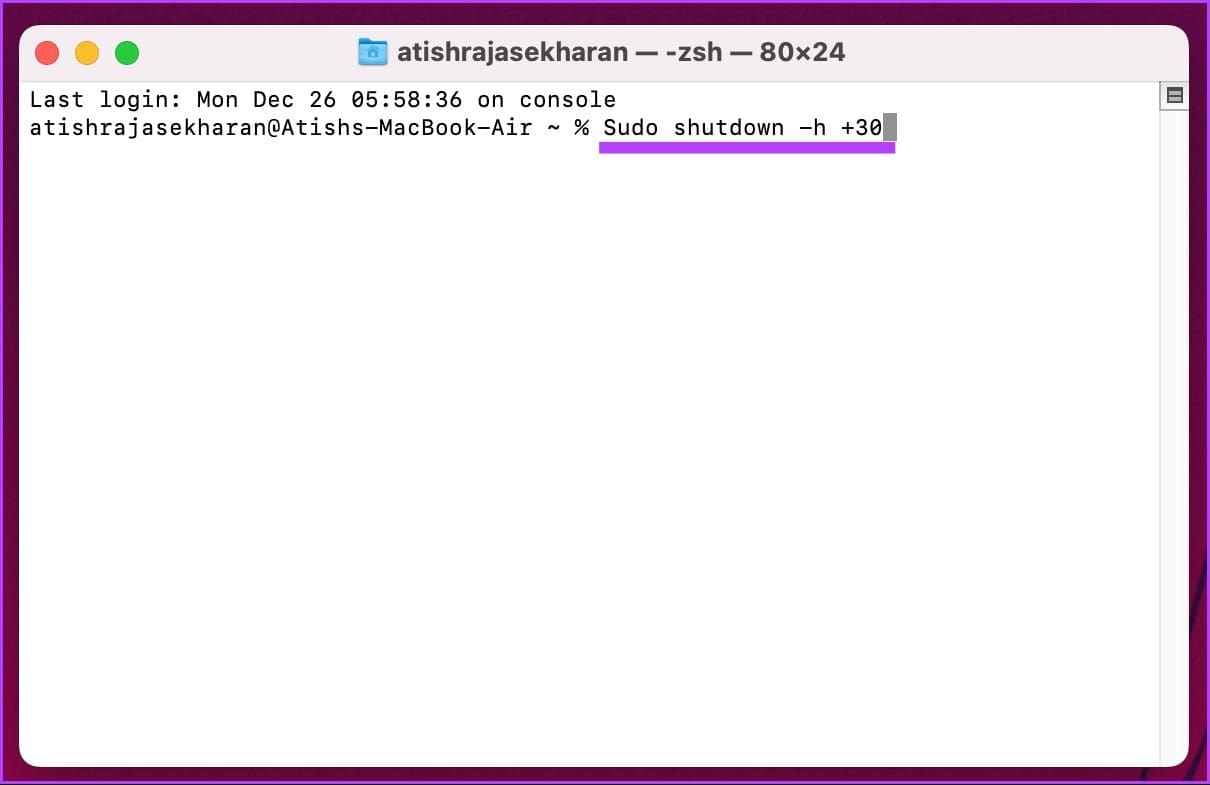
Step 3: Enter your user password for authentication and press Return.
Note: When you type your password it won’t be displayed.

There you have it. The terminal will acknowledge and set your shutdown timer if you have done everything right.

It will also assign the process with a process ID (PID) number. Note the ID number as it will be useful when disabling the shutdown timer. If the steps are too complicated for you, there are third-party apps that will ease up the process. Keep reading.
Method 3: Creating a Desktop Shortcut
Step 1: Press the Command + Space key, type TextEdit, and press the Return key.
Step 2: Click on New Document.
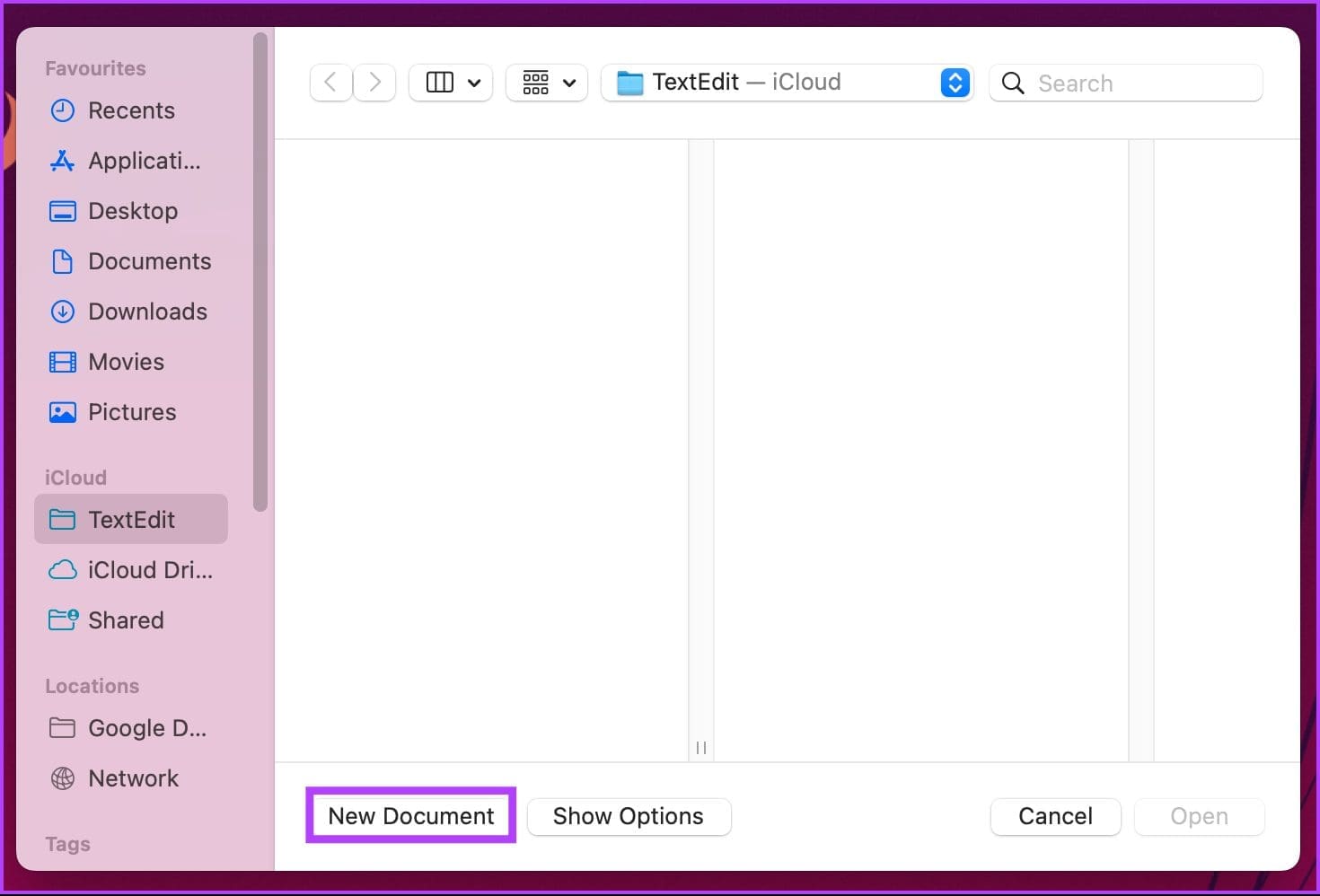
It will open a blank text document into view.
Step 3: Press Command+Shift+T to access the plaintext field.

Step 4: Type the below command and press the Return key twice.
#!/bin/bash

Step 5: Type the below command.
sudo shutdown -h +30
Note: -h lets you set a timer, while +30 is the number of minutes after which your Mac will shut down. You can add any number of hours, but make sure you convert it to minutes.

Step 6: Finally, press Command+S to save the file with a simple name and destination (preferred Desktop). Uncheck the If no extension is provided, use .”txt”. options and click on Save.

Now, to make the file executable, continue following the steps below.
Step 7: Press the Command + Space key, type Terminal, and press the Return key.
Step 8: Drag and drop the .txt file you created onto the Terminal and press Return.

The terminal will auto-fetch the file location for you to quickly execute.

Step 9: Enter your user password and press Return.
Note: When you type your password, it won’t be displayed.

After which, the shutdown timer will begin, and your Mac will shut down after the set time.

Now that you know how to enable a shutdown timer, it is equally important to know how to disable it. Continue reading.
How to Disable a Shutdown Timer on Mac
Turning off the shutdown timer is easy and only involves a few steps. All you have to do is kill the Process ID (PID). Follow the steps below.
Step 1: Press the Command + Space, type Terminal, and press the Return key.
Step 2: Type the below command and press Return.
sudo kill [pid number]
Note: If you don’t remember the PID number, type sudo killall shutdown. It will disable all the active shutdown timers on your Mac.

Step 3: Enter your user password and press Return.
Note: When you type your password, it won’t be displayed.

There you have it. You have disabled a scheduled shutdown of your Mac. If you have any queries, check out the FAQ section below.
FAQs on Scheduled Shutdown on Mac
Leaving your Mac on for extended periods is generally not a problem as long as you are using it regularly and it is in good working condition.
Open Terminal > type sudo shutdown -h +60 > press Return > enter your user password (it won’t be displayed) > press Return again. There you go, you have scheduled a shutdown.
Yes, you can use the ‘pmset’ command in Terminal to set a timer for your Mac to sleep. However, you will need to have administrator privileges to use the pmset command.
Step 1: Open Terminal
Step 2: Type the command sudo pmset sleep [time]
Replace [time] with the number of seconds you want to set the timer for.
Step 3: Enter your password when prompted and press Return.
To cancel the timer, follow the above steps and type sudo pmset sleep cancel. This will cancel the sleep timer and your Mac will stay awake.
Whether you want to set up a daily shutdown timer or a one-time event, the methods mentioned in this article will help you do it.
Was this helpful?
Last updated on 01 August, 2024
Read Next
 How to Set Shutdown Timer in Windows 11
Method 1: Set Auto Shutdown Using Task Scheduler Task Scheduler is a built-in Windows OS app that can be used to schedule different chores.
How to Set Shutdown Timer in Windows 11
Method 1: Set Auto Shutdown Using Task Scheduler Task Scheduler is a built-in Windows OS app that can be used to schedule different chores.
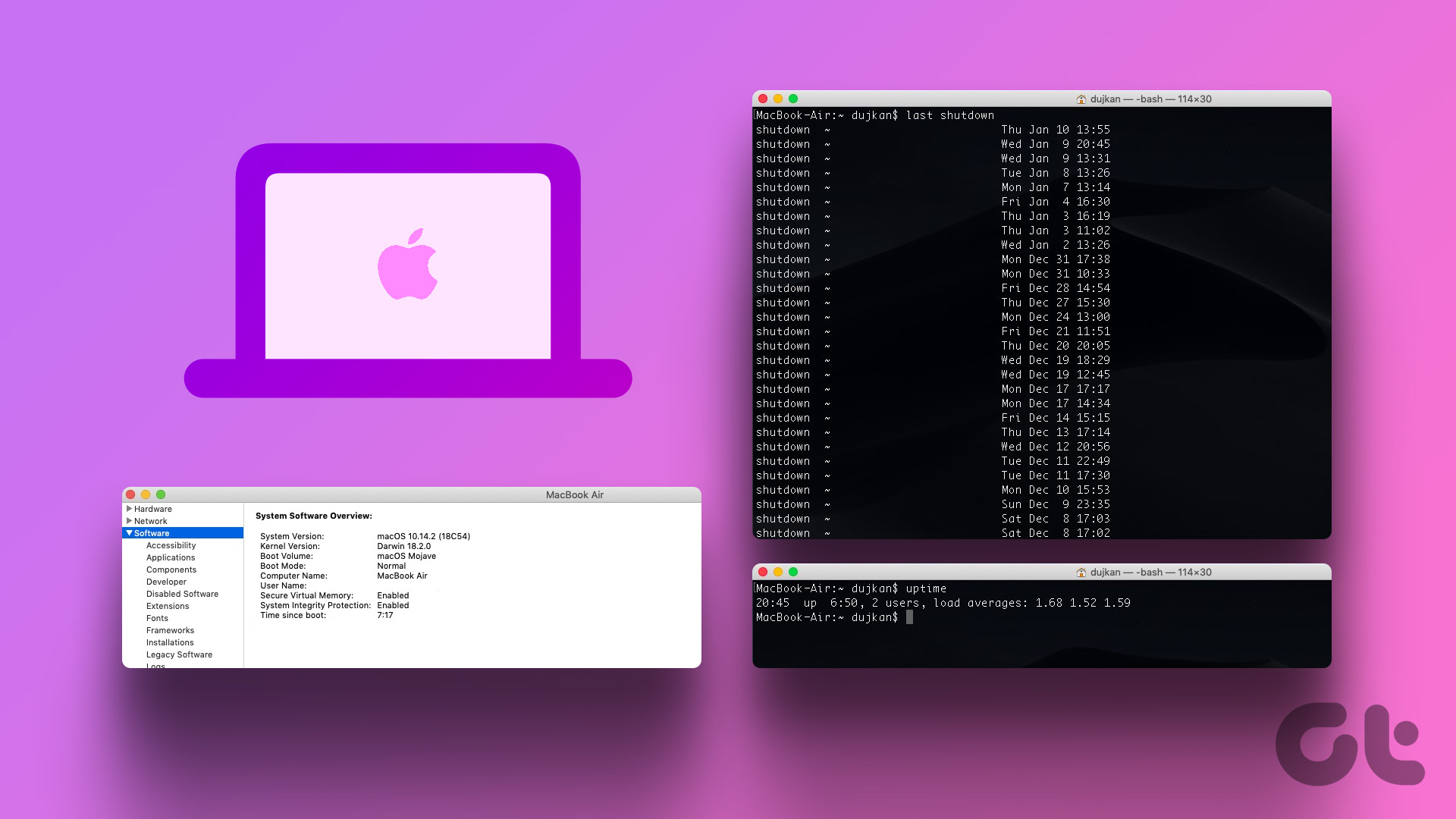 How to Check Your Mac’s Uptime, Reboot and Shutdown History
Are you curious to find out how often your Mac has been rebooted or shut down?
How to Check Your Mac’s Uptime, Reboot and Shutdown History
Are you curious to find out how often your Mac has been rebooted or shut down?
 4 Best Ways to Fix Windows PC Not Turning Off After Shutdown
Fix 1: Disable Fast Startup Fast Startup is a useful feature that puts your computer into a hibernation state rather than a full shutdown.
4 Best Ways to Fix Windows PC Not Turning Off After Shutdown
Fix 1: Disable Fast Startup Fast Startup is a useful feature that puts your computer into a hibernation state rather than a full shutdown.
 Top 4 Fixes for Windows 10 PC Automatically Restarting After Shutdown
Power-related failures on Windows PC come in different forms.
Top 4 Fixes for Windows 10 PC Automatically Restarting After Shutdown
Power-related failures on Windows PC come in different forms.
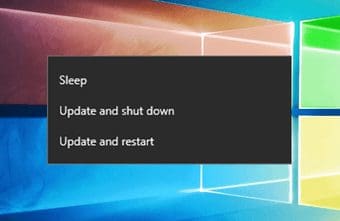 How to Fix Windows 10 Asking to Update and Shutdown Every Time Issue
If bandwidth isn't a factor, then Windows 10 offers a super-convenient way to stay updated with minimal involvement on your part.
How to Fix Windows 10 Asking to Update and Shutdown Every Time Issue
If bandwidth isn't a factor, then Windows 10 offers a super-convenient way to stay updated with minimal involvement on your part.
 How to Set Up YouTube Music Sleep Timer on iPhone, Android, Windows, or Mac
Put a Timer on YouTube Music App for iPhone or Android Notably, the sleep mode on YouTube Music is only available on the app.
How to Set Up YouTube Music Sleep Timer on iPhone, Android, Windows, or Mac
Put a Timer on YouTube Music App for iPhone or Android Notably, the sleep mode on YouTube Music is only available on the app.
 3 Ways to Fix Spotify Sleep Timer Missing or Not Working
Basic Fixes Check Spotify server status: If Spotify is currently facing issues in the backend, it might cause issues with the app.
3 Ways to Fix Spotify Sleep Timer Missing or Not Working
Basic Fixes Check Spotify server status: If Spotify is currently facing issues in the backend, it might cause issues with the app.
 How to Add Timer to a Quiz in Google Forms
Google Forms is a versatile tool for creating surveys and quizzes.
How to Add Timer to a Quiz in Google Forms
Google Forms is a versatile tool for creating surveys and quizzes.
The article above may contain affiliate links which help support Guiding Tech. The content remains unbiased and authentic and will never affect our editorial integrity.