


On Google Photos
Here’s how you can download the motion photo as a video or GIF.
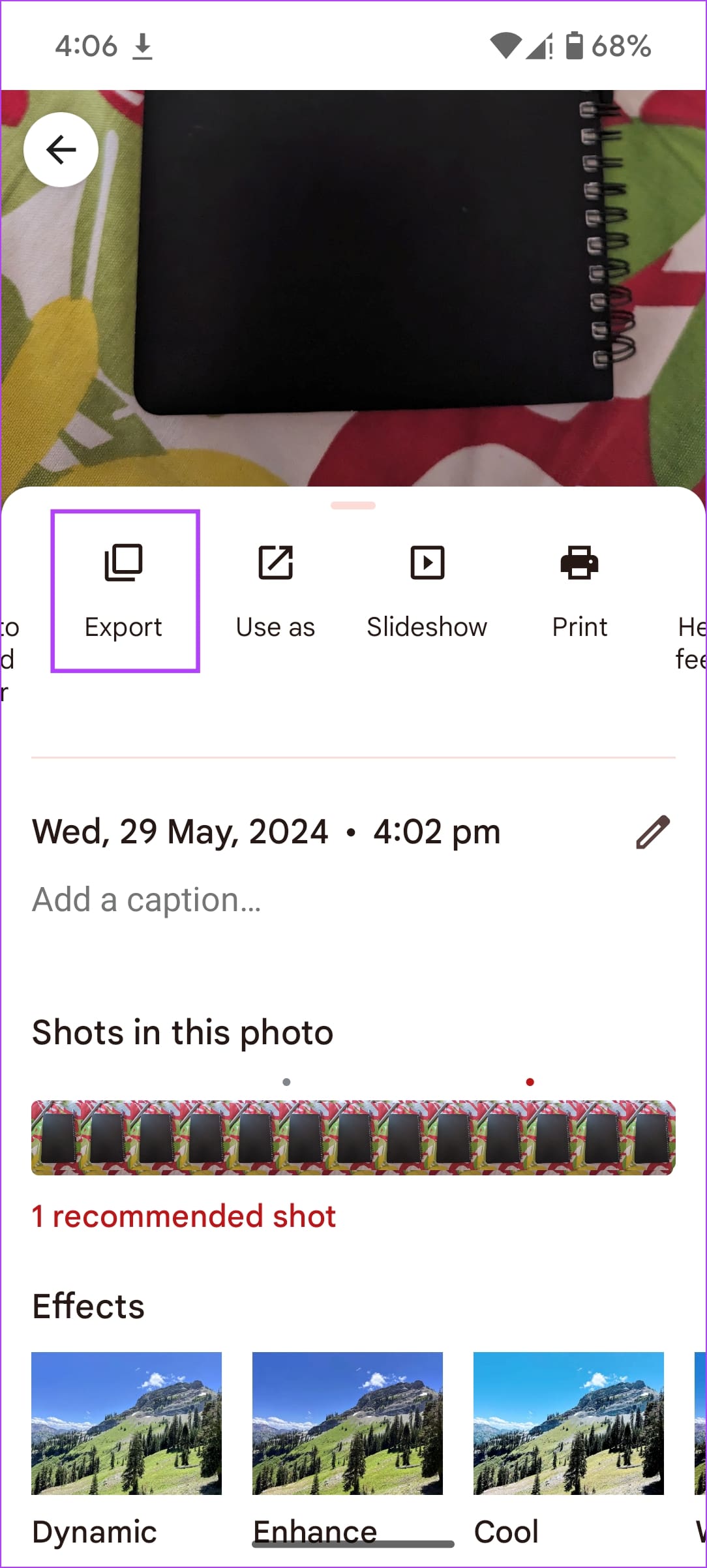
Step 1: Open the motion photo in Google Photos, and Swipe Up on it.
Step 2: Swipe left in the list of options, and select Export.
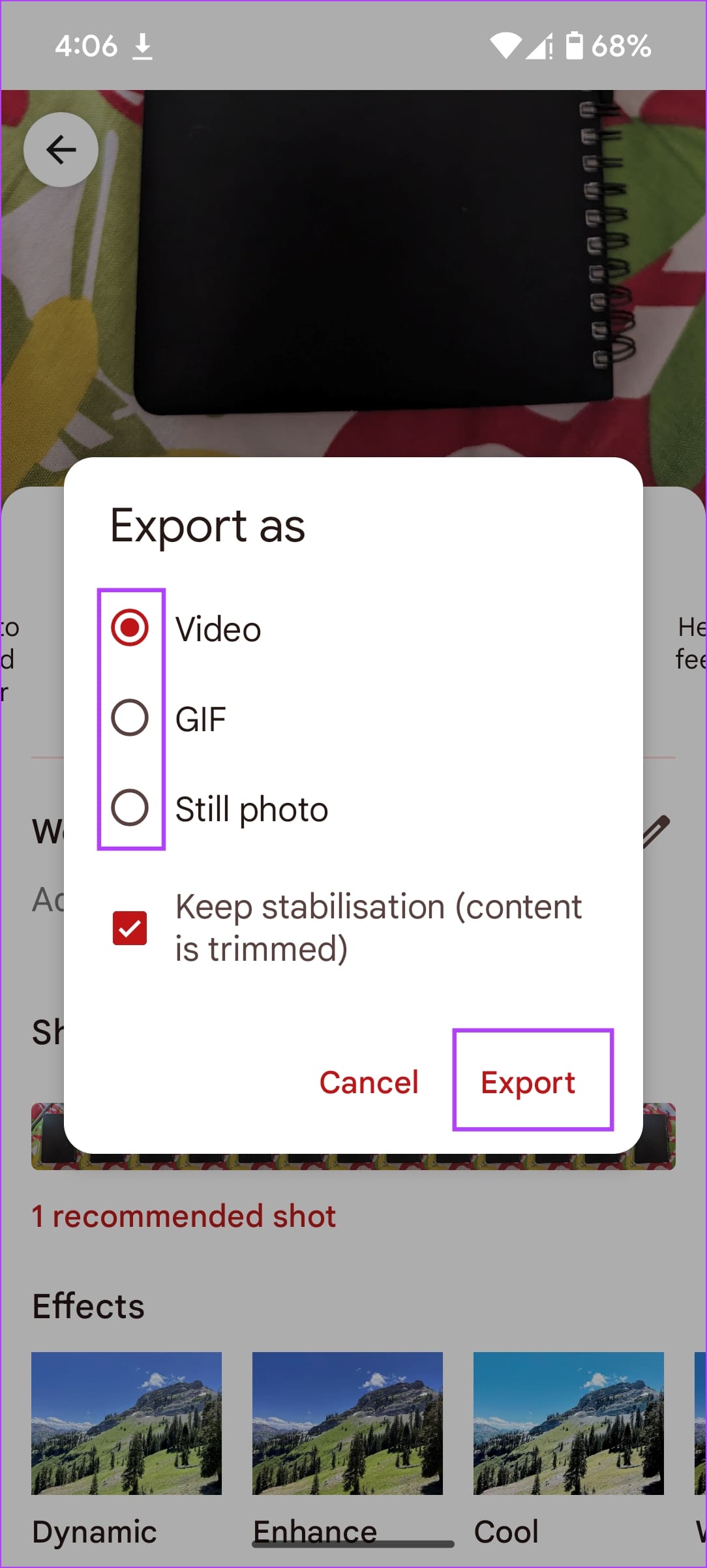
Step 3: Select a format of your choice and tap on Export. You can then share it using any social media app.

On Samsung Phones
Samsung Gallery app also offers the functionality of saving motion photos as videos or GIFs.
Step 1: Launch the Samsung Gallery app on your phone.
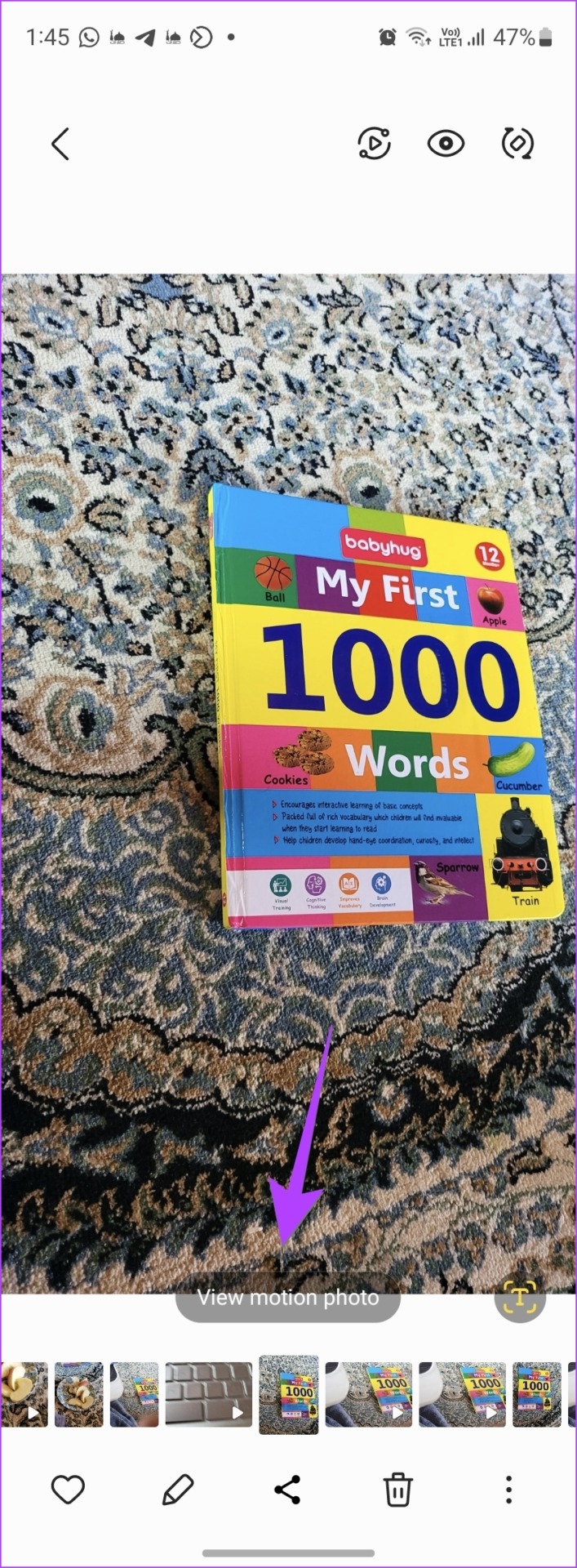
Step 2: Open the motion photo that you want to export as a video or GIF.
If you aren’t sure whether the photo is a motion photo, look for the ‘View motion photo’ button at the bottom. This indicates that the image is a motion photo.
Step 3: Tap on the three-dot icon at the bottom of the photo and select Export from the menu.

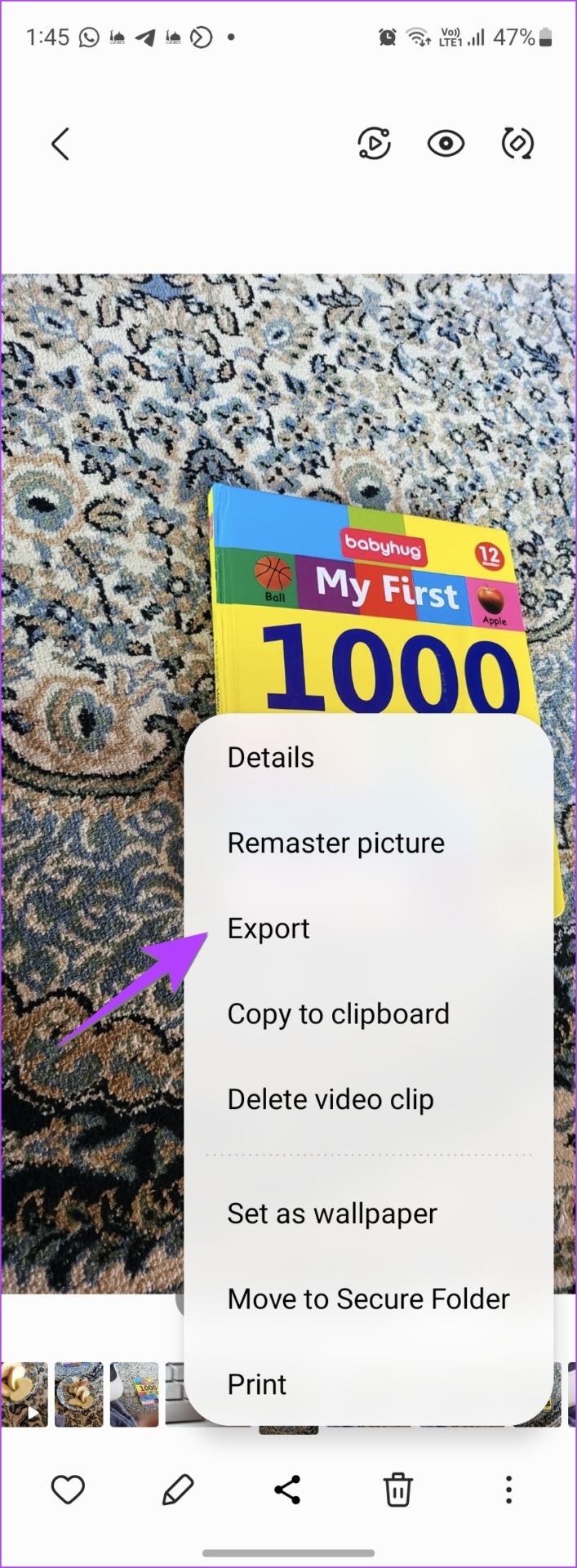
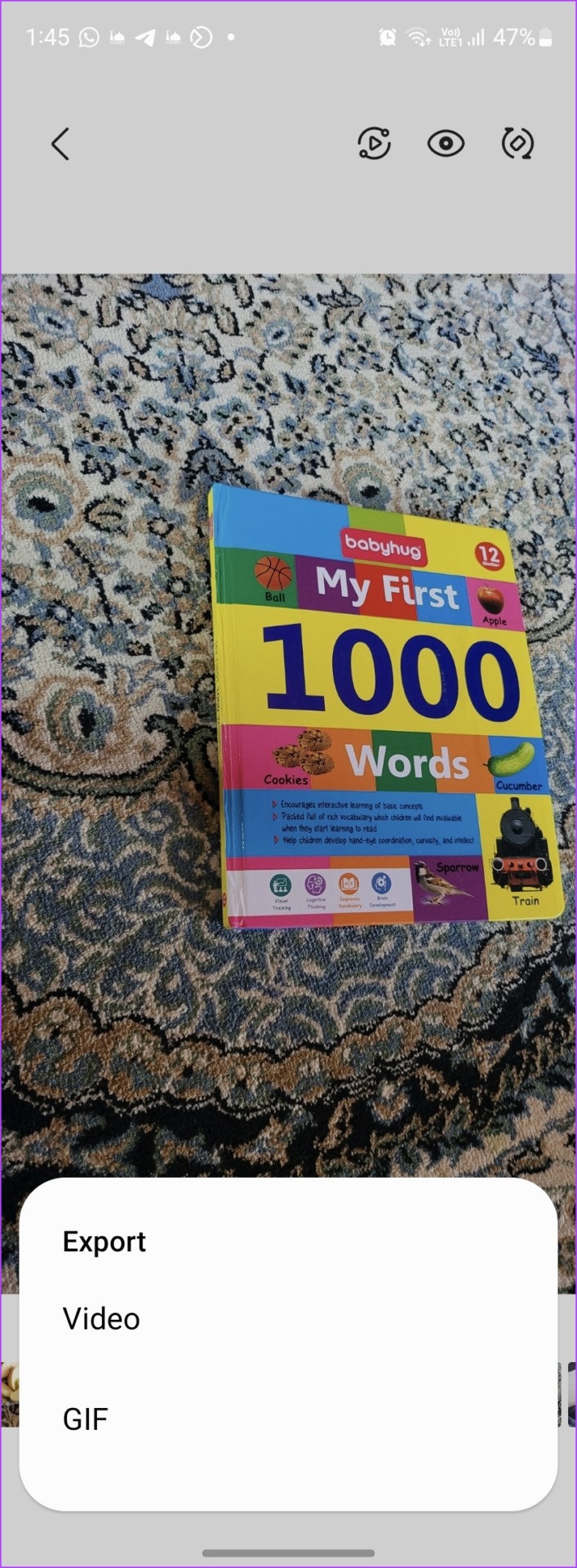
Step 4: You will get two options to export the motion photo: video or GIF. Choose the desired option to save it. Tapping on the Video option will immediately convert the motion photo and save the video on your phone. You will find it in the Gallery app.
Step 5: Tap on the GIF option to open the GIF customization screen. Here, you can select the length, speed, and playing mode of your GIF.
- Use the scrollbar at the bottom to trim or adjust the GIF length.
- Tap on the 1.0x speed option to increase or decrease the GIF speed.
- Tap on the arrow at the bottom to play the video in the forward direction, backward, or back and forth.
Step 6: Once you have customized the GIF, tap on Save at the top to download the GIF. Besides, tap on the Share button to send the motion photo as a GIF to your friends via any app.
Check out other ways to make a GIF on your Samsung Galaxy phone.


Also Read: How to fix Samsung Gallery not showing all pictures
Was this helpful?
Last updated on 23 July, 2024
1 Comment
Leave a Reply
Read Next
 4 Ways to Create a GIF on Samsung Galaxy Phones
Method 1: Create a GIF Using Photos Creating a GIF on your Samsung Galaxy phone is easiest if you use a bunch of images.
4 Ways to Create a GIF on Samsung Galaxy Phones
Method 1: Create a GIF Using Photos Creating a GIF on your Samsung Galaxy phone is easiest if you use a bunch of images.
 How to Fast Forward (and Rewind) Instagram Live Stories Video Replays
Fast-Forward an Instagram Live Story Video Replay Before we proceed, it is pertinent to state that you can only forward replays of live sessions/videos that users share on their stories.
How to Fast Forward (and Rewind) Instagram Live Stories Video Replays
Fast-Forward an Instagram Live Story Video Replay Before we proceed, it is pertinent to state that you can only forward replays of live sessions/videos that users share on their stories.
 How to Add Photo Cutout Sticker to Another Photo on iPhone
Method 1: Using Markup Editor In this method, first, you need to add the sticker to the sticker gallery.
How to Add Photo Cutout Sticker to Another Photo on iPhone
Method 1: Using Markup Editor In this method, first, you need to add the sticker to the sticker gallery.
 How to Comment a GIF On Instagram Posts
https://youtu.be/oRgXtG1K0ao Step 1: Tap on the comment button under a post.
How to Comment a GIF On Instagram Posts
https://youtu.be/oRgXtG1K0ao Step 1: Tap on the comment button under a post.
 How to Check File Format of a Photo or Video on iPhone
Method 1: Using the Info Option in the Files App The Files app on your iPhone gives you ready access to files stored in iCloud Drive and other third-party cloud
How to Check File Format of a Photo or Video on iPhone
Method 1: Using the Info Option in the Files App The Files app on your iPhone gives you ready access to files stored in iCloud Drive and other third-party cloud
 4 Ways to Fix Unable to Load Video or Photo Error on iPhone
Basic Fixes Turn off Low Power Mode: Unless your iPhone is running really low on battery, it's best to turn off Low Power Mode since it limits background activities like
4 Ways to Fix Unable to Load Video or Photo Error on iPhone
Basic Fixes Turn off Low Power Mode: Unless your iPhone is running really low on battery, it's best to turn off Low Power Mode since it limits background activities like
 6 Best Mice for Photo and Video Editing
When it comes to photo and video editing, having the right tools can make all the difference.
6 Best Mice for Photo and Video Editing
When it comes to photo and video editing, having the right tools can make all the difference.
 5 Ways to Fix Live Location Not Updating on Android and iPhone
Fix 1: Ensure Location Services Are Enabled Enabling location services on your phone is the most basic step before you can share your live location.
5 Ways to Fix Live Location Not Updating on Android and iPhone
Fix 1: Ensure Location Services Are Enabled Enabling location services on your phone is the most basic step before you can share your live location.
The article above may contain affiliate links which help support Guiding Tech. The content remains unbiased and authentic and will never affect our editorial integrity.


Thanks for the information, but on my Android phone I couldn’t see the play icon on the top of the phone, the play Icon is not show what can I do next