Microsoft Word is the top choice for Windows users for reports, articles, drafting emails, and so much more. If you’ve ever experienced the pain of accidentally deleting a Word document, you’re not alone. Thankfully, it’s easier than you might think to retrieve a deleted Word document. Most deleted files sit in the Recycle Bin before permanent deletion, and there’s also a handy AutoRecover function in Word that can help.
Read on to discover how to retrieve a deleted file in Microsoft Word and never lose a document again.
How to Recover Deleted File From MS Word: Check the Recycle Bin
Step 1. Once you realize you’ve deleted a Word document, head to the Recycle Bin. It should appear as a trash can-style icon on your desktop, often in the top left corner by default.

Step 2. Double-click the Recycle Bin. This opens up a File Explorer showing the recently deleted files.
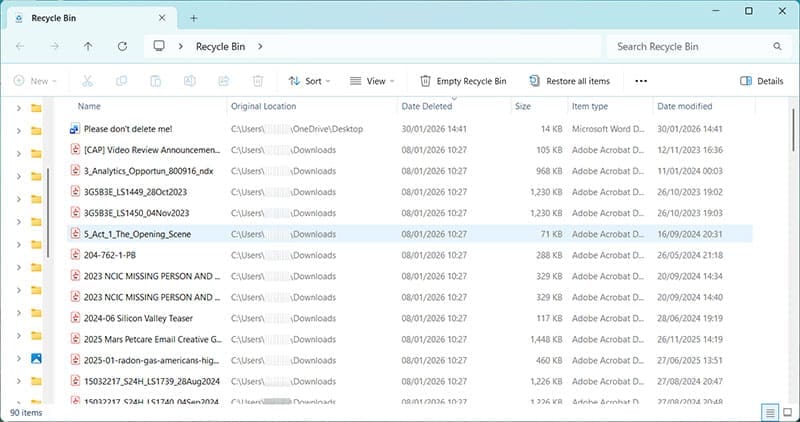
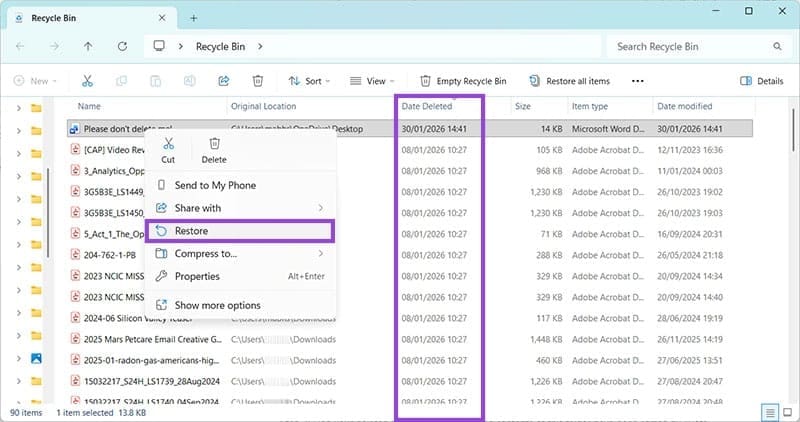
Step 3. Find your deleted file. In this instance, the contents of this folder have been sorted by “Date Deleted,” so the deleted Word document should be right at the top. Right-click on the file and choose the option for “Restore.”
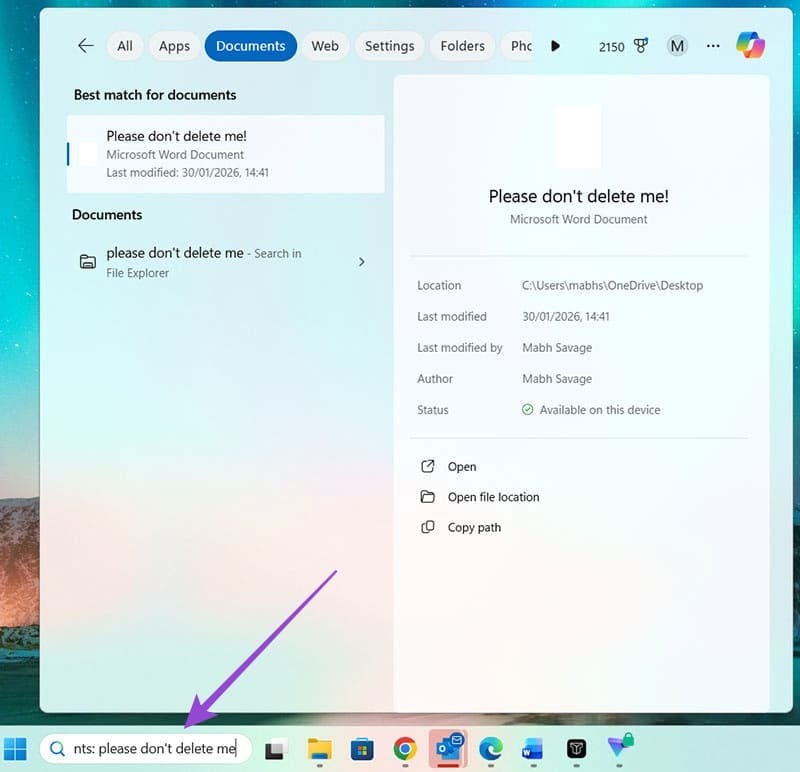
Step 4. The file should restore to wherever it was saved before. If you can’t remember where this is, use the search bar from the Windows home screen. Select the Documents tab, and the file and its file path (location) should appear.
How to Recover Deleted File From MS Word: AutoRecover Files
Step 1. This is the option for when you closed a file without saving it. If you do, immediately close Word and reopen it. Or, if you turned your computer off without saving your files first, switch it back on and reopen Word. Click on “Open” on the left-hand side, and you should see an option for “Recover Unsaved Documents.”

Step 2. Click on “Recover Unsaved Documents” to open a File Explorer window showing any documents that were closed without saving.
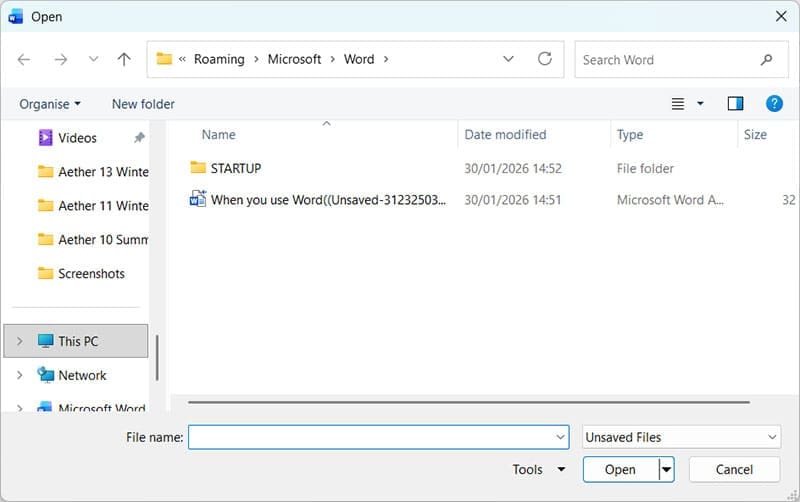
Step 3. Double-click the file you want to restore. You will see a banner that says, “RECOVERED UNSAVED FILE.” Make sure you click “Save As” at the end of this banner to ensure the document is correctly saved this time.
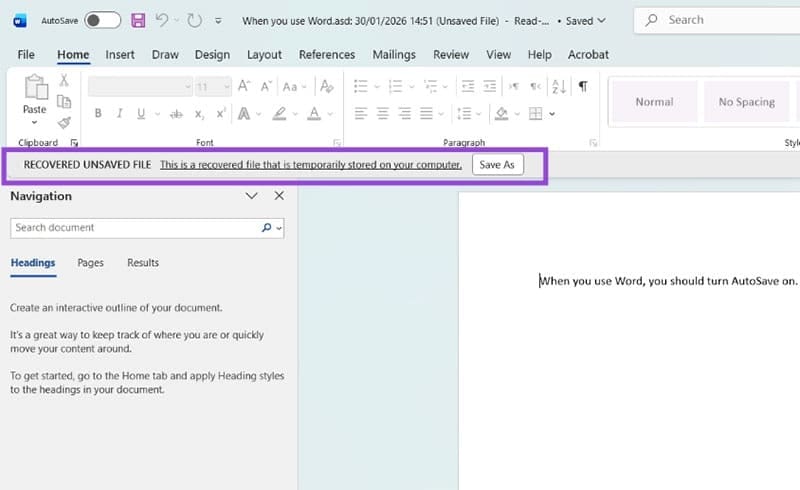
Step 4. Choose a location to save your file to and press “Save.”

If neither of these options works, you may be able to retrieve a deleted Word document using a third-party piece of software. Recuva, Glarysoft, and Disk Drill are all popular options, but always check user reviews and ratings before installing any third-party apps on your Windows machine.
Was this helpful?
Last updated on 06 February, 2026
Read Next
 5 Ways to Retrieve Deleted Text Messages on iPhone
Method 1: Check the Recently Deleted Folder iOS lets you retrieve deleted text messages within 30 days.
5 Ways to Retrieve Deleted Text Messages on iPhone
Method 1: Check the Recently Deleted Folder iOS lets you retrieve deleted text messages within 30 days.
 5 Ways to Retrieve Deleted Call History on iPhone
Method 1: Using iCloud Backup Your iPhone takes a regular backup of your data.
5 Ways to Retrieve Deleted Call History on iPhone
Method 1: Using iCloud Backup Your iPhone takes a regular backup of your data.
 5 Ways to Retrieve Deleted Text Messages on Android
Method 1: Check the Archive and Spam Folder It's easy to archive a text message on the Google Messages app accidentally.
5 Ways to Retrieve Deleted Text Messages on Android
Method 1: Check the Archive and Spam Folder It's easy to archive a text message on the Google Messages app accidentally.
 How to Fix Microsoft 365 Error 70003: Your Organization Has Deleted This Device
Microsoft 365 is an integral part of many businesses, enterprises, and education sections.
How to Fix Microsoft 365 Error 70003: Your Organization Has Deleted This Device
Microsoft 365 is an integral part of many businesses, enterprises, and education sections.
 How to Recover Deleted Favorites in Microsoft Edge
Method 1.
How to Recover Deleted Favorites in Microsoft Edge
Method 1.
 How to See and Retrieve Blocked Messages on Android (Samsung Included)
How to See and Recover Blocked Messages Android If you are using the Google Messages app as the default messaging app on your Android phone, we have some sad news.
How to See and Retrieve Blocked Messages on Android (Samsung Included)
How to See and Recover Blocked Messages Android If you are using the Google Messages app as the default messaging app on your Android phone, we have some sad news.
 4 Ways to Fix Cannot Retrieve Tweets at This Time
Preliminary Fixes Check if Twitter Is Down: Sometimes, the issue might not be with your device or network but with Twitter’s servers.
4 Ways to Fix Cannot Retrieve Tweets at This Time
Preliminary Fixes Check if Twitter Is Down: Sometimes, the issue might not be with your device or network but with Twitter’s servers.
 Google Docs vs. Microsoft Word Online: Which Word Processor Is Better
Google Docs vs.
Google Docs vs. Microsoft Word Online: Which Word Processor Is Better
Google Docs vs.
The article above may contain affiliate links which help support Guiding Tech. The content remains unbiased and authentic and will never affect our editorial integrity.