Method 1: Remove Account Information From Snapchat App
When you log out from Snapchat on your phone, the app doesn’t ask you to delete saved login information. However, you must remove the account once you have successfully logged out. Here’s how.
Step 1: Open the Snapchat app and tap on your bitmoji icon. Then, tap on the cogwheel icon at the top right corner.

Step 2: Scroll down and tap on Log Out. When prompted, tap on Log Out again to confirm.
Step 3: If required, close and reopen the app. Then, tap on Remove account and tap on Yes if prompted.
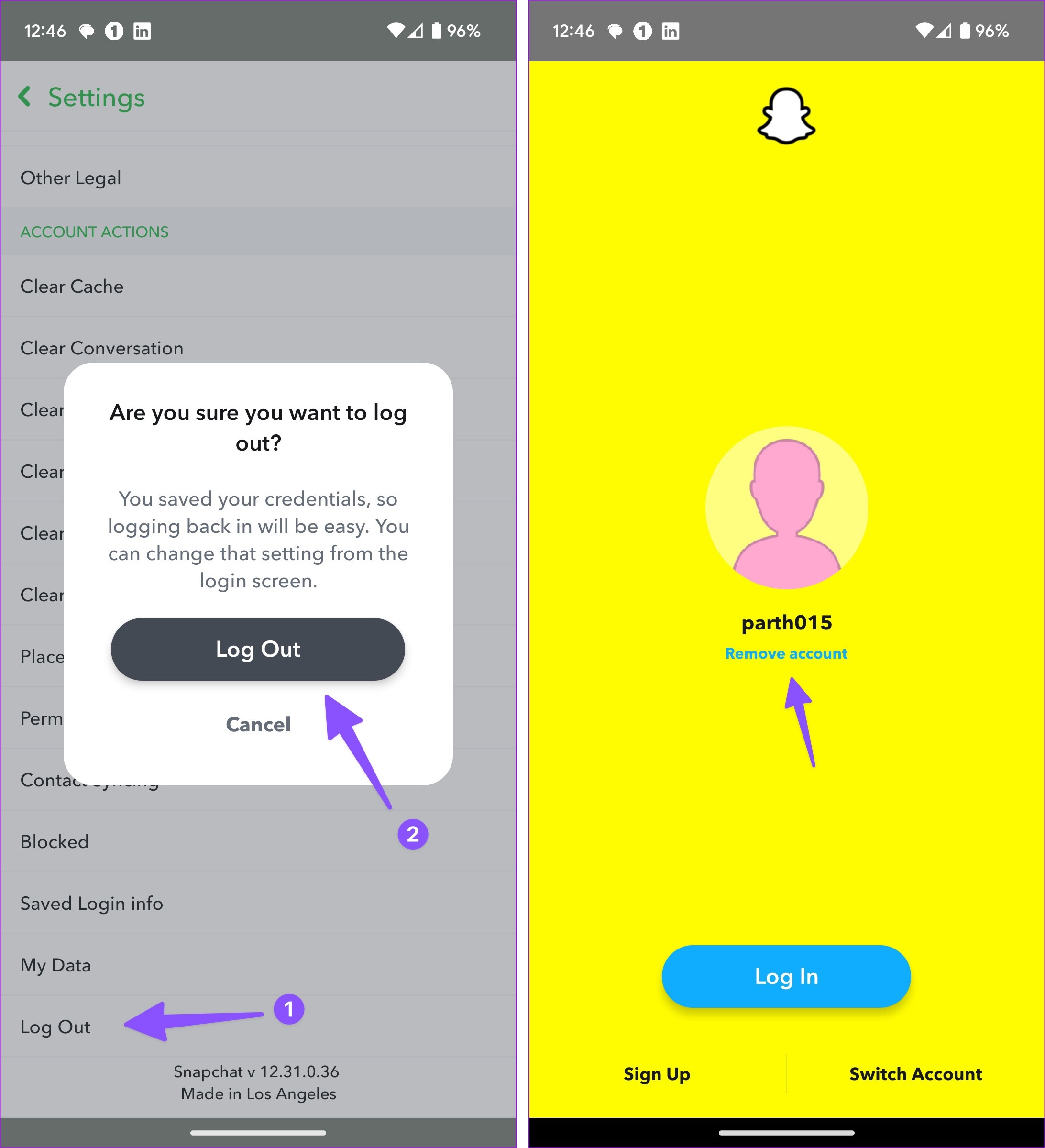
If Snapchat still saves your login information, you can clear the app data and cache on your Android device. iOS users can uninstall and reinstall the Snapchat app.
Method 2: Delete Saved Snapchat Login Information From Another Device
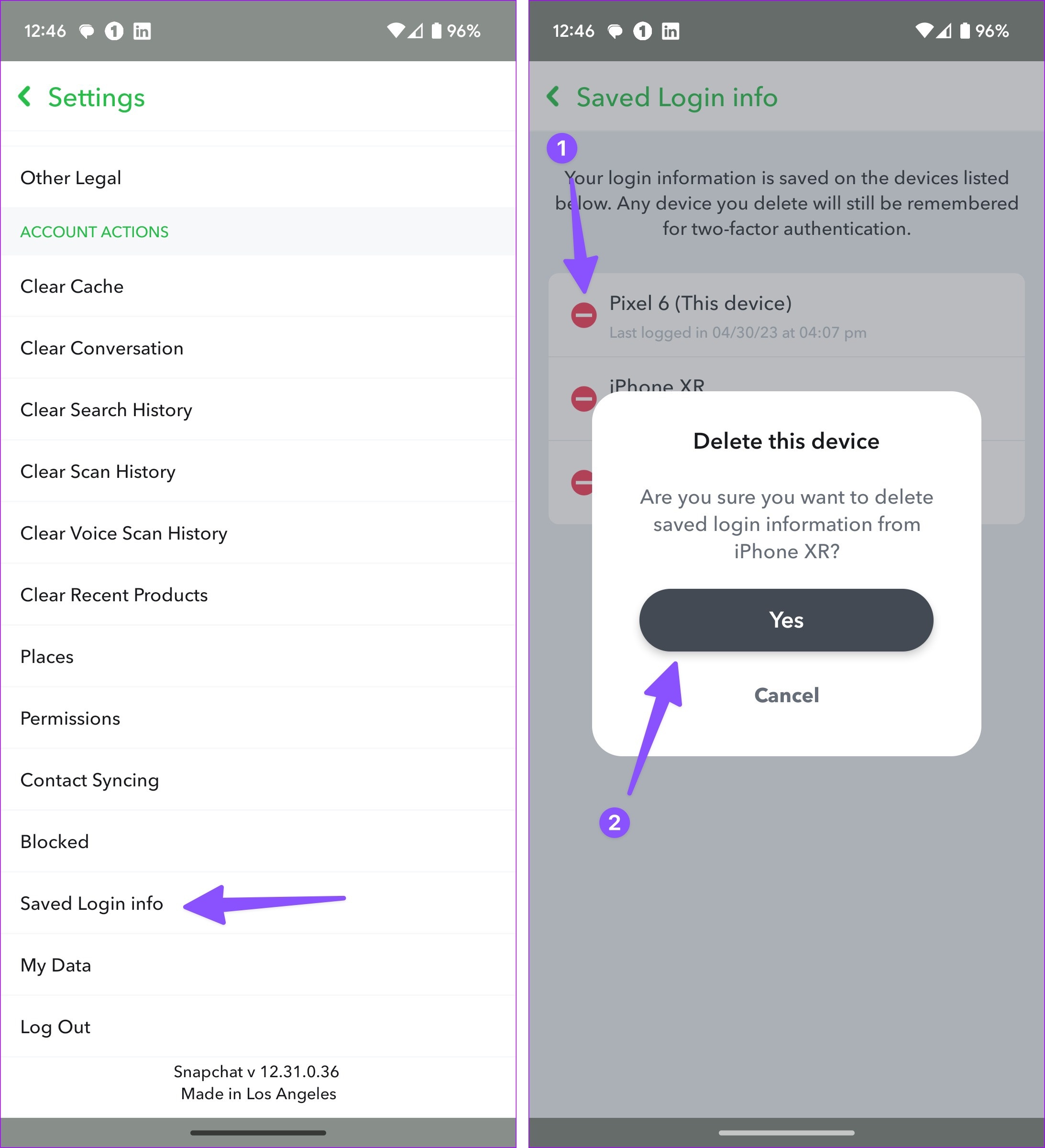
You can also check your saved Snapchat login information on other devices. To do this, use your current phone to review and remove unnecessary devices. Follow the below steps.
Step 1: Open Snapchat and tap on your bitmoji icon. Tap on the cogwheel icon to open Settings.
Step 2: Scroll down and tap on Saved Login info.
Step 3: From the list of devices, tap the – icon beside the devices you wish to remove. Then, tap on Yes.
Method 3: Review and Remove Saved Devices From Snapchat Web
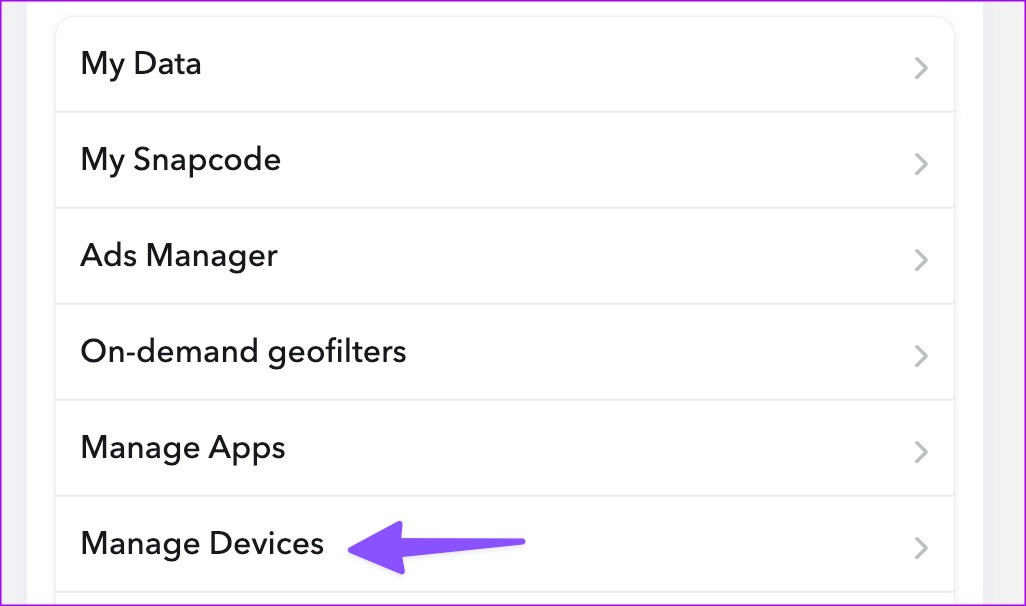
You can use the Snapchat web app to check all the devices registered to your account. Then, remove the ones that are no longer required. This can be handy if you don’t have an alternate phone. Here’s how to do it.
Step 1: Open Snapchat web on any browser > click on your account icon at the top left corner > click on Account Settings.

Step 3: Here, click on Manage Devices.
Step 4: Click the bin icon beside any unknown or unwanted device and click on Revoke when prompted.

This should remove the selected device. Follow the above steps and remove any other devices from your Snapchat account.
Was this helpful?
Last updated on 20 April, 2024
Read Next
 How to Remove Saved Passwords From Google Chrome
Method 1: Use Google Chrome Desktop Step 1: Open Google Chrome, click the three-dot menu, and select Settings.
How to Remove Saved Passwords From Google Chrome
Method 1: Use Google Chrome Desktop Step 1: Open Google Chrome, click the three-dot menu, and select Settings.
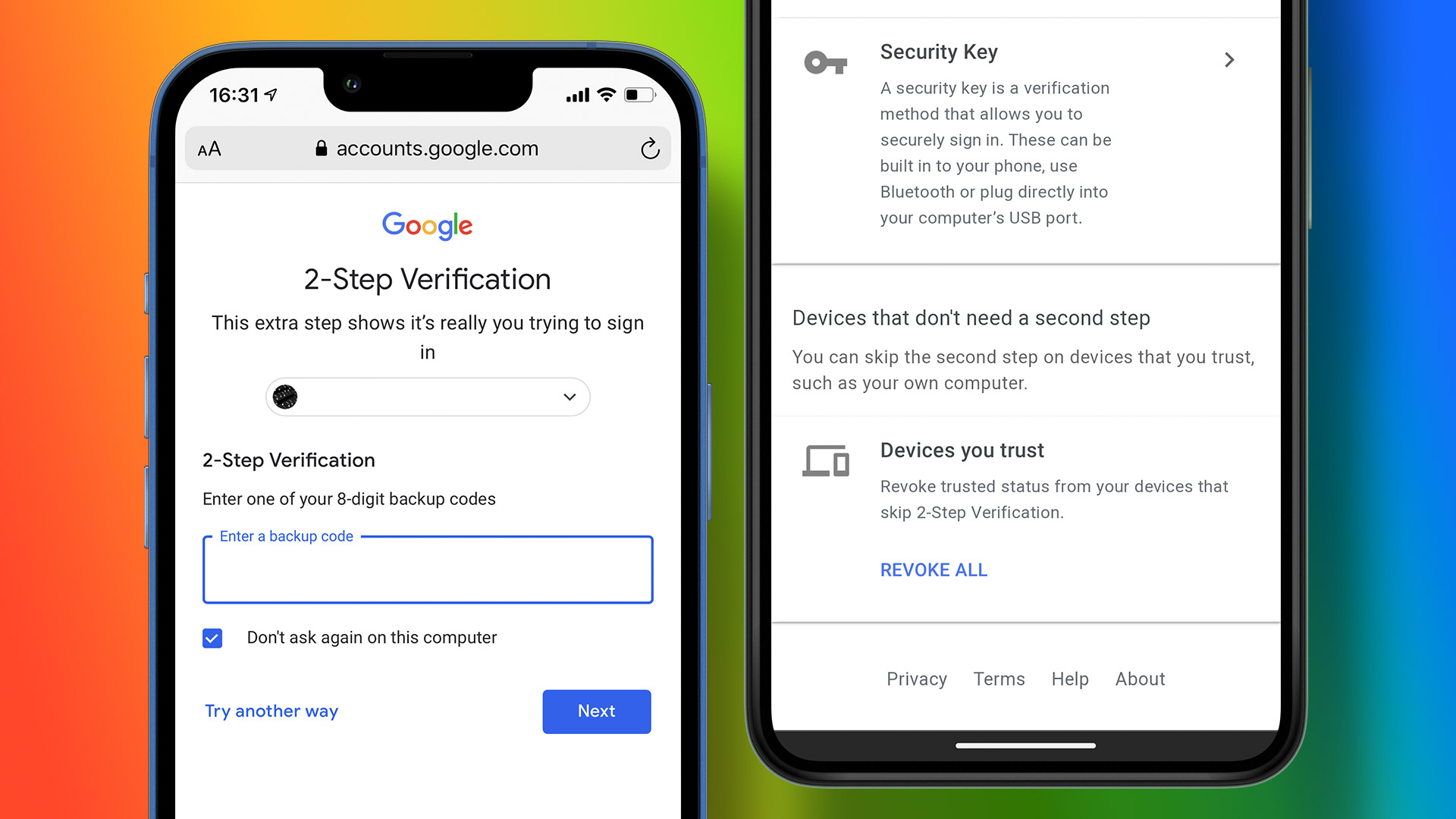 How to Add or Remove a Trusted Device From Your Google Account
How to Add a Trusted Device to Your Google Account Follow the steps below to add a trusted device to your Google account using your PC, or your smartphone.
How to Add or Remove a Trusted Device From Your Google Account
How to Add a Trusted Device to Your Google Account Follow the steps below to add a trusted device to your Google account using your PC, or your smartphone.
 How to Delete and Change Saved Places in the Uber App
How to Delete Saved Places in the Uber App Step 1: Open the Uber app and tap on Account.
How to Delete and Change Saved Places in the Uber App
How to Delete Saved Places in the Uber App Step 1: Open the Uber app and tap on Account.
 How to Find Instagram Reels That You Saved or Liked
How to Find Saved Instagram Reels On iPhone and Android Step 1: Tap on your Profile tab at the bottom and select the three-bar menu icon at the top right.
How to Find Instagram Reels That You Saved or Liked
How to Find Saved Instagram Reels On iPhone and Android Step 1: Tap on your Profile tab at the bottom and select the three-bar menu icon at the top right.
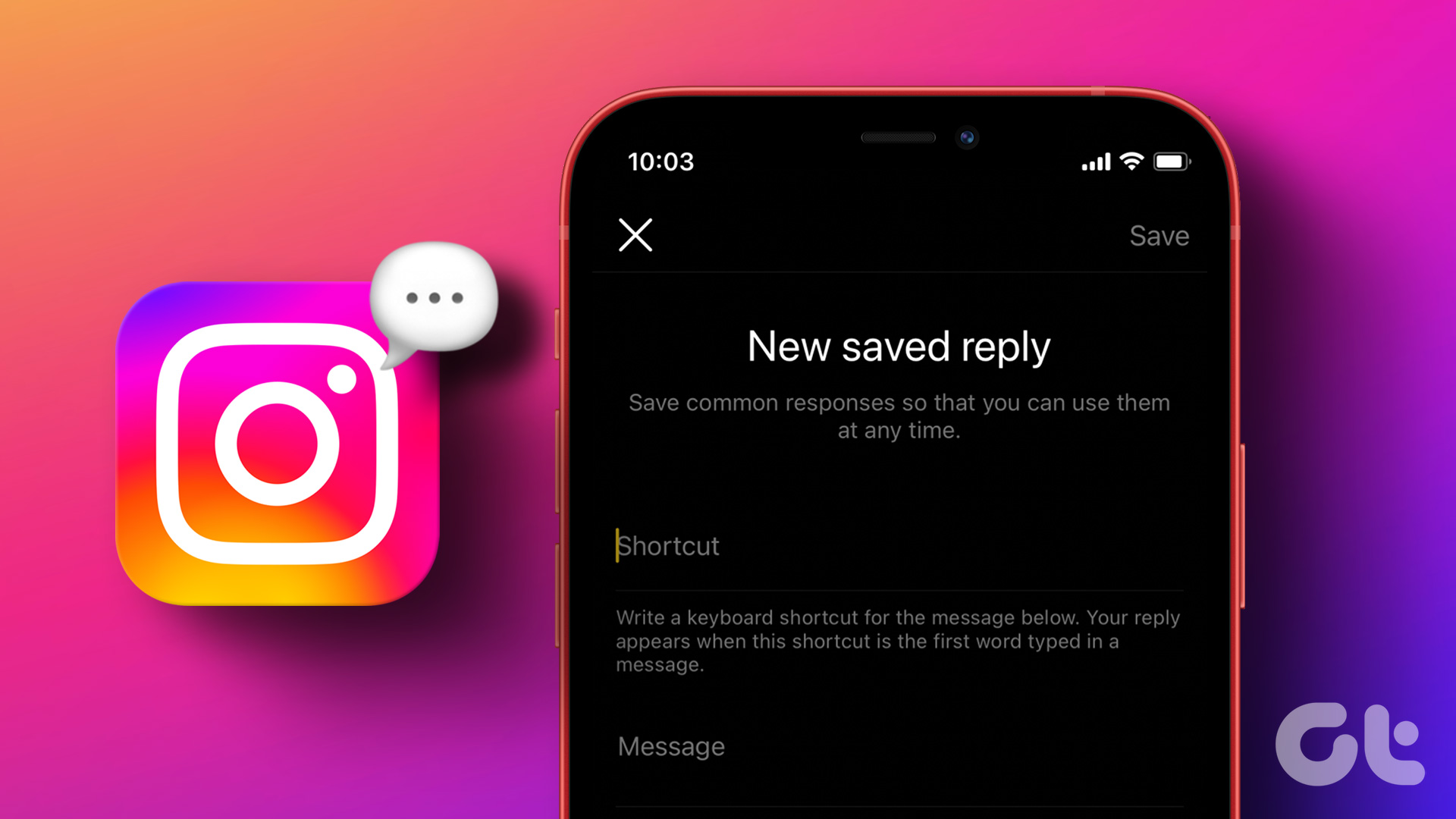 How to Add and Use Saved Replies on Instagram
Requirements for Accessing Saved Replies on Instagram The saved replies function isn’t available for normal accounts.
How to Add and Use Saved Replies on Instagram
Requirements for Accessing Saved Replies on Instagram The saved replies function isn’t available for normal accounts.
 How to Find Liked and Saved Reels on Facebook
 If you've saved an intriguing reel on Facebook to watch later or are curious to check all the reels you've liked,
How to Find Liked and Saved Reels on Facebook
How to Find Liked and Saved Reels on Facebook If you've saved an intriguing reel on Facebook to watch later or are curious to check all the reels you've liked,
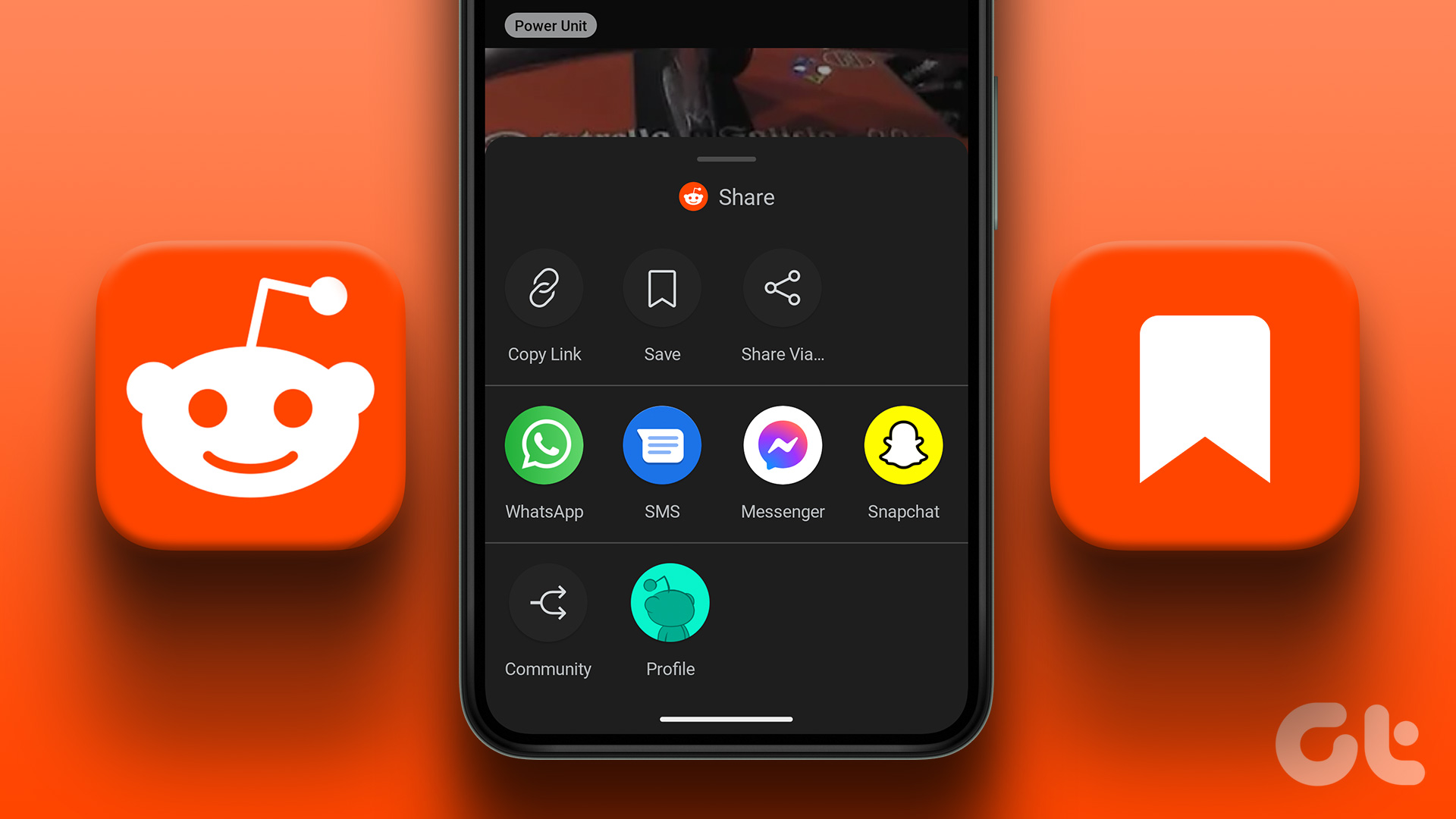 How to See Saved Posts and Comments on Reddit (PC and Mobile)
How to Save Reddit Posts and Comments On iOS and Android Step 1: Tap on the Share button below the post you want to save.
How to See Saved Posts and Comments on Reddit (PC and Mobile)
How to Save Reddit Posts and Comments On iOS and Android Step 1: Tap on the Share button below the post you want to save.
 How to Find Saved Posts and Jobs on LinkedIn
How to Save a Job Search on LinkedIn On Desktop Step 1: Open LinkedIn in your preferred browser and go to Jobs at the top navigation bar.
How to Find Saved Posts and Jobs on LinkedIn
How to Save a Job Search on LinkedIn On Desktop Step 1: Open LinkedIn in your preferred browser and go to Jobs at the top navigation bar.
The article above may contain affiliate links which help support Guiding Tech. The content remains unbiased and authentic and will never affect our editorial integrity.