


Method 1. Remove the Copilot Button by Editing the Edge Shortcut
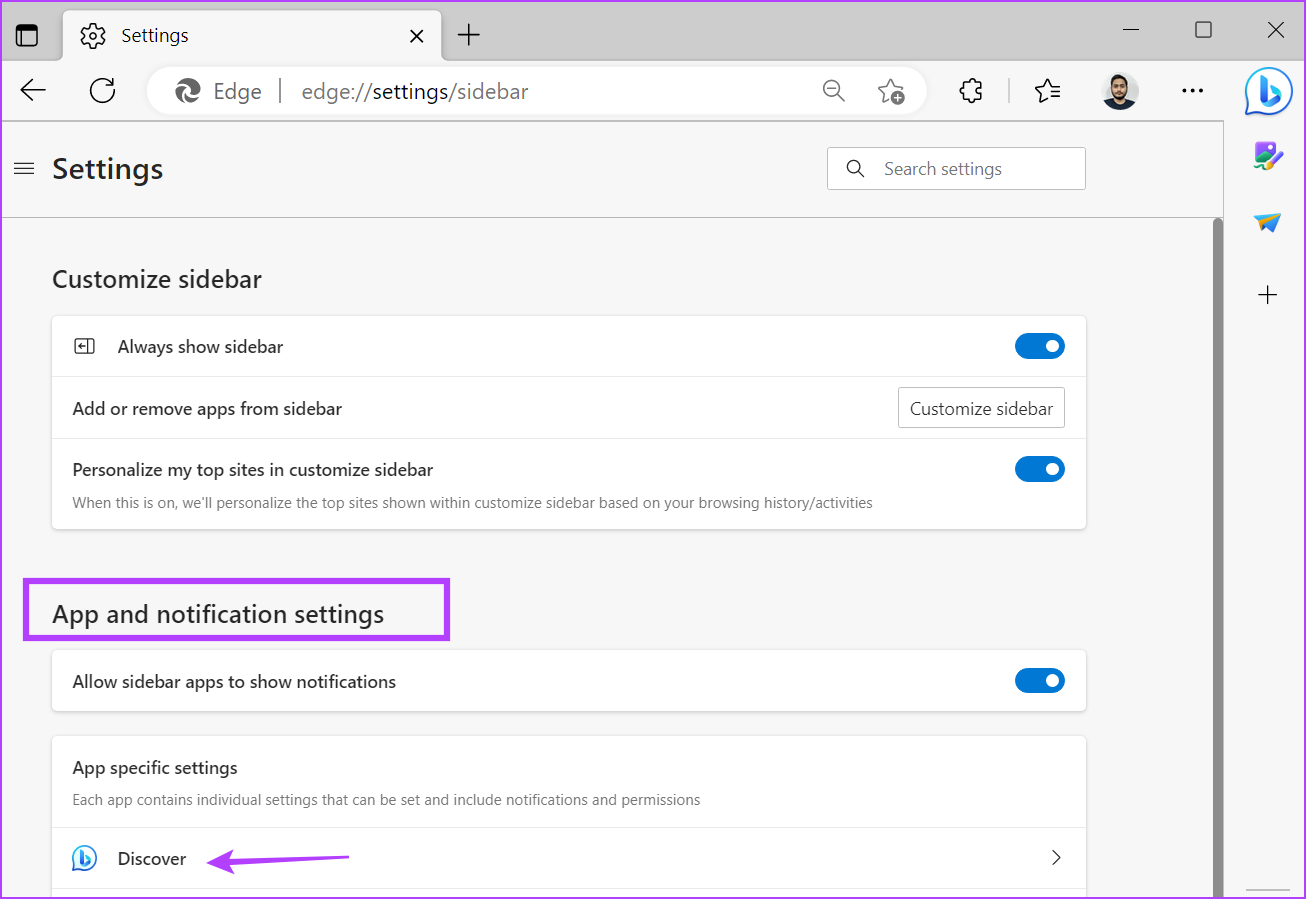
Step 1: Open the Microsoft Edge browser, type edge://settings/sidebar, and press Enter.
Step 2: Scroll down to the App and notifications settings section. Click on the Discover option under the App-specific settings section.
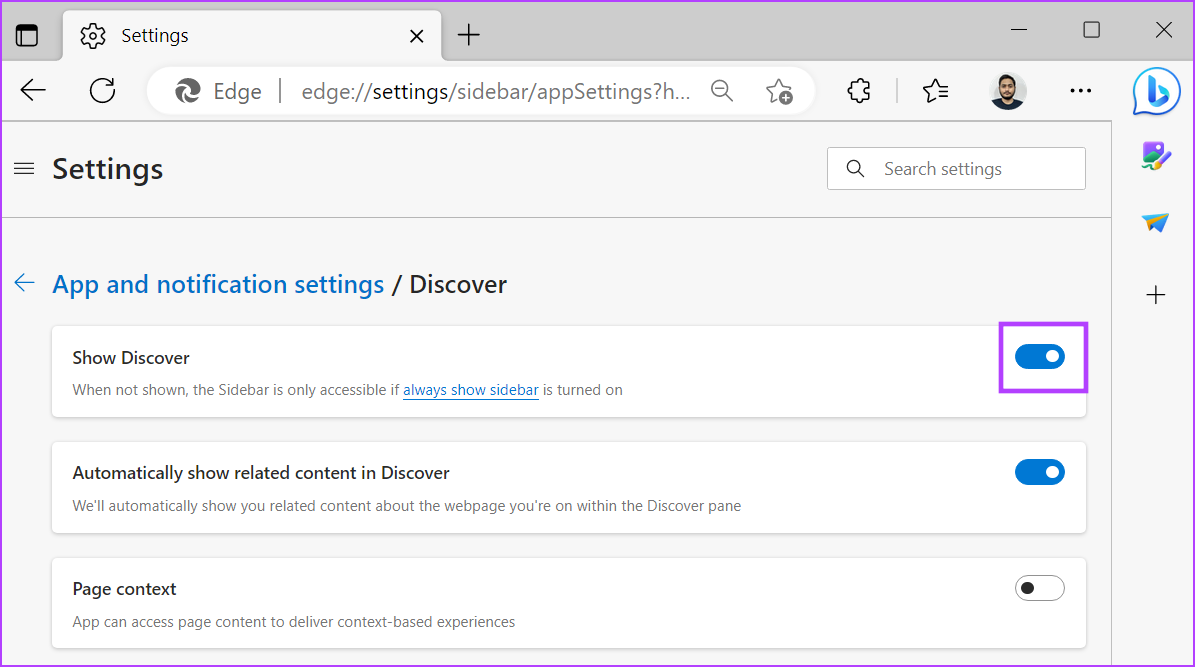
Step 3: Toggle off Show Discover to disable the Copilot button.
Method 2. Using a Shortcut
After the new update, Microsoft Edge is automatically configured to launch with the new Copilot button feature. The only limitation of this solution is that it’s a workaround, and the future Edge update might disable it. Also, you must run the Edge browser using the modified shortcut only.
First, we will disable the Startup Boost feature; otherwise, the modification won’t work. Repeat the following steps:
Step 1: Open the Edge browser, type edge://settings/system, and press Enter.
Step 2: On the System settings page, disable the toggle for Startup Boost. Close the Edge browser.

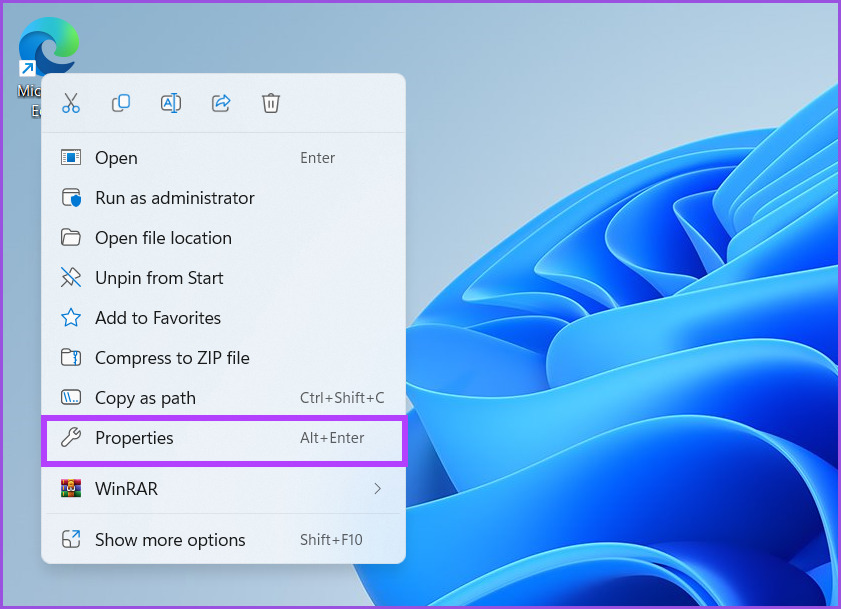
Step 3: Next, go to the desktop and right-click on the Microsoft Edge shortcut. Select Properties.
Step 4: Locate the Target option. Replace the pre-defined path with the following path.
"C:\Program Files (x86)\Microsoft\Edge\Application\msedge.exe" --disable-features=msUndersideButton
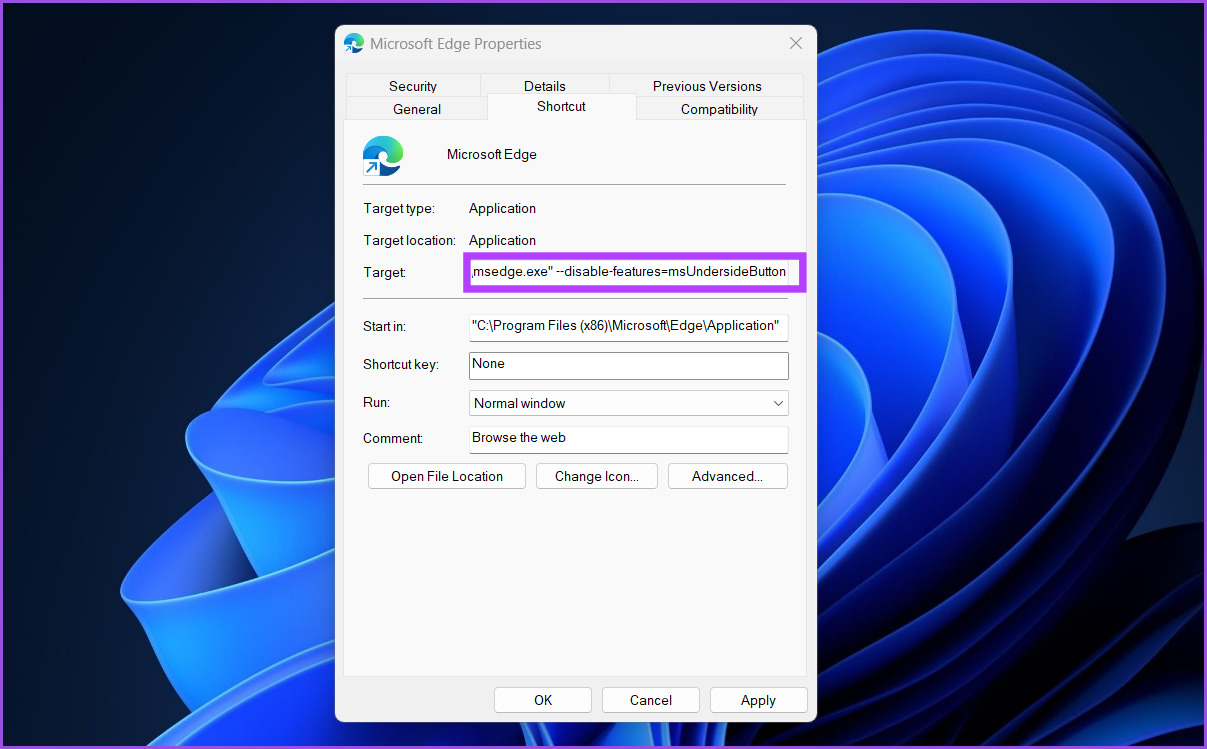
Step 5: Then, click on Apply. Windows will prompt you to provide administrator permission. Click on Continue.
Step 6: Click on OK to close the Properties window.
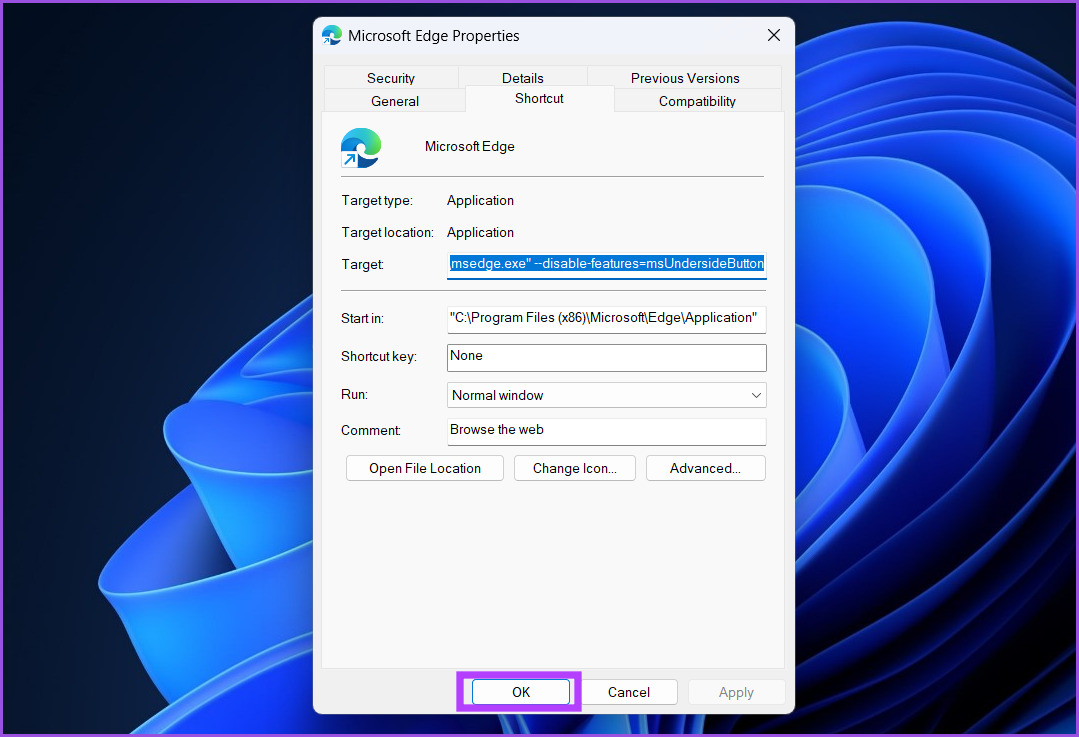
Launch the Edge browser, and the Copilot icon won’t appear at the top right-side corner.
Method 3. Using PowerShell
You can even remove the Copilot button by running a PowerShell command. But before that, disable Startup Boost in the Edge browser described in the previous method and close the Edge browser.
Step 1: Open Windows Search, type PowerShell, and click on Run as administrator.
Step 2: User Account Control will pop up. Click on Yes.
.
Step 3: In the PowerShell window, type the following command and press Enter.
start msedge --disable-features=msUndersideButton
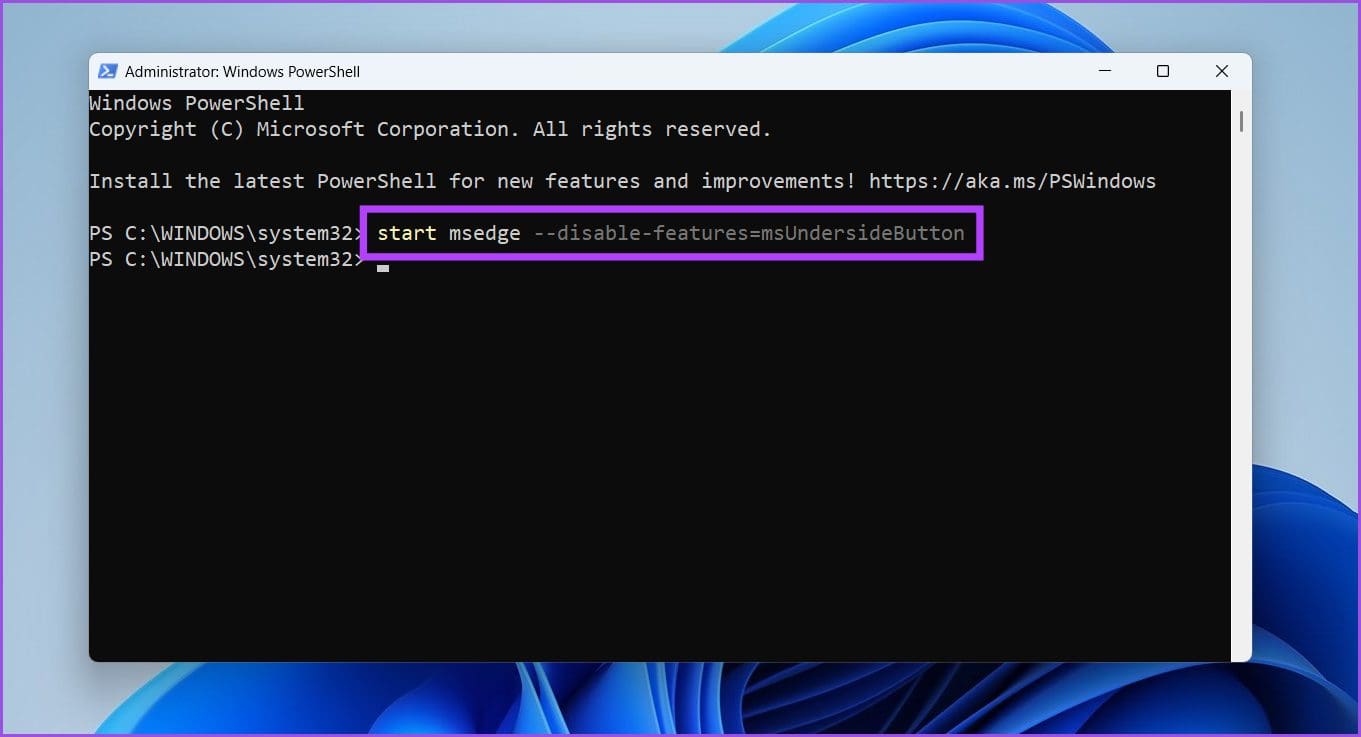
After the command executes successfully, close the PowerShell window. The Edge browser will automatically launch on your computer. You will notice that the Copilot button no longer exists in the sidebar.
Method 4. Using the Command Prompt
Step 1: Press the Windows key, type cmd, and click on Run as administrator.
Step 2: The User Account Control will pop up. Click Yes.
Step 3: Type the following commands one by one and execute them by pressing Enter.
reg add "HKEY_LOCAL_MACHINE\SOFTWARE\Policies\Microsoft\Edge"
reg add "HKEY_LOCAL_MACHINE\SOFTWARE\Policies\Microsoft\Edge" /v HubsSidebarEnabled /t REG_DWORD /d 00000000 /f
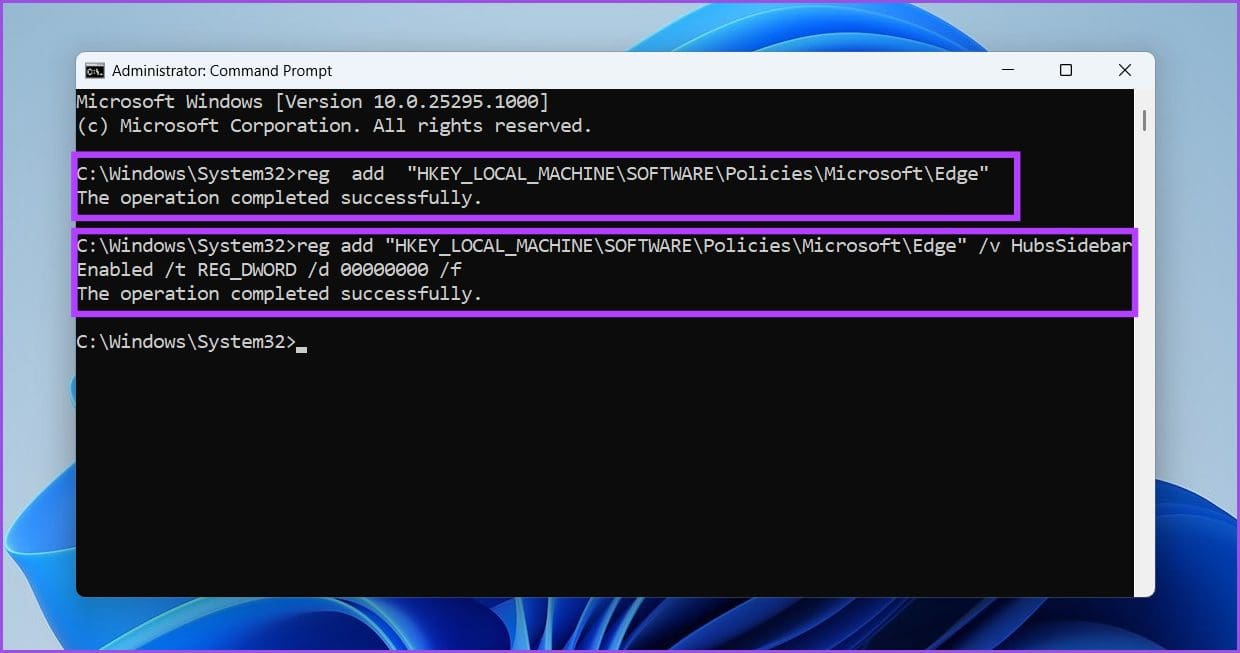
Close the Command Prompt window and restart your computer for the changes to take effect.
How to Disable Copilot or Bing Chat in Old Edge Versions on Windows
Step 1: Press the Windows key, type Registry Editor, and click Run as administrator.
In the prompt, select Yes.
Step 2: In the top address bar, enter the following path.
HKEY_CURRENT_USER\Software\Policies\Microsoft
Step 3: Right-click on the Microsoft folder on the left pane, select New, and choose Key.
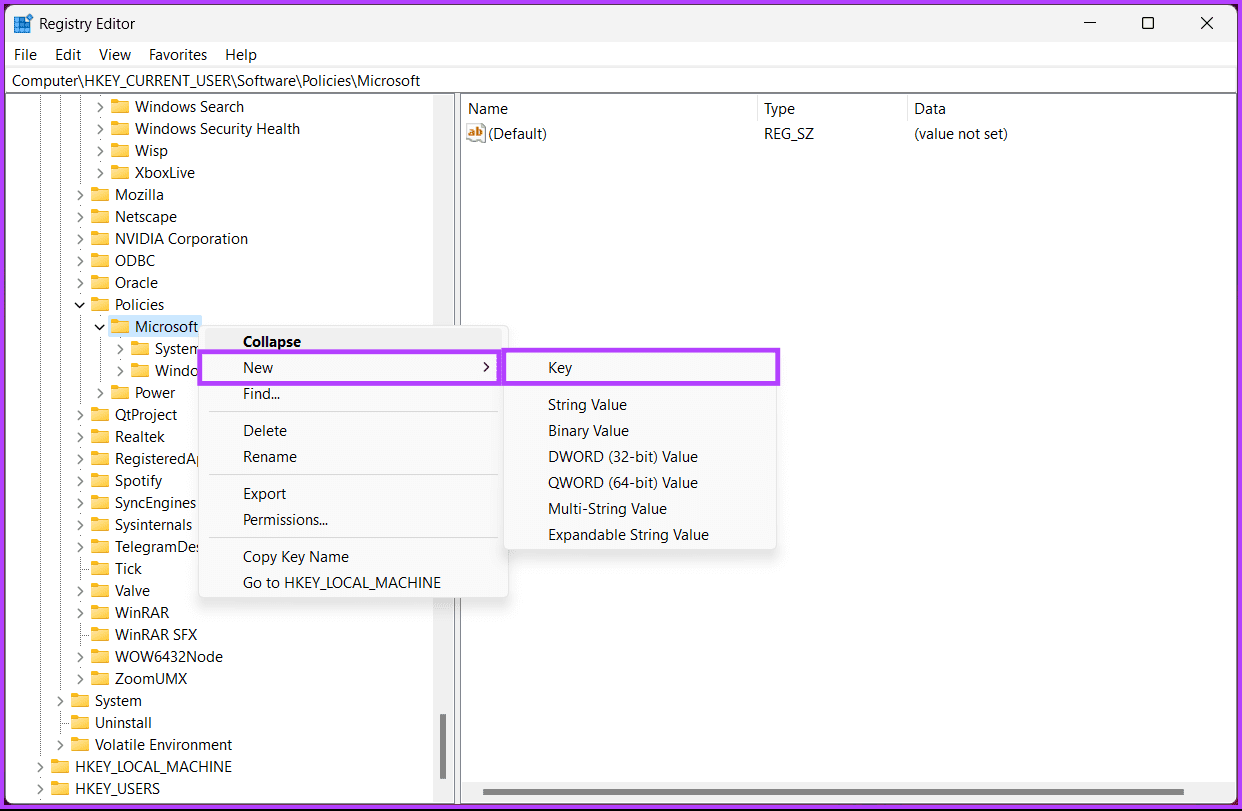
Step 4: Name the key as Edge.
Step 5: Now, right-click on the Edge key, select New, and choose DWORD (32-bit) Value.
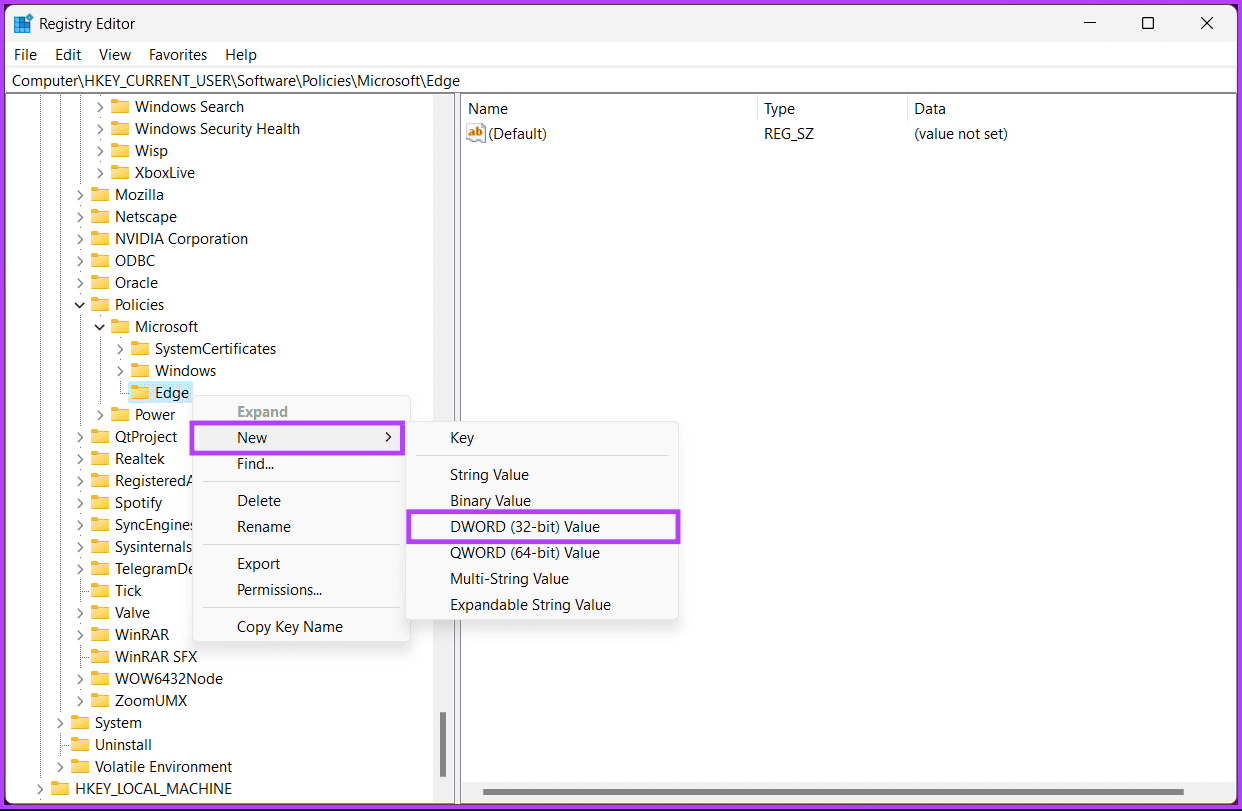
Step 6: Name the new DWORD value HubsSidebarEnabled.
Step 7: Double-click on the HubsSidebarEnabled key. Now, type 1 in the Value Data field and press OK.
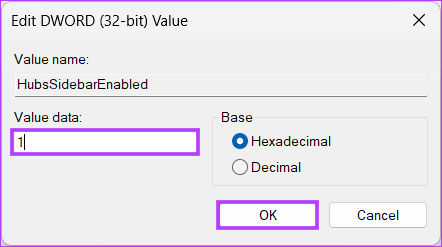
Finally, reboot the system to implement the changes. And that’s it! After booting your PC again, you will have a hidden Copilot button on your Microsoft Edge.
How to Remove Copilot From Microsoft Edge on Mac
Step 1: Press the Command + Space key, type Terminal, and press the Return key.
Step 2: Type the below command and hit the Return key.
open -n -a “Microsoft Edge” –args —disable-features=msEdgeSidebarV2
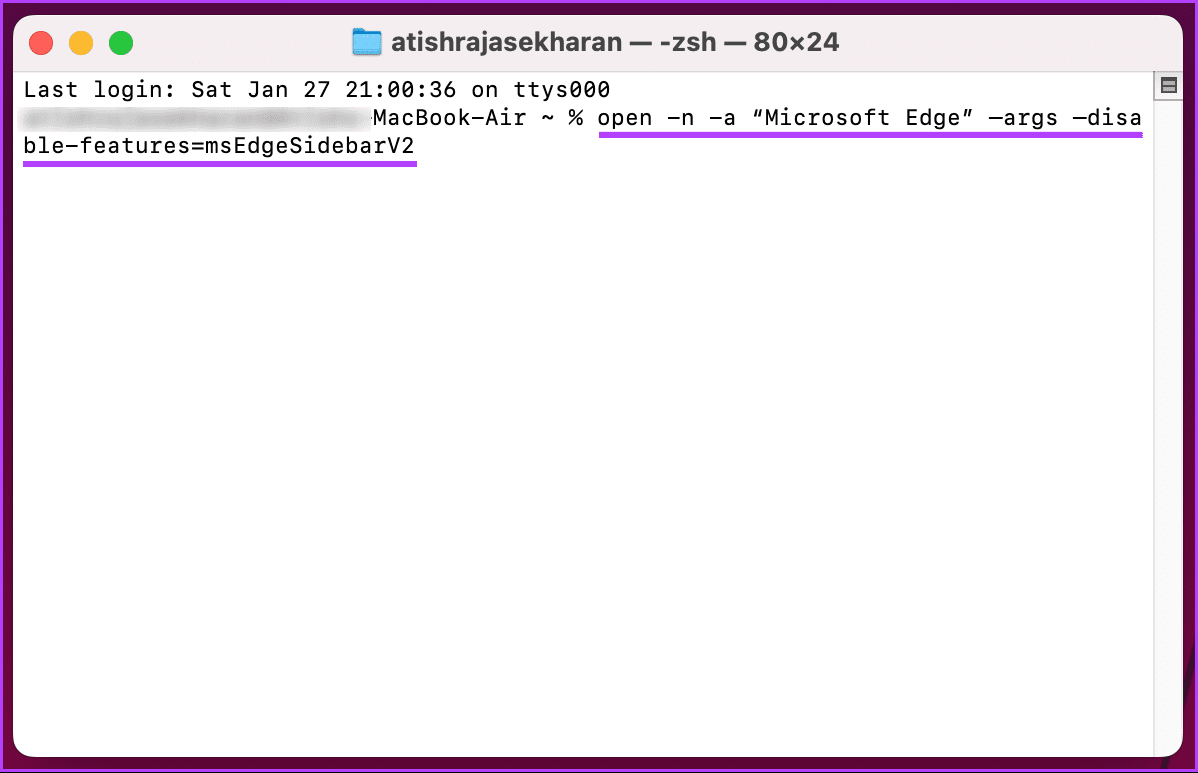
Ideally, Microsoft Edge will open without the Copilot button. However, if that does not happen, run the following commands one after the other in Terminal and open the browser again:
- /usr/bin/defaults write /tmp/com.microsoft.Edge.plist HubsSidebarEnabled -bool false
- sudo mkdir /Library/Managed\ Preferences
- sudo mv /tmp/com.microsoft.Edge.plist /Library/Managed\ Preferences/
If you are looking to get rid of Copilot in your Microsoft Edge mobile app, continue reading.
How to Hide Copilot Button in Microsoft Edge on Mobile
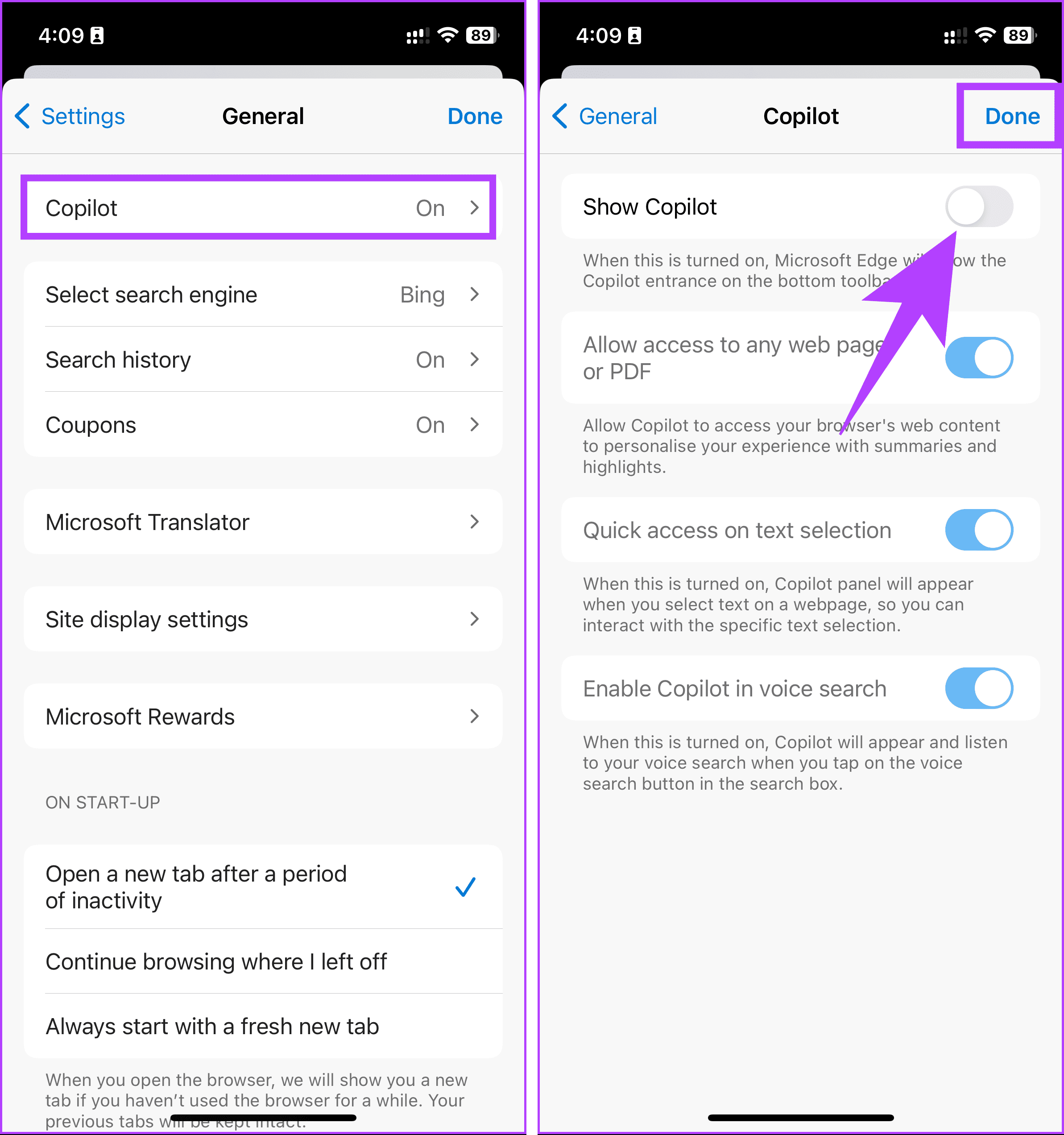
Step 1: Launch the Microsoft Edge app. Then, tap on the hamburger menu at the bottom right.
Step 2: From the bottom sheet, choose Settings > General.
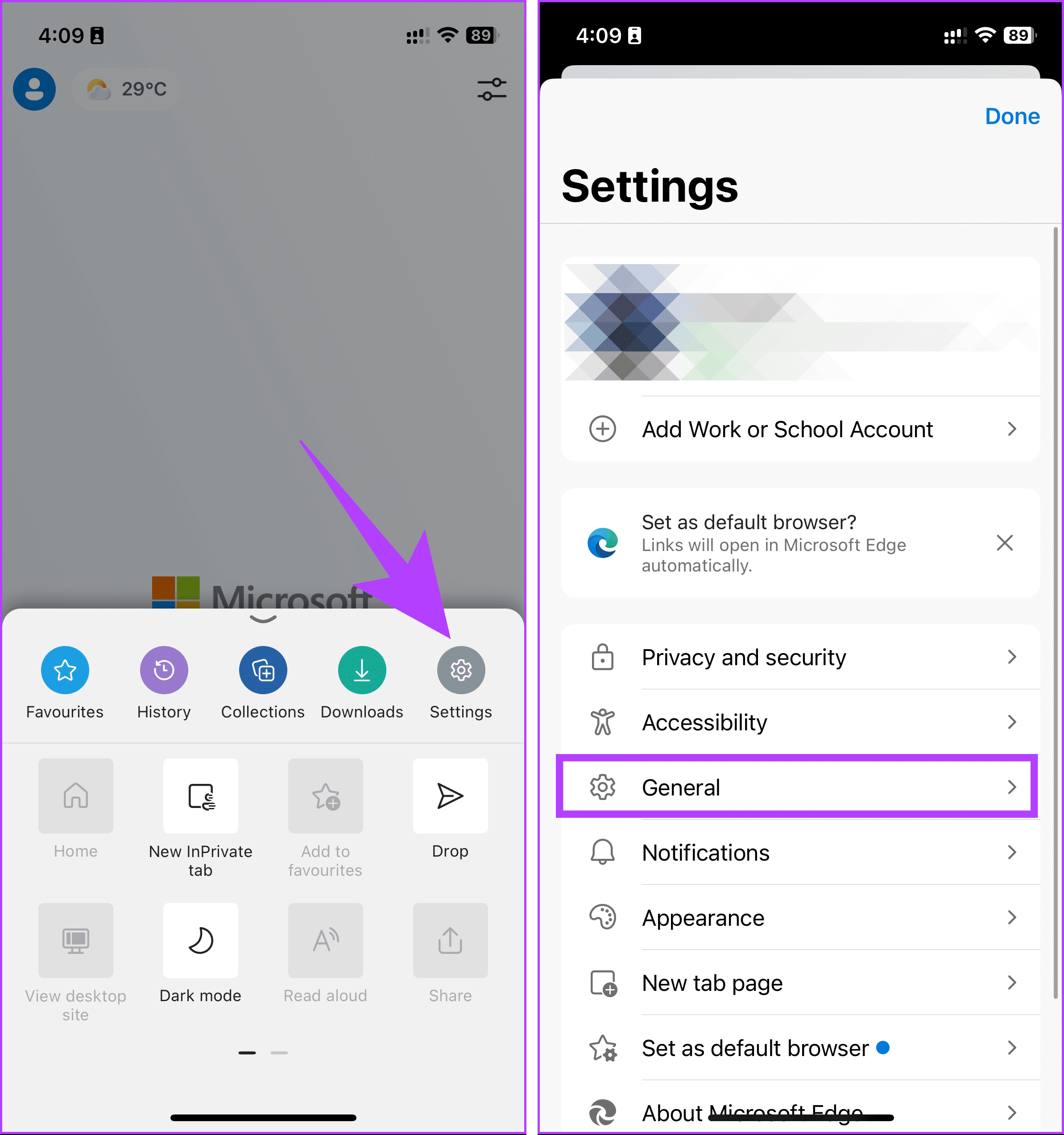
Step 3: Under General, go to Copilot. On the next screen, toggle off Show Copilot and tap Done.
FAQs
No, disabling Copilot only affects the Copilot extension. It does not impact other features or functionalities of Microsoft Edge.
To report issues or provide feedback about Copilot in Microsoft Edge, visit the official Microsoft Edge support or feedback channels.
Was this helpful?
Last updated on 20 August, 2024
3 Comments
Leave a Reply
Read Next
 6 Cool Things You Can Do with Telegram’s New Microsoft Copilot AI Bot
Telegram's latest addition is the integration of Microsoft’s Copilot AI bot.
6 Cool Things You Can Do with Telegram’s New Microsoft Copilot AI Bot
Telegram's latest addition is the integration of Microsoft’s Copilot AI bot.
 Microsoft CoPilot+ PCs: Why You Should and Shouldn’t Be Excited
Microsoft has officially taken its next big step in the AI race with its latest generation of devices: the Copilot+ PCs.
Microsoft CoPilot+ PCs: Why You Should and Shouldn’t Be Excited
Microsoft has officially taken its next big step in the AI race with its latest generation of devices: the Copilot+ PCs.
 How to Remove Top Sites and News Feed in Microsoft Edge
How to Remove Top Sites and News Feed Step 1: When you open a new tab, click on the Settings icon at the top right.
How to Remove Top Sites and News Feed in Microsoft Edge
How to Remove Top Sites and News Feed Step 1: When you open a new tab, click on the Settings icon at the top right.
 How to Use the Edge Bar in Microsoft Edge on Windows 11
How to Enable Edge Bar in Microsoft Edge Step 1: Launch Microsoft Edge on your PC > click the three-dot menu icon at the top right > select Settings.
How to Use the Edge Bar in Microsoft Edge on Windows 11
How to Enable Edge Bar in Microsoft Edge Step 1: Launch Microsoft Edge on your PC > click the three-dot menu icon at the top right > select Settings.
 3 Ways to Turn off Copilot on Windows 11
https://youtu.be/WmmLAoyJSpo Method 1: Via Taskbar Settings Step 1: Right-click on the Taskbar and choose Taskbar settings from the menu.
3 Ways to Turn off Copilot on Windows 11
https://youtu.be/WmmLAoyJSpo Method 1: Via Taskbar Settings Step 1: Right-click on the Taskbar and choose Taskbar settings from the menu.
 Copilot Missing on Windows 11? Here’s How to Bring It Back
Get Copilot From the Microsoft Store If you can't find Microsoft Copilot on your Windows 11 system, install it from the Microsoft Store to get started.
Copilot Missing on Windows 11? Here’s How to Bring It Back
Get Copilot From the Microsoft Store If you can't find Microsoft Copilot on your Windows 11 system, install it from the Microsoft Store to get started.
 How to Clear Cache and Cookies on Microsoft Edge
Clear Microsoft Edge Cache and Cookies in Windows and Mac Here are all the ways to clear your Microsoft Edge cache and cookies on Windows and Mac.
How to Clear Cache and Cookies on Microsoft Edge
Clear Microsoft Edge Cache and Cookies in Windows and Mac Here are all the ways to clear your Microsoft Edge cache and cookies on Windows and Mac.
 5 Ways to Fix Microsoft Edge Not Downloading Files
Try Basic Fixes Check antivirus settings: Third-party antivirus programs can sometimes block downloads from the internet to protect your PC from suspicious files.
5 Ways to Fix Microsoft Edge Not Downloading Files
Try Basic Fixes Check antivirus settings: Third-party antivirus programs can sometimes block downloads from the internet to protect your PC from suspicious files.
The article above may contain affiliate links which help support Guiding Tech. The content remains unbiased and authentic and will never affect our editorial integrity.

Good afternoon,
I tried the third option and can confirm it works!
Thank you for your clear instructions.
Michel de Bruin
Netherlands
Thank you! Option one worked for me.
i want bings dutch languge disabled