Method 1: Recover Deleted Snaps Using Snapchat Memories
With Memories, you can recover Snapchat pictures on iOS and Android devices without a computer.
Step 1: Open the Snapchat app and swipe up to open the Camera tab. Open the Snap you want to recover.
Step 2: Tap Send to, and from here, send or save the Snap to your device.



Also Read: How to fix Snapchat not backing up memories
Method 2: Download Data to Recover Deleted Photos
You can use this method for iPhone, Android, and even Snapchat web.
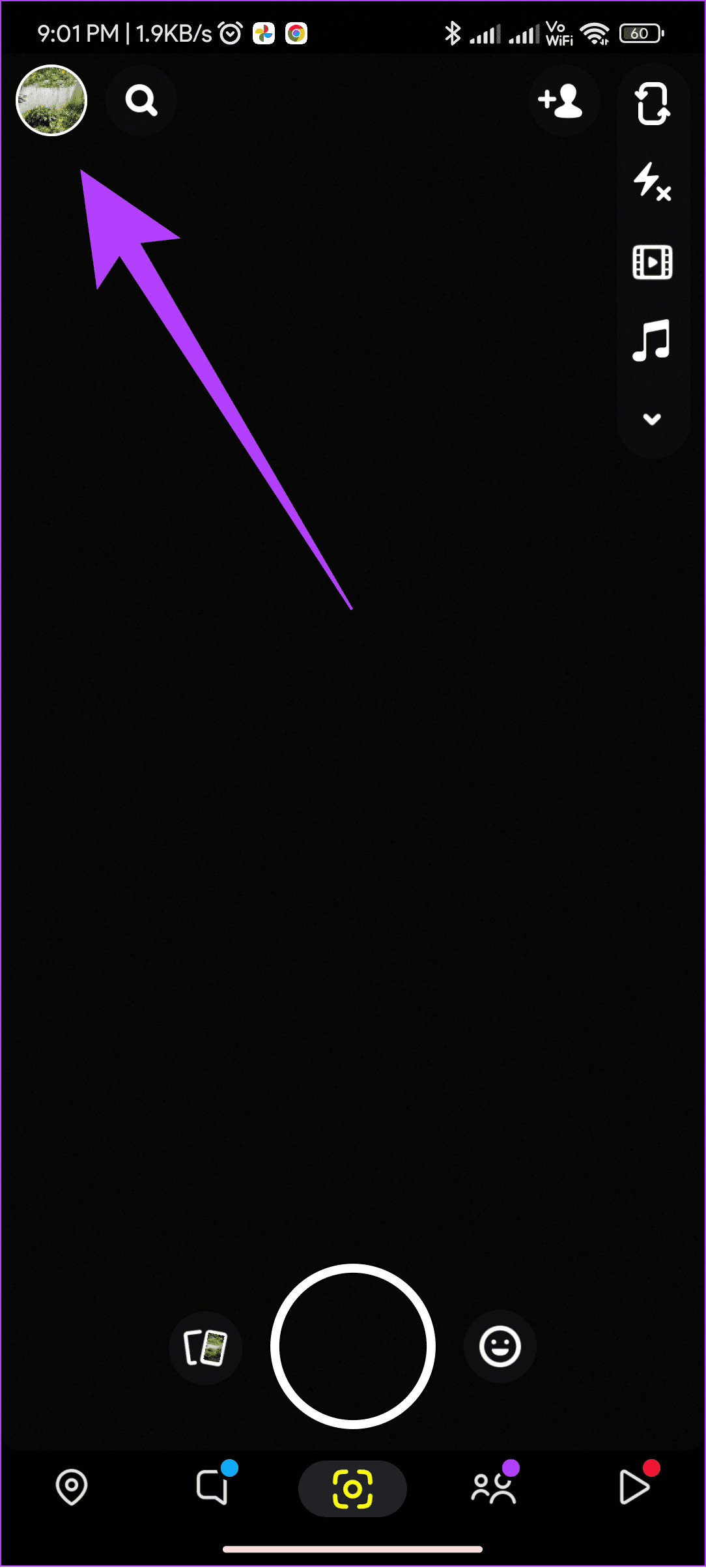
Step 1: Tap your Avatar at the top left corner (from the camera page) on Snapchat.
Note: The Avatar icon will be at the top right corner if you are on the messages page.
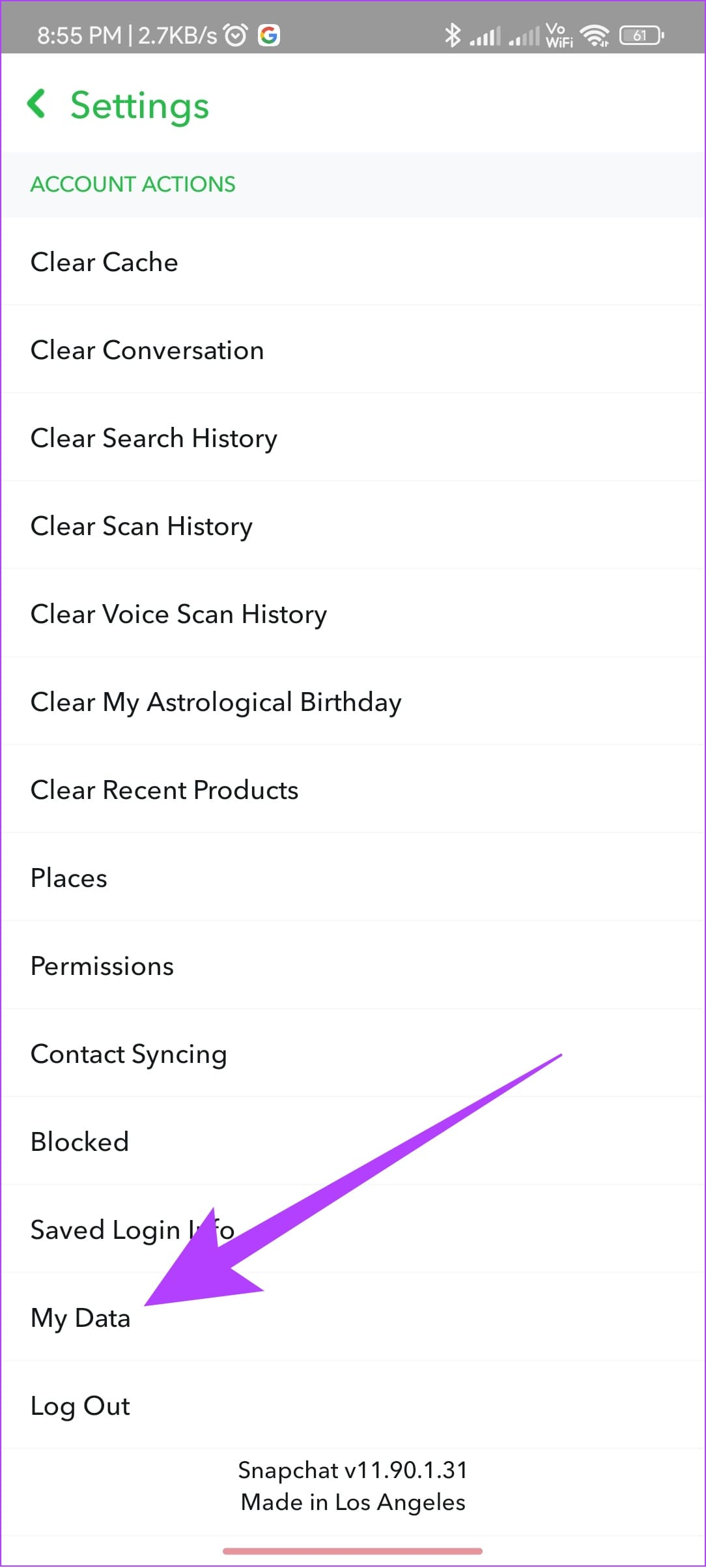
Step 2: Tap the settings icon at the top right corner. Scroll down to Account Actions and tap My Data.

Step 3: Enter your username and tap Next. Enter the Password and tap Next.
Step 4: Turn on Include your Memories and other saved Media. Enable all other options on the same page and tap Next.
Step 5: Choose the date range and tap Submit.
Tip: You can also toggle off Filter your export by date range. This will download all the data associated with the account.


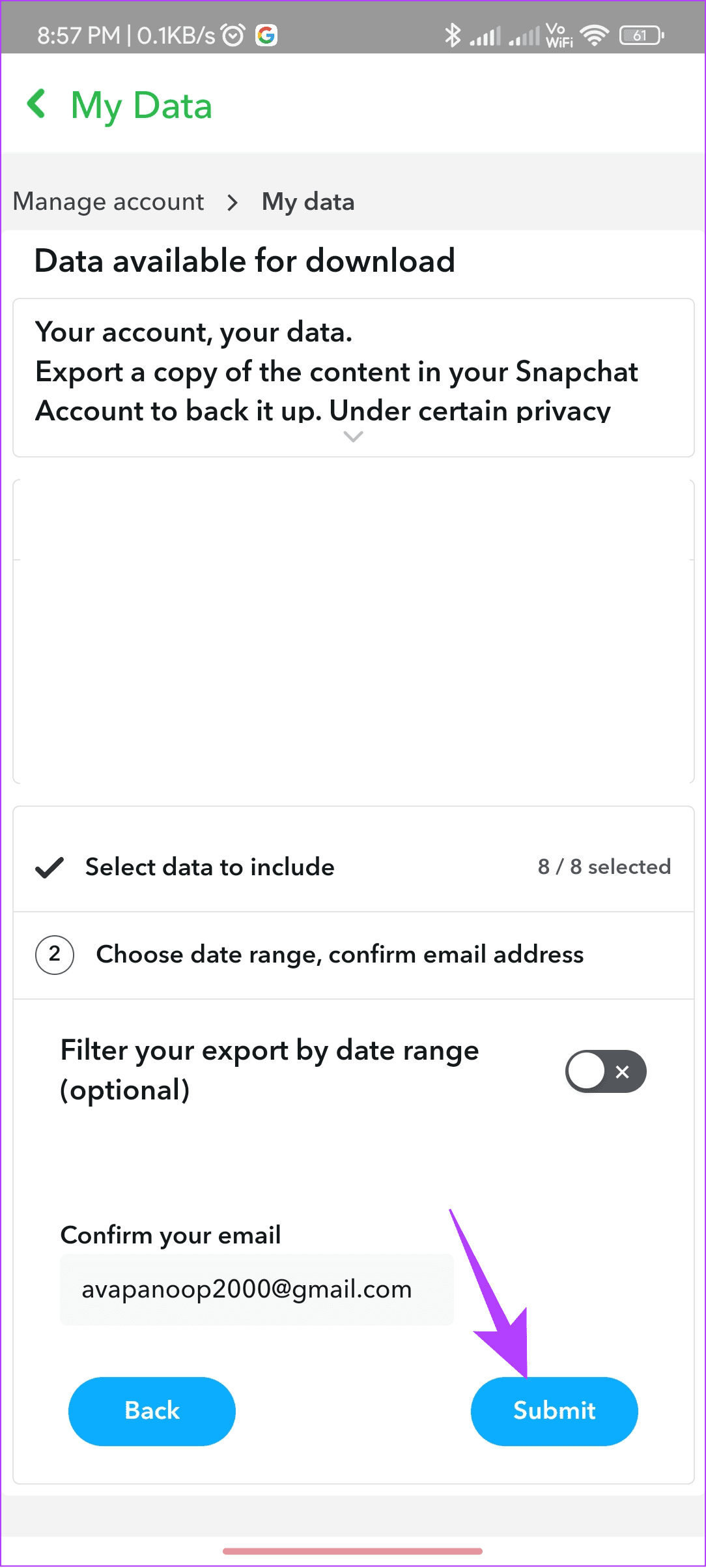
Wait until the export is completed. This might take hours or even days, and once the data is exported, you will receive an email at your associated email address.
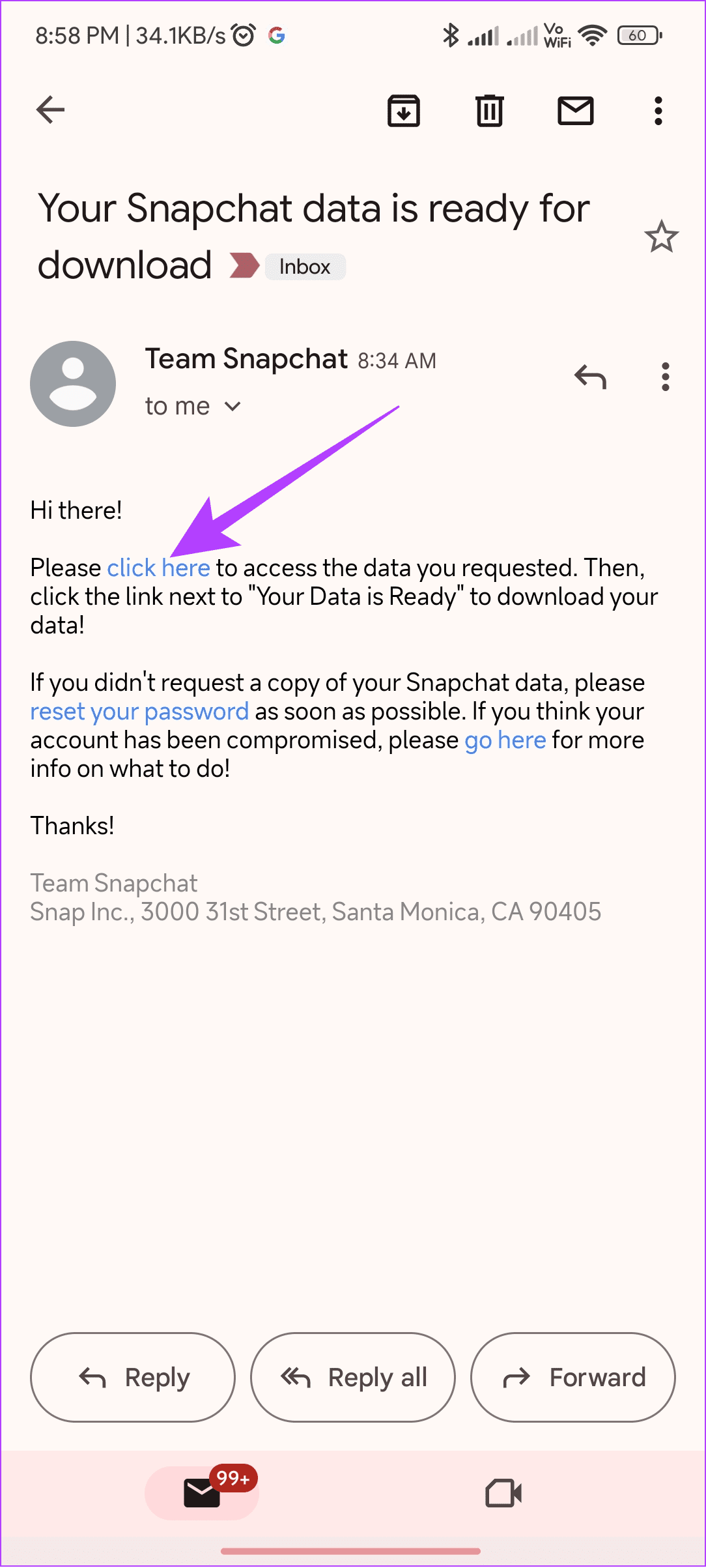
Step 6: Open the email and use the click here button. This will launch Snapchat on the web. Enter your credentials.
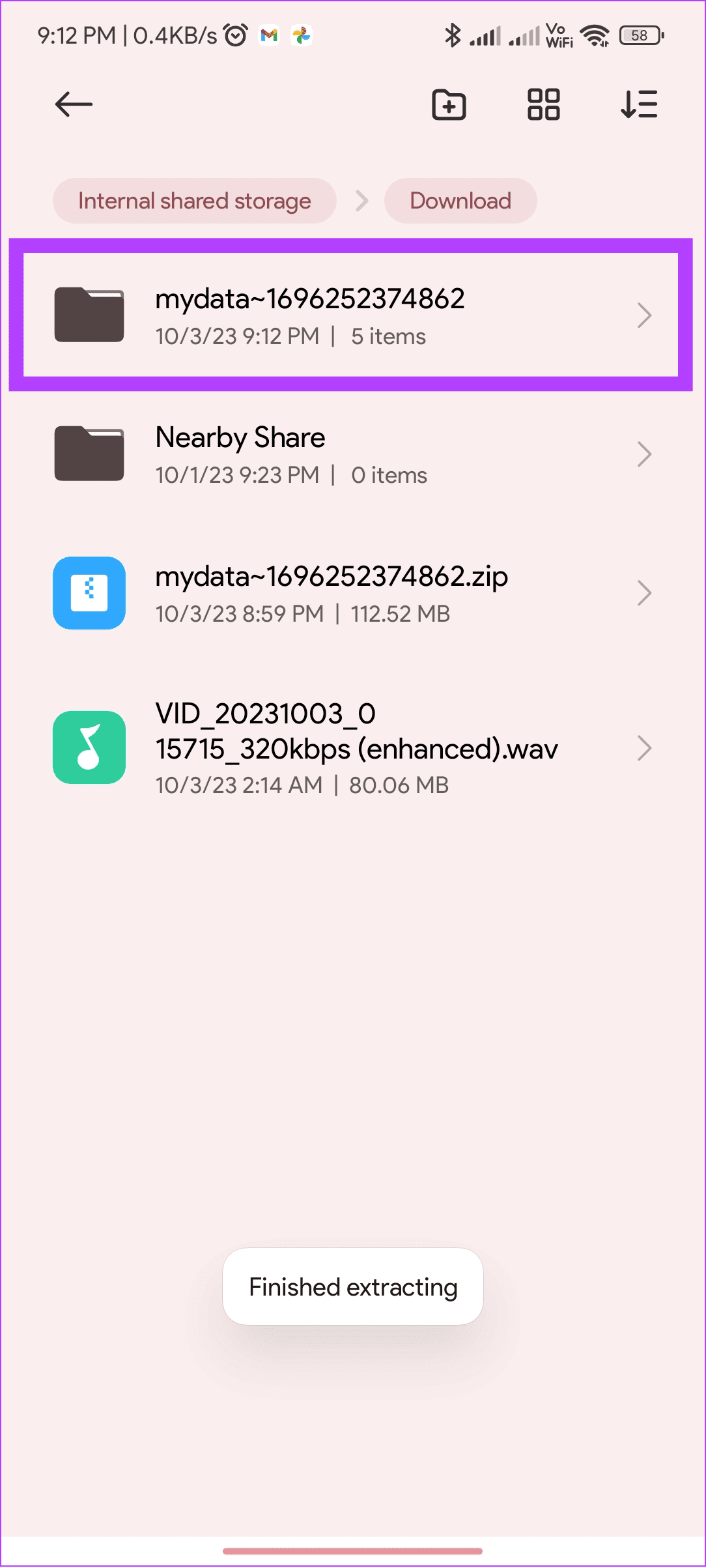
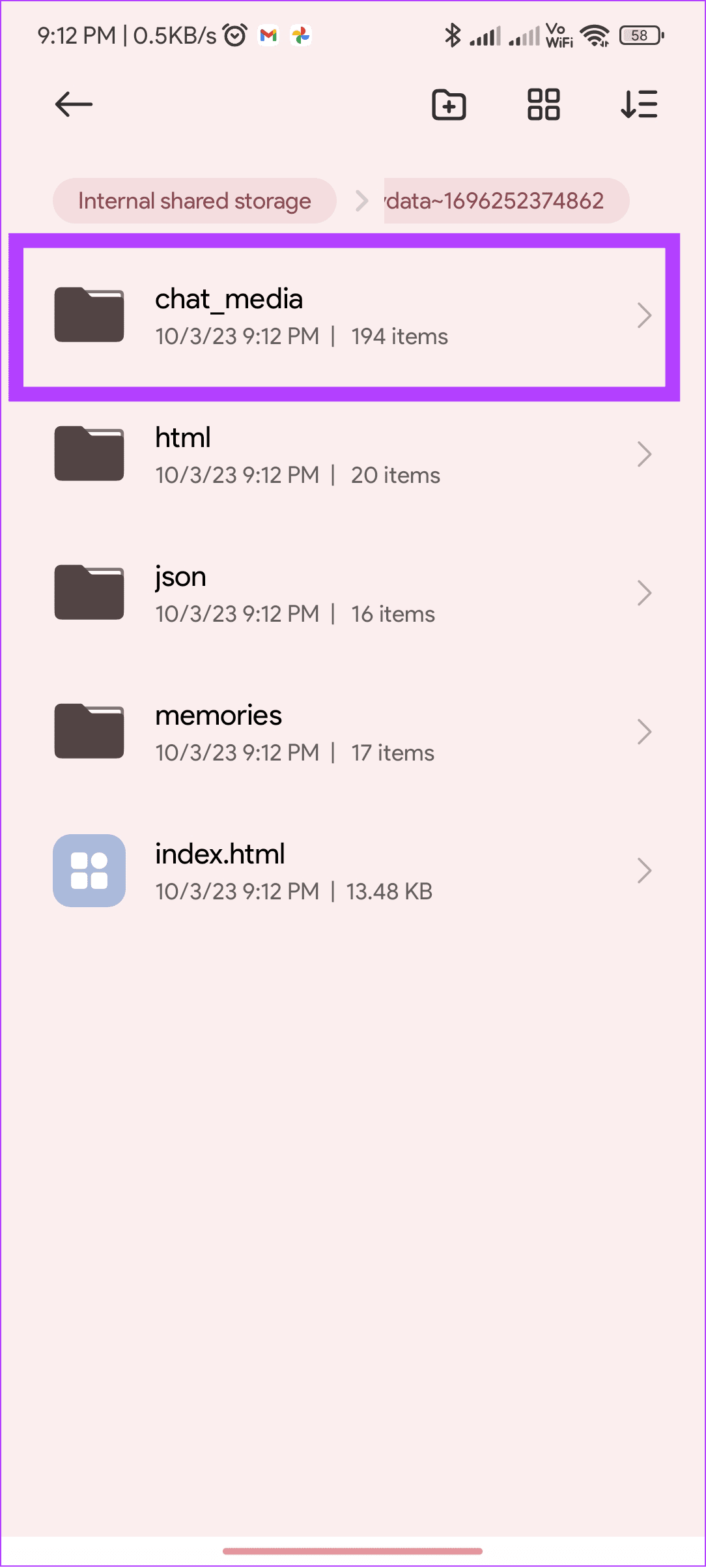
Step 7: Download the data and open the ZIP file with any ZIP opener or file manager. Once extracted, open the folder and find the chat_media or memories folders.
Method 3: Get Deleted Snaps Back Using the Photos App
If you have saved any Snaps to your device and deleted them later, check the Trash or Recently Deleted folder on the gallery app.
On Android
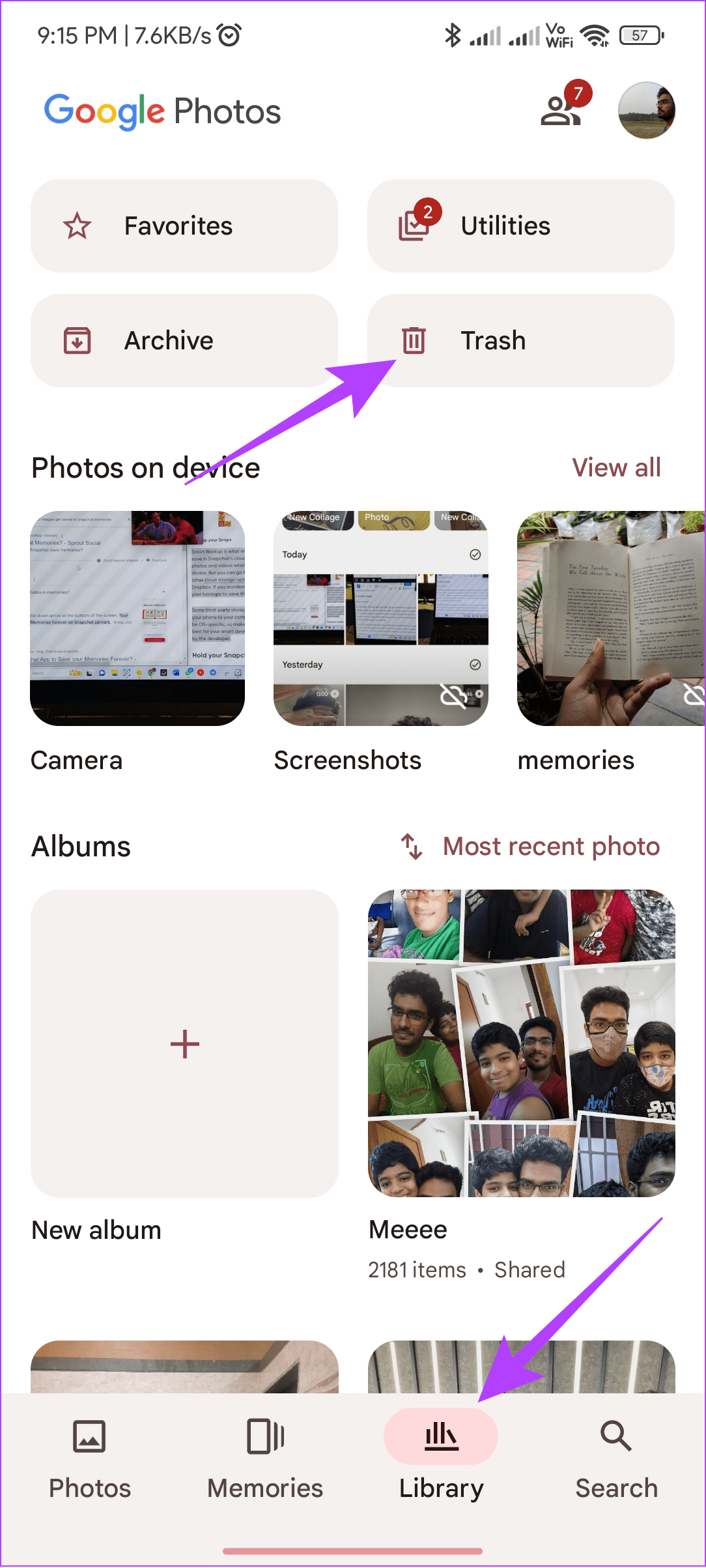
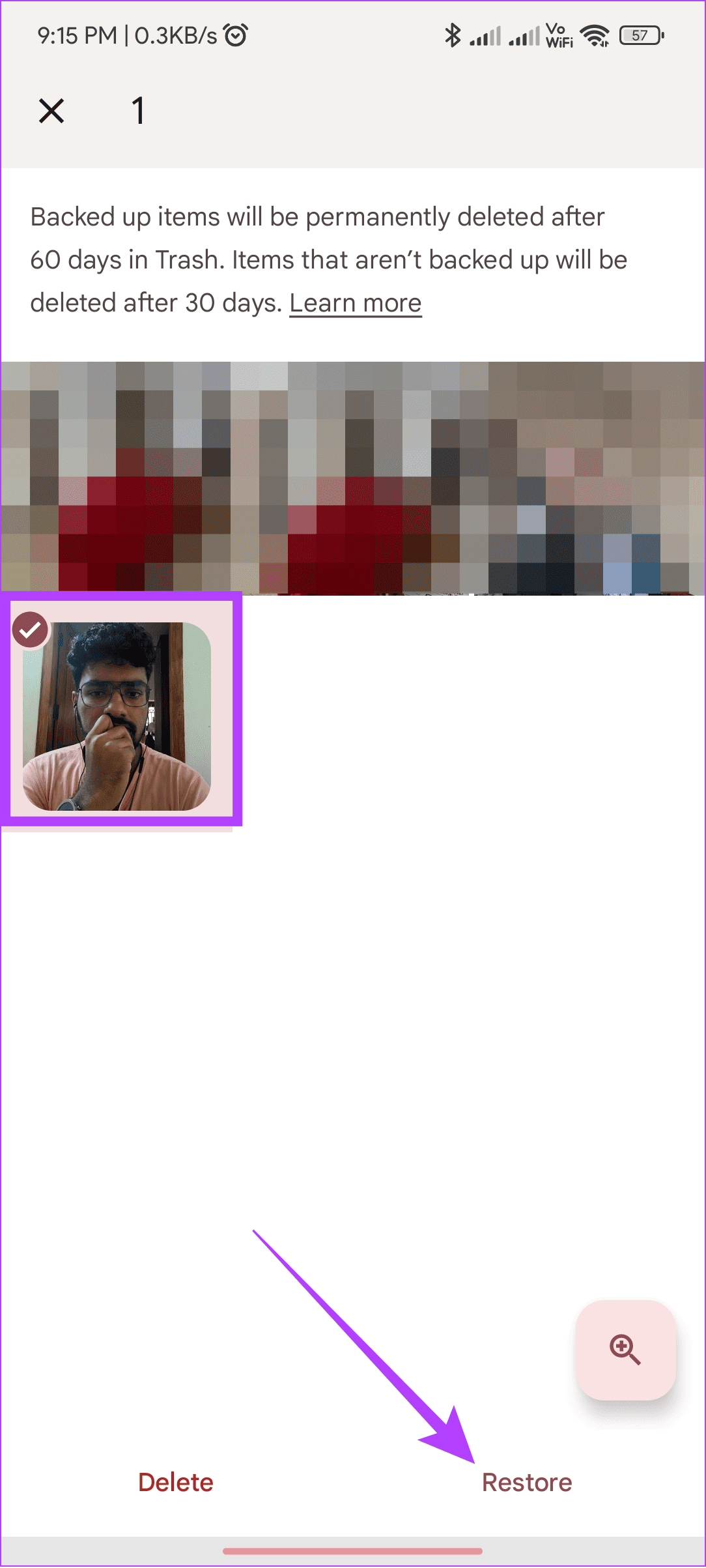
Step 1: Open the Google Photos app and tap Library. Choose Trash.
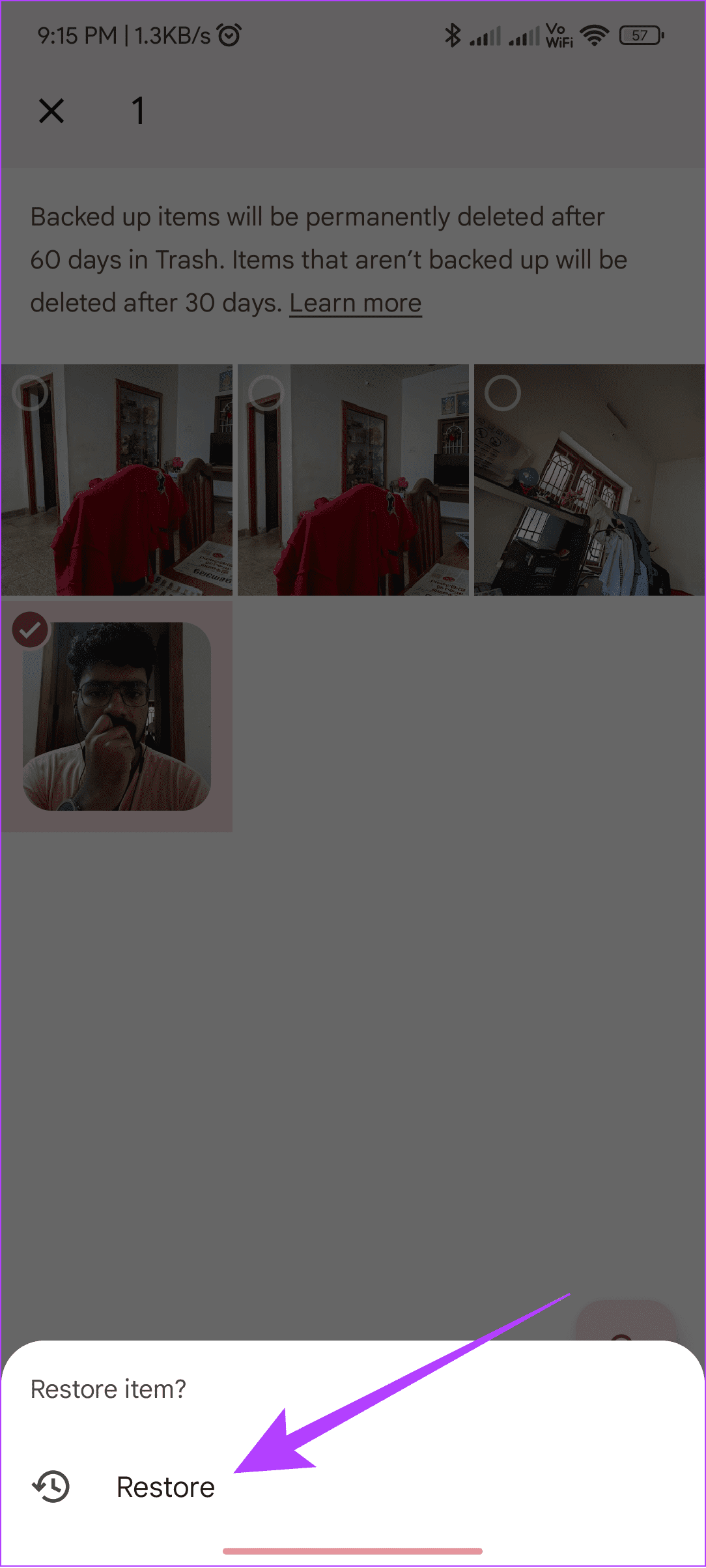
Step 2: Select the images you want to recover and choose Restore.
On iPhone
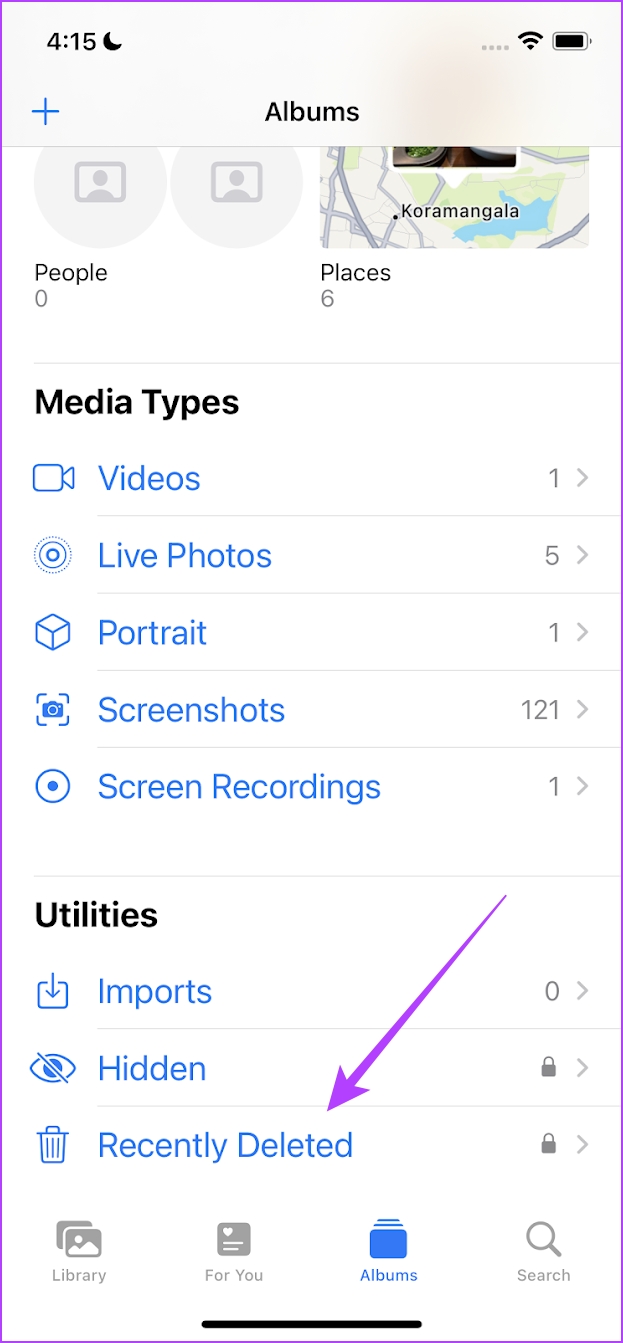
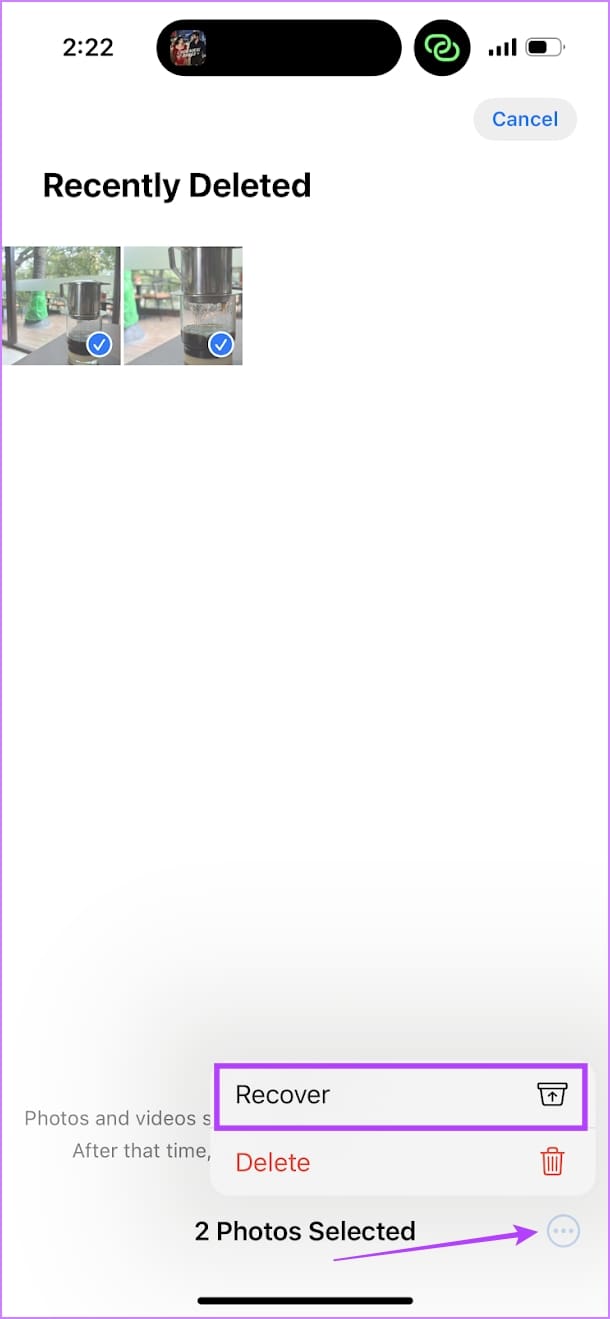
Open the Photos app > scroll down and select the Recently Deleted album > select the deleted images you want to recover.
Also Read: How to fix Snapchat won’t let me export Snaps
Was this helpful?
Last updated on 09 July, 2024
Read Next
 How to Recover Deleted Instagram Posts, Stories, Reels, and IGTV Videos
To save people from losing their Instagram data when their account gets hacked, Instagram launched the Recently Deleted feature.
How to Recover Deleted Instagram Posts, Stories, Reels, and IGTV Videos
To save people from losing their Instagram data when their account gets hacked, Instagram launched the Recently Deleted feature.
 How to Recover Deleted Passwords in Google Chrome
Recover Deleted Passwords in Google Chrome Step 1: Launch Google Chrome on the computer you have previously logged into your Google account.
How to Recover Deleted Passwords in Google Chrome
Recover Deleted Passwords in Google Chrome Step 1: Launch Google Chrome on the computer you have previously logged into your Google account.
 How to Recover a Deleted Item or Folder in Outlook
 Desktop If you have not cleared it from your deleted items or trash folder, you can recover it.
How to Recover a Deleted Item or Folder in Outlook
How to Recover a Deleted Item or Folder in Outlook Desktop If you have not cleared it from your deleted items or trash folder, you can recover it.
 How to Recover Deleted Apps and Games on Android
Method 1: Using Play Store Mobile The most common way to see your history of deleted apps is by using your smartphone.
How to Recover Deleted Apps and Games on Android
Method 1: Using Play Store Mobile The most common way to see your history of deleted apps is by using your smartphone.
 6 Ways to Recover Deleted Sticky Notes in Windows 10
Microsoft improved Sticky Notes with Windows 10 while retaining the simplicity of taking notes that came with the classic version.
6 Ways to Recover Deleted Sticky Notes in Windows 10
Microsoft improved Sticky Notes with Windows 10 while retaining the simplicity of taking notes that came with the classic version.
 7 Methods to Find and Recover Deleted Videos on iPhone
A video can be an excellent way to relive a memory.
7 Methods to Find and Recover Deleted Videos on iPhone
A video can be an excellent way to relive a memory.
 How to Recover Deleted Favorites in Microsoft Edge
Method 1.
How to Recover Deleted Favorites in Microsoft Edge
Method 1.
 3 Ways to Fix Snapchat Not Loading Snaps
Try Basic Fixes Check if Snapchat is down: Issues with Snapchat's server can prevent the app from loading or sending snaps.
3 Ways to Fix Snapchat Not Loading Snaps
Try Basic Fixes Check if Snapchat is down: Issues with Snapchat's server can prevent the app from loading or sending snaps.
The article above may contain affiliate links which help support Guiding Tech. The content remains unbiased and authentic and will never affect our editorial integrity.