

Unexpected Windows updates can be frustrating if they interrupt your productivity. While there are patch updates that occur in the background with no need for a restart, Windows usually releases substantial cumulative updates at least once per month. These require a system restart to install correctly.
Is It Safe to Delay Updates and Restarts?
It’s worth considering that updates requiring a system restart are often released to fix security breaches. Delaying them could mean compromising your computer, so it’s best to perform them as close to the time of release as possible.
How to Manage Updates by Adjusting the Active Hours
The easiest and most common way to avoid unexpected updates and restarts is by specifying the active hours during which you want to use your PC. Doing this will mean all updates take place during downtime, avoiding those interruptions to your workflow.
Step 1. Open “Settings” (you can press the Windows key + I).
Step 2. Go to “Update & Security.”
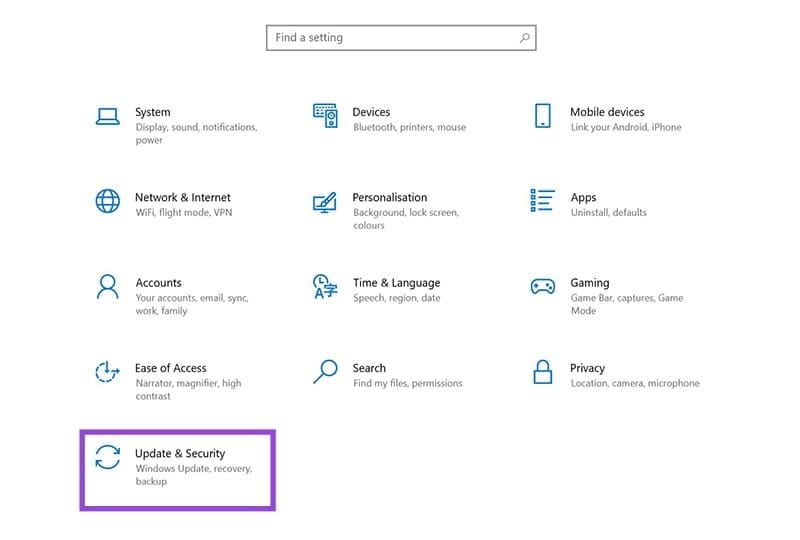
Step 3. Select “Windows Update” on the left.

Step 4. Click ”Change Active Hours.”

Step 5. Set the specified start and finish times when you usually use your PC.
Step 6. Click “Save.”
All updates will now happen outside your usage times.
How to Schedule the Restart Time of a Pending Update
If there is a pending update, you will see a section for it on the right side of the Windows Update pane. From here, you can manually schedule the restart time for when you know you won’t be using the computer.
Step 1. Click on “Schedule the Restart.”
Step 2. Toggle the “Schedule a Time” option to “On.”
Step 3. Choose a day and time for the restart.
How to Set All Restarts to Manual Using the Registry Editor (Advanced)
If you are confident with editing the registry, you can use this method. You should proceed with caution, however, as incorrect changes can cause system instability, errors, or crashes. This approach is only recommended if the previous two options are insufficient for your needs.
Step 1. Press Windows + R, type regedit, and press Enter.
Step 2. Navigate to the following:
HKEY\LOCAL \_SOFTWARE\Policies\Microsoft\Windows\WindowsUpdate\AU


Step 3. Right-click “AU” and select “NEW – DWORD (32-bit) Value.”

Step 4. Name the new value “NoAutoRebootWithLoggedOnUsers.”
Step 5. Double-click the new value and set “Value data” to 1.

Step 6. Click “OK” to close the Registry Editor. This new registry setting will tell Windows to not automatically restart whenever any user is logged into the system. You will still get a notification, but the restart will only happen when you manually initiate it.
Was this helpful?
Last updated on 13 October, 2025
Read Next
 Top 4 Fixes for Windows 10 PC Automatically Restarting After Shutdown
Power-related failures on Windows PC come in different forms.
Top 4 Fixes for Windows 10 PC Automatically Restarting After Shutdown
Power-related failures on Windows PC come in different forms.
 5 Ways to Fix Windows 11 Stuck on Restarting Screen
Try Basic Fixes Perform a force shutdown: While your Windows PC is stuck on restarting, press and hold the Windows key + X + power button until it turns off
5 Ways to Fix Windows 11 Stuck on Restarting Screen
Try Basic Fixes Perform a force shutdown: While your Windows PC is stuck on restarting, press and hold the Windows key + X + power button until it turns off
 How to Enter BIOS on Windows 10 and 11 PC Without Restarting
What Is BIOS and How Does It Work?
How to Enter BIOS on Windows 10 and 11 PC Without Restarting
What Is BIOS and How Does It Work?
 Windows 11 Installation Keeps Restarting After Reboot
If your Windows 11 installation keeps restarting with each mandatory reboot, cycling back to the setup screen instead of progressing to the desktop, you’re not alone.
Windows 11 Installation Keeps Restarting After Reboot
If your Windows 11 installation keeps restarting with each mandatory reboot, cycling back to the setup screen instead of progressing to the desktop, you’re not alone.
 How to Prevent Battery Drain When Windows Laptop Lid Is Closed
Common Fixes Unplug external devices: Disconnect all plugged-in devices (e.g., USB devices, external hard drives, etc.) to prevent them from waking up the laptop when the lid is closed.
How to Prevent Battery Drain When Windows Laptop Lid Is Closed
Common Fixes Unplug external devices: Disconnect all plugged-in devices (e.g., USB devices, external hard drives, etc.) to prevent them from waking up the laptop when the lid is closed.
 3 Ways to Prevent Users From Installing New Software on Windows 11
Method 1: Turn Off Windows Installer via Group Policy The Group Policy Editor on Windows lets you make various administrative-level changes.
3 Ways to Prevent Users From Installing New Software on Windows 11
Method 1: Turn Off Windows Installer via Group Policy The Group Policy Editor on Windows lets you make various administrative-level changes.
 How to Prevent Users From Running Certain Programs on Windows 11
Method 1: Prevent Users From Running Certain Programs via the Group Policy Editor The Local Group Policy Editor on Windows makes it easy to apply system-wide changes on a computer.
How to Prevent Users From Running Certain Programs on Windows 11
Method 1: Prevent Users From Running Certain Programs via the Group Policy Editor The Local Group Policy Editor on Windows makes it easy to apply system-wide changes on a computer.
 How to Prevent Windows Defender From Removing Files
Windows Defender is Microsoft’s built-in way of keeping your computer safe from viruses and malware.
How to Prevent Windows Defender From Removing Files
Windows Defender is Microsoft’s built-in way of keeping your computer safe from viruses and malware.
The article above may contain affiliate links which help support Guiding Tech. The content remains unbiased and authentic and will never affect our editorial integrity.

