What Is Cross-Site Tracking on iPhone?
Browser trackers are web page tags that collect information about your online habits and preferences to understand your behavior. Various websites contain trackers that can follow you around the internet to build a profile for advertisements. That’s how ad services can push relevant ads to your devices every time.
What’s worse are third-party trackers. They are placed by websites that you have not visited in the first place. They usually originate through ad networks, for which you have not provided consent to share information. But there’s a way to stop them.
How to Turn Off Cross-Site Tracking on iPhone
Step 1: Open the Settings app > go to Safari > toggle on Prevent Cross-Site Tracking under Privacy & Security.
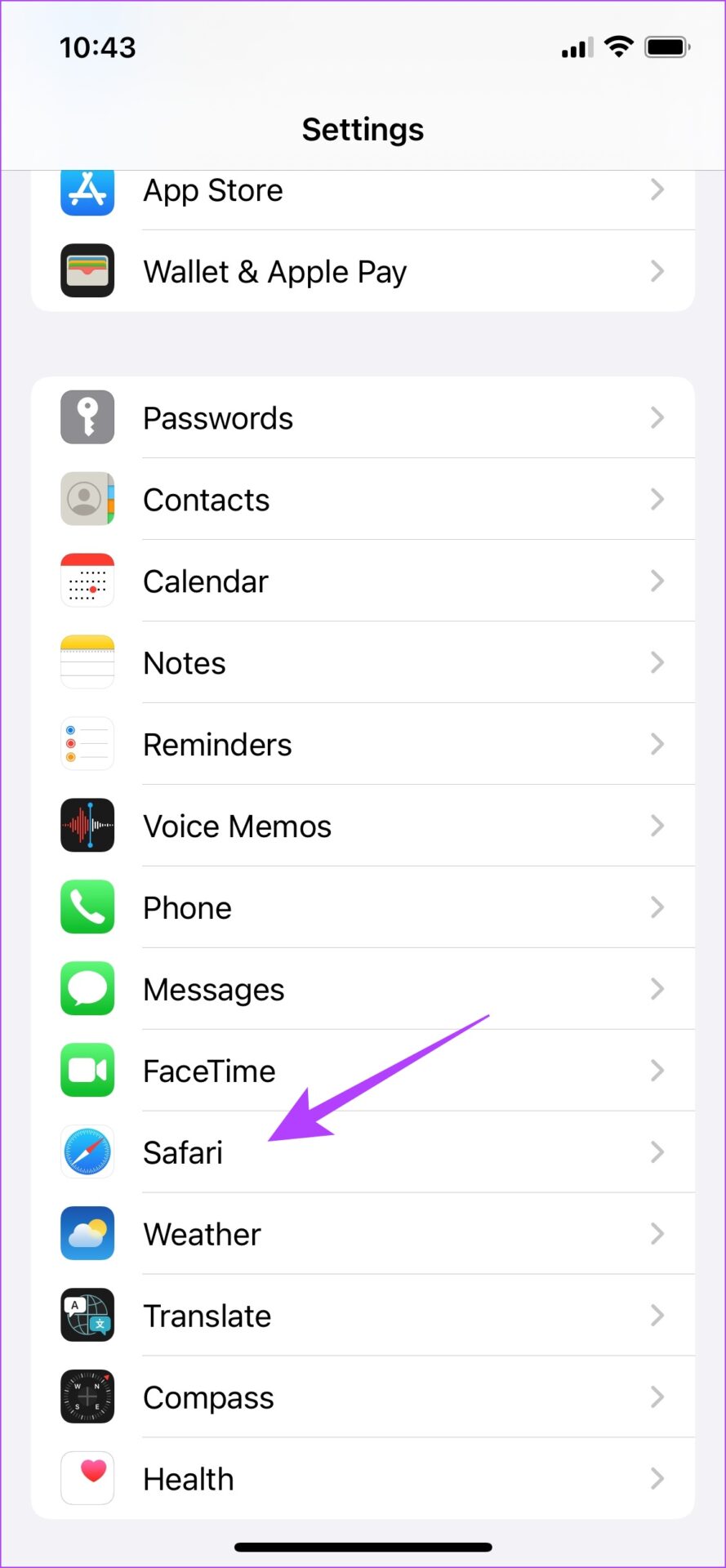

Step 2: Additionally, select the Hide IP Address option. Now, choose From Trackers.


Also Read: How to refresh webpages in Safari
Other Privacy Options for Safe Browsing on iPhone
While enabling Prevent Cross-Site Tracking protects you from trackers, other settings can further extend your privacy and help you browse safely and privately in Safari.
As you might have noticed, when turning on cross-site protection, there are other privacy settings below it that we recommend utilizing. Here’s what each option means and why you should enable it.
- Fraudulent Website Warning: This feature provides a flag and warns you if you are trying to access a site with malicious content and elements.
- Privacy Preserving Ad Measurement: Enabling this feature will allow advertisers to measure the effectiveness of their ads on websites without compromising the user’s privacy.
- Check for Apple Pay: We recommend turning off this option. Once turned off, websites you open in Safari cannot check if you are using Apple Pay.

Was this helpful?
Last updated on 27 August, 2024
Read Next
 2 Fixes if Chrome’s Request Desktop Site Is Not Working on iPhone
Basic Fixes Reload website: Try refreshing the webpage and use the Request Desktop Site option again.
2 Fixes if Chrome’s Request Desktop Site Is Not Working on iPhone
Basic Fixes Reload website: Try refreshing the webpage and use the Request Desktop Site option again.
 How to Prevent Battery Drain When Windows Laptop Lid Is Closed
Common Fixes Unplug external devices: Disconnect all plugged-in devices (e.g., USB devices, external hard drives, etc.) to prevent them from waking up the laptop when the lid is closed.
How to Prevent Battery Drain When Windows Laptop Lid Is Closed
Common Fixes Unplug external devices: Disconnect all plugged-in devices (e.g., USB devices, external hard drives, etc.) to prevent them from waking up the laptop when the lid is closed.
 3 Ways to Prevent Users From Installing New Software on Windows 11
Method 1: Turn Off Windows Installer via Group Policy The Group Policy Editor on Windows lets you make various administrative-level changes.
3 Ways to Prevent Users From Installing New Software on Windows 11
Method 1: Turn Off Windows Installer via Group Policy The Group Policy Editor on Windows lets you make various administrative-level changes.
 6 Ways to Prevent Your Android Device From Butt Dialing
Basic Ways: Set a password or PIN: Your device might unlock if you accidentally press the Power button.
6 Ways to Prevent Your Android Device From Butt Dialing
Basic Ways: Set a password or PIN: Your device might unlock if you accidentally press the Power button.
 How to Prevent Users From Running Certain Programs on Windows 11
Method 1: Prevent Users From Running Certain Programs via the Group Policy Editor The Local Group Policy Editor on Windows makes it easy to apply system-wide changes on a computer.
How to Prevent Users From Running Certain Programs on Windows 11
Method 1: Prevent Users From Running Certain Programs via the Group Policy Editor The Local Group Policy Editor on Windows makes it easy to apply system-wide changes on a computer.
 12 Ways to Prevent Apps from Controlling Brightness on Android
Isn’t it annoying when certain apps take over your phone's brightness settings and change the brightness level on their own?
12 Ways to Prevent Apps from Controlling Brightness on Android
Isn’t it annoying when certain apps take over your phone's brightness settings and change the brightness level on their own?
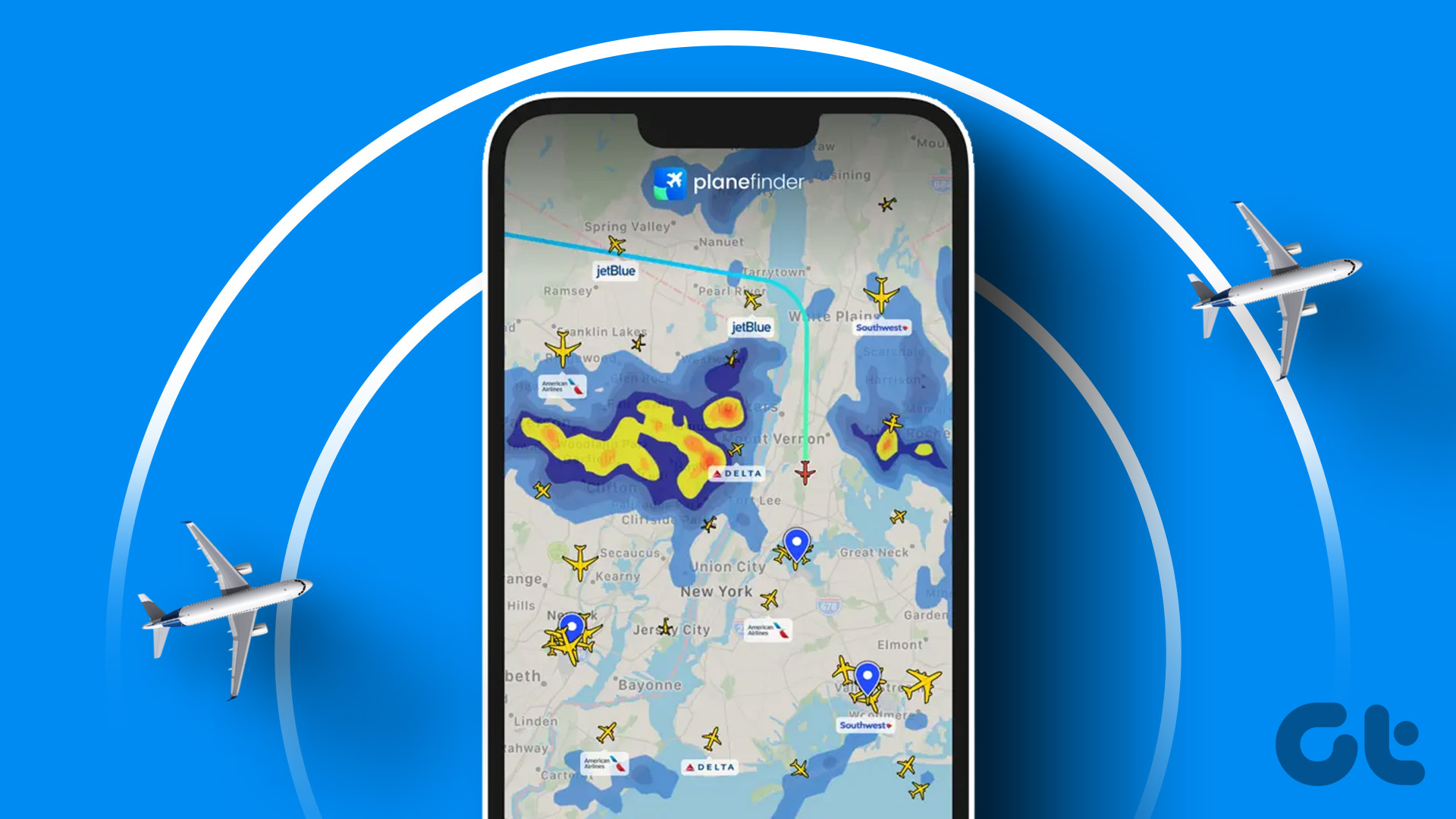 5 Best Flight Tracking Apps for iPhone and Android (Free)
1.
5 Best Flight Tracking Apps for iPhone and Android (Free)
1.
 3 Ways to Fix Health App Not Tracking Steps on iPhone
https://youtu.be/ihwcsTDrs54 Try Basic Fixes Remove conflicting apps: At times, running multiple health or fitness apps on your iPhone can result in conflicts and prevent the Health app from tracking your
3 Ways to Fix Health App Not Tracking Steps on iPhone
https://youtu.be/ihwcsTDrs54 Try Basic Fixes Remove conflicting apps: At times, running multiple health or fitness apps on your iPhone can result in conflicts and prevent the Health app from tracking your
The article above may contain affiliate links which help support Guiding Tech. The content remains unbiased and authentic and will never affect our editorial integrity.