Windows 11 brings a new level of cross-platform communication, making it easier than ever for Android users to connect to their PCs and to send and receive data. Today’s case is no exception, and we’ll be showing you can, using Windows 11, open Android storage wirelessly and view your Android’s storage without even connecting your device to your PC.
Before You Get Started
For the connection process to be as smooth and error-free as possible, you’ll need to ensure that all preparations are made. Before you get started with connecting your Android wirelessly to Windows 11, do the following:
- Ensure that your PC is fully updated to the latest version of Windows 11. The 24H2 update is a must.
- Your Android device must run Android 11 or later.
- Ensure both devices are connected to a stable Wi-Fi network.
- Both devices need to have Bluetooth turned on.
- You’ll need to have a working Microsoft Account.
- For full functionality, you’ll also need to be a member of the Windows Insider Program.
Use Windows 11 to Open Android Storage Wirelessly
The best way to connect your device wirelessly to your PC is through the Phone Link app. Here’s what to do:
Link to Windows App

Phone Link is an effective app introduced in Windows 10 and designed to sync your Android or iOS device with your PC. Needless to say, the functionality is much better with Android phones and tablets. To connect seamlessly with Phone Link and enjoy the best functionality, you’ll need to download the Link to Windows app from the Google Play Store onto your Android device.
Connect Your Android Device via Bluetooth
Once your app has downloaded and installed on your Android device, you’re ready to start connecting the two devices. Here’s what to do from the Windows side:
Step 1. Open Settings (Win + I) and navigate to “Bluetooth & devices” in the sidebar.
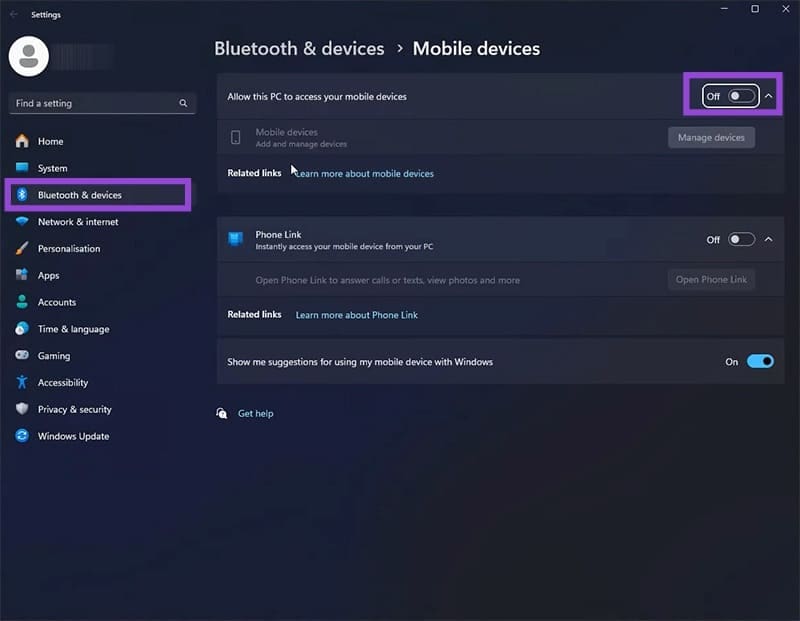
Step 2. Open “Mobile devices.”
Step 3. Drag the slider next to “Allow this PC to access your mobile devices” to “On.”
Step 4. You may be required to sign in to your Microsoft Account if you aren’t already.
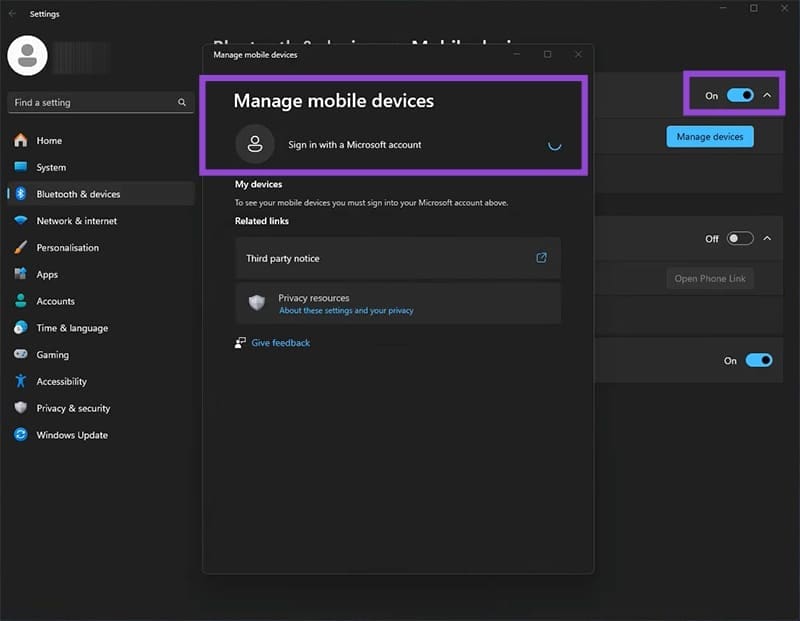
Step 5. You’ll then be sent a confirmation code to the device detected by your PC. Enter this into the box provided on your computer. Use your device to permit your PC to connect.
Step 6. Your PC and Android device will then be set up for interfacing through Phone Link. This may take a few seconds, but click the “Continue” button once the process is complete.

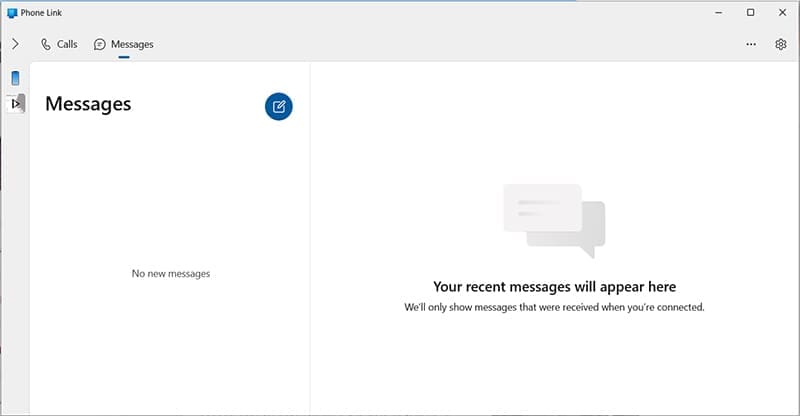
Your device will now be connected via Phone Link, where you’ll be able to access messages, make and receive calls, and view battery levels. This is a great feature, but you’ll also have access to your files, which is your goal.
Access Your Files in File Explorer
The actual access of your Android storage files is a relatively new feature and was introduced through the 24H2 update. Thanks to this, you can now access your tablet or phone’s files in Windows Explorer, as you would an external hard drive or OneDrive folder.
To be able to access this feature, you’ll need to have the aforementioned Link to Windows app installed on your machine. You’ll also need to be a member of the Windows Insider Program, as the feature is still quite new. This particular requirement may change in the future.
Was this helpful?
Last updated on 28 August, 2025
Read Next
 4 Ways to Transfer Files Between Mac and Android Wirelessly
1.
4 Ways to Transfer Files Between Mac and Android Wirelessly
1.
 How to Connect MacBook to TV – Wired and Wirelessly
Method 1: Connect MacBook to TV Using HDMI Cable Let us start by showing you how to use an HDMI cable to connect your MacBook to your TV.
How to Connect MacBook to TV – Wired and Wirelessly
Method 1: Connect MacBook to TV Using HDMI Cable Let us start by showing you how to use an HDMI cable to connect your MacBook to your TV.
 4 Ways to Fix Storage Space Running Out Alert on Android
Basic Fixes: Clear the recycle bin: Most Android apps have a dedicated recycle bin or trash folder that holds deleted items for up to 30 days if you change your
4 Ways to Fix Storage Space Running Out Alert on Android
Basic Fixes: Clear the recycle bin: Most Android apps have a dedicated recycle bin or trash folder that holds deleted items for up to 30 days if you change your
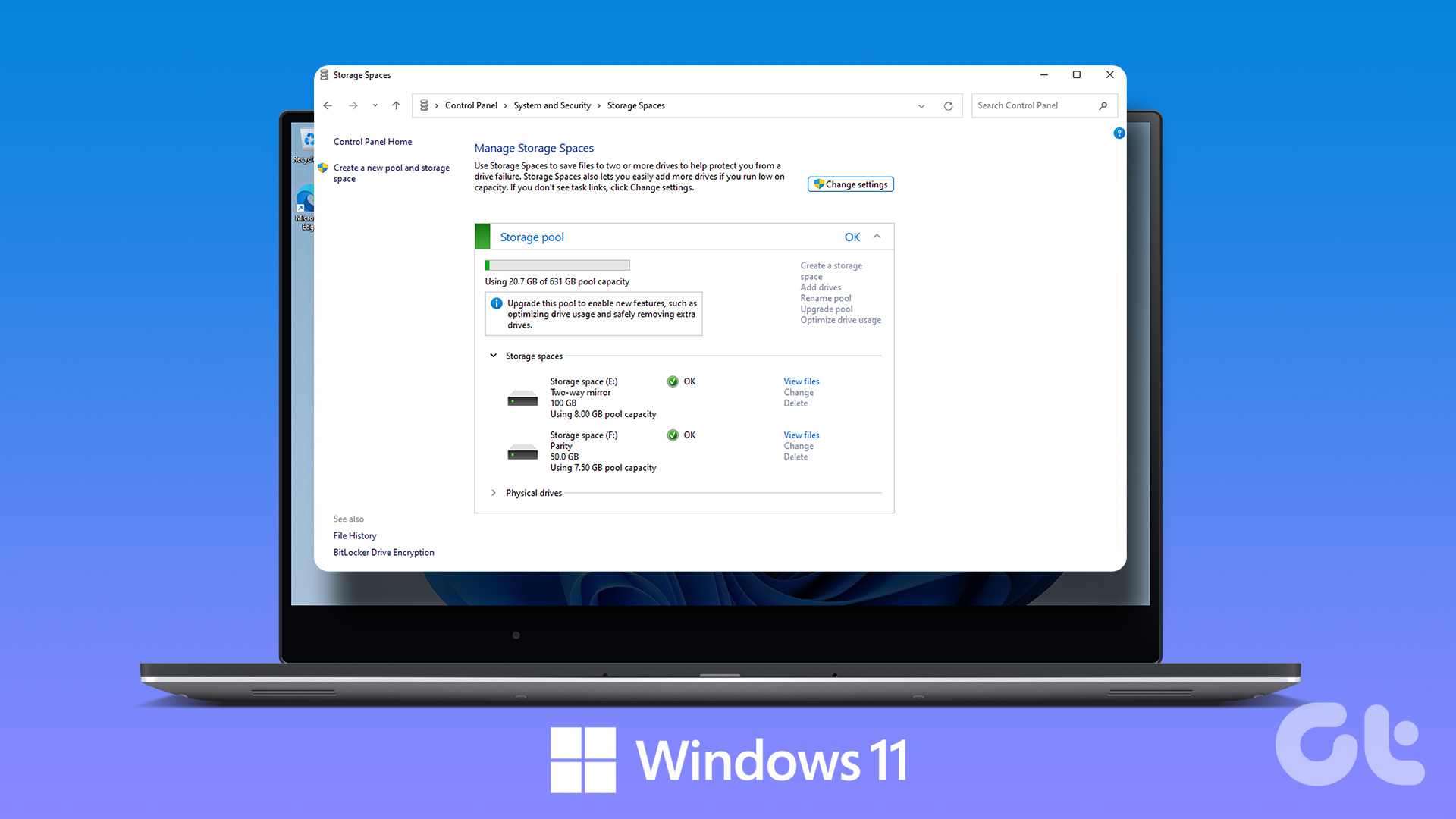 How to Create and Use the Storage Spaces Feature on Windows 11
What Are Storage Spaces in Windows 11 and Why Should You Create One Storage Spaces lets you create an array or group of two or more physical hard drives to create
How to Create and Use the Storage Spaces Feature on Windows 11
What Are Storage Spaces in Windows 11 and Why Should You Create One Storage Spaces lets you create an array or group of two or more physical hard drives to create
 6 Ways to Check Total Storage of Windows Laptop or PC
Fix 1: Using Task Manager One of the easiest ways to know your Windows laptop's total storage is from Task Manager.
6 Ways to Check Total Storage of Windows Laptop or PC
Fix 1: Using Task Manager One of the easiest ways to know your Windows laptop's total storage is from Task Manager.
 11 Best Ways to Free Up Storage on Samsung Phones and Tablets
Android phones come with two different types of storage spaces – internal and external.
11 Best Ways to Free Up Storage on Samsung Phones and Tablets
Android phones come with two different types of storage spaces – internal and external.
 A Complete Guide to OneDrive Storage and Avoiding Disk Full Error
Microsoft OneDrive, previously known as SkyDrive, is a complete cloud storage solution for Windows users.
A Complete Guide to OneDrive Storage and Avoiding Disk Full Error
Microsoft OneDrive, previously known as SkyDrive, is a complete cloud storage solution for Windows users.
 5 Best Ways to Clear Storage on MIUI for More Space
Over the years, Xiaomi did an excellent job of creating a skin for Android called MIUI.
5 Best Ways to Clear Storage on MIUI for More Space
Over the years, Xiaomi did an excellent job of creating a skin for Android called MIUI.
The article above may contain affiliate links which help support Guiding Tech. The content remains unbiased and authentic and will never affect our editorial integrity.