


Method 1. Open the Remote Desktop Connection Tool Using the Start Menu
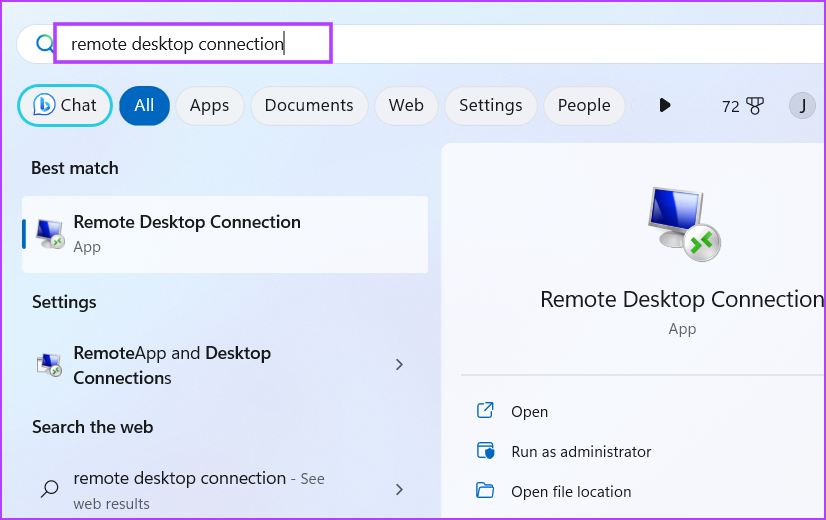
Step 1: Press the Windows key to launch the Start menu.
Step 2: Type remote desktop connection in the search bar. Click on the Open option from the search results to launch the tool.
Method 2. Open Remote Desktop Connection Tool Using Run Dialog Box
The Run dialog box can run shortcodes and open folder locations. So, all the programs located in the Windows folder can be called directly from the Run dialog box. Here’s how:
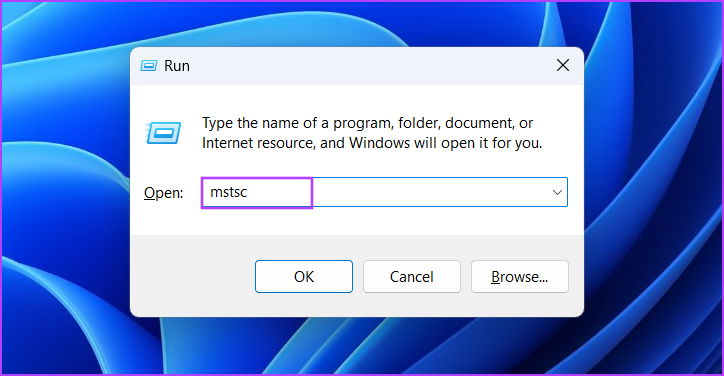
Step 1: Press the Windows + R keyboard shortcut to launch the Run dialog box.
Step 2: Type mstsc in the text input box and press Enter to launch the Remote Desktop Connection tool.
Method 3. Open Remote Desktop Connection Tool Using Pinned Shortcut
Repeatedly searching for a frequently required tool can be cumbersome. So, you can pin the Remote Desktop Connection tool’s shortcut to the Start menu and the Taskbar for easier access. Here’s how to do it:
Step 1: Press the Windows key to open the Start menu. Type remote desktop connection in the search box.
Step 2: Click on the Pin to Start option in the right-hand pane.

Step 3: The Remote Desktop Connection icon will appear in the Start menu. Right-click on it and click on the Pin to taskbar option.

Step 4: The Remote Desktop Connection tool’s icon will be pinned permanently on the Taskbar. You can click and drag the icon to adjust its position on the Taskbar.
Method 4. Open Remote Desktop Connection Tool Using File Explorer
Remote Desktop Tool resides in the System32 subfolder of the Windows folder in C: drive. You can use the File Explorer app to access the folder and launch the tool. Here’s how:
Step 1: Press the Windows + E keyboard shortcut to launch the File Explorer.
Step 2: Go to the address bar, type the following path and press Enter:
C:\Windows\System32
Step 3: Scroll down and locate the mstsc.exe file. You can also use the Search bar at the top to search for the file.
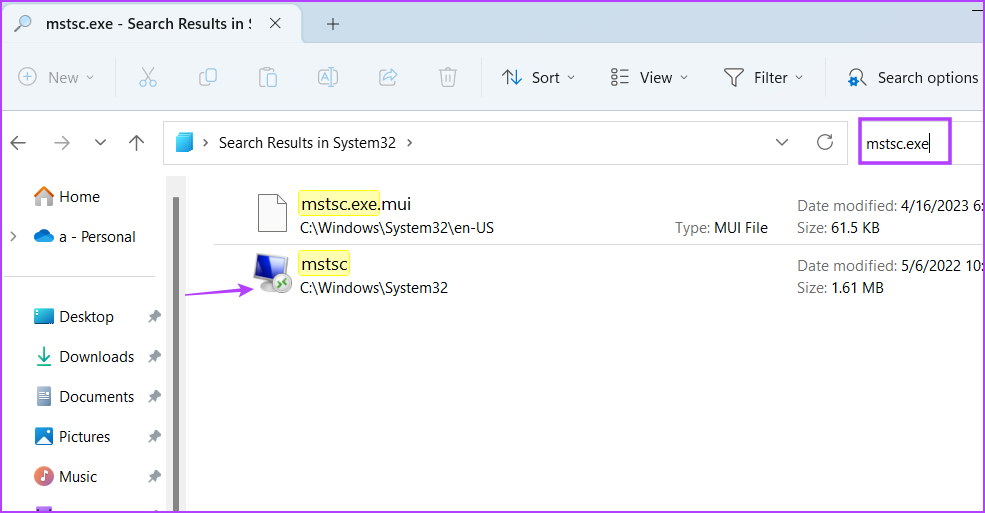
Step 4: Double-click on the executable file to launch the Remote Desktop Connection tool.
Step 5: Create a desktop shortcut directly from the File Explorer window. Right-click on the mstsc.exe file and click on Show more options.
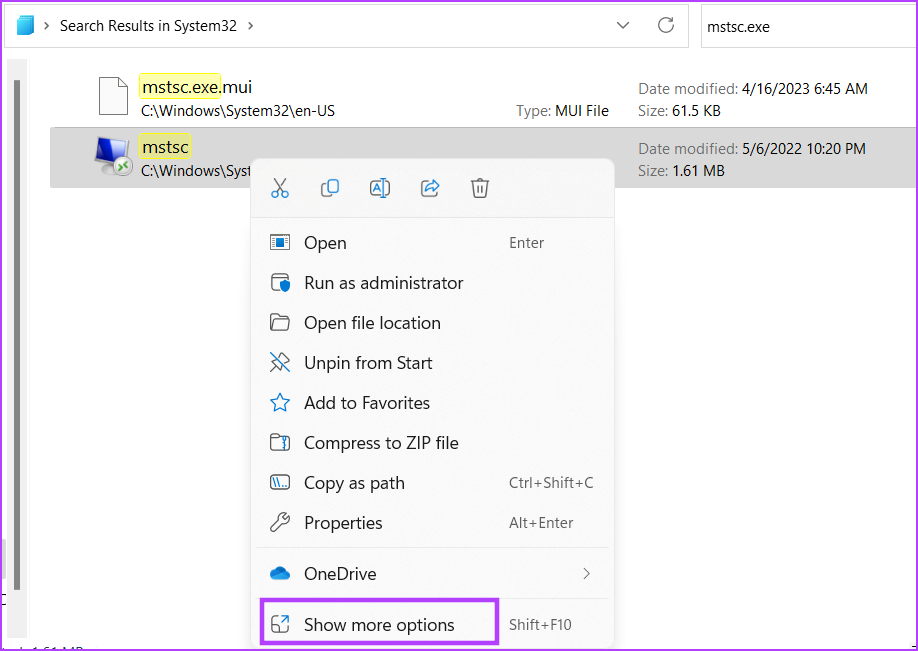
Step 6: Hover on the Send to option in the context menu. Click on the Desktop (create shortcut) option.

Step 7: A shortcut to the Remote Desktop Connection tool will appear on the desktop. Double-click it to launch it.
Method 5. Open Remote Desktop Connection Tool Using Task Manager
Task Manager exercises control over processes and services, but you can also use it to launch applications. Repeat the following steps to open the Remote Desktop Connection tool using Task Manager:
Step 1: Press the Ctrl + Shift + Esc keyboard shortcut simultaneously to open the Task Manager.
Step 2: The Processes tab will open by default. Go to the top-right area and click on the Run new task button.
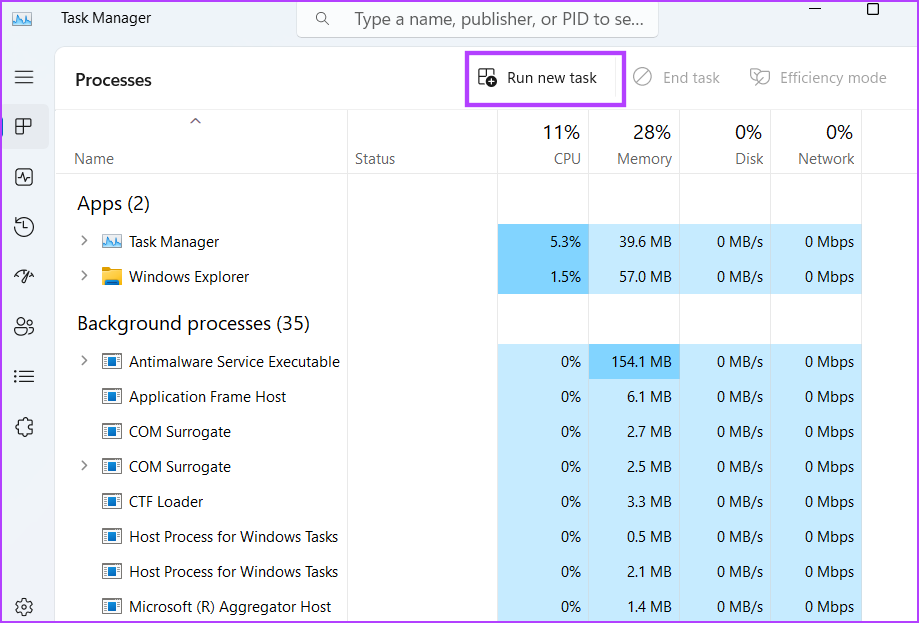
Step 3: Type mstsc.exe in the text input box. Click on the OK button to launch the tool.
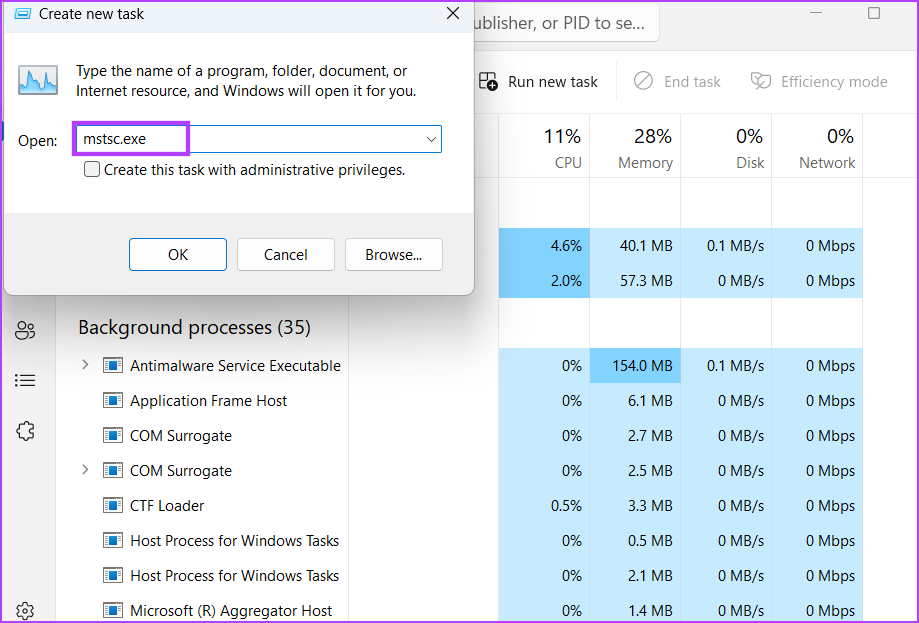
Step 4: Close the Task Manager.
Method 6. Open Remote Desktop Connection Tool Using Terminal App
Windows 11 sports a new Terminal app that can launch both PowerShell and Command Prompt within one app. So, you can open a new tab of either of these terminal tools and launch the Remote Desktop Connection tool. Here’s how:
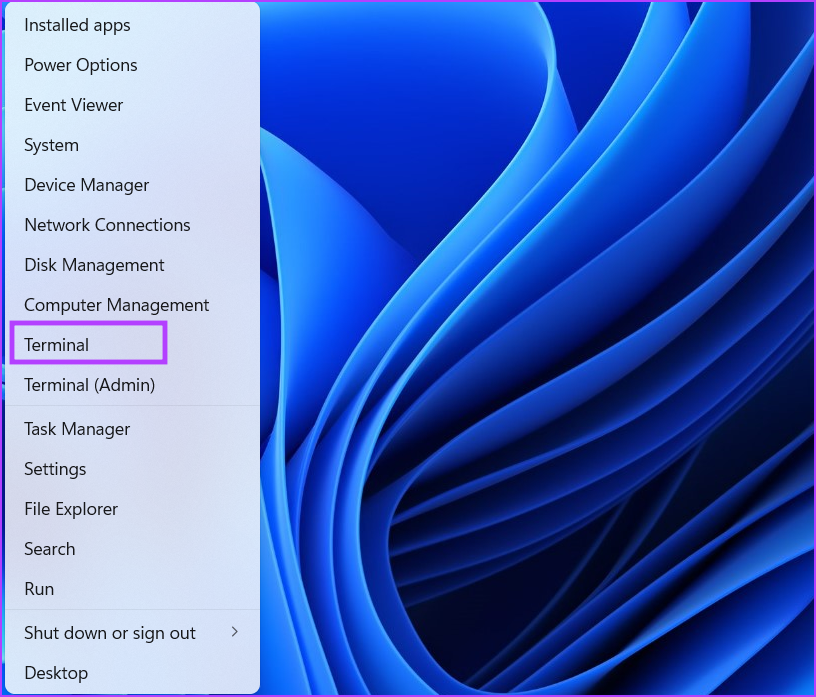
Step 1: Right-click the Windows button to open the Power User menu. Select the Terminal option.
Step 2: In the Terminal window, type the following command and press Enter:
Mstsc.exe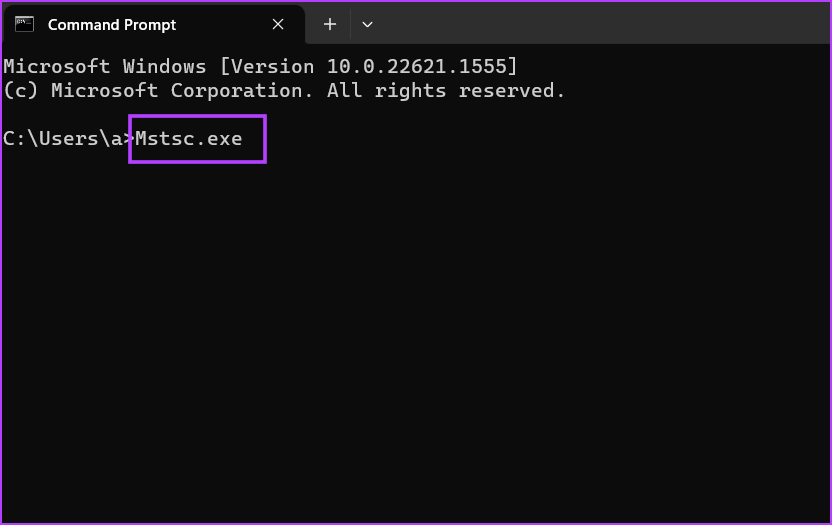
Step 3: The Remote Desktop Connection tool will launch. Close the Terminal app window.
Method 7. Open Remote Desktop Connection Tool Using a Keyboard Shortcut
If you need to open the Remote Desktop Connection tool on a whim, you can map a keyboard shortcut in Windows 11. By default, the tool has no shortcut, so you must do it manually. Here’s how:
Step 1: Press the Windows + D keyboard shortcut to switch to the Desktop.
Step 2: Right-click the newly created Remote Desktop Connection tool shortcut and select the Properties option.

Step 3: Click the Text box next to the Shortcut Key label. Press the Ctrl + Shift keyboard shortcut and type R. The combination to open the tool becomes the Ctrl + Shift + R keyboard shortcut.
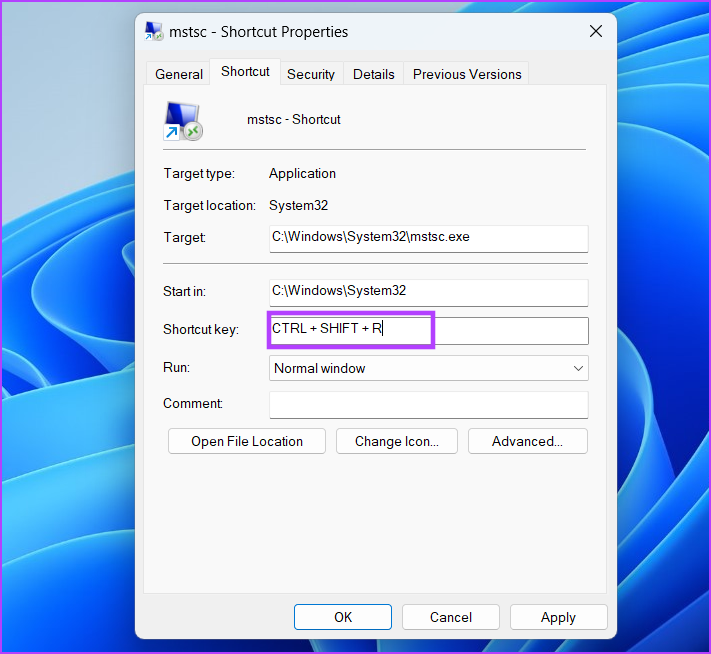
Step 4: Click the Apply button and then the OK button.
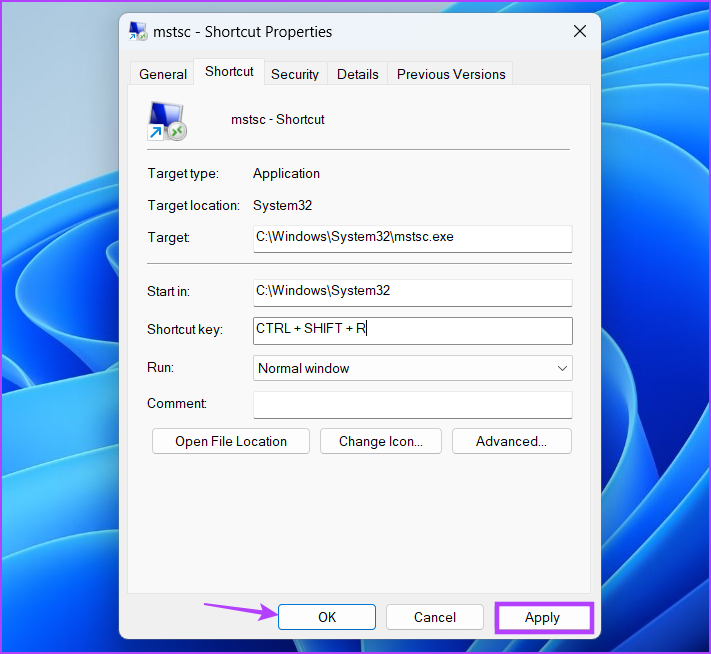
Step 5: Press the configured key combination to launch the tool.
Was this helpful?
Last updated on 08 August, 2024
Read Next
 5 Ways to Open the DirectX Diagnostic Tool on Windows 11
Method 1: Open the DirectX Diagnostic Tool With the Task Manager The Task Manager app on Windows 11 allows you to monitor and manage all running applications and processes.
5 Ways to Open the DirectX Diagnostic Tool on Windows 11
Method 1: Open the DirectX Diagnostic Tool With the Task Manager The Task Manager app on Windows 11 allows you to monitor and manage all running applications and processes.
 How to Set Up and Use Google Chrome Remote Desktop on Windows 11
How to Download and Set Up Chrome Remote Desktop To access your PC remotely, you'll need to download and set up the Chrome Remote Desktop extension on your PC first.
How to Set Up and Use Google Chrome Remote Desktop on Windows 11
How to Download and Set Up Chrome Remote Desktop To access your PC remotely, you'll need to download and set up the Chrome Remote Desktop extension on your PC first.
 4 Fixes if Chrome Remote Desktop Is Not Working on Windows 11
Fix 1: Disable PIN-Less Authentication Chrome Remote Desktop lets you pair your trusted devices with your computer.
4 Fixes if Chrome Remote Desktop Is Not Working on Windows 11
Fix 1: Disable PIN-Less Authentication Chrome Remote Desktop lets you pair your trusted devices with your computer.
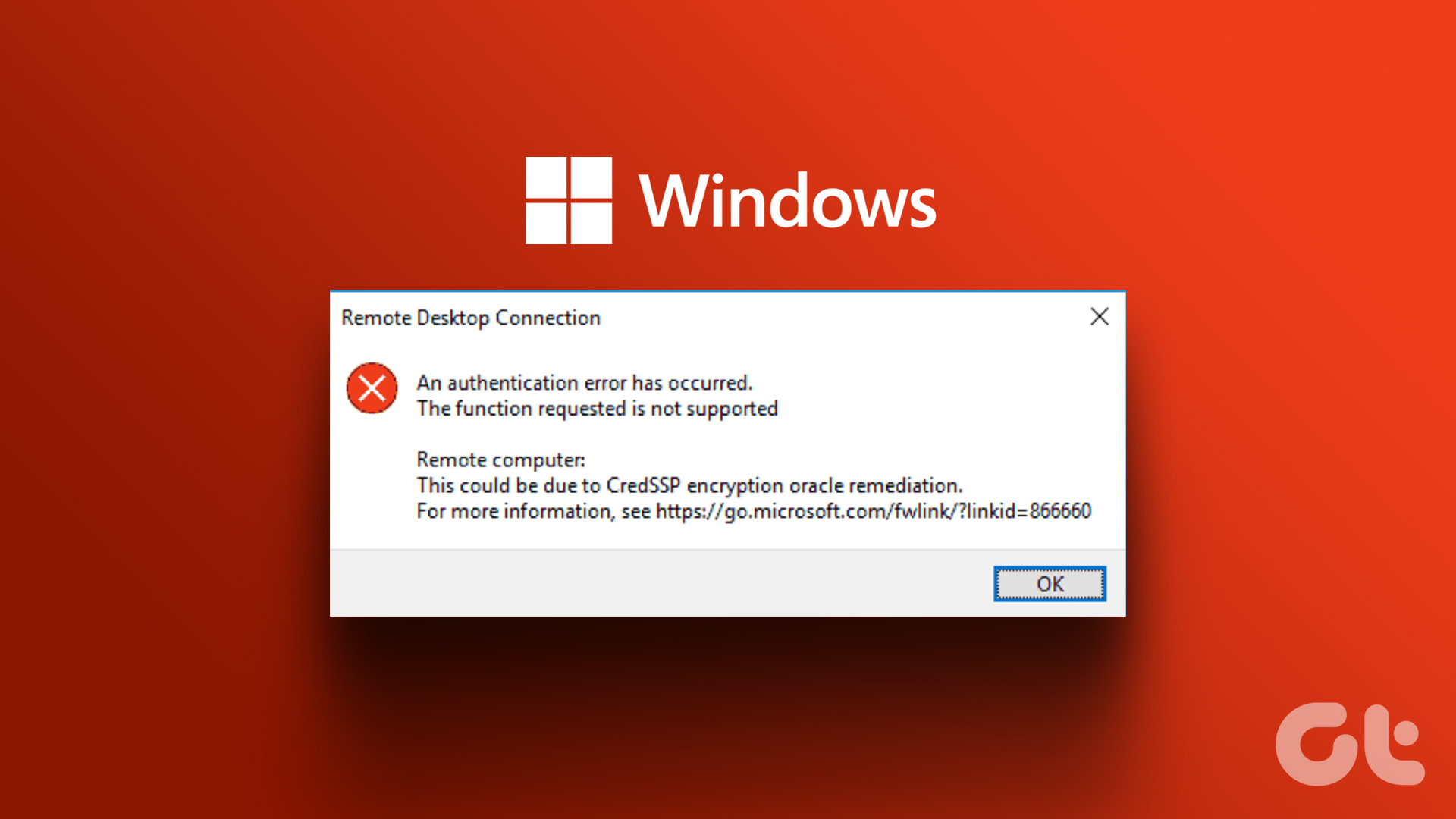 4 Fixes for Remote Desktop Authentication Error on Windows 11
Preliminary Fixes Check remote if the desktop is enabled: The Remote Desktop authentication error often occurs because your Windows 11 PC cannot establish a remote connection without the Remote Desktop
4 Fixes for Remote Desktop Authentication Error on Windows 11
Preliminary Fixes Check remote if the desktop is enabled: The Remote Desktop authentication error often occurs because your Windows 11 PC cannot establish a remote connection without the Remote Desktop
 5 Fixes for Remote Desktop Copy-Paste Not Working on Windows
Fix 1: Configure Remote Desktop Connection Settings A common reason you may be unable to copy and paste data during a Remote Desktop session is if you have previously disabled
5 Fixes for Remote Desktop Copy-Paste Not Working on Windows
Fix 1: Configure Remote Desktop Connection Settings A common reason you may be unable to copy and paste data during a Remote Desktop session is if you have previously disabled
 How to Ctrl + Alt + Del in Remote Desktop on Windows
Method 1: Use Ctrl + Alt + End on the Keyboard It's simple - you can use the Ctrl + Alt + End on your Windows Remote Desktop session instead
How to Ctrl + Alt + Del in Remote Desktop on Windows
Method 1: Use Ctrl + Alt + End on the Keyboard It's simple - you can use the Ctrl + Alt + End on your Windows Remote Desktop session instead
 5 Quick Ways to Open Services on Windows 11
Method 1: Using the Task Manager The Task Manager is used to monitor computer performance, background applications running, and system resource usage.
5 Quick Ways to Open Services on Windows 11
Method 1: Using the Task Manager The Task Manager is used to monitor computer performance, background applications running, and system resource usage.
 7 Quick Ways to Open Credential Manager in Windows 11
Are you looking for a password manager to save your login credentials securely?
7 Quick Ways to Open Credential Manager in Windows 11
Are you looking for a password manager to save your login credentials securely?
The article above may contain affiliate links which help support Guiding Tech. The content remains unbiased and authentic and will never affect our editorial integrity.
